
How to connect WiserNotify with PublishPress Cart (formerly Studiocart)
Updated Oct 29, 20262 min read
On this page · 4 sections
This guide will walk you through:
Capturing Sales Activities: Connect PublishPress Cart (formerly Studiocart) with WiserNotify using a webhook to fetch real-time sales data.
Note: Studiocart is now PublishPress Cart. These steps work for both.
Add Webhook Integration to Connect PublishPress Cart to pull the events Sales data
Step 1: Get the Webhook URL from WiserNotify
- Go to WiserNotify > PublishPress Cart Integration.
- Click on the Integrate button inside the Integration box.
- Enter Connection Name
- Click on the Create button.
- Click on the copy button.
Step 2: Configure Webhook in PublishPress Cart
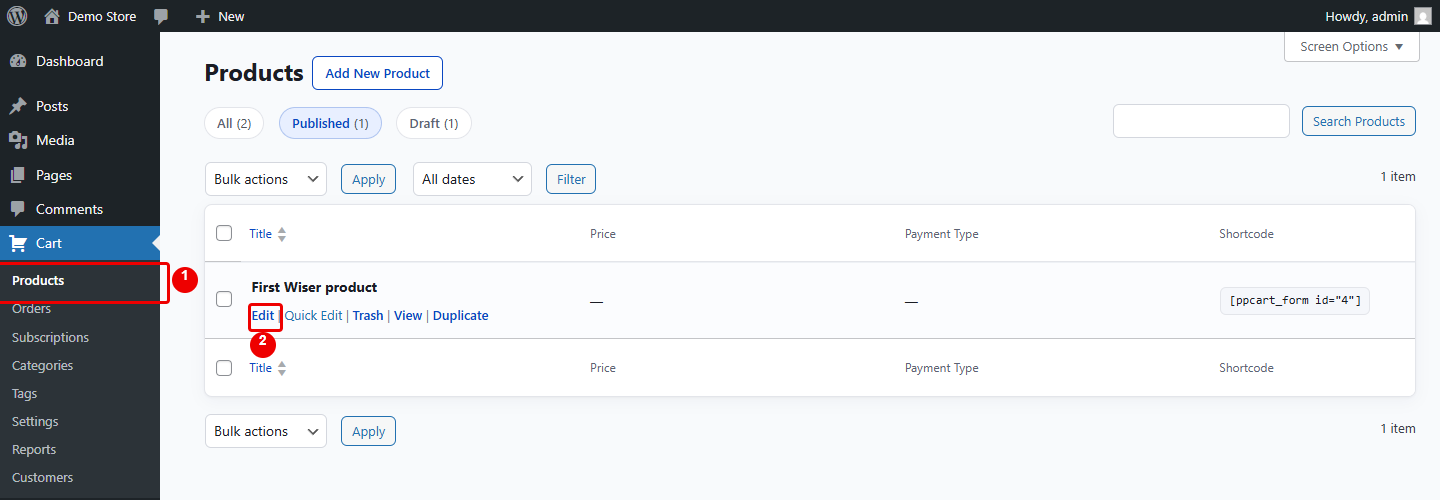
- Log in to WordPress and go to Cart >> Products, then edit your product.
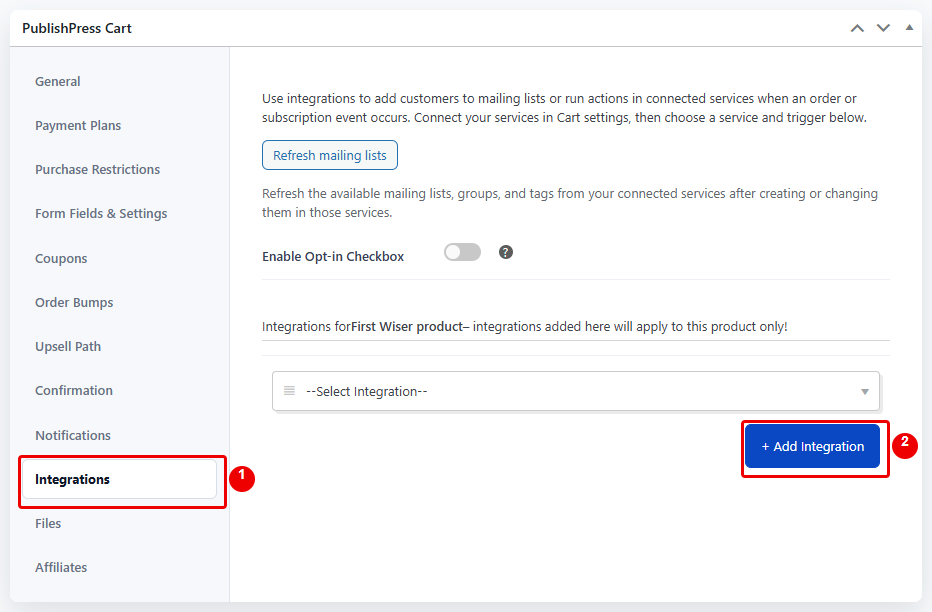
- Click on Integrations
- Click on + Add Integration
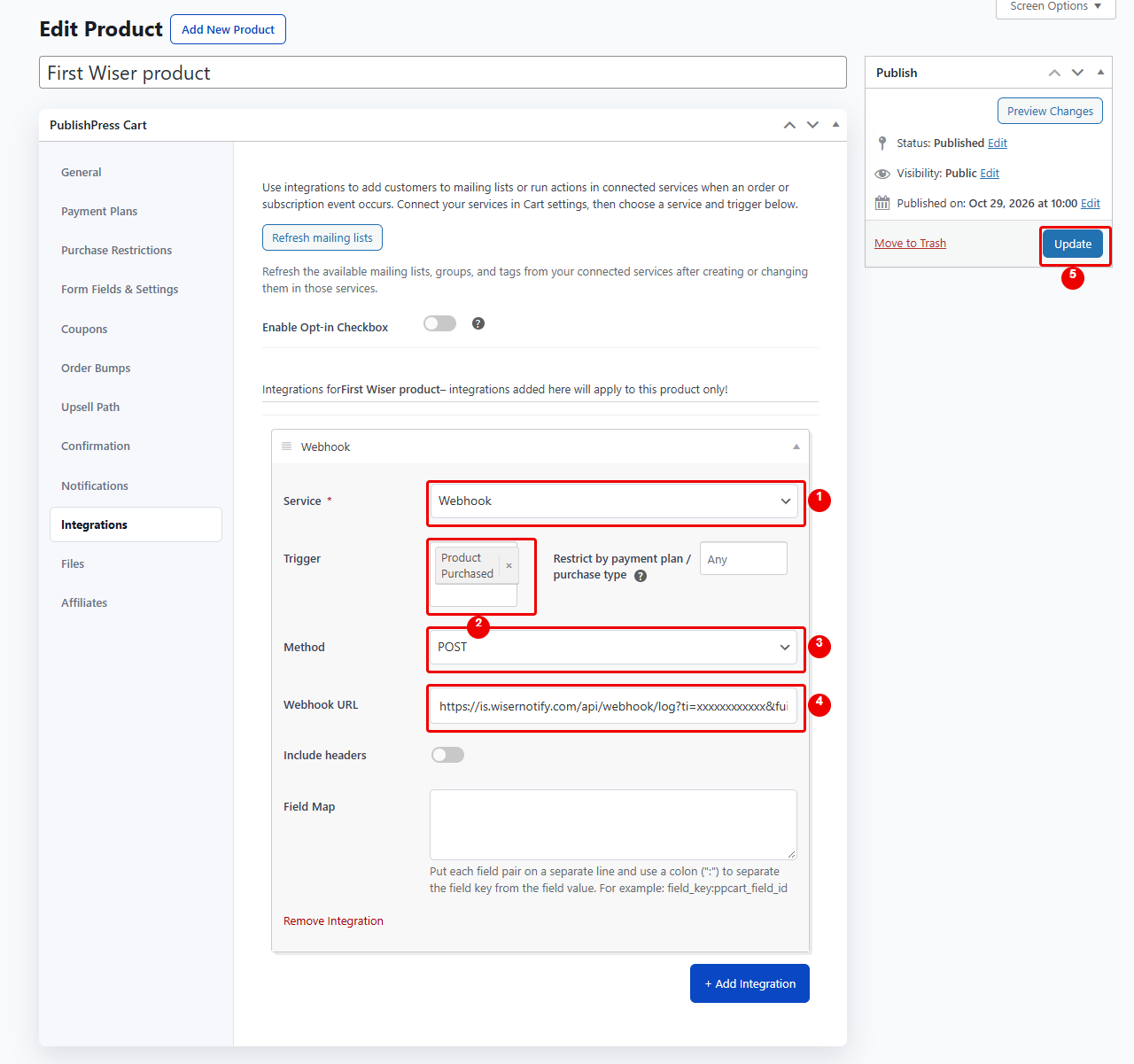
- Select Webhook as the service
- Select only the Product Purchased trigger
- Leave Restrict by payment plan / purchase type set to Any
- Select the POST method
- Paste the WiserNotify Webhook URL (leave Include headers off and Field Map empty)
- Click on the Update button
Repeat this for every product you want to show in notifications. Products without the webhook won’t send their sales to WiserNotify.
Done.
Please do the test by placing a new order & visit the WiserNotify Dashboard – Data page. Here, you can see all the captured/received data with its source name. After testing, delete the test entry from the Data page so it doesn’t show on your live site.
Good to know
- Notifications show the buyer’s name, the product name and a link to the product page.
- WiserNotify only shows purchases. Refunds, cancellations and failed renewals are ignored, even if you select those triggers.
- If the same order is sent twice, it only appears once.
- Moving from Studiocart? Your existing WiserNotify webhook URL keeps working, so you don’t need a new one. After you migrate, open each product’s Integrations tab and check the webhook is still there.
← PreviousHow to connect WiserNotify with Google play store reviewNext →How to connect WiserNotify with eWebinar
Related guides
How to Connect Creem to WiserNotifyHow to install pixel code on a Ecwid by Lightspeed siteHow to install pixel code on Framer
 Still stuck? We'll set it up with youLive chat or a free screen-share call, every day of the year.Chat with support



 Capterra