
Browse categories
How to install pixel code on Learnyst site?
If you’re using Learnyst to create and sell online courses, you can easily install WiserNotify by adding the tracking code to your site’s <head> section. Follow these steps:
Step 1: Copy the WiserNotify Pixel Code
- Go to Install Pixel page
- Click Copy Code to copy your script.

Step 2: Add the Pixel Code to Learnyst
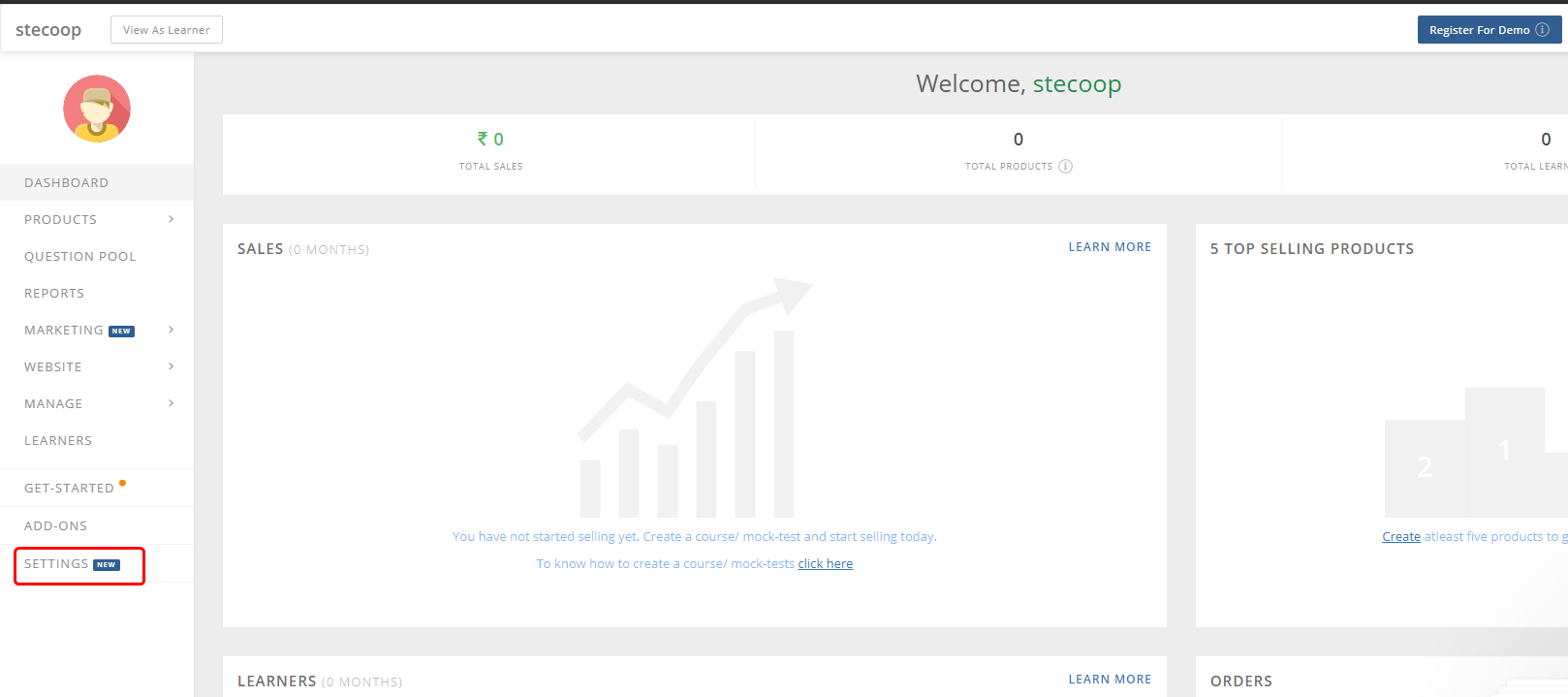
- Click on SETTINGS.
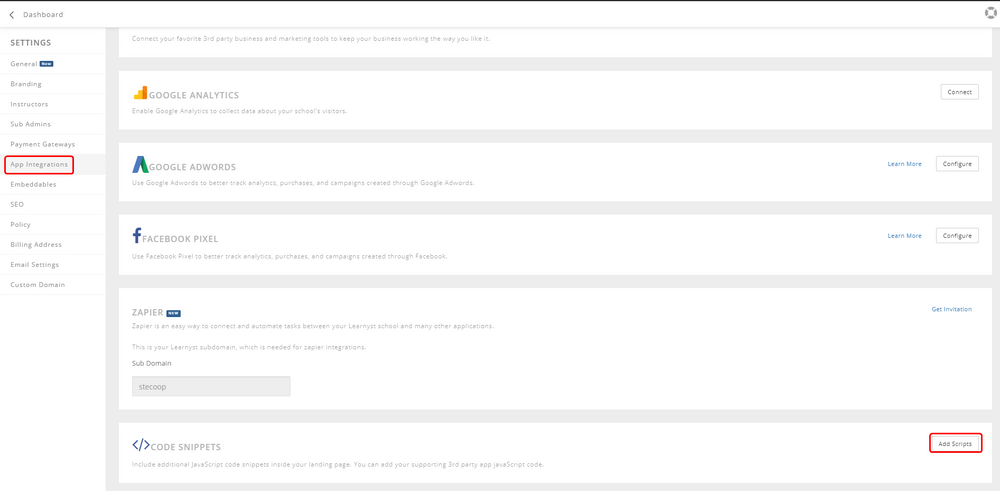
- Click on App Integrations.
- Click on the Add Scripts button inside the CODE SNIPPETS section.
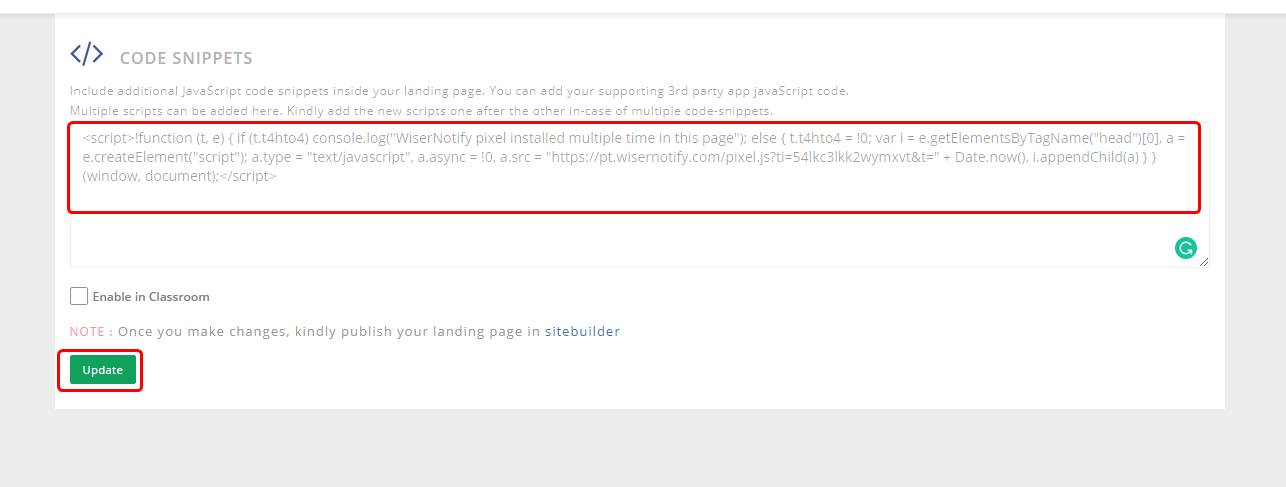
- Paste the copied pixel code here.
- Click on the Update button.
Step 3: Verify Installation
- Go back to your Wisernotify pixel page.
- Click on verify pixel installation to check if the pixel is active.
- If installed correctly, you will see a “Pixel Active” successfully message.

Note: This pixel script tag is required on every page wherever you want to track visitor activities, capture form submit events & display notifications.
Now, visit your site & reload or refresh it.
After that, return to WiserNotify panel & recheck the install pixel page & Wait for 5 seconds; it should show pixel detected popup. If not, then click on the verify my pixel button. It should display if installed correctly.
Related integration guides
Setting up a different integration? These related WiserNotify integration guides walk through it:
- How to install pixel code on a BigMarker site? :Wisernotify Support Docs
- How to install pixel code on a Bookmark site? :Wisernotify Support Docs
- How to install pixel code on a Brizy site? :Wisernotify Support Docs
- How to install pixel code on a Demio site? :Wisernotify Support Docs
- How to install pixel code on a Heights site? :Wisernotify Support Docs
Still stuck? A human will do it with you
Live chat from your dashboard — real answers in minutes, every day of the year.




 Capterra