
Browse categories
Teachable Site Integration with WiserNotify
2 min read
This guide will walk you through:
- Display Notifications: Add the WiserNotify pixel code to your Teachable site to show notifications.
- Capturing Leads & Sales Activities: Add a webhook to receive real-time sign-ups and course sales data from Teachable.
Install WiserNotify Pixel Code to Teachable Site
Step 1: Get your wisernotify pixel code
- Log in to your WiserNotify account.
- Navigate to the Install Pixel page.
- Copy your Pixel Code.

Step 2: Add the Pixel Code to the Teachable Site
- Log in to your Teachable account.
- Click on your profile picture (top right) and select Admin.
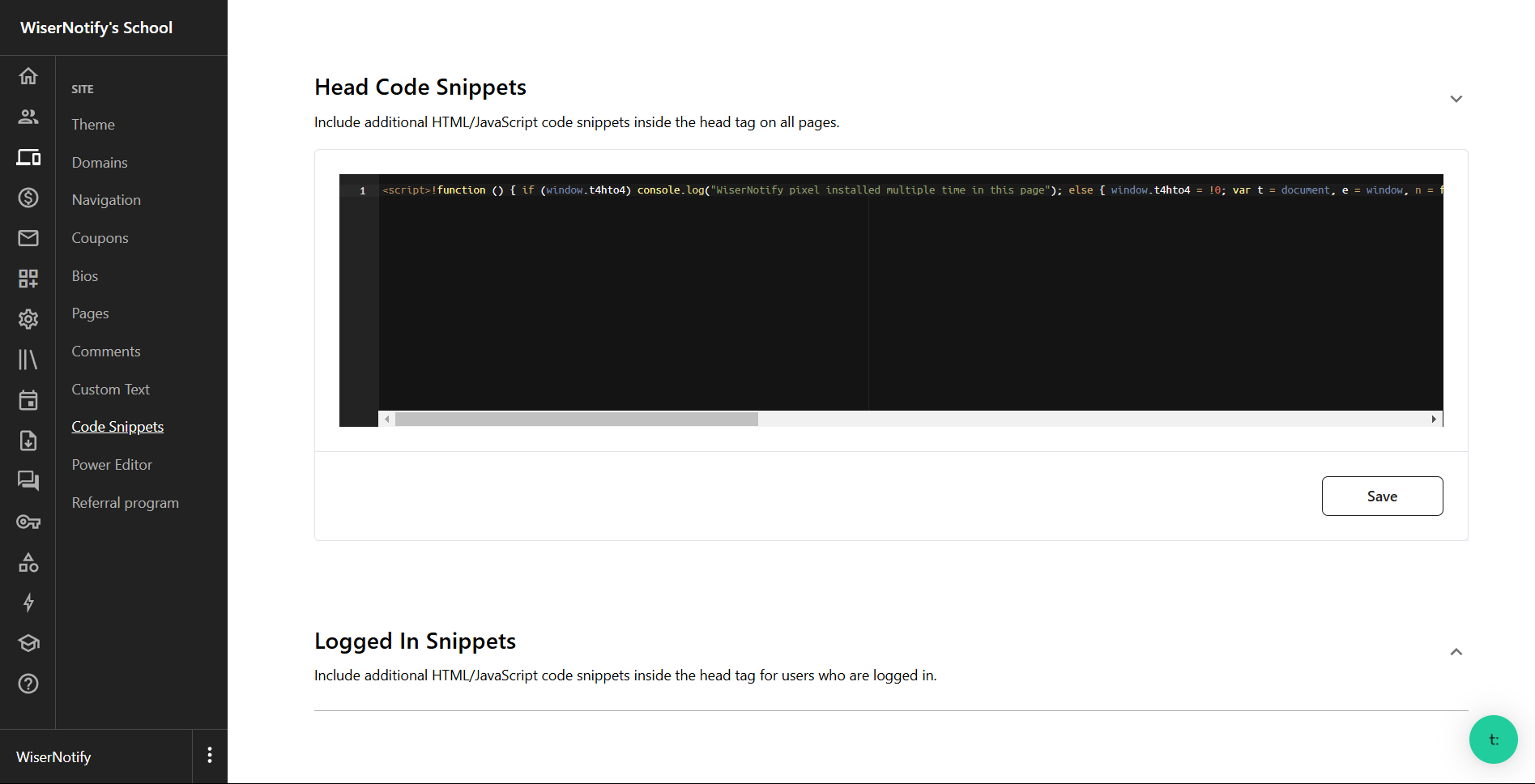
- Navigate to Site > Code Snippets.
- Locate the Header Code section.
- Paste the copied WiserNotify Pixel Code into the box.
- Click Save to apply the changes.
Step 3: Verify Installation
- Go back to your Wisernotify pixel page.
- Click on verify pixel installation to check if the pixel is active.
- If installed correctly, you will see a “Pixel Active” successfully message.

Note: This pixel script tag is required on every page wherever you want to track visitor activities, capture form submit events & display notifications.
Now, visit your site & reload or refresh it.
Add webhook to Teachable to Capture Leads & Sales Data
Step 1: Get the webhook URL from Wisernotify.
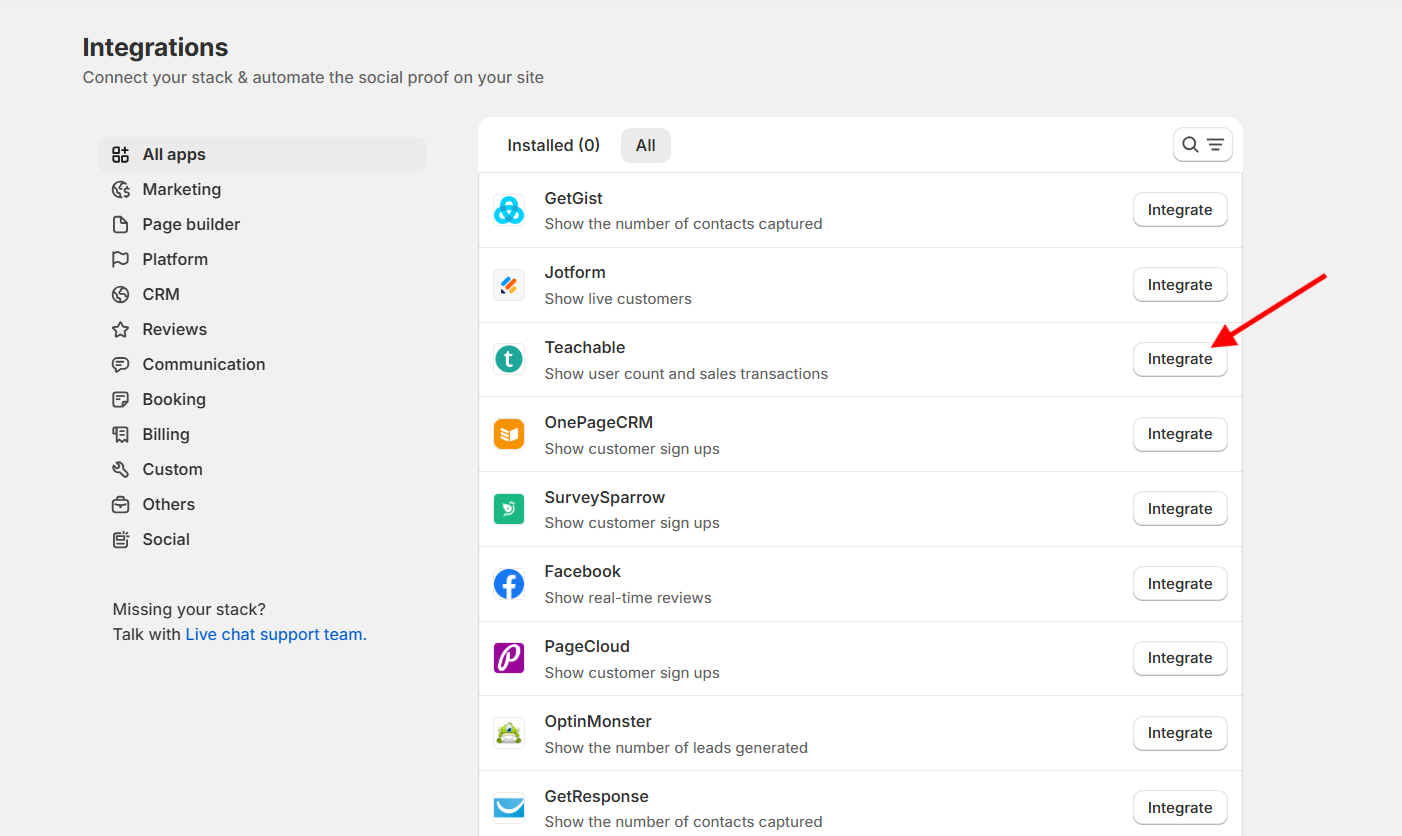
- In WiserNotify, go to Teachable Integration.
- Click the Integrate button inside the integration box.
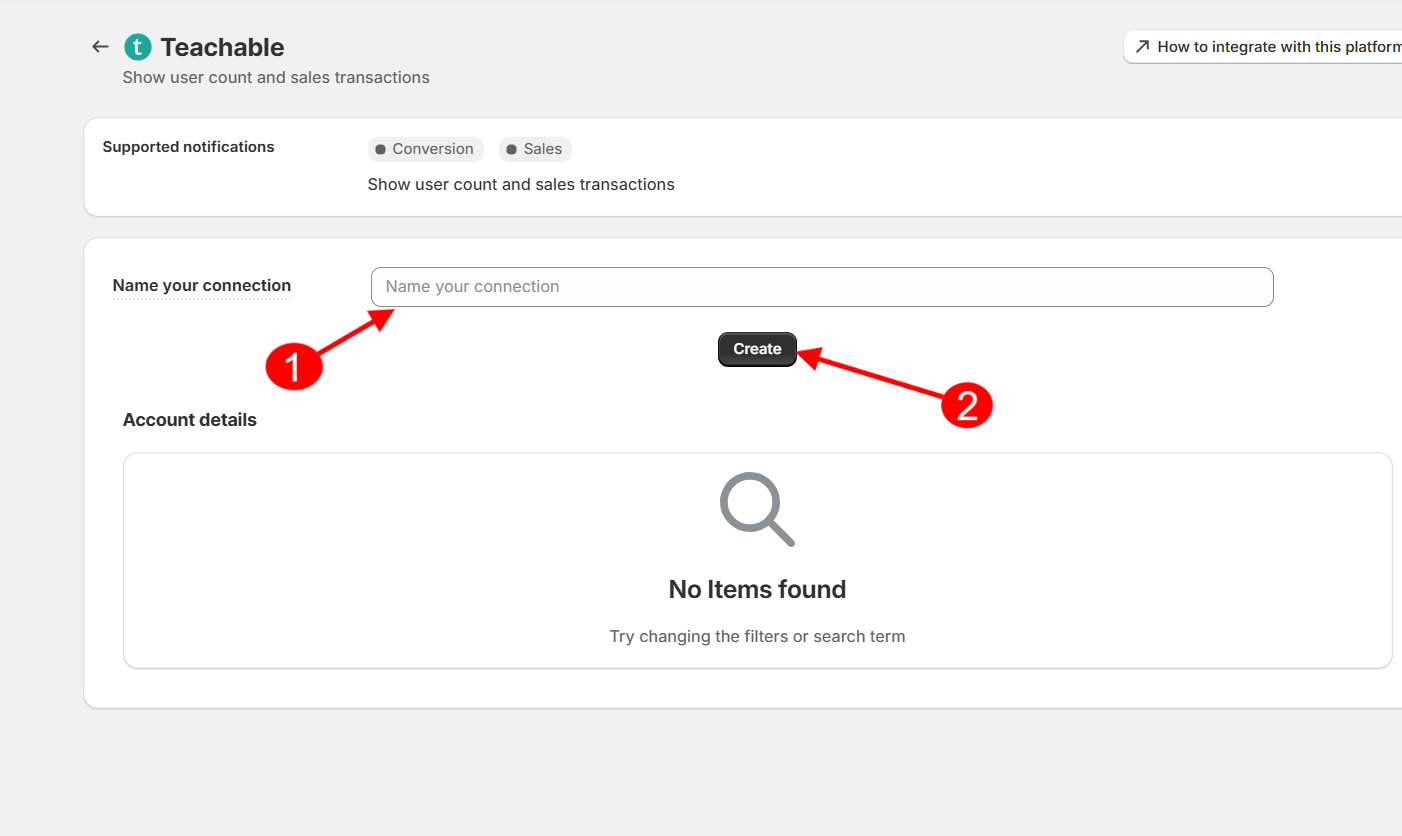
- Enter a Connection Name (e.g., “Teachable Sales Data”).
- Click Create and copy the Webhook Endpoint URL.
Step 2: Configure the webhook URL to Teachable
- Now, log in to your Teachable account.
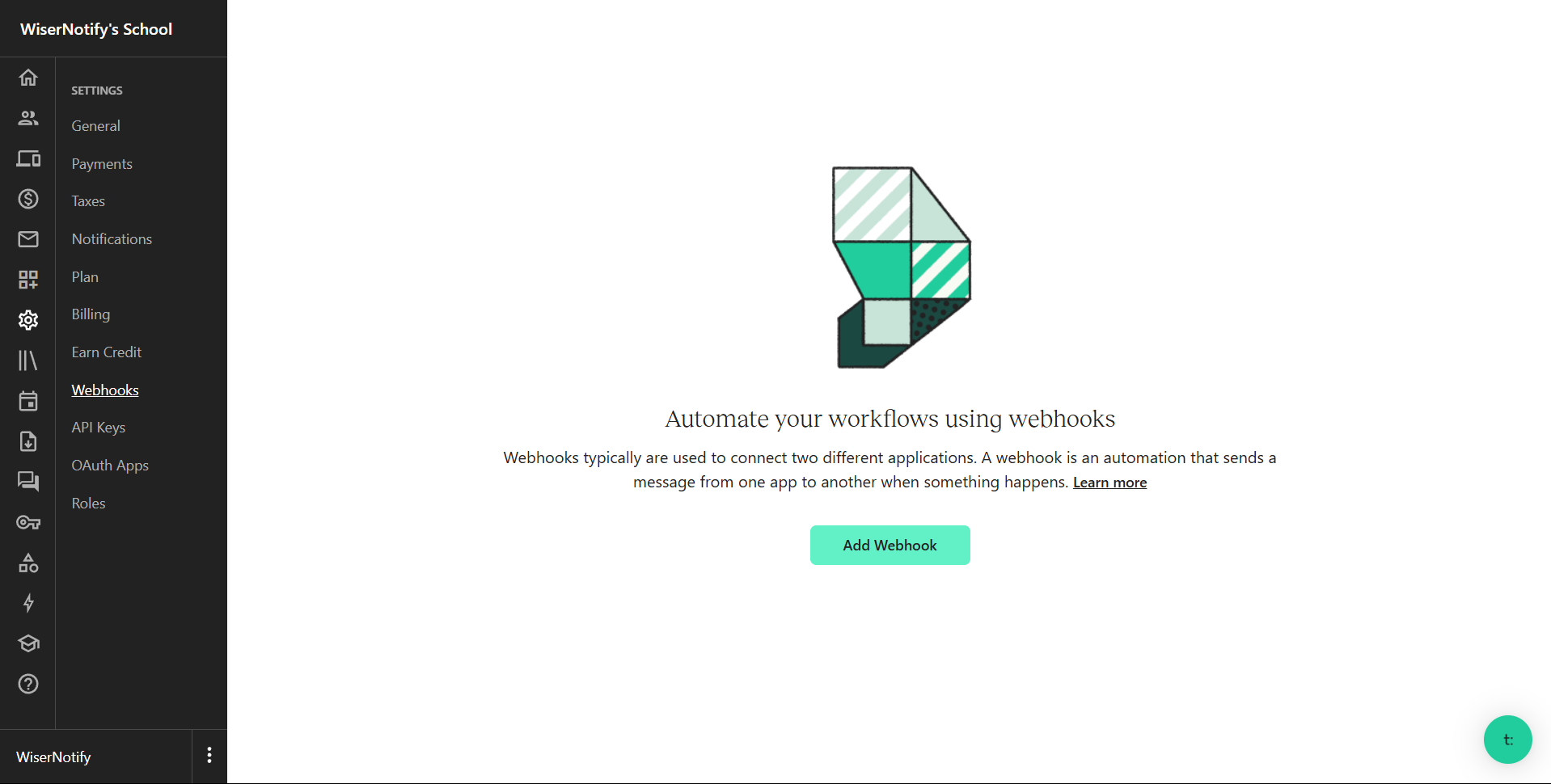
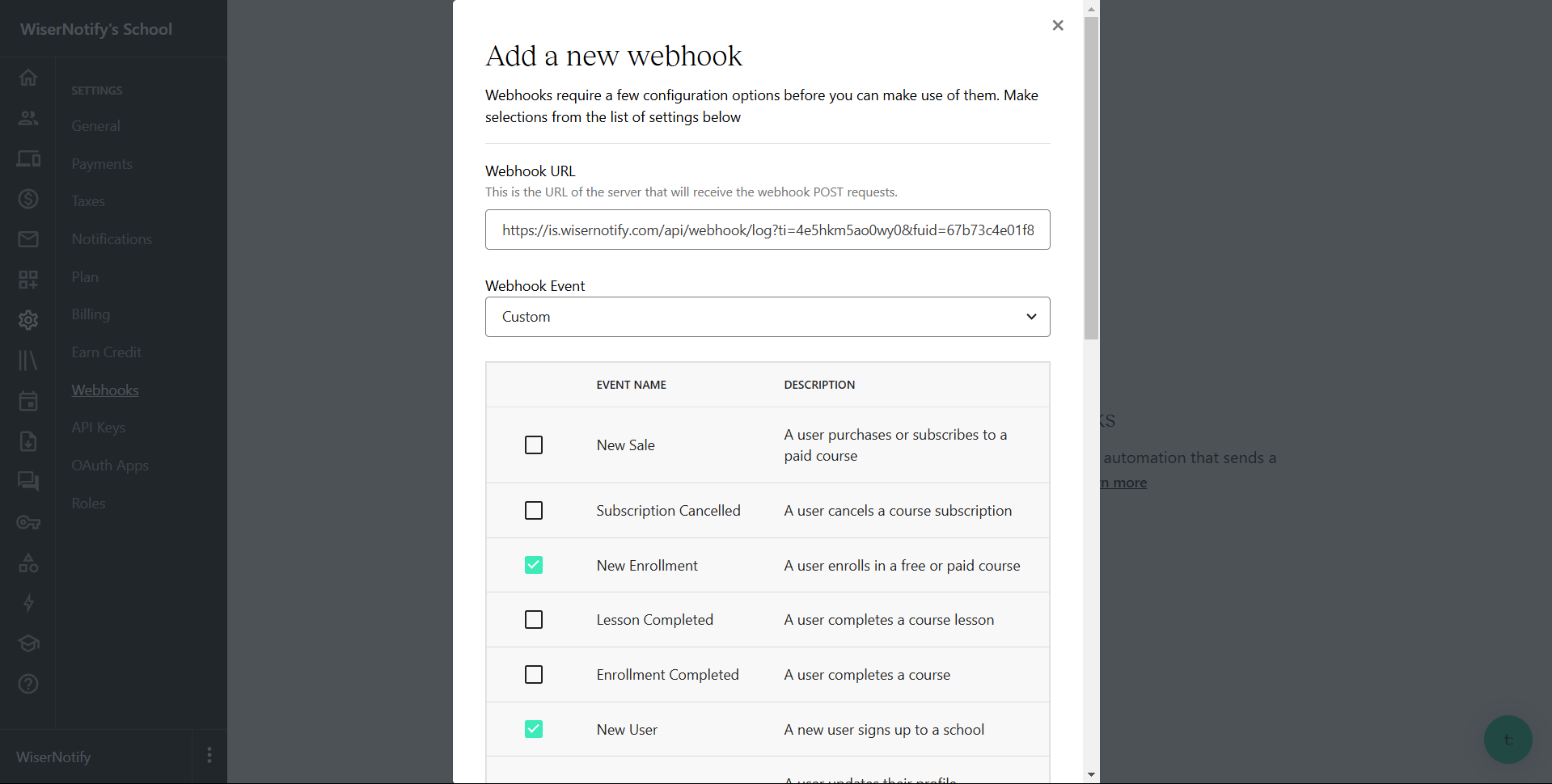
- Go to Settings > Webhooks.
- Click Create a Webhook and configure it as follows:
- Event Type:
- Select New User Sign-Up – for lead activities notification
- Select New Enrollment – for sales activities notification
- Paste the copied WiserNotify Webhook URL &
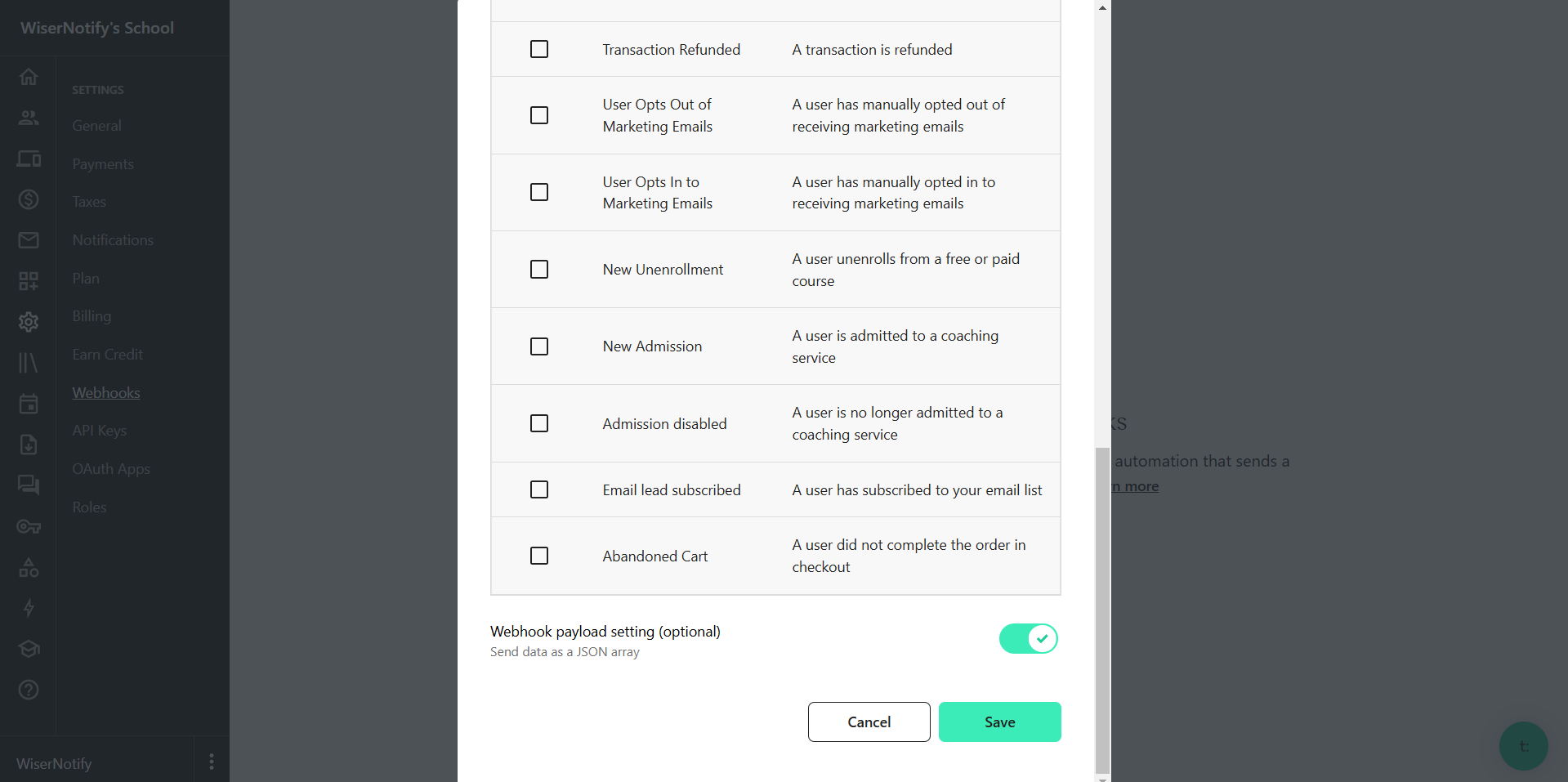
- Active toggle Send as JSON Array.
- Click on the Create Webhook button.
Please test by adding new data & visit the WiserNotify – Dashboard Data page. Here, You can see all the captured/ received data with its source name.
Related integration guides
Setting up a different integration? These related WiserNotify integration guides walk through it:
- Sendowl Site Integration with WiserNotify :Wisernotify Support Docs
- Shopify Site Integration with WiserNotify :Wisernotify Support Docs
- Amember Integration with WiserNotify :Wisernotify Support Docs
- ClickFunnels Integration with WiserNotify :Wisernotify Support Docs
- EliteFunnels Integration with WiserNotify :Wisernotify Support Docs
Still stuck? A human will do it with you
Live chat from your dashboard — real answers in minutes, every day of the year.




 Capterra