
Browse categories
ClickFunnels Integration with WiserNotify
This guide will walk you through:
- Display Notifications: Add the WiserNotify pixel code to your ClickFunnels pages.
- Capturing Sales Activities: Connect ClickFunnels with WiserNotify using a webhook to fetch real-time sales data.
Install WiserNotify Pixel Code to clickfunnel pages
Step 1: Get your wisernotify pixel code
- Log in to your WiserNotify account.
- Navigate to the Install Pixel page.
- Copy your Pixel Code.

Step 2: Add the Pixel Code to ClickFunnels
-
Log in to your ClickFunnels account.
-
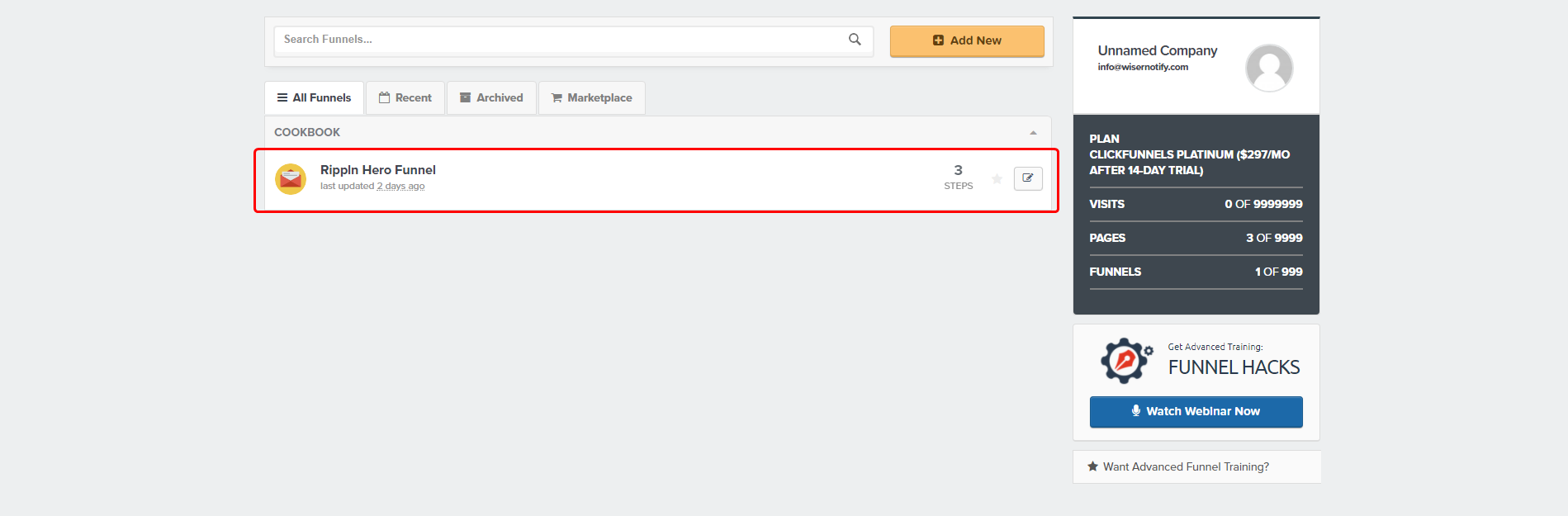
Open the funnel where you want to add the pixel.
-
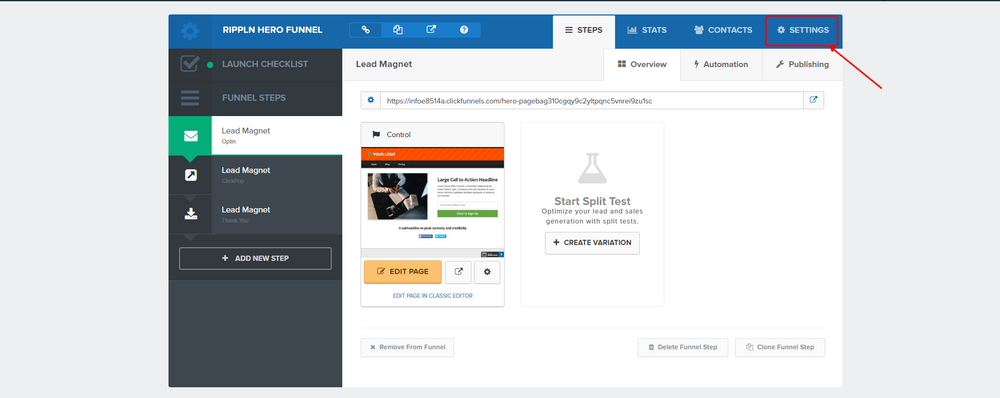
Click on Settings from the top menu & Scroll down to the Body Tracking Code box.
-
Paste the copied WiserNotify Pixel Code inside the box
-
Scroll to the bottom and click Save And Update Setting
✅ Your WiserNotify pixel is now installed, and social proof notifications will be displayed on your ClickFunnels pages.
Add webhook to ClickFunnels to receive the data for Sales activities
Step 1: Get the webhook URL from wisernotify.
- In WiserNotify, go to Integrations.
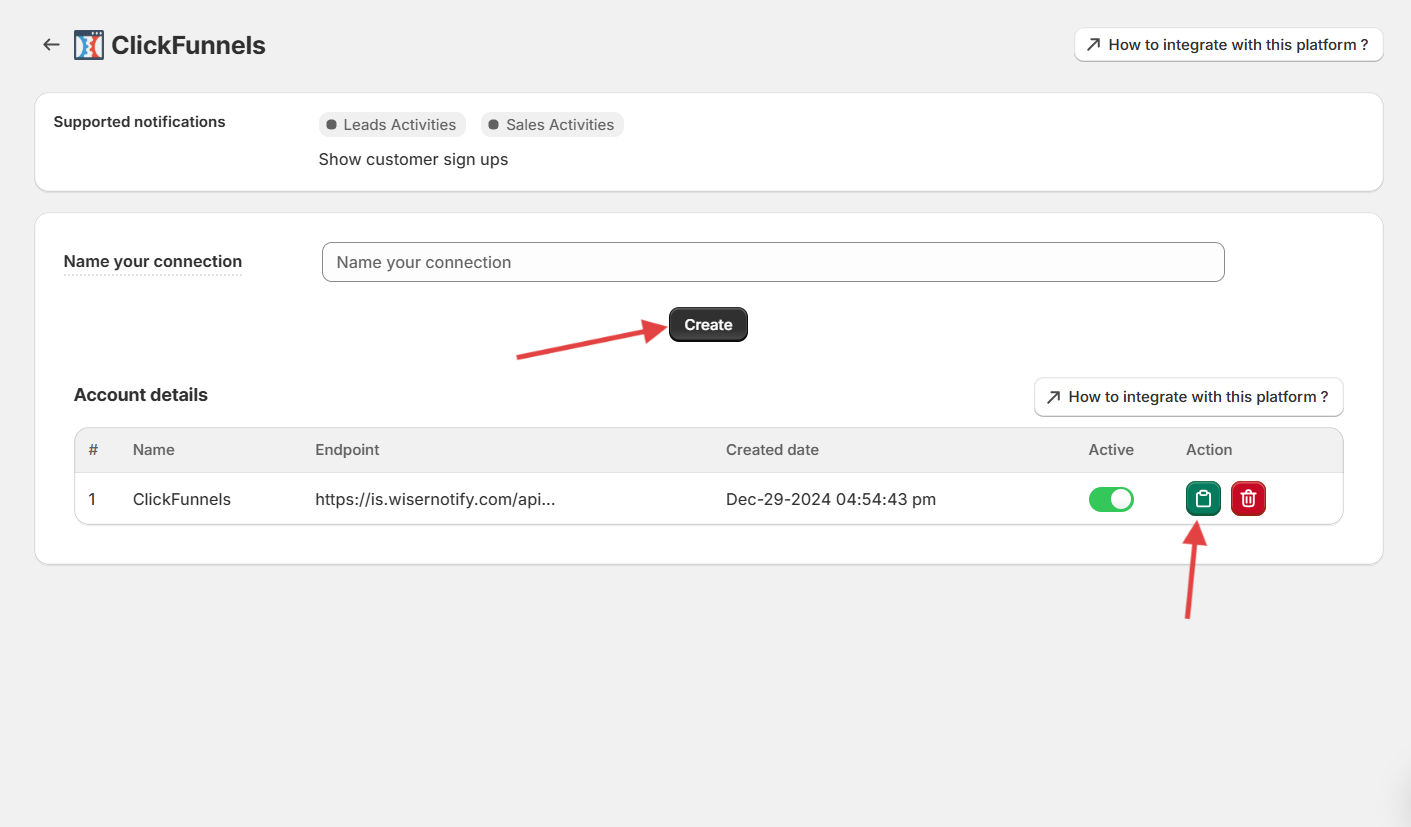
- Find ClickFunnels and click on integrate button & Enter a remark (optional) to name your integration.
- Click Create to generate a Webhook URL & Copy the Webhook URL.
Step 2: Configure the webhook URL to clickfunnel classic
- Go to your ClickFunnels classic account.
- Click on the ClickFunnels tab then select the Funnels option in the dropdown.
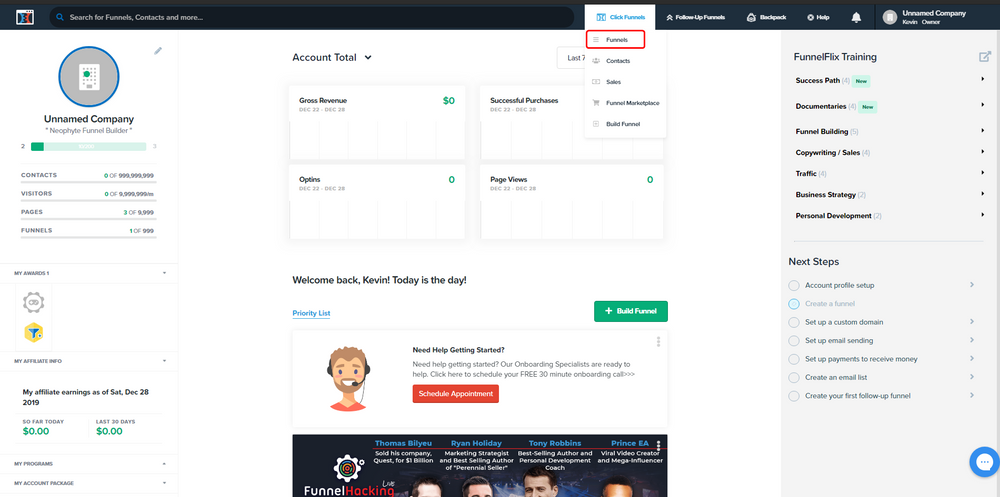
- Edit Your Funnels.
- Click on setting the top left side.
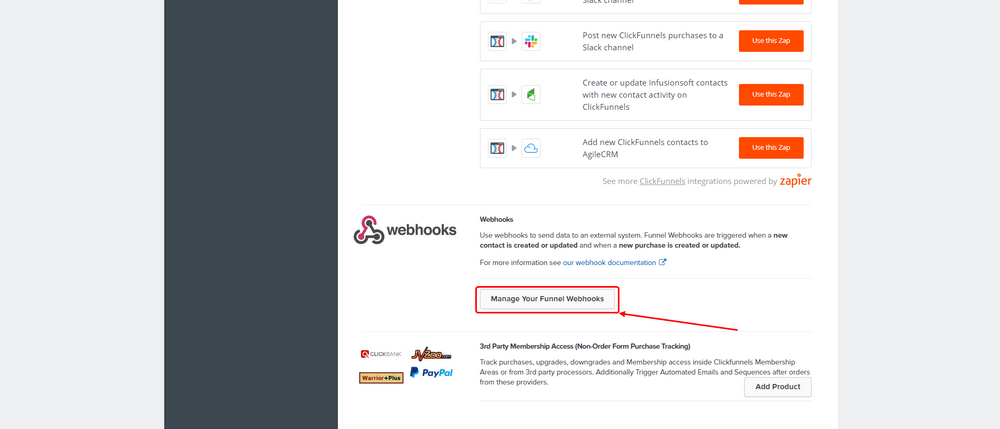
- Scroll to the bottom & get to the Webhook section. Inside this section click on the manage funnels Webhooks button.
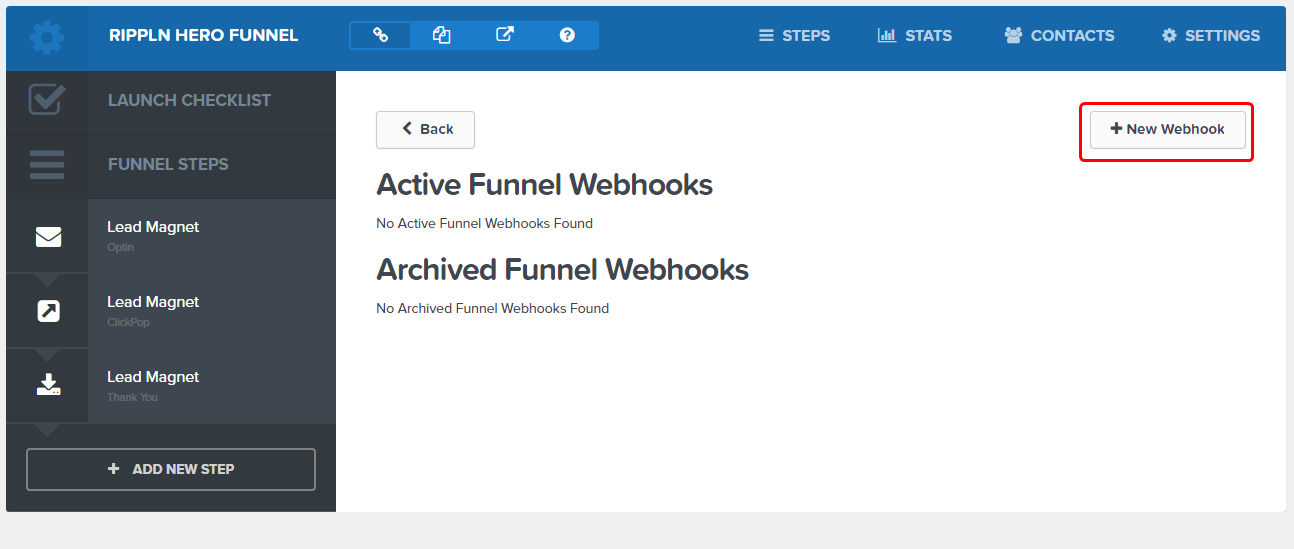
- Click on the new Webhooks button.
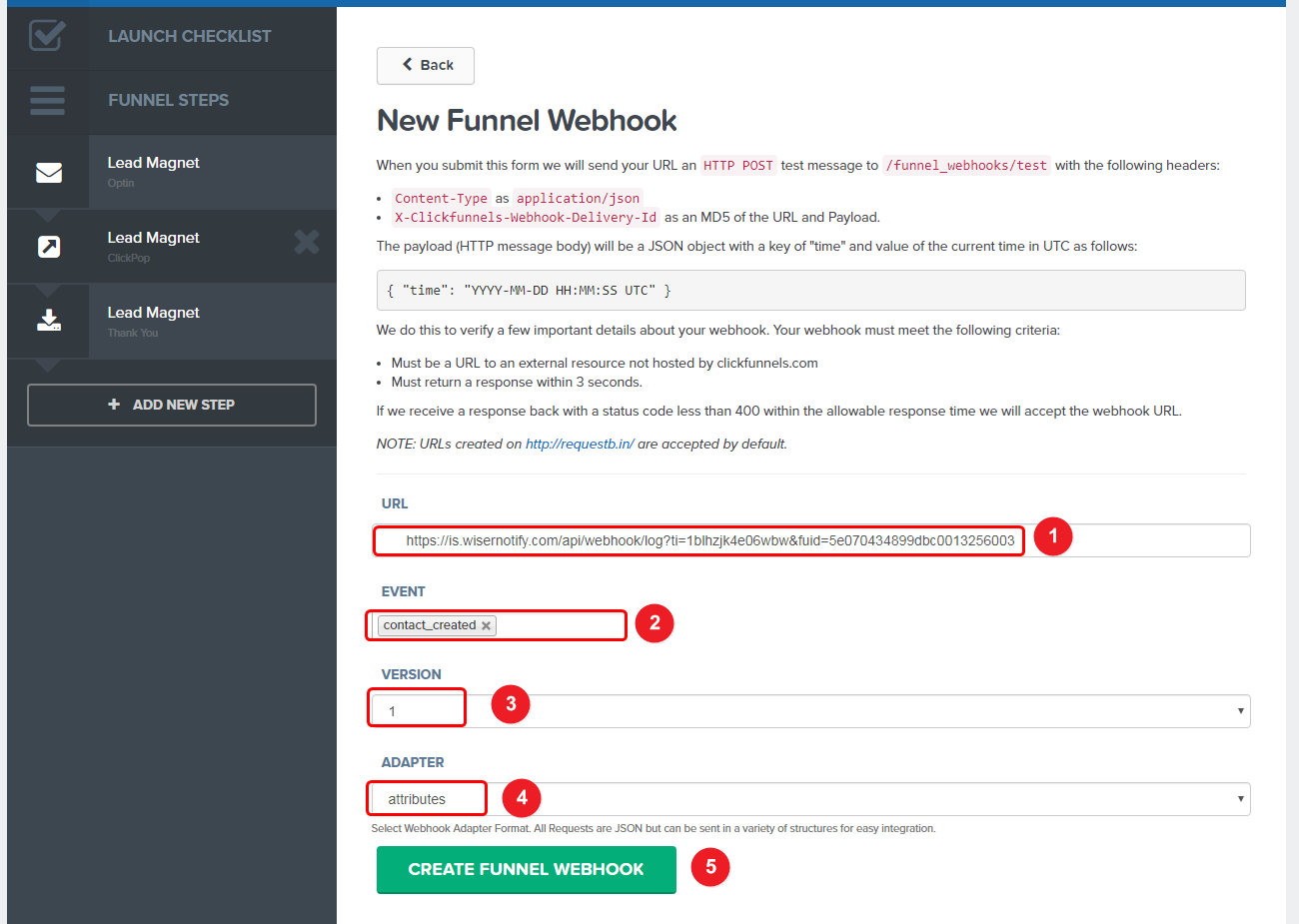
- Paste the copied URL.
- Select the below events from the dropdown based on your requirement
contact_created ( Select this event for conversion notification)
purchase_created. ( Select this event for sales notifications.)
- Select the version 1 & adapater value as attribute
- Click on the New Webhooks button.
Step 2: Configure the webhook URL to clickfunnel 2.0
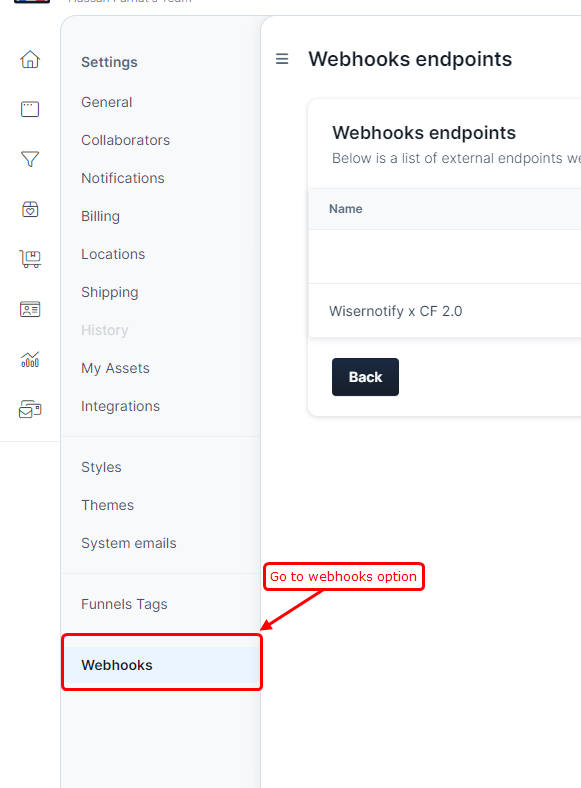
For ClickFunnel 2.0 users ,
- paste the wisernotify webhook URL
- select the below events.
Contact.created ( ClickFunnel 2.0) ( For conversion notification )
Order.created ( ClickFunnel 2.0) ( For sales notification )
- click to create the webhook & save the change
✅ Now, WiserNotify will receive real-time sales and lead data from ClickFunnels, allowing you to display sales and lead acitivites on your funnels.
Related integration guides
Setting up a different integration? These related WiserNotify integration guides walk through it:
- Amember Integration with WiserNotify :Wisernotify Support Docs
- EliteFunnels Integration with WiserNotify :Wisernotify Support Docs
- Gumroad Integration with WiserNotify :Wisernotify Support Docs
- HeySummit Integration with WiserNotify :Wisernotify Support Docs
- Infusionsoft Integration with WiserNotify :Wisernotify Support Docs
Still stuck? A human will do it with you
Live chat from your dashboard — real answers in minutes, every day of the year.




 Capterra