
Browse categories
How to connect WiserNotify with Ontraport?
2 min read
This guide will walk you through:
- Capturing Lead & Sales Activities: Connect Ontraport with WiserNotify using a webhook to fetch real-time lead, signup, and purchase data.
Add API Key to Connect Ontraport to pull the events Lead & Sales data
Step 1. Get the API Key from Ontraport
- Go to WiserNotify > Ontraport Integration.
- Click on the Integrate button inside the Integration box.
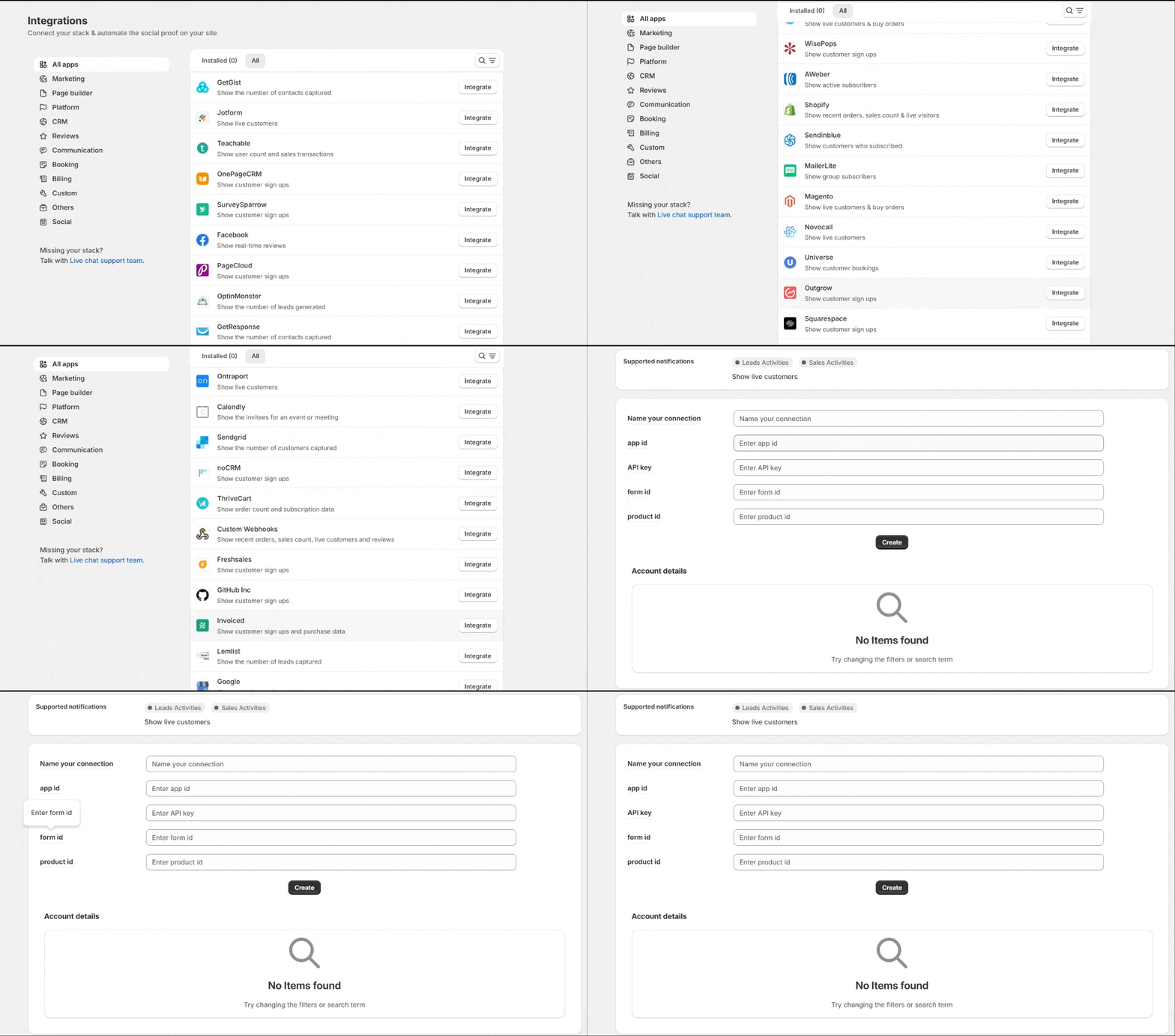
Login with Ontraport,
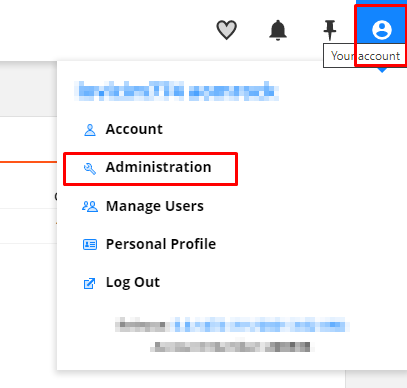
- Click on your account.
- Click on Administration.
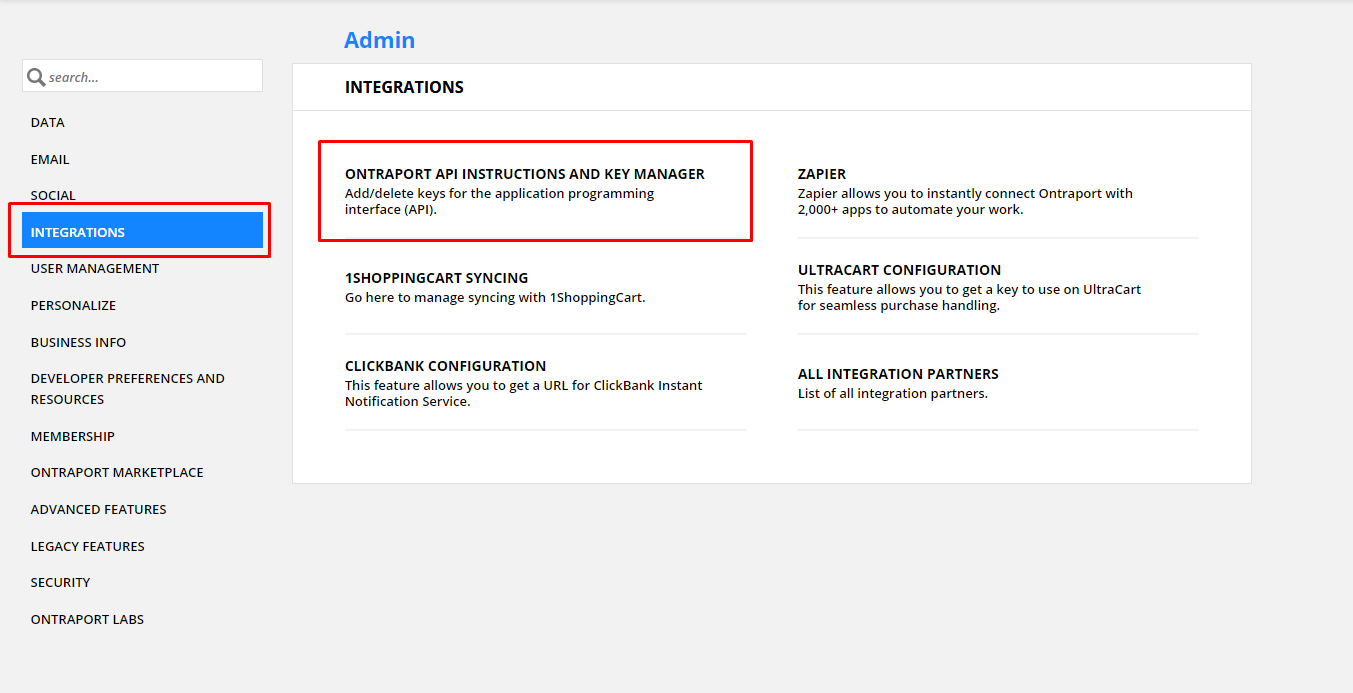
- Navigate to Integration.
- Click on Ontraport API Instructions and Key Manager.
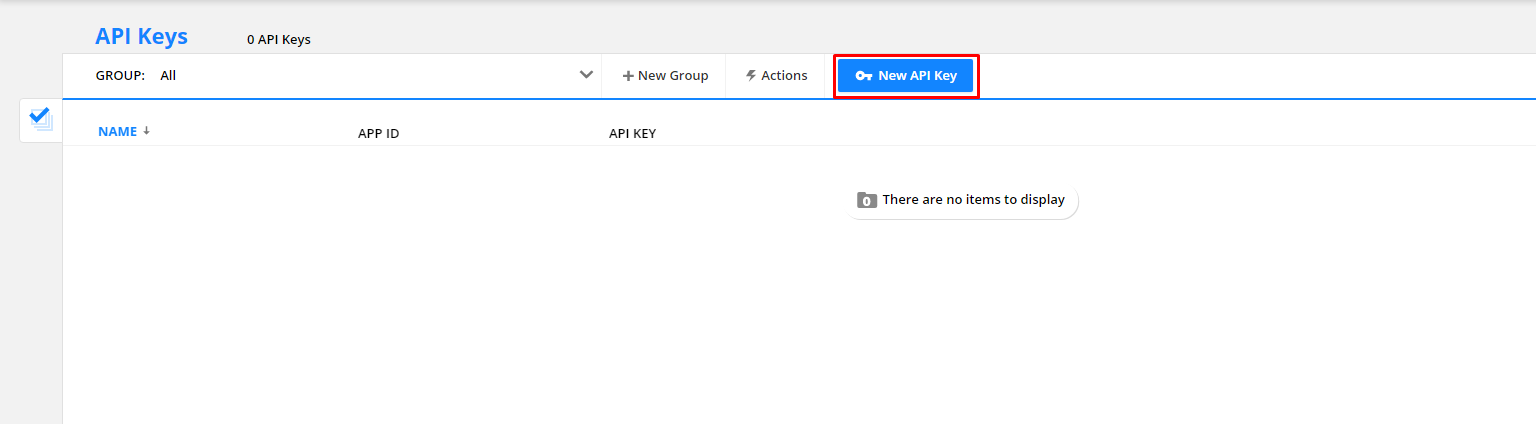
- Click on the New API key.
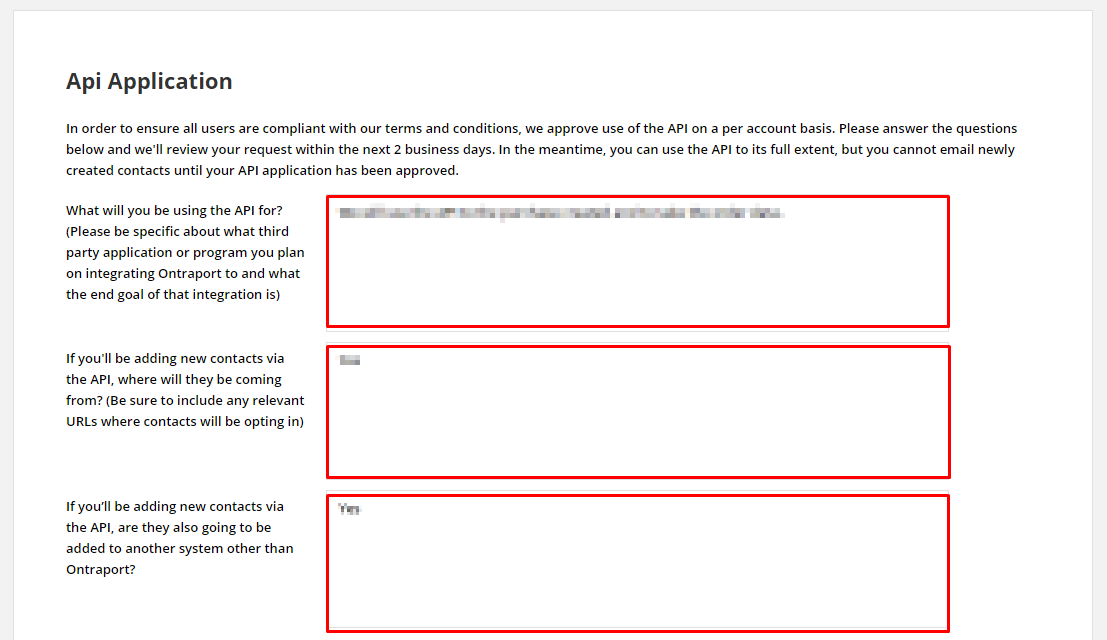
- Fill API Application.
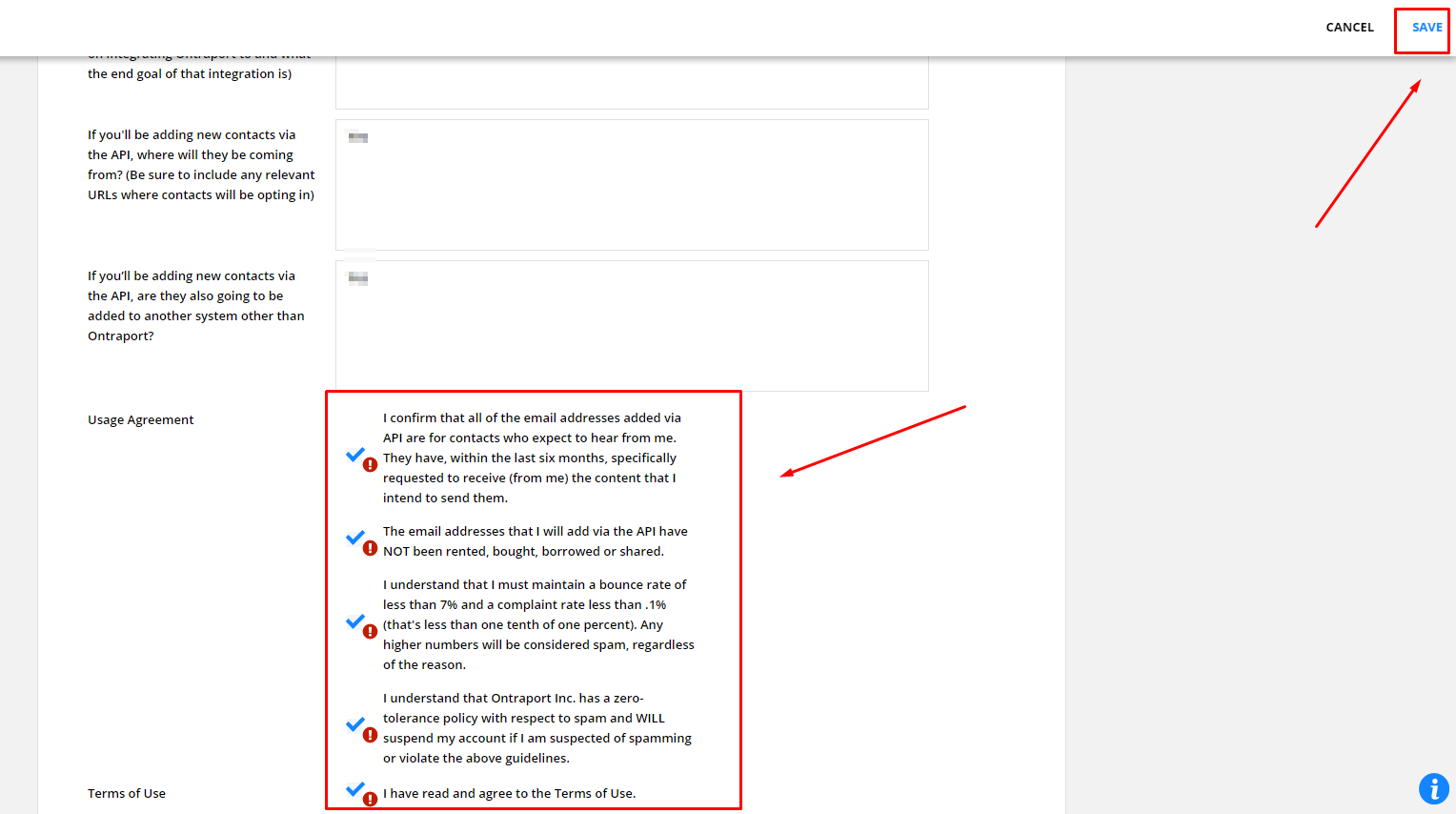
- Select All Usages Agreement and click on save.
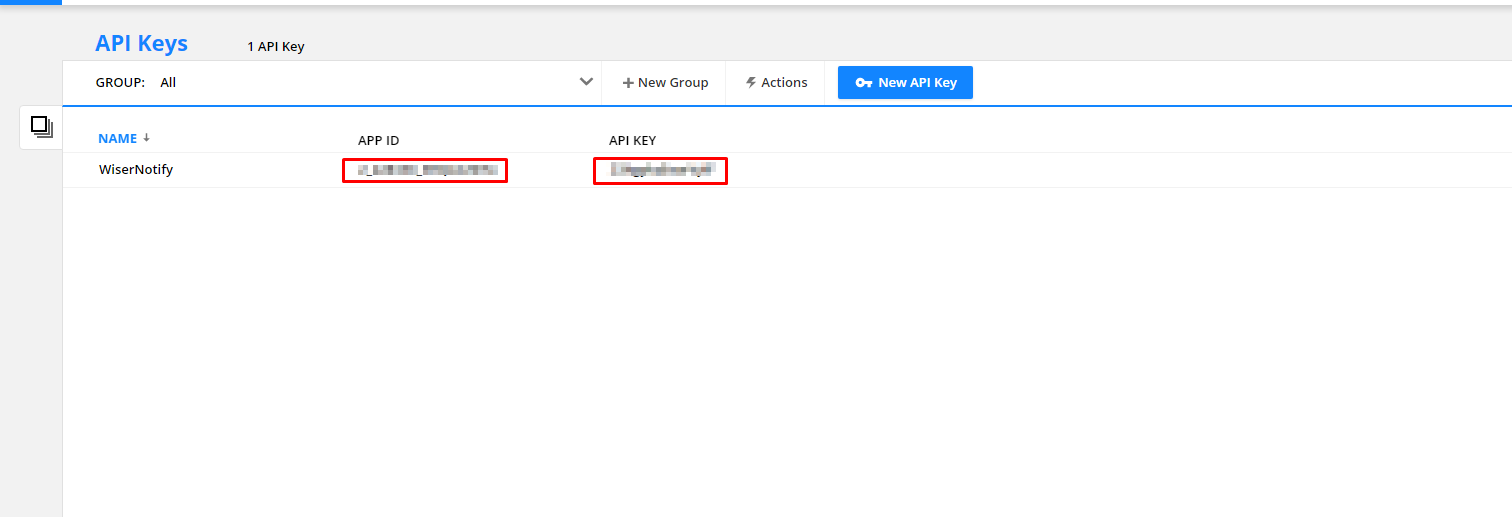
- Copy the app ID and go to WiserNotify.
- Paste into the App ID field in the WiserNotify Ontraport popup.
- Copy the API key from the Ontraport.
- Paste into API key field in WiserNotify Ontraport popup.
Step 2. Configure API Key in Wisernotify.
1. For Conversion Notification.
- Select the Form radio button in the WiserNotify Popup.
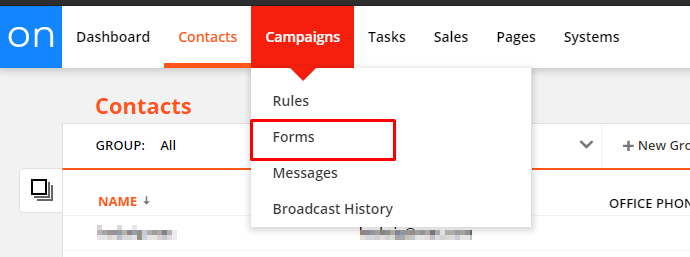
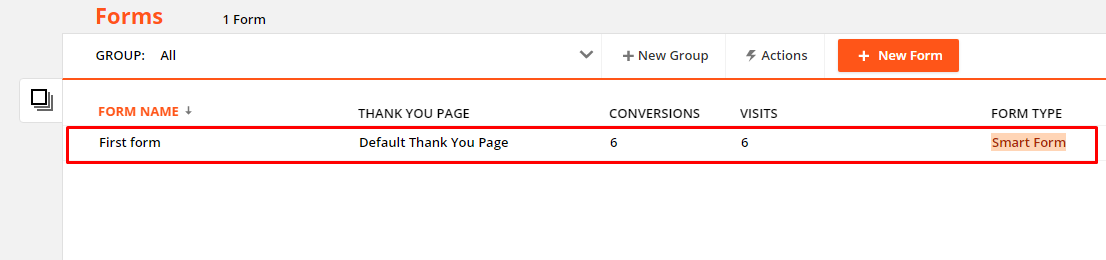
- Navigate to Campaigns > Forms.
- Edit your Form.
- Copy form ID from the URL.
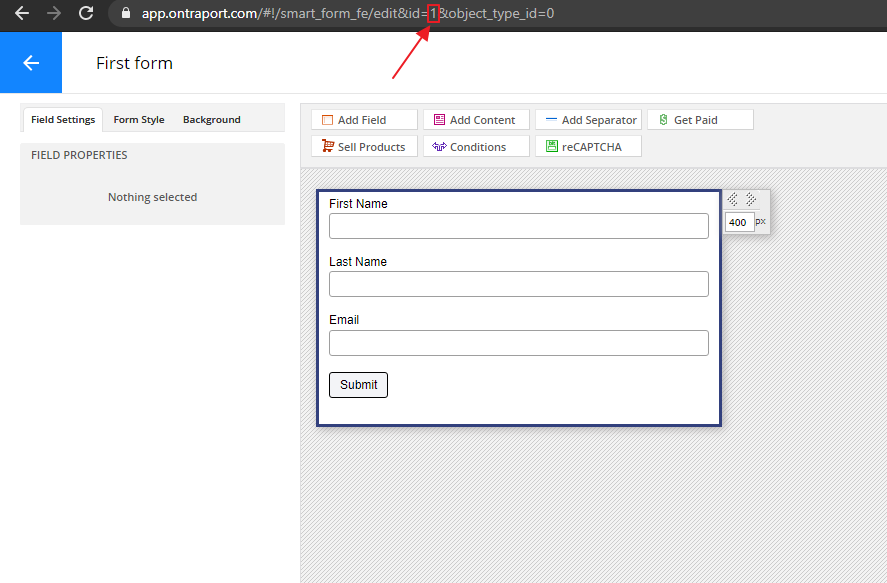
- Paste into a Form ID field in the WiserNotify Ontraport popup.
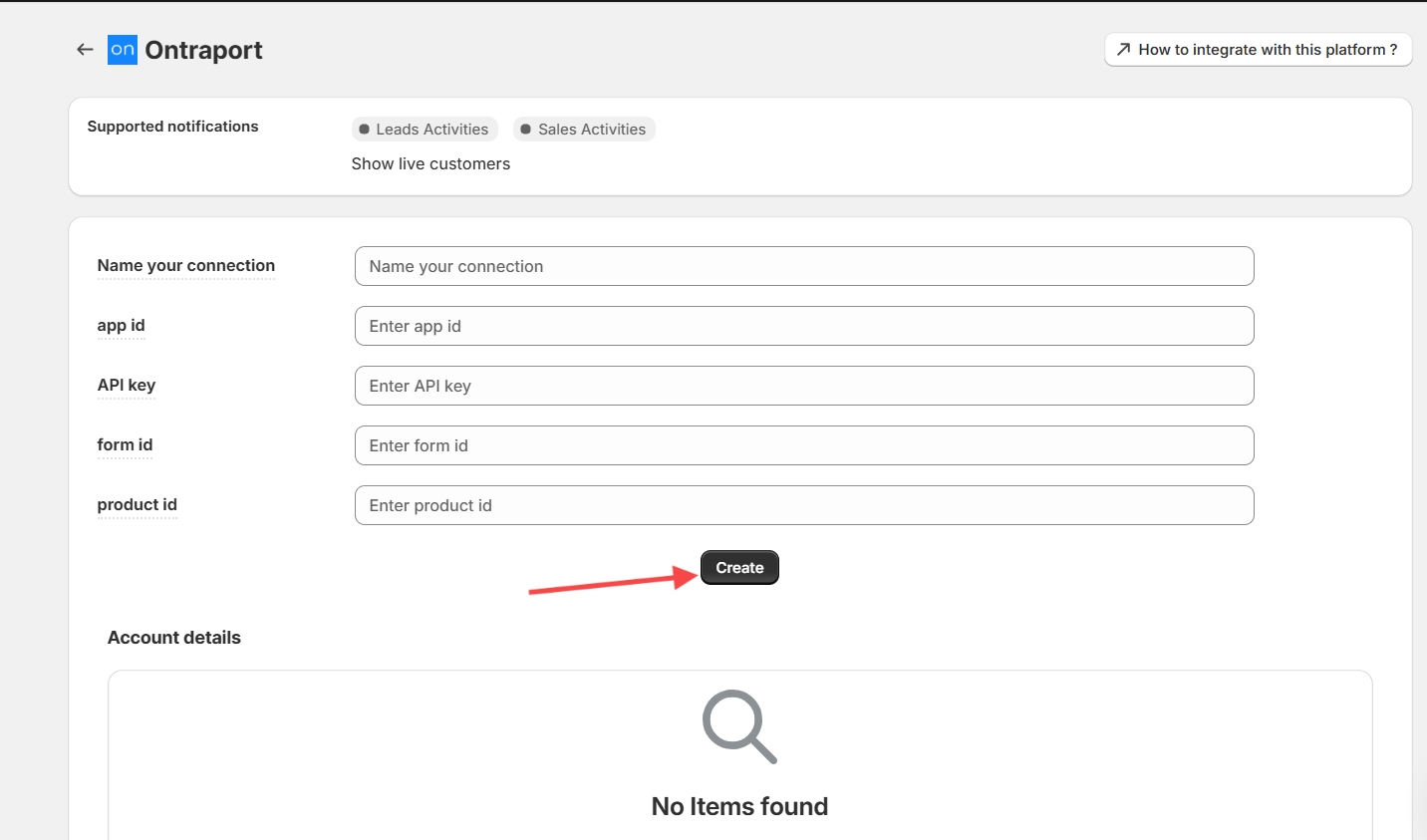
- Enter the Name of the connection.
- Click on the Create button.
2. For Purchase Notification.
- Select the Product radio button in the WiserNotify Popup.
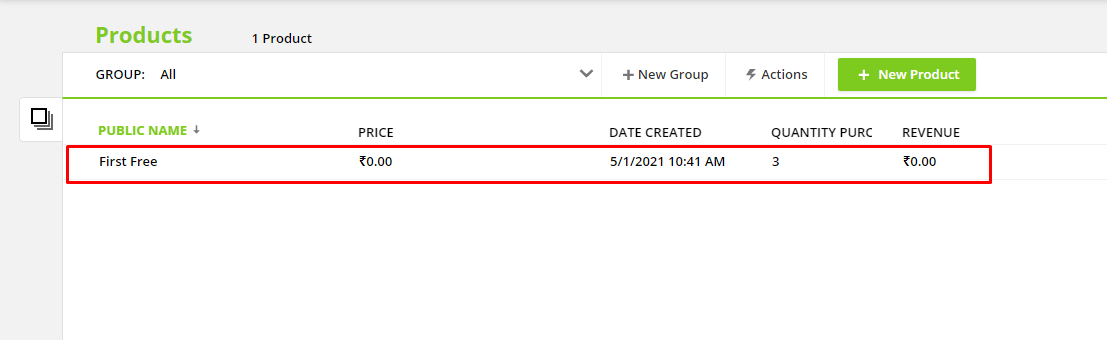
- Navigate to Sales > Products.
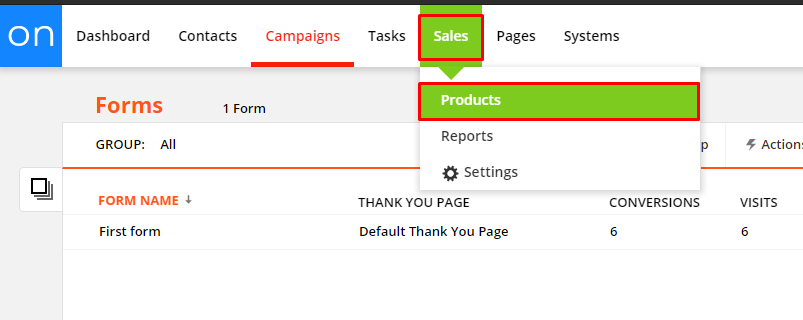
- Edit your product.
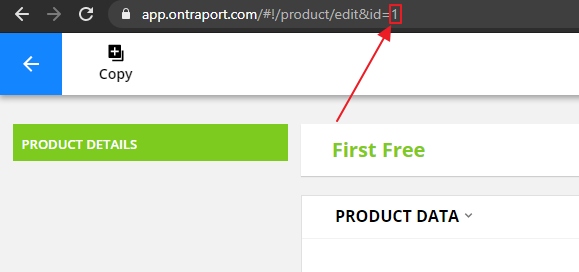
- Copy the product ID from the URL.
- Paste into a Product ID field in the WiserNotify Ontraport popup.
- Enter the Name of the connection.
- Click on the Create button.
Please test by adding new data & visit the WiserNotify – Dashboard data page. Here, You can see all the captured/ received data with its source name.
Related integration guides
Setting up a different integration? These related WiserNotify integration guides walk through it:
- How to connect WiserNotify with ActiveCampaign? :Wisernotify Support Docs
- How to connect WiserNotify with Activechat? :Wisernotify Support Docs
- How to connect WiserNotify with Agile CRM? :Wisernotify Support Docs
- How to connect WiserNotify with Agiled? :Wisernotify Support Docs
- How to connect WiserNotify with AidaForm? :Wisernotify Support Docs
Still stuck? A human will do it with you
Live chat from your dashboard — real answers in minutes, every day of the year.




 Capterra