
Browse categories
How to Integrate WiserNotify with Shopaccino
This guide will walk you through:
- Adding pixel code
- Capture sales activities
Adding pixel code
Step 1: Copy the WiserNotify Pixel Code
- Log in to your WiserNotify account.
- Navigate to the “Installation” section.
- Copy the Pixel Code provided.
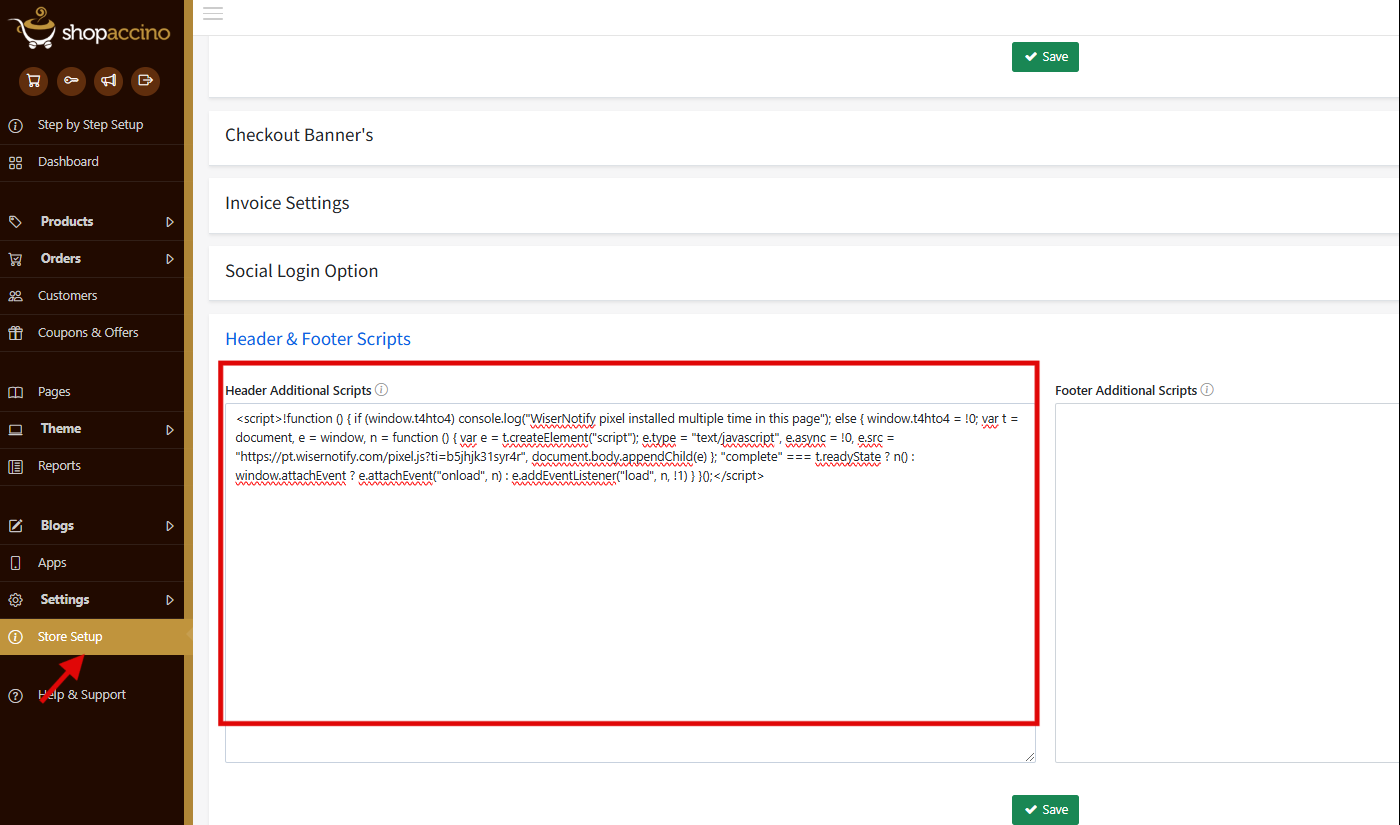
Step 2: Add the Pixel Code to Shopaccino
- Log in to your Shopaccino admin panel.
- Go to Settings > Look for the section labeled “Header Scripts”
- Paste the WiserNotify Pixel Code into the box.
- Click Save Changes.
Capturing sales activities
Step 1: Go wisernotify integration > Find Shopaccino > Create the webhook
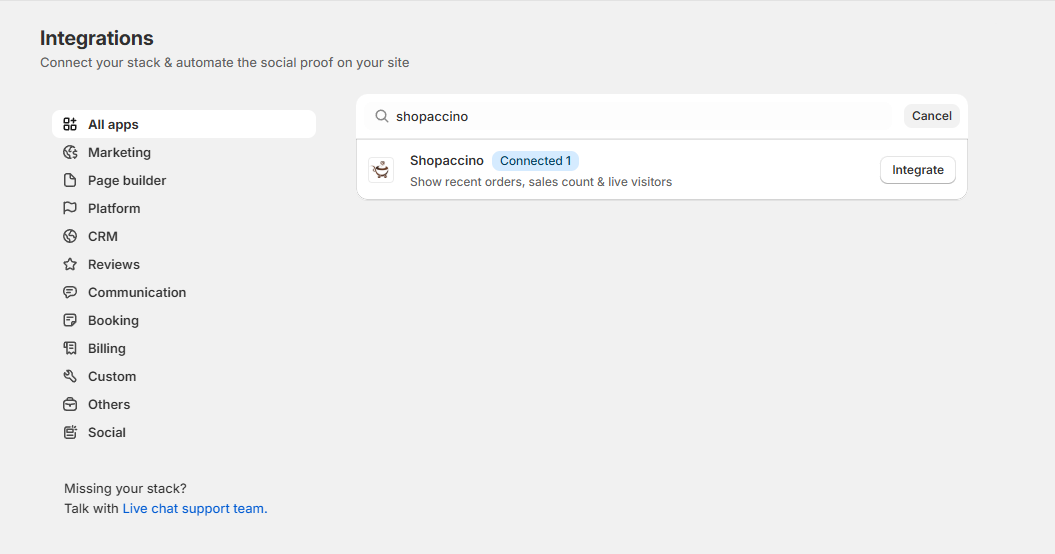
Step 2: Get your Stor URL , Store ID and Token & submit
Enter the required details:
- Store URL: Your Shopaccino website URL (e.g.,
https://yourstore.shopaccino.com). - Store ID: Enter your Shopaccino Store ID.
- Token: Enter the API token provided by Shopaccino.
- Name Your Connection: Choose a name for this integration (e.g., “My Shopaccino Store”).If you can’t find these details, contact Shopaccino support for assistance.
Step 3: Click Create to save the integration.
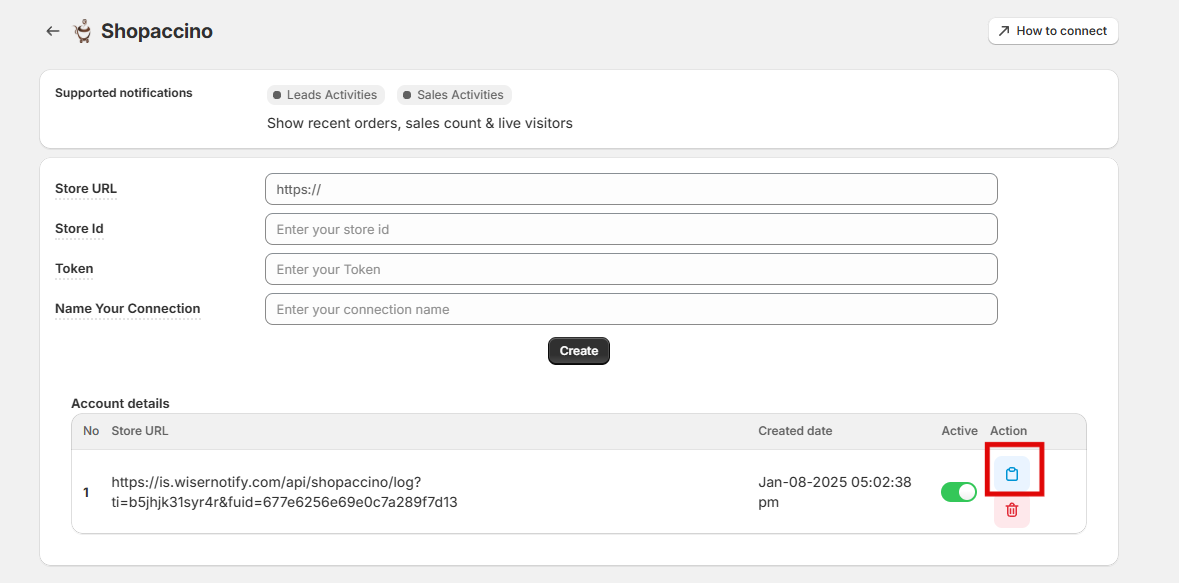
Step 4: Copy the webhook URL & inform shopaccino team .
-
Copy the Webhook URL
- Once you complete the integration in WiserNotify, a Webhook URL will be generated.
- Copy this URL, as it is required for Shopaccino’s backend setup.
-
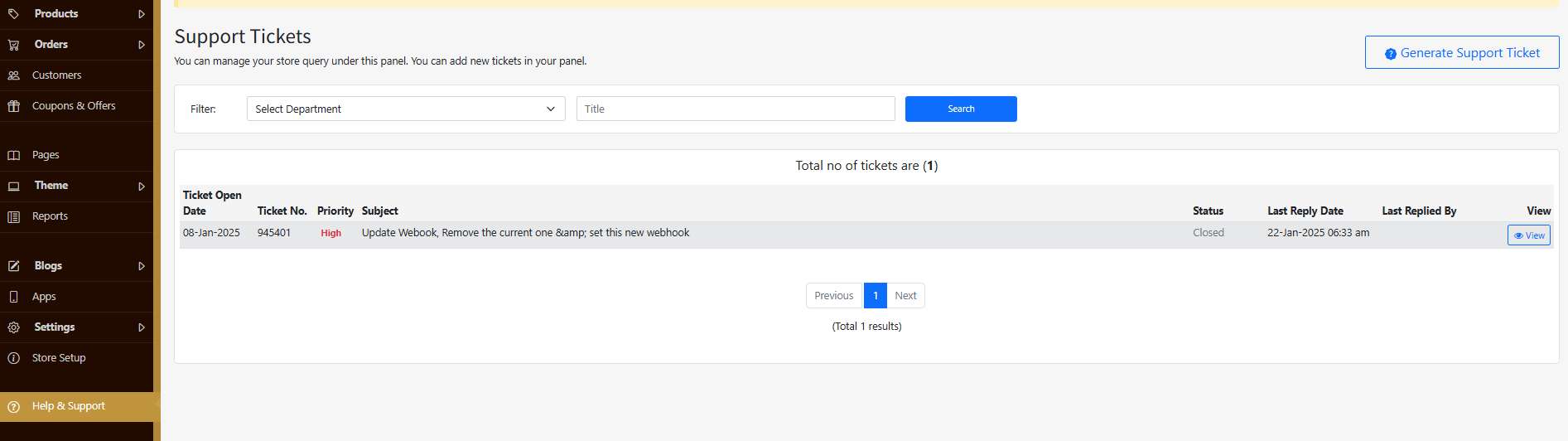
Generate a Support Ticket at Shopaccino
-
Log in to your Shopaccino admin panel.
-
Navigate to Support > Create Ticket (or visit their support contact page).
-
Submit a request with the following details:
Subject: Request to Set Up Webhook for Real-Time Sales Data
Message:Hello,
I have integrated WiserNotify with Shopaccino and need to set up a webhook to receive real-time sales order data.
Please configure the following webhook URL in the backend:
[Paste your Webhook URL here]
Let me know once it is done or if any additional steps are required.
Thanks!
-
-
Wait for Confirmation
- Shopaccino’s support team will set up the webhook in the backend.
- Once they confirm, your integration will start receiving real-time sales data.
Important Notes:
✅ By default, when you hit the “Create” button in WiserNotify, it will pull the last 30 orders from Shopaccino.
✅ To receive new sales data automatically, setting up the webhook is mandatory.
Still stuck? A human will do it with you
Live chat from your dashboard — real answers in minutes, every day of the year.




 Capterra