

How to Connect WiserNotify with Instagram Post
Updated Sep 10, 20261 min readConnection guide
Integrating wisernotify with Instagram Post
Step 1: Create an Instagram Post connection at wisernotify
- Navigate to WiserNotify > Instagram Post Integration.
- Click on the Login with Facebook button.
- Click on Continue as [Facebook User Name].
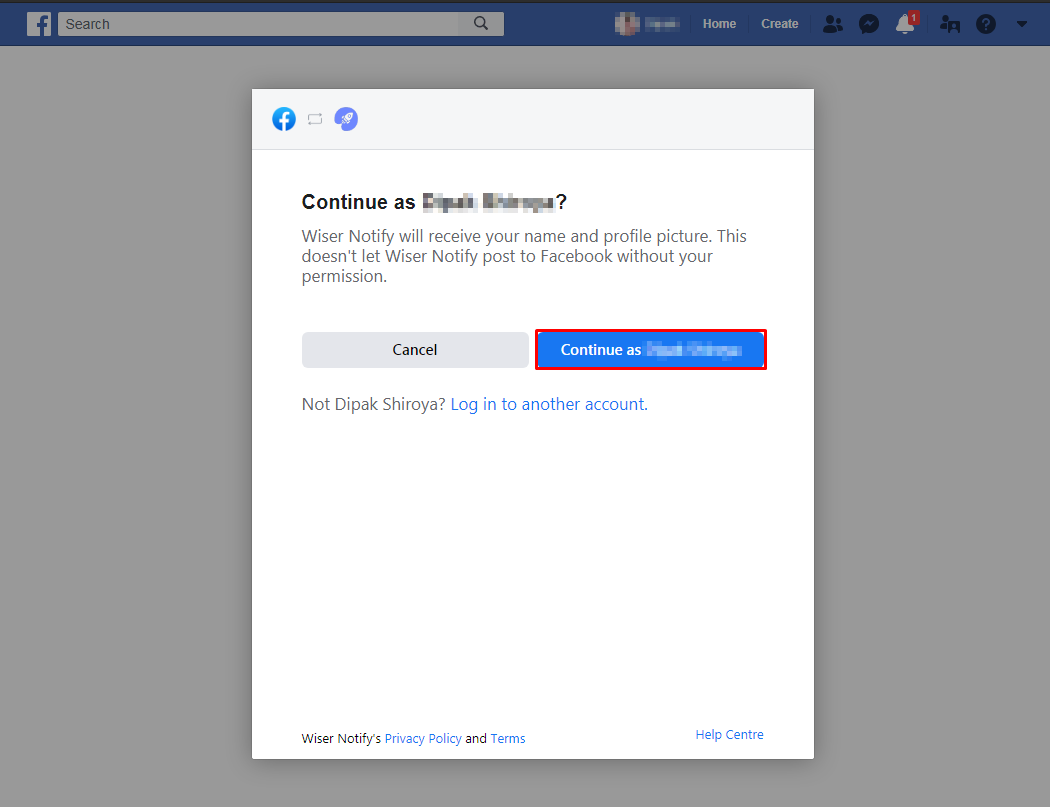
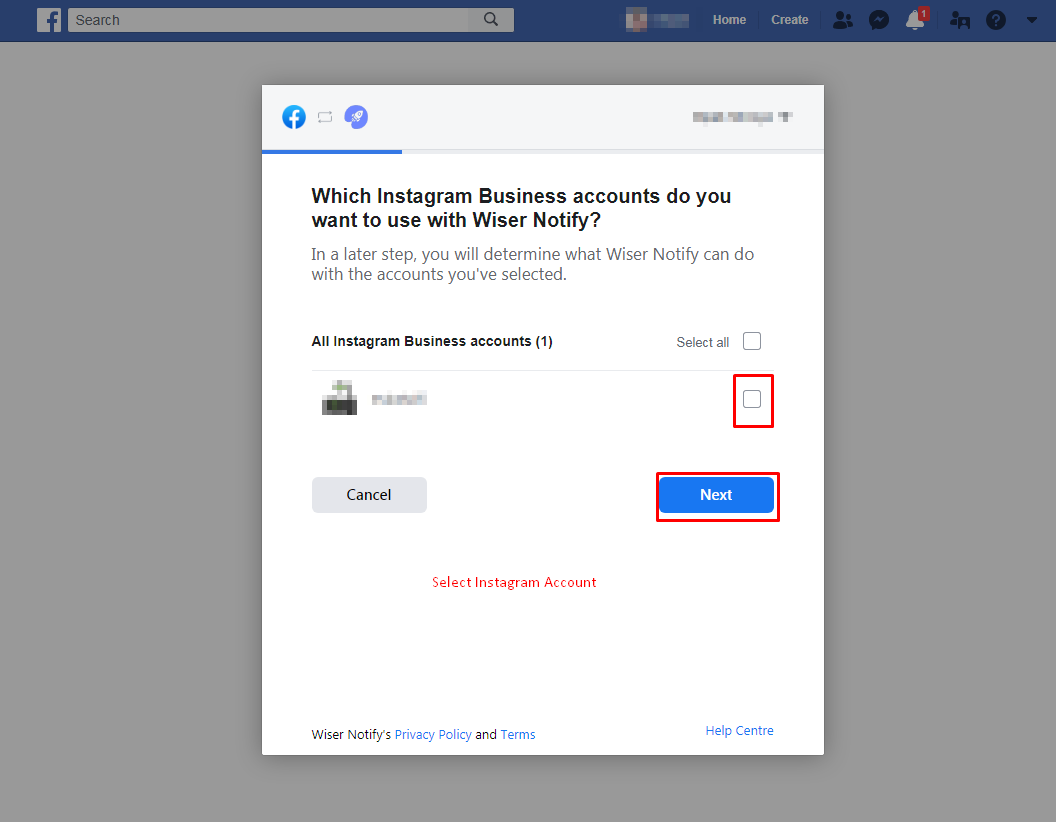
– Select the Instagram Post pages.
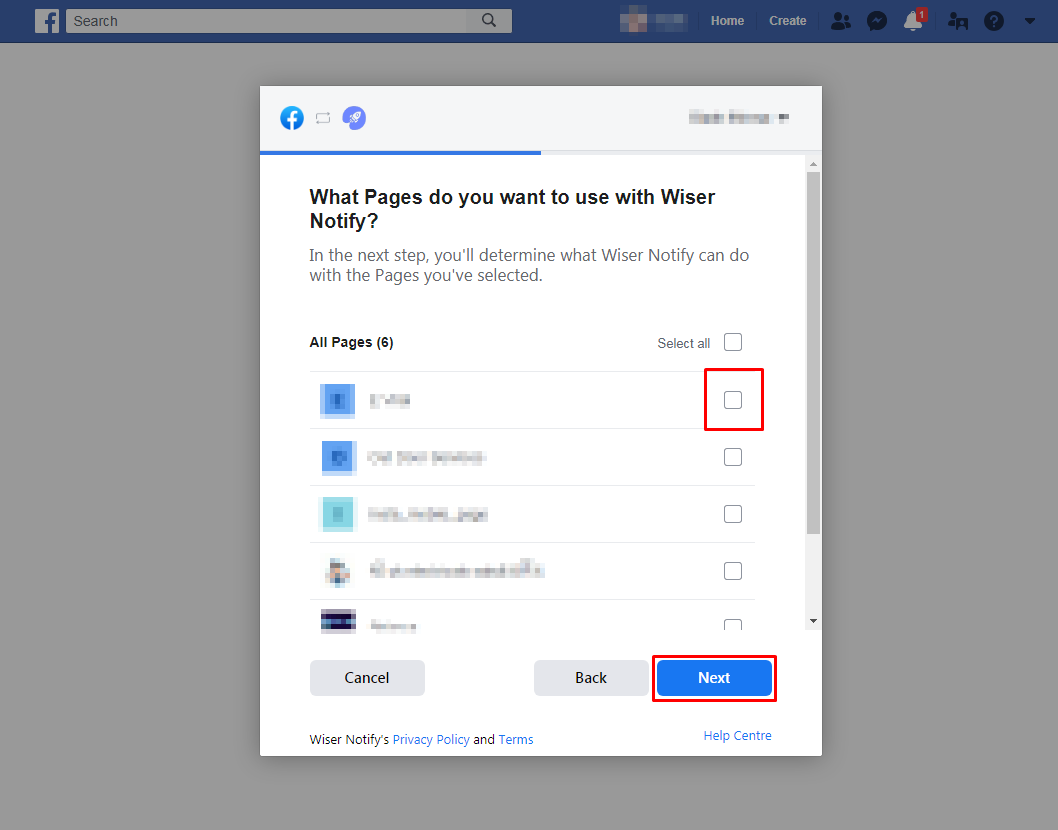
– Now, you can see the Facebook page list. Here, It is required to select the Facebook pages, which are connected with your Instagram accounts.
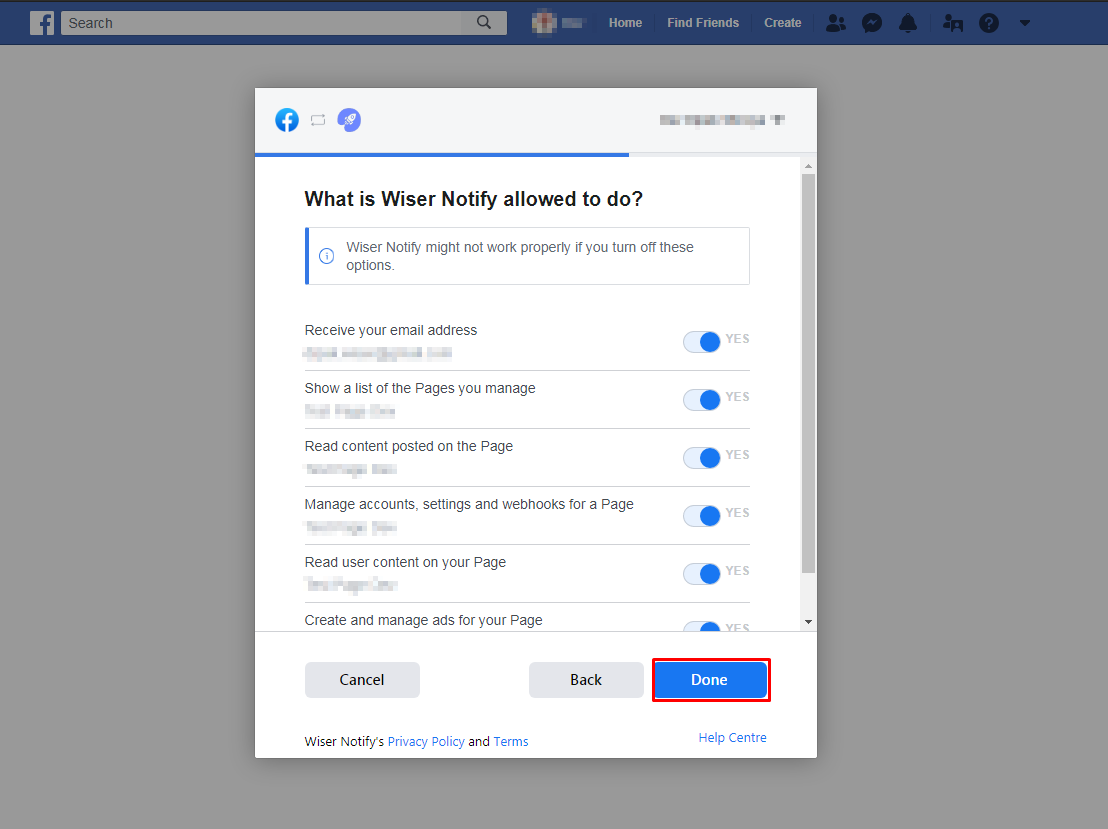
– Click the Done button.
– Click the OK button.
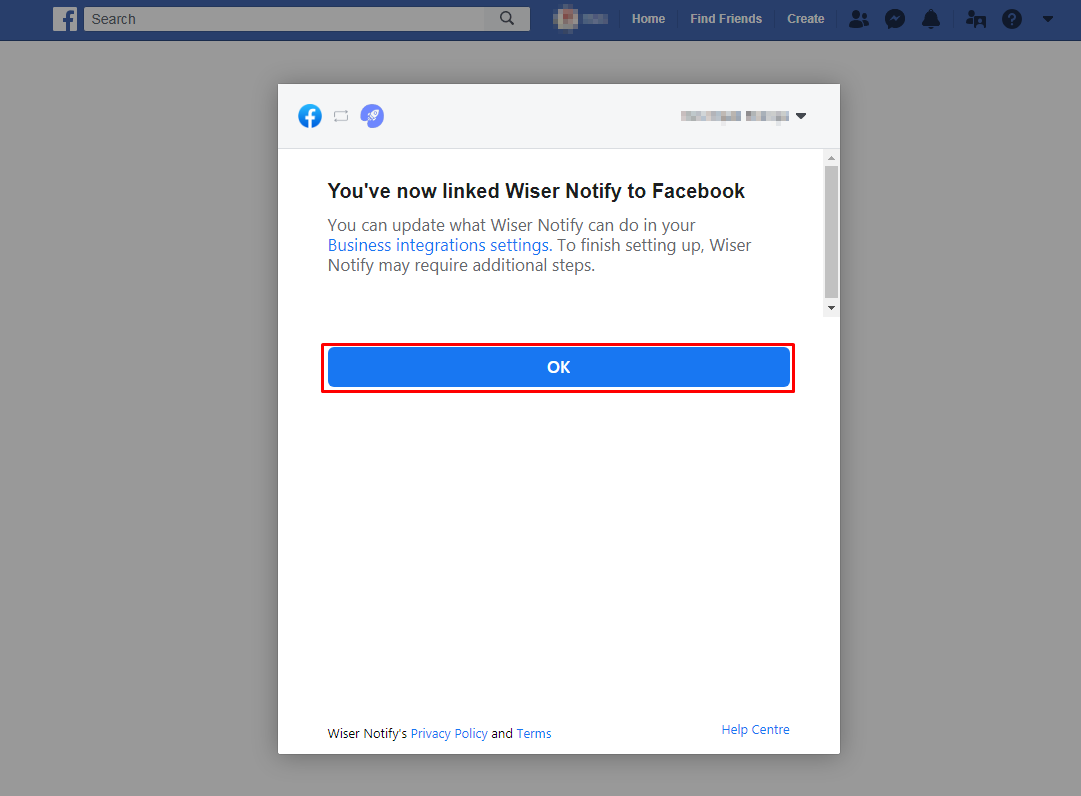
– Once click on “OK”, We will add your Facebook account & redirect you to the integration list.
– Now here you can see the “installed” & “connected” statuses in the Instagram box. please click on the Connected button.
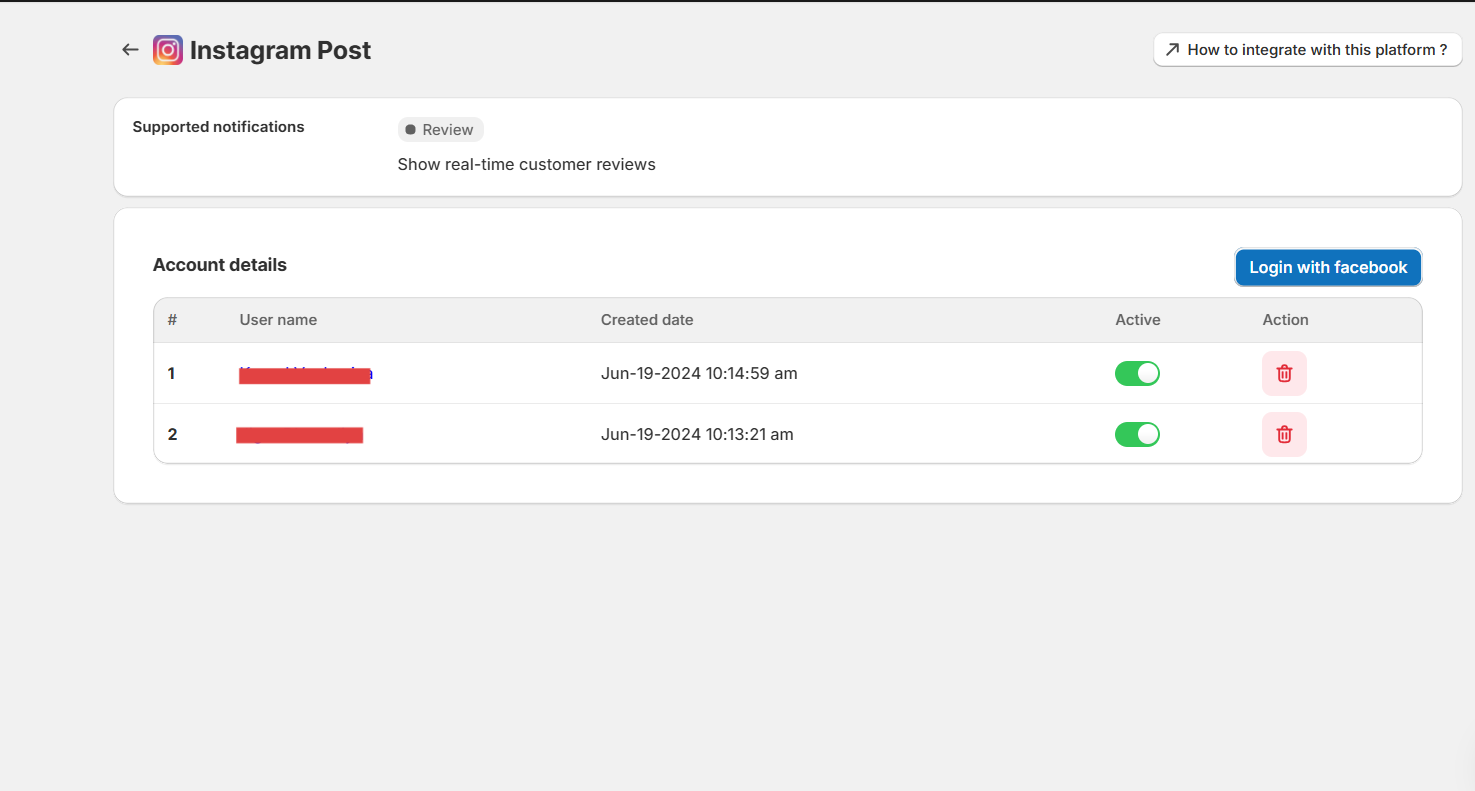
– Now, you can see your Instagram page name & follower count.
For more queries, reach us at support@cms.wisernotify.com or chat with the support team if it is not working. We will help you through the integration process.
Related guides
How to connect WiserNotify with SpotifyHow to Embed RSS Feed On Your WebsiteHow to Embed Tumblr Feed On Your Website
 Still stuck? We'll set it up with youLive chat or a free screen-share call, every day of the year.Chat with support



 Capterra