

How to Embed RSS Feed On Your Website
On this page · 3 sections
1. Add Wall
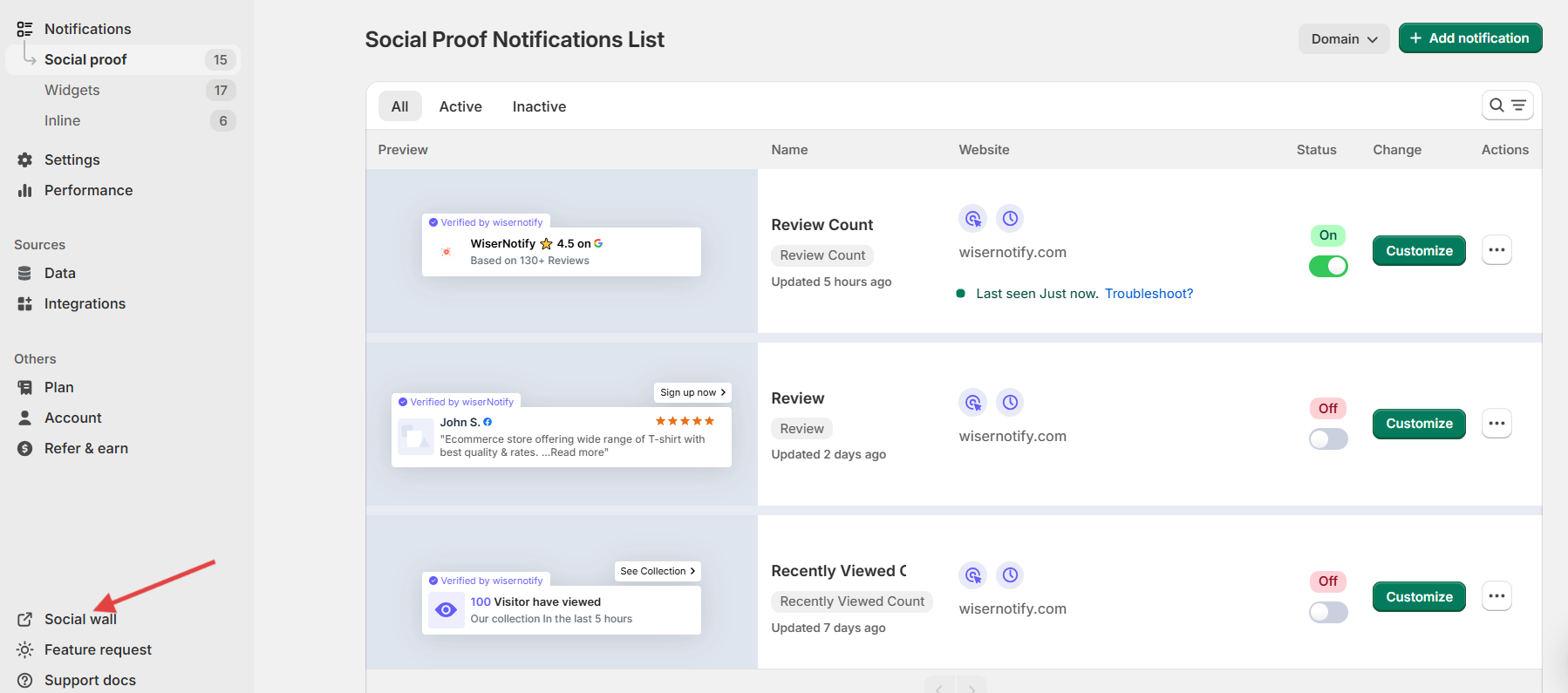
- Click on the Social wall option.
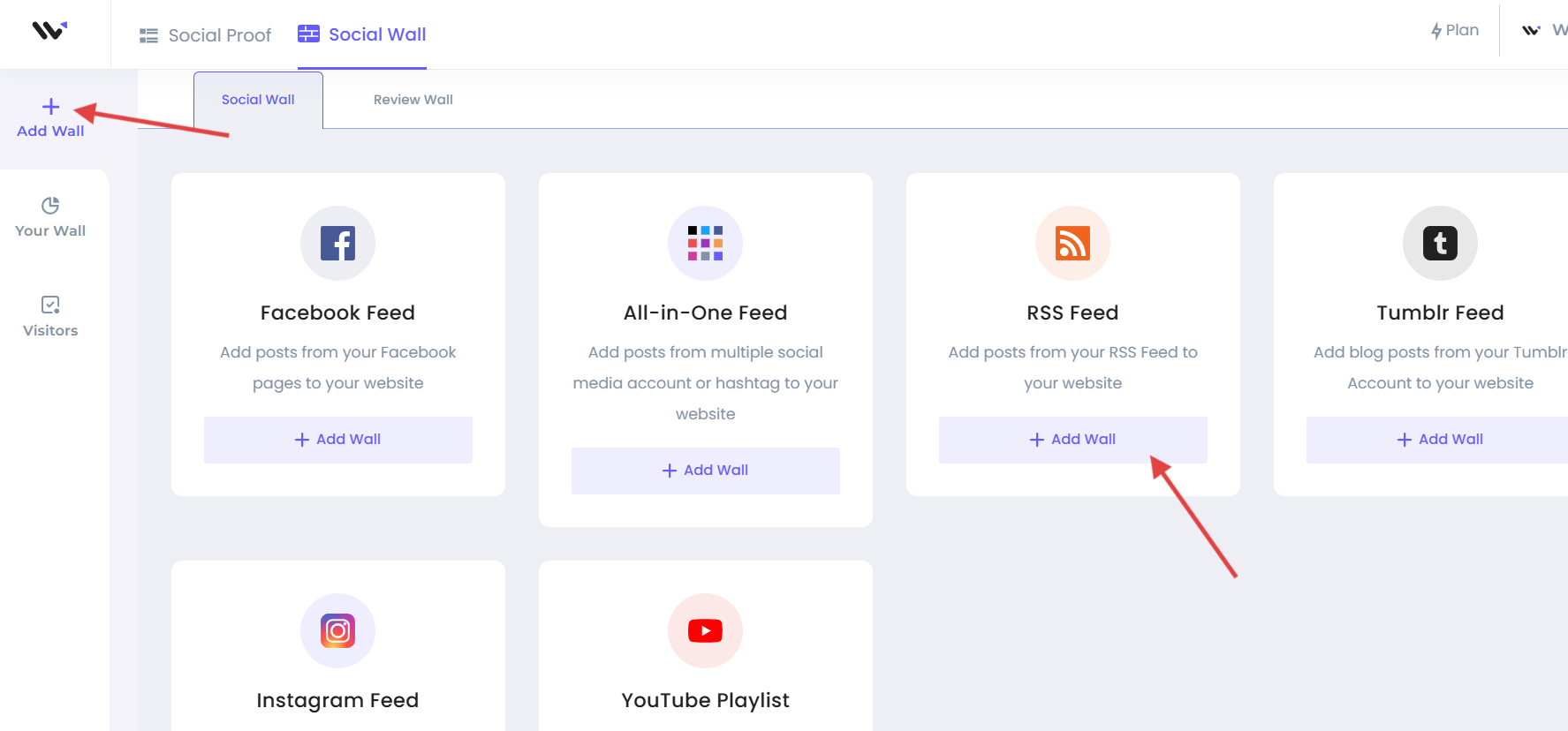
- Under “Add Wall Tab”, click on “Social Wall”.
Here you’ll see different customization options:
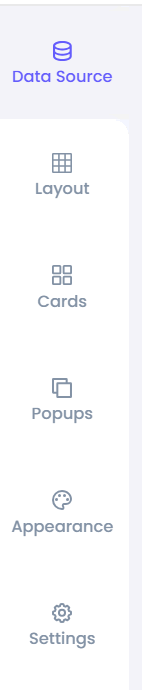
Data source: You can integrate multiple platforms under this section which can automatically fetch data to automate the process.
Layout: Select layout options from mosaic, carousels, grid, and more. You can also customize options like rows, space, Header text, load more button settings, content width, etc.
Card: Under this tab, you can select card template and select options you want to display like author name, icon, date, source, URL, etc.
Pop-up: Using the pop-up option, you can select a pop-up template and select options you want to display like author name, icon, action, source, URL, etc.
Appearance: This option allows you to change color, font, border, shadow, and more. It also lets you add your custom CSS, and you can choose whether you want to display a wall on a mobile phone or desktop.
Filter: It allows you to apply hide/show filters to comments and images, and also, you can add keywords that you want to include and exclude.( Only visible when data source is connected
Settings: Here, you can find the additional settings.
2. Connect RSS Feed with Social Wall
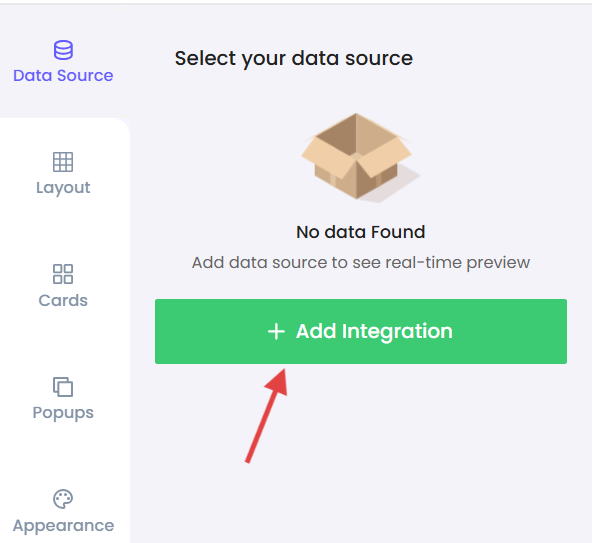
Now, go to the “Data Source” tab.
- Click on “Add integration”
- Now, add your RSS feed URL
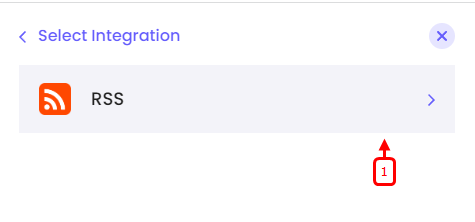
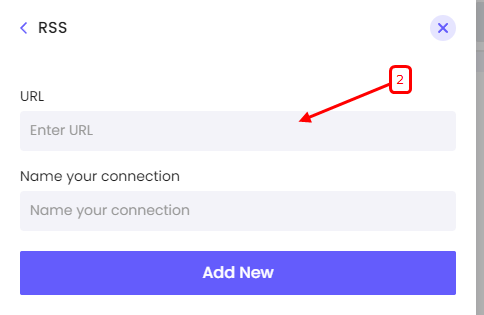
- Now go back and tick mark the checkbox; you’ll start seeing a live preview in the preview section.
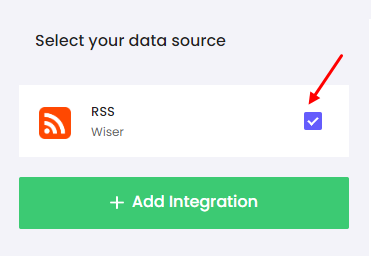
That’s it. Your RSS Feed is connected with your Social Wall.
Save it before you move to the next step.
3. Add Wall code to your website
Now, to display the wall on your website, copy the code and paste it into your HTML on the desired page.
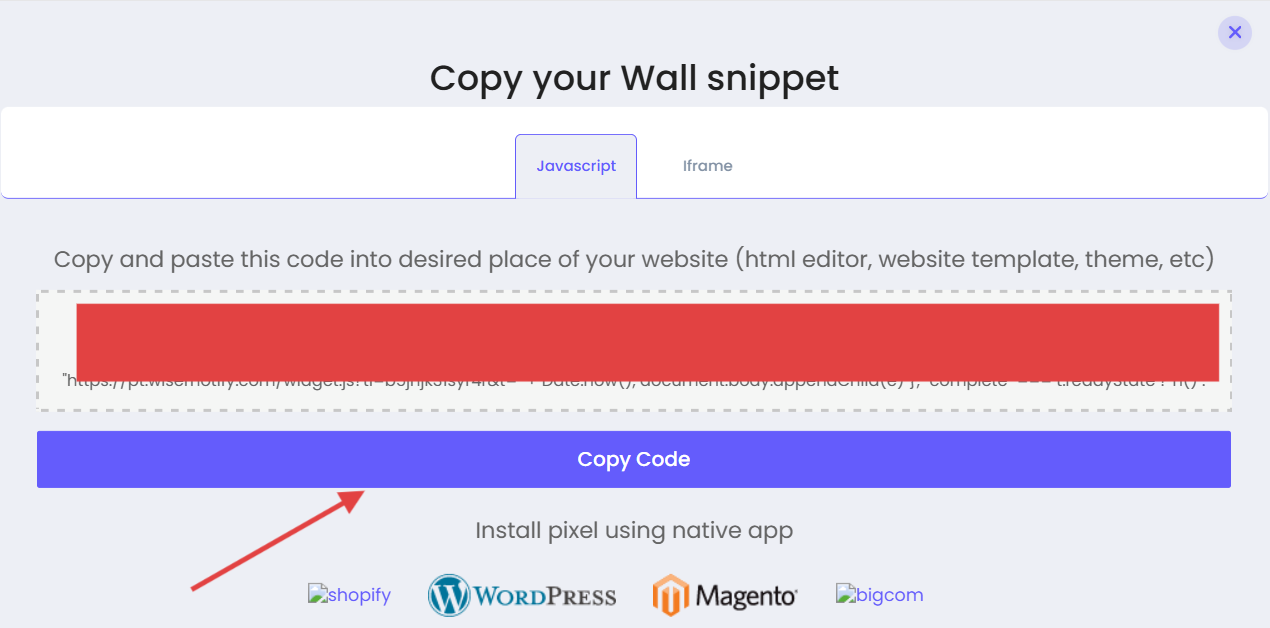
Once you add this code to your desired place in HTML, your wall will be live.
Related guides
 Still stuck? We'll set it up with youLive chat or a free screen-share call, every day of the year.Chat with support



 Capterra