
Browse categories
How to connect WiserNotify with Linkedin?
1 min read
Integrating wisernotify with the LinkedIn platform
Create a LinkedIn connection at wisernotify
- Go to WiserNotify > Linkedin Integration.
- Click on the Integrate button inside the Integration box.
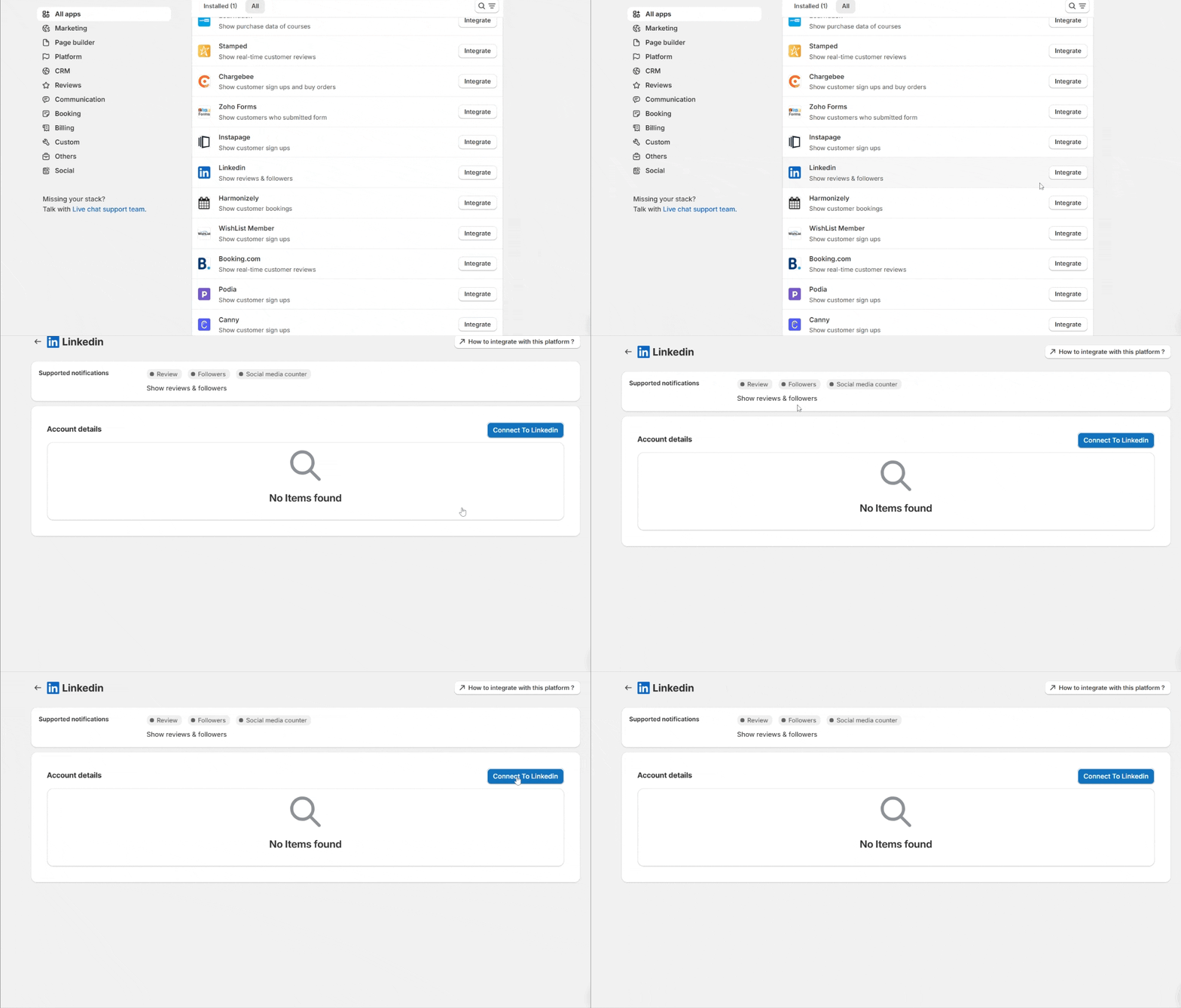
- Once you click on connect it redirects to the LinkedIn authentication page.
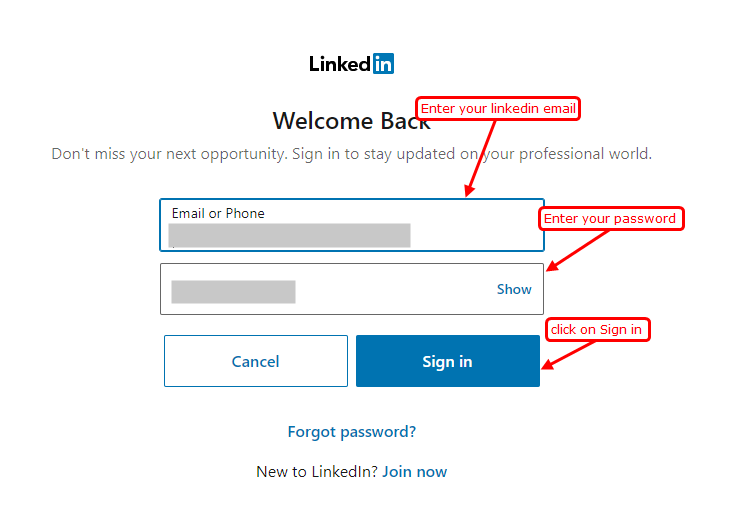
- Enter your LinkedIn login email address & password.
- Now allow the permission to WiserNotify app for getting account details.
- Your LinkedIn integration is done successfully.
- Click on the Connected button to select.
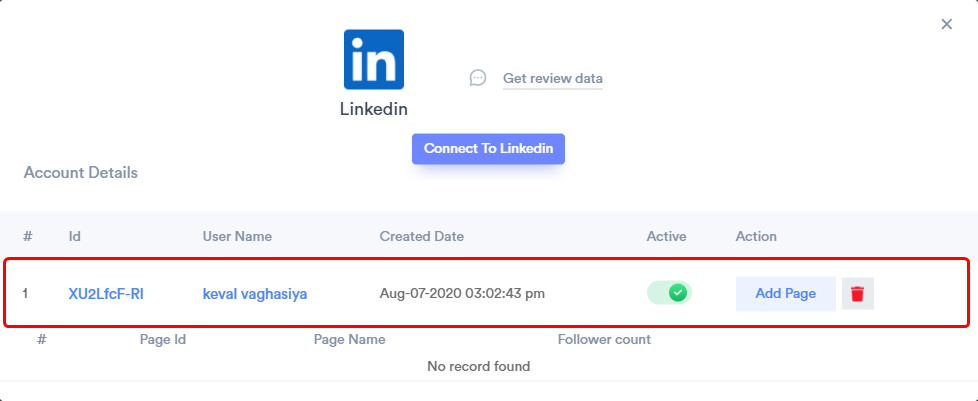
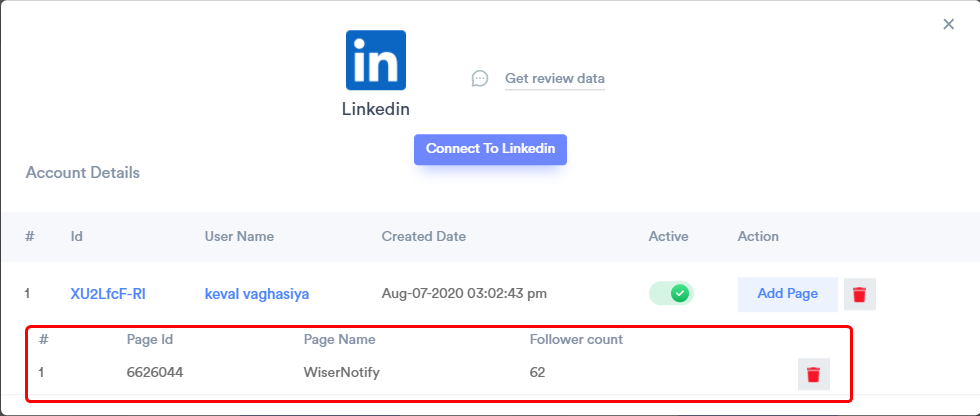
- Click on the Add Page button and select the page to get the page follower count.
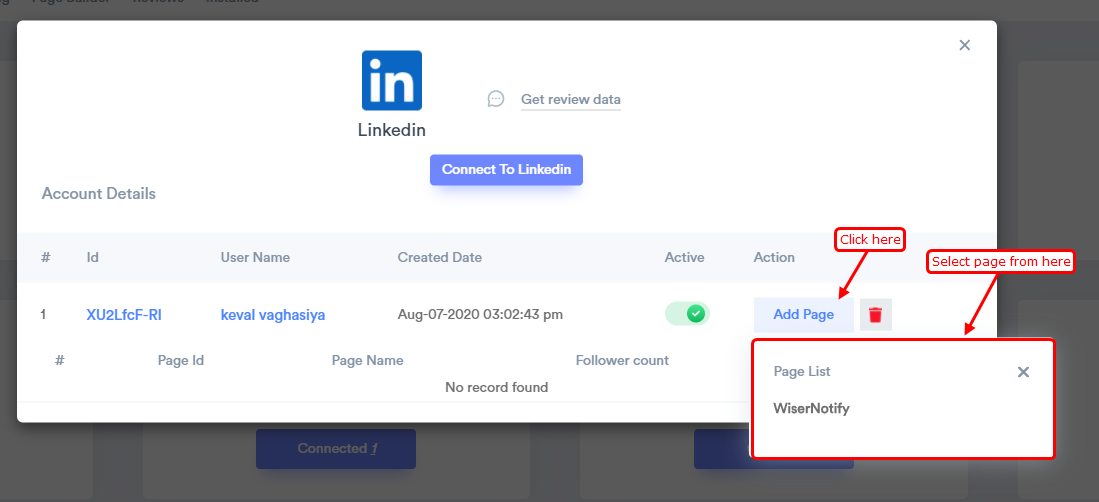
- Now you can see the page follower count and the page name.
Please test by adding new data & visit the WiserNotify- Dashboard Data page. Here, You can see all the captured/ received data with its source name.
Still stuck? A human will do it with you
Live chat from your dashboard — real answers in minutes, every day of the year.




 Capterra