
Browse categories
How to connect WiserNotify with Google My Business?
1 min read
This guide will walk you through:
- Capturing Lead Activities: Connect Google My Business with WiserNotify using a webhook to fetch real-time lead data.
Step 1: Connect Google My Business with WiserNotify
- Go to WiserNotify > Google My Business Integration.
- Click on the Integrate button inside the Integration box.
- Click on login with Google
- Select Google Account.
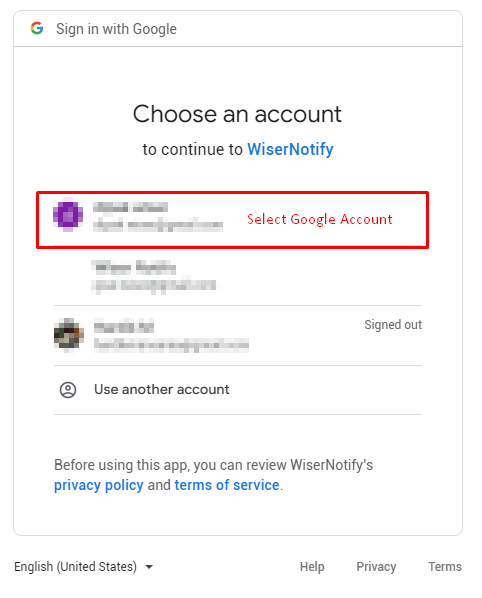
Step 2: Authorize and Verify Integration
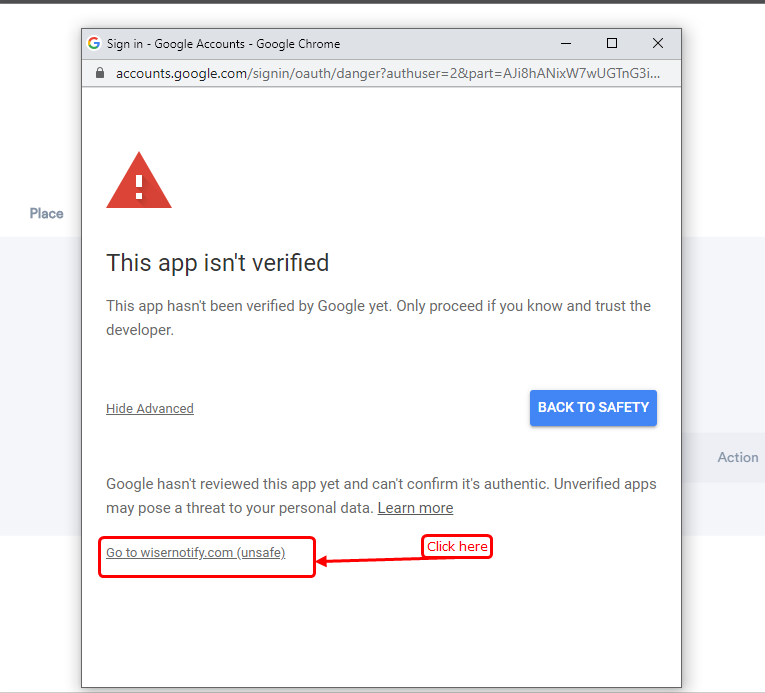
- If you get the below popup & then click to “go to WiserNotify.com(unsafe)” & click on the Allow button, We are currently waiting for Google approval.
- Click on Allow
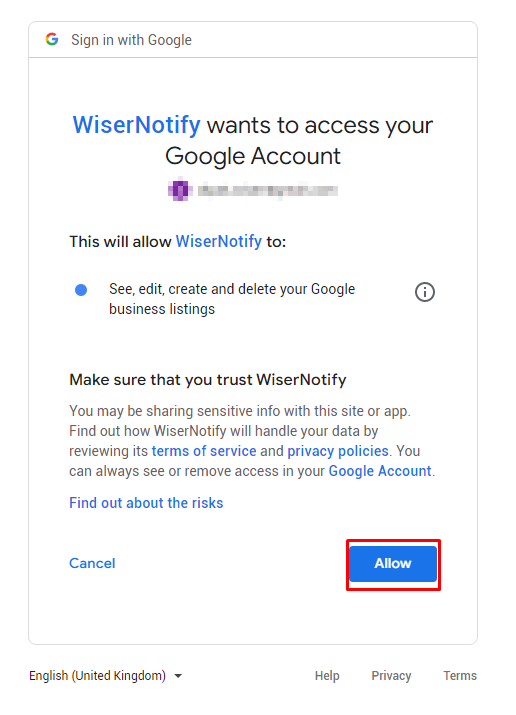
– Once click on “Allow”, We will add your Google account & redirect you to the integration list.
– Now here you can see “installed” & “connected” status in the Google My Business box. please click on the Connected button.
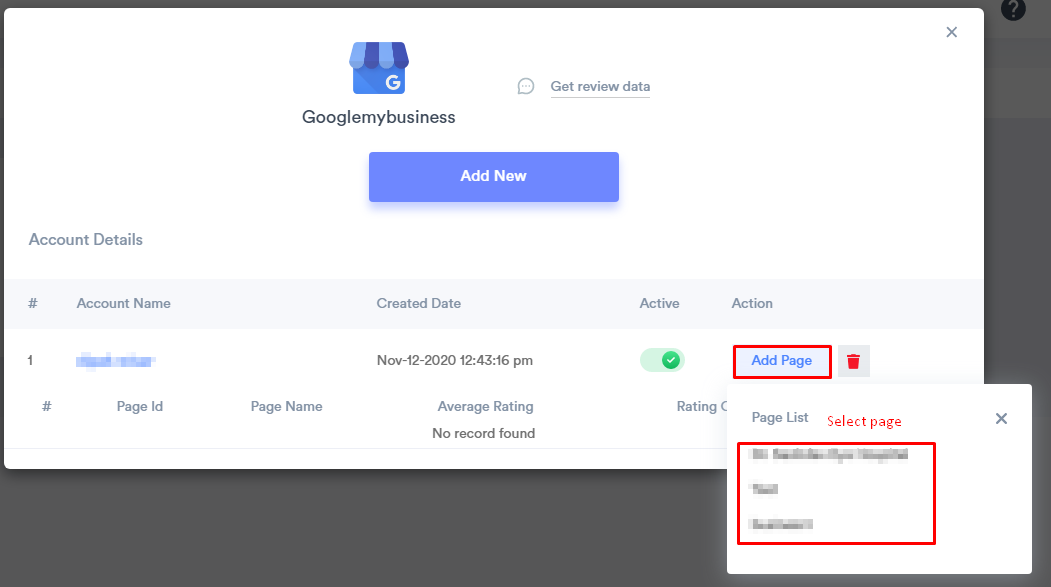
After that, We fetch Google my business page reviews & Every week, We fetch the latest data from it & show them into your review notification.
You can see review data under WiserNotify – Dashboard Data page.
Related integration guides
Setting up a different integration? These related WiserNotify integration guides walk through it:
- How to connect WiserNotify with Google Place? :Wisernotify Support Docs
- How to connect WiserNotify with ActiveCampaign? :Wisernotify Support Docs
- How to connect WiserNotify with Activechat? :Wisernotify Support Docs
- How to connect WiserNotify with Agile CRM? :Wisernotify Support Docs
- How to connect WiserNotify with Agiled? :Wisernotify Support Docs
Still stuck? A human will do it with you
Live chat from your dashboard — real answers in minutes, every day of the year.




 Capterra