

Squarespace Integration with WiserNotify
This guide will walk you through:
- Display Notifications: Add the WiserNotify pixel code to your Squarespace website.
- Capturing Sales & Lead Activities: Connect Squarespace with WiserNotify using a webhook to fetch real-time sales & lead data.
Install WiserNotify Pixel Code to Squarespace
Step 1: Get your wisernotify pixel code
- Log in to your WiserNotify account.
- Navigate to the Install Pixel page.
- Copy your Pixel Code.

Step 2: Add the Pixel Code to Squarespace Site
- Edit your site.
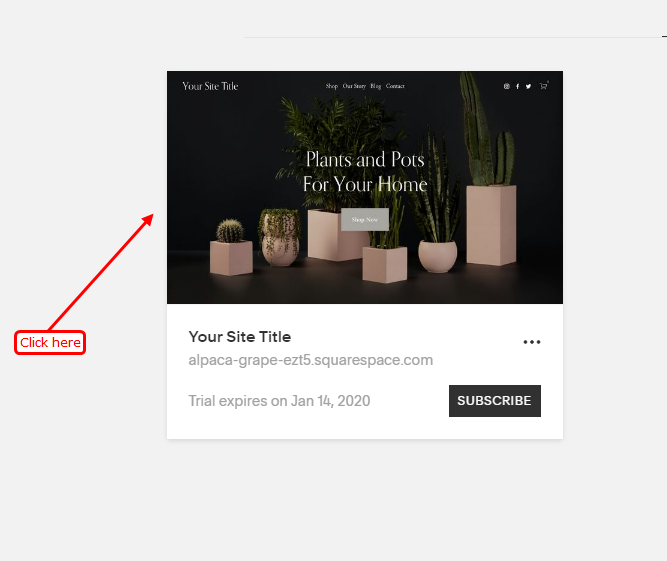
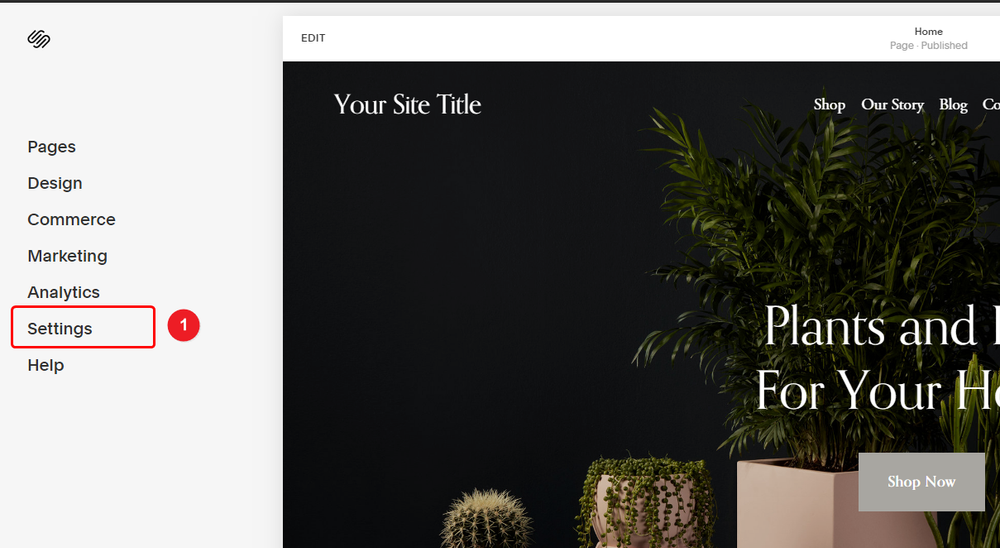
1. Click on the setting into the sidebar.
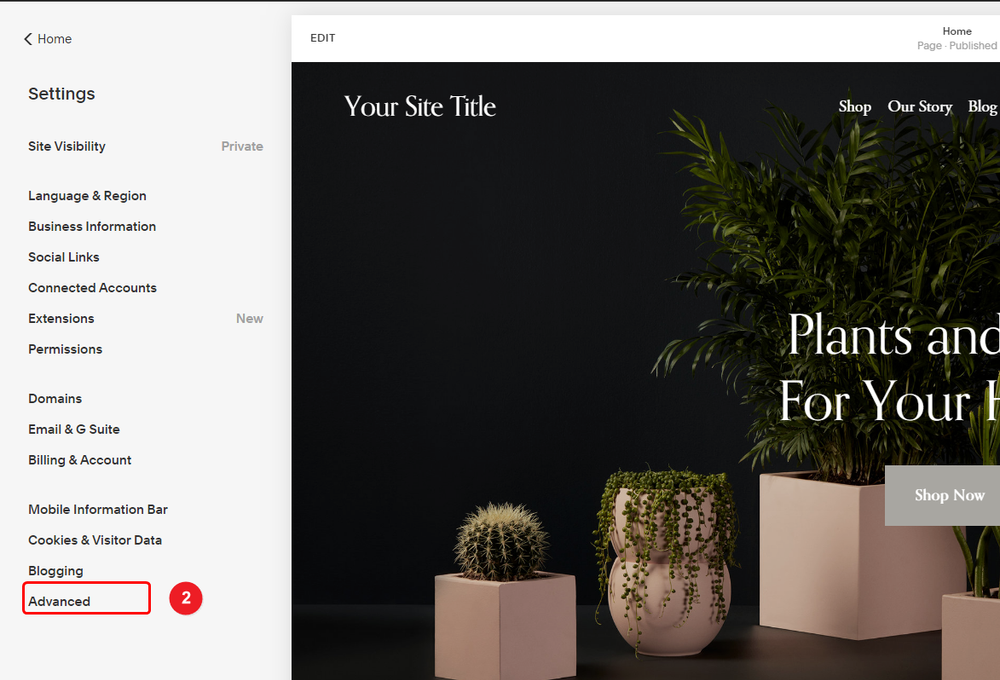
2. Click on advanced into the sidebar.
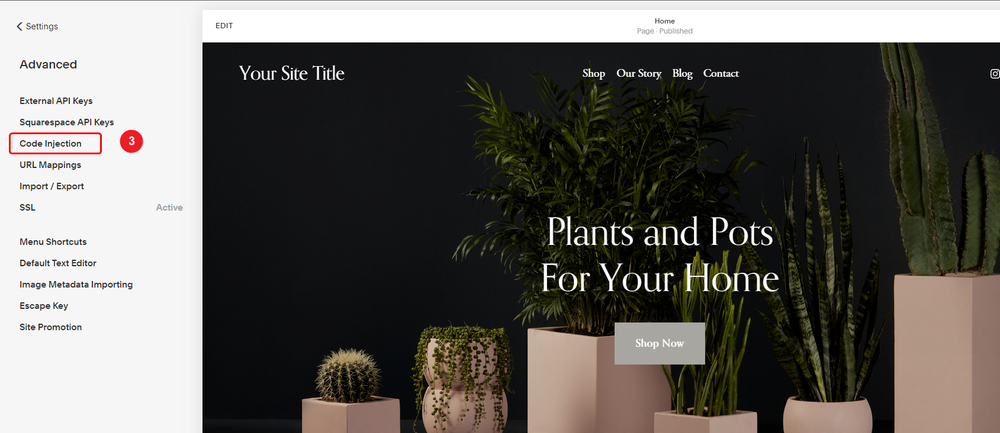
3. Click on code injection into the sidebar.
4. Paste your tracking code here.
5. Click on save button.
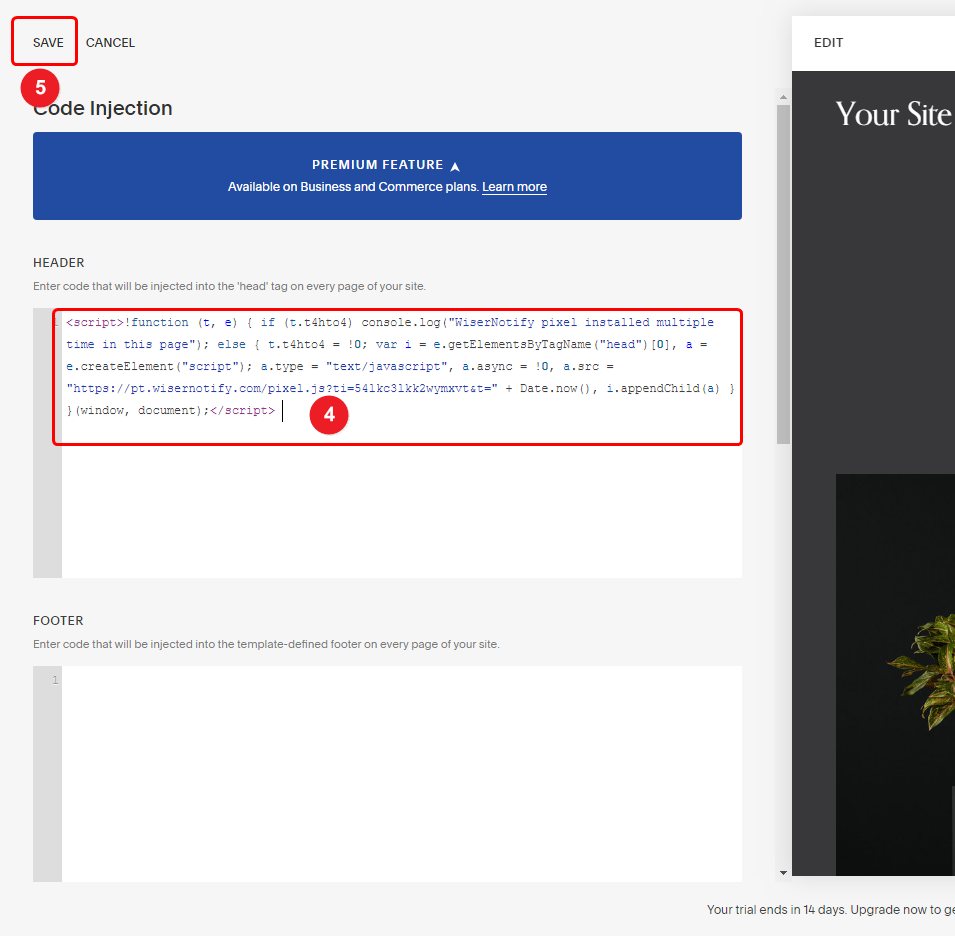
Step 3: Verify Installation
- Go back to your Wisernotify pixel page.
- Click on verify pixel installation to check if the pixel is active.
- If installed correctly, you will see a “Pixel Active” successfully message.

Note: This pixel script tag is required on every page wherever you want to track visitor activities, capture form submit events & display notifications.
Now, visit your site & reload or refresh it.
Capture Sales & Lead Activities from Squarespace
To seamlessly integrate Squarespace with your WiserNotify account, follow these steps:
- Access your WiserNotify account and navigate to the “Integration” section.
- In the search bar, look for “Squarespace” and click on it to “Connect” the connection.
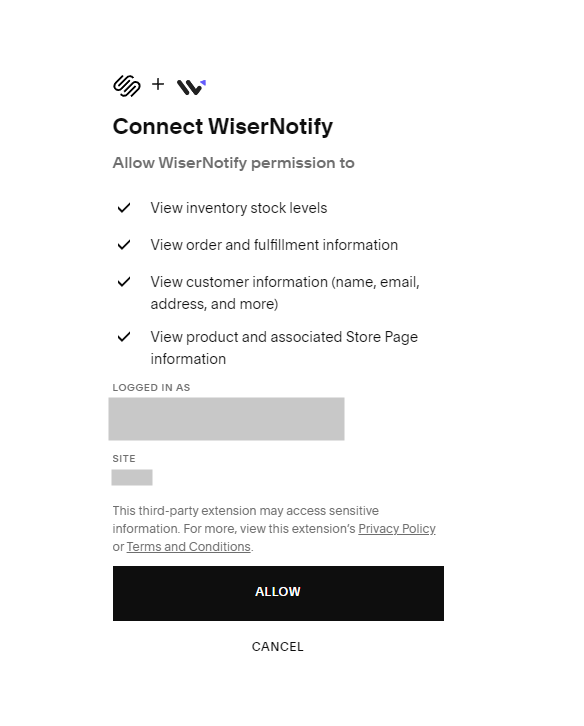
During this process, you will be prompted to grant permission to WiserNotify. This permission is necessary to enable the creation of WiserNotify notifications based on your e-commerce store’s data.
Please note that WiserNotify operates in a read-only mode and does not make any modifications to your website’s data.
Step 2 – You’re All Set!
Once you’ve completed the integration process, you should be good to go.
If you’re not seeing notifications on your Squarespace store, please ensure that you have correctly embedded your snippet.
Related guides
 Still stuck? We'll set it up with youLive chat or a free screen-share call, every day of the year.Chat with support




 Capterra