
Browse categories
How to install pixel code on a Ghost site?
1 min read
If you’re using Ghost to power your blog or website, you can easily install WiserNotify by adding the tracking code to your site’s <head> section. Follow these steps:
Step 1: Copy the WiserNotify Pixel Code
- Go to Install Pixel page
- Click Copy Code to copy your script.

Step 2: Add the Pixel Code to Ghost
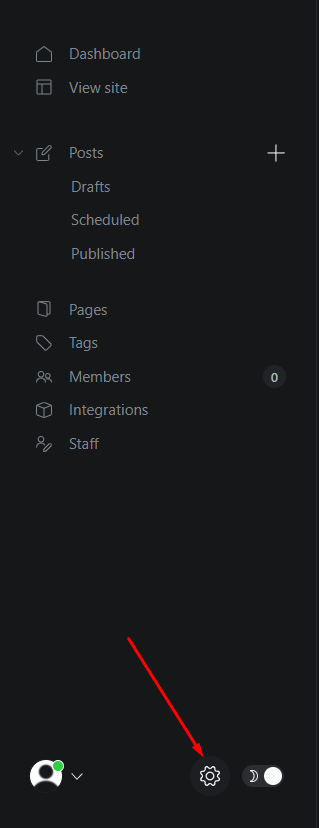
Login with your ghost admin site
- Click on setting icon
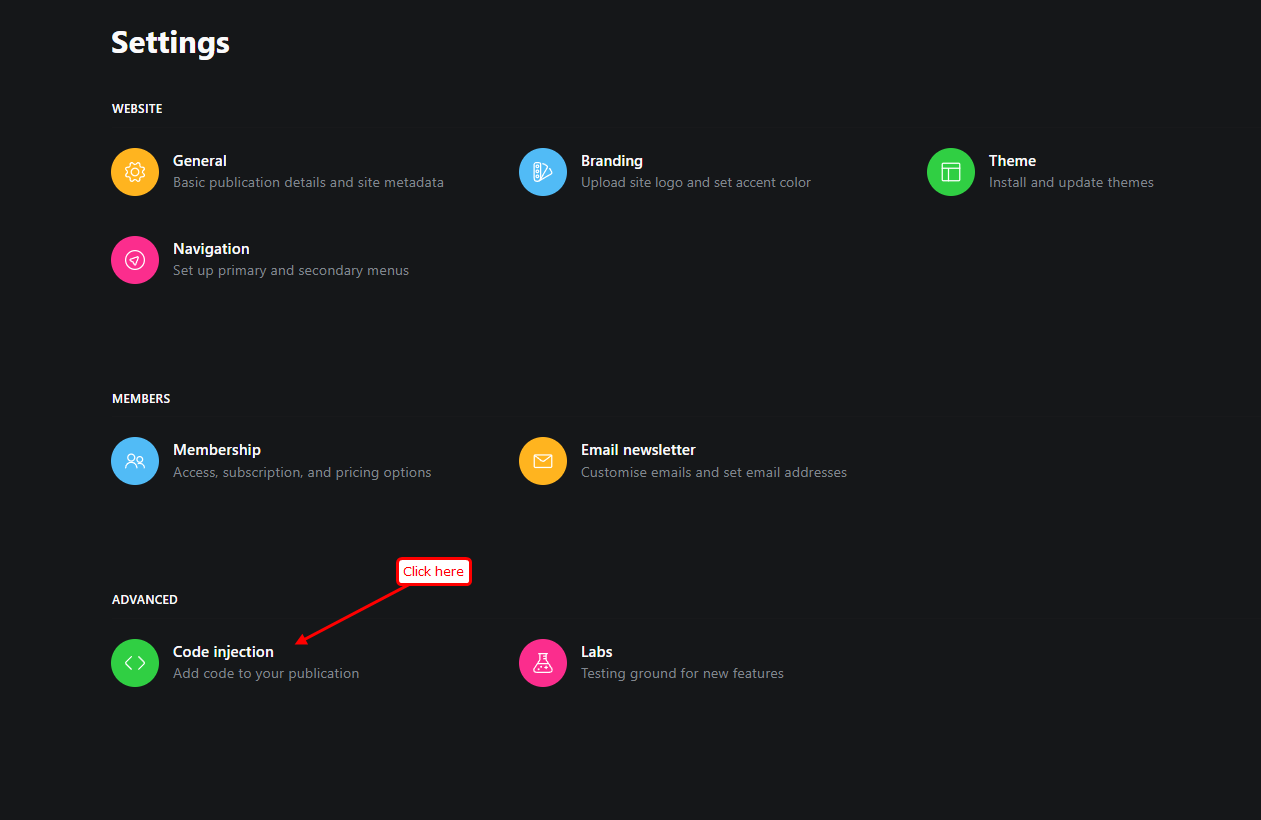
- Click on Code injection in Advanced section
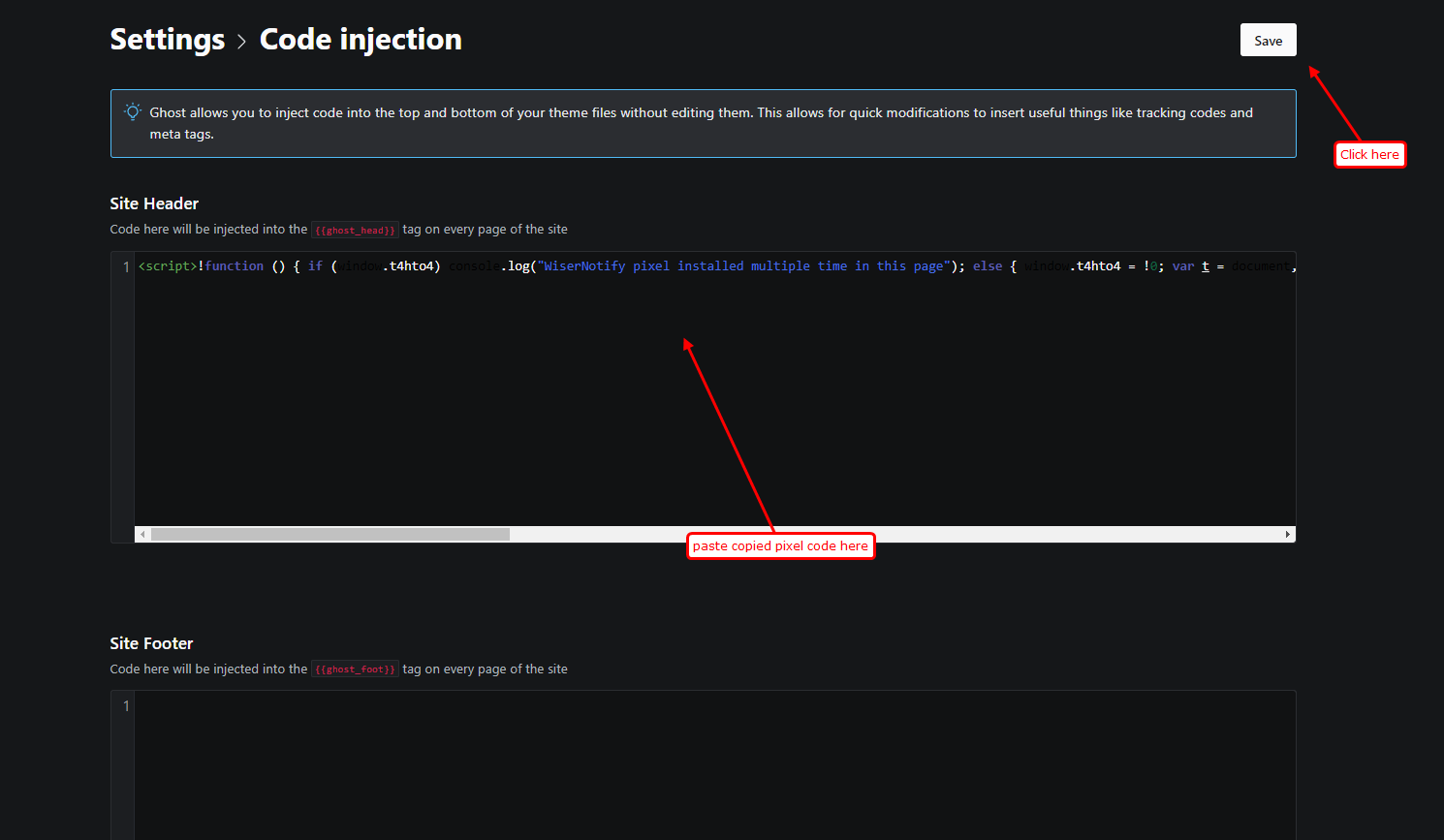
- Paste copied Wisernotify pixel code into Site header section
- Click on save
Step 3: Verify Installation
- Go back to your Wisernotify pixel page.
- Click on verify pixel installation to check if the pixel is active.
- If installed correctly, you will see a “Pixel Active” successfully message.

Note: This pixel script tag is required on every page wherever you want to track visitor activities, capture form submit events & display notifications.
Now, visit your site & reload or refresh it.
After that, return to WiserNotify panel & recheck the install pixel page & Wait for 5 seconds; it should show pixel detected popup. If not, then click on the verify my pixel button. It should display if installed correctly.
Still stuck? A human will do it with you
Live chat from your dashboard — real answers in minutes, every day of the year.




 Capterra