

How to install pixel code on Framer
Updated Apr 28, 20251 min readPixel install
On this page · 3 sections
If you’re using Framer for your website, you can easily install WiserNotify by adding the tracking code to your site’s <head> section. Follow these steps:
Step 1: Copy the WiserNotify Pixel Code
- Go to Install Pixel page
- Click Copy Code to copy your script.

Step 2: Add the Pixel Code to PageCloud
Login to Framer account.
- Edit your site.

-
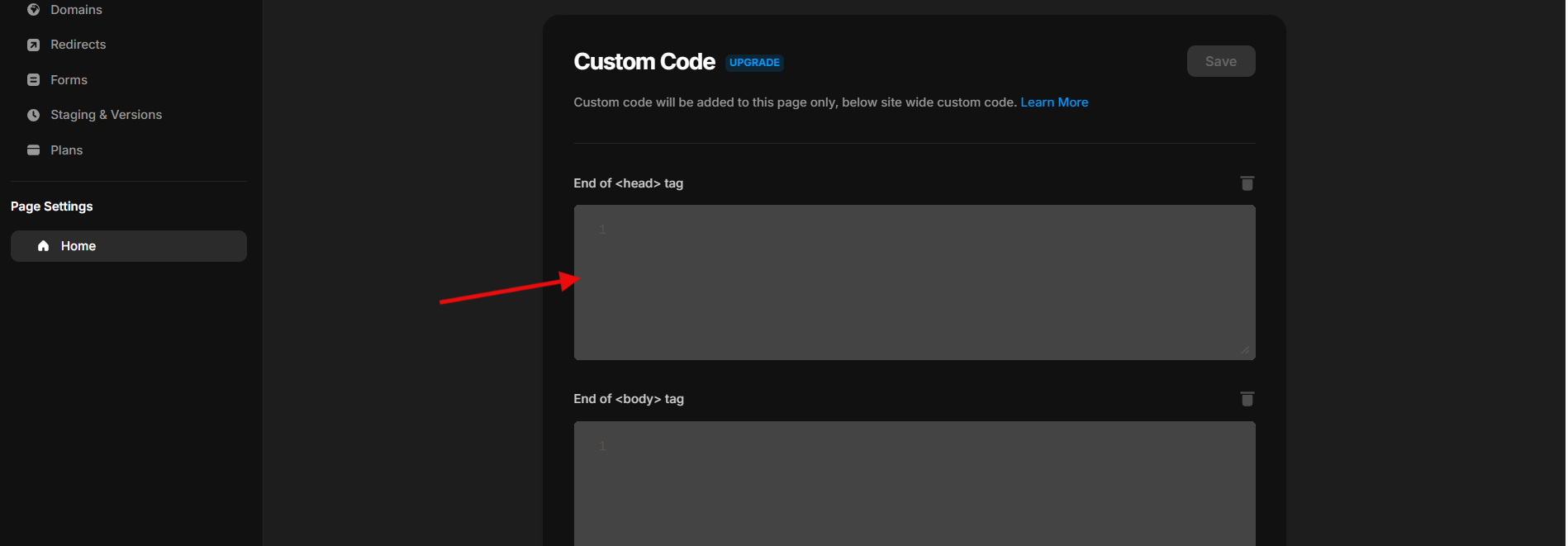
Go to the Code section inside settings.
-
Find the Custom Code field, usually under “Head” or “Body“.
-
Paste the WiserNotify pixel code into the Head section.
- Done!
Step 3: Verify Installation
- Go back to your Wisernotify pixel page.
- Click on verify pixel installation to check if the pixel is active.
- If installed correctly, you will see a “Pixel Active” successfully message.

Note: This pixel script tag is required on every page wherever you want to track visitor activities, capture form submit events & display notifications.
Start creating notifications now.
← PreviousHow to install pixel code on a Ecwid by Lightspeed siteNext →Integrate Beehive with WiserNotify
Related guides
How to install pixel code using Google Tag Manager(GTM)How to install pixel code on WixHow to install pixel code on a Ghost site
 Still stuck? We'll set it up with youLive chat or a free screen-share call, every day of the year.Chat with support



 Capterra