
Browse categories
How to install pixel code on a Ecwid by Lightspeed site?
1 min read
If you’re using Ecwid for your website, you can easily install WiserNotify by adding the tracking code to your site’s <head> section. Follow these steps:
Step 1: Copy the WiserNotify Pixel Code
2. Click Copy Code to copy your script.

Step 2: Add the Pixel Code to your site/store.
3. Login with Ecwid by Lightspeed
4. Go to Sales channels > Website > SEO
5. Click on Add code
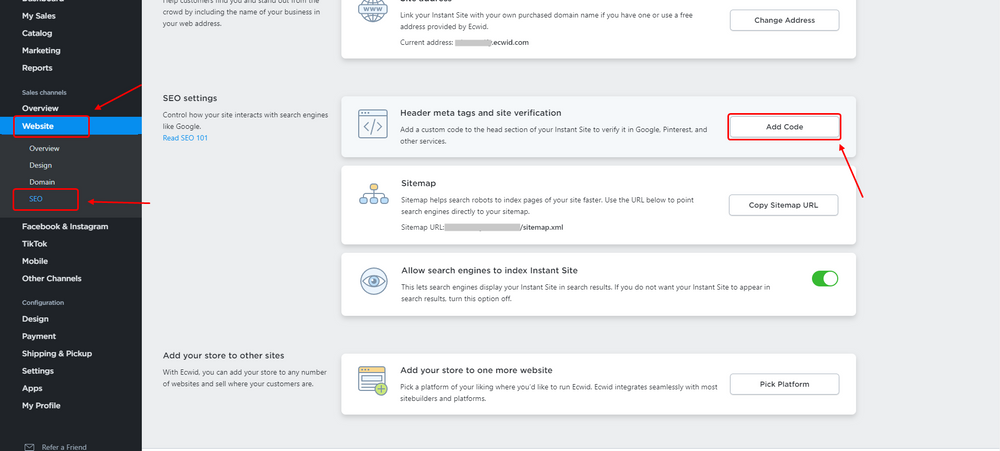
6. Paste Wisernotify pixel code here

7. Click on save.
8. Done!
Step 3: Verify Installation
- Go back to your Wisernotify pixel page.
- Click on verify pixel installation to check if the pixel is active.
- If installed correctly, you will see a “Pixel Active” successfully message.

Note: This pixel script tag is required on every page wherever you want to track visitor activities, capture form submit events & display notifications.
Start creating notifications now.
Still stuck? A human will do it with you
Live chat from your dashboard — real answers in minutes, every day of the year.




 Capterra