
Browse categories
how to connect wisernotify with MyDukaan
2 min read
This guide will walk you through:
- Displaying Notifications: Add the WiserNotify pixel to MyDukaan to show notifications.
- Capturing Sales activities: Use a webhook to fetch real-time sales data from MyDukaan.
Install WiserNotify Pixel Code to MyDukaan pages
Step 1: Get your wisernotify pixel code
- Log in to your WiserNotify account.
- Navigate to the Install Pixel page.
- Copy your Pixel Code.

Step 2: Add the Pixel Code to MyDukaan
- Login with MyDukaan
- Go to Plugins >> All plugins
- Search Custom Header & Footer Script Inserter and click on Install plugin.
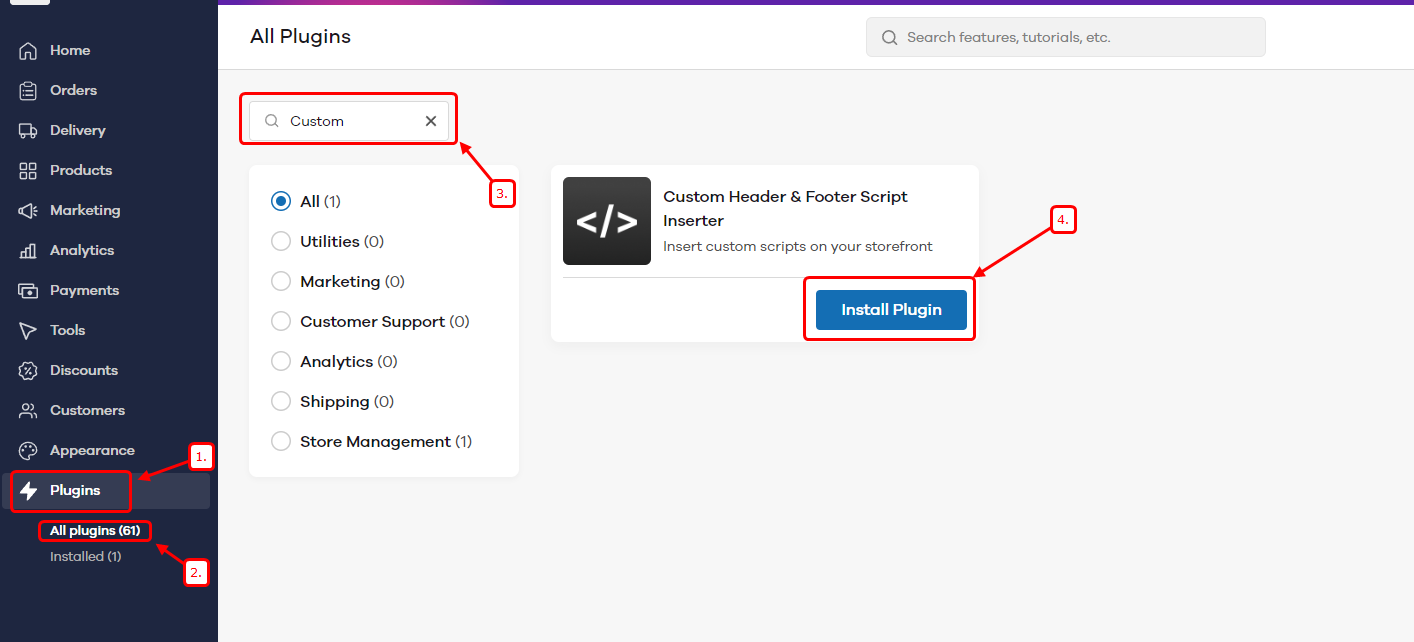
- Click on Install plugin
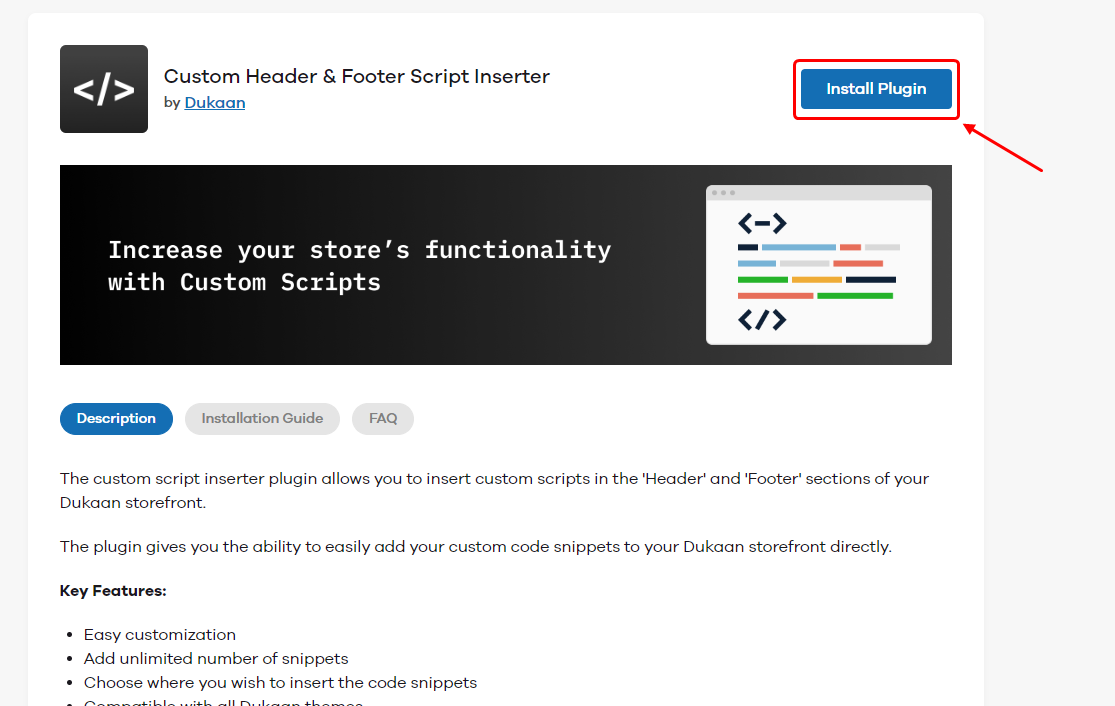
- Click on Settings.
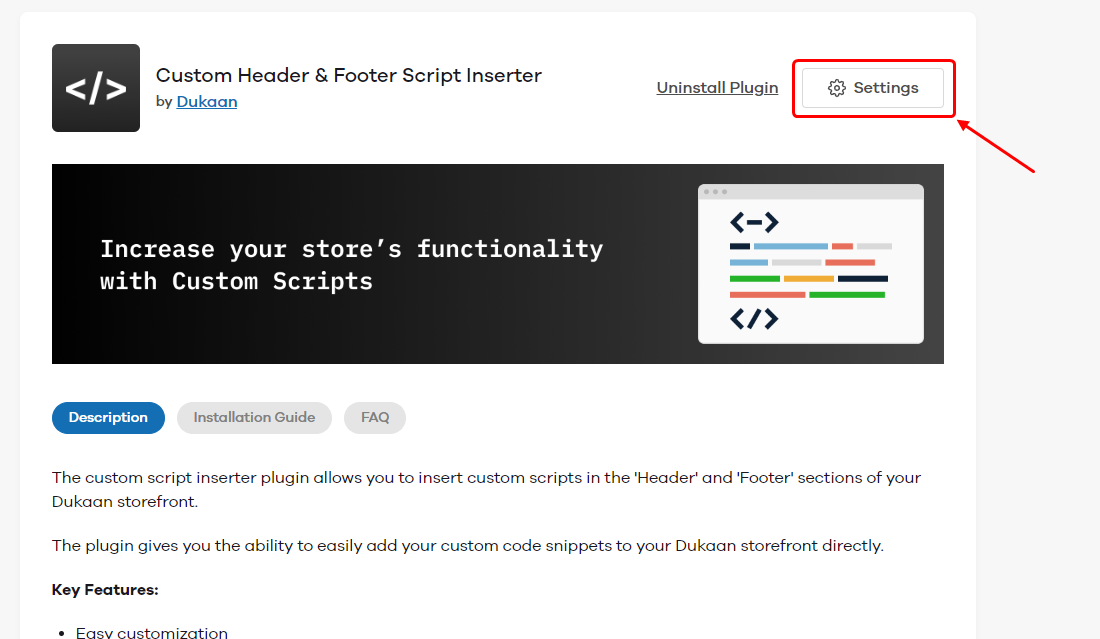
- Click on Add script.
- Enter name
- Select Header
- Paste Wisernotify pixel code
- Click on Add
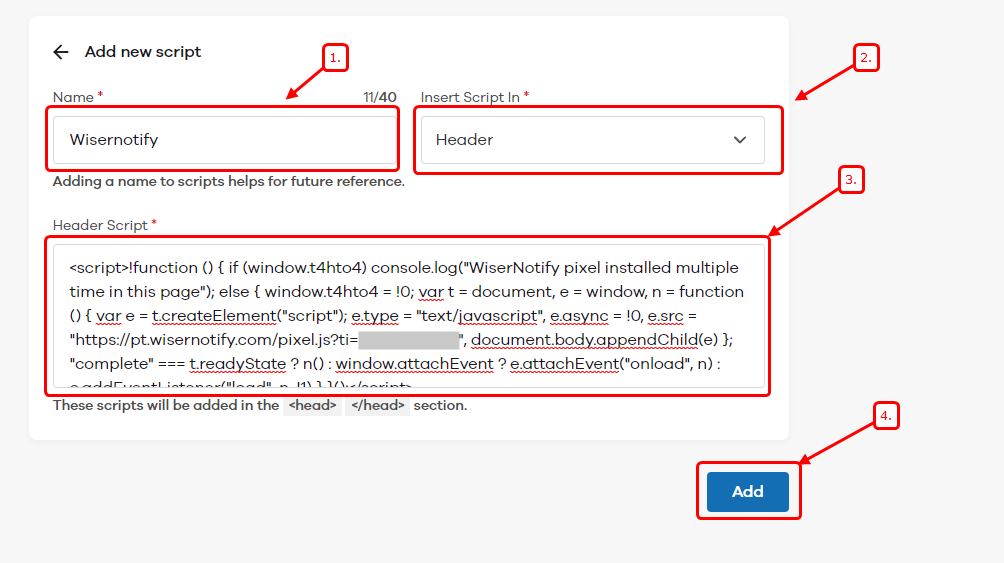
Step 3: Verify Installation
- Go back to your Wisernotify pixel page.
- Click on verify pixel installation to check if the pixel is active.
- If installed correctly, you will see a “Pixel Active” successfully message.

Note: This pixel script tag is required on every page wherever you want to track visitor activities, capture form submit events & display notifications.
Use a webhook to fetch Sales activities data from MyDukaan.
1. Get the Webhook URL from WiserNotify
- Go to WiserNotify > Integration
- Search for “Custom Webhook”
- Click on the Connect button.
- Enter the connection name.
- Copy the webhook URL.
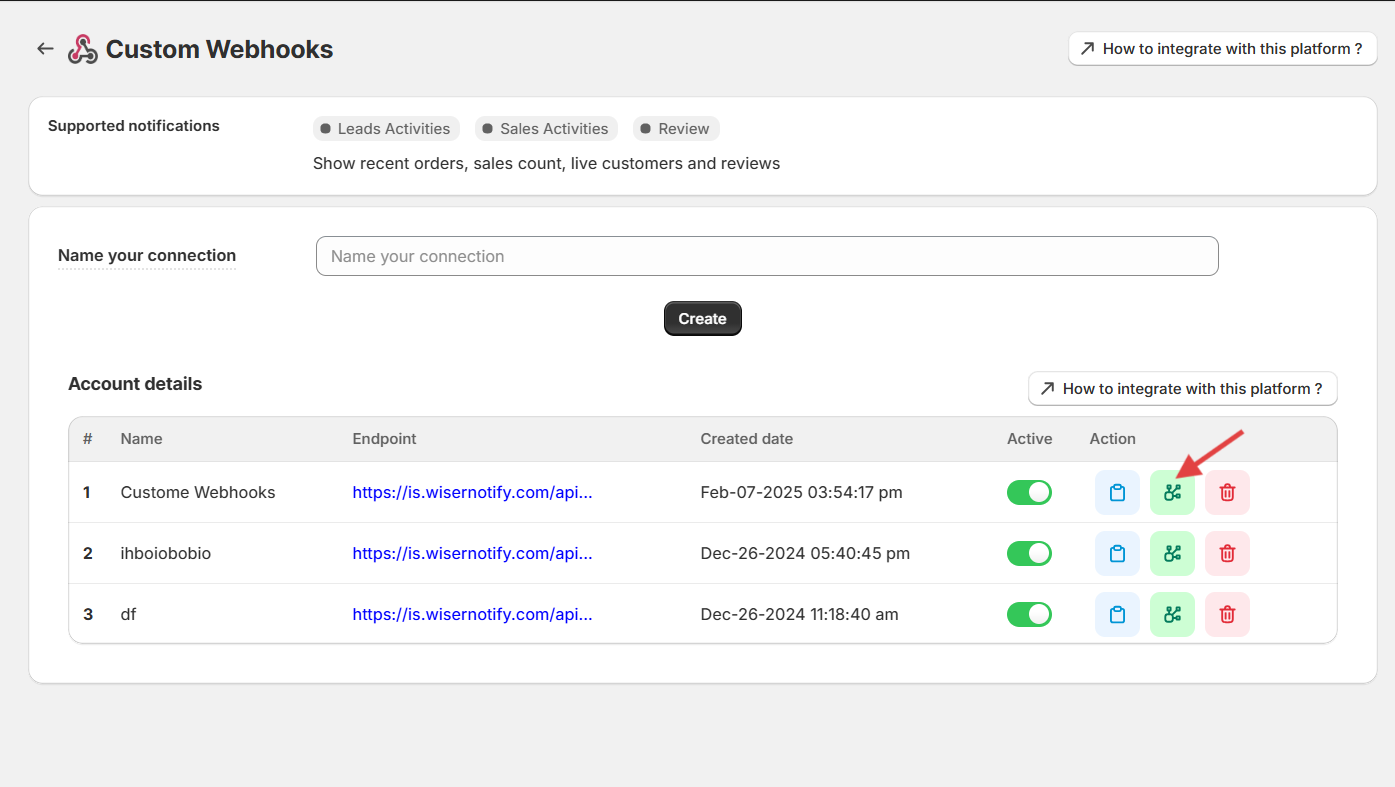
- Click on the Mapping icon.
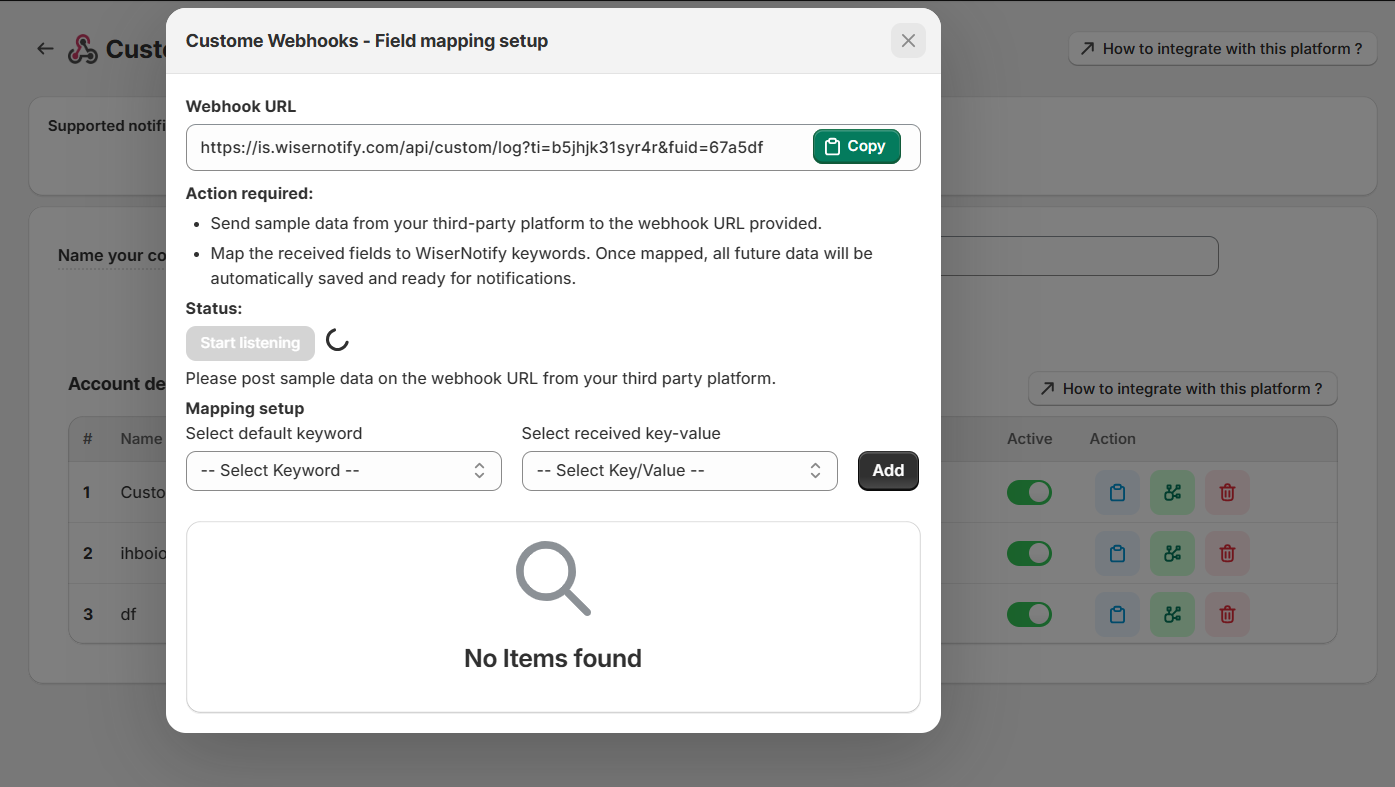
- Please keep this screen open
2. Configure Webhook in MyDukaan
- Sign with Mydukkan
- Go to Plugins >> All plugins
- Search webhook
- Install Webhook plugin
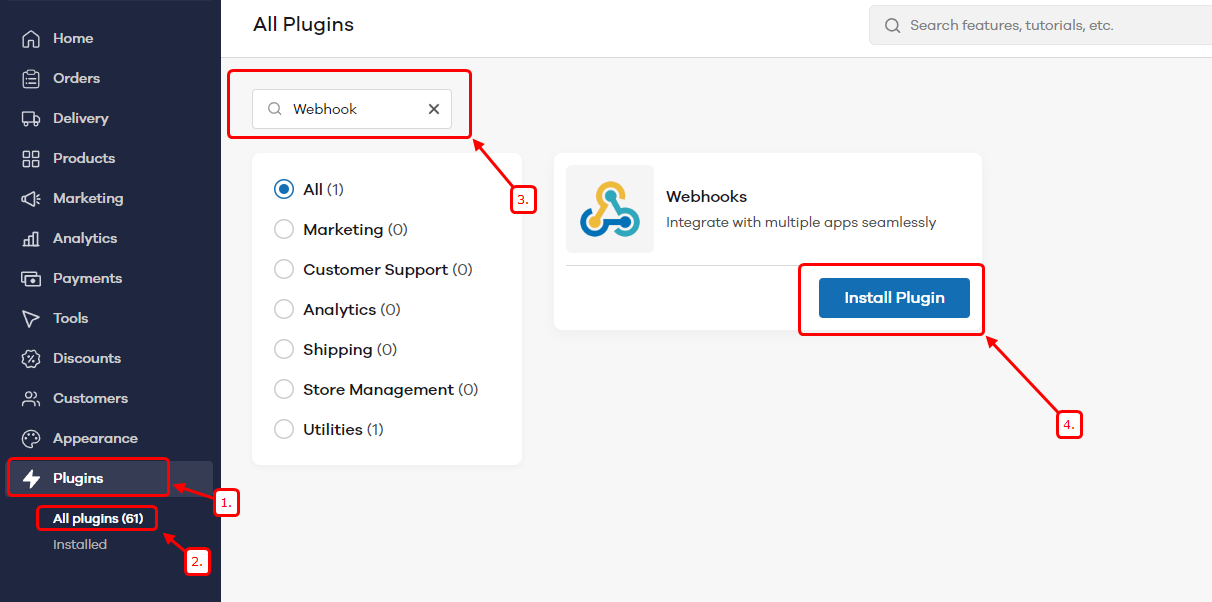
- Click on Install the plugin
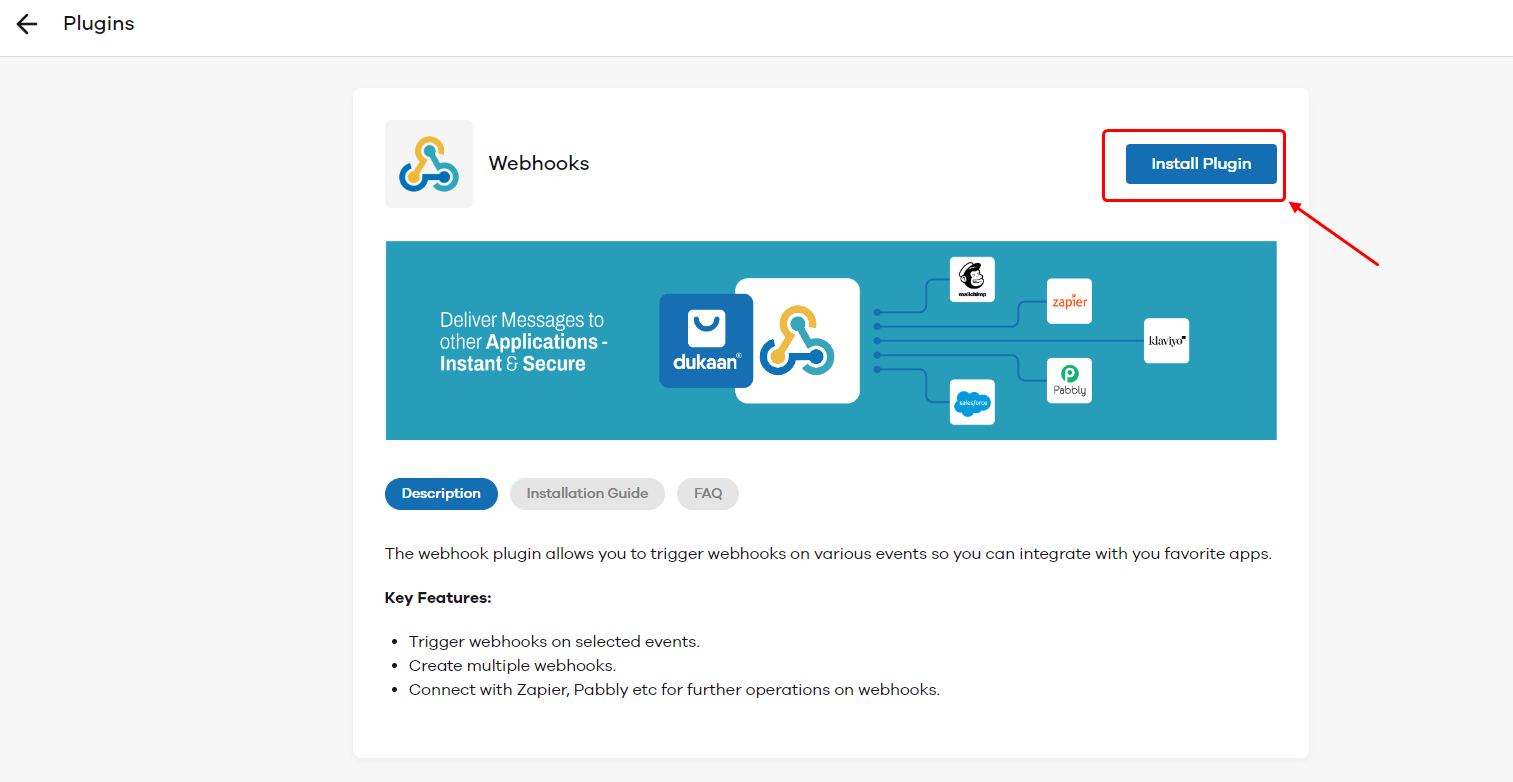
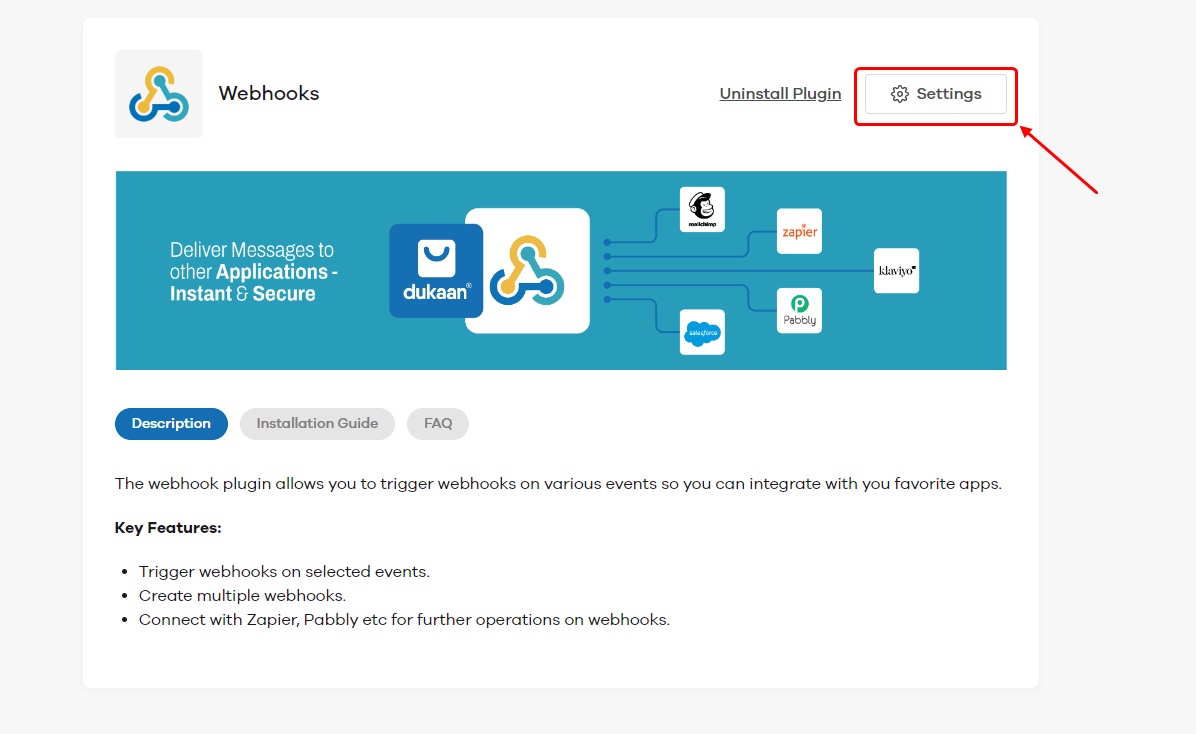
- Click on Settings
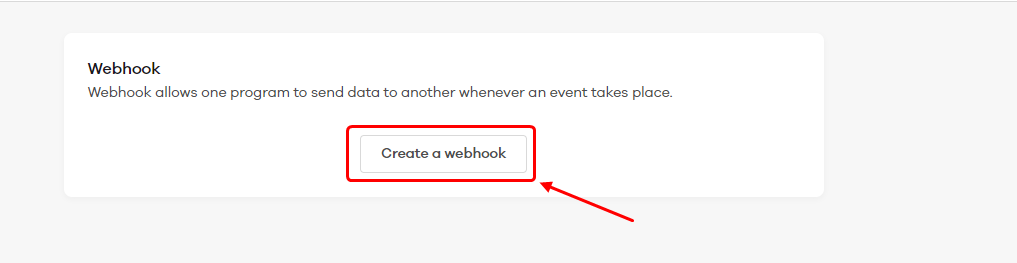
- Click on Create Webhook
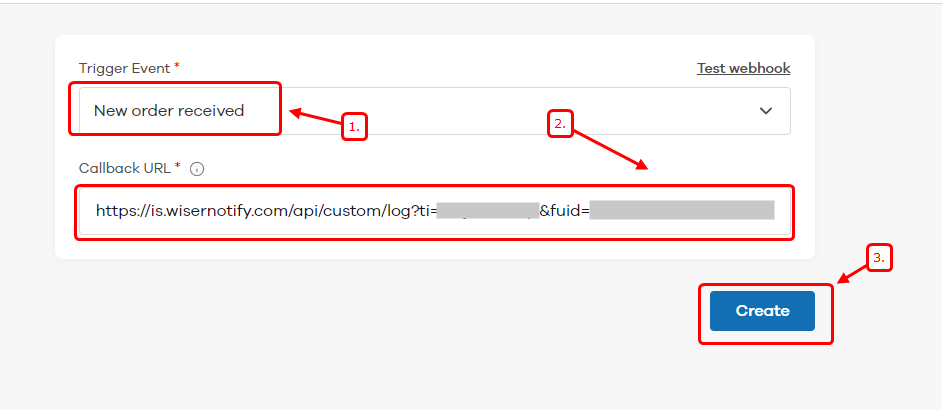
- Select New order received Trigger event
- Paste WiserNotify webhook URL
- Click on Create.
Now, Go back to the WiserNotify dashboard & Check the Custom webhook Integration popup ( Inside the mapping screen)
Once the JSON request is received successfully, you’ll see this message.
- Now select Keyword Select Key/Value & start adding one by one.
It’s a one-time job, so take your time to get this done.
Once the mapping is done, enable this webhook in the notification data source section.
Still stuck? A human will do it with you
Live chat from your dashboard — real answers in minutes, every day of the year.




 Capterra