
Browse categories
How to connect WiserNotify with Facebook lead ads?
Step 1
– Go to WiserNotify > Facebook lead ads Integration.
– Click on the Integrate button inside the Integration box.
– Click on Login with Facebook.
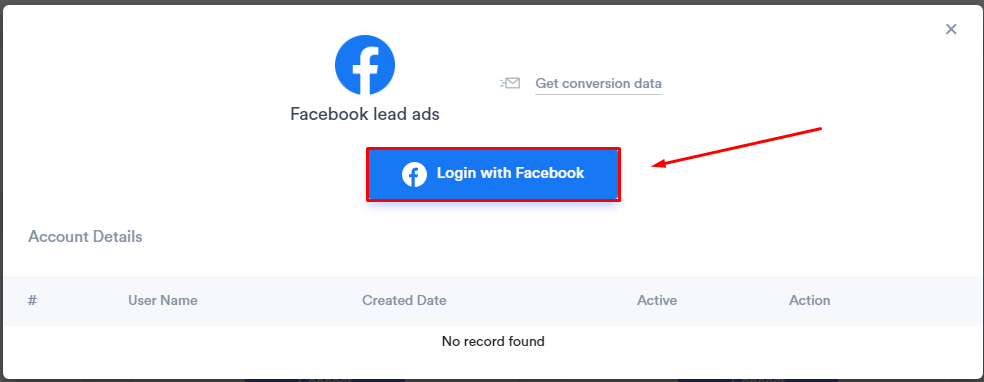
– Click on Continue as [Facebook User Name].
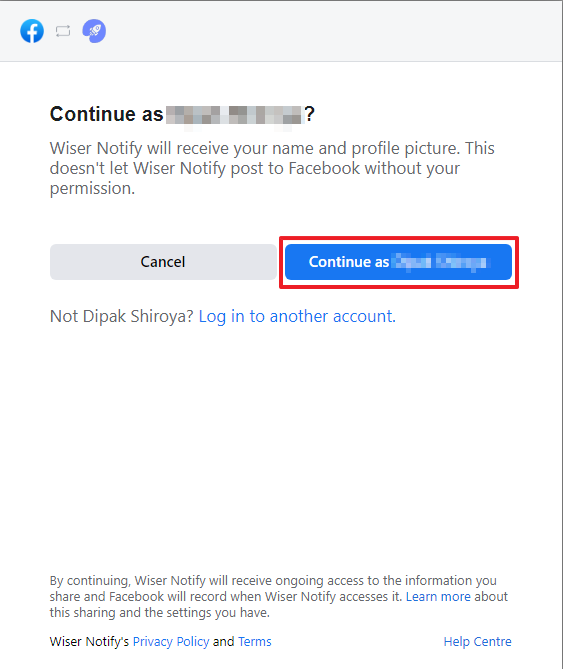
– Select page names and click on the Next button.
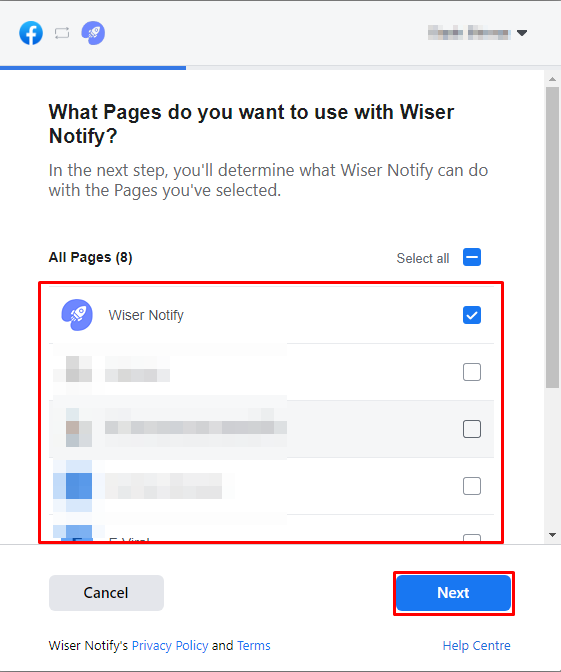
– Click the Done button.
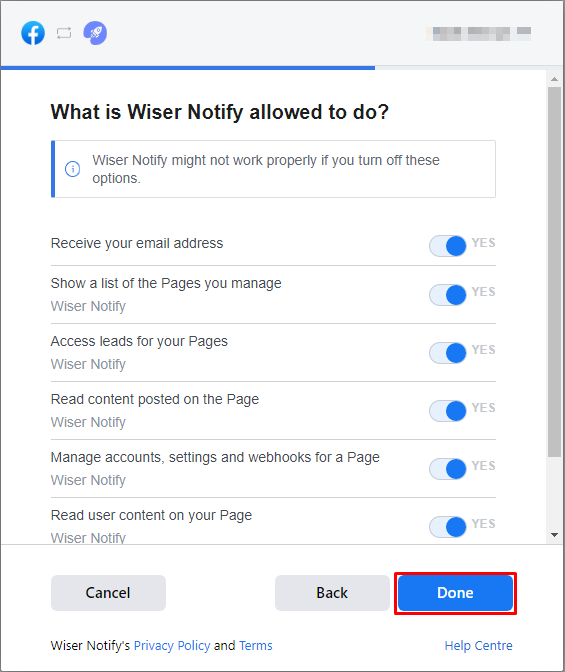
– Click the OK button.
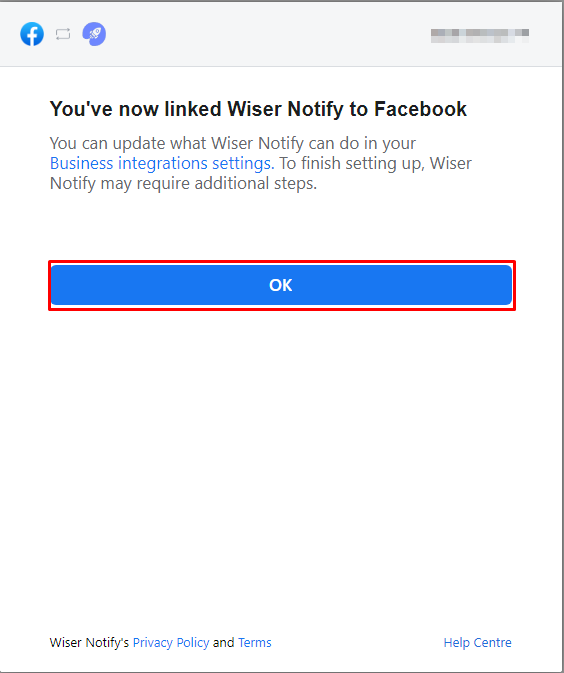
– Once click on “OK”, We will add your Facebook account & redirect you to the integration list.
– Now here you can see “installed” & “connected” status in the Facebook lead ads box. Please click on the Connected button.
Step2: In the popup box, you can see your Facebook profile name.
– Click on the “Lead form list” button then click on the page name and it will get linked with WiserNotify.
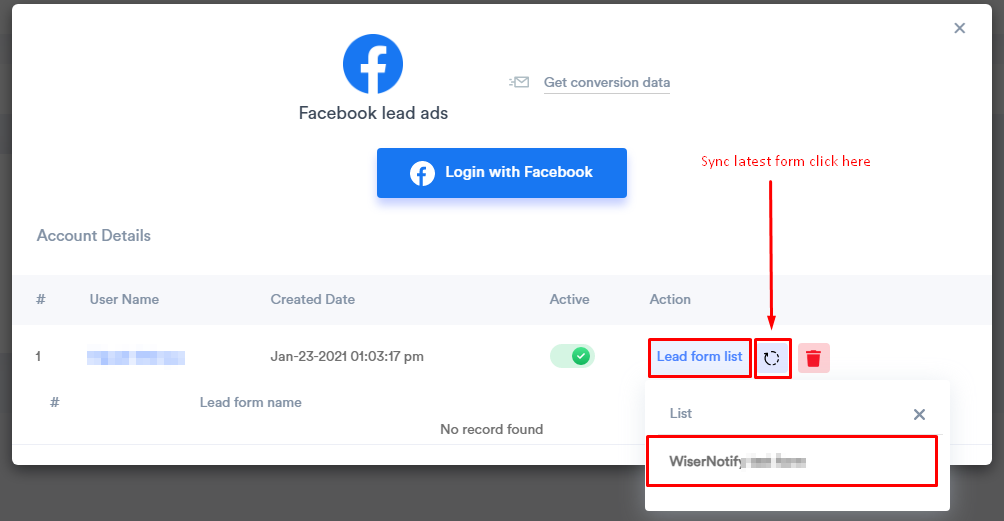
You can see conversion data under WiserNotify – Dashboard Data page.
Still stuck? A human will do it with you
Live chat from your dashboard — real answers in minutes, every day of the year.




 Capterra