
Browse categories
How to Connect Creem to WiserNotify
Creem is a payments and billing platform for SaaS and digital products. By connecting Creem to WiserNotify, you can automatically show your recent purchases and new customers as social proof notifications on your website, such as “Sarah from Germany just purchased Pro Plan”.
The connection only needs an API key. WiserNotify sets up everything else in your Creem account for you, so you don’t need to create webhooks manually.
What data WiserNotify receives from Creem
Once connected, WiserNotify captures two types of activity:
- Purchases – every completed checkout, including one-time payments and new subscriptions. Each purchase includes the customer’s name, country, product name, product image, and product URL. Use this data in Recent Sales and Sales Counter notifications.
- New customers – every new customer, including those who start a free trial. Use this data in Recent Leads / Sign-up and Lead Counter notifications.
When you first connect, WiserNotify also imports your last 30 customers and last 30 paid orders from Creem. Your notifications have data to show right away instead of waiting for new sales.
Before you start
Make sure you have:
- A Creem account with permission to create API keys.
- A WiserNotify account with the WiserNotify pixel installed on your website.
Step 1: Create an API key in Creem
1. Sign in to your Creem dashboard. To show real customer activity, switch from Test mode to Live mode before you create the key. Test mode keys only send test purchases.
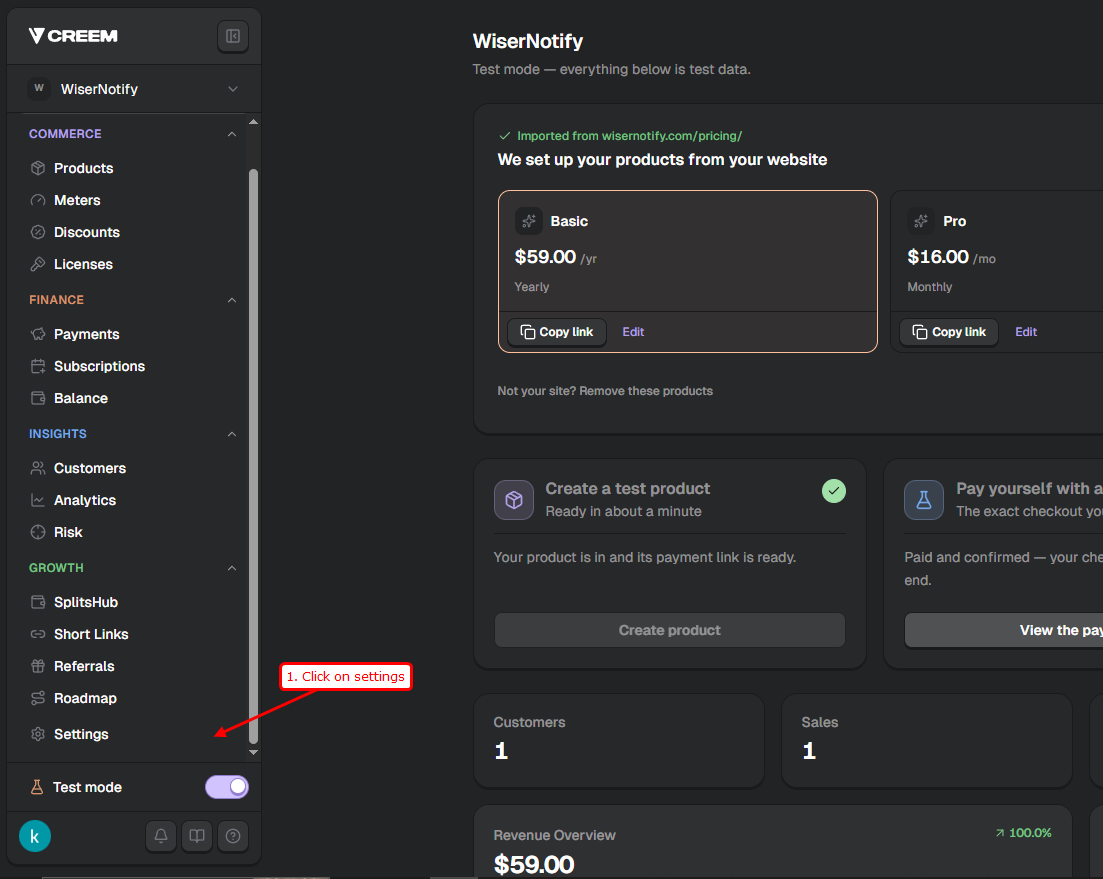
2. Go to Settings → API keys.
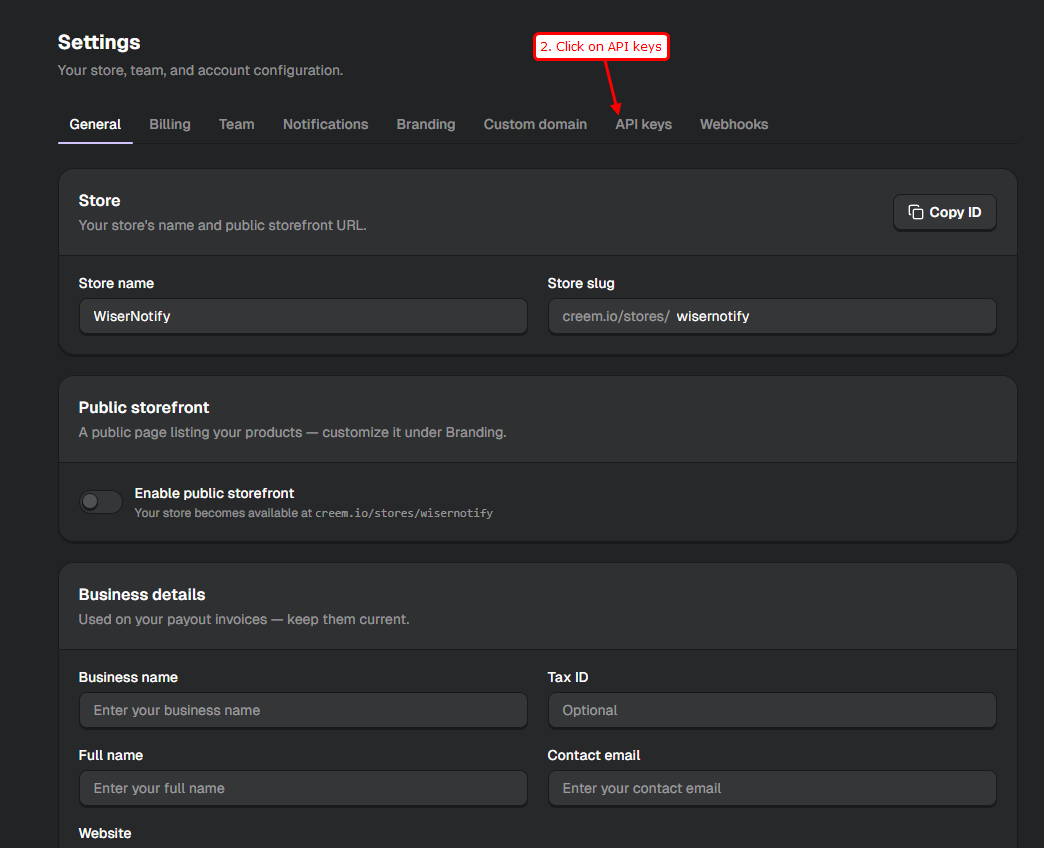
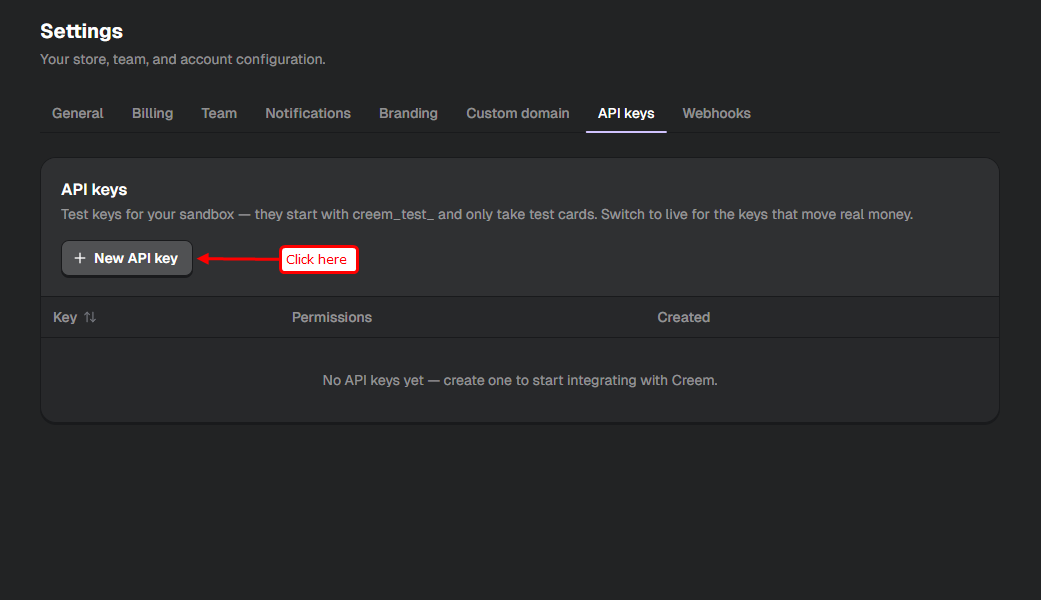
3. Click New API key.
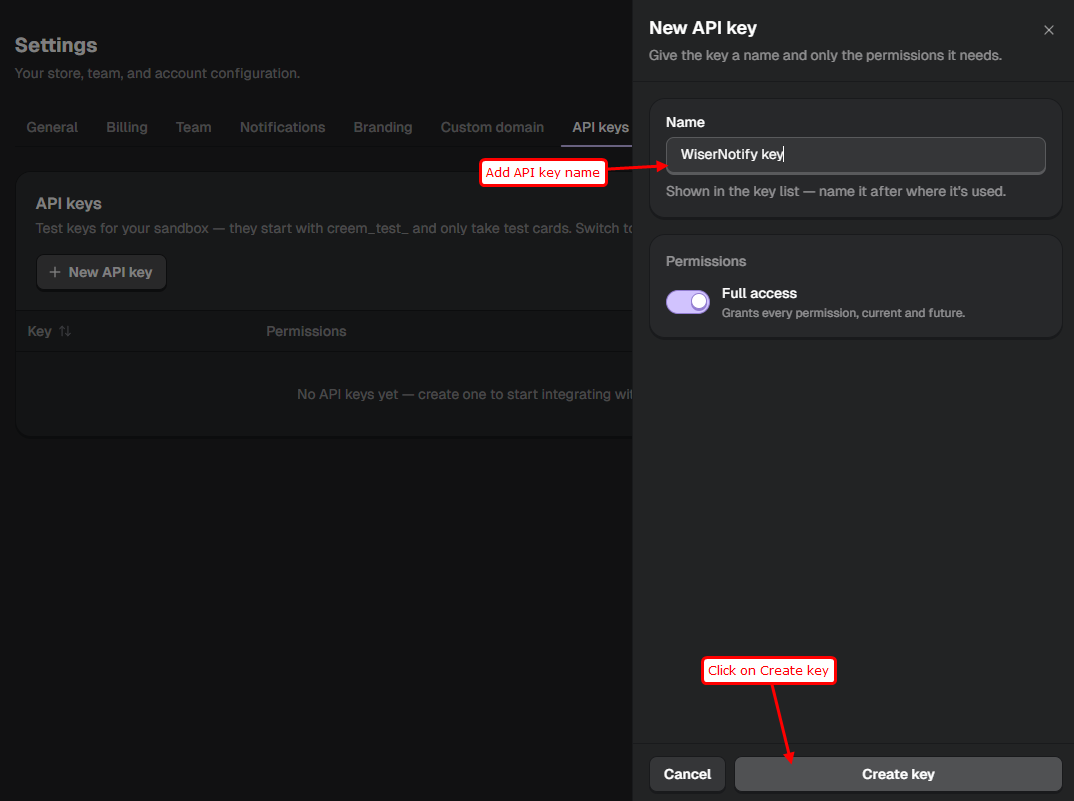
4. Enter a name for the key, such as WiserNotify, so you can recognise it later.
5. Select the permissions for the key. WiserNotify needs access to:
- Webhooks (read and write) – required. WiserNotify uses this to create its webhook in your account.
- Customers (read) – to show customer names and countries.
- Products (read) – to show product names and images.
- Orders (read) – to import your recent purchases.
Then click Create key.
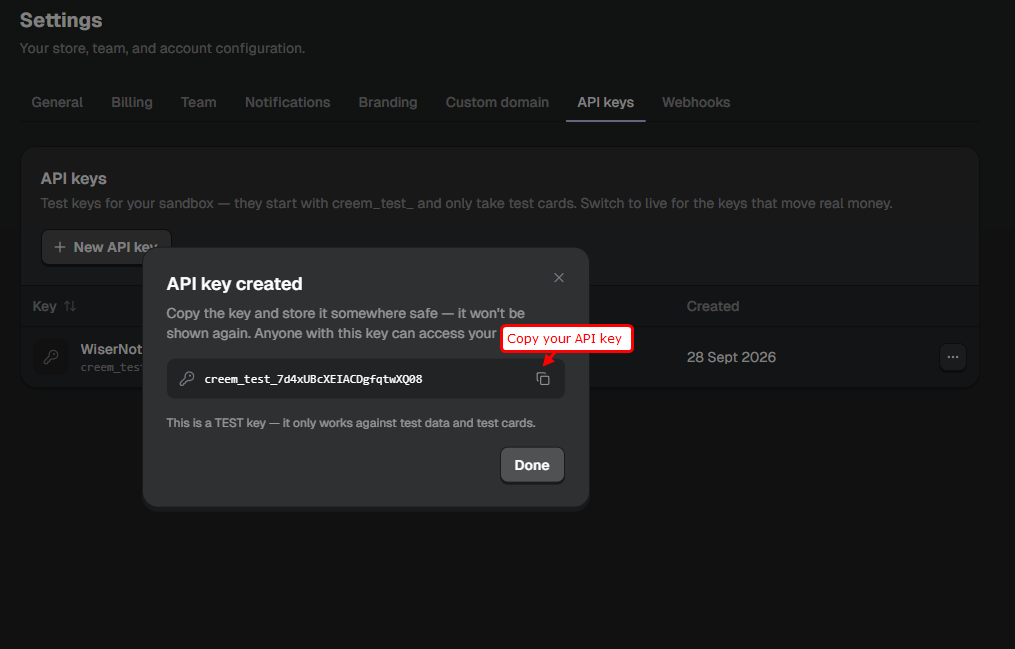
6. Copy the API key and keep it somewhere safe. Creem shows the full key only once. If you lose it, create a new key.
Step 2: Connect Creem in WiserNotify
1. Log in to your WiserNotify dashboard, open Integrations, and search for Creem.
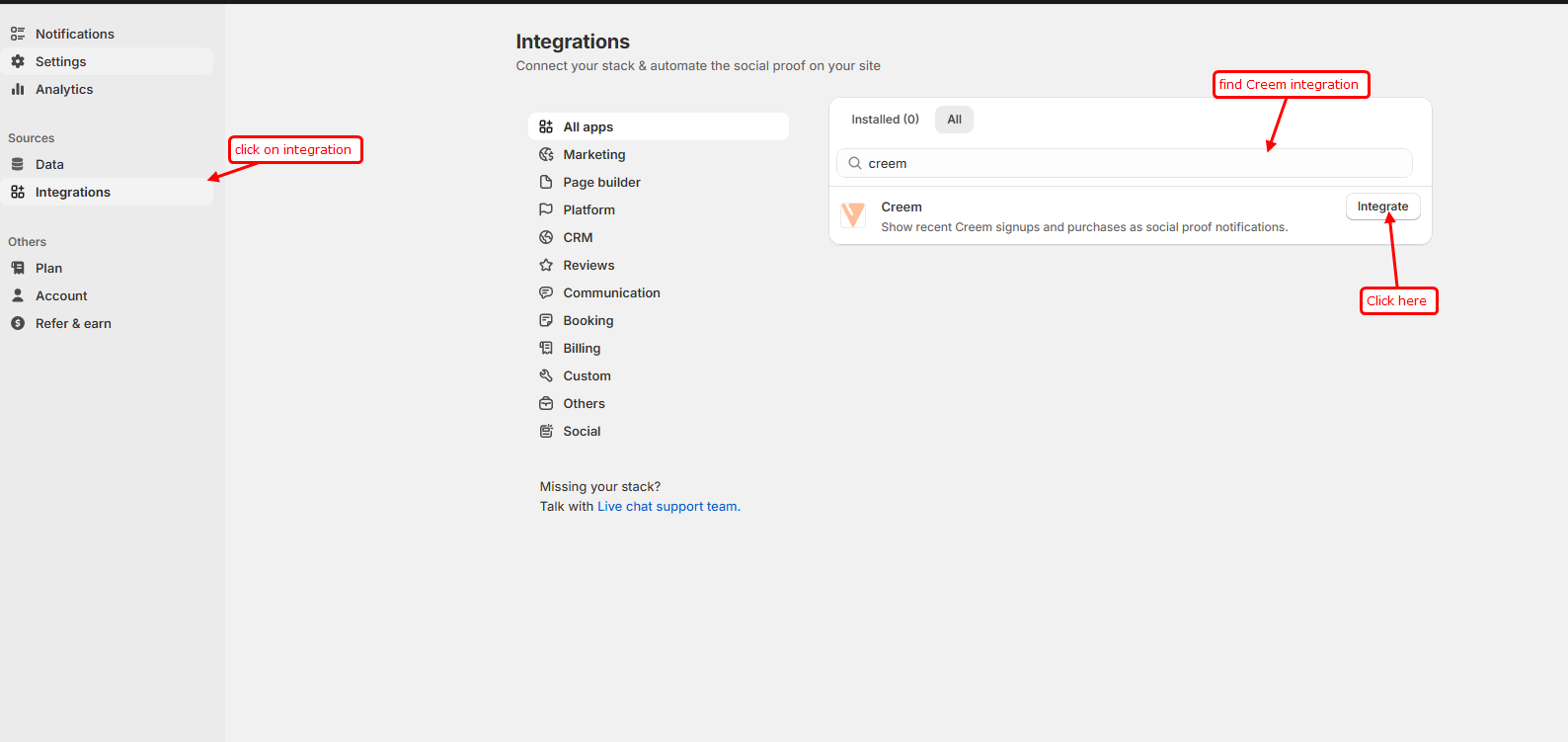
2. Click Integrate on the Creem card.
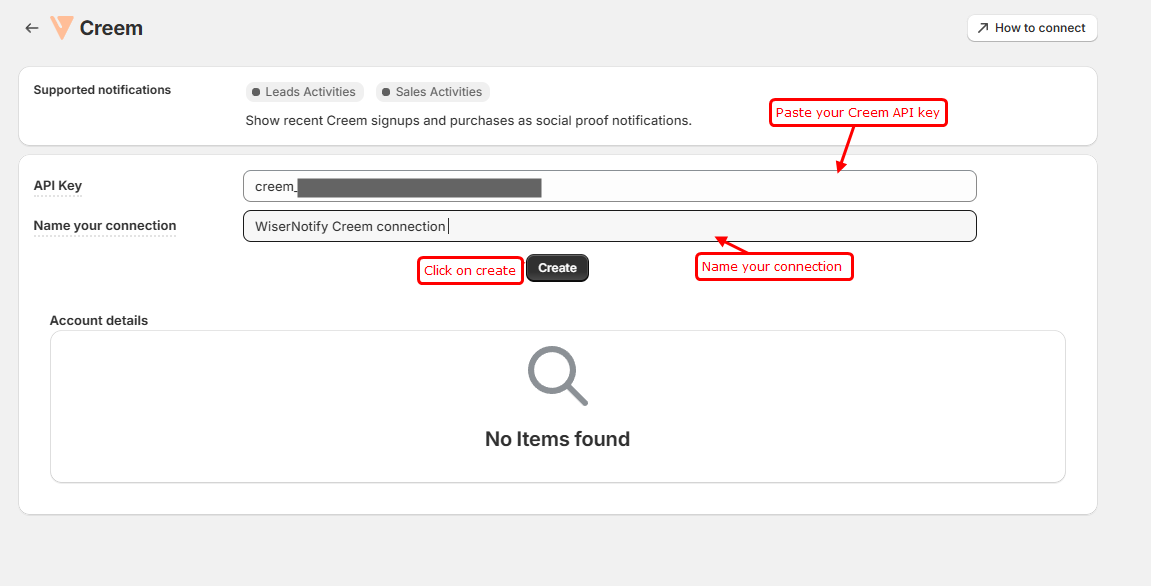
3. Fill in the form:
- API Key – paste the key you copied from Creem.
- Name of Connection – any name that helps you identify this account, such as My Creem Store.
4. Click Create.
When the connection is created, it appears in the Account Details table below the form. The Mode column shows Live or Test, depending on the key you used. WiserNotify detects this automatically.
Behind the scenes, WiserNotify also:
- Creates a webhook named WiserNotify in your Creem account to receive new purchases and new customers in real time. Don’t delete this webhook in Creem, or new activity will stop coming in.
- Imports your last 30 customers and last 30 paid orders in the background. This can take a minute or two.
Step 3: Show Creem data in a notification
1. In WiserNotify, create a new notification or edit an existing one. For purchases, choose a Recent Sales or Sales Counter notification. For new customers, choose a Recent Leads or Lead Counter notification.
2. Open the Data Source tab and add your Creem connection. Learn more in Configuring Data Source for Notifications.
3. Save and publish the notification. Your Creem activity will now appear on your website.
Purchase data goes only to sales notifications and customer data goes only to sign-up/lead notifications, so the right message always shows in the right place.
Manage your Creem connection
- Pause the connection – use the Active toggle in the Account Details table. While it’s off, new Creem activity isn’t used in your notifications.
- Connect more than one Creem account – repeat Step 1 and Step 2 with an API key from the other account. You can also connect a Test mode key and a Live mode key separately.
- Delete the connection – click the delete icon. WiserNotify removes its webhook from your Creem account and deletes the imported Creem data. If a notification is still using this connection, you’ll be asked to remove it from that notification first.
Troubleshooting
“Invalid Creem API key or key does not have webhooks permission”
The key is wrong, was revoked, or doesn’t have the Webhooks permission. Check that you copied the full key, then create a new key with Webhooks (read and write) access and try again.
“Account already in use”
This API key is already connected to your WiserNotify account. You don’t need to add it again. Check the Account Details table.
No data is showing in my notification
- Wait a couple of minutes after connecting for the first import to finish.
- Check the Mode column. If it says Test, only test purchases will appear. Create a key in Live mode and connect it.
- Make sure the key has read access to Customers, Products, and Orders.
- Confirm the Creem connection is added as the data source in your notification and the Active toggle is on.
- Check in Creem that the WiserNotify webhook still exists. If it was deleted, remove the connection in WiserNotify and connect again.
Product name or image is missing
WiserNotify shows the product name and image set on the product in Creem. Add or update them in Creem, and new purchases will show the updated details.
Still need help? Contact our support team through the chat in your WiserNotify dashboard, and we’ll help you get connected.
Still stuck? A human will do it with you
Live chat from your dashboard — real answers in minutes, every day of the year.




 Capterra