
Browse categories
How to connect WiserNotify with Zoho Forms?
This guide will walk you through:
- Capturing Form Submissions: Connect Zoho Forms with WiserNotify using a webhook to fetch real-time lead data, new sign-ups, and user engagement details.
Add Webhook Integration to Connect Zoho Forms to pull the events lead data
Step 1: Get the Webhook URL from WiserNotify
– Go to WiserNotify > Zoho Forms Integration.
– Click on the Integrate button inside the Integration box.
1. Enter Connection Name
2. Click on the Create button.
3. Click on the copy button.
Step 2: Configure Webhook in Zoho Forms
Login with Zoho Forms,
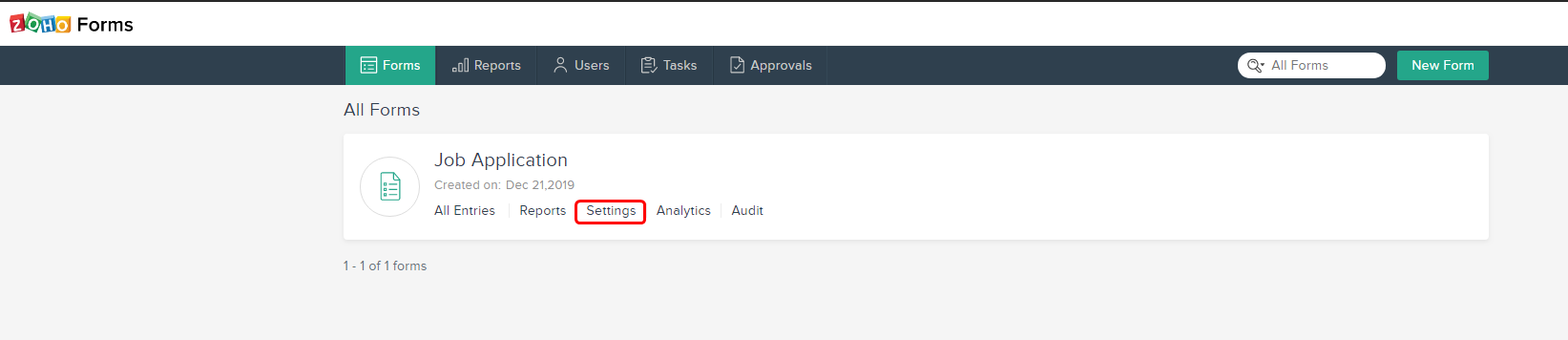
- Click on Settings.
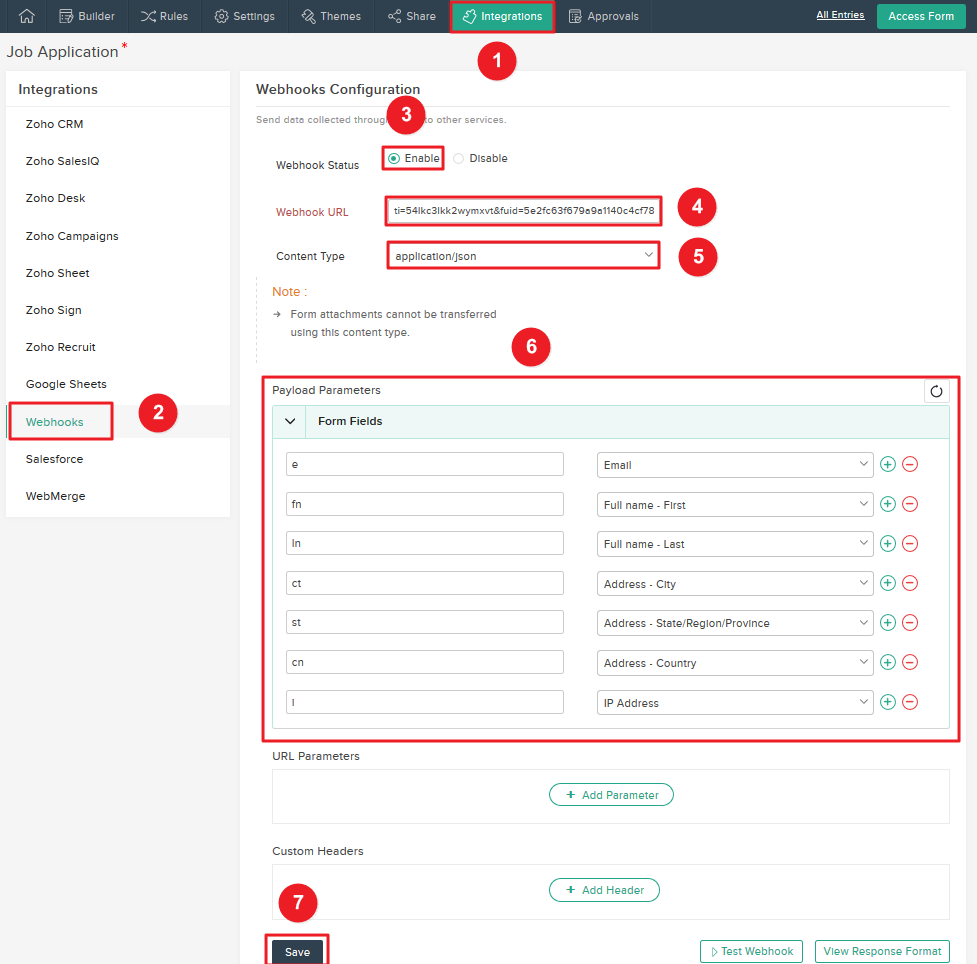
1 & 2 Navigate to Integrations > Webhooks.
3 Enable webhook.
4. Paste the copied webhook URL.
5. Select Content-Type application/JSON.
6. Enter the following fields.
e: Email
fn: Full name – First
ln: Full name – Last
ct: Address – City
st: Address – State/Region/Province
cn: Address – Country
i: IP Address
- Please enter a valid value for the highlighted field(s) to continue.
Please test by adding new data & visit the WiserNotify- Dashboard Data page. Here, You can see all the captured/ received data with its source name.
Still stuck? A human will do it with you
Live chat from your dashboard — real answers in minutes, every day of the year.




 Capterra