

How to connect WiserNotify with Cliengo
Updated Sep 10, 20261 min readConnection guide
On this page · 3 sections
This guide will walk you through:
- Capturing Lead Activities: Connect Cliengo with WiserNotify using a webhook to fetch real-time chat and lead data.
Add Webhook Integration to Connect Cliengo to pull the events lead data
Step 1: Get the API Key from Cliengo
- Go to WiserNotify > Cliengo Integration.
- Click on the Integrate button inside the Integration box.
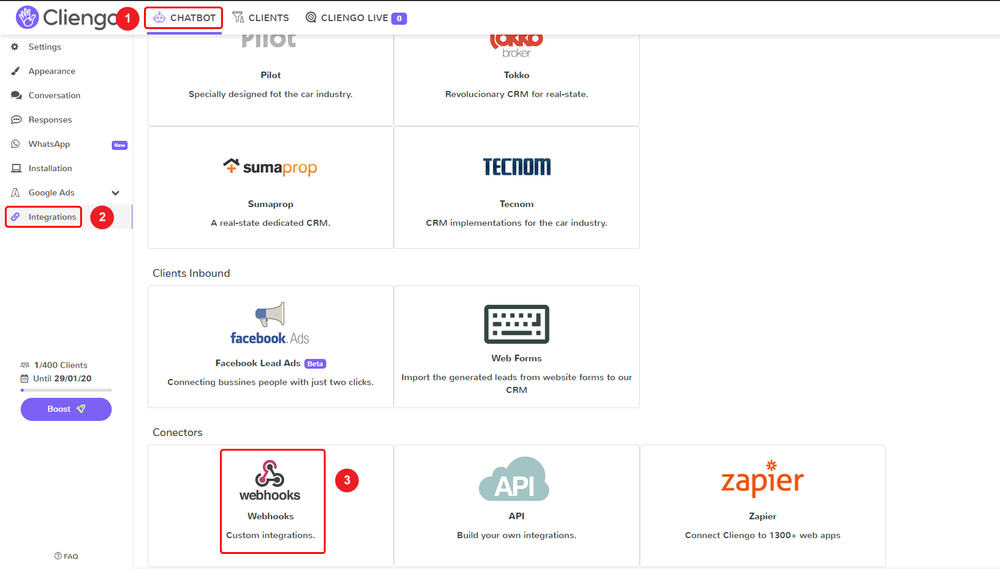
1. Click on the CHATBOT tab in the Cliengo dashboard.
2. Click on Integrations in the sidebar.
3. Click on the Webhooks box.
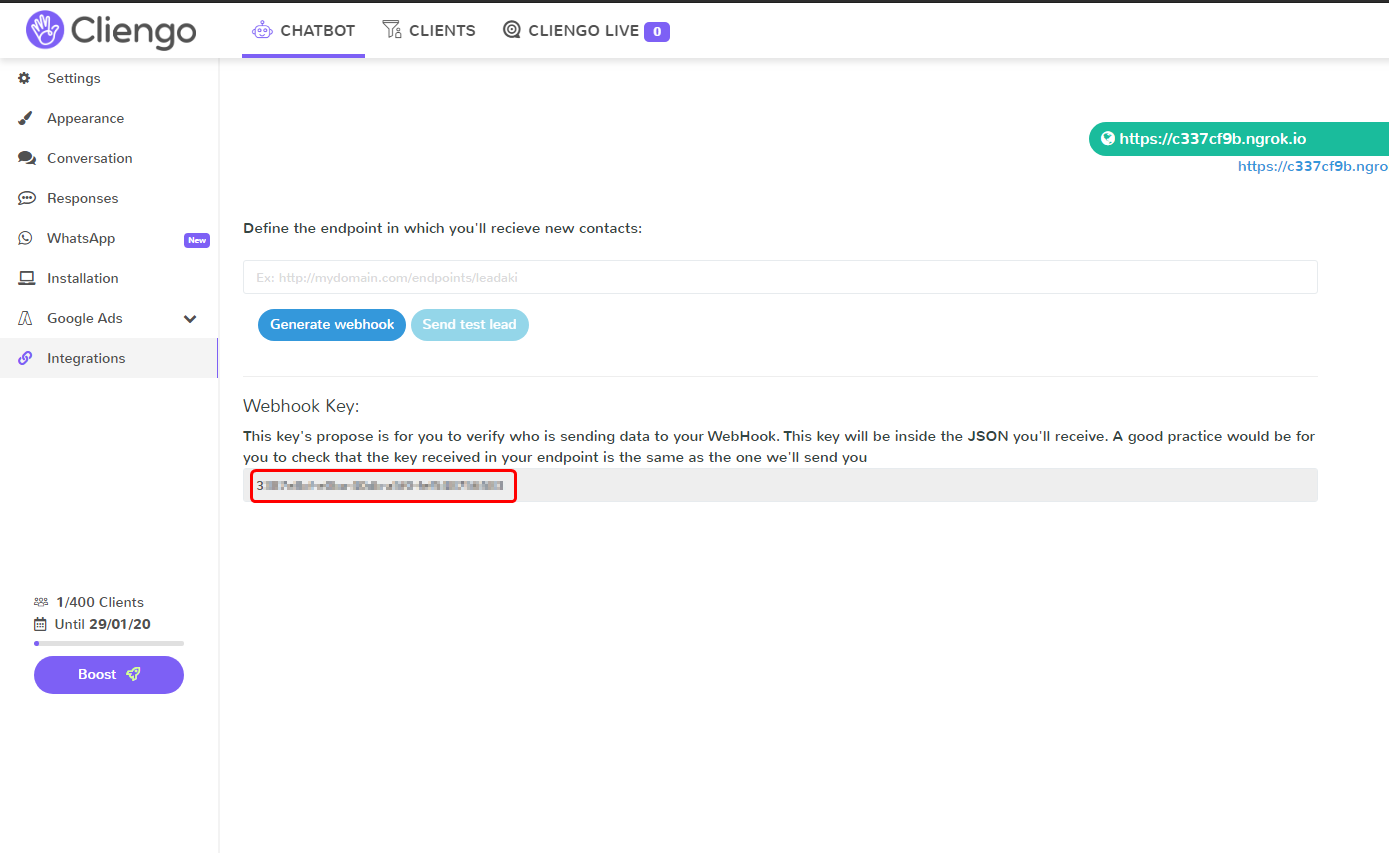
- Copy the Webhook key and return WiserNotify > Cliengo Integration.
Step 2: Configure API Key in Wisernotify.
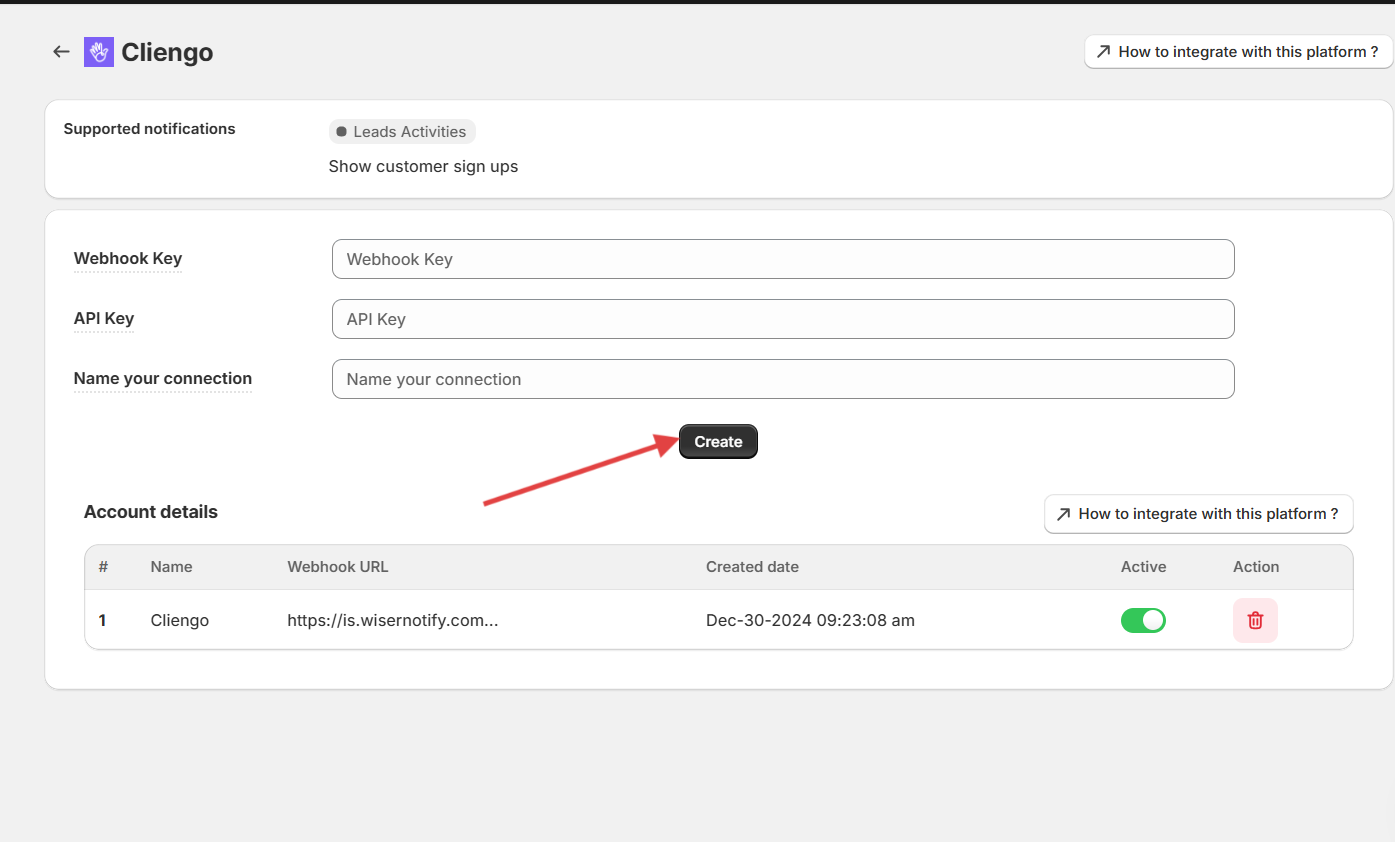
1. Paste the copied Webhook key here.
2. Enter the Connection name.
3. Click on the Create button.
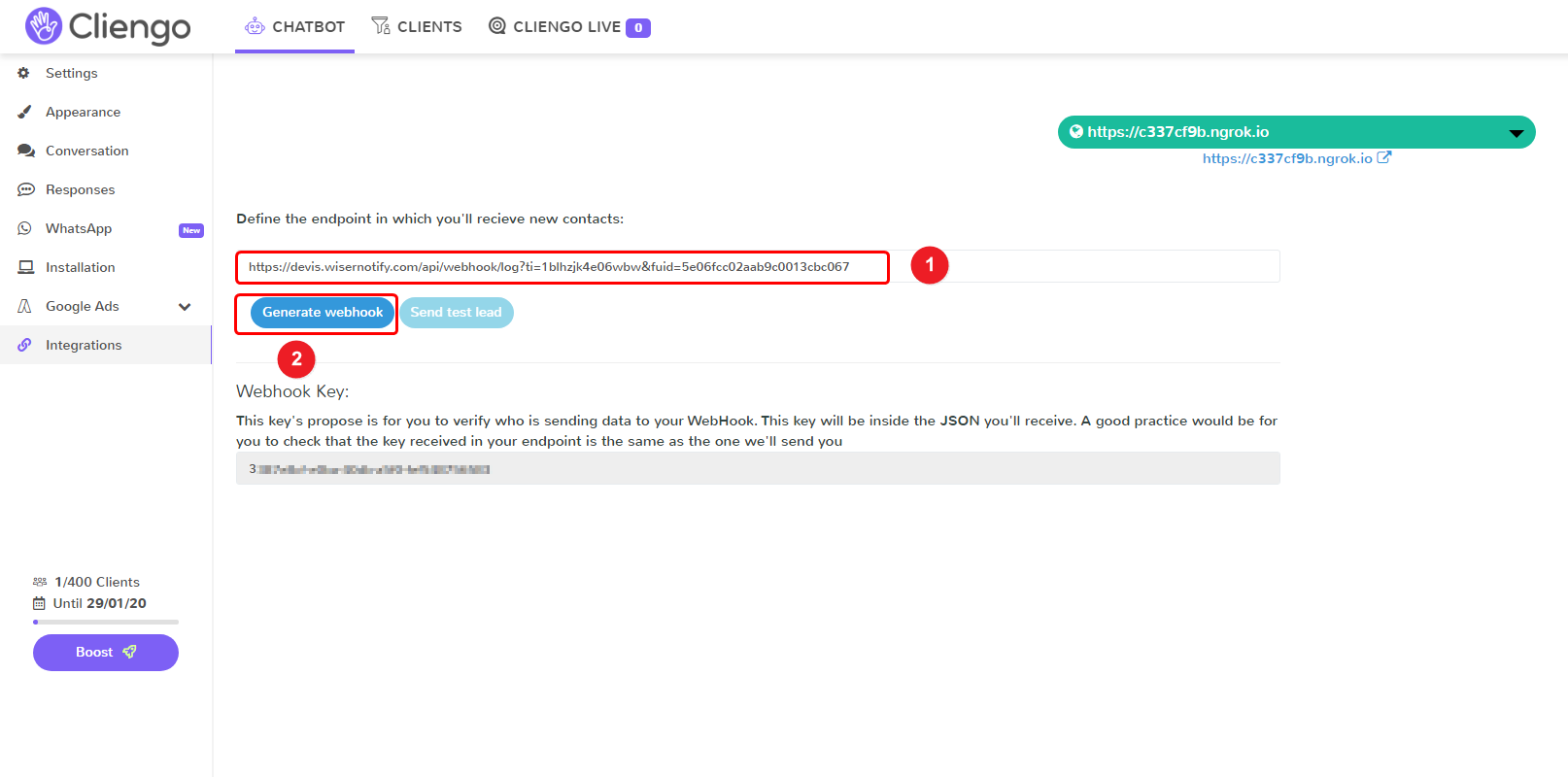
4. Copy the URL and go to the last visit page in Cliengo.
1. Paste the Copied URL here.
2. Click on the generate webhook button.
Please test by adding new data & visit the WiserNotify – Dashboard Data page. Here, You can see all the captured/ received data with its source name.
Related guides
How to connect WiserNotify with LiveChatHow to connect WiserNotify with IntercomHow to connect WiserNotify with Userback
 Still stuck? We'll set it up with youLive chat or a free screen-share call, every day of the year.Chat with support



 Capterra