
Browse categories
How to connect WiserNotify with Mautic?
1 min read
This guide will walk you through:
- Capturing Lead Activities: Connect Mautic with WiserNotify using a webhook to fetch real-time lead data.
Add Webhook Integration to Connect Mautic to pull the events lead data
Step 1: Get the Webhook URL from WiserNotify
– Go to WiserNotify > Mautic Integration.
– Click on the Integrate button inside the Integration box.
1. Enter Connection Name
2. Click on the Create button.
3. Click on the copy button.
Step 2: Configure Webhook in Mautic
- Login in your Mautic account.
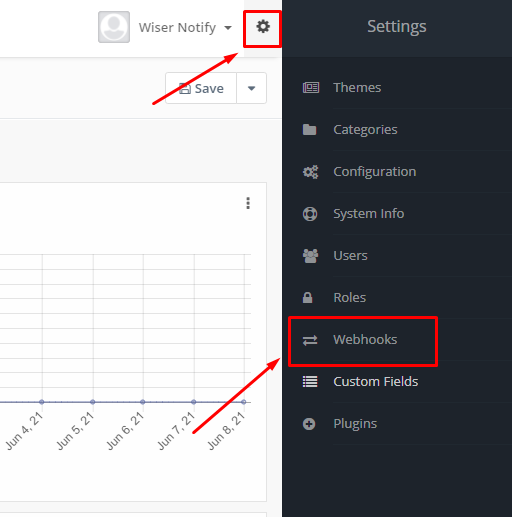
- Click on Setting > Webhooks.
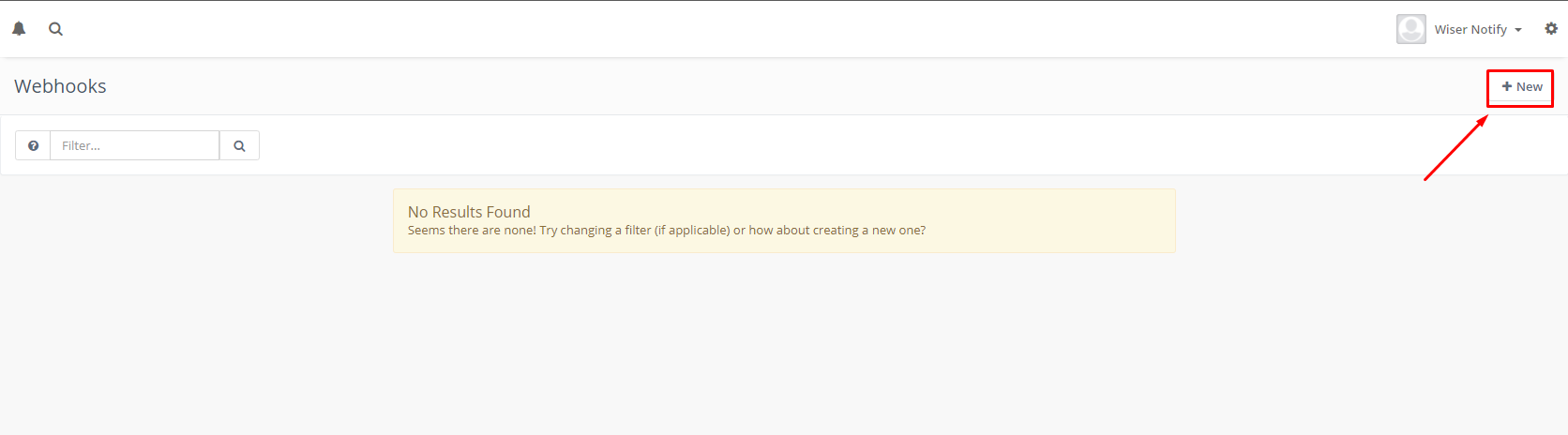
- Click on New.
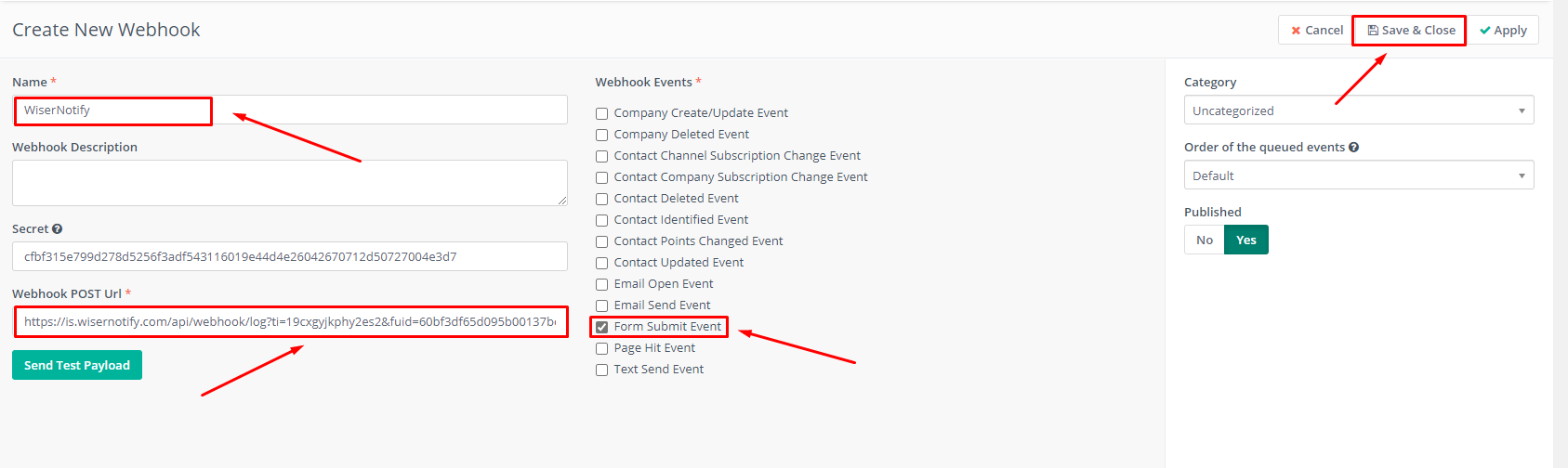
- Enter Webhook name.
- Paste the WiserNotify Webhook URL into Webhook POST URL box.
- Select Forms submit event.
- Click on Save & Close.
You can see data under WiserNotify – Dashboard Data page.
Still stuck? A human will do it with you
Live chat from your dashboard — real answers in minutes, every day of the year.




 Capterra