
Social Proof Popup Guide With 11 Real Examples (2026)
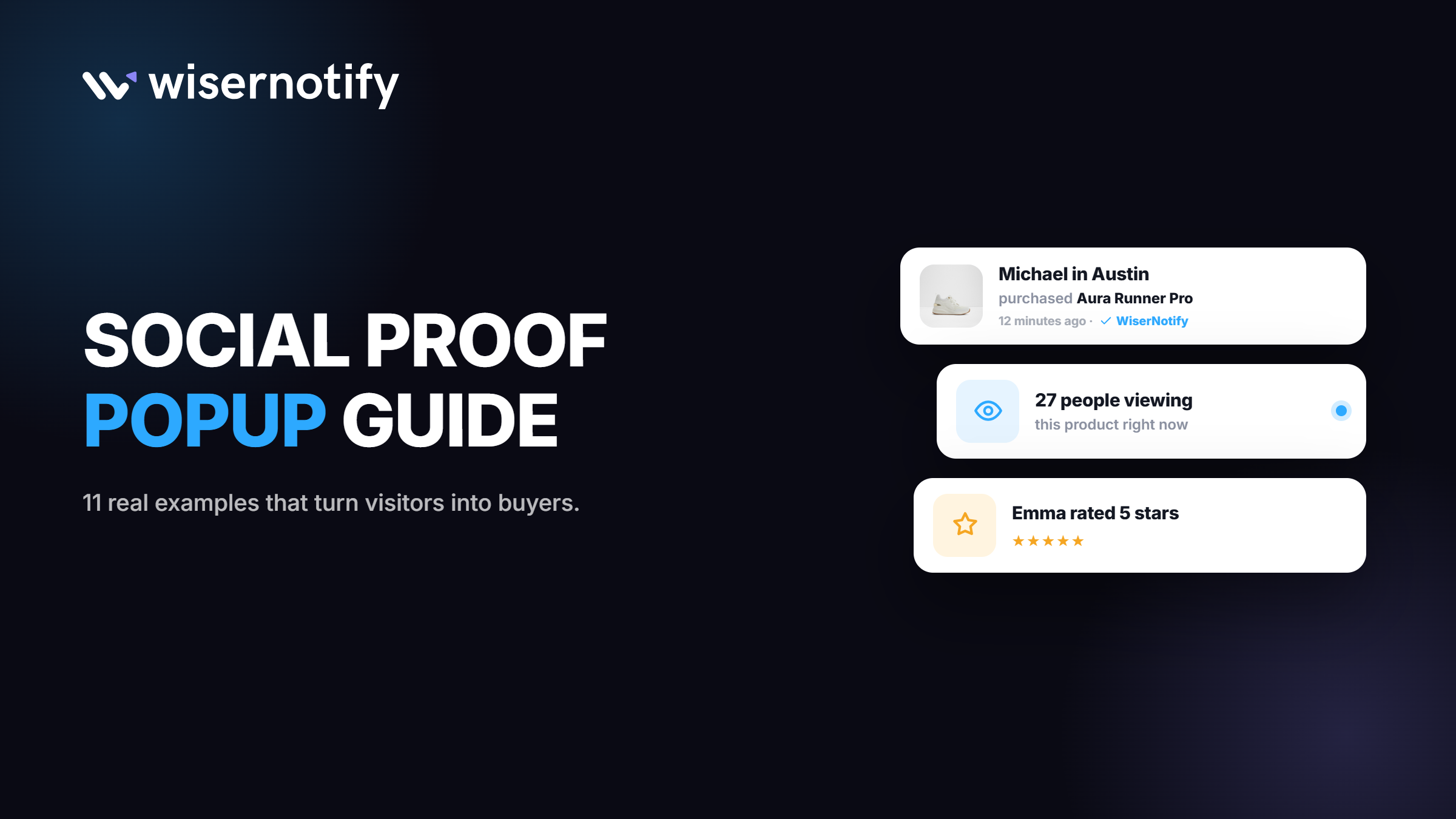
A social proof popup is a small notification that shows what other people are doing on your site. Someone bought. Someone signed up. Twelve people are looking at this page right now.
That’s it. No countdown, no discount wheel, no email gate.
They work because buying from a stranger online is a small act of faith. Seeing that other people already took the leap makes the decision feel safer.
Below is what each type does, eleven real popups running on live sites, and how to set one up without annoying everyone who visits.
What Is a Social Proof Popup?
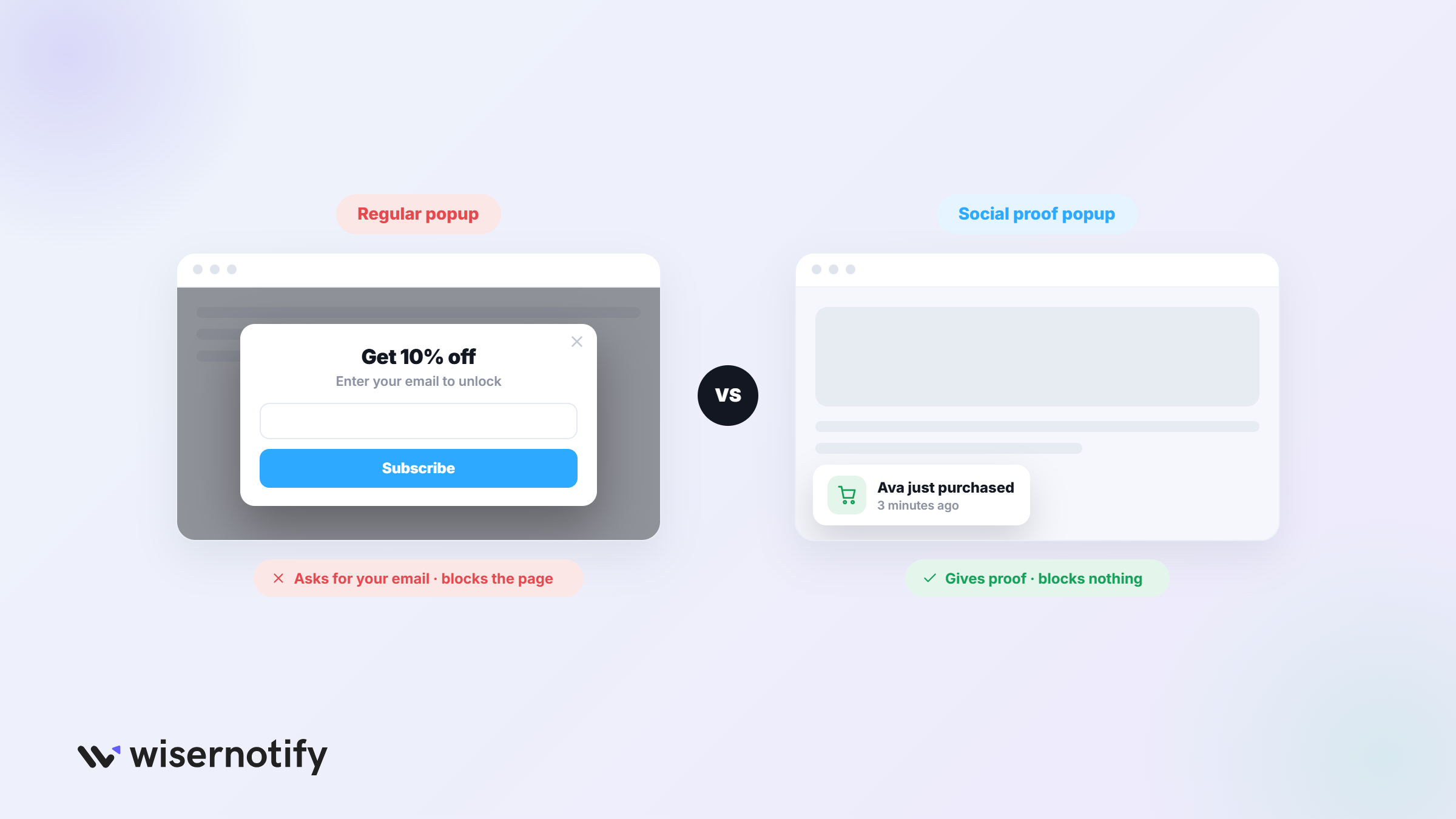
The popup itself sits in a corner of the screen, usually bottom left, and slides away after a few seconds. Small enough that it blocks nothing, specific enough to read on the way past.
It pulls from what’s already happening in your store. Orders, signups, reviews, page views. Then it surfaces that activity to the next visitor.
The difference between this and a regular popup matters. A regular popup asks for something, usually an email. A social proof popup gives something, which is evidence that other people trust you.
That’s why they don’t carry the same irritation. Nothing gets blocked, and there’s no form to escape.
Why Social Proof Popups Work?
People copy people. When we’re unsure, we look at what everyone else did and treat it as the safe option.
Online shopping is full of that uncertainty. You can’t hold the product, you’ve never heard of the brand, and the checkout wants your card details.
Reviews already do this job, and shoppers rely on them heavily. BrightLocal’s 2026 survey found 97% of consumers read reviews before choosing a local business, and the share who “always” read them jumped from 29% to 41% in a year.
The catch is that reviews sit at the bottom of a product page. Most visitors never scroll that far.
A popup moves that evidence to where the hesitation happens.
Build trust & FOMO
Highlight real-time activities like reviews, sales & sign-ups.


Types of Social Proof Popups
Eight types cover almost everything you’ll see in the wild. They’re not interchangeable, and picking the wrong one for the page is the most common setup mistake.
| Type | Use it when | Example copy |
|---|---|---|
| Live visitor count | Traffic is steady enough to show a real number | 25 people are viewing this |
| Review popup | Visitors are cold and the price is high | 5 stars from Mike |
| Sales notification | Orders come in daily | John bought this 5 minutes ago |
| Announcement | A campaign has a start or end date | Sale starts in 48 hours |
| Limited stock | Inventory data is connected and live | Only 10 left |
| Countdown timer | The deadline is real and does not reset | Sale ends in 20 minutes |
| Social media | Audience size is part of your pitch | Emily just followed us |
| Promotion | Price is the last objection | 20% off today only |
Live visitor count
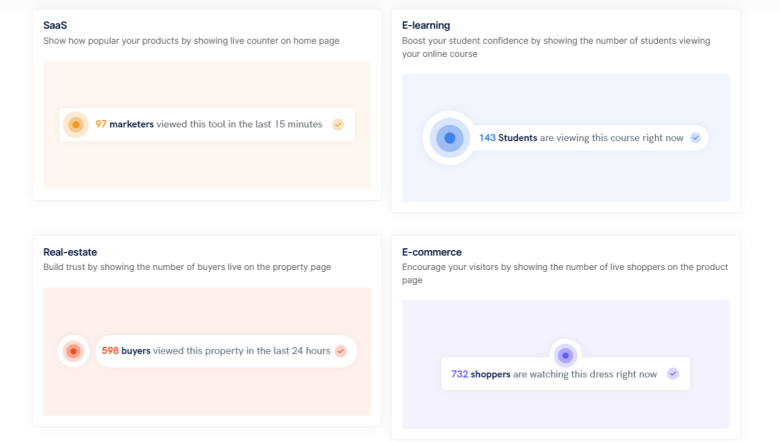
Shows how many people are on a page right now. “25 people are viewing this product.”
Best for products where demand signals matter, like limited stock, event tickets, or bookings. Weak on low-traffic sites, where a count of one does more harm than no count at all.
Review popups
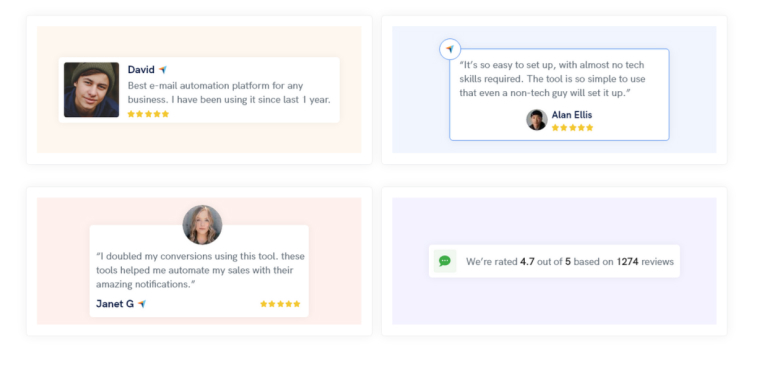
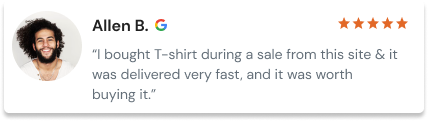
Surfaces a real customer review or rating. “This product is amazing. 5 stars from Mike.”
Best for first-time visitors on product pages and for higher-priced items where people want reassurance before committing.
Sales notifications

Shows a recent purchase. “John bought this 5 minutes ago.”
Best for stores with steady order volume. Below a few orders a day it works against you, because the gaps between notifications say more than the notifications do.
Announcement popups

Promotes something time-sensitive. “Black Friday starts in 48 hours.”
Best for campaign windows and limited-time offers. Not social proof in the strict sense, but it lives in the same widget and shares the same real estate.
Limited stock notifications
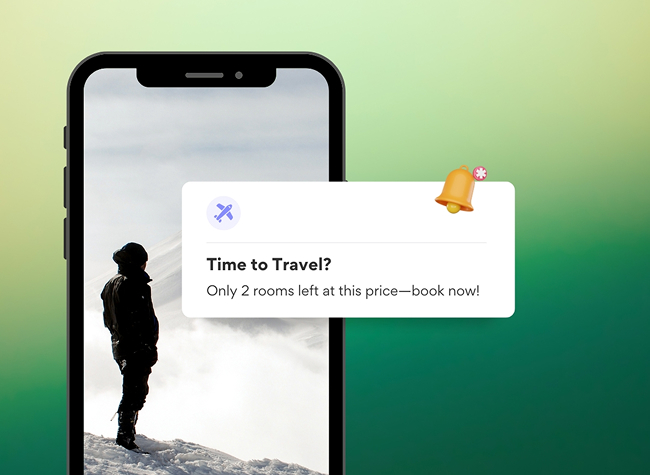
Flags low inventory. “Only 10 left.”
Best when it’s pulling from actual stock levels. A static number that never changes gets noticed fast, and it costs you the sale it was meant to win.
Countdown timers
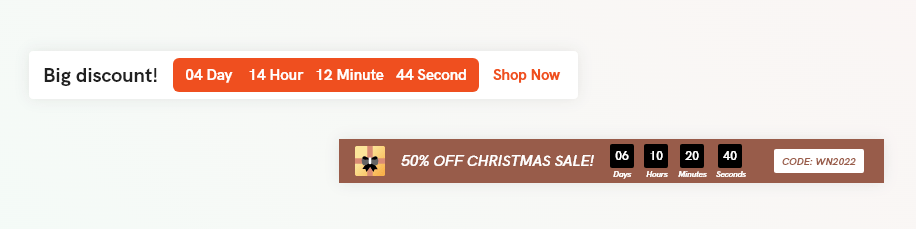
Shows time left on a deal. “Sale ends in 20 minutes.”
Best for genuine deadlines. A countdown timer that resets on refresh teaches people your urgency is theater.
Social media notifications
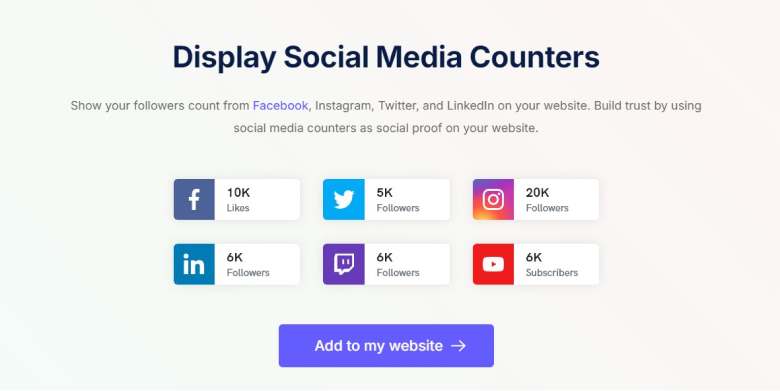
Shows follows, shares, or engagement. “Emily just followed us on Instagram.”
Best for creators and community-led brands where audience size is part of the pitch.
Promotion popups

Highlights a live discount. “20% off today only.”
Best on category and cart pages, where price is the last thing standing between browsing and buying.

Boost Conversion Instantly
Add Social Proof & Urgency to your website
11 Real Social Proof Popup Examples
These are all running on live sites. I’ve noted what each one gets right and what you’d need in place to copy it.
1. LeadScripts
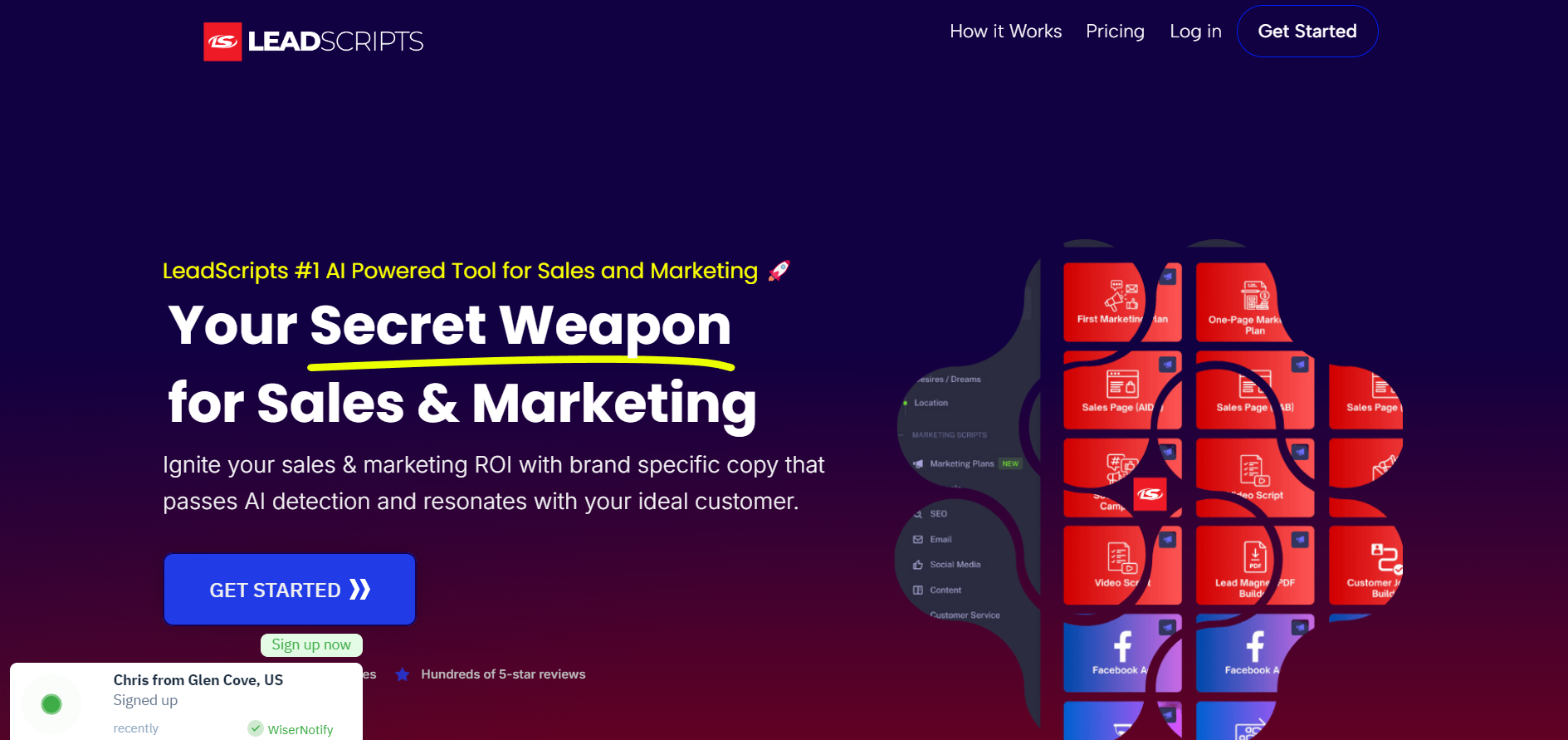
LeadScripts shows a recent signup, not a purchase.
For a free trial product, that’s the smarter choice. A signup is a low-commitment action, so seeing one lowers the bar for the next person rather than raising it.
So match the popup to whatever you’re asking for. If the button says start a trial, show trials.
2. Lily and Fox
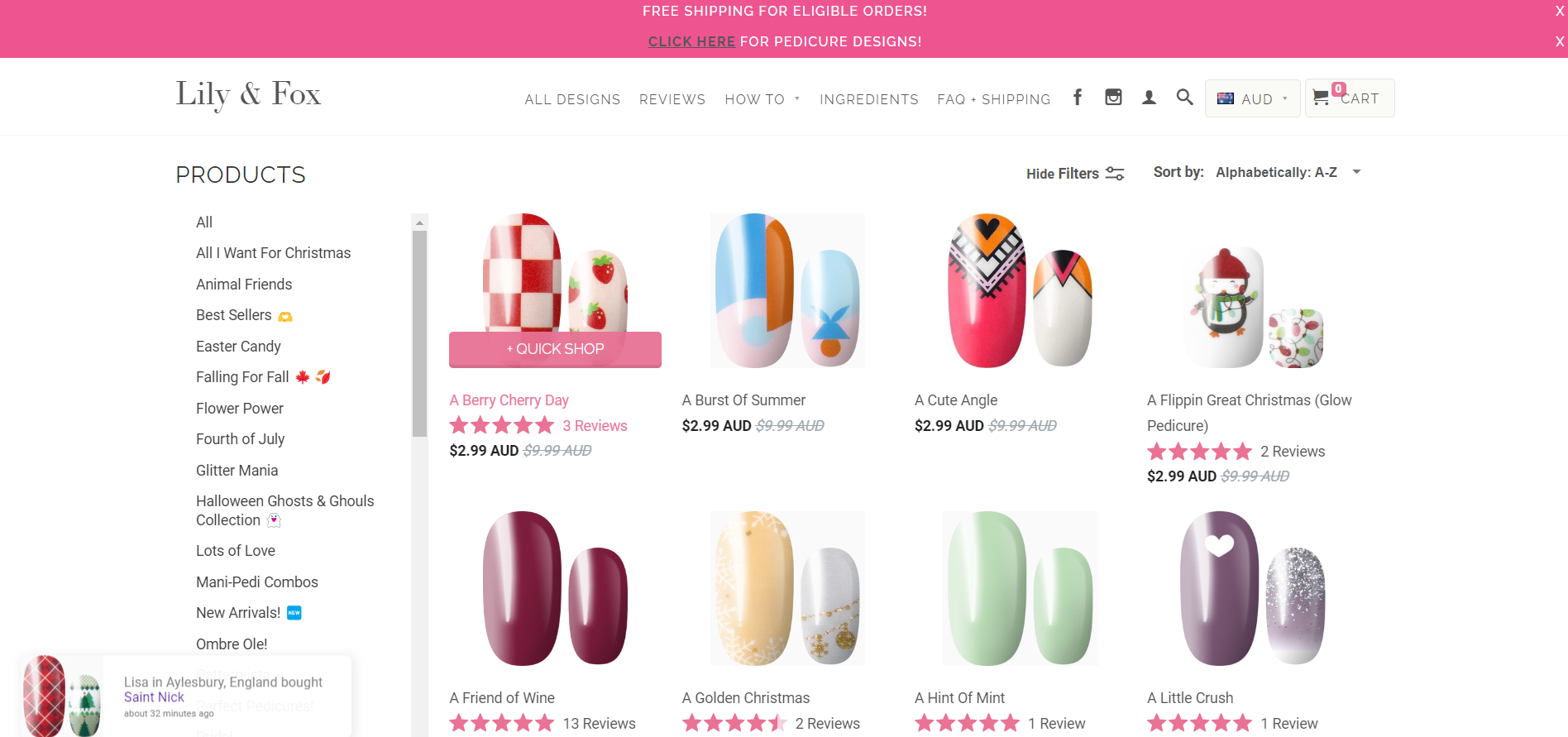
“Lisa in England bought this item 32 minutes ago.”
Three details doing work here. A first name, a location, and a timestamp specific enough to feel real.
The timestamp is the part worth copying. Swap it for “recently” and the whole thing reads as filler.
3. CCNA
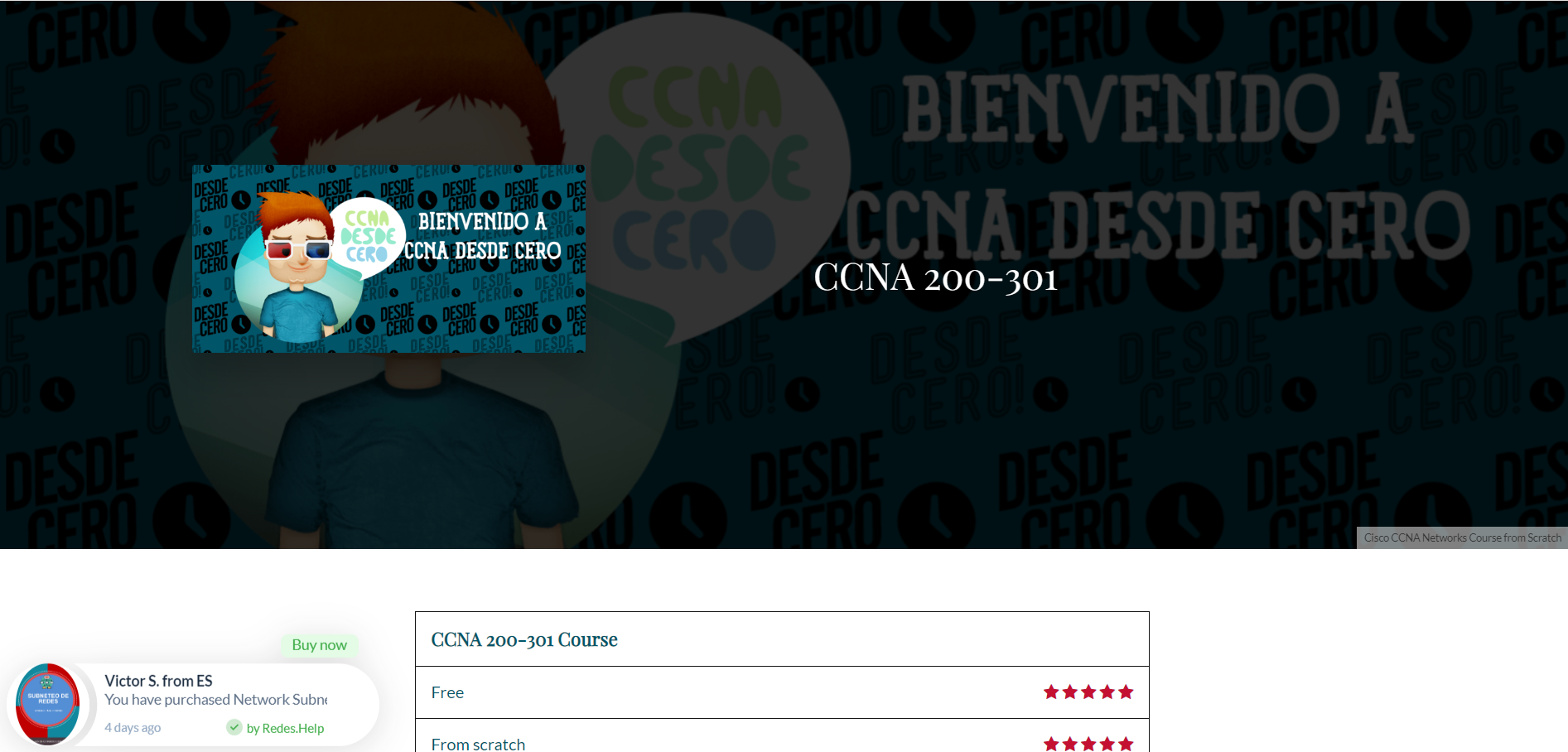
“Victor S. purchased Network Subnet.”
The product name is the whole point. Someone weighing up that exact course sees that someone else already bought that exact course.
Name the product, never the category. “Someone made a purchase” tells a browsing visitor nothing at all.
4. Creative Crafters Hive
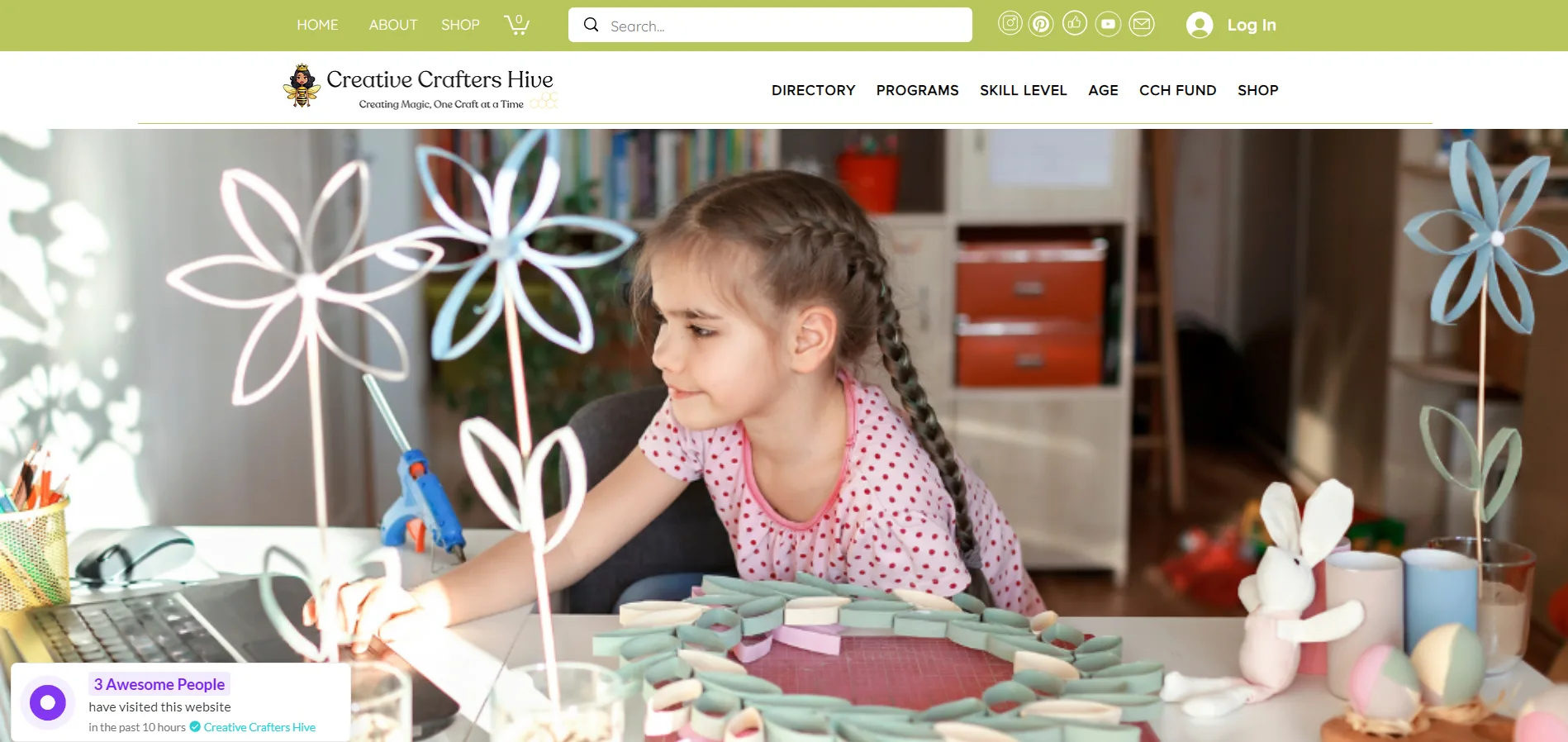
“3 people visited in the past 10 hours.”
Ten hours is a long window, and that’s the trick. A live count on a quiet store would sit at zero half the day.
Stretching the window gives a smaller site something to show without touching the number itself.
Build trust & FOMO
Highlight real-time activities like reviews, sales & sign-ups.

5. Growth Marketer
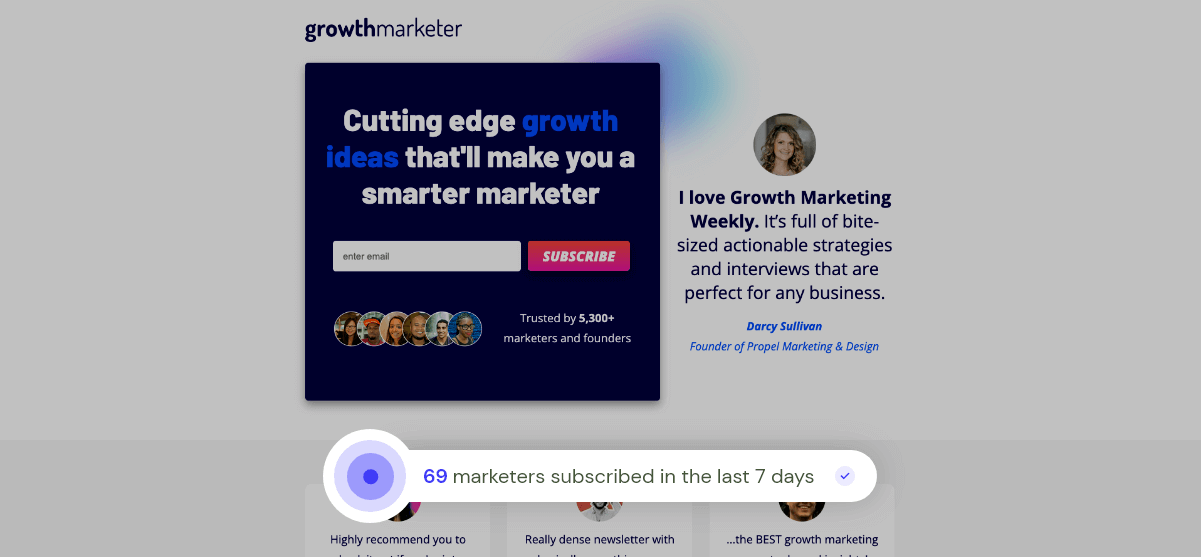
“69 marketers subscribed in the last 7 days.”
A marketer reading that sees a room they already belong to. “69 people” would have been a crowd of strangers.
Worth doing wherever your customers think of themselves as a specific group.
6. Roman Education

A student success story with the course attached.
Education buyers aren’t worried about shipping. They’re worried about whether the thing works, so a testimonial answers the real objection.
When you’re selling an outcome, a feed of purchases proves the wrong thing. Show what happened afterwards.
Build trust & FOMO
Highlight real-time activities like reviews, sales & sign-ups.
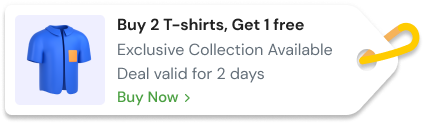
7. Sath
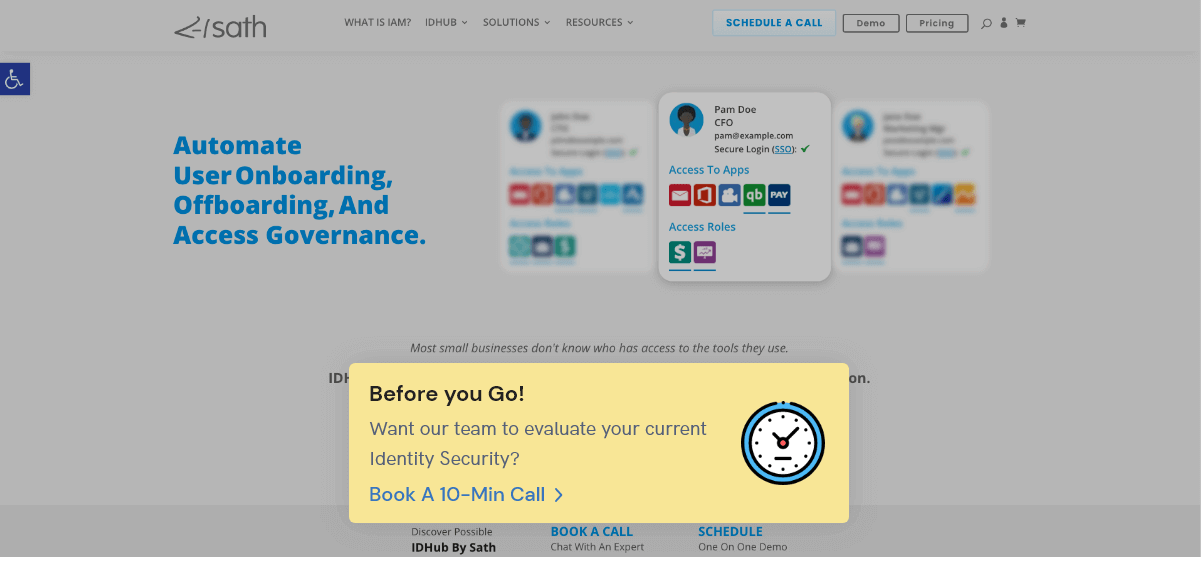
An exit-intent popup offering a 10-minute call.
This one fires on the way out rather than on arrival, which is the only moment where interrupting costs you nothing.
Ten minutes is also a much easier yes than a demo booking. There are more exit-intent popup patterns if this is your angle.
8. EGA Future
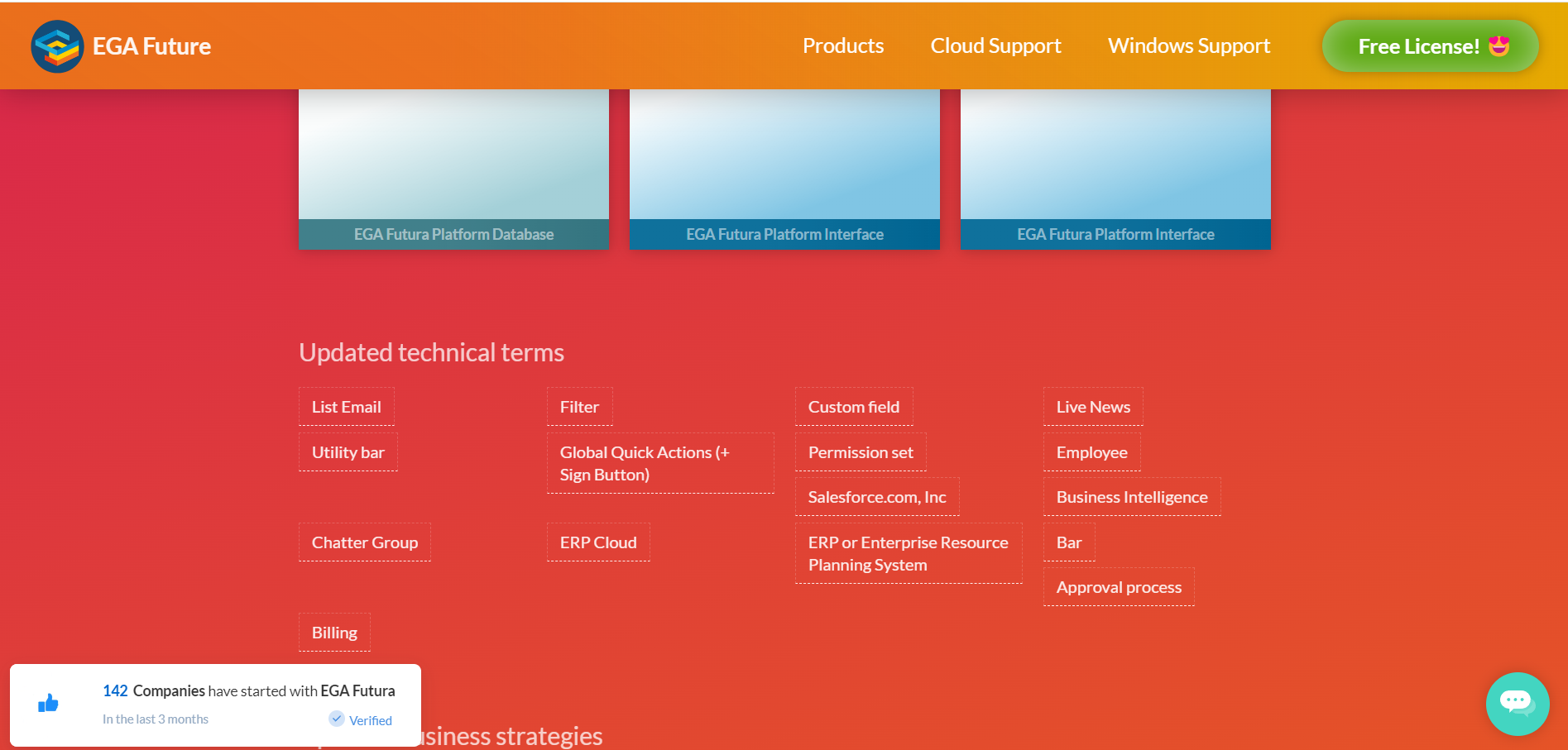
“142 companies started in the last 3 months.”
Someone signing off on software wants to know other businesses took the same risk. A stream of individual signups doesn’t answer that.
One quarterly total does more here than live activity ever would.
Build trust & FOMO
Highlight real-time activities like reviews, sales & sign-ups.
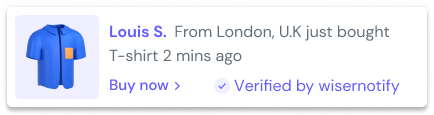
9. Hyper 6

“2 people are viewing now.”
Most stores would hide a number that low. Hyper 6 leaves it up, and it still answers what a first-time visitor is asking, which is whether anyone else is here.
Two is not impressive. It beats the silence of no counter at all.
10. Lawn Starter
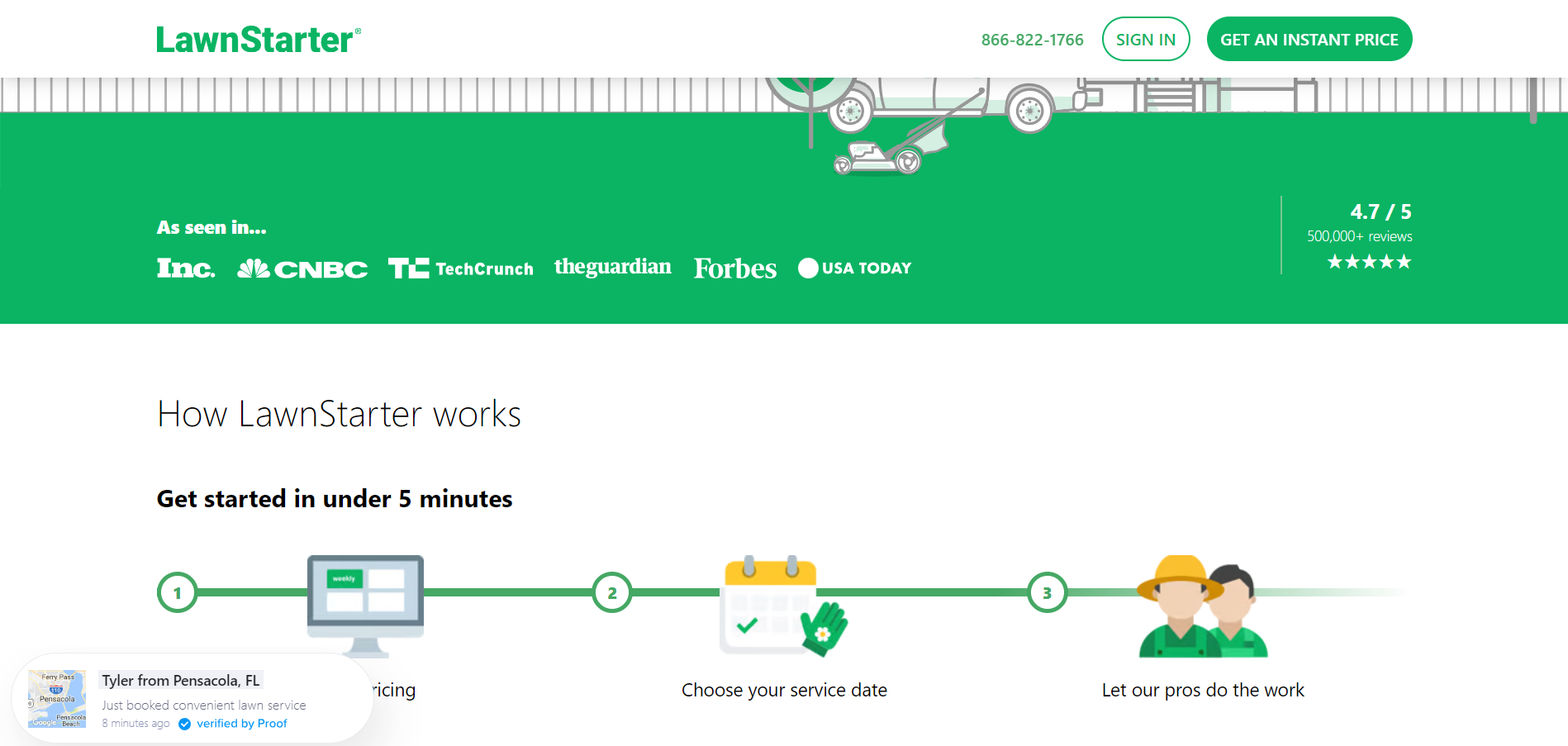
“Tyler just booked 8 minutes ago.”
Service businesses rarely run these, which is exactly why it stands out. Booking a lawn service means letting a stranger onto your property, so proof that neighbors already did helps.
Anywhere the first transaction needs trust before money changes hands, this works. It isn’t only for shops.
11. Creative Dukaan
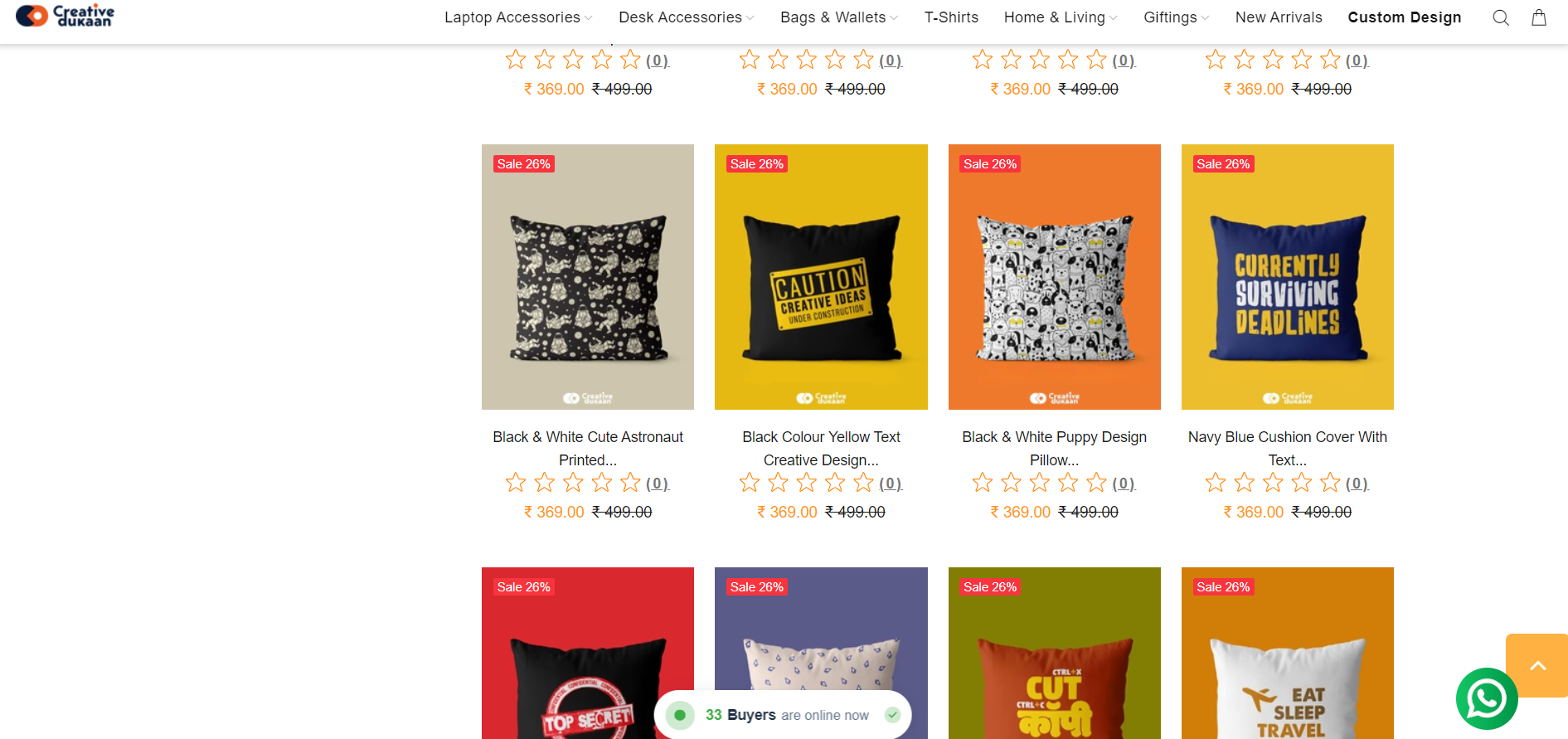
“33 buyers are online now.”
Buyers, not visitors. Same count, but one describes people browsing and the other describes people spending.
Only worth using if those are buyers. Relabelling your traffic is the kind of thing customers work out.
How to Design a Popup People Don’t Close
The tactic isn’t the hard part. Getting the execution right is.
- Bottom left corner. It sits outside the reading path on desktop and doesn’t cover the buy button on mobile.
- One at a time. Two notifications stacked on screen reads as a broken site, not a busy one.
- Five to seven seconds visible. Long enough to read, short enough that it’s gone before it irritates.
- Space them out. A gap of 20 to 30 seconds between notifications. Back to back firing is what makes people reach for the close button.
- Keep the close button real. A visible X that works. Hiding it wins you nothing and costs you trust.
- Match your site. Your fonts, your colors. A popup that looks bolted on gets read as an ad.
On mobile, cut the frequency by half. The screen is smaller, and the tolerance is lower.
Where to Show Social Proof Popups
Running them sitewide is the default setting and usually the wrong one.
- Product pages. Sales notifications and reviews, where the decision is being made.
- Cart and checkout. Recent purchases only. Nothing that pulls attention away from finishing.
- Pricing pages. Signup counts and company numbers for SaaS.
- Blog posts. Newsletter signups, not sales. Someone reading an article isn’t in buying mode.
- Landing pages. One type only. Paid traffic is expensive and easily distracted.
Turn them off during checkout payment steps. Anything moving on screen at the card field is a risk you don’t need to take.
How to Create a Social Proof Popup
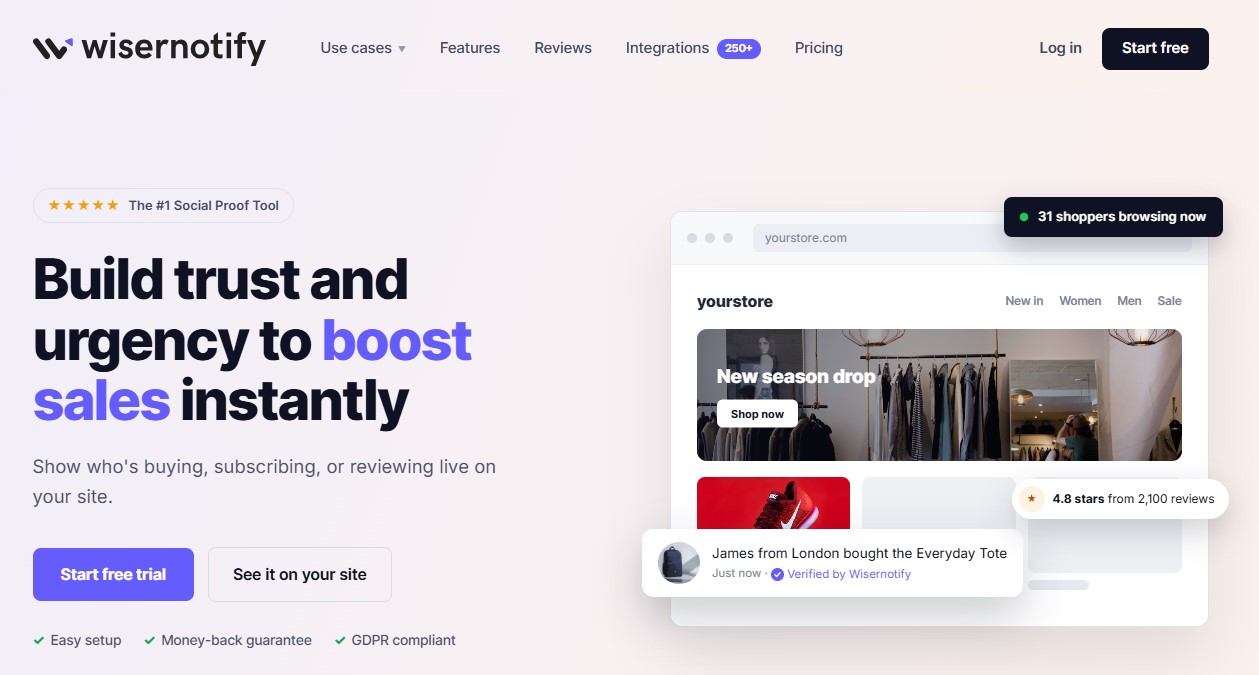
The steps below use WiserNotify. It sits on your site as a small script, connects to wherever your orders, reviews, and signups already live, and turns that activity into notifications you switch on page by page.
Nine steps from a blank account to a live notification. Budget about twenty minutes the first time.
Step 1. Create your free account
Sign up and log in to your account. No card needed to start.
Step 2. Install the pixel
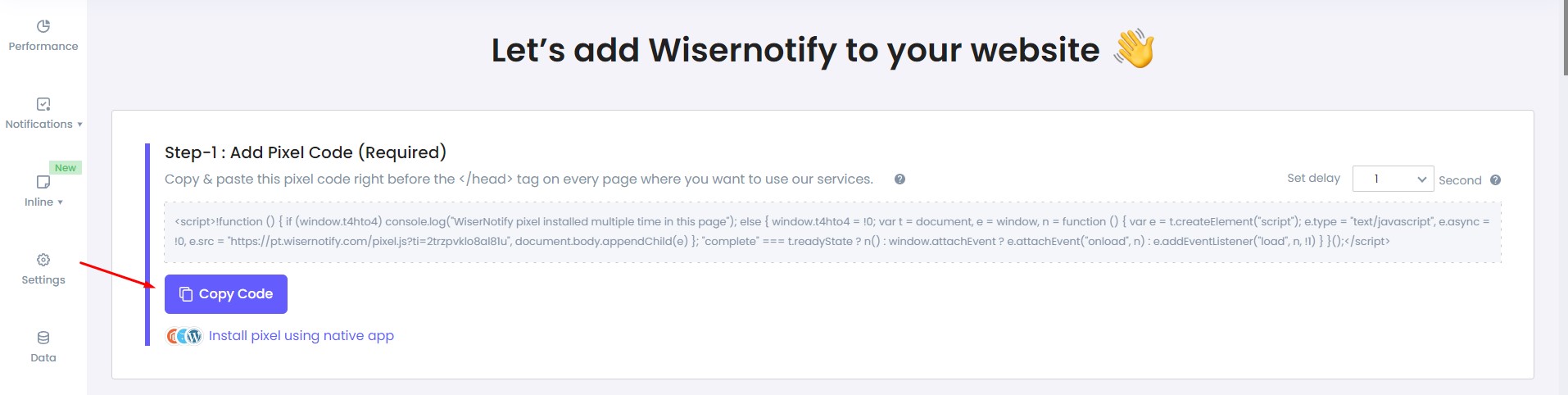
Open the Install Pixel page and hit Copy Code.
Paste it before the closing head tag, on every page you want tracked. On Shopify, WordPress, or Wix there’s a guide for each. On a React, Angular, or Vue site you also need the reset snippet, because single-page apps never reload.
Reload your site, then click Verify pixel installation. You want the Pixel Active message before going further.
Step 3. Connect your store
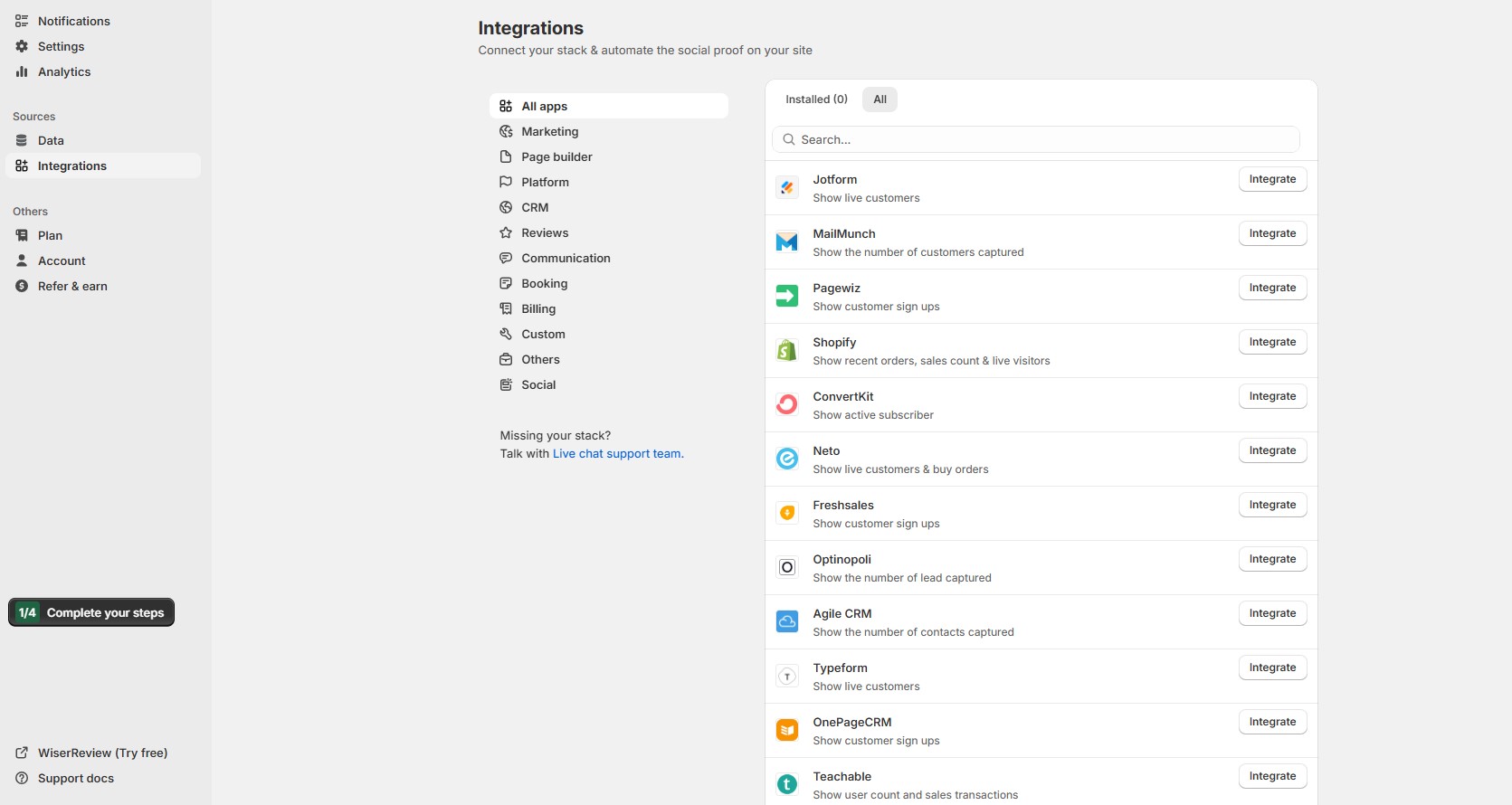
Under Sources, open Integrations and connect wherever your activity lives. Shopify, WooCommerce, Google Reviews, Zapier, your form tool, or a custom webhook.
The pixel tracks visitors. This is what supplies the orders, reviews, and signups your popups will show.
Step 4. Add a notification and pick the type
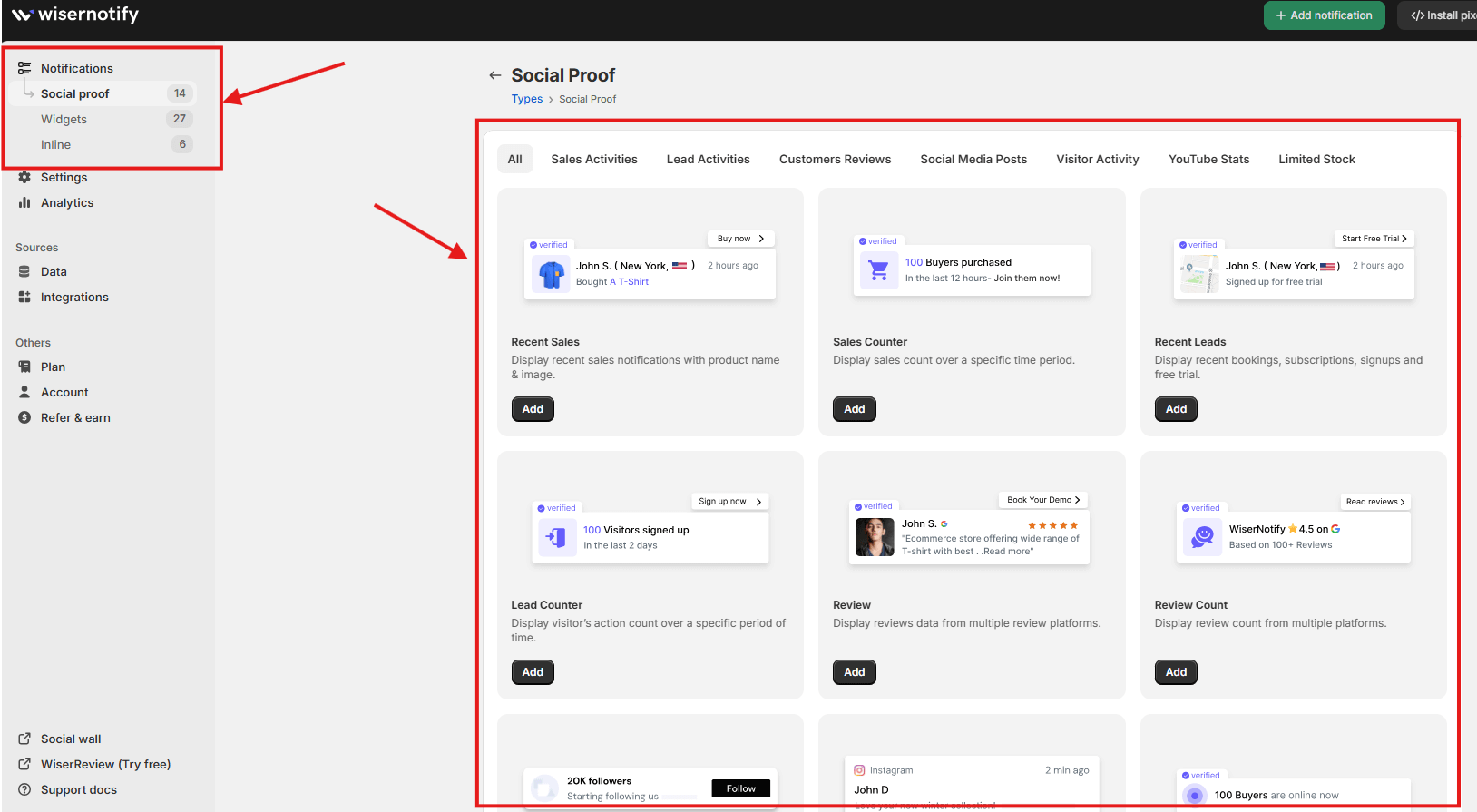
Go to Notifications, open Social Proof, and click Add under the type you want. Recent Sales, Sales Counter, Recent Leads, Review, Review Count, Live Visits, Limited Stock.
Use the table above to match the type to the page. Sales for product pages, reviews for cold traffic, counters for pricing pages.
Step 5. Design it
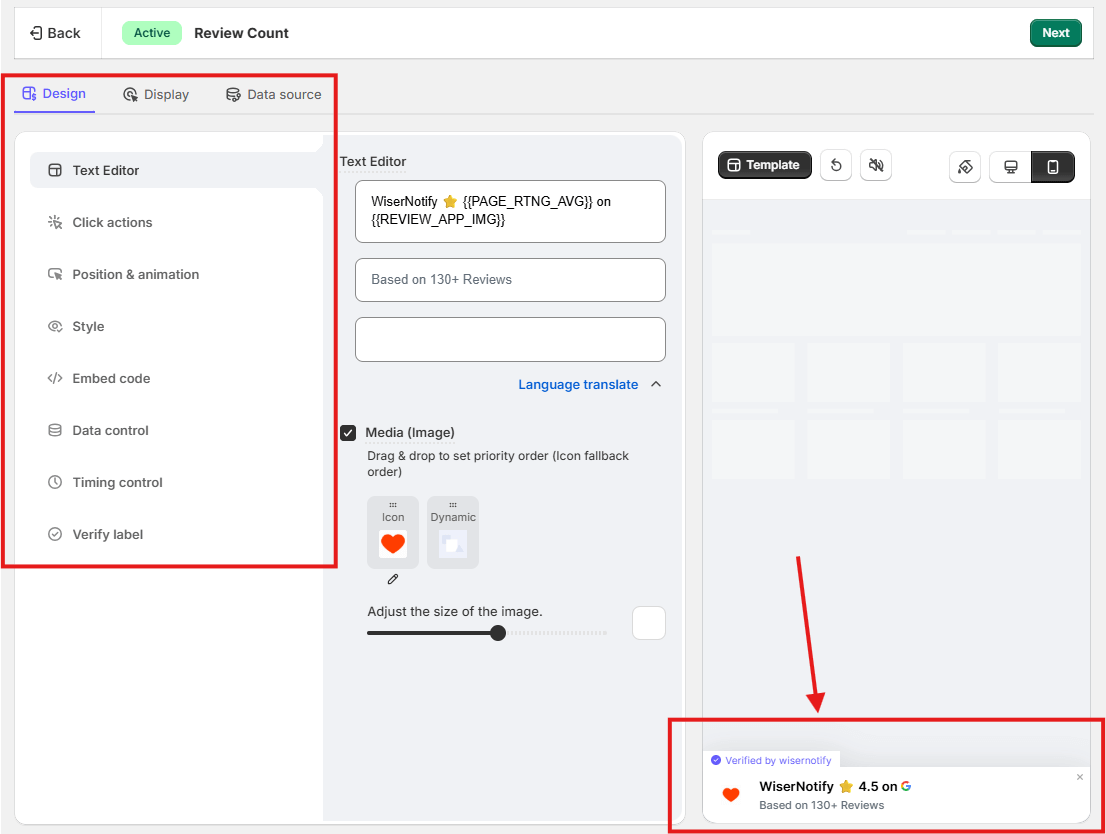
The Design tab covers the text editor, click actions, position and animation, style, timing control, and the verified label.
Edit the text first, because the default wording is generic. A couple of trigger words do more here than any styling option.
Set a fallback for when there’s no live data, or it shows up empty the first slow afternoon.
Step 6. Set where it shows
The Display tab handles page selection, multiple domains, and advanced targeting by behavior, location, UTM, cookies, or referrer.
Start narrow. One type on your product pages beats the same thing running sitewide.
Step 7. Choose which data feeds it
The Data Source tab is where you pick which of your connected integrations feeds this particular notification, and filter which records show.
Connecting an integration in step 3 doesn’t do this for you. Miss this tab and the notification runs on nothing.
Step 8. Save and publish
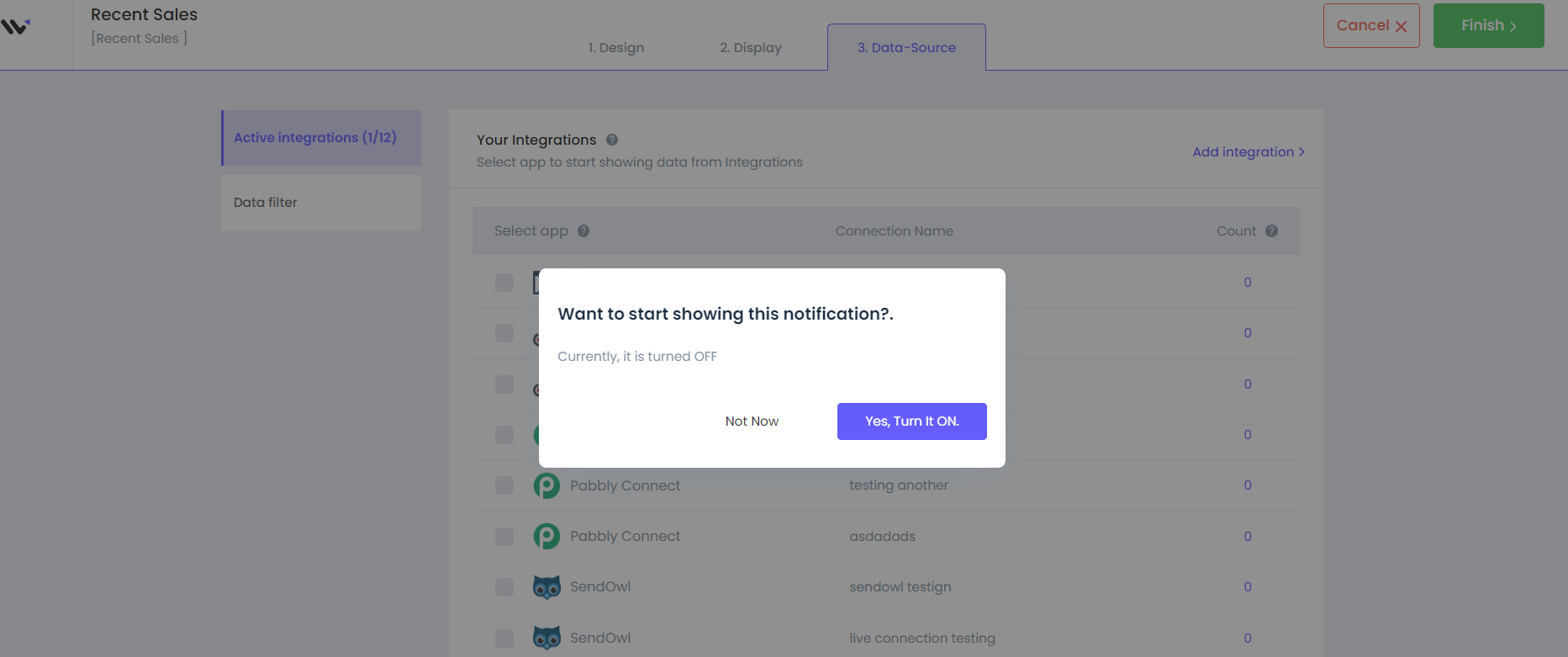
Click Save, then Publish.
Now open your site in a private window. A regular tab serves you a cached version and you’ll think it’s broken.
Step 9. Check the numbers after two weeks
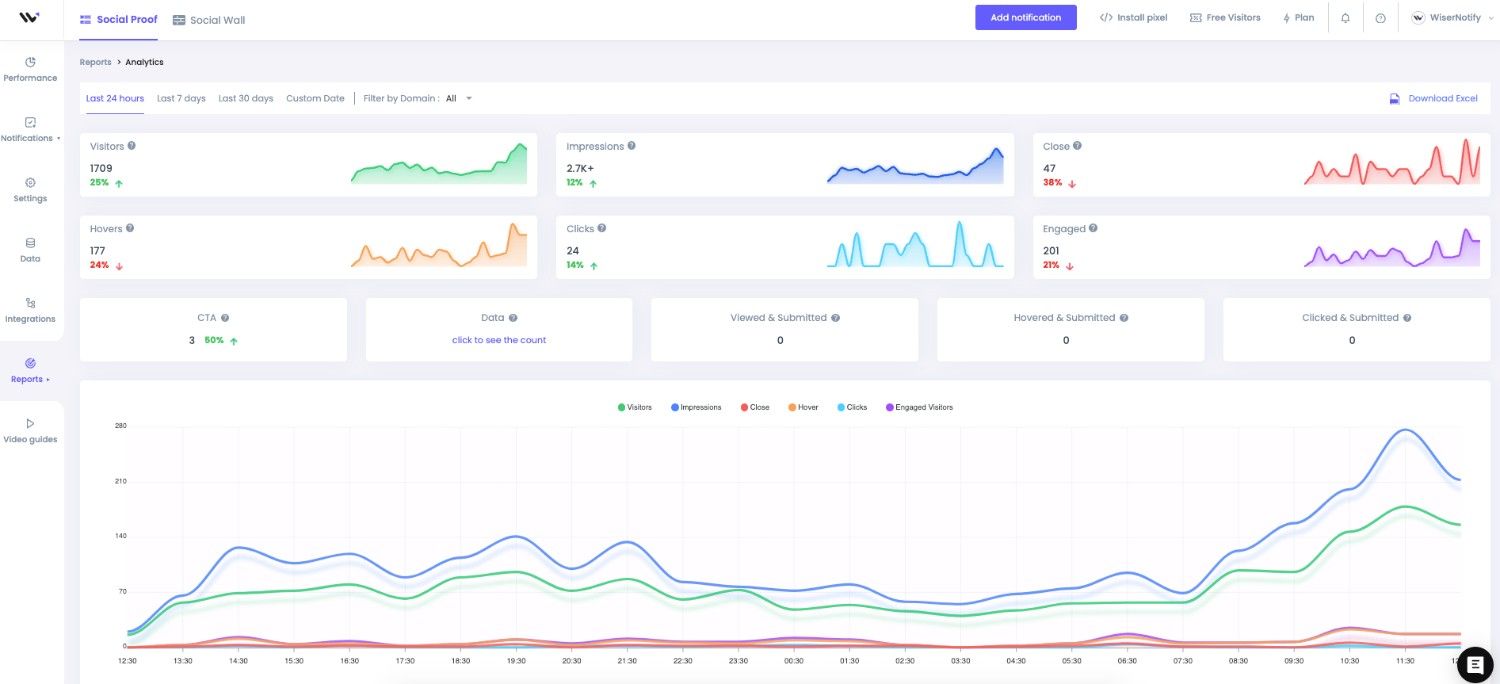
Analytics reports views, clicks, and conversions per notification.
Two weeks covers a full weekly cycle. Plenty of views and no clicks means the placement is right and the message is wrong.
Build trust & FOMO
Highlight real-time activities like reviews, sales & sign-ups.
Other widgets worth adding later
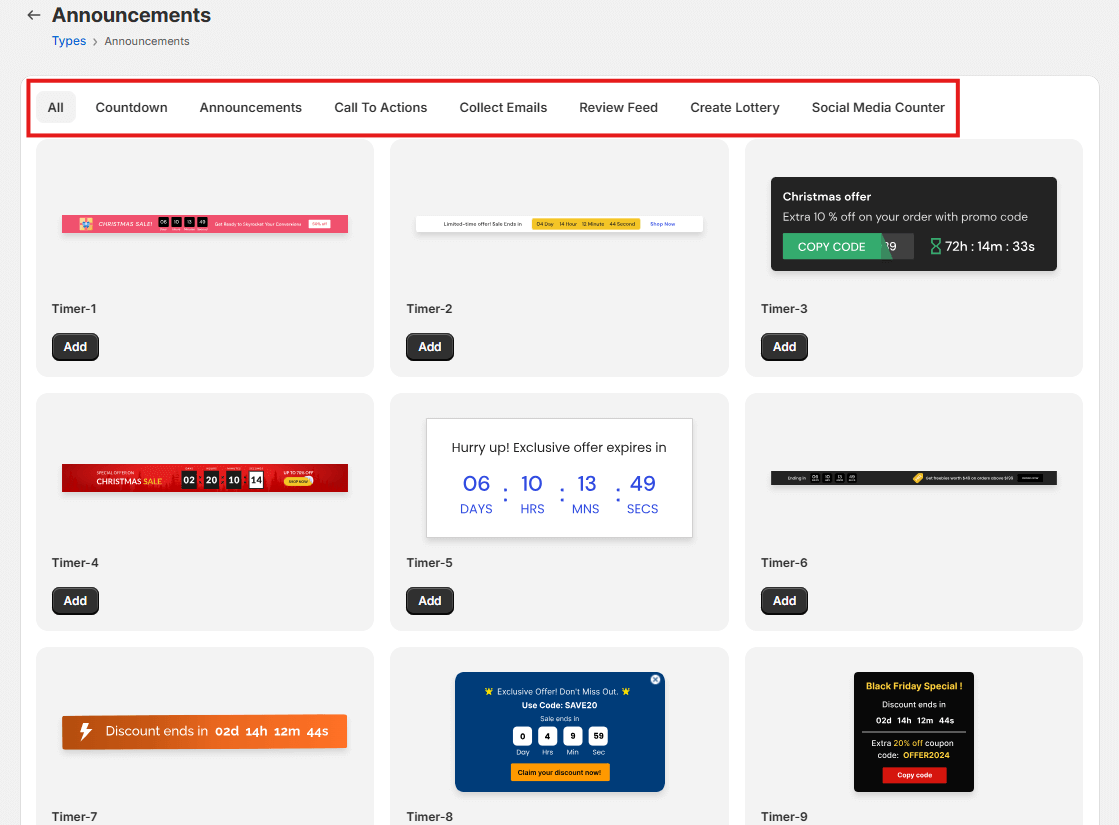
Once the first notification is earning its place, the same account covers the other social proof widgets. Countdown timers, announcement bars, call to actions, and email collection.
Add them one at a time. Three widgets launched together tell you nothing about which one moved the number.
Common Social Proof Popup Mistakes
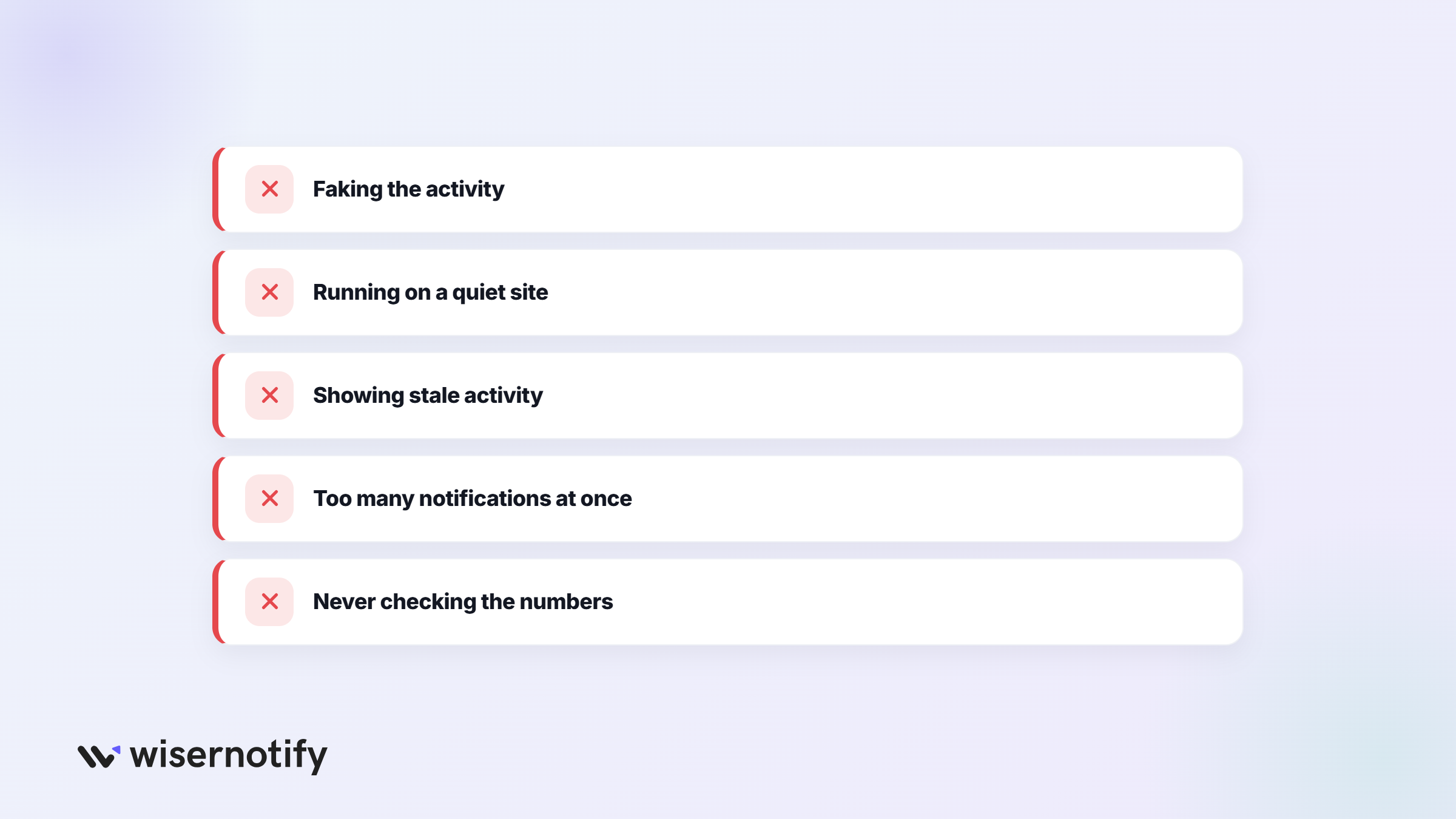
- Faking the activity. Invented orders are the fastest way to lose a customer who checks. It also puts you on the wrong side of advertising rules in most markets.
- Running them on a quiet site. If you get three orders a week, a sales feed advertises how little is happening. Use reviews or totals instead.
- Showing stale activity. A purchase from last month with no date attached reads as filler.
- Too many at once. Notifications, a countdown, and a discount bar competing for the same screen cancel each other out.
- Never checking the numbers. Most tools report views and clicks. If nobody clicks in a month, the message is wrong or the placement is.
Wrapping Up
Social proof popups are one of the few conversion tactics that don’t ask the visitor for anything.
The whole thing rests on the activity being real. Fake it and the tactic stops working the moment someone checks, which they will.
Start with one type on one page. Give it two weeks, read the numbers, then decide whether to expand.
Also check: 27 Winning Social Proof Examples That Seal the Deal
Related Guides
Frequently Asked Questions
Do social proof popups really increase conversions?
Yes. Social proof pop-ups increase conversions by reducing hesitation. When visitors see real purchases, reviews, or signups, they feel more confident about taking action.
Will social proof popups annoy my visitors?
Pop-ups can annoy visitors if used excessively. You should control frequency, timing, and placement. Show subtle notifications in corners instead of blocking the full screen.
Where should I place social proof popups on my website?
You should place pop-ups on high-intent pages, such as product, pricing, and checkout pages. These pages most influence buying decisions.
Can small businesses use social proof popups effectively?
Yes. Small businesses benefit even more because social proof builds early trust. Even a few real purchases or reviews can improve credibility.
How do I measure the impact of social proof popups?
You should track impressions, clicks, and conversions. Tools like WiserNotify provide analytics and A/B testing to measure performance.
Are fake social proof popups a good idea?
No. Fake notifications damage trust. You should only show real customer activity. Authentic data builds long-term credibility.
Which type of social proof popup works best?
The best type depends on your goal. Sales notifications work well for ecommerce stores. Signup notifications work well for SaaS and newsletter growth. Live visitor counts work well for limited offers.

Krunal Vaghasiya is a marketing tech expert who boosts e-commerce conversion rates with automated social proof and FOMO strategies. He loves to keep posting insightful posts on online marketing software, marketing automations, and improving conversion rates.




 Capterra