
5 Social Proof Widget Types and How to Create One (2026)
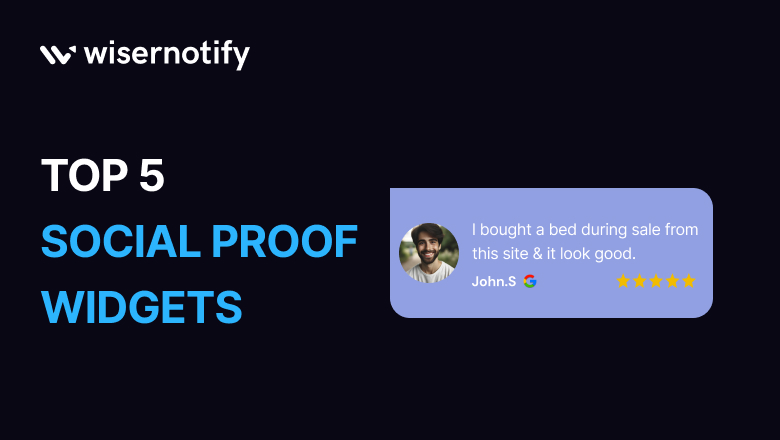
A social proof widget is a small block on your site that shows what other customers are doing. Someone just bought. Forty people are viewing this. Here is what the last reviewer said.
The idea is old. Shoppers trust other shoppers more than they trust your copy.
Below are the five widget types worth running, where to put each one, and the eight steps to build your first.
What Are Social Proof Widgets?
A social proof widget pulls real activity out of your store and puts it somewhere a visitor will see it. Purchases, reviews, sign-ups, ratings, subscriber counts.
The activity is already happening. The widget just moves it from your admin panel to your product page.
That matters because the evidence usually sits where nobody looks. Reviews live at the bottom of a page most visitors never scroll to. BrightLocal’s 2026 survey found 97% of consumers read reviews before choosing a business, so the proof is worth surfacing rather than burying.
It works on plain social influence. When we are unsure, we copy whoever went first. Nothing gets blocked and there is no form to escape, which is why it irritates less than a standard popup.
5 Best Social Proof Widget Types
These five cover almost every use case. They are not interchangeable, and running the wrong one for your traffic level does more harm than running none.
1. Live Visitor Count Widget

Shows how many people are on a page right now. “40 people are viewing this product.”
It answers a question a first-time visitor is quietly asking, which is whether this site is alive at all.

The catch is traffic. On a quiet store the number sits at one or zero for most of the day, and that reads worse than no counter at all. Widen the window if your volume is low. “12 people viewed this today” is defensible when “12 viewing now” is not.
Best on product pages for limited stock, event tickets, and bookings. Scarcity and live counts are the two levers most FOMO marketing runs on.
Build trust & FOMO
Highlight real-time activities like reviews, sales & sign-ups.


2. Recent Sign-up Widget

Shows names or locations of people who just joined. “Priya from Mumbai just signed up.”
A sign-up is a low-commitment action, so seeing one lowers the bar for the next person rather than raising it. That makes this the right widget for anything free at the point of entry.

Strongest for SaaS trials, course launches, waitlists, and newsletters. Weak on an ecommerce product page, where the visitor is deciding whether to spend money, not whether to join a list.
Build trust & FOMO
Highlight real-time activities like reviews, sales & sign-ups.

3. Review and Testimonial Widget

Displays ratings and written feedback pulled from Google, Trustpilot, Capterra, G2, or your own store.
The advantage over your own testimonial page is that the source is visible. A rating carrying a Google or G2 logo is harder to dismiss than a quote with a first name attached.

Show a mix rather than only five stars. A visible three-star review with a reply underneath does more for credibility than a wall of perfect scores, which most shoppers now read as filtered. Pulling from several customer review platforms is worth the setup time. If you run Google Ads, check the tool supports Google Seller Ratings, because not all of them do and it is the one review source that feeds your ad extensions too.
Best on product and pricing pages, and anywhere the price is high enough to cause hesitation.
Build trust & FOMO
Highlight real-time activities like reviews, sales & sign-ups.

4. Sales Popup Widget

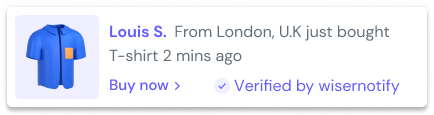
Shows a recent order. “John from Texas bought this 5 minutes ago.”
This is the classic, and also the one most often faked, so it only works if the orders are real. Three details carry it: a first name, a location, and a timestamp specific enough to be checkable. Swap the timestamp for “recently” and the whole thing reads as filler.

Needs steady order volume. Below a few orders a day the gaps between notifications say more than the notifications do. If that is you, use reviews or a running total instead. There are more social proof popup patterns worth copying.
Build trust & FOMO
Highlight real-time activities like reviews, sales & sign-ups.
5. Subscriber Count Widget

Shows an audience number. “400K subscribers on YouTube.”
One number, read in a second, no explanation needed. It works on scale alone, which is also its limit. Under a few thousand it argues against you, and no clever framing fixes a small follower count.

Best for creators, community-led brands, and anyone whose audience size is part of the pitch. Skip it if the number is not yet impressive.
Where to Place Social Proof Widgets
Running one widget sitewide is the default setting and usually the wrong one.
- Product pages. Sales notifications and review widgets, where the decision happens.
- Cart and checkout. Recent purchases only, and nothing at the card entry step. Anything moving next to a payment field is a risk you do not need.
- Pricing pages. Customer counts and company totals, especially for SaaS.
- Landing pages. One widget type only. Paid traffic is expensive and easily distracted.
- Blog posts. Sign-up notifications, not sales. Someone reading an article is not in buying mode.
Bottom left is the safest position. It sits outside the reading path on desktop and does not cover the buy button on mobile. Halve the frequency on mobile, where the screen is smaller and the tolerance is lower.
How to Create a Social Proof Widget Step by Step
The steps below use WiserNotify, which is our own tool, so weigh that accordingly. The sequence is much the same whichever one you pick.
Eight steps from a blank account to a live widget. Give it about twenty minutes the first time.
Step 1. Create a free account
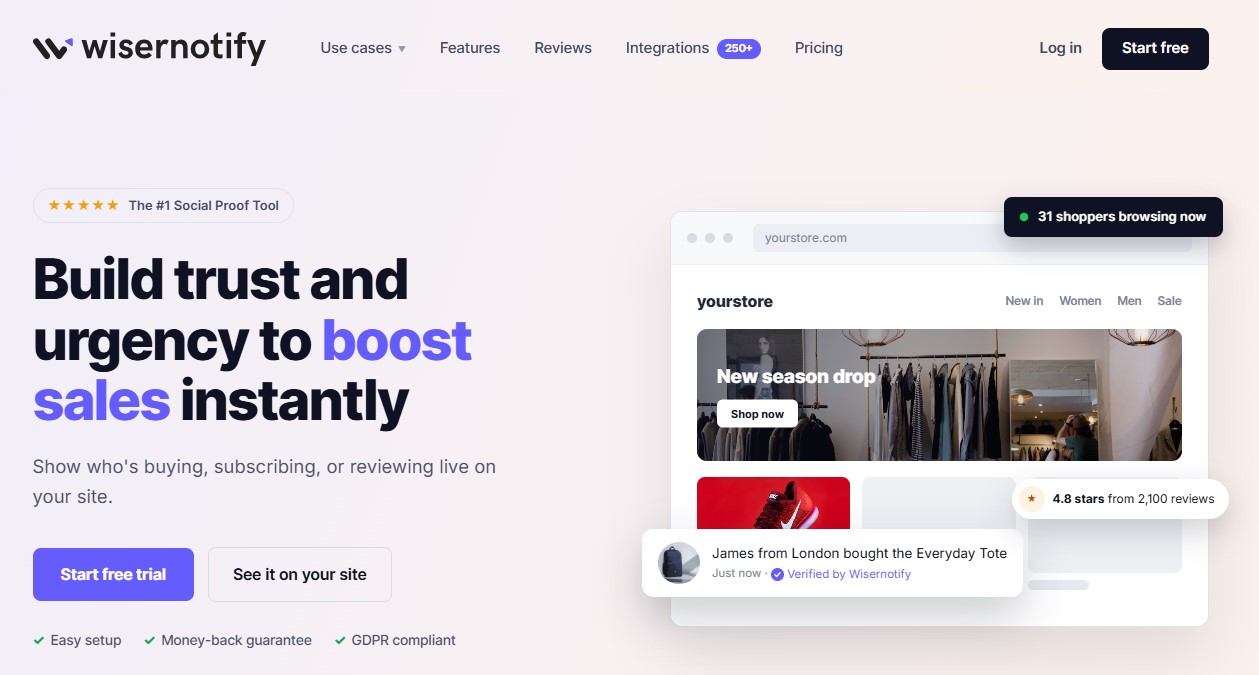
Sign up with an email address, a Gmail or Facebook login, or straight through your Shopify store. No card needed, and you get 7 days on any plan before it bills.
Step 2. Install the pixel
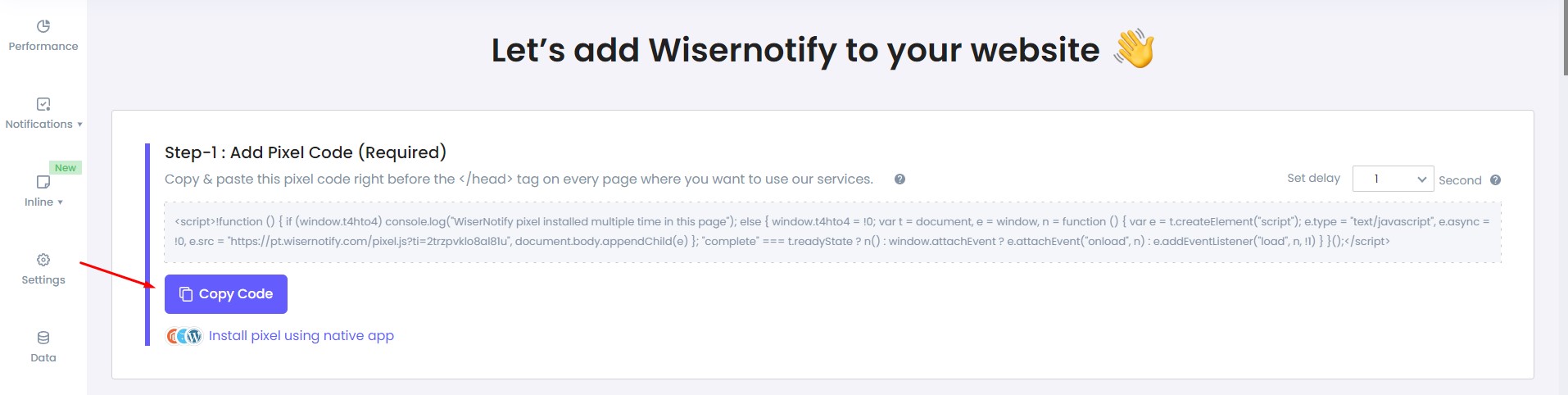
Copy the script and paste it into your site’s head section. Shopify, WordPress and Tag Manager have prebuilt integrations if you would rather not touch the code.
Then click Verify pixel installation to confirm. Wait for that to pass before going further, or nothing shows up later and you will not know why.
On React, Vue or Angular you also need the reset snippet, because single-page apps never reload between routes.
Step 3. Connect your data sources
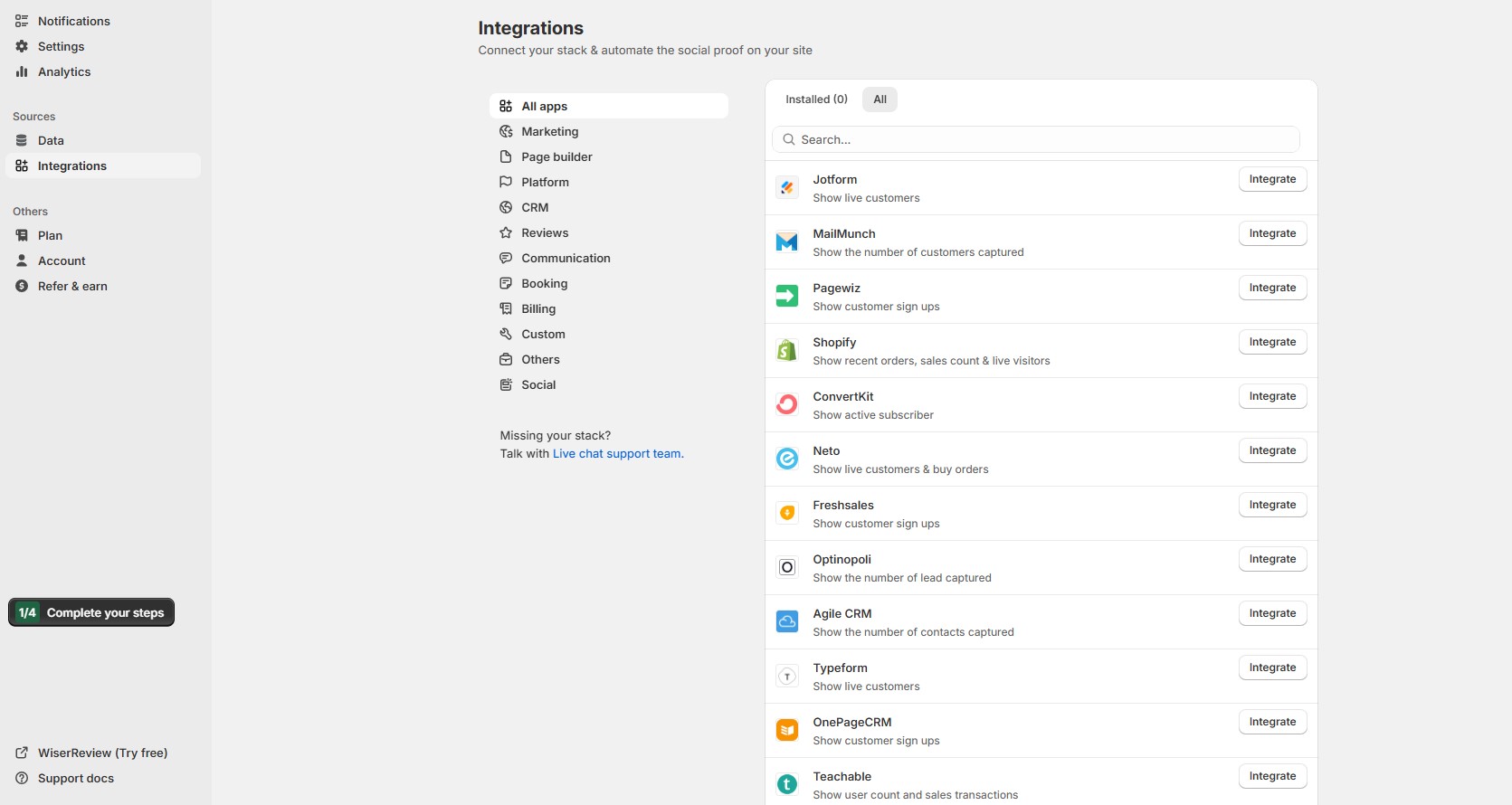
Link your store, CRM or email tool so real sign-ups and purchases flow in. Shopify, Mailchimp, ActiveCampaign, WooCommerce, Google Reviews and 250+ more.
The pixel counts visitors. This is the part that supplies the activity your widget will show.
Step 4. Create a notification
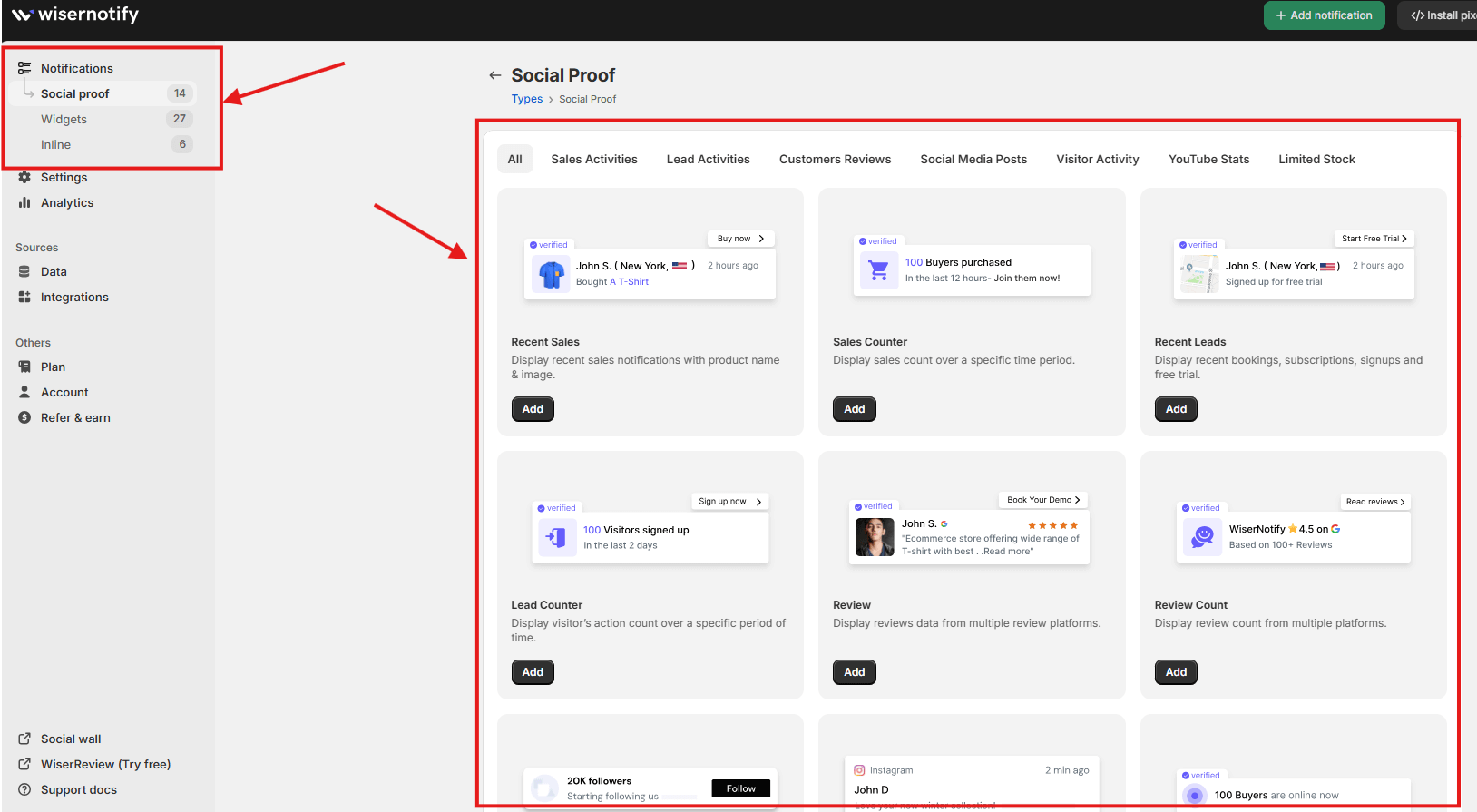
Click Add Notification and pick from 30+ templates. Recent activity, conversion counts, reviews, timers, CTAs, review feeds, follower counts and a run of announcement styles.
Pick from the page you are trying to affect, not from what looks best in the gallery.
Build trust & FOMO
Highlight real-time activities like reviews, sales & sign-ups.
Step 5. Customise the design
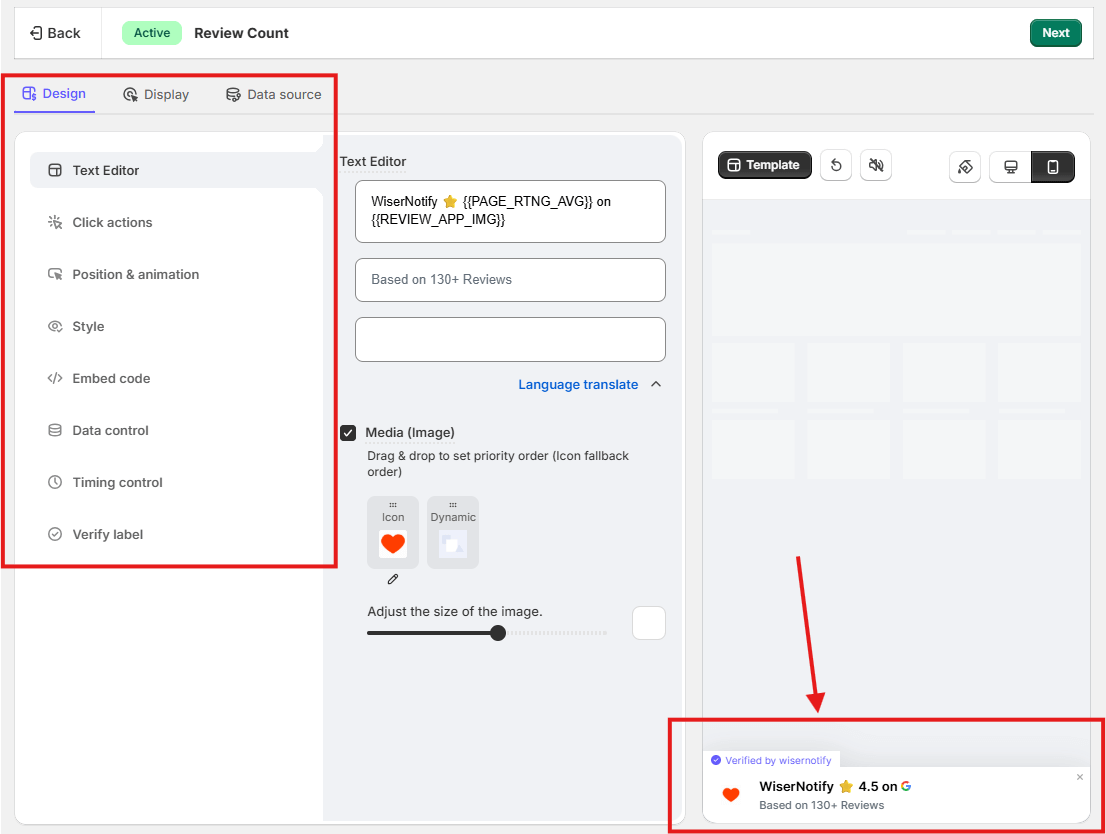
Edit the text, icons, images and animation. Match colours and fonts to your brand, then set position, delay and duration.
Do the wording before anything else. Default template copy is generic, and the words do more work than the styling ever will.
Review widgets get extra controls here too, including the review tab and header, the layout of each reviewer row, and filters so you can show only four and five-star reviews.
Step 6. Set targeting rules
Choose where it appears and who sees it. Specific pages, devices, traffic sources or locations, plus UTM parameters, cookies and referrer if you need to go finer.
Start narrow. One widget on your product pages beats the same thing running sitewide, and it gives you a cleaner read on whether it did anything.
Step 7. Preview and publish
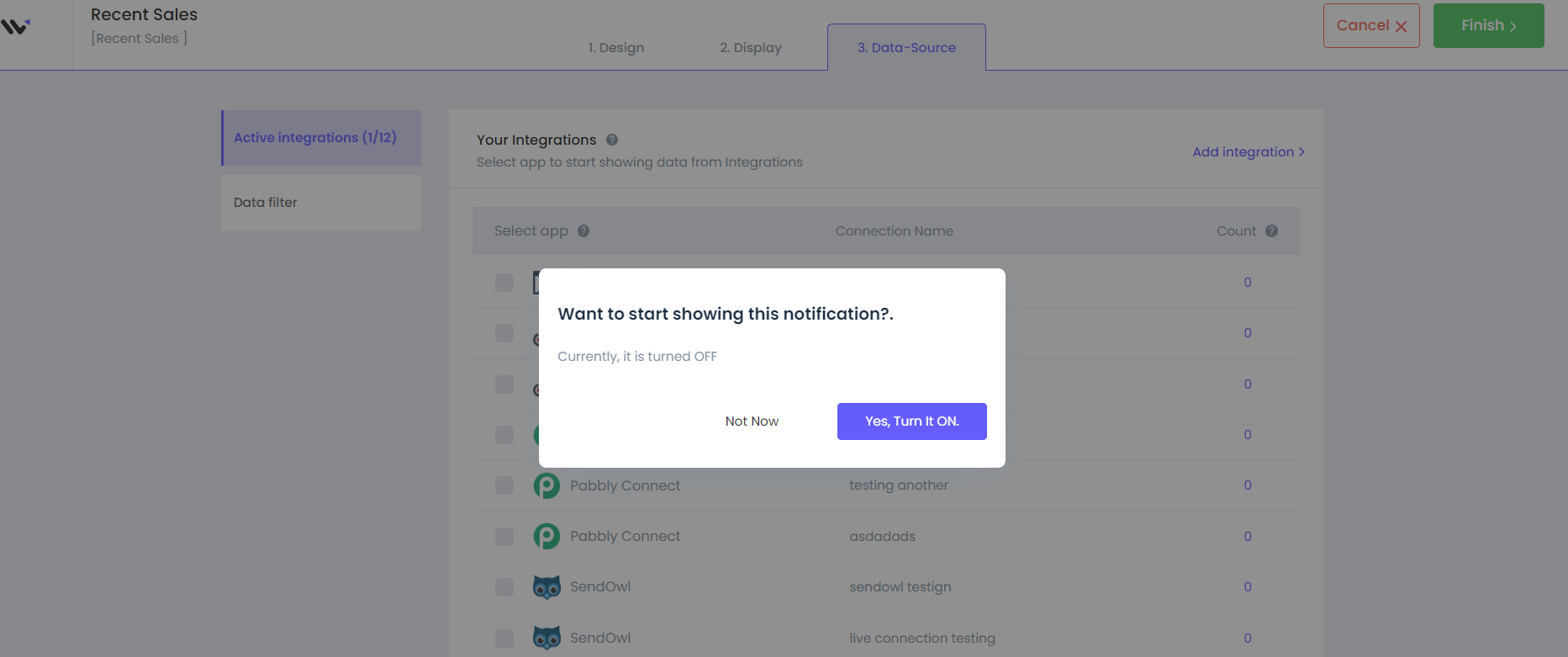
Preview it on your own site first, then hit Publish. You can pause, edit or duplicate it later without starting over.
Check it in a private window. A normal tab serves you a cached version and you will think it failed.
Step 8. Monitor performance
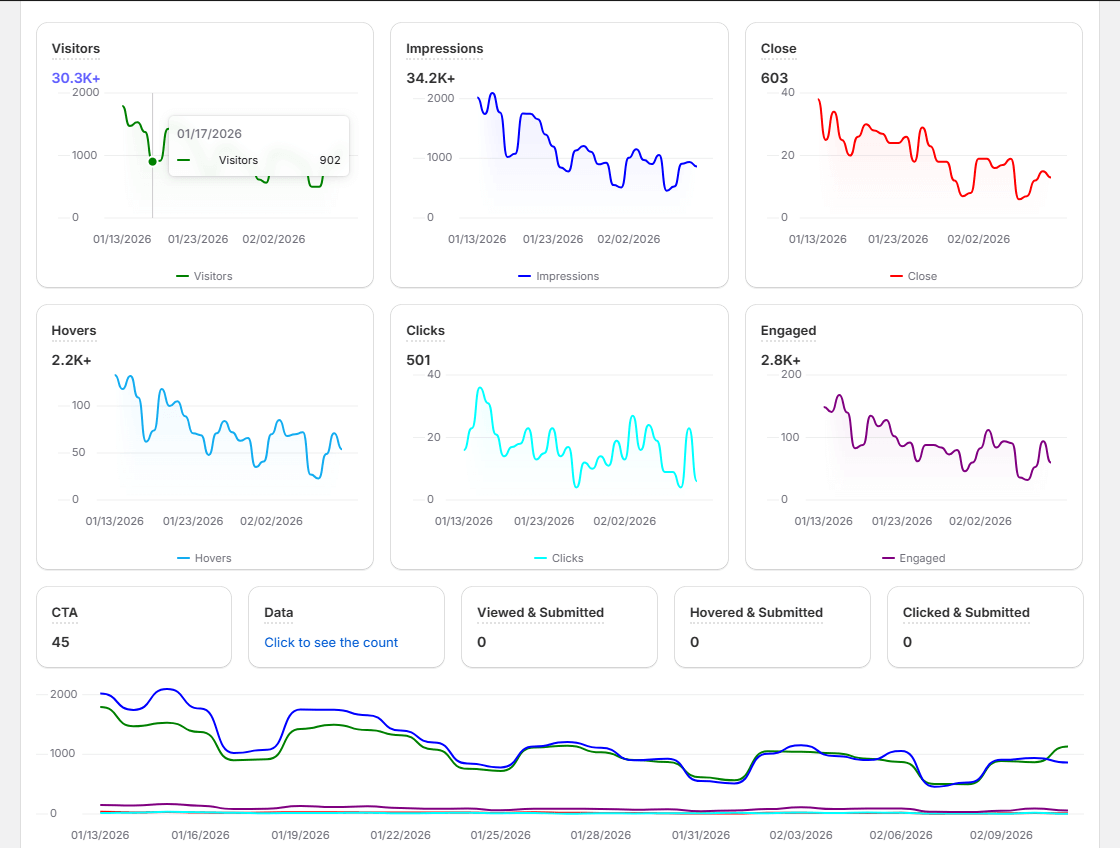
The Performance tab tracks click-through rates and conversions for each widget.
Give it two weeks, which covers a full weekly cycle. Plenty of impressions and no clicks means the placement is right and the message is wrong. Barely any impressions means your targeting is too tight.
Other widgets worth adding later
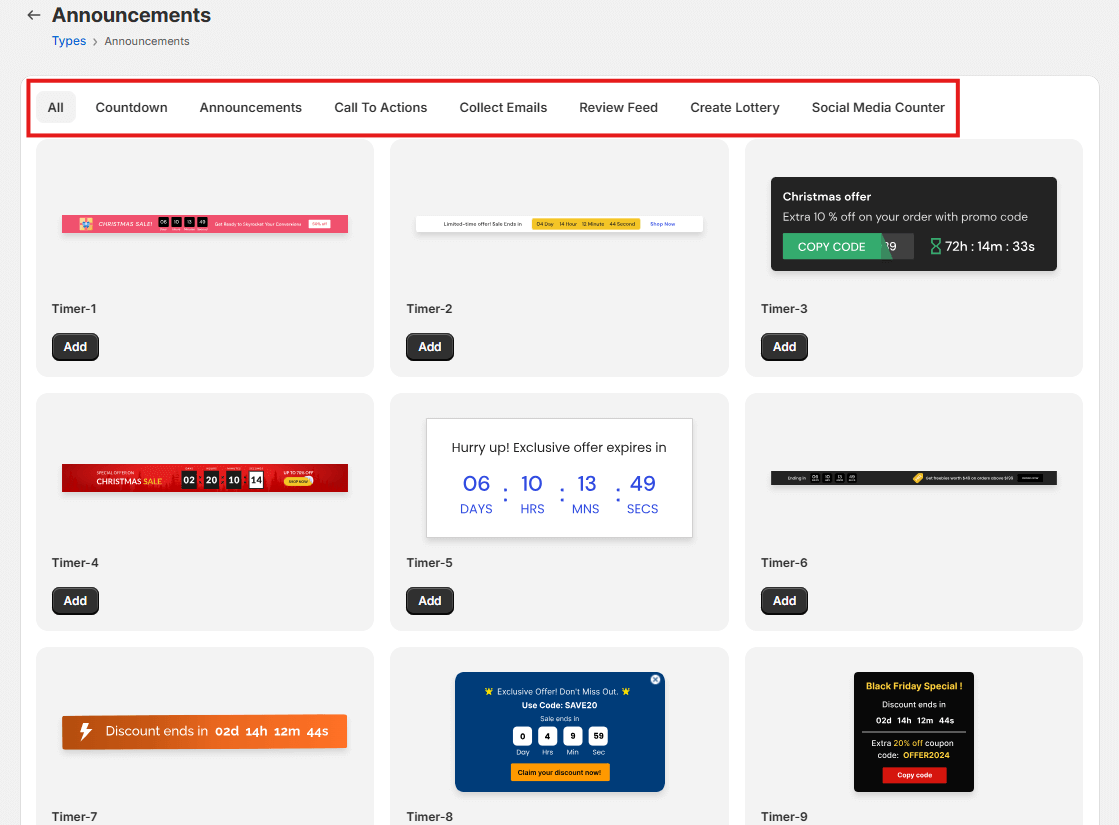
Once the first one is earning its place, the same account covers countdown timers, announcement bars, call to actions and email collection.
Add them one at a time. Three launched together tell you nothing about which one moved the number.
Build trust & FOMO
Highlight real-time activities like reviews, sales & sign-ups.

Social Proof Widget Mistakes to Avoid
- Faking the activity. Invented orders lose the customer who checks, and someone always checks. The fake review statistics are worse than most brands assume. It also puts you on the wrong side of advertising rules in most markets.
- Running a live counter on quiet traffic. A count of one advertises how little is happening.
- Stacking widgets. A notification, a countdown and a discount bar competing for the same screen cancel each other out. One per page.
- Hiding the close button. A visible X that works costs you nothing and buys you trust.
- Never checking the numbers. Every tool reports impressions and clicks. If nobody has clicked in a month, the widget is decoration.
Wrap Up
Social proof widgets work because they move the claim off your copy and onto your customers.
Pick by what you already have. Steady orders make sales notifications the obvious start. Good reviews and thin order volume point at a review widget. Neither yet, and a running total beats both.
Run one type on one page, give it two weeks, then decide whether to expand.
Also check: 12 Best Social Proof Tools to Increase Website Conversion
Related Guides
Frequently Asked Questions
Are social proof widgets free?
A few tools have a permanent free tier, but most give you a trial and then bill. WiserNotify runs a 7-day trial on any plan, from $16 a month after that. Free plans across the market usually put the tool’s own branding on your notification until you upgrade.
Which social proof widget works best for ecommerce stores?
Sales notifications, if orders come in daily. They show a recent purchase at the moment a shopper is hesitating on the product page. Below a few orders a day, use a review widget instead, because the gaps between notifications say more than the notifications do.
Do social proof widgets slow down my website?
A badly built one can. Look for a script that loads asynchronously so it does not block the page, and test your speed before and after adding it. A widget that delays your page costs more conversions than it wins.
Do social proof widgets increase conversions?
They can, when the activity behind them is real. The widget moves evidence from your admin panel to the page where someone is hesitating. Run one on one page for two weeks and read the click-through rate rather than trusting a number from someone else’s case study.
Are social proof widgets worth it for a small business?
Yes, but not every type. Live visitor counters and sales feeds need volume, and a count of one works against you. Star ratings, a running order total, or a single strong testimonial hold their value at any size.

Krunal Vaghasiya is a marketing tech expert who boosts e-commerce conversion rates with automated social proof and FOMO strategies. He loves to keep posting insightful posts on online marketing software, marketing automations, and improving conversion rates.




 Capterra