
Add a Sales Popup to Instapage in 5 Minutes
To add a sales popup to Instapage, paste the WiserNotify pixel into your landing page under Scripts & GDPR, pick the Recent Sales widget, and hit Update Experience. The whole thing takes about five minutes and zero code.
Why bother? Because a polished Instapage page still leaves one question unanswered. Is anyone else signing up?
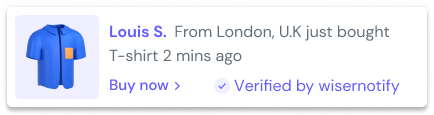
A small popup that says “Priya from Austin just booked a demo” answers it before the visitor can doubt you. I run WiserNotify, and landing pages are where these popups earn their keep, so this guide covers the exact setup, with screenshots for every step.
Key takeaways
- The pixel goes in the Scripts & GDPR panel of each landing page, in the HEAD tab. Nothing changes in your page design.
- Instapage’s built-in Popup Builder handles form and offer popups. It does not show live sales or signup activity, which is the gap WiserNotify fills.
- Your popup data can come from Instapage form submissions through a webhook, or from your payment and CRM tools.
- The most common fix when a popup will not show is clicking Update Experience after saving the script.
Does Instapage Have Built-In Popups?
Yes, Instapage has a native Popup Builder, and it covers form and offer popups that usually fire when a visitor clicks a button.
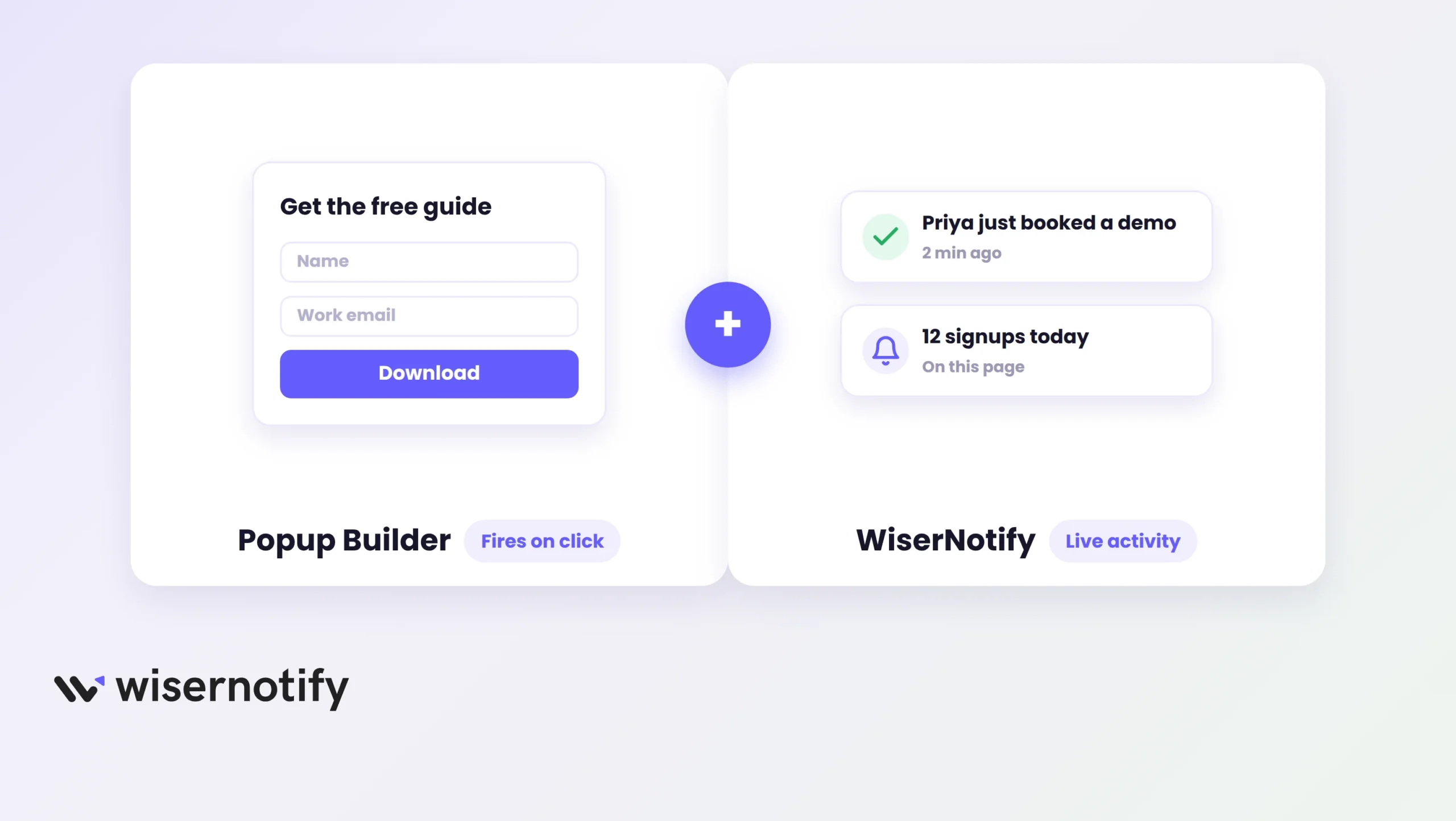
That is a different job from social proof. A sales popup shows live activity, real names, real actions, pulled from your form or payment data as it happens. Instapage has no feed like that to draw from.
So the two work side by side. Use the native builder for your lead capture overlay, and layer WiserNotify on top for the “someone just signed up” stream. The same pixel also powers an exit popup on Instapage or a video popup if you need those later.
How to Add a Sales Popup to Instapage
You need a WiserNotify account and edit access to your Instapage landing page. No developer, no custom code blocks.
Here is the full walkthrough on video, then the same steps written out with screenshots.
Step 1: Copy Your WiserNotify Pixel
Create your WiserNotify account, then head to the Install Pixel page in the dashboard and copy the code. That single script runs every widget you add from here on.

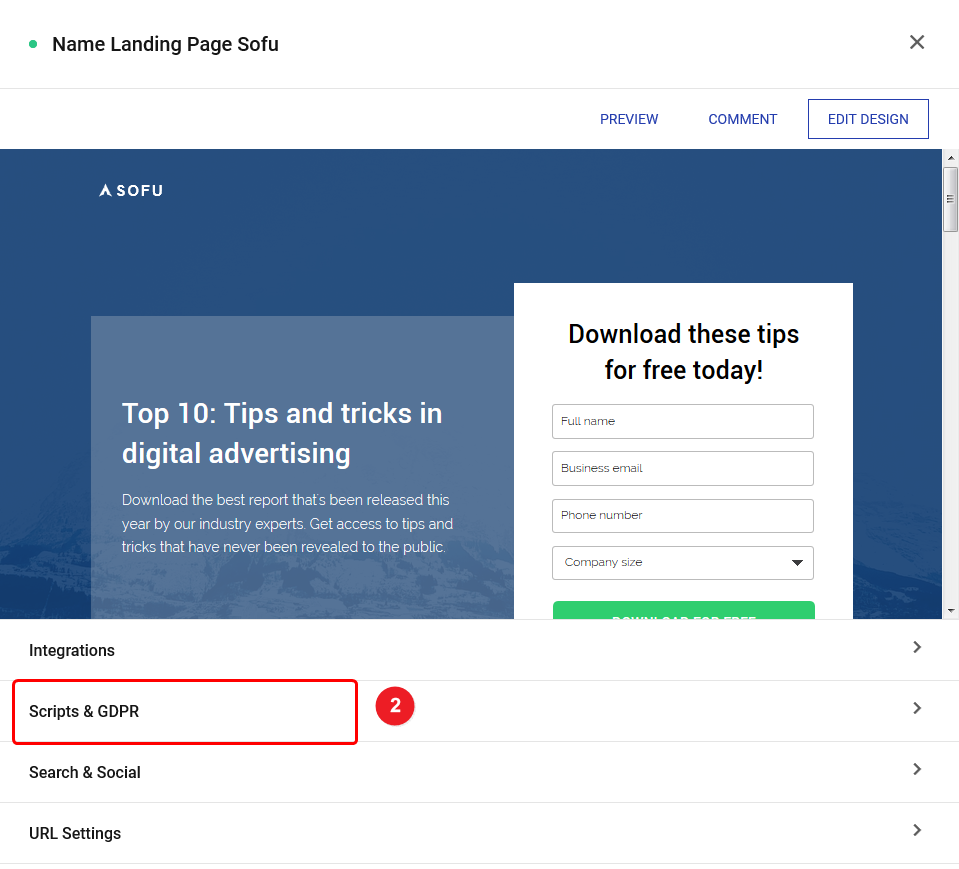
Step 2: Open Scripts & GDPR
Log in to Instapage, click your landing page title, then click Scripts & GDPR. This is where Instapage accepts third-party scripts for that page.
Step 3: Paste the Pixel in the HEAD Tab
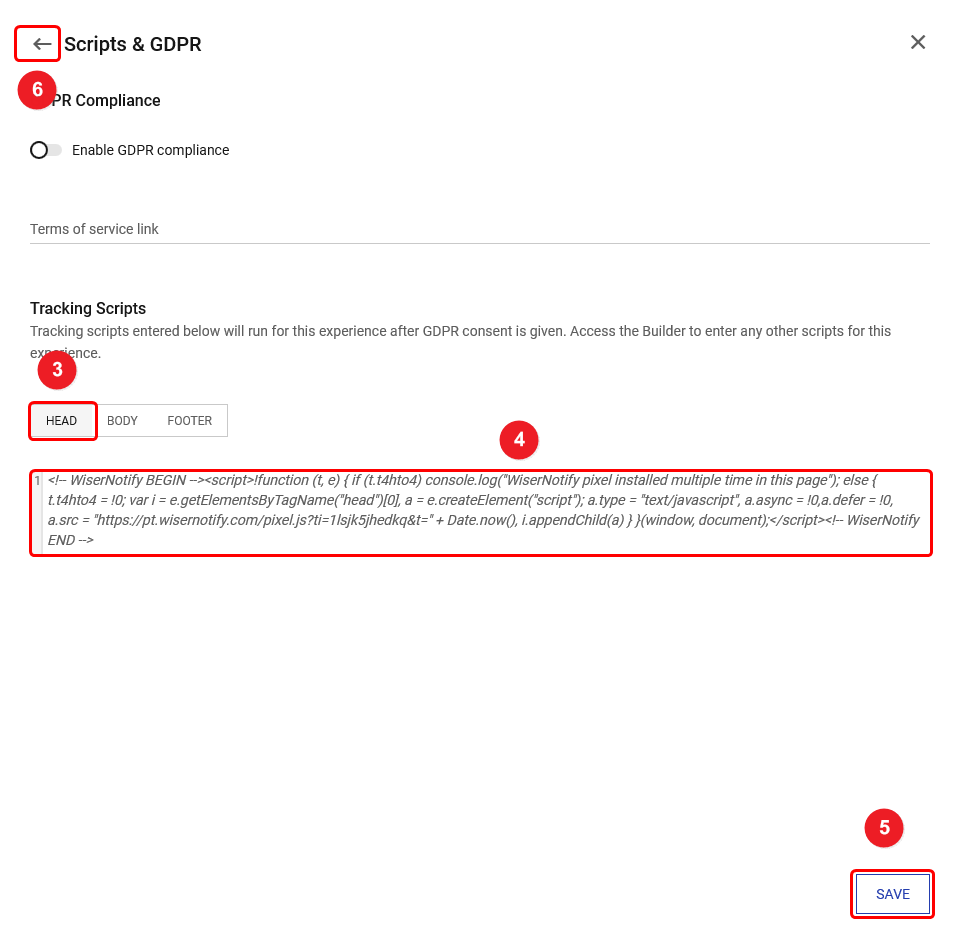
Click the HEAD tab, paste the pixel code into the box, and hit Save. Keep it in HEAD, not FOOTER, so the popup loads early.
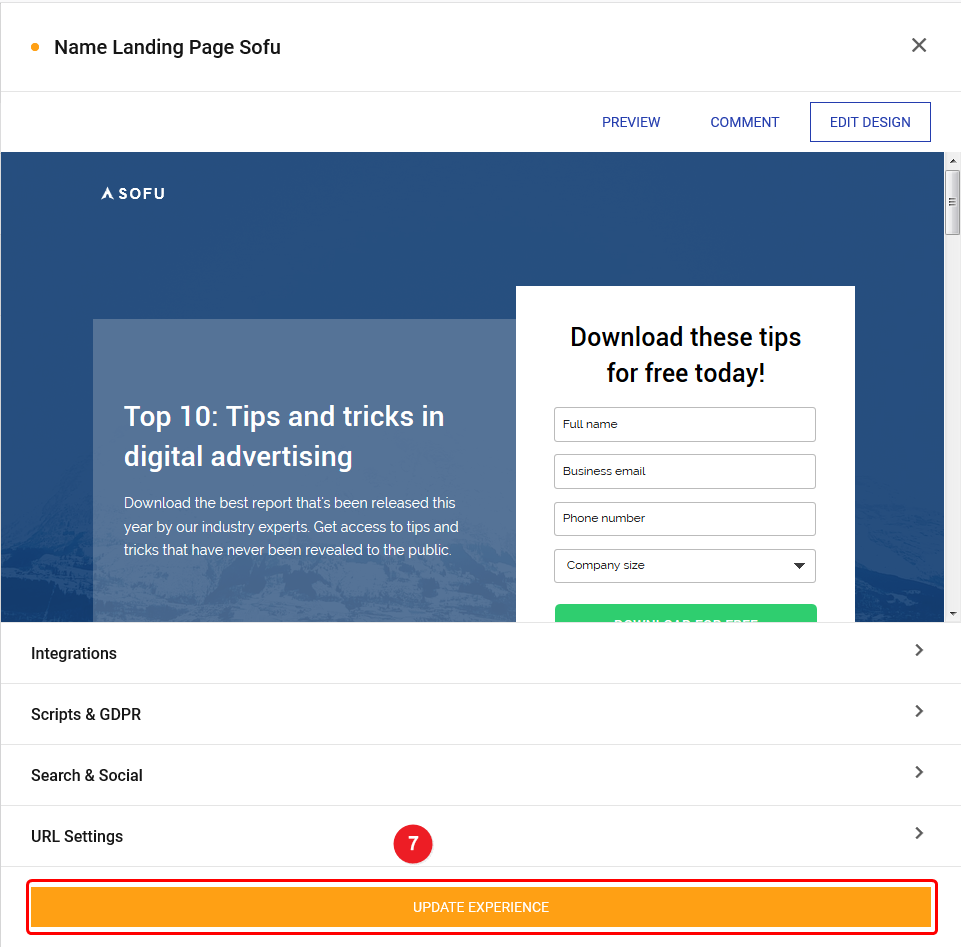
Step 4: Click Update Experience
Go back with the arrow icon and click UPDATE EXPERIENCE. Instapage does not push the new script to your live page until you do this, and skipping it is the number one reason popups never appear.
Step 5: Verify the Pixel
Open your live landing page once, then return to WiserNotify and click verify pixel installation. A Pixel Active message means you are set.

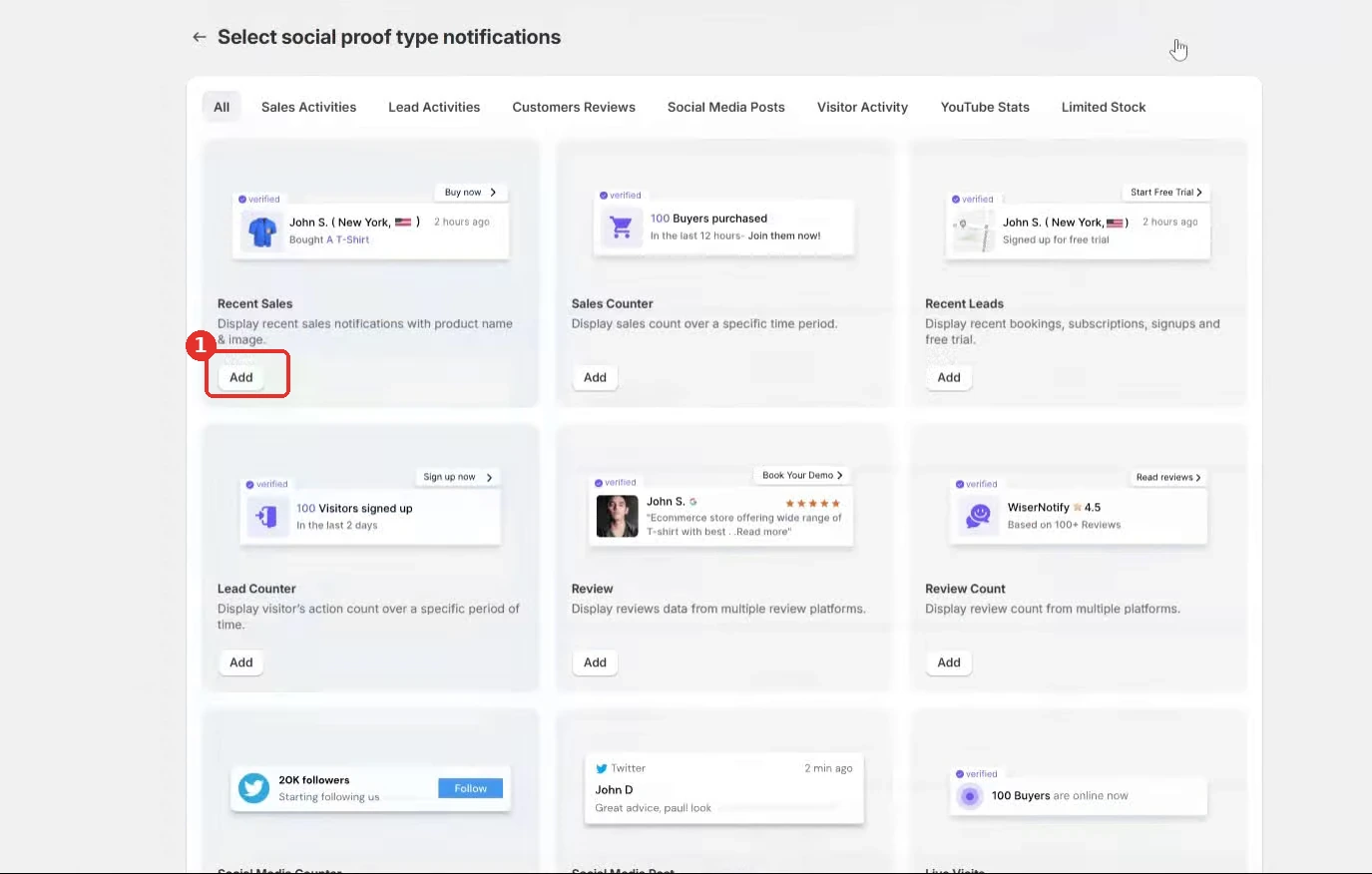
Step 6: Pick the Recent Sales Widget
Back in WiserNotify, open Widgets, then Social Proof, and hit Add next to Recent Sales. Signup, review, and live-visitor widgets sit in the same list whenever you want them, no second install needed.
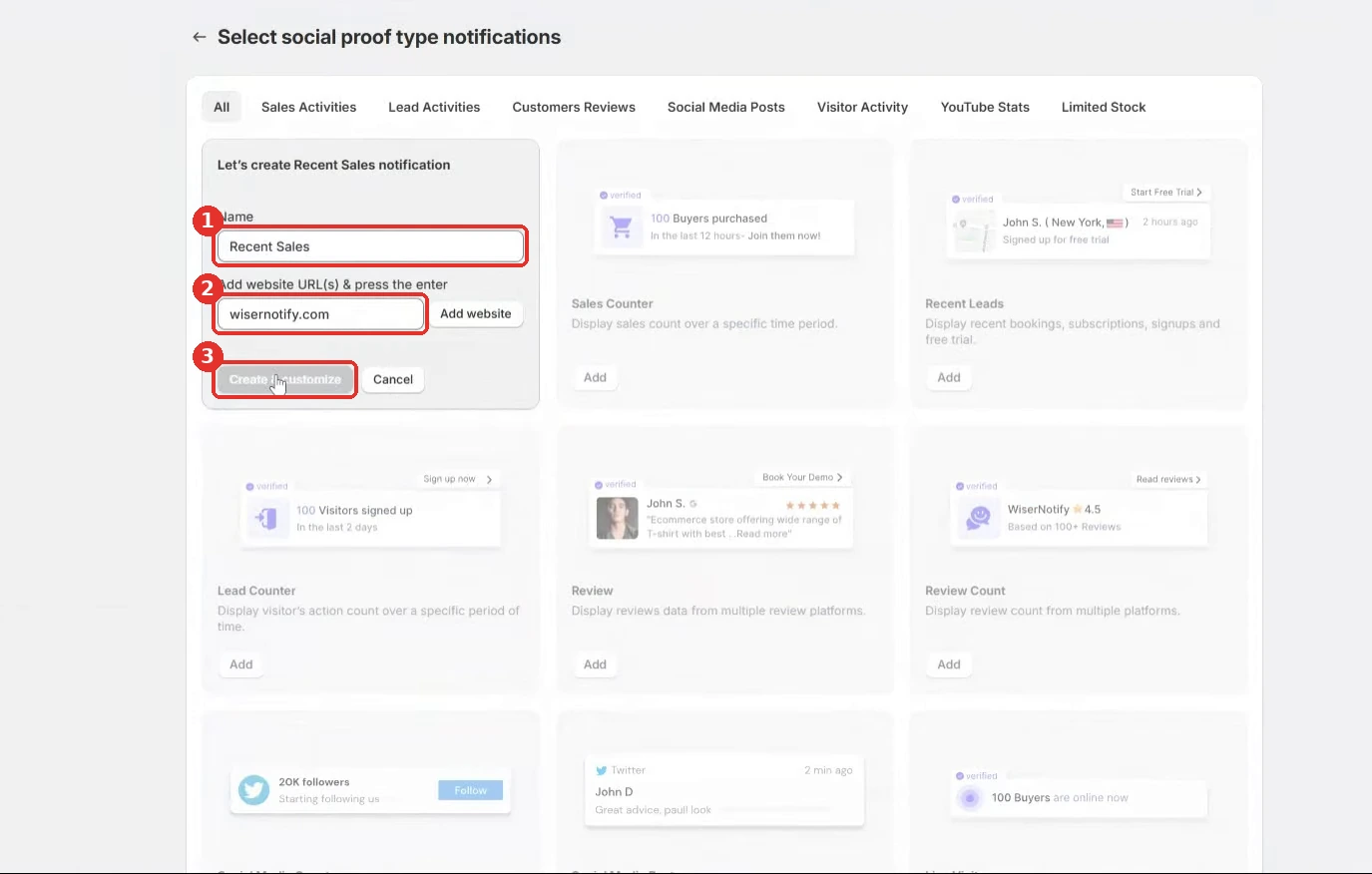
Step 7: Name It and Add Your URL
Type a name you can find again next month, then drop in your landing page URL. A single widget can run on one page or across every page on the domain.
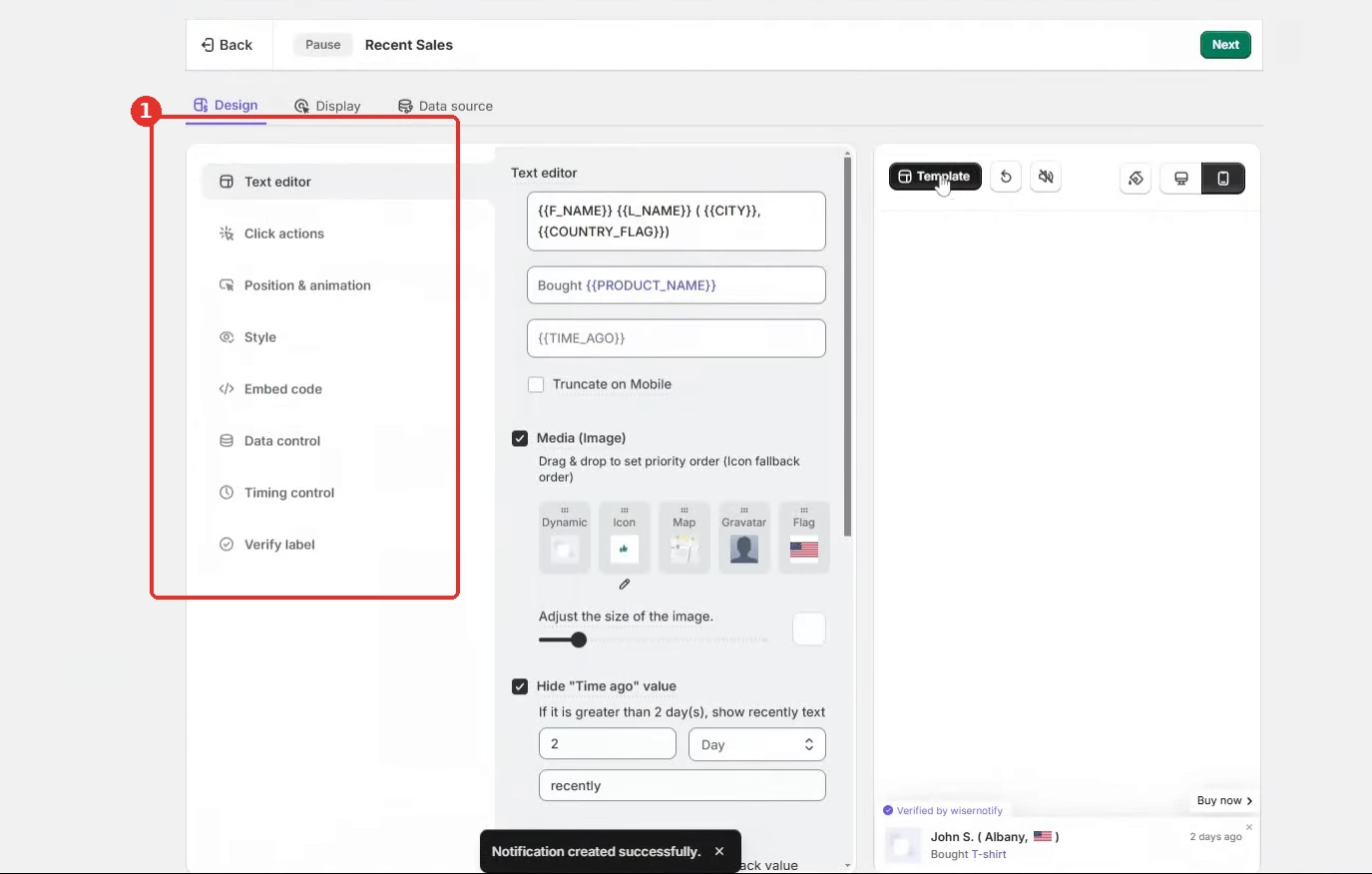
Step 8: Design the Popup
In the Design tab, set colors, fonts, corner style, and the message template. Match your Instapage theme here so the popup reads as part of the page, not a bolt-on.
Step 9: Choose Where It Shows
Under Display, pick the pages, devices, and timing. A short delay works best on landing pages, and you can keep the popup off your thank-you page so it never repeats after conversion.
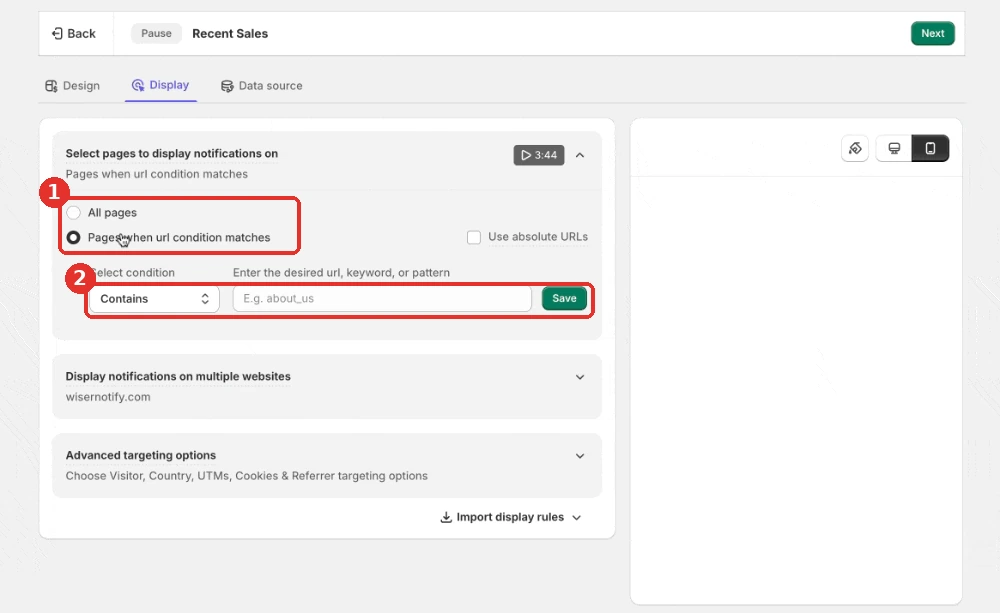
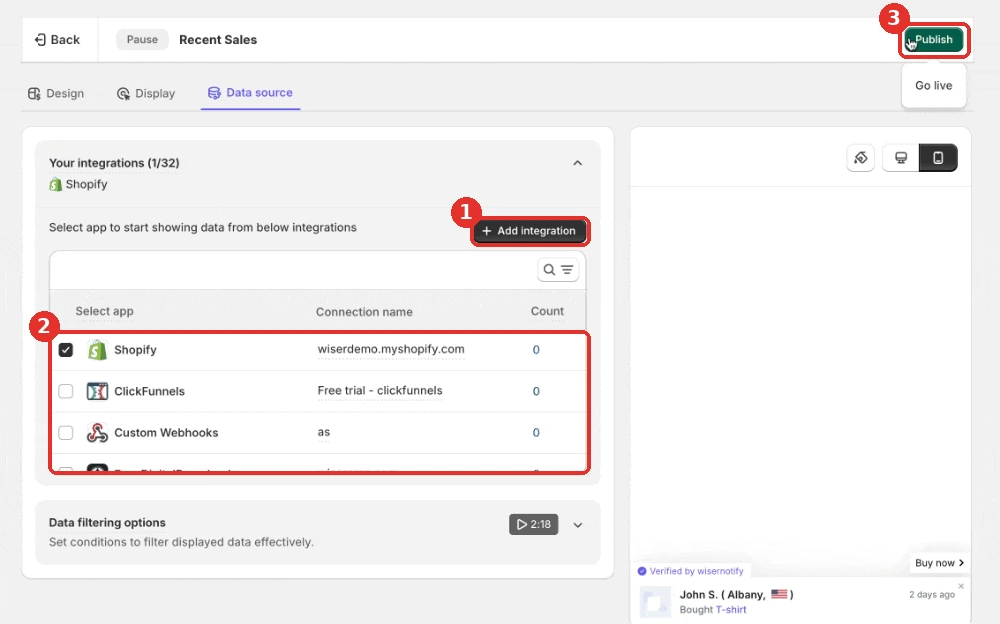
Step 10: Connect Data and Publish
Pick a data source and publish. For Instapage form submissions, connect the Instapage webhook integration so every demo booking or signup feeds the popup in real time. Stripe, HubSpot, and 250+ other tools connect the same way.
Build trust & FOMO
Highlight real-time activities like reviews, sales & sign-ups.

Sales Popup Not Showing on Instapage?
Four things cause almost every missing popup on Instapage. Check them in this order.
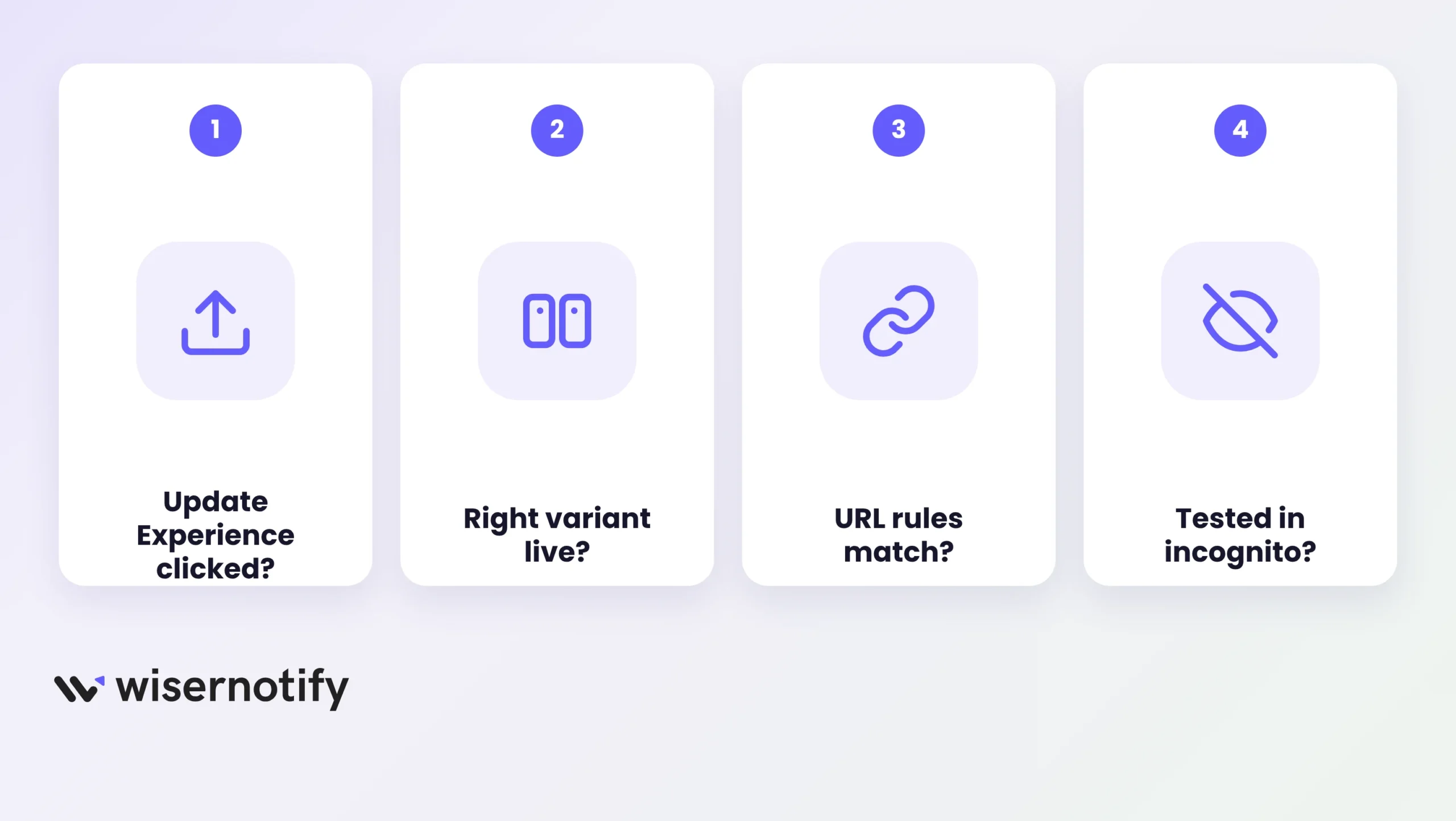
- You saved but never clicked Update Experience. The script sits in draft until you publish the experience again.
- The pixel is on a different variant. If you run A/B variants, the Scripts & GDPR panel applies per page, so confirm the variant that is live.
- Your display rules exclude the URL. A www or trailing-slash mismatch in the widget’s page rules is enough to block it.
- You are looking at a cached page. Load it in an incognito tab before deciding the install failed.
Still stuck? The verify button in WiserNotify tells you whether the pixel is firing at all, which splits the problem in half.
3 Sales Popup Examples for Instapage
Instapage pages sell actions, not products on a shelf. So the strongest popups name the action the page exists for.
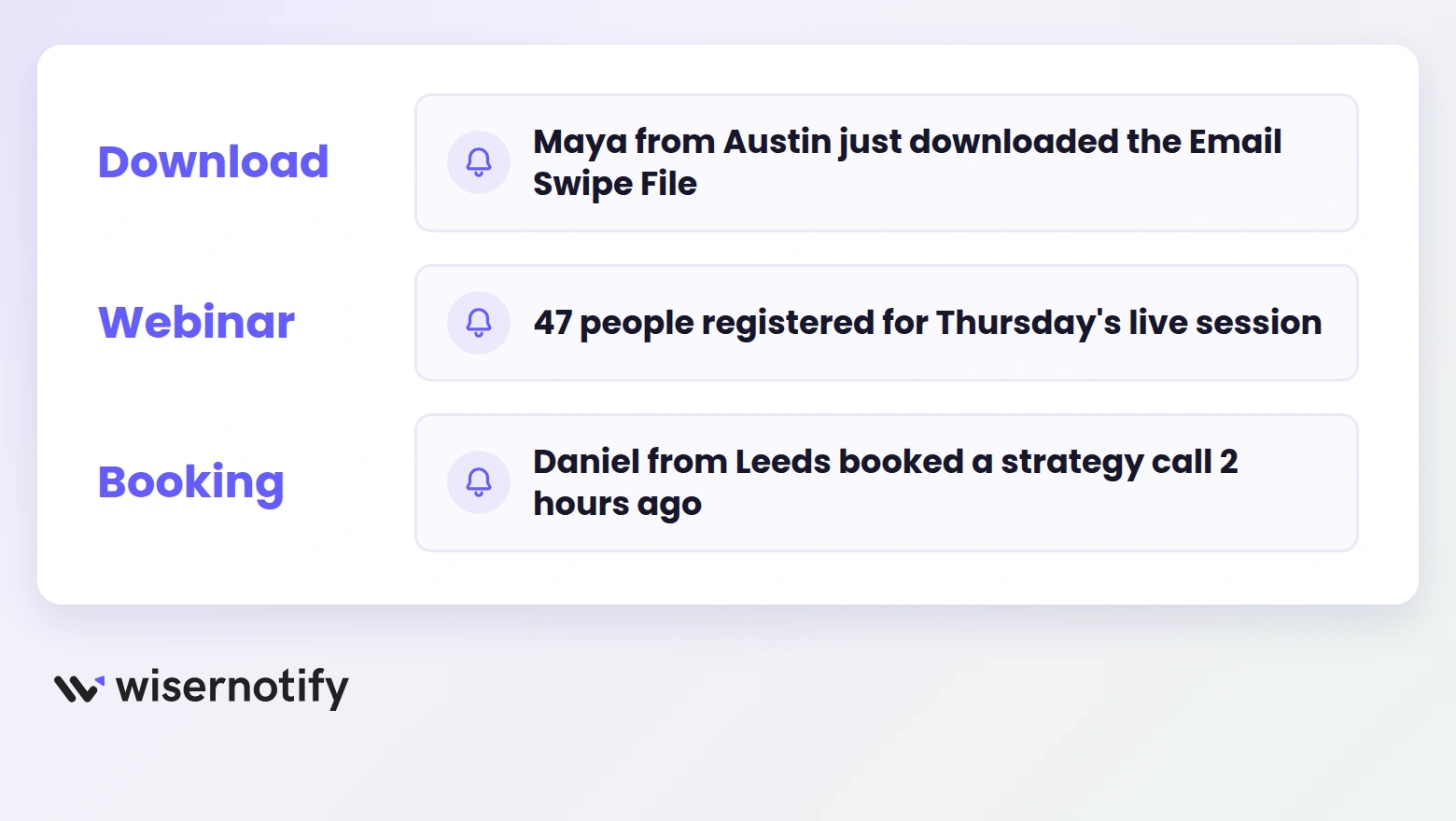
1. Lead Magnet Downloads
Something like “Sana from Berlin grabbed the Cold Email Checklist” tells the visitor the freebie is worth their email address. Name the exact asset. Specific titles pull harder than “downloaded the guide.”
2. Webinar Signups
Registration pages convert on momentum. A count-style message such as “47 people registered for Thursday’s session” does two jobs at once, proof that others are in, and a quiet reminder that seats are filling.
3. Demo and Call Bookings
On SaaS and service pages, “Rohan from Denver booked a discovery call this morning” is the whole pitch in one line. Real first names and places are what make it land. Never invent them, and with the data source from Step 10 you never need to.
Is It Free to Use on Instapage?
Every WiserNotify plan opens with a 7-day free trial. That is enough time to watch the popup work on your live Instapage traffic before any money changes hands.
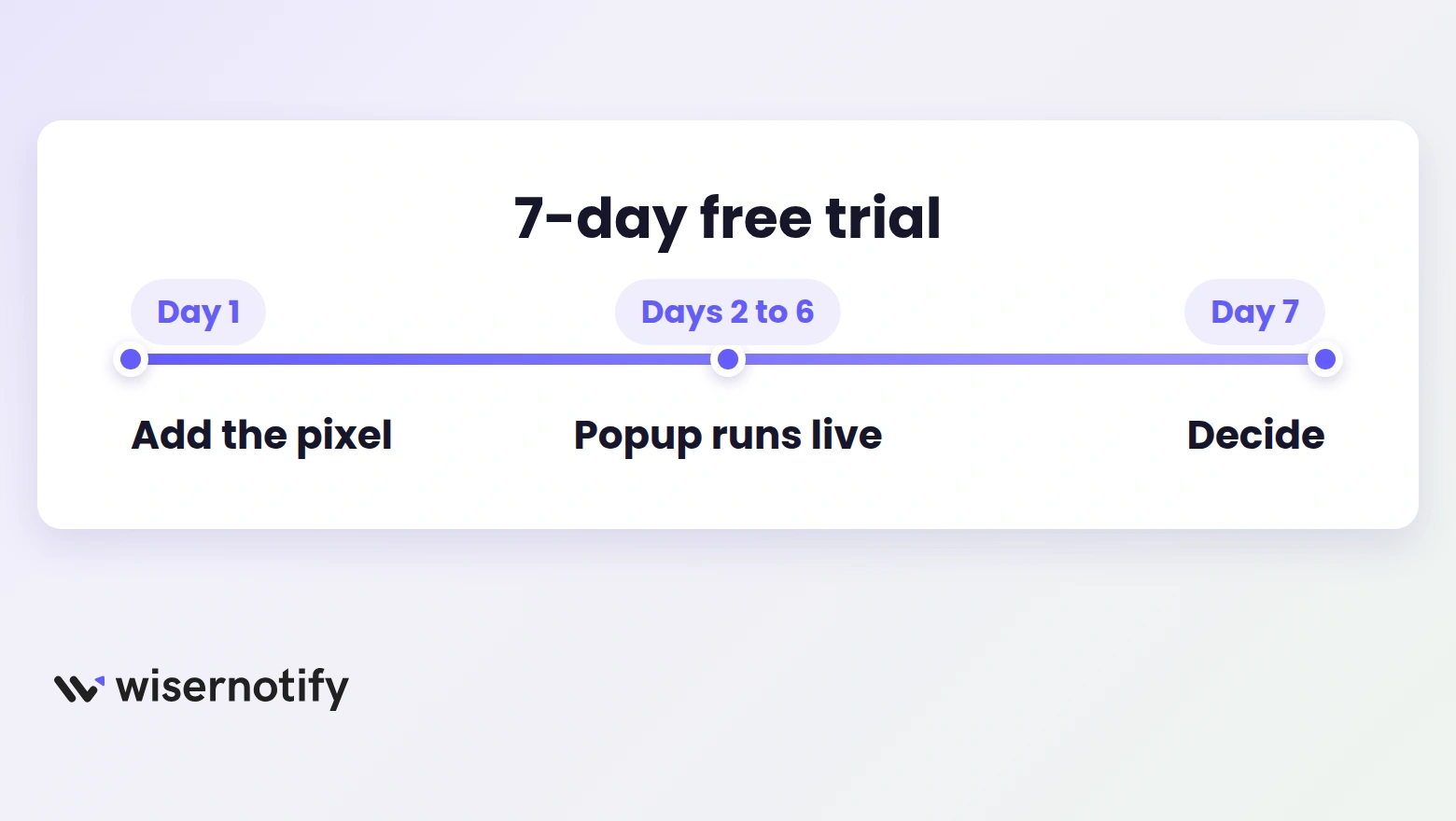
After the trial, Pro starts at $16 per month for 10,000 monthly visitors, and the Basic plan is $59 per year for 5,000. Both include the sales popup plus the rest of the widget library.
Sales Popup Tips for Instapage
A few habits separate popups that lift conversions from popups that get ignored.
- Delay the first popup by 7 to 15 seconds. Let the headline do its job before the proof shows up.
- Use the page’s verb. Booked, registered, downloaded. “Purchased” feels off on a demo page.
- Keep it clear of the form on mobile. Bottom-left on desktop, and test that it never covers the CTA on a phone screen.
- Cap the frequency. Two or three popups per visit, spaced out, beats a constant stream.
- Show recency, not history. “2 hours ago” persuades. “3 weeks ago” raises questions, so set a sensible lookback window.
- Match the page design. Pull the exact brand colors and font into the Design tab so the popup looks native.
Mistakes That Kill Popup Trust
These are the ones I see most often on landing pages, and each one is avoidable.
- Fabricated activity. Visitors can smell fake names. Connect real data or do not run the popup at all.
- Firing on page load. An instant popup reads as automated and gets dismissed before it registers.
- Covering the form. The popup supports the conversion. The moment it blocks a field, it works against you.
- One message everywhere. A download message on a booking page breaks the spell. Build one widget per page type.
- Never checking the numbers. If you do not look at views and clicks, you cannot tell proof from noise.
How to Measure the Impact
WiserNotify tracks views, hovers, and clicks for each notification, so you can see whether the popup gets attention or just screen time.
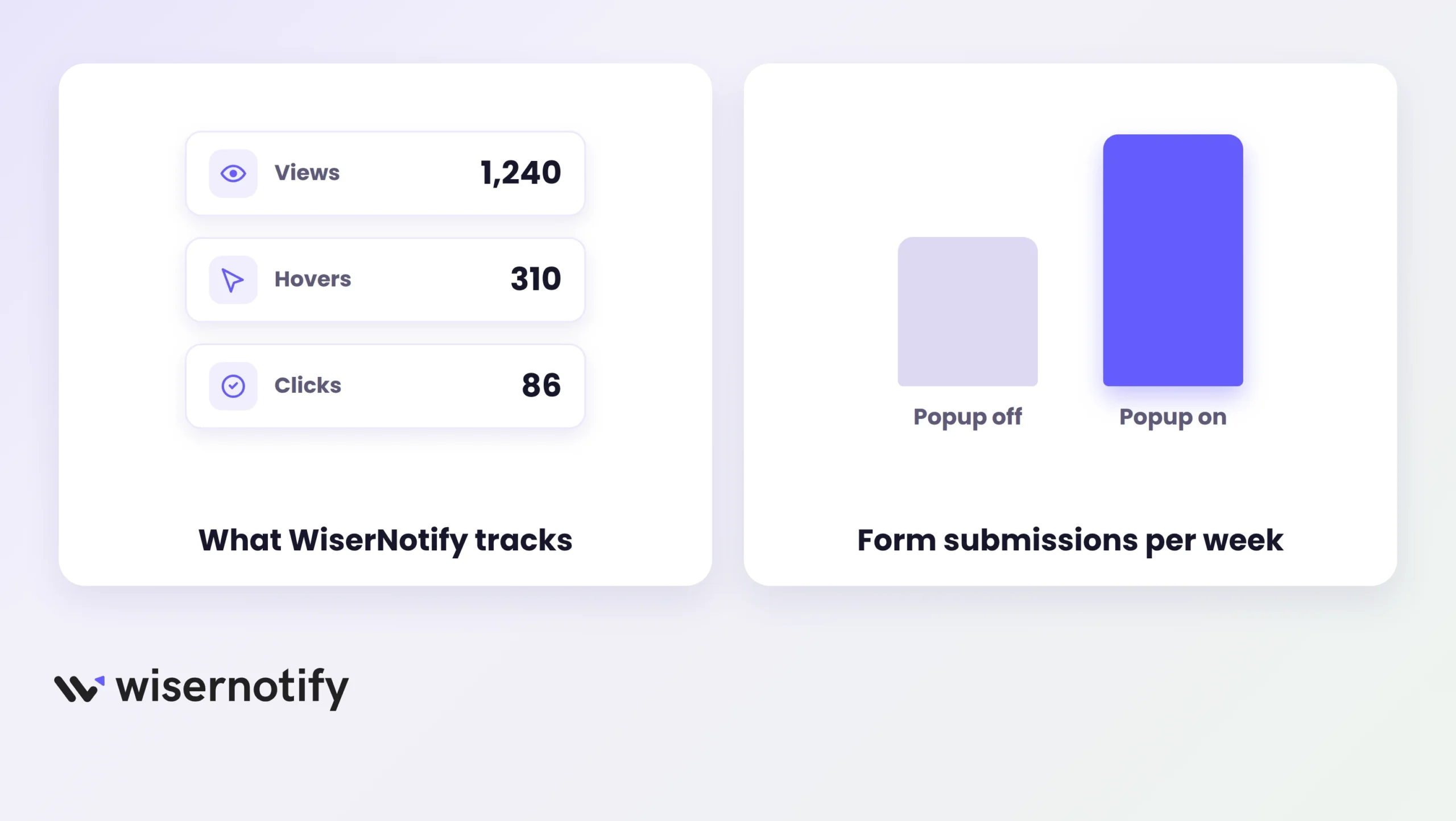
The cleaner test is conversion rate. Run the page for a week with the popup on, a week off, and compare form submissions against your landing page conversion rate benchmark. Keep the popup if the on-week wins. Adjust the message and timing if it does not.
One more habit worth keeping. Review the message templates monthly. Stale copy stops converting long before the tool does.

Boost Conversion Instantly
Add Social Proof & Urgency to your website
Wrap Up
Instapage gets your landing page built and tested fast. What it cannot do is show the visitor that other people are converting right now.
One pixel in Scripts & GDPR fixes that. Paste it, click Update Experience, build the Recent Sales widget, and connect your form data through the webhook.
From there, the popup runs on its own, and every demo, signup, or download becomes a nudge for the next visitor.
Related guides
Setting up a sales notification popup on a different platform? These related guides walk through it:
Frequently Asked Questions
Where do I paste the popup code in Instapage?
Open the landing page in Instapage, click Scripts & GDPR, choose the HEAD tab, paste the WiserNotify pixel, save, and click Update Experience.
Do sales popups slow down Instapage pages?
No. The WiserNotify script loads asynchronously after your page content, so your Instapage speed scores stay intact.
Can I trigger popups by time, scroll, or exit on Instapage?
Yes. WiserNotify display rules let you trigger popups by time on page, scroll, exit intent, device, or specific URLs.
Does Instapage have built-in sales popups?
Instapage’s Popup Builder covers form and offer popups. It does not show live sales or signup notifications, which is what WiserNotify adds.
Is there a free way to try sales popups on Instapage?
Every WiserNotify plan starts with a 7-day free trial, so you can test the popup on your live Instapage traffic before paying.
How do I track whether the popup gets clicks?
WiserNotify’s analytics show views, hovers, and clicks for each notification, so you can compare popup engagement against your form submissions.

Krunal Vaghasiya is a marketing tech expert who boosts e-commerce conversion rates with automated social proof and FOMO strategies. He loves to keep posting insightful posts on online marketing software, marketing automations, and improving conversion rates.




 Capterra