
Quickly Add Video Popups to Wix Website

A visitor lands on your Wix site, skims the page, and leaves without ever scrolling down to your demo video. A video popup puts that video right in front of them instead of hoping they find it.
Wix doesn’t have a native video popup feature, but connecting a tool like WiserNotify adds one in a few minutes, no coding required. If you’re comparing platforms or want the general approach first, see our full guide on how to add a video popup to any website.
This guide covers connecting WiserNotify to your Wix site, building the popup, and the best practices that keep it useful instead of annoying.
How to Add a Video Popup to Wix
Watch the full walkthrough below, or follow the written steps underneath.
Step 1: Get Your WiserNotify Pixel Code
- Sign up for WiserNotify. Create a free account at wisernotify.com, or log in if you already have one, then go to the Install Pixel page and click Copy Code.

Step 2: Add the Pixel Code to Wix
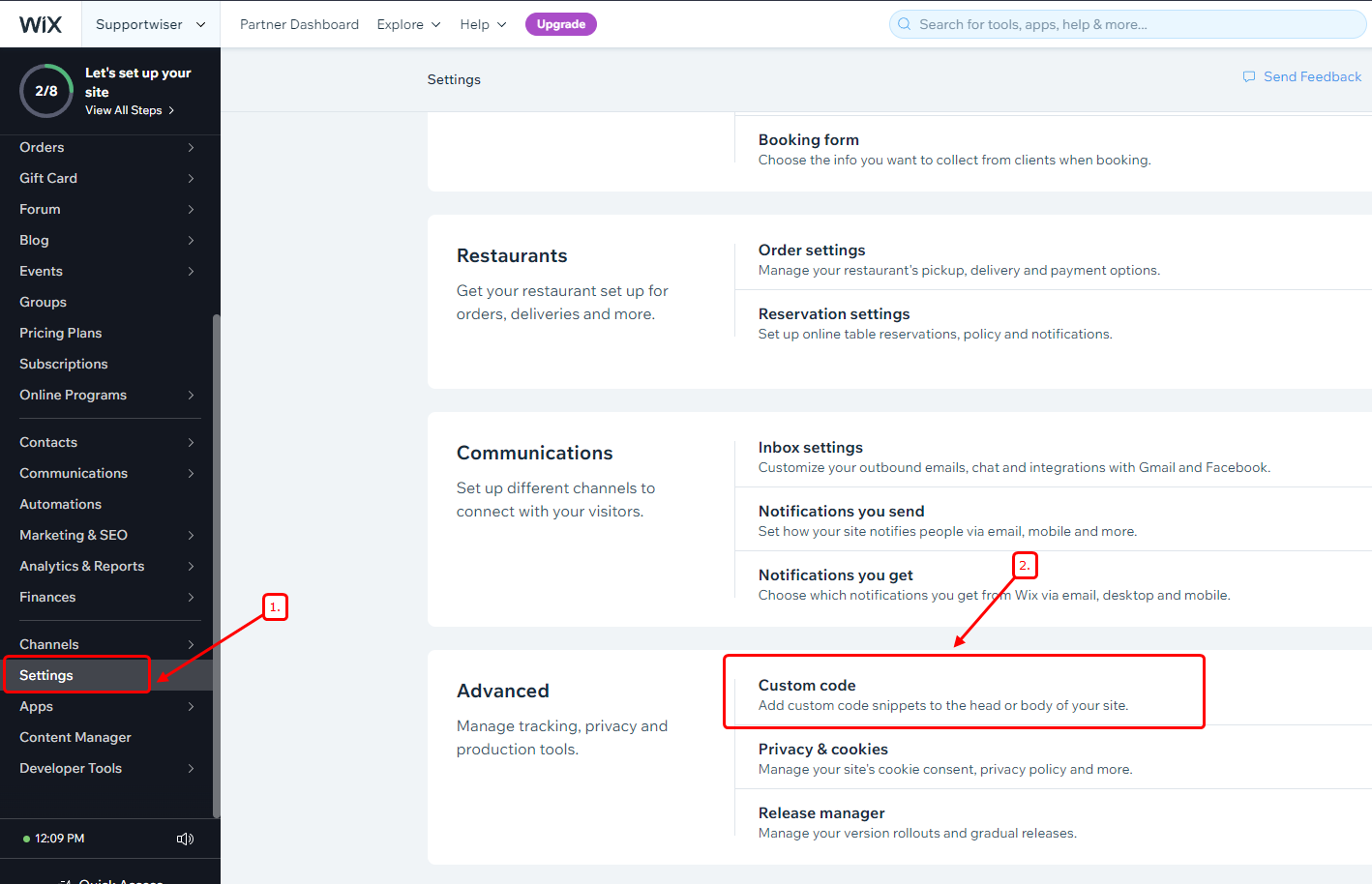
- In your Wix dashboard, go to Settings > Advanced > Custom code.
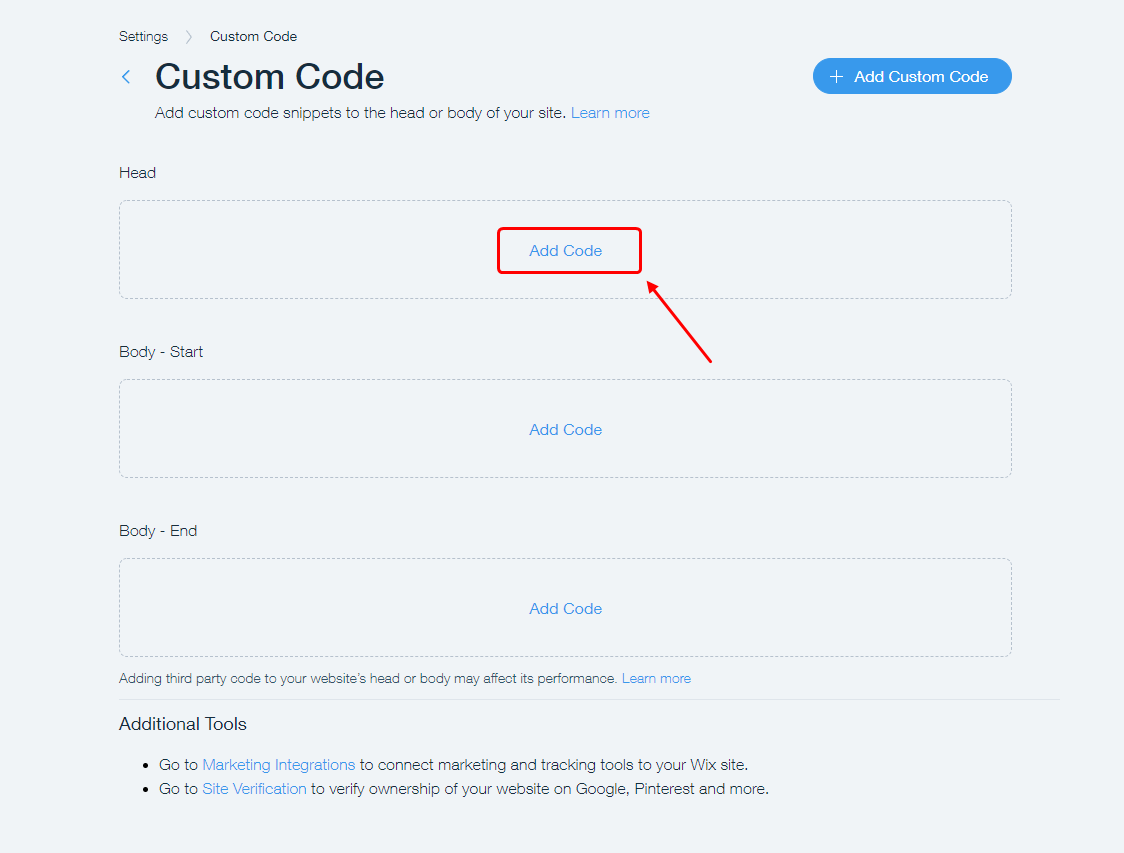
- Under Head, click Add Code.
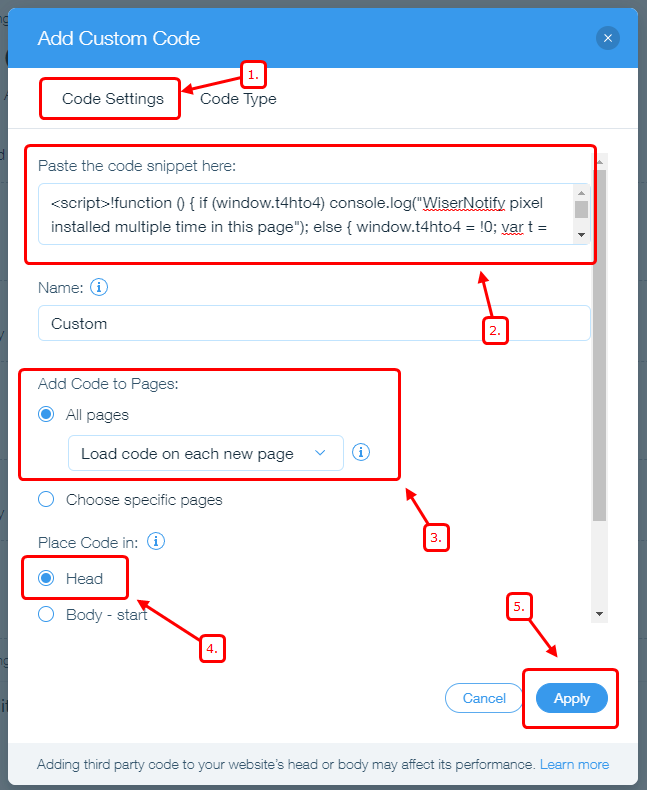
- Paste the pixel code, select All pages with Load code on each new page, make sure Head is selected under Place Code in, then click Apply.
See the full Wix integration guide for more detail on this step.
Step 3: Verify the Install
- Visit your Wix site once, then go back to the WiserNotify pixel page and click Verify pixel installation. You should see a “pixel code has been detected successfully” message.

Step 4: Create the Video Popup Widget
- In WiserNotify, go to the Widgets section, select Video popup from the widget options, and click Add. WiserNotify’s video popup widget guide covers every option in this editor in more depth.

- Customize the design. Add your video, edit the popup text (dynamic placeholders like
{Name}or{Product}are supported), set up a clickable CTA button with its own link and styling, and choose the position, animation, and color style for both mobile and desktop.

- Set the timing and configure display settings. Under Timing Control, set an initial delay before the popup appears and how long it stays visible. Choose which pages it should appear on, add any advanced targeting you need, then click Save and Publish.

- Test it on your live site. Visit your Wix site in a private or incognito window to confirm the popup appears the way you configured it.

Boost Conversion Instantly
Add Social Proof & Urgency to your website
Troubleshooting: Popup Not Showing Up?

A few Wix-specific gotchas cause most setup issues:
- Your Wix site isn’t published: clicking Apply saves the custom code, but the change won’t go live until you also click Publish on your actual Wix site.
- Wrong page scope: double check you selected All pages rather than a single page, unless you specifically want the popup limited to one page.
- Browser cache: always check your result in a private or incognito window, since a cached page can hide the popup even after a correct install.
Still stuck? The full Wix integration guide has more troubleshooting steps, or reach WiserNotify’s live chat support from your dashboard.
Best Practices for Creating an Engaging Video Popup
These best practices keep your video popup effective without it feeling intrusive:
1. Keep Videos Short and Focused
Why: Visitors have limited attention spans. Long videos can deter engagement.
- Keep your videos under 60 seconds.
- Focus on a single message or call to action.
2. Trigger Popups at the Right Time
Why: Poorly timed popups annoy visitors and push them to leave.
- Trigger popups after a 5-10 second delay or when a user scrolls halfway down the page.
- Use exit-intent popups to engage users about to leave your site.
3. Design for Mobile Users
Why: Many users browse on mobile devices, so your popup must look good on smaller screens.
- Use Wix’s mobile editor to check how your popup looks and adjust it for smaller screens.
- Test the design on multiple devices to confirm usability.
4. Limit Popup Frequency
Why: Overusing popups can frustrate users and lead to higher bounce rates.
- Restrict video popups to one per session or only on key pages, like landing or product pages.
5. Provide Easy Close Options
Why: Visitors should feel in control of their experience.
- Add a clear close button and allow users to dismiss the popup by clicking outside it.
6. Align with Your Branding
Why: Consistent design builds trust and improves your site’s visual appeal.
- Match the popup’s colors, fonts, and style to your website’s overall theme.
7. Test and Optimize Regularly
Why: Testing helps you identify what works best for your audience.
- Run A/B tests on video content, trigger types, and designs.
- Monitor engagement metrics like click-through rates and conversions.
8. Add Value with the Video
Why: Users are more likely to engage if the video solves a problem or provides useful information.
- Share tutorials, product demonstrations, or testimonials in your video popup. Embedding testimonials on Wix reinforces the same trust signal alongside a video.
- Make sure the video addresses what your audience is looking for.
Common Mistakes to Avoid
- Autoplaying with sound on load: a video that blasts audio the moment someone lands on the page is one of the fastest ways to make them leave. Keep it muted by default.
- Firing the popup instantly: showing it before a visitor has seen any content feels like an ambush. Give them a few seconds first.
- No mobile testing: a popup that looks fine on desktop can easily cover the whole screen or break on a phone. Always check both.
- Skipping the close button: a popup a visitor can’t easily dismiss creates frustration that outweighs whatever the video was trying to sell.
- Using a huge, uncompressed video file: this slows the whole page down, not just the popup. Host it externally on YouTube or Vimeo instead of uploading it directly.
How to Measure Video Popup Performance

Wix’s own Analytics & Reports dashboard already tracks traffic and conversions by page, so pair it with your WiserNotify numbers instead of guessing.
- Popup views and CTA clicks: both in your WiserNotify dashboard, together they show whether the offer is landing.
- Close-without-interaction rate: a high number here points to timing, not the video.
- Conversion rate in Wix Analytics: compare pages with the popup against pages without it over a week or two.
- Page speed: a quick before-and-after test rules out the video slowing down your site.
Change one variable at a time, timing, video, or targeting, so you know what moved the number.
Build trust & FOMO
Highlight real-time activities like reviews, sales & sign-ups.

Conclusion
Adding a video popup to your Wix site is a simple way to get your message in front of visitors and keep them engaged.
Connecting WiserNotify takes a few minutes, and once it’s set up, you can build and manage the popup entirely from the dashboard without touching code.
Follow the best practices above, keep it short, well-timed, and easy to dismiss, and your video popup will add to the experience instead of getting in the way.
Related Posts:
Frequently Asked Questions
How can I add a video popup to my Wix website?
Install the WiserNotify pixel via Wix’s Settings > Advanced > Custom Code, then create a Video popup widget from your WiserNotify dashboard. No custom code needed beyond pasting the pixel once.
Can I autoplay the video in the popup?
Yes, WiserNotify’s widget editor has an autoplay option you can turn on when you set up your video, no code required.
Is it possible to customize the popup design?
Yes, the widget editor lets you set the popup’s position, animation, colors, and style so it matches your site’s branding.
Can I control which pages show the video popup?
Yes, the widget editor lets you choose which pages the popup appears on, along with the trigger, an initial delay, scroll depth, or exit intent.
Will adding a video popup affect my site's loading speed?
Minimal impact if you host your video on YouTube or Vimeo rather than uploading it directly, since the pixel script itself is lightweight and loads asynchronously.

Krunal Vaghasiya is a marketing tech expert who boosts e-commerce conversion rates with automated social proof and FOMO strategies. He loves to keep posting insightful posts on online marketing software, marketing automations, and improving conversion rates.




 Capterra