
How to Add a Visitor Counter to Wix (No-Code Guide)

Most visitors have no idea how many other people are on your site, unless you show them.
A live visitor counter is a simple piece of social proof that does just that.
It displays real activity, like how many people viewed a page or visited in the last 24 hours, so new visitors see that your site is active and popular.
This builds trust and nudges people to act, and social proof statistics show most people look for it before they buy.
Here’s how to add a visitor counter to your Wix site with WiserNotify, plus tips to get the design and placement right.
Types of Visitor Notifications You Can Add
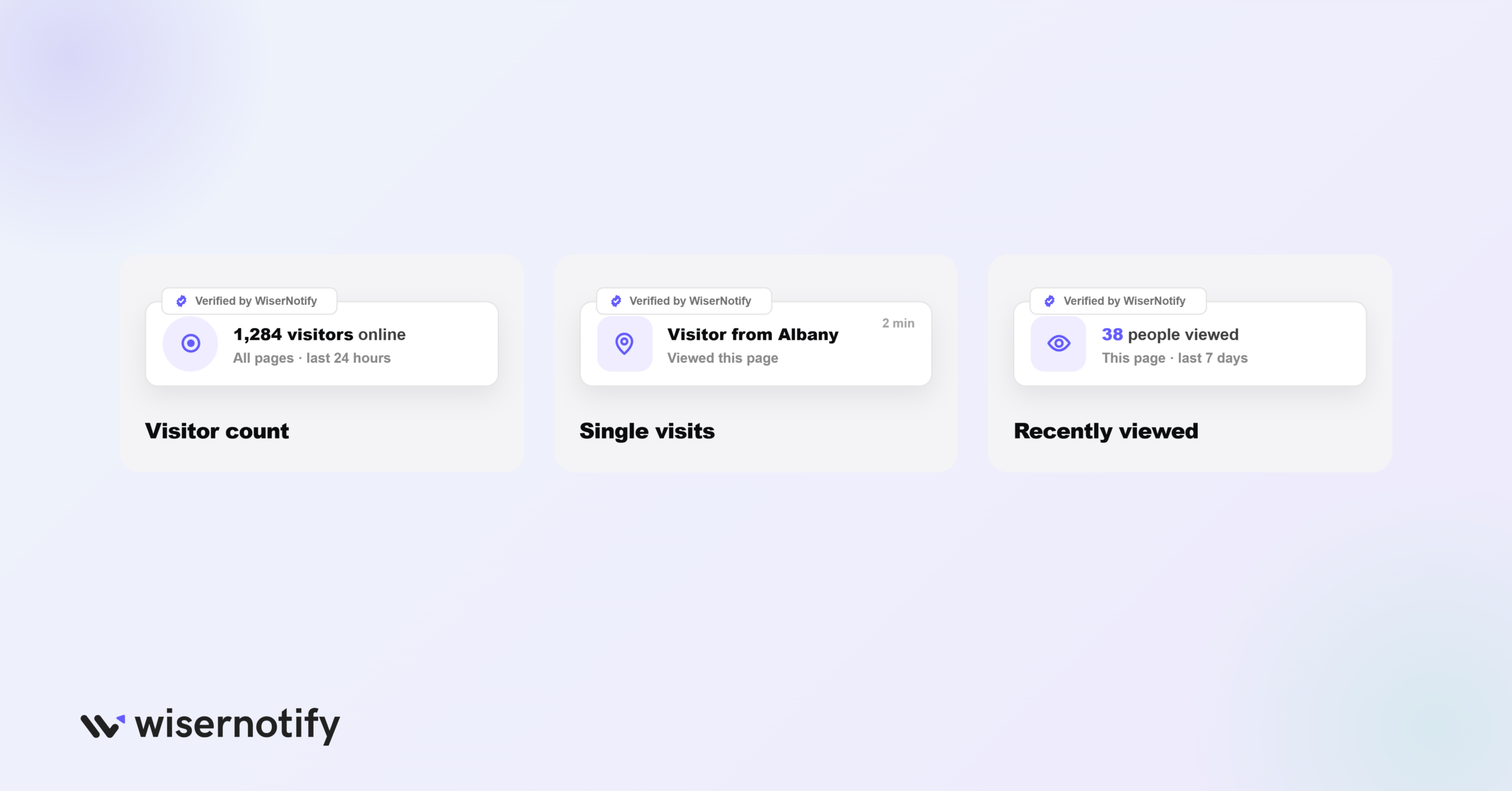
WiserNotify gives you three ways to show visitor activity on Wix, so you can pick what fits your page:
- Visitor count: shows total visits across all pages in the last 24 hours.
- Single visits: highlights recent visits to a specific page, so people see where others are browsing.
- Recently viewed count: shows how many people viewed a specific page over a time period you set.
How to Add a Visitor Counter to Wix
The setup is no-code: add the WiserNotify pixel to your Wix site, then build the visitor notification in the dashboard.
The video below walks through creating it, and the steps are written out under it.
Step 1: Copy Your WiserNotify Pixel
Create a free WiserNotify account or log in. Open the Install Pixel page and click Copy Code.

Step 2: Open Custom Code in Wix
In your Wix dashboard, go to Settings, then Advanced > Custom code.
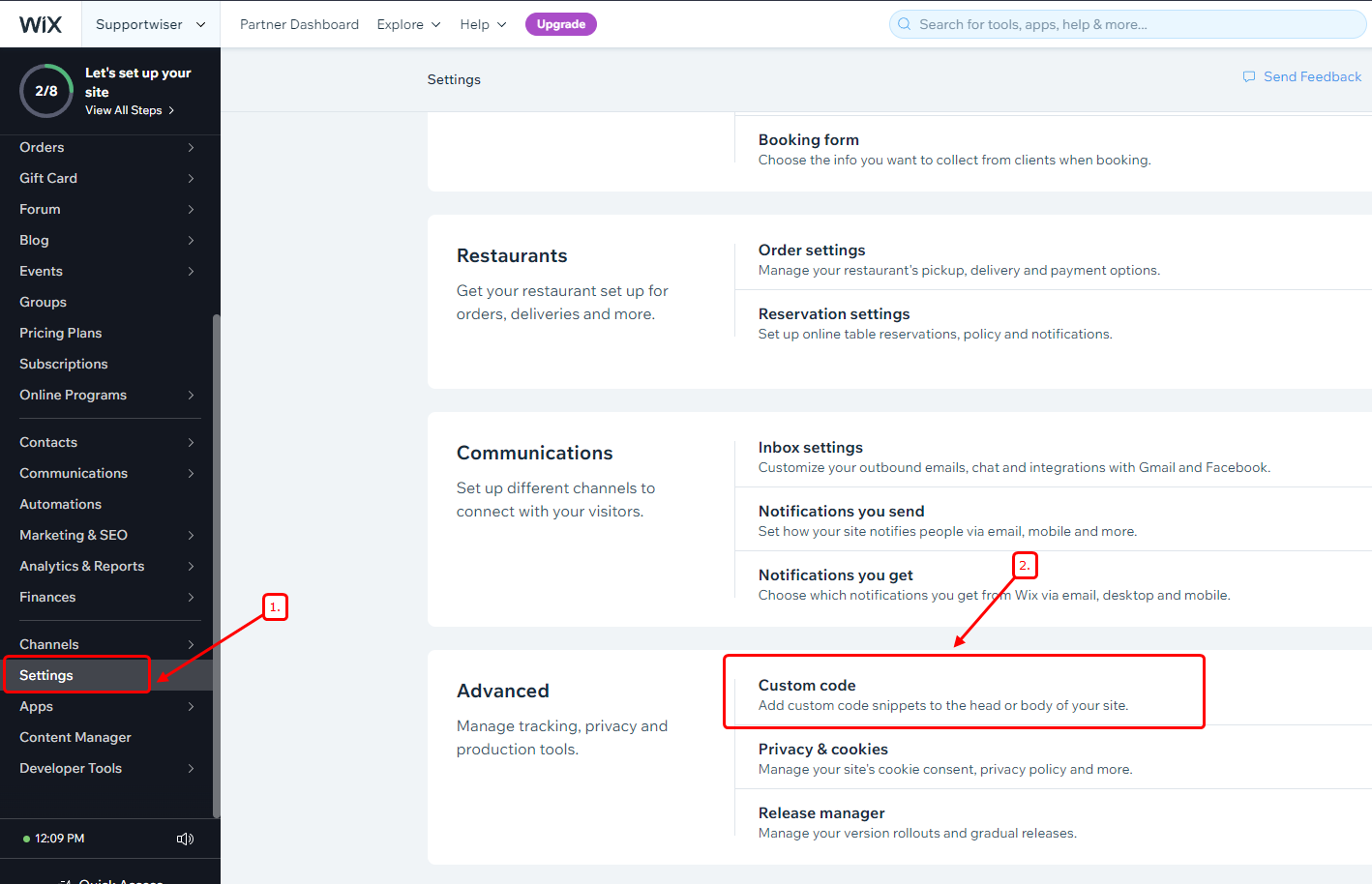
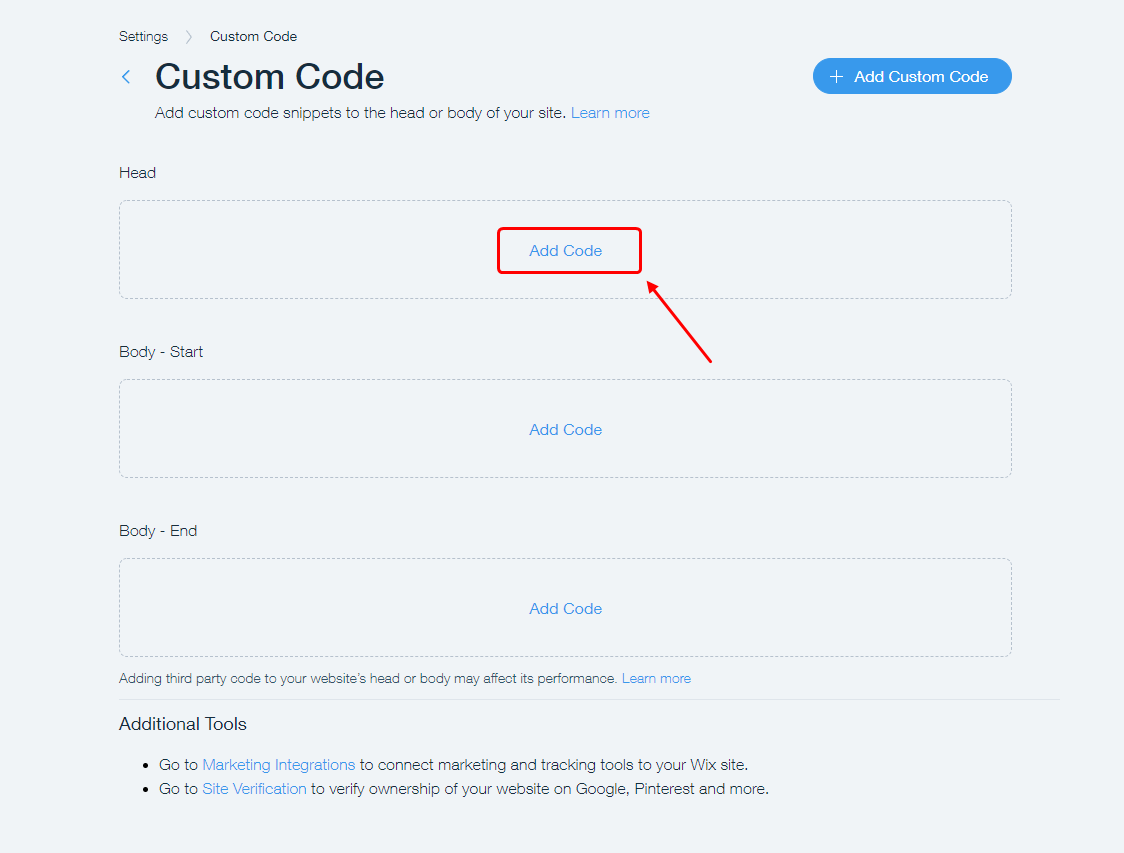
Step 3: Add Code in the Head Section
In the Head section, click Add Code to open the code box.
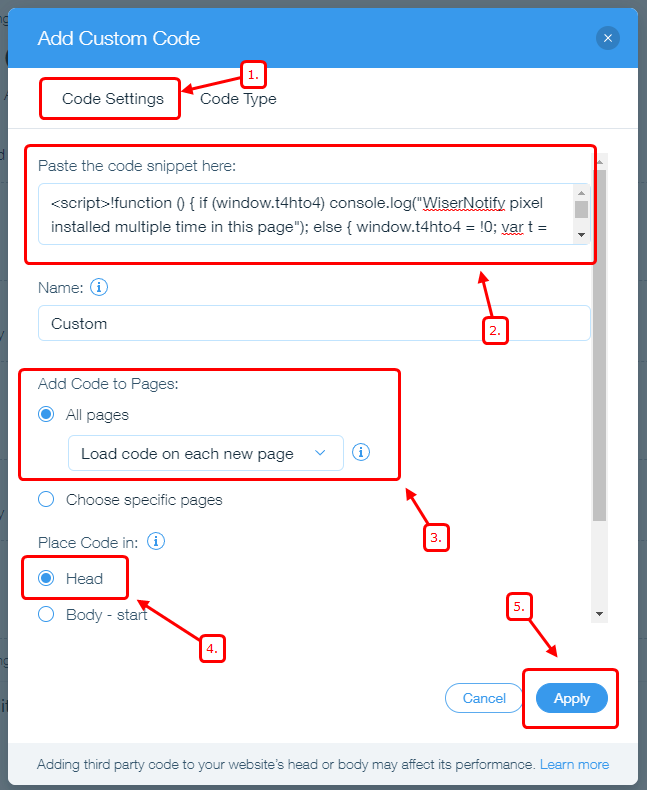
Step 4: Paste the Pixel and Apply
Paste your WiserNotify pixel into the box, choose All pages and Load code on each new page, set the placement to Head, and click Apply.
Step 5: Verify the Pixel
Open your Wix site once so it loads the pixel, then go back to the WiserNotify pixel page and click Verify pixel installation.
A “Pixel Active” message means you’re connected.

Step 6: Create the Visitor Notification
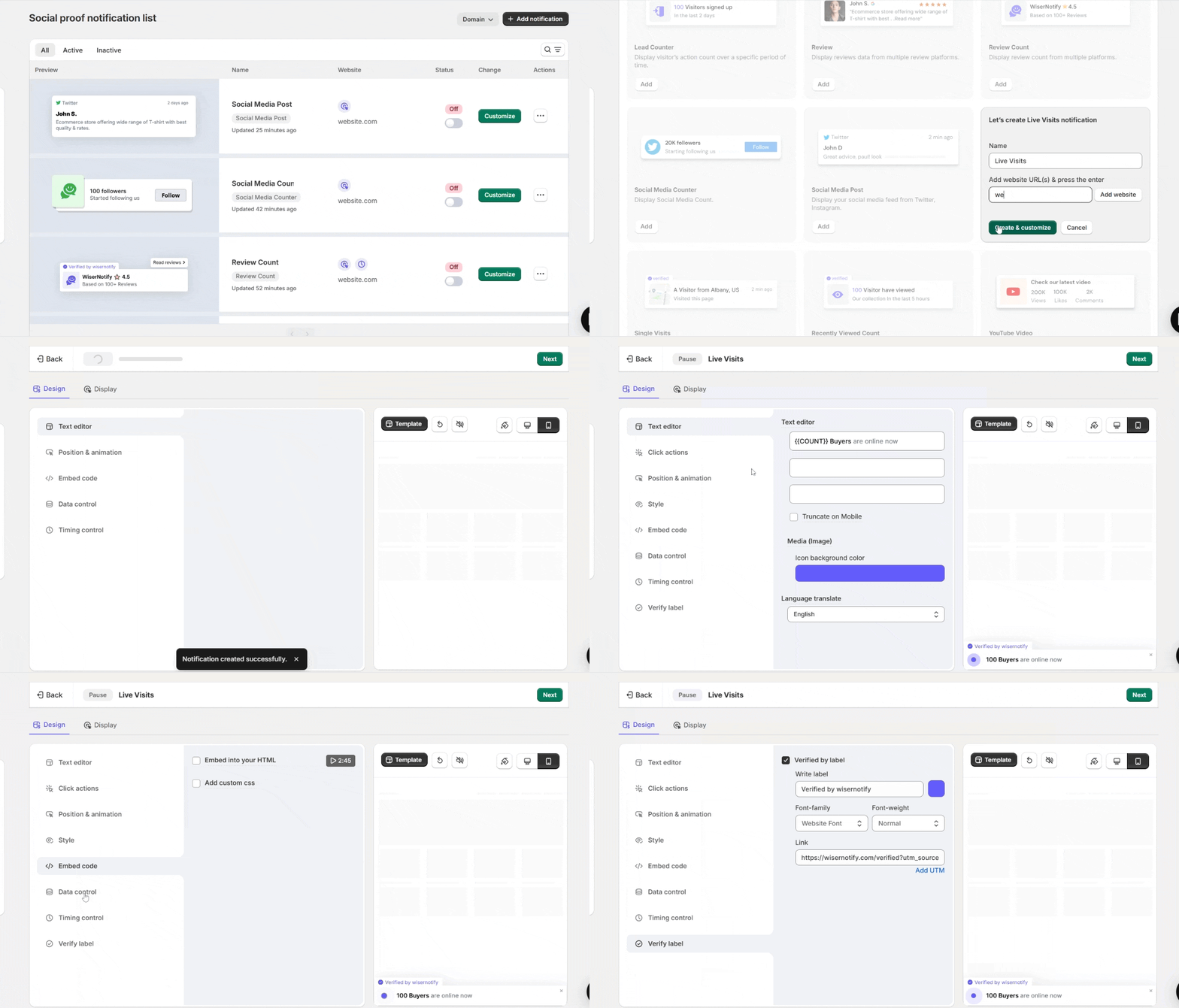
In WiserNotify, click Add Notification and pick the type you want: Visitor Count, Single Visits, or Recently Viewed Count.
Enter your Wix site URL and click Create & Customize.
Step 7: Design the Notification
In the design editor, use the Text editor to set the wording, icon, colors, and language.
Turn on Click actions to link it to a page, use Position & style to match your brand, and click Template to pick from ready-made designs.
Step 8: Set the Data Control
In Data control, choose how many hours back to count visitors from, and set it to hide if the count falls below a number you pick.
Turn on page-specific count if you want per-page numbers.
Step 9: Set the Timing
Use Timing control to set when the notification appears, how long it stays, and the delay between notifications. Save your changes when it looks right.
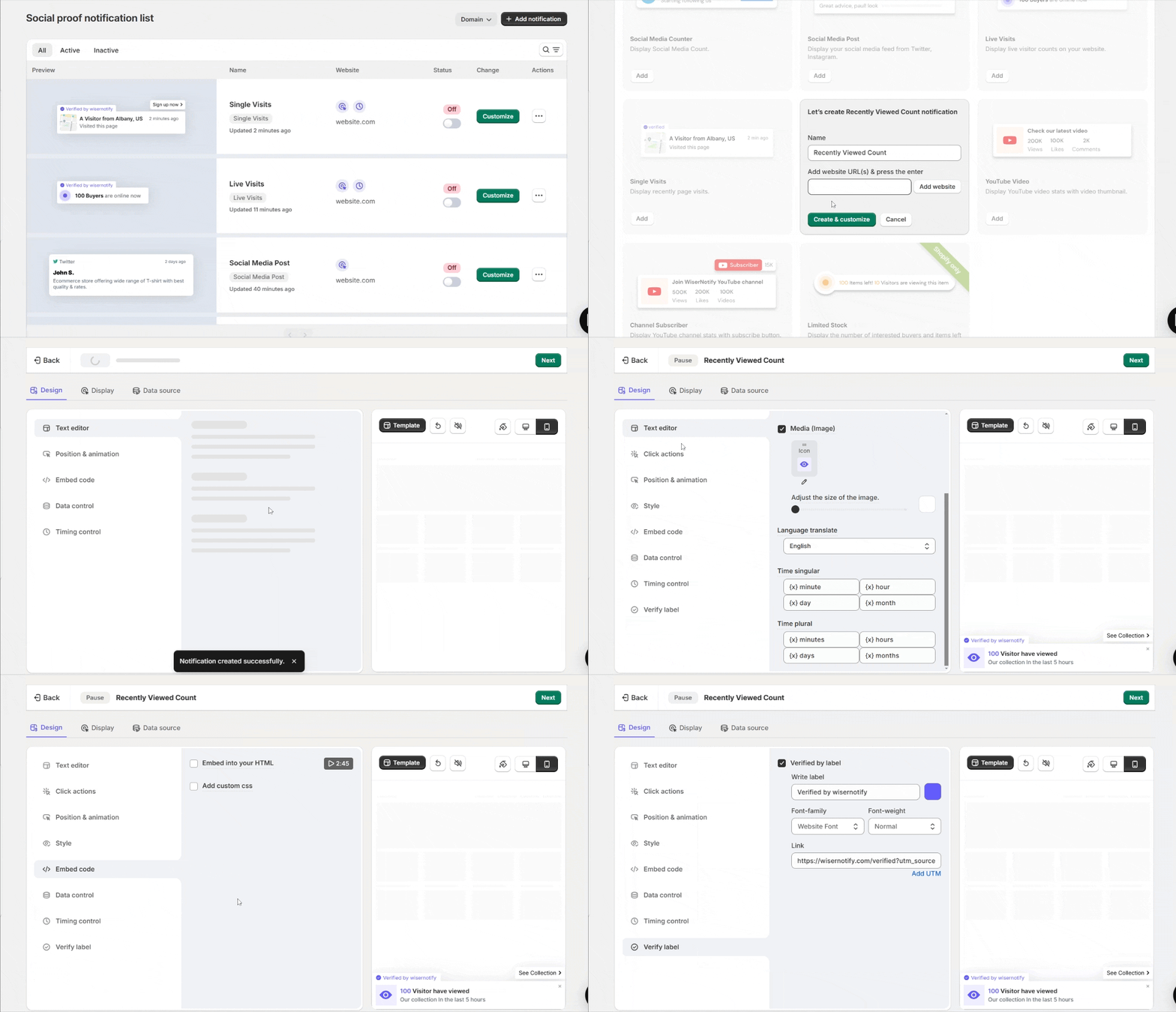
Step 10: Set Display and Data Source
In the Display tab, choose which Wix pages it shows on, or target by visitor type, UTM, cookies, or referrer.
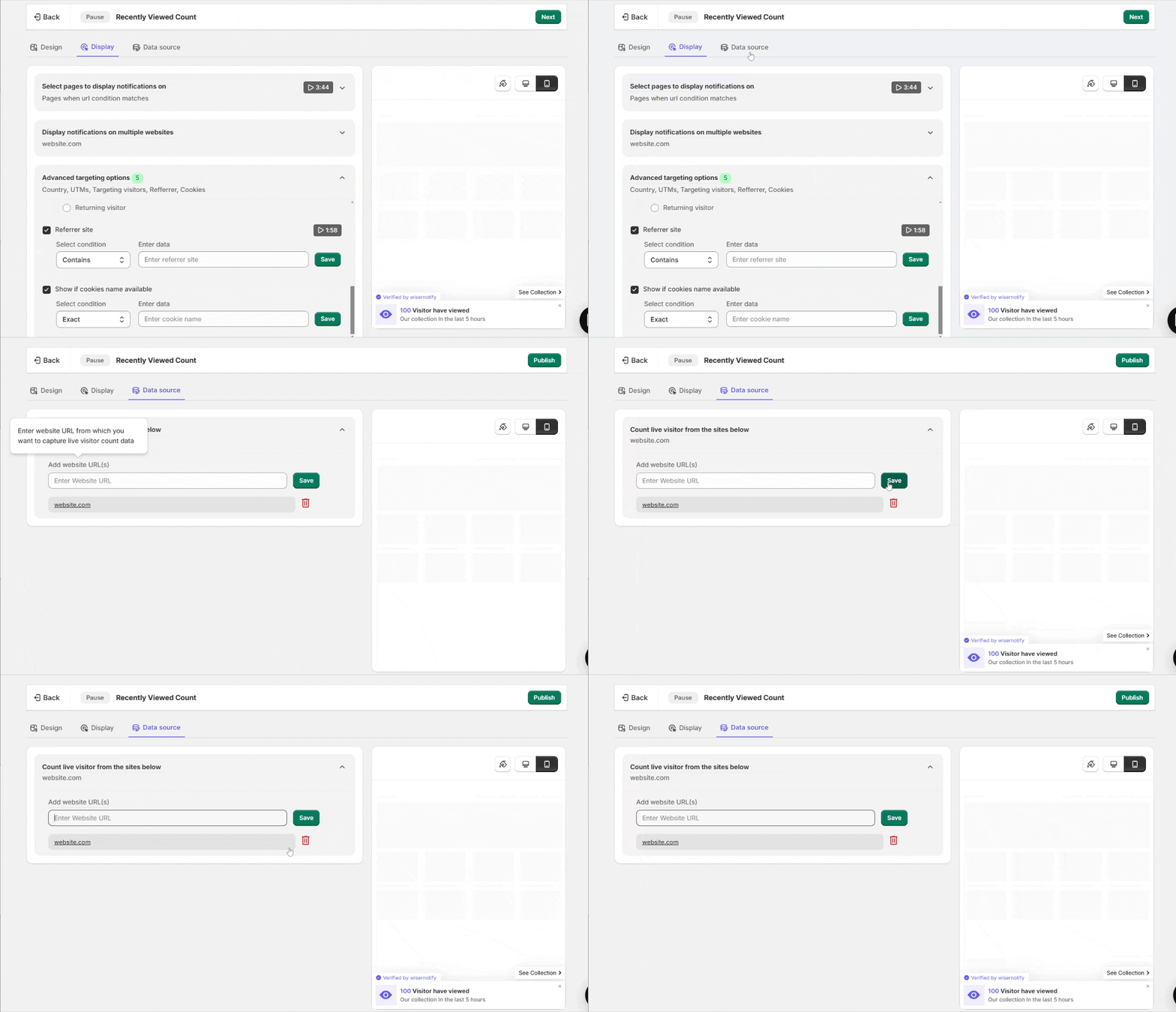
In Data Source, add your Wix site URL so it counts visits from the right place.
Step 11: Publish
Click Publish, then open your Wix site and refresh once or twice to see the visitor counter live.
Visitor Counter Not Showing Up on Wix?
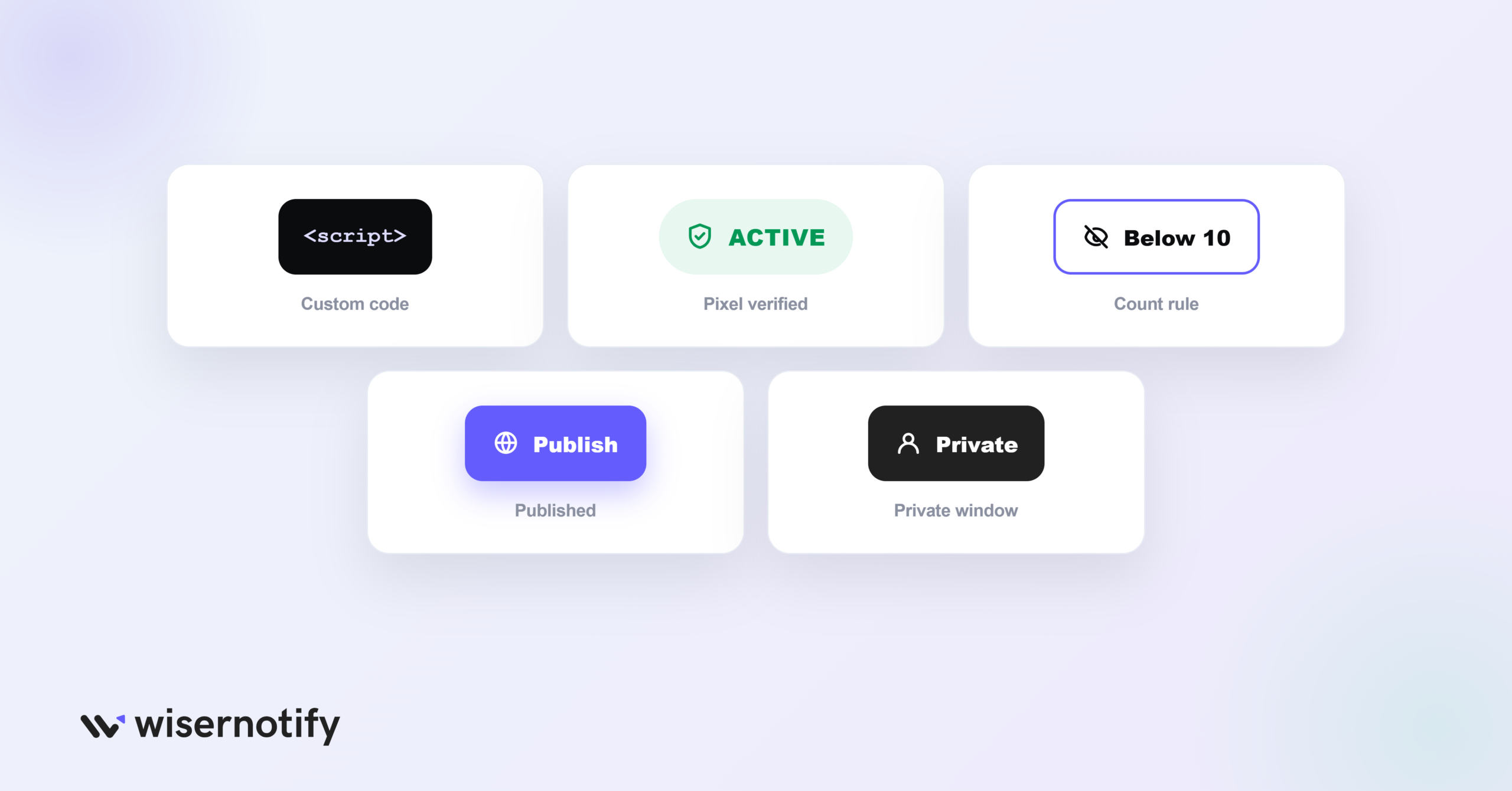
If the counter isn’t appearing on your live Wix site, check these first:
- Pixel not applied: the code has to be in Settings > Advanced > Custom code, set to All pages and Head, and you have to click Apply.
- Pixel not verified: load your site once, then click Verify pixel installation and confirm it shows Active.
- Hidden by your count rule: if you set it to hide below a number, a low visit count will keep it hidden.
- Not published: saving the design isn’t enough, click Publish so it goes live.
- Cache: open your site in a private window so you’re not loading an old version.
Still stuck? Use the troubleshoot option in your notification list, or reach out to WiserNotify live chat.
Is the Wix Visitor Counter Free?
You can try it free. WiserNotify offers a 7-day free trial.
You can add the pixel to Wix, set up a visitor counter, and see how it performs before you pay anything.
After the trial, you pick a paid plan based on your monthly visitor traffic.
Plans scale up as your traffic grows, and higher tiers add more widgets and features.
For most Wix sites, the trial is enough time to run a live visitor counter and see whether it lifts engagement before committing.
Build trust & FOMO
Highlight real-time activities like reviews, sales & sign-ups.


Best Practices for a Wix Visitor Counter
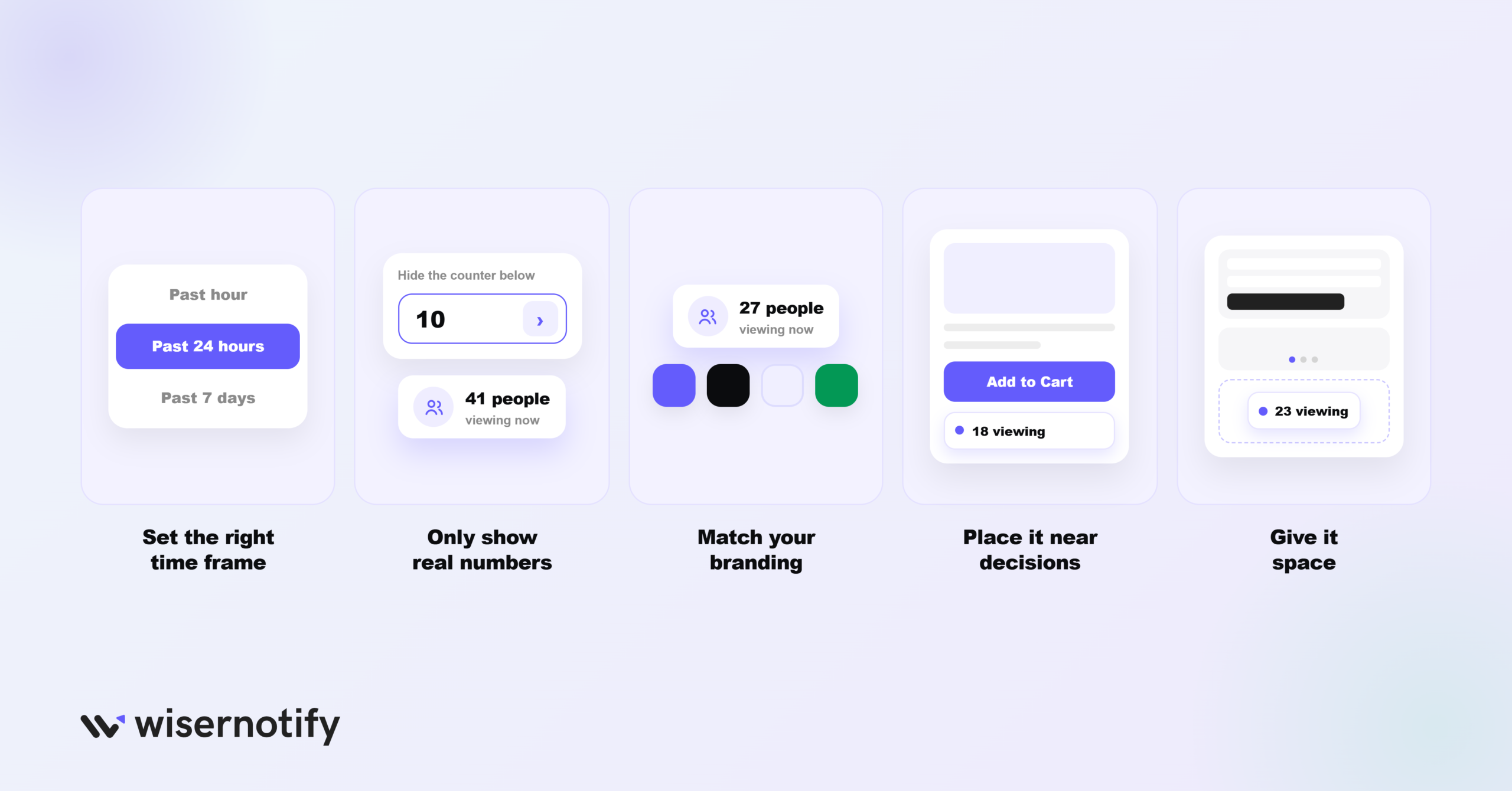
- Set the right time frame: a 24-hour window suits most sites. For high-traffic pages, “past hour” is good for creating urgency in sales.
- Only show real numbers: use the hide-below rule so a low count never makes your site look quiet, real numbers are what make FOMO marketing work.
- Match your branding: use your Wix site’s colors and fonts, and keep the text readable against the background.
- Place it near decisions: put it close to an Add to Cart or Book Now button, or on product and landing pages.
- Give it space: keep it away from sliders, forms, and other popups so it doesn’t compete for attention.
Wrap-Up
A visitor counter is a simple way to show your Wix site is active and get people to act.
With WiserNotify, you can add one in minutes, no code needed.
Pick the right notification type, set an honest time frame, match your branding, and place it where it supports a decision.
Set up your WiserNotify visitor counter on Wix and let real activity do the convincing.
Related guides
Frequently Asked Questions
Does Wix have a built-in visitor counter?
No, Wix has no native live visitor counter like this. You add one with WiserNotify by pasting a pixel into Settings > Advanced > Custom code, then build the counter from the dashboard.
How do I add a visitor counter to Wix?
Copy your WiserNotify pixel, in Wix go to Settings > Advanced > Custom code, add it to the Head on all pages, and Apply. Then build the visitor notification in WiserNotify.
What visitor notifications can I show on Wix?
Three: visitor count (total visits in 24 hours), single visits (recent visits to a page), and recently viewed count (views of a page over a time period you set).
Can I hide the counter when traffic is low?
Yes. In Data control, set a minimum so the counter hides when the visit count falls below a number you choose, so a low count never makes your site look quiet.
Is the Wix visitor counter free?
WiserNotify offers a free 7-day trial, so you can add the pixel to Wix and set up a visitor counter to test it before choosing a paid plan.

Krunal Vaghasiya is a marketing tech expert who boosts e-commerce conversion rates with automated social proof and FOMO strategies. He loves to keep posting insightful posts on online marketing software, marketing automations, and improving conversion rates.




 Capterra