
How to Add a Video Popup to Shopify in 5 Steps (2026)
Shopify can show a video on almost any page, but only inline. The video sits in a section, and a shopper has to scroll down to it and press play.
A video popup plays on top of the page instead, after a few seconds, a scroll, or an exit attempt. So your product demo or welcome clip reaches the people who’d never scroll that far.
Below are the five steps for the no-code route through the Shopify app, a manual theme.liquid option, which Shopify pages to target, and the Shopify quirks that stop a popup from showing.
Does Shopify Have a Built-In Video Popup?
No. Shopify gives you three native places for video, and none of them opens over the page:
- Video section. Dawn and most free themes include one in the theme editor. It plays a Shopify-hosted file or a YouTube or Vimeo link, inline on the page.
- Product media. Videos sit in the product gallery next to your photos.
- Shopify Forms. It has a popup format, but it’s built to collect email, SMS, or WhatsApp subscribers, not to play a video.
So a video that opens over the page needs a script running on your storefront. WiserNotify’s Video popup widget adds that script through its Shopify app, and you don’t edit any theme code.
How to Add a Video Popup to Shopify
Watch the walkthrough, or follow the five steps under it. Everything happens in your WiserNotify dashboard, apart from one Shopify login to approve the app.
Step 1: Connect Your Shopify Store
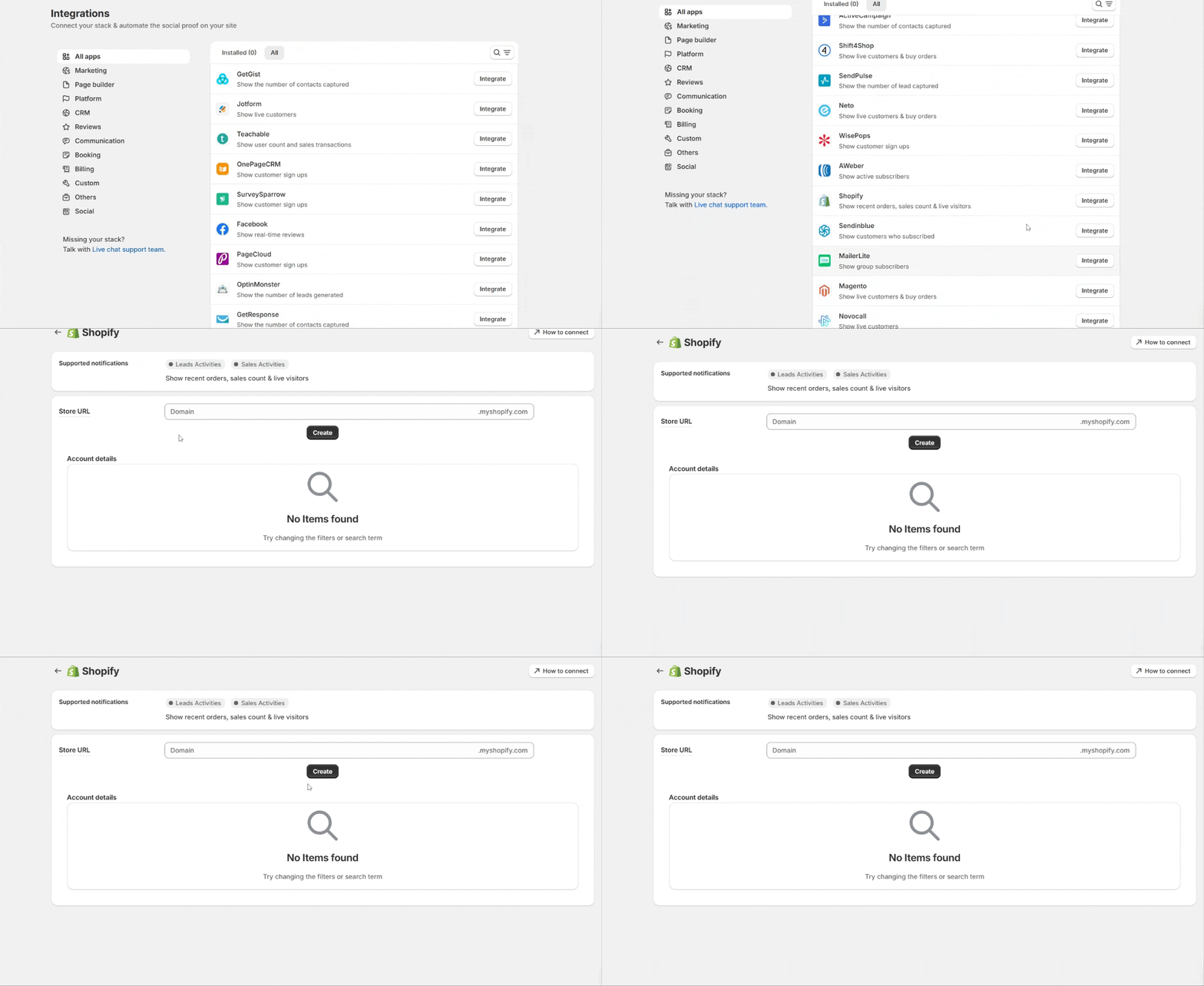
- Sign up for WiserNotify (7-day free trial) or log in.
- Open Integrations and click Integrate next to Shopify.
- Type your store’s myshopify.com name in Store URL and click Create. Shopify lists that name under Settings > Domains.
- Log in to Shopify, click Install App, and accept the permissions.
The app adds the WiserNotify pixel to your store as a script tag. Because it isn’t a line inside a theme file, it keeps working when you switch themes.
It also pulls in your last 30 orders and sets up a webhook for new ones. You don’t need those for a video popup, but they power sales popups or a sold counter on Shopify later.
Step 2: Verify the Pixel

Open your storefront once so the pixel can load. Then go back to Install Pixel in WiserNotify and click Verify pixel installation.
Once the page shows “detected successfully” in green, move on. If it doesn’t, the Shopify fixes further down cover the usual reasons.
Step 3: Add the Video Popup Widget
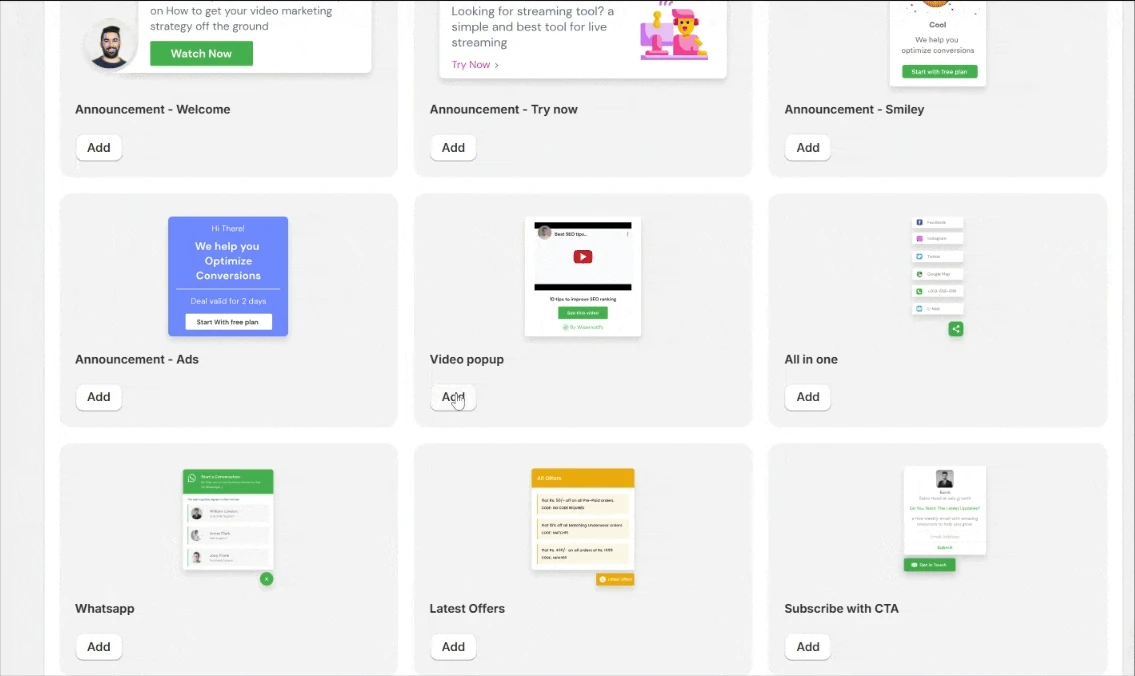
- Go to Widgets and switch to the Call To Actions tab.
- Find the Video popup template and click its Add button.
- Give it a name, add your store’s domain, and click Create & Customize.
Name it after the page it’s meant for, like “Product demo” or “Welcome clip.” If you later run separate videos for different pages, the names keep them apart in your widget list.
Step 4: Add Your Video and a Button

The editor gives each part of the popup its own tab, with a desktop and phone preview beside it.
- Text editor. Paste the YouTube link, then add a one-line headline. Keep the video muted if it plays on its own.
- Click actions. Name the button, paste its link, and tick the box that closes the popup when a visitor clicks outside it.
- Position & animation. Choose where it opens and how it enters, with separate settings for phones and desktop.
- Timing control. Pick the trigger: a delay, a scroll point, or exit intent.
The editor takes a YouTube link. If you’d rather keep the clip off your public channel, upload it as unlisted. Unlisted videos still play inside embeds.
On a product page, the button can skip a step. Point it at a Shopify cart permalink, and one click puts the item in the cart and opens checkout:
https://your-store.myshopify.com/cart/VARIANT_ID:1
To find the variant ID, open the variant in your Shopify admin and copy the number at the end of the browser address. Add ?discount=CODE to the link to apply a discount code too.
Check the phone preview before moving on. A popup sized for desktop can cover a whole phone screen, and these Shopify mobile optimization tips cover the rest of the mobile experience.
Step 5: Pick Pages and Publish

- Open the Display tab.
- Under Select pages to display notifications on, choose Pages when url condition matches.
- Set the condition to Contains, type
/products/, and click Save. - Click Publish, then open a product page in a private window and wait for your trigger.
Contains is the safer choice on Shopify because one product can open at more than one address. Some themes link products through their collection, so a click lands on /collections/summer/products/linen-shirt instead of /products/linen-shirt.
Country versions from Shopify Markets add a subfolder too, like /en-ca/products/linen-shirt. A Contains rule matches all of them, while Equals misses every address but one.
The video popup widget doc lists every design and display option if you want to go further.

Boost Conversion Instantly
Add Social Proof & Urgency to your website
Prefer to Paste the Pixel Into Your Theme?
You can skip the app and add the pixel by hand. The popup works the same way, but the code then lives inside one theme.
- Copy your pixel from the Install Pixel page in WiserNotify (Copy code).
- In Shopify, go to Online Store > Themes. Next to Customize on your live theme, open the … menu (older admins label it Actions).
- Pick Duplicate first, so you have a backup copy. Then open the same menu again and choose Edit code.
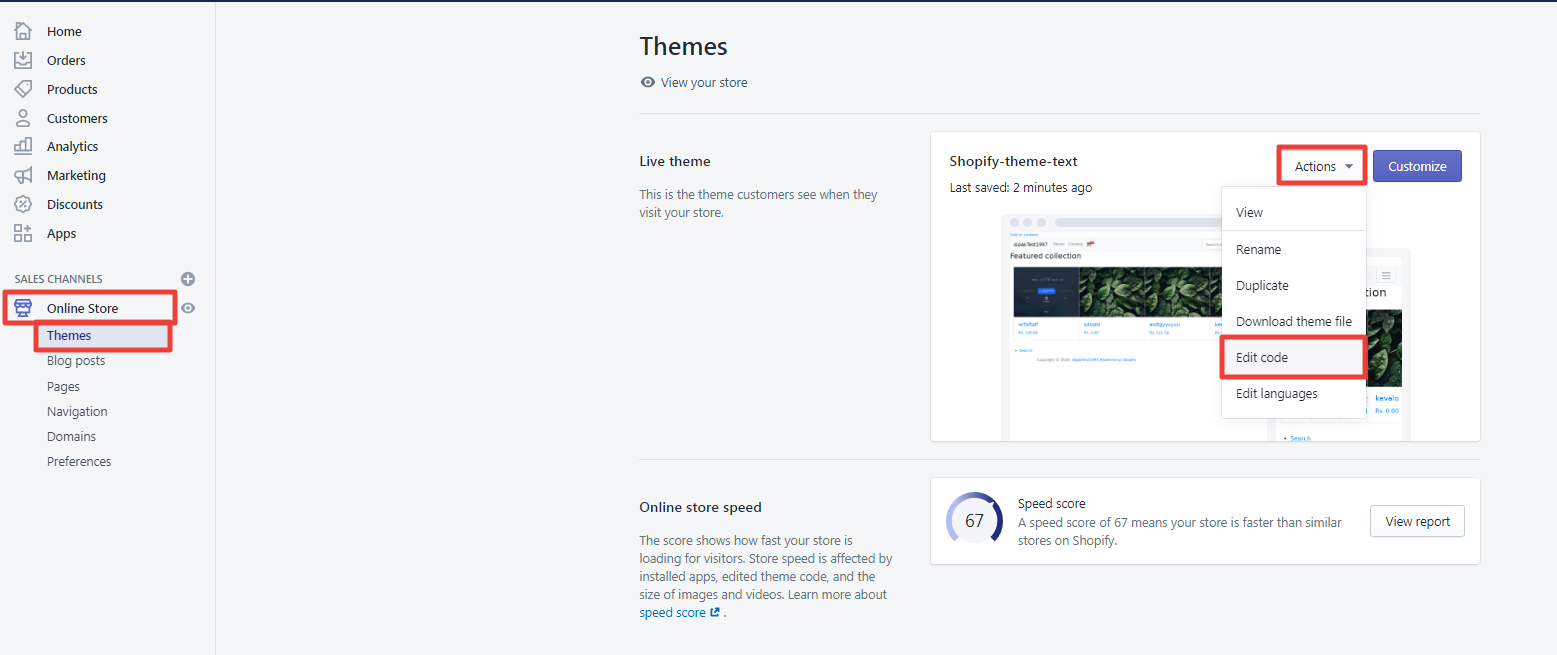
- Under Layout, open theme.liquid. Paste the code just above
</body>and click Save. - Go back to WiserNotify and click Verify pixel installation.
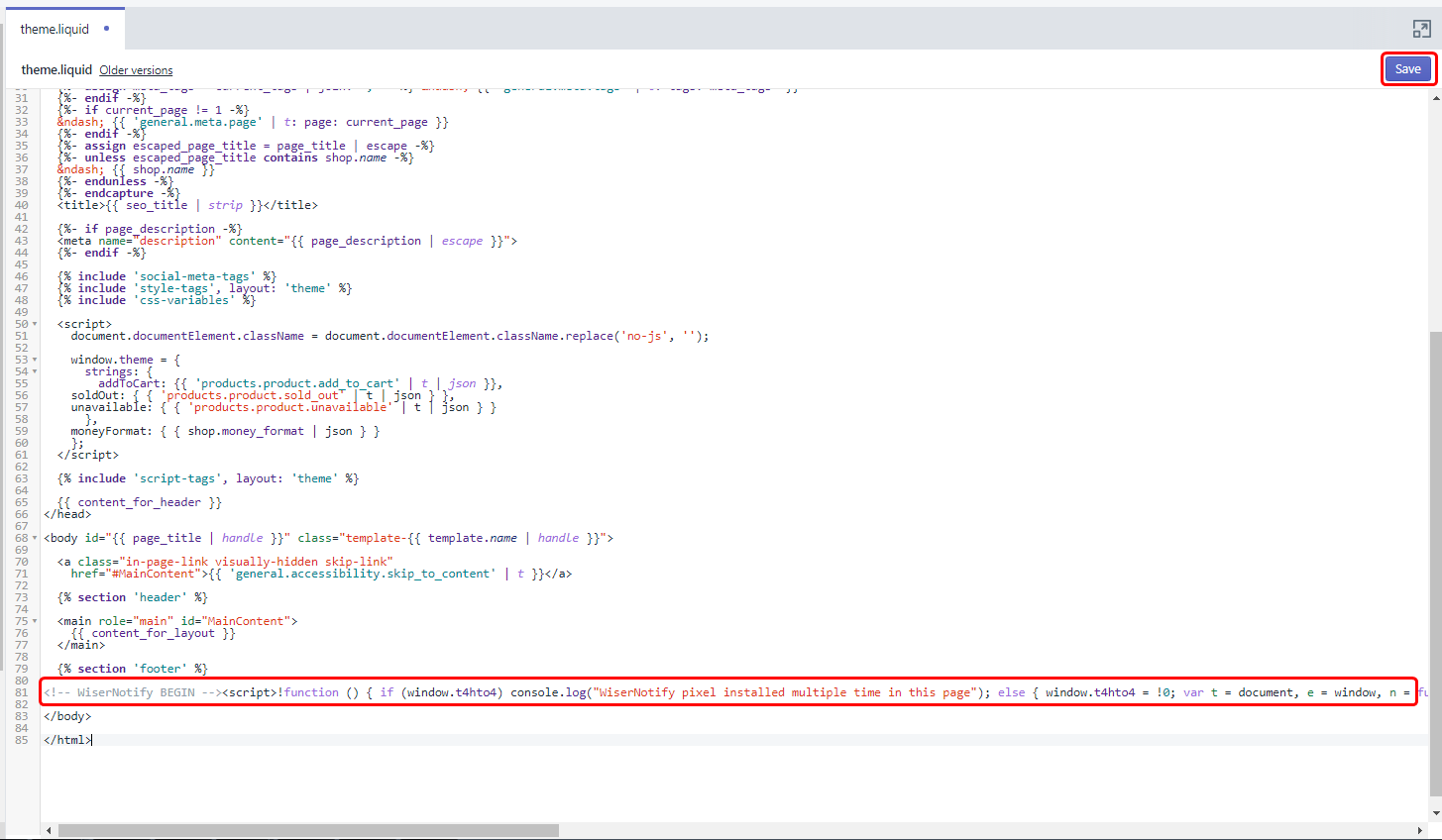
If a paste breaks something, the Older versions link above the file in the code editor restores the previous copy.
Keep the tradeoff in mind. Switching to another theme leaves the pixel behind. Theme updates usually carry code edits across, but Shopify flags the update with “code edits could not be included” when they don’t.
After the pixel is in, steps 3 to 5 above are the same.
Where to Put a Video Popup on Shopify
Match the clip to the decision a shopper is making on that page:
- Product pages: the product in use, so shoppers can judge size, texture, or how it works.
- Collection pages: a lookbook, or a short “which one is right for me” guide.
- Cart page: a quick clip on shipping times or how returns work.
- Welcome clip: a brand or founder intro for first-time visitors, wherever they land.
Here are the rules for each, all set under Pages when url condition matches. Swap handle for the last part of that product or collection URL:
| Where it shows | Condition | What to enter |
|---|---|---|
| Every product page | Contains | /products/ |
| One product | Contains | /products/handle |
| One collection | Contains | /collections/handle |
| Cart page | Contains | /cart |
| Welcome clip | All pages | New visitors only |
The welcome clip uses All pages because first-time visitors don’t always enter through the homepage. Set Returning or new visitors (under Advanced targeting options) to new visitors, so regulars don’t see the same intro every visit.
Check your cart setup before you build a cart popup. If the theme’s cart type is Drawer (in the theme editor under Theme settings > Cart), shoppers may never load /cart at all.
Skip checkout. Shopify’s checkout doesn’t load theme code or app scripts, so no storefront popup runs there. Put that effort into Shopify checkout optimization instead.
Build trust & FOMO
Highlight real-time activities like reviews, sales & sign-ups.

Video Popup Not Showing on Shopify?
Start with the causes that only happen on Shopify:
- The store still has a password. Enter it in your private window before you test. When you’re ready to launch, remove it under Online Store > Preferences > Password protection.
- You’re previewing a different theme. A pixel pasted into theme.liquid exists in that theme only. Previews of other themes, and any theme you switch to, won’t load it.
- You tested at checkout or in the cart drawer. The popup can’t run on checkout, and a drawer has no URL to match. Test on a product page.
- The rule uses Equals. A product opened through a collection or a country subfolder has a different address. Switch the rule to Contains.
Still nothing? Give the trigger time, since a delay or scroll rule waits for the shopper. Skip seen under Data control also hides a popup you’ve already viewed, and a fresh private window clears that along with any cache.
WiserNotify’s live chat can check the install with you, and the Shopify integration doc has the full connection steps.
Running Shopify Plus?
The steps are the same on Shopify Plus, and so is the checkout limit. checkout.liquid no longer covers the information, shipping, and payment steps, so theme code can’t reach checkout on any plan.
Expansion stores for other regions each have their own myshopify.com address. Connect each store in WiserNotify, then add its domain under Display notifications on multiple websites to reuse the same popup.
How to Tell If the Popup Is Working
Give it a week or two of normal traffic, then look at four things:
- Views and clicks. WiserNotify’s Analytics page shows how many shoppers saw the popup and clicked its button.
- Landing page results. In Shopify, open Analytics > Reports and use the sessions by landing page report to compare pages that run the popup with similar pages that don’t.
- Campaign traffic. Add UTM tags to the button link (Click actions > Add UTM), so popup clicks show up as their own campaign in Shopify’s marketing reports.
- Speed. Compare Shopify’s web performance reports from before and after launch. These Shopify speed optimization fixes help if anything slipped.
Test one change per round, like a shorter clip or a later trigger, and leave everything else alone until you see the result.
Wrap Up
A video popup gets your best clip in front of shoppers who’d never scroll to an inline video section. On Shopify, the app route puts it live without touching theme code.
Start with one popup on your product pages, a Contains /products/ rule, and a button that goes straight to a cart permalink. Add a welcome clip once that first one earns its spot.
Setting this up somewhere else too? Here’s how to add a video popup to your website on any platform. For popups that catch shoppers on the way out, see these exit-intent popup ideas.
Related Post
Frequently Asked Questions
Can I add a video popup to Shopify for free?
Shopify has no built-in video popup, so you need an app or custom code. WiserNotify’s Video popup widget is included in its 7-day free trial, which gives you time to test it on real traffic before you pick a plan.
Does a Shopify video popup work on mobile?
Yes. The popup shows on phones as well as desktop, and WiserNotify lets you set its position and animation separately for each. Check the phone preview in the editor before you publish.
Will a video popup slow down my Shopify store?
The video streams from YouTube rather than your Shopify files, and the WiserNotify pixel loads asynchronously. To confirm, compare Shopify’s web performance reports from before and after launch.
Can I show a video popup on just one Shopify product?
Yes. In the Display tab, choose Pages when url condition matches, pick Contains, and enter /products/ followed by that product’s handle, such as /products/linen-shirt.
Do I need to edit my Shopify theme code?
No. Connecting your store through WiserNotify’s Shopify integration installs the pixel for you. Pasting the code into theme.liquid is optional, for stores that would rather not install the app.
Can a video popup appear on Shopify checkout?
No. Shopify’s checkout doesn’t run theme code or app scripts, so storefront popups don’t load there. Put shipping or returns reassurance in a popup on the cart or product page instead.

Krunal Vaghasiya is a marketing tech expert who boosts e-commerce conversion rates with automated social proof and FOMO strategies. He loves to keep posting insightful posts on online marketing software, marketing automations, and improving conversion rates.




 Capterra