
How to Embed Facebook Reviews on Wix as a Live Feed (2026)

Wix has no built-in element for Facebook reviews. So when people recommend your business on Facebook, those kind words stay on Facebook, where most of your website visitors never look.
The fix is a review feed that pulls your Page recommendations onto Wix and keeps itself current. It lives in one Embed HTML box, on any page you like.
Below are the nine steps with screenshots, what to do if you were after your Facebook posts rather than reviews, and the quick fixes when the box shows up empty.
Does Wix Have a Facebook Reviews Widget?
No. Wix has no built-in element that pulls in Facebook reviews. A review tool imports them, and its widget code goes into a Wix Embed HTML element.
That Embed HTML element is an iFrame. Remember that one, because it decides how big the box has to be later on.
Facebook reviews also look different from what many people expect. In 2018 Facebook swapped star ratings for a simple Recommend or Don’t Recommend choice, which our Facebook reviews statistics post explains in more detail.
Running a Wix Stores shop? The WiserReview Wix app adds star ratings and a product review section to product pages on its own. A Facebook review wall on any other page still goes in through Embed HTML.
If product pages are your main goal, here’s how to add reviews to Wix product pages instead.

Your Facebook reviews, on your Wix site
Connect your Page once and every new recommendation lands in the feed by itself.
How to Add Facebook Reviews to Wix

You’ll build the feed in WiserReview, then place it with the Wix Editor. Plan on about 15 minutes, and make sure you’re an admin on the Facebook Page first.
Step 1: Connect Your Facebook Page
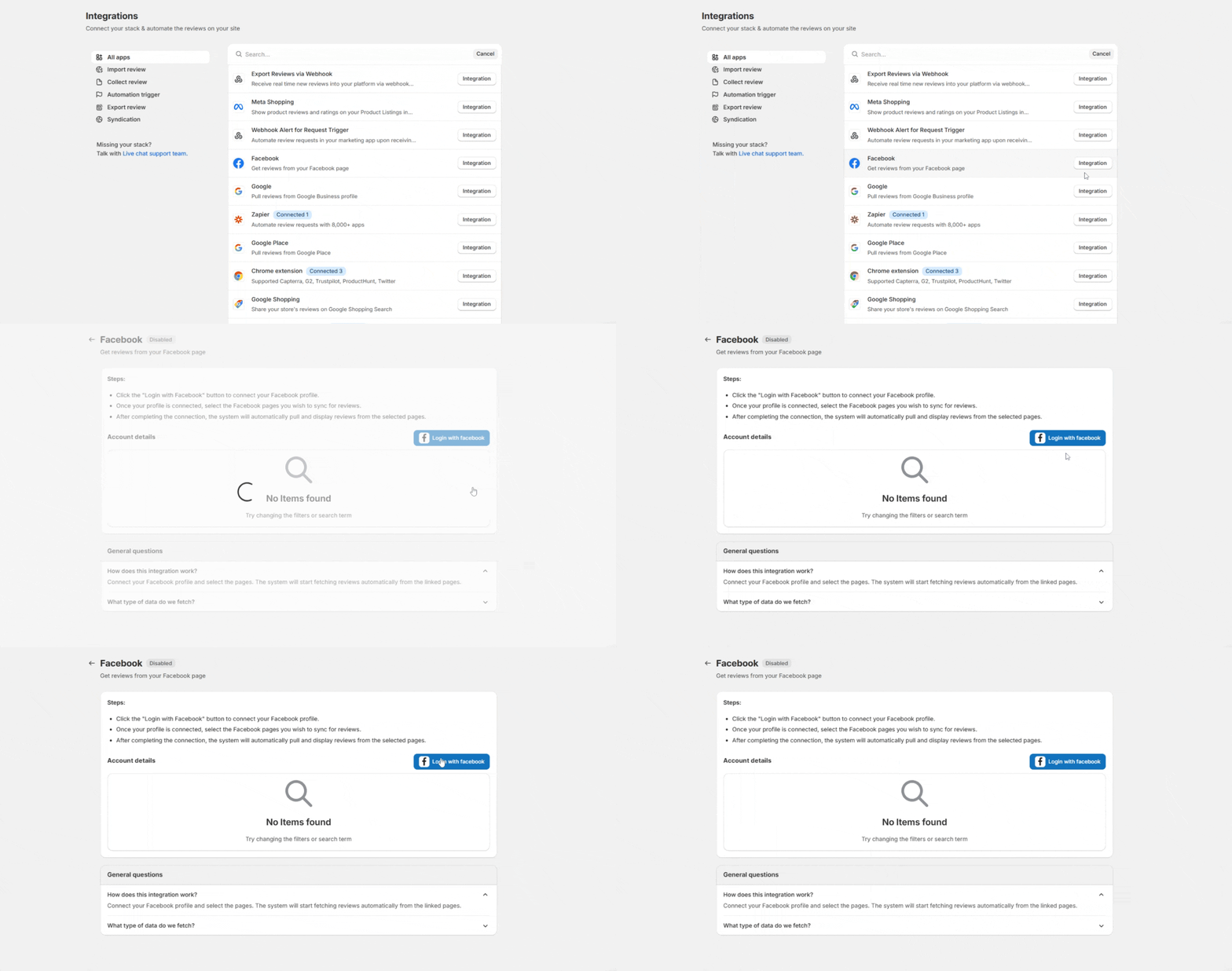
- Sign up for WiserReview (7-day free trial) or log in.
- Open Integrations and search for Facebook.
- Click Integration, then Login with Facebook.
- Use the Facebook account that runs your Page, then accept the permissions.
- Pick the Page whose reviews should appear.
Step 2: Confirm the Import
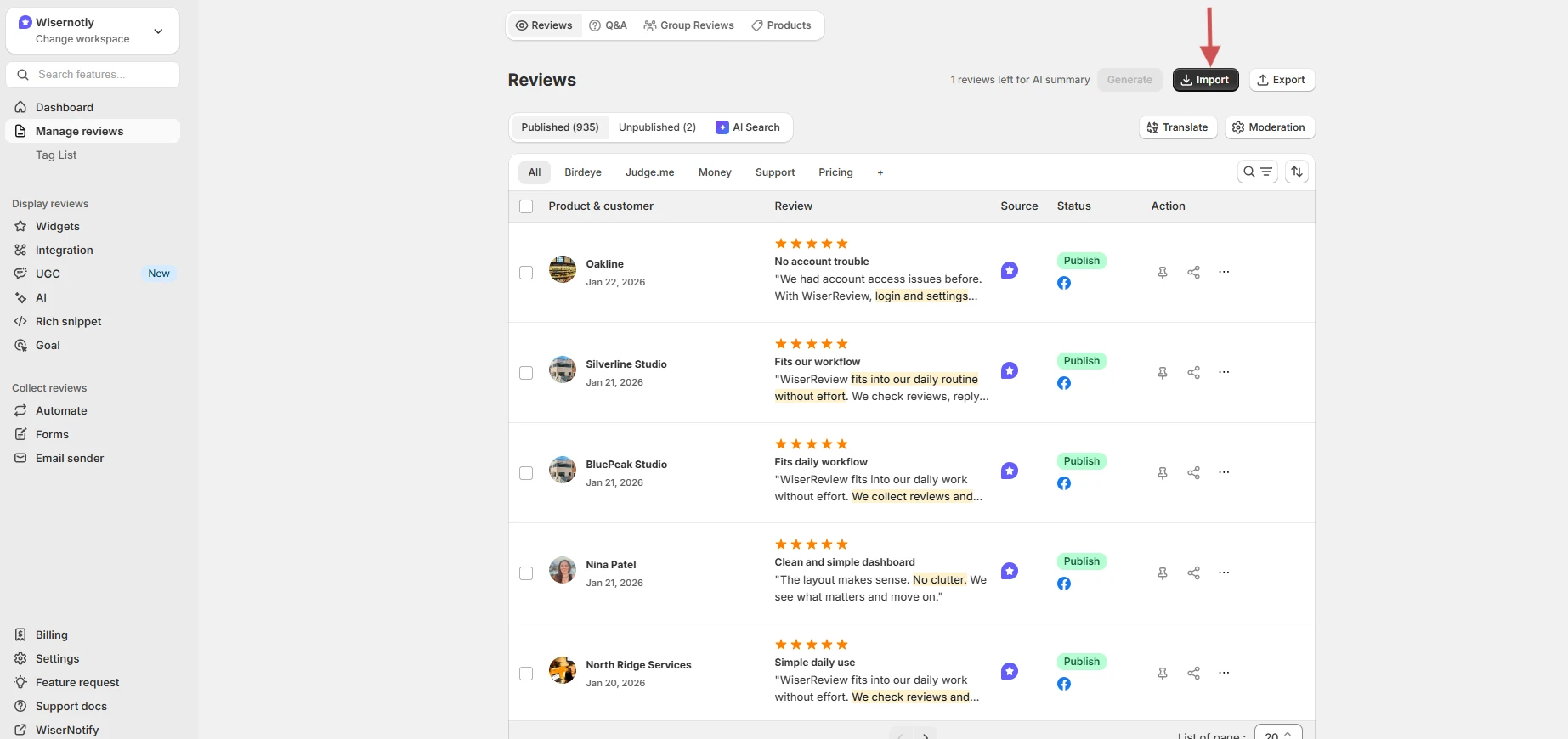
- Open Manage Reviews.
- Check that your Facebook reviews are listed.
New Facebook reviews sync in from here on, so you won’t repeat this step.
Step 3: Choose the Wall of Love
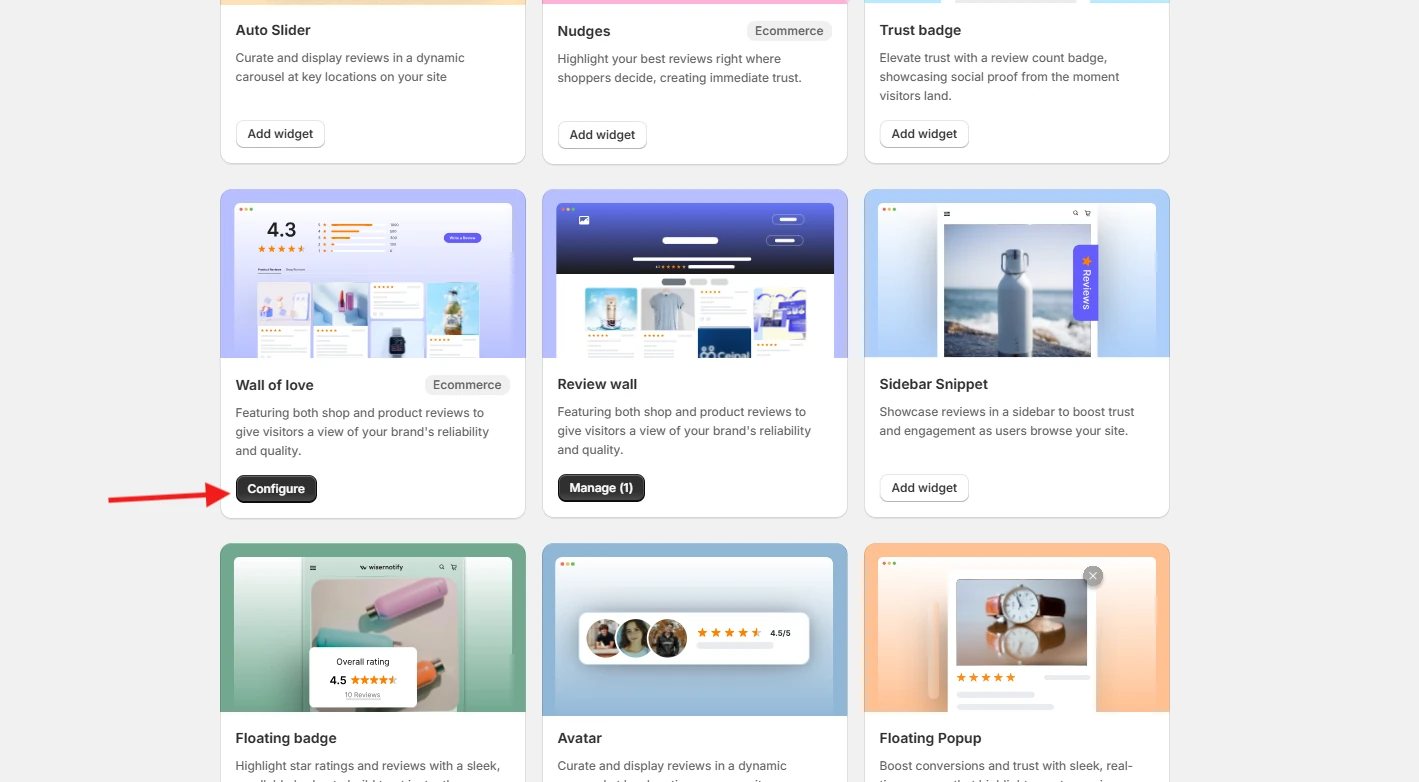
- Go to Widgets.
- Click Configure on the Wall of Love.
The Wall of Love gives you the feed look. Short on space? A carousel layout fits a narrow strip better.
Step 4: Filter to Facebook Only
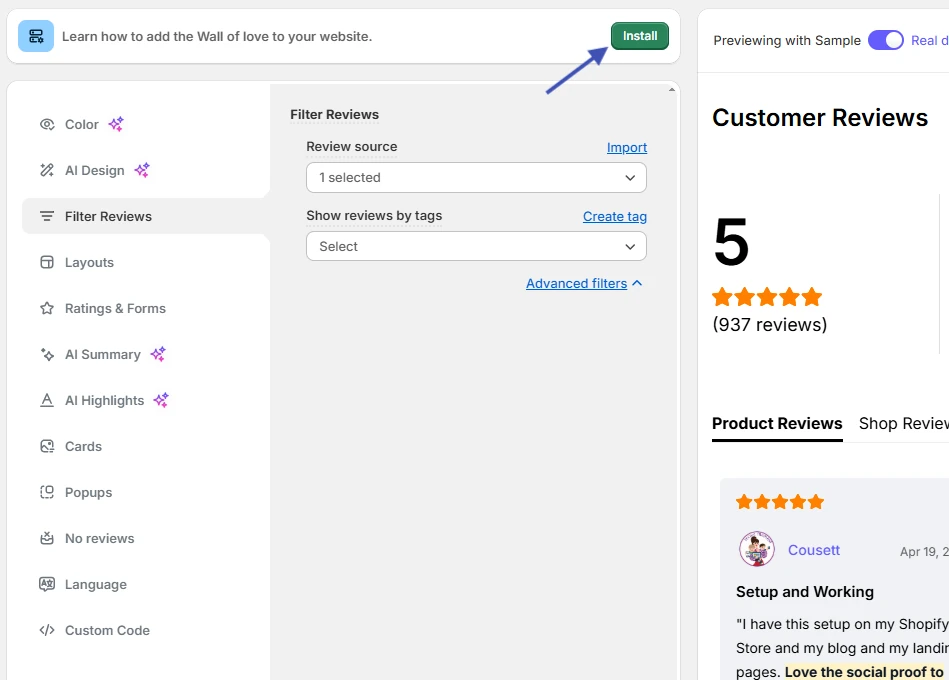
- Open Filter Reviews.
- Under source, choose your Facebook Page.
Leave the source open if you’d like Facebook and Google reviews in one wall.
Step 5: Match Your Wix Theme
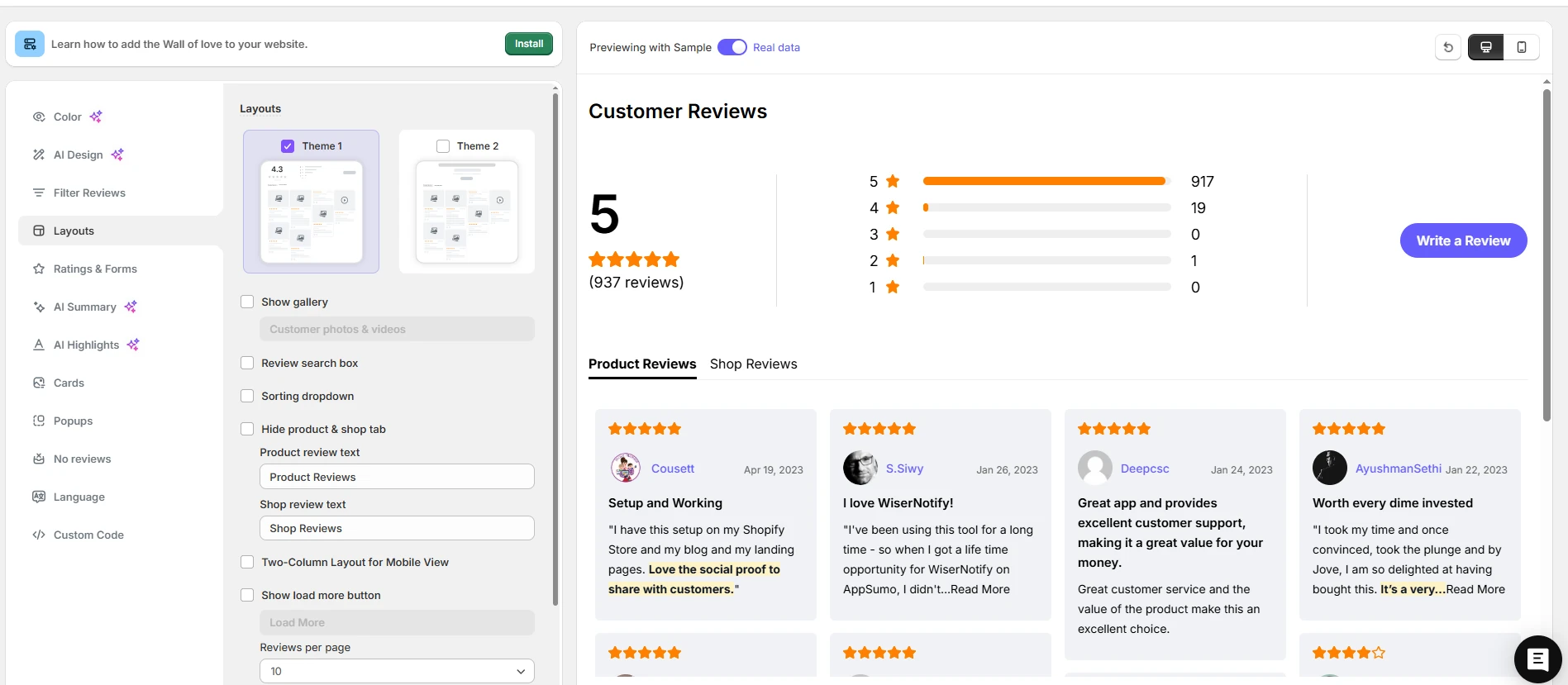
- Pick a layout.
- Set the font and accent color to match your Wix theme.
- Click Save.
Step 6: Copy the Widget Code
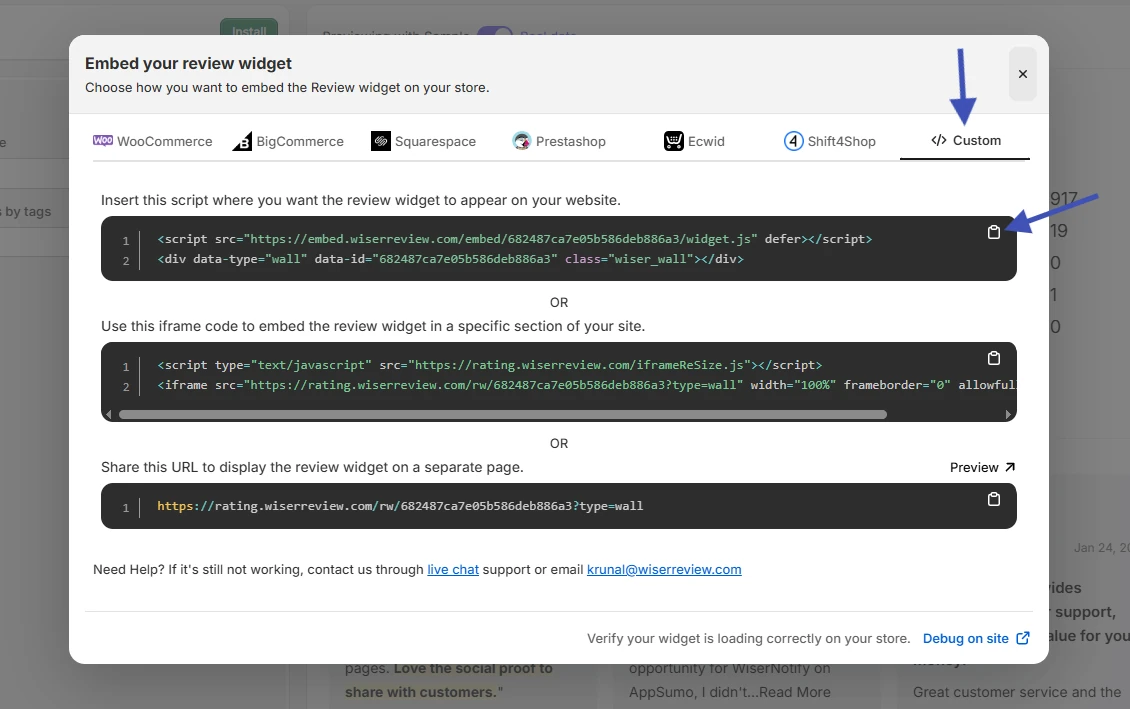
- Click Install.
- Open the Custom tab.
- Copy the code.
Step 7: Open the Wix Editor
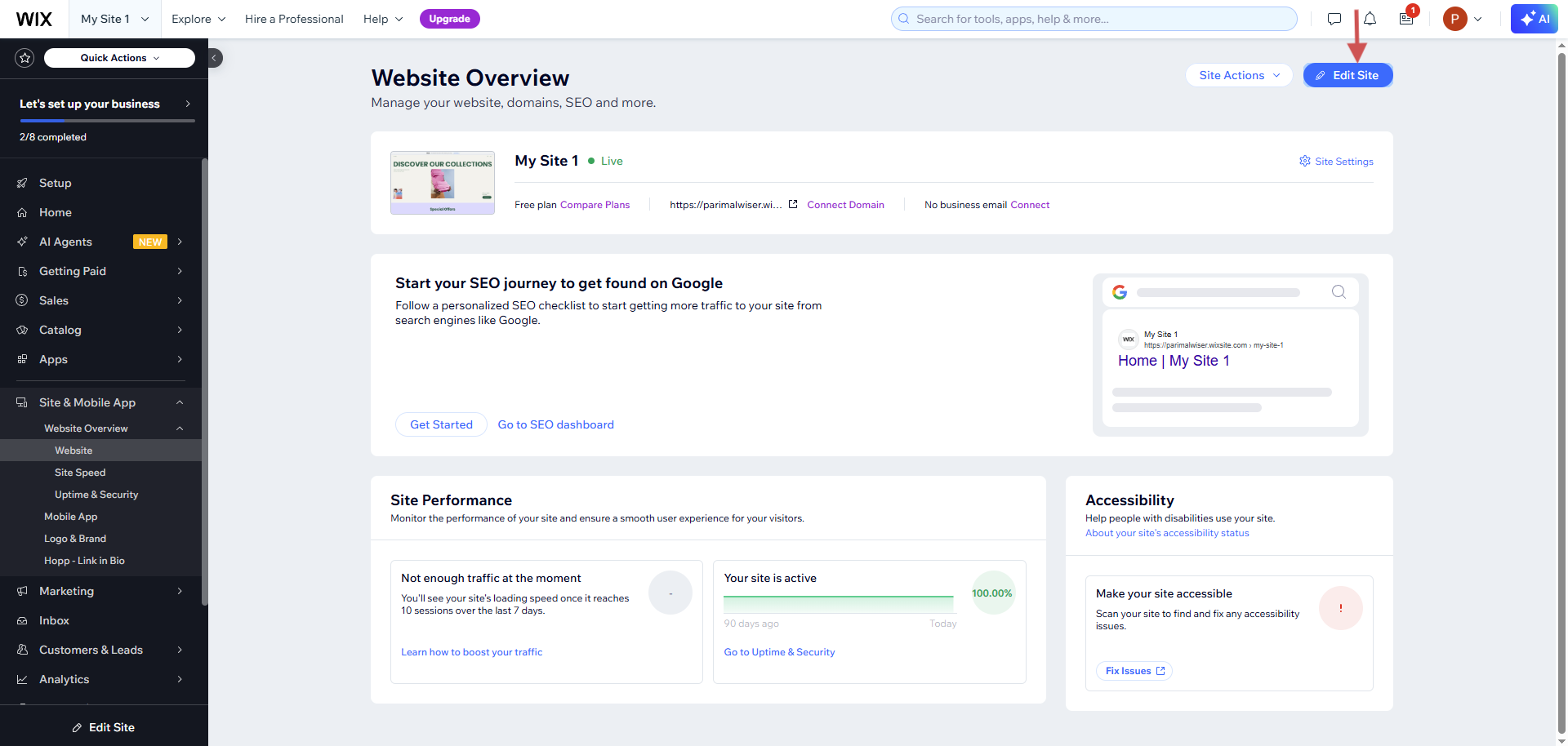
- Log in to your Wix dashboard.
- Open Site & Mobile App.
- Click Website Overview, then Website.
- Click Edit Site.
Step 8: Add an Embed HTML Element
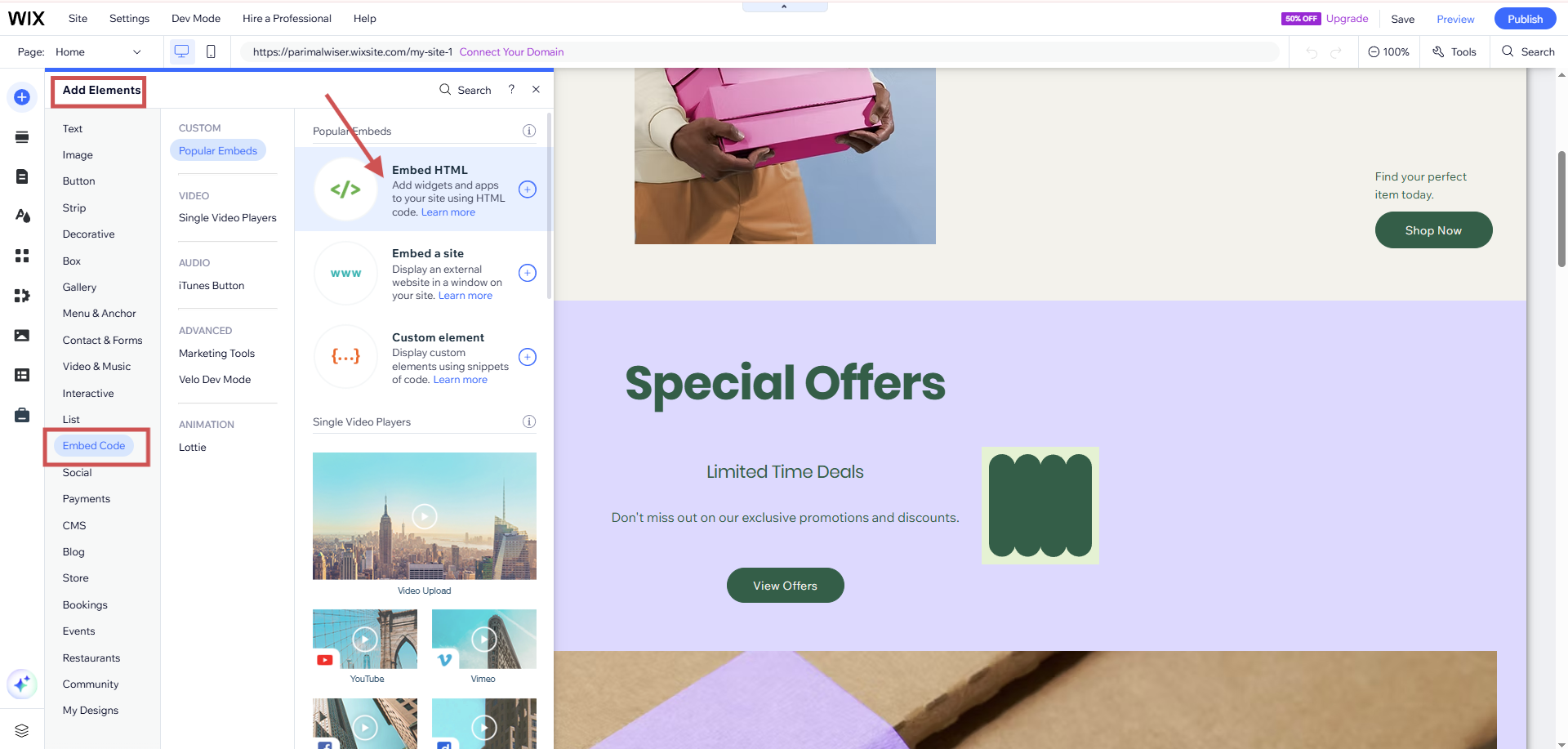
- Open the page that should show the feed.
- Add a blank section where the feed should sit.
- Click Add Elements.
- Click Embed Code, then Popular Embeds.
- Click Embed HTML to add the box to your page.
Step 9: Paste the Code and Publish
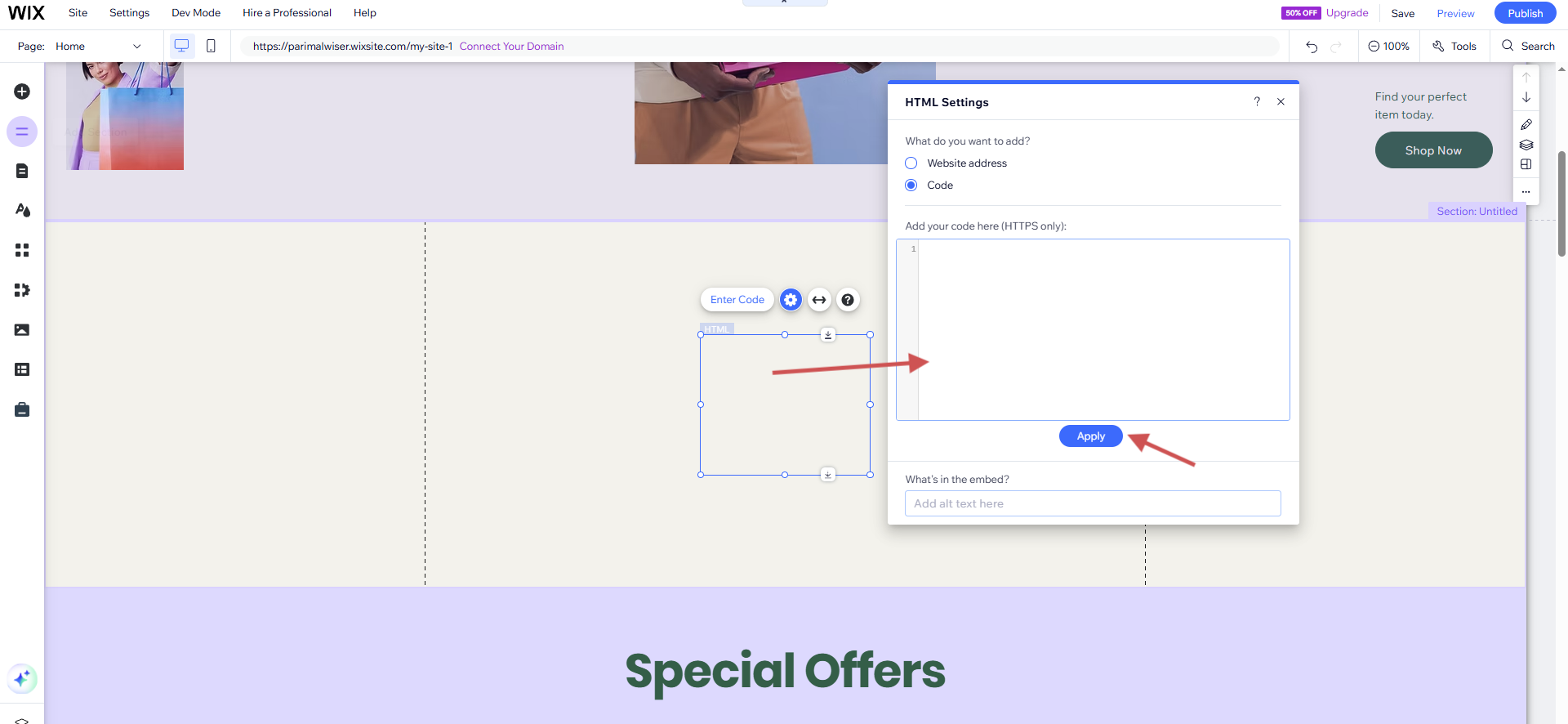
- Click Enter Code on the new box.
- Select Code.
- Paste the WiserReview code under Add your code here.
- Click Apply.
- Drag the box edges until the whole feed fits.
- Click Publish.
Then check the published page in an incognito window. That shows you exactly what a new visitor gets.
One wall for Facebook and Google
Import reviews from both, filter by source, and paste one code into Wix.
Want Facebook Posts Instead of Reviews?
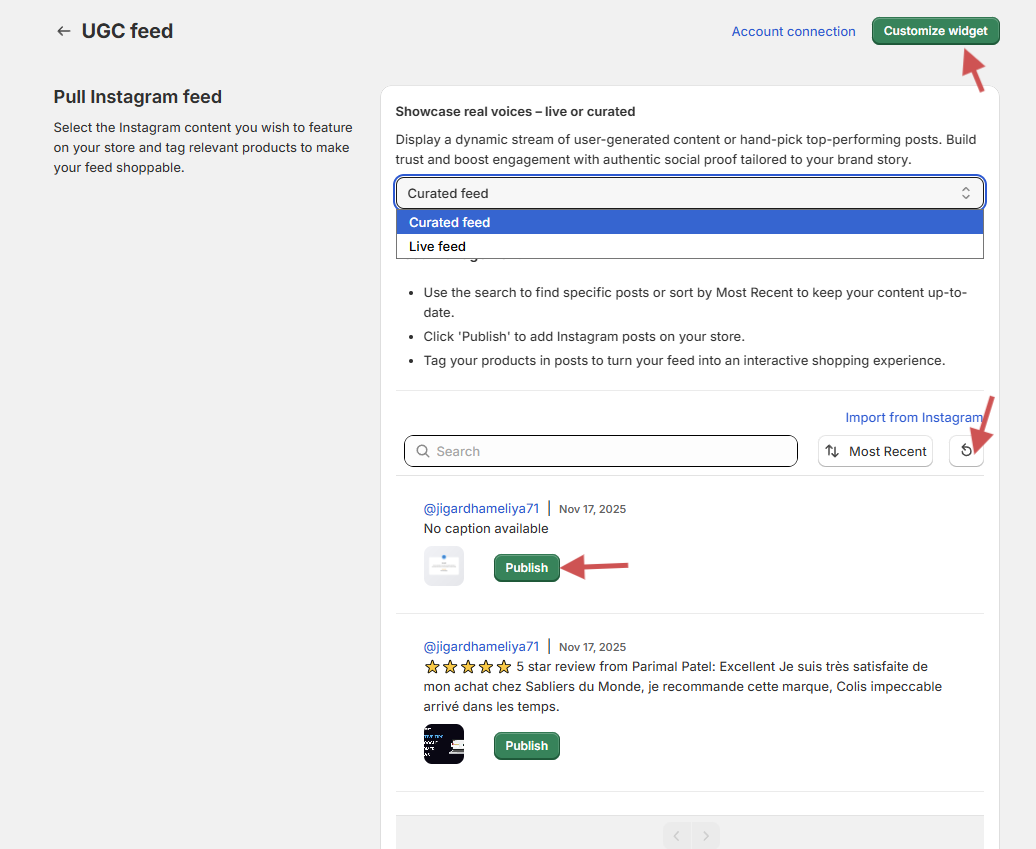
WiserReview imports Facebook reviews, not Facebook Page posts. For a photo and video feed, the WiserReview UGC widget shows Instagram posts through the same Facebook login.
It needs an Instagram Business account linked to your Facebook Page. With that in place, here’s the setup:
- Open the UGC tab in WiserReview.
- Under Marketing and social, click Login with Facebook.
- Select the Page linked to your Instagram Business account.
- Click Integrate instagram feed.
- Choose Curated feed or Live feed.
- Click refresh to pull your 20 latest posts, then publish the ones you want.
- Click Customize widget, style it, and click Install.
Paste that code into Wix exactly like the review feed, with an Embed HTML box (steps 8 and 9). Store owners can also tag products in each post.
How to Turn On Facebook Page Reviews
A Facebook Page without a Reviews tab has reviews switched off. WiserReview can’t import recommendations until the Page owner turns them back on.
- Click your profile photo, choose See all profiles, and switch to your Page.
- Click the Page’s profile photo at the top right.
- Open Settings & privacy, then Settings.
- Click Page and tagging.
- Turn on Allow others to view and leave reviews on your Page?
Heads up: that switch is all or nothing. Turning it off later hides every review and the rating from your Page.
Once reviews are on, the next job is filling the feed. These ideas to get more reviews on your Facebook Page work well for local businesses.
Where to Put Facebook Reviews on Wix
Facebook reviews on Wix earn the most on the homepage, beside a Wix Bookings button, and on a reviews page linked from the main menu.
- Homepage: right under the first section, so first-time visitors meet proof before they scroll.
- Bookings pages: next to the Book Now button on each service.
- A Reviews page: the full wall, linked from your site menu.
- Contact or quote page: for people who are close to getting in touch.
I’d keep it to one feed per page. Stacking a second review wall just adds scrolling.
Product pages are the exception. Facebook recommendations talk about your business, not one item, so a product page is better served by reviews of that product.
Proof next to your Book Now button
Style a review strip that sits beside the booking buttons on your Wix pages.
Facebook Reviews Not Showing on Wix?
A blank Facebook review feed on Wix usually comes down to the editor view, a box that is too small, the mobile layout, or a Page that is not connected.
- Looking in the editor: click Preview, or open the live site, before you change anything.
- Box too small: Embed HTML is an iFrame, so anything past its edges gets cut off. Drag it taller.
- Mobile layout: switch to the mobile editor and size the box there as well.
- Website address picked: in HTML Settings, choose Code, not Website address.
- Not published: Apply saves the box, but visitors only see it after you click Publish.
- Empty feed: check the Facebook connection under Integrations, and that reviews are on for your Page.
- Wrong source: set Filter Reviews to your Facebook Page.
Wrap Up
Facebook reviews do far more on your Wix site than on a Facebook tab most visitors never open. Connect your Page once and the feed keeps itself current.
Start with the homepage. If the feed earns its spot there, add a strip beside your booking buttons next.
Google reviews can join the same wall, too. Here’s how to add Google reviews to Wix.
Building on another platform too? The steps to add Facebook reviews on your website cover the rest.
Related Post
Frequently Asked Questions
Can I embed my Facebook feed on Wix?
WiserReview embeds your Facebook reviews on Wix as a live feed. It does not pull Page posts, but its UGC widget can show your Instagram posts instead.
Do Facebook reviews update on their own on Wix?
Yes. New reviews on your Facebook Page sync into WiserReview and show in the Wix feed without a new embed code.
Do I need a Wix premium plan for the review feed?
No. The Embed HTML element is available on free Wix sites, so the feed works before you upgrade.
Why is my Facebook review feed cut off on Wix?
Wix puts embed code inside an iFrame, so the box only shows what fits. Drag it taller in both the desktop and mobile editors.
Can one Wix feed show Facebook and Google reviews?
Yes. Import both into WiserReview and leave the widget’s source filter open, so one wall mixes them.
Why can't WiserReview find my Facebook reviews?
Reviews have to be turned on for the Page, and you must log in with a Facebook account that manages that Page.

Krunal Vaghasiya is a marketing tech expert who boosts e-commerce conversion rates with automated social proof and FOMO strategies. He loves to keep posting insightful posts on online marketing software, marketing automations, and improving conversion rates.




 Capterra