
How to Add Facebook Reviews to Your Website (Step by Step)

You can add Facebook reviews to your website with WiserNotify in three parts. Install the WiserNotify pixel, connect your Facebook Page, then create a review widget and publish it.
Your latest Facebook recommendations then show on your site and update on their own.
This guide walks through all nine steps with screenshots, shows how to turn on reviews on your Facebook Page first, and covers the best ways to display them.
Key takeaways
- Facebook reviews need to be turned on for your Page before any tool can show them.
- A connected widget keeps reviews fresh, unlike a screenshot that goes stale.
- Place reviews near buttons and product details, where visitors decide.
Build trust & FOMO
Highlight real-time activities like reviews, sales & sign-ups.


Why Add Facebook Reviews to Your Website?
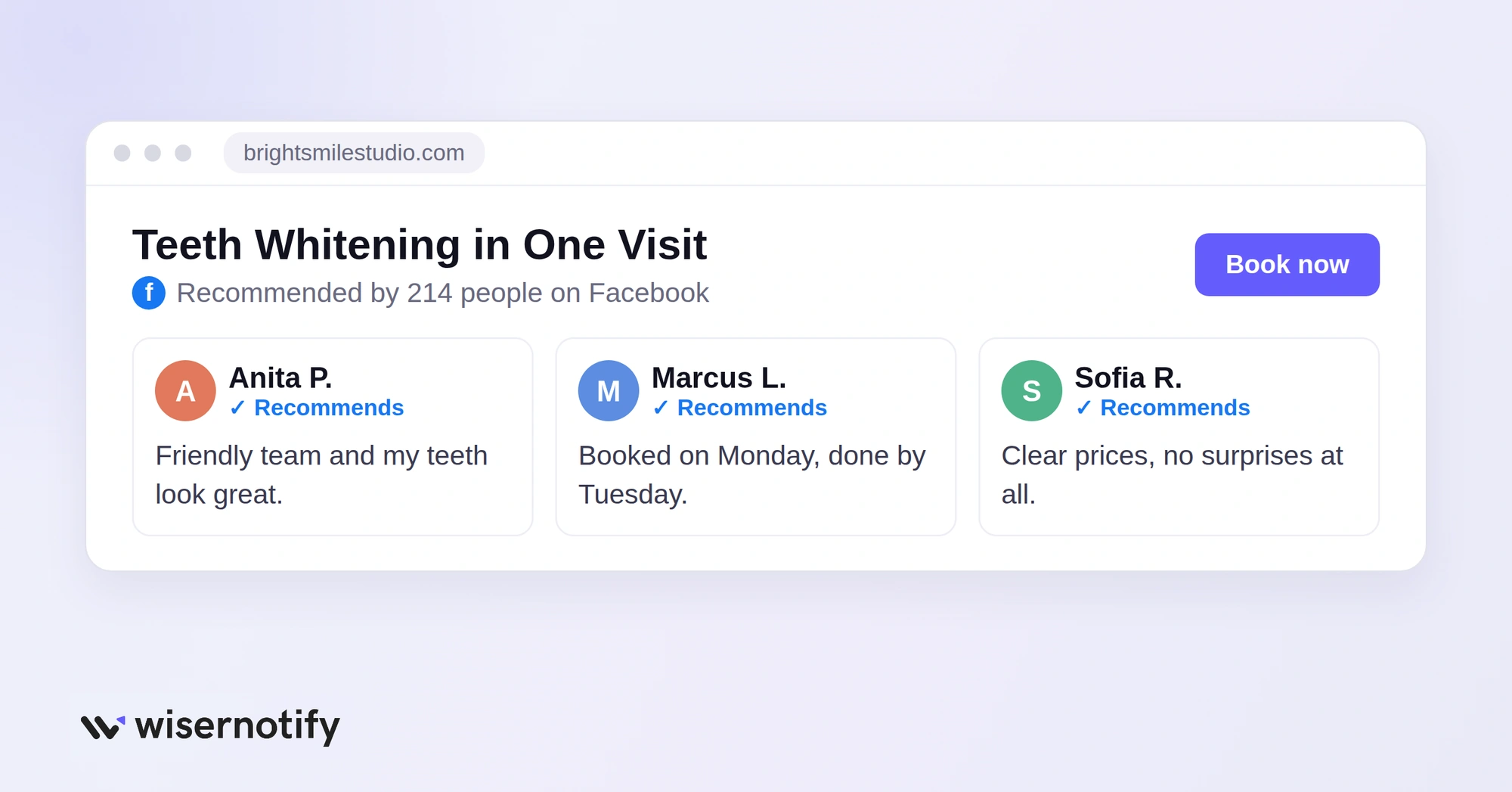
Visitors who land on your site for the first time want to know one thing. Can I trust this business? Facebook reviews answer that with real names, photos and words from past customers.
- Build trust fast: reviews from real Facebook profiles feel more genuine than anonymous testimonials.
- Help visitors decide: good reviews near a button or price make the next step easier.
- Show you are active: recent reviews prove people are still choosing you.
- Keep visitors on your site: they can read reviews without clicking away to Facebook.
How to Add Facebook Reviews to Your Website
The full setup has three parts: install the WiserNotify pixel, connect your Facebook Page, then create and publish the review widget. Here is every step.
Step 1: Copy Your WiserNotify Pixel

Sign up for WiserNotify (7-day free trial) or log in to your account, then open the Install Pixel page. Click Copy code to copy your pixel script.
Step 2: Add the Pixel to Your Site

Paste the code into the <head> section of every page where you want reviews to show, then publish your site.
Back in WiserNotify, click Verify pixel installation. A green “detected successfully” message means you are ready. Our platform guides below show exactly where to paste it on each site builder.
Step 3: Log In to Facebook From WiserNotify
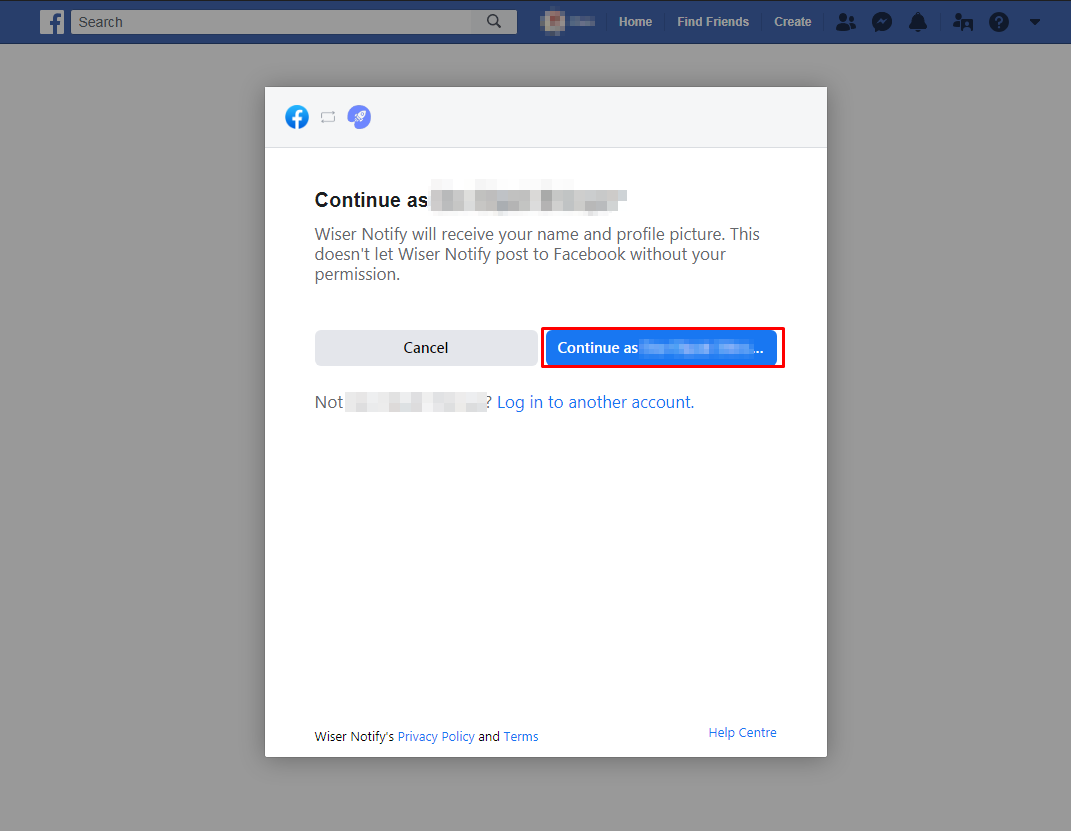
Go to Integrations, find Facebook and click Connect. Click Login with Facebook, then Continue as [your name].
Use the Facebook account that is an admin of your business Page.
Step 4: Choose Your Pages and Allow Access
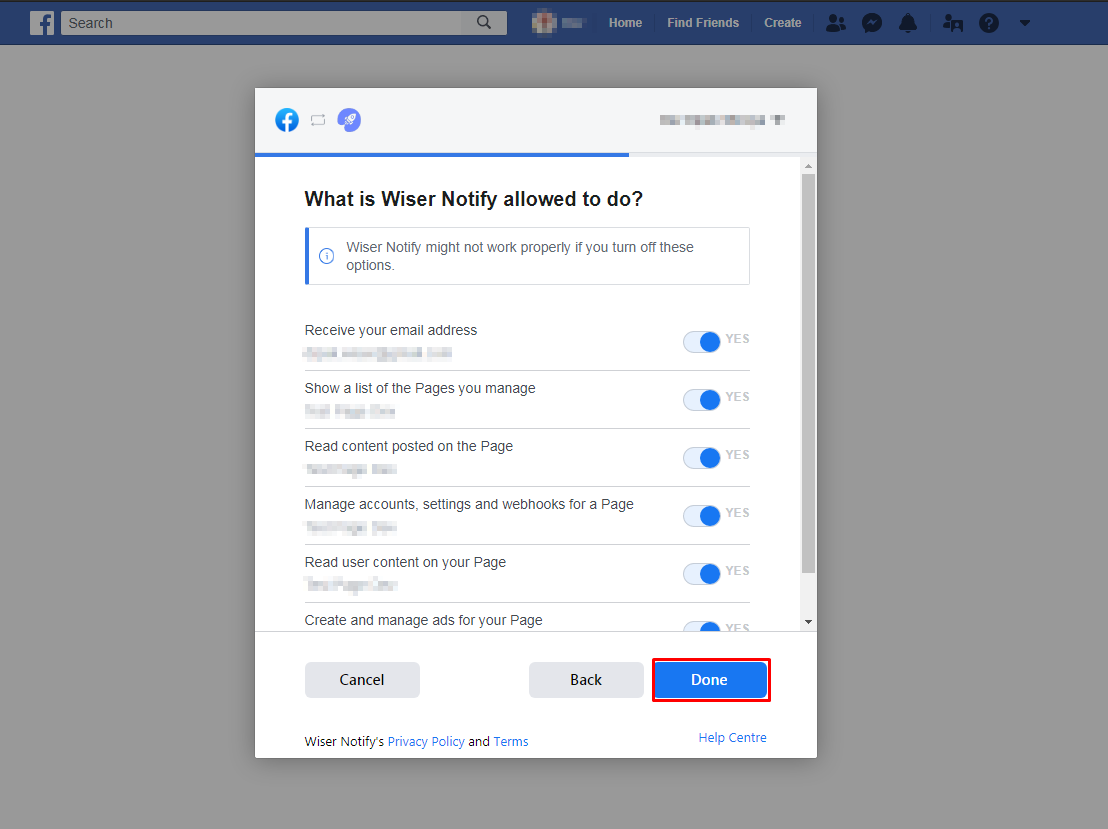
Select the Pages you want to connect and click Next. Leave the permissions switched on so WiserNotify can read your Page reviews, then click Done and OK.
WiserNotify adds your Facebook account and takes you back to the integration list.
Step 5: Open the Facebook Connection
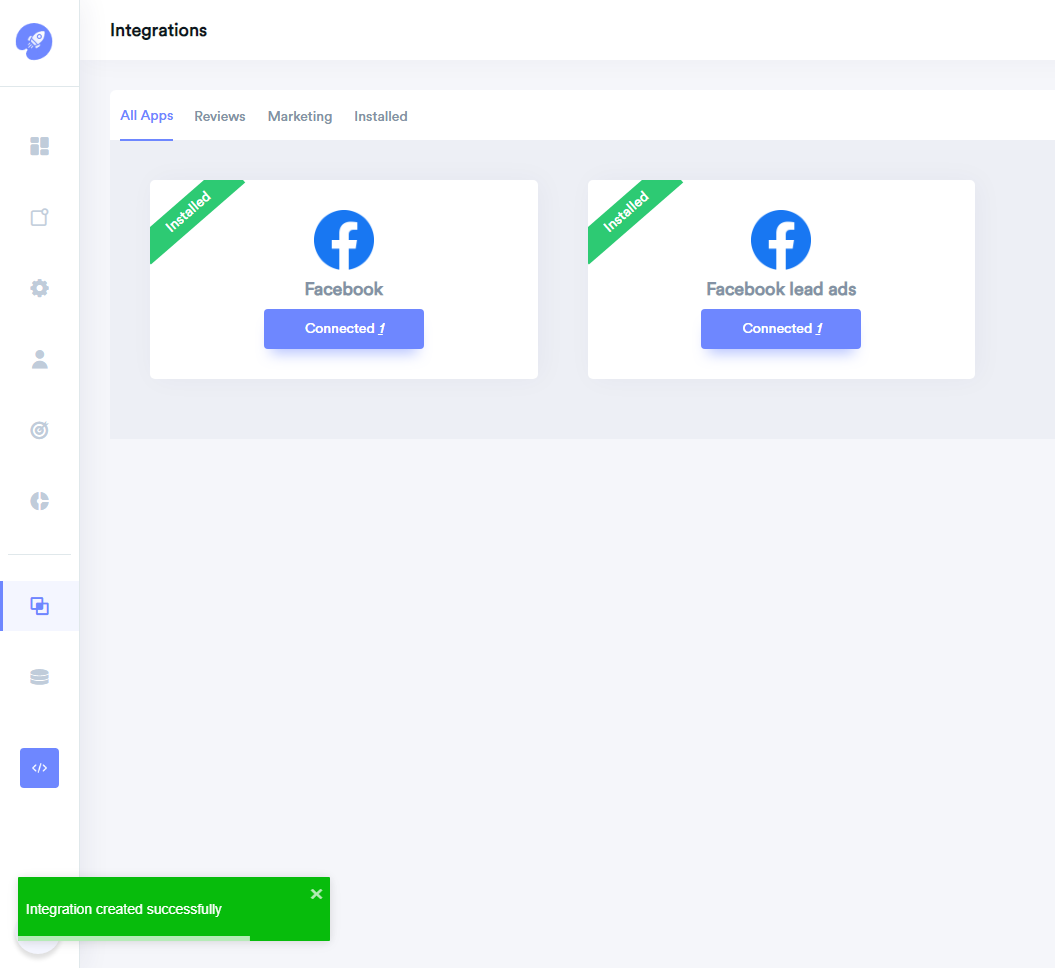
The Facebook box now shows Installed and Connected. Click the Connected button to open your connection details.
Step 6: Add Your Facebook Page
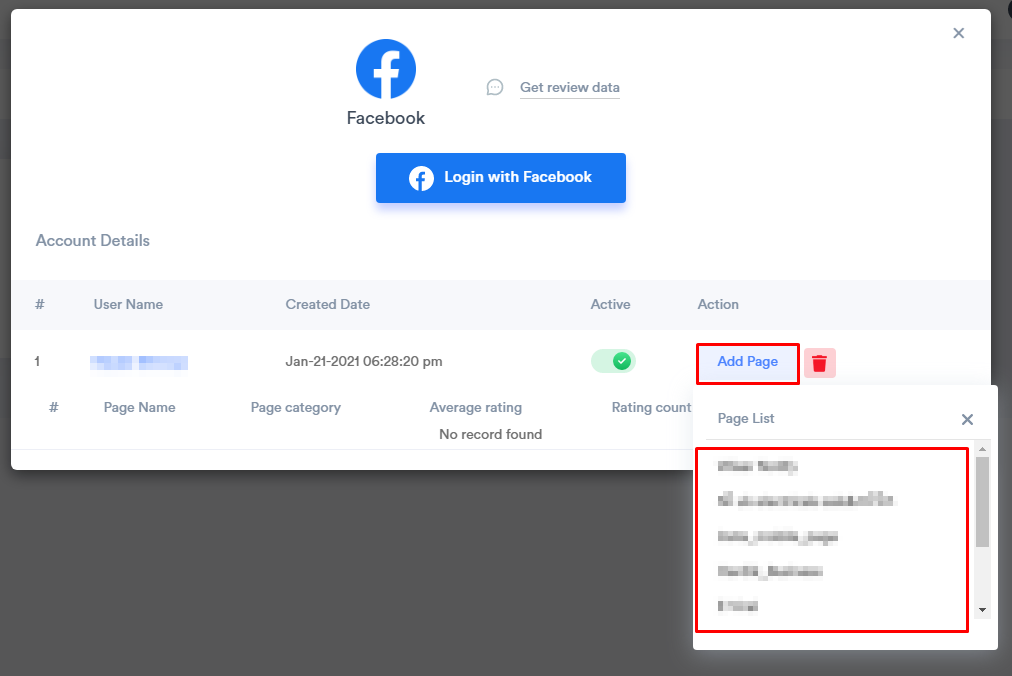
Click Add Page next to your Facebook profile and pick your business Page from the list.
WiserNotify then imports your Page reviews and refreshes them every week.
Step 7: Create a Review Notification

Open Social proof, choose the Customers Reviews tab and click Add under Review.
Step 8: Select Facebook as the Data Source

Open the Data source tab and tick your Facebook connection in the integration list. The preview on the right fills with your Facebook reviews.
Step 9: Customize, Publish and Check
Use the Design tab to match your brand colors and fonts, and the Display tab to choose which pages show the reviews. Click Publish.
Open your site in a private browser window to check the reviews appear, since a cached page may still show the old version. This video walks through the setup:
How to Add a Facebook Review Wall to a Page

A review wall shows many Facebook reviews in a grid on one page, instead of one at a time. Once your Facebook Page is connected (steps 3 to 6):
- Open Social wall from the left menu.
- Choose Review Wall for reviews, or Social Wall for your Facebook posts.
- Select your Facebook connection as the data source.
- Pick a layout and match the colors to your site.
- Click Get Code and paste the code where the wall should appear, such as a “Reviews” page.
Here is how a Facebook review wall looks on a site:

And a Facebook social feed wall:

How to Turn On Reviews on Your Facebook Page
If your Page has no reviews tab, reviews are switched off. Turn them on from your Page settings:
- Switch into your business Page profile.
- Click your Page picture at the top right and open Settings & privacy, then Settings.
- Select Privacy, then Page and tagging.
- Turn on Allow others to view and leave reviews on your Page.
Facebook reviews work as recommendations. People choose whether they recommend your business and can add a short comment.
Best Practices for Showing Facebook Reviews
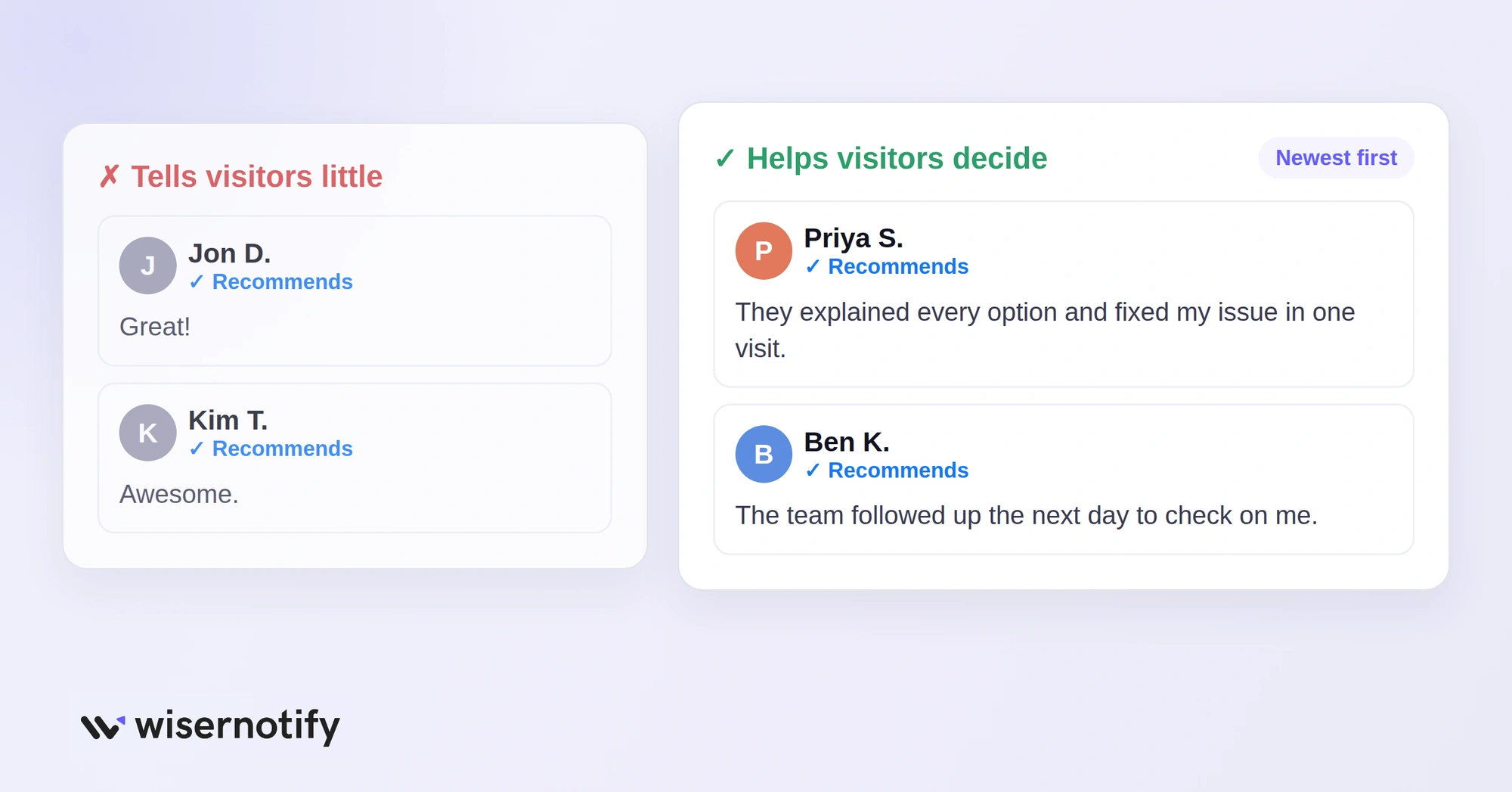
1. Highlight the Most Helpful Reviews
A review that says “Great!” tells a visitor very little. Put reviews first that:
- Say what the person liked most
- Mention a problem you solved
- Talk about your team, service or something unique
2. Keep Reviews Fresh
Reviews from two years ago can raise doubts. Show the newest ones first, and use a connected widget so new Facebook reviews appear without manual updates.
Remove reviews that mention products or services you no longer offer.
3. Place Reviews Where Visitors Look
Show reviews on your homepage, product pages and near your main button. Avoid hiding them in the footer or on a tab most visitors never open.
Build trust & FOMO
Highlight real-time activities like reviews, sales & sign-ups.

Ways to Display Facebook Reviews
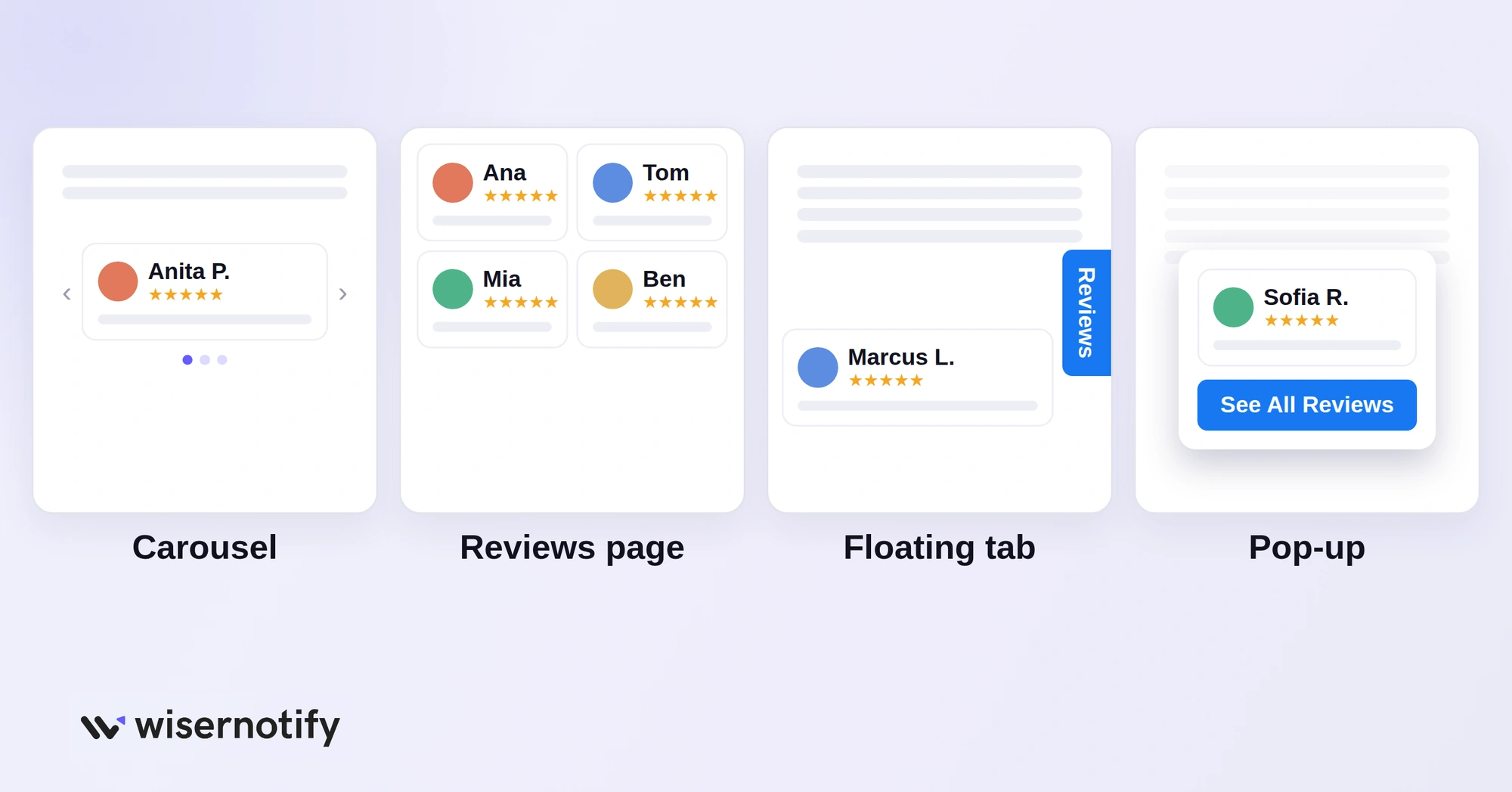
The same Facebook reviews can appear in different formats. Pick the one that fits the page.
1. Review Carousel
A review carousel shows one review at a time in a sliding box. It keeps the page clean and suits homepages and product sections.
- Shows many reviews in little space
- Works well on mobile
- Keep each review short and show the reviewer’s name and photo
2. Dedicated Reviews Page
A “Customer Reviews” page gives visitors one place to see what people say. Add a review wall, star ratings and a link to your Facebook Page, plus a note inviting new customers to leave a review.
Link it from your main menu or footer so it is easy to find.
3. Floating Review Tab
A small tab stays at the side or bottom of the screen as people scroll. Clicking it opens your latest Facebook reviews without leaving the page, so it works on every page of your site.
4. Pop-Up After a Scroll or Click
Show a review pop-up once someone scrolls halfway down the page or clicks a “Read Reviews” button, not the moment they arrive.
- Show one or two reviews with names and stars.
- Include the Facebook logo so people know where the reviews come from.
- Add a button like “See All Reviews” or “Shop Now.”
3 Common Mistakes When Adding Facebook Reviews
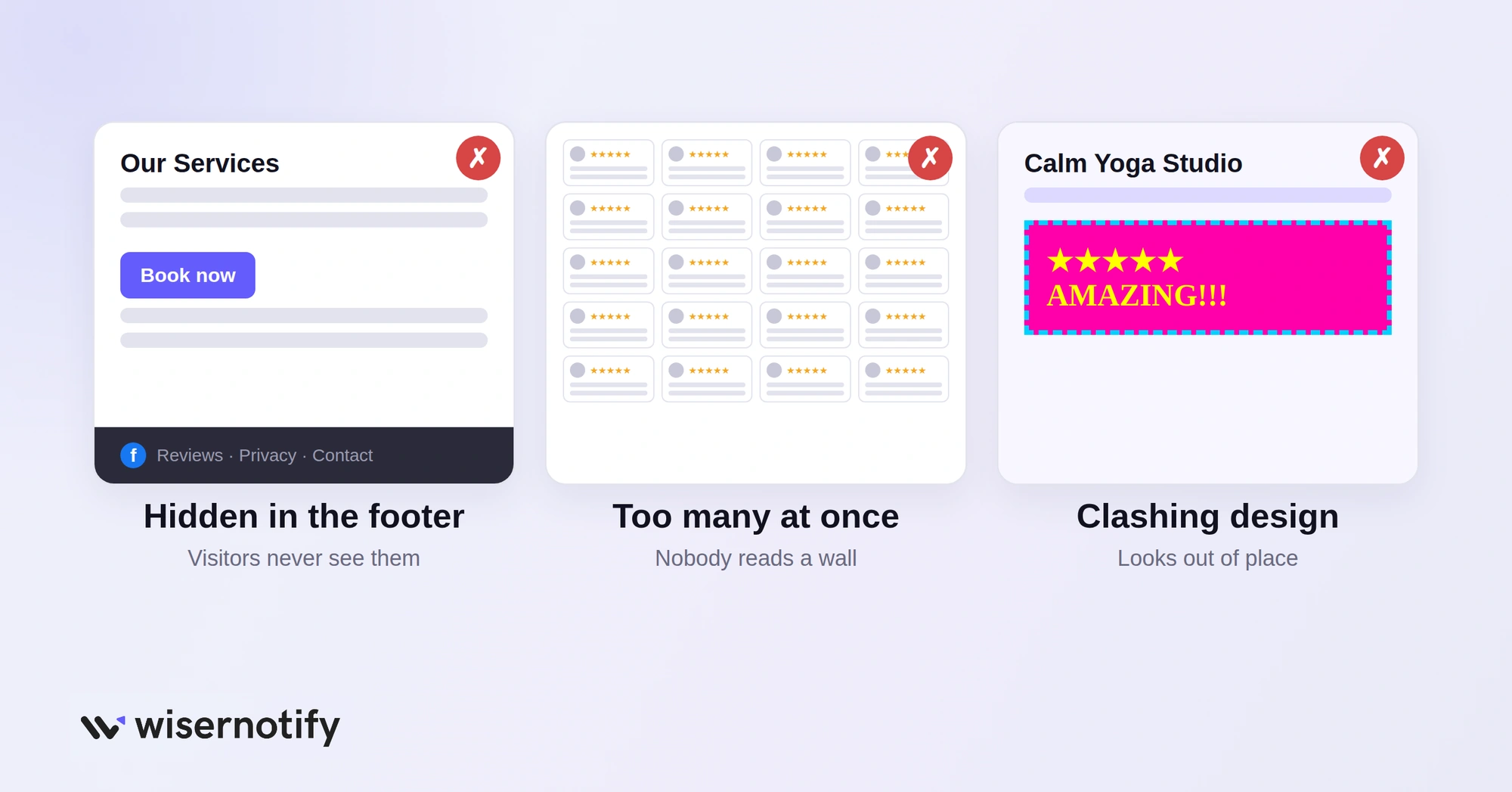
1. Hiding Reviews in the Wrong Place
Reviews in the footer or behind a tab go unseen. Place them near product details, sign-up forms and your call to action, where visitors make up their minds.
2. Showing Too Many Reviews at Once
A long wall of text gets skipped and can slow the page. Pick a few strong reviews that cover different benefits, like quality, speed and service, and rotate them in a carousel.
3. Clashing With Your Site Design
Reviews in fonts and colors that do not match your site look out of place. Set the widget to your brand colors and fonts so reviews feel like part of the page.
Platform-Specific Guides
The same WiserNotify widget works on any site builder. Only the place you paste the code changes. These guides show the exact steps for each platform:
- Add Facebook reviews to Shopify
- Add Facebook reviews to WordPress
- Add Facebook reviews to WooCommerce
- Add Facebook reviews to Wix
- Add Facebook reviews to Elementor
- Add Facebook reviews to Podia
- Add Facebook reviews to GoHighLevel
Wrap Up
Adding Facebook reviews to your website takes a few minutes and gives every visitor proof from real customers.
Turn on reviews for your Page, connect it once, and place the reviews where people decide. The widget keeps them fresh from there.

Boost Conversion Instantly
Add Social Proof & Urgency to your website
Frequently Asked Questions
Can I embed Facebook reviews on my website?
Yes. Connect your Facebook Page to a review widget like WiserNotify and add its pixel or code to your site.
How do I turn on reviews on my Facebook Page?
Go to Settings & privacy, Settings, Privacy, Page and tagging, and turn on the option to allow reviews.
Do embedded Facebook reviews update automatically?
Yes, when you use a connected widget. New reviews appear without manual updates.
Do I need admin access to the Facebook Page?
Yes. You need admin access to the Facebook Page to connect it to a review tool.
Why can't I see the reviews tab on my Facebook Page?
Reviews are probably turned off in your Page and tagging settings.
Can I show my Facebook reviews on Google?
No. Google only shows reviews from your Google Business Profile. Embed Facebook reviews on your website instead, and ask customers for Google reviews too.

Krunal Vaghasiya is a marketing tech expert who boosts e-commerce conversion rates with automated social proof and FOMO strategies. He loves to keep posting insightful posts on online marketing software, marketing automations, and improving conversion rates.




 Capterra