
Embed Facebook Reviews on Squarespace With a Code Block

To embed Facebook reviews on Squarespace, import them into WiserReview, build a Wall of Love widget filtered to Facebook, and paste its code into a Squarespace Code Block. New Facebook reviews then sync to your page on their own.
Squarespace has no built-in way to pull in Facebook reviews. Copying screenshots works for a day, then falls out of date the moment a new review comes in.
Below are all seven steps with a screenshot for each, plus fixes if the reviews don’t show up.
Build trust & FOMO
Highlight real-time activities like reviews, sales & sign-ups.


How to Embed Facebook Reviews on Squarespace
The setup has two parts. You connect Facebook and build the widget in WiserReview, then add two pieces of code to Squarespace.
Step 1: Sign Up for WiserReview

- Start a 7-day free trial on WiserReview.
- Open your dashboard once the account is ready.
Step 2: Connect Your Facebook Page

- Go to Manage Reviews > Import Reviews.
- Under third-party platforms, choose Facebook > Integration and log in.
- Pick the business page to sync and save.
New Facebook reviews sync on their own after the first import.
Step 3: Open the Wall of Love Widget

- Open Widgets and find Wall of Love.
- Click Configure.
Step 4: Show Only Facebook Reviews

- Open Filter Reviews and set the review source to Facebook.
- Match the colors and layout to your Squarespace theme.
Step 5: Copy the Squarespace Code
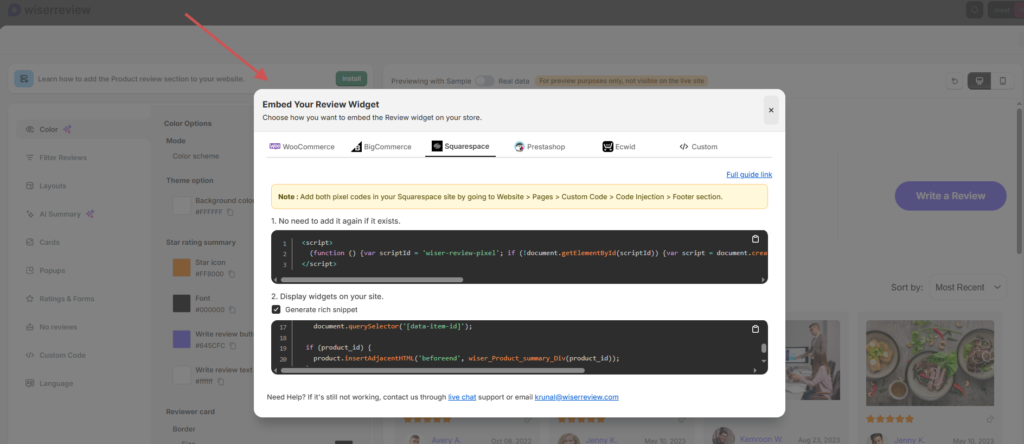
- Click Install and switch to the Squarespace tab.
- Copy the pixel code and the widget code.
Step 6: Add the Pixel to Code Injection
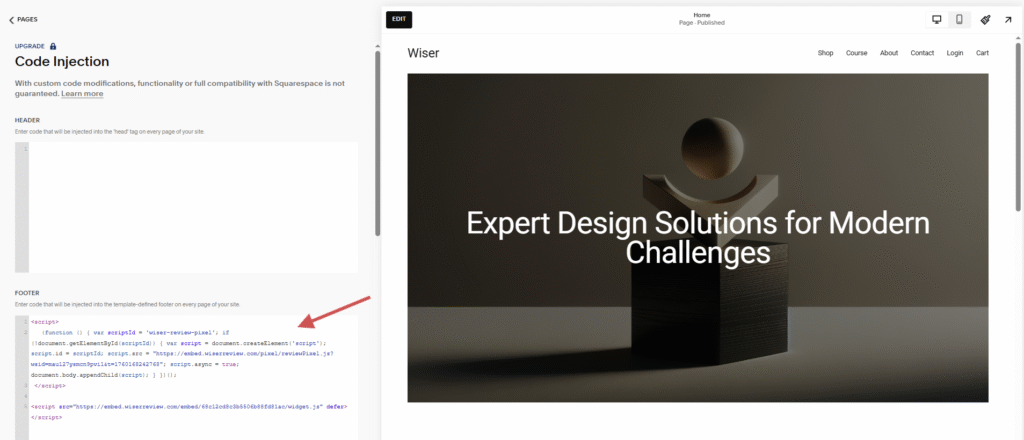
- In Squarespace, go to Website > Pages > Custom Code > Code Injection.
- Paste the pixel into the Footer field and click Save.
Step 7: Add a Code Block and Publish

- Open the page in the editor and add a blank section.
- Click Add Block > Code and paste the widget code.
- Click Save, then reload your live page.

Show your Facebook reviews on Squarespace
Import them once and keep new reviews syncing to your site.
Facebook Reviews Not Showing Up?

- Check your plan: Code Injection needs a Squarespace Core, Plus, or Advanced plan, or a legacy Business or Commerce plan.
- Check the page connection: make sure the right Facebook business page is selected in WiserReview.
- Check the filter: if the widget is empty, confirm the review source is set to Facebook.
- Test the live site: Code Blocks with scripts can show as blank in the editor. Reload the published page instead.
Best Places to Show Facebook Reviews
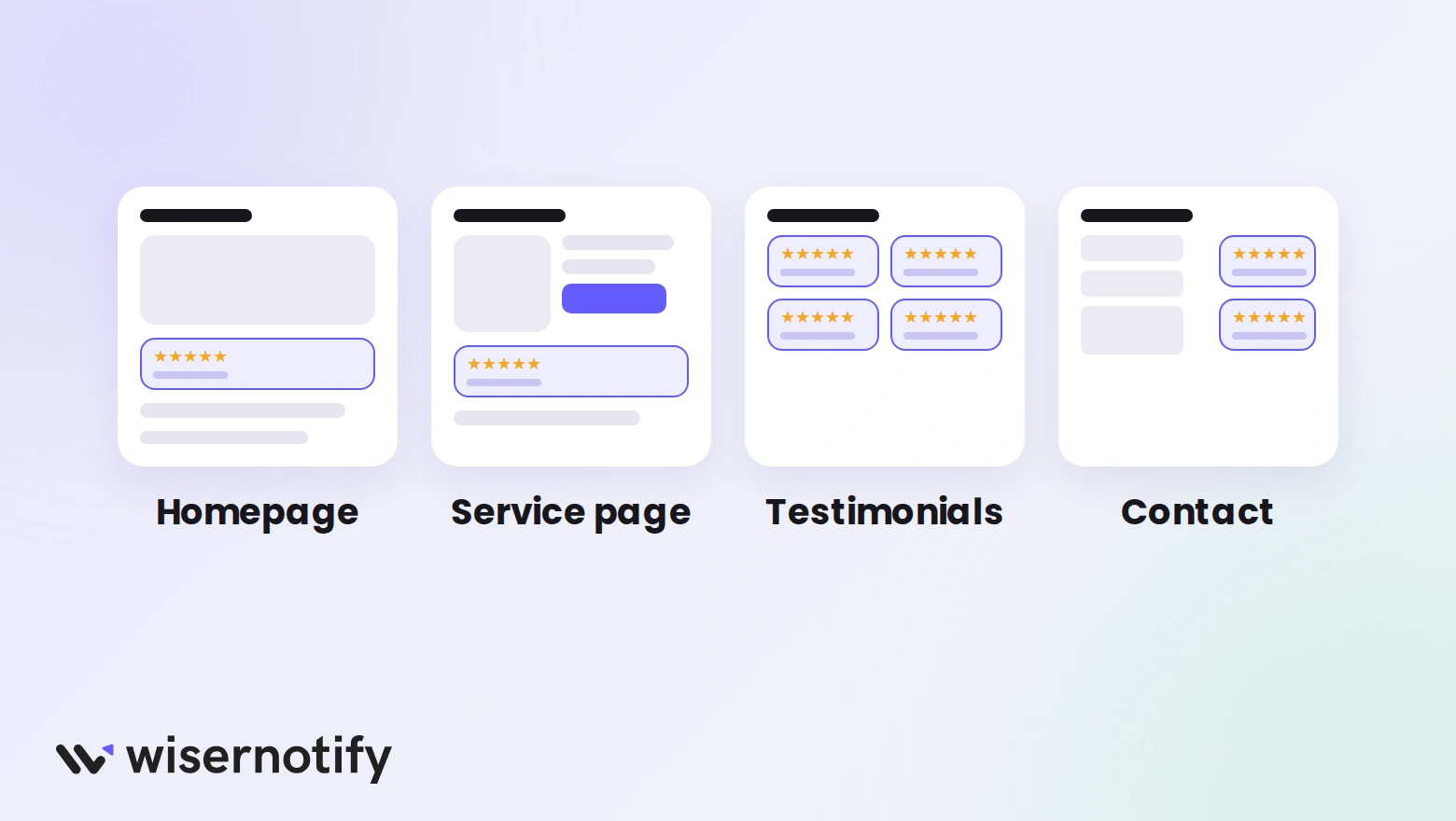
- Homepage: a short wall near the top gives new visitors a reason to trust you.
- Service or product pages: reviews near the booking or buy button answer last-minute doubts.
- Testimonials page: a full wall collects every review in one place.
- Contact page: a few reviews next to the form make it easier to reach out.
For more ideas, see how to add Facebook reviews to any website.
Common Mistakes to Avoid
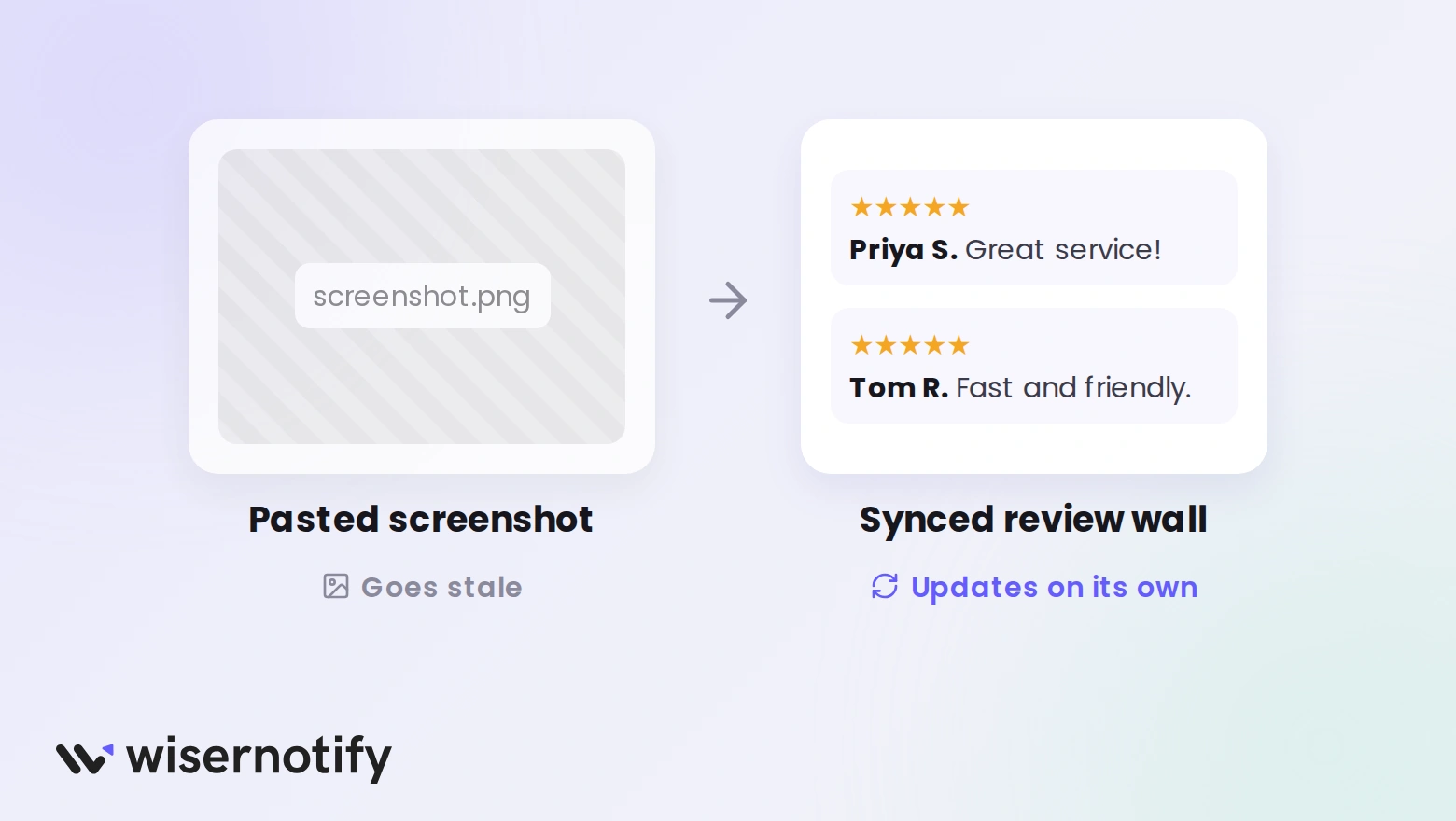
- Pasting screenshots: they go stale and visitors can’t check them. A synced widget stays current.
- Showing every review on every page: pick a short wall for key pages and keep the full wall on one page.
- Ignoring mobile: check the widget on a phone, where most visitors will see it.
Wrap Up
Facebook reviews show Squarespace visitors that real customers stand behind your business.
Connect Facebook once, add the widget with a Code Block, and let new reviews flow in.
Turn Facebook reviews into trust on every page
Sync reviews automatically and display them with widgets that match your site.
Related Posts:
Frequently Asked Questions
Can Squarespace show Facebook reviews on its own?
No. Squarespace has no built-in Facebook reviews block, so you need a widget that pulls them in and a Code Block to display it.
Where do I paste the review widget code in Squarespace?
Paste the pixel into Code Injection under Footer, then paste the widget code into a Code Block on the page where reviews should show.
Which Squarespace plan do I need?
Code Injection works on the Core, Plus, and Advanced plans, plus legacy Business and Commerce plans.
Will new Facebook reviews appear automatically?
Yes. After you connect your Facebook page, new reviews sync into WiserReview and show up in your widget.
How much does WiserReview cost?
Plans start at $6.75 a month billed yearly, and every plan starts with a 7-day free trial.

Krunal Vaghasiya is a marketing tech expert who boosts e-commerce conversion rates with automated social proof and FOMO strategies. He loves to keep posting insightful posts on online marketing software, marketing automations, and improving conversion rates.




 Capterra