
How to Embed Yelp Reviews on Divi (2026)

To embed Yelp reviews on Divi, paste the WiserNotify script into Divi’s Theme Options, connect your Yelp business ID, and publish a review notification. New reviews appear on their own, and you pick which Divi pages show them.
Yelp reviews carry weight with visitors because they come from a third party. A live connection keeps that proof current, instead of a review you pasted once and forgot.
The steps below take you from the script to a live notification.
Divi Code Module or Integration Box?

Divi gives you two places for WiserNotify code, and they behave differently. Once the script is in place, Yelp reviews do three useful things for a site:
- Outside proof: Yelp reviews come from a third party, so visitors read them as independent.
- Fresh content: the connection checks Yelp daily, so the page never shows a stale quote.
- Local trust: studios, salons, clinics and service firms gain most, since Yelp is where nearby customers look.
Here is where each code box fits:
- Integration box: found under Divi, then Theme Options. It loads on every page, so it suits the script that powers a review notification.
- Code module: sits inside one page layout and loads only on that page. It suits an embed-code widget placed at one spot.
A review notification needs only the script, so the steps below use the Integration box.
How to Embed Yelp Reviews on Divi
The video shows how the review notification is built. The steps after it cover the Divi and Yelp parts.
Step 1: Copy Your Pixel Code

- Sign up for WiserNotify and start the 7-day free trial, or log in if you already have an account.
- Open the Install Pixel page.
- Click Copy code.
Step 2: Open Divi’s Integration Tab
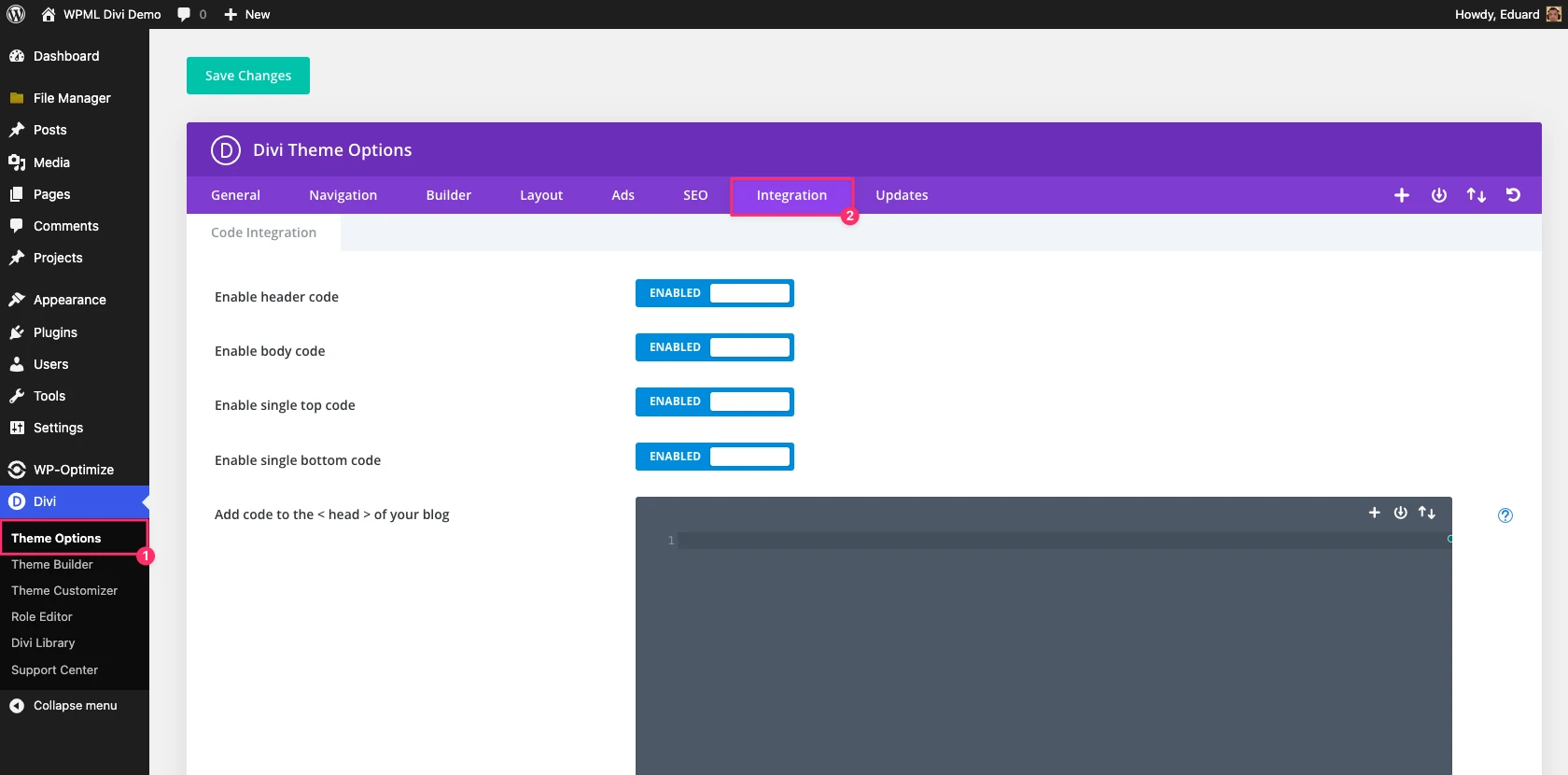
- In your WordPress dashboard, go to Divi, then Theme Options.
- Click the Integration tab.
Step 3: Paste the Pixel in the Head Box
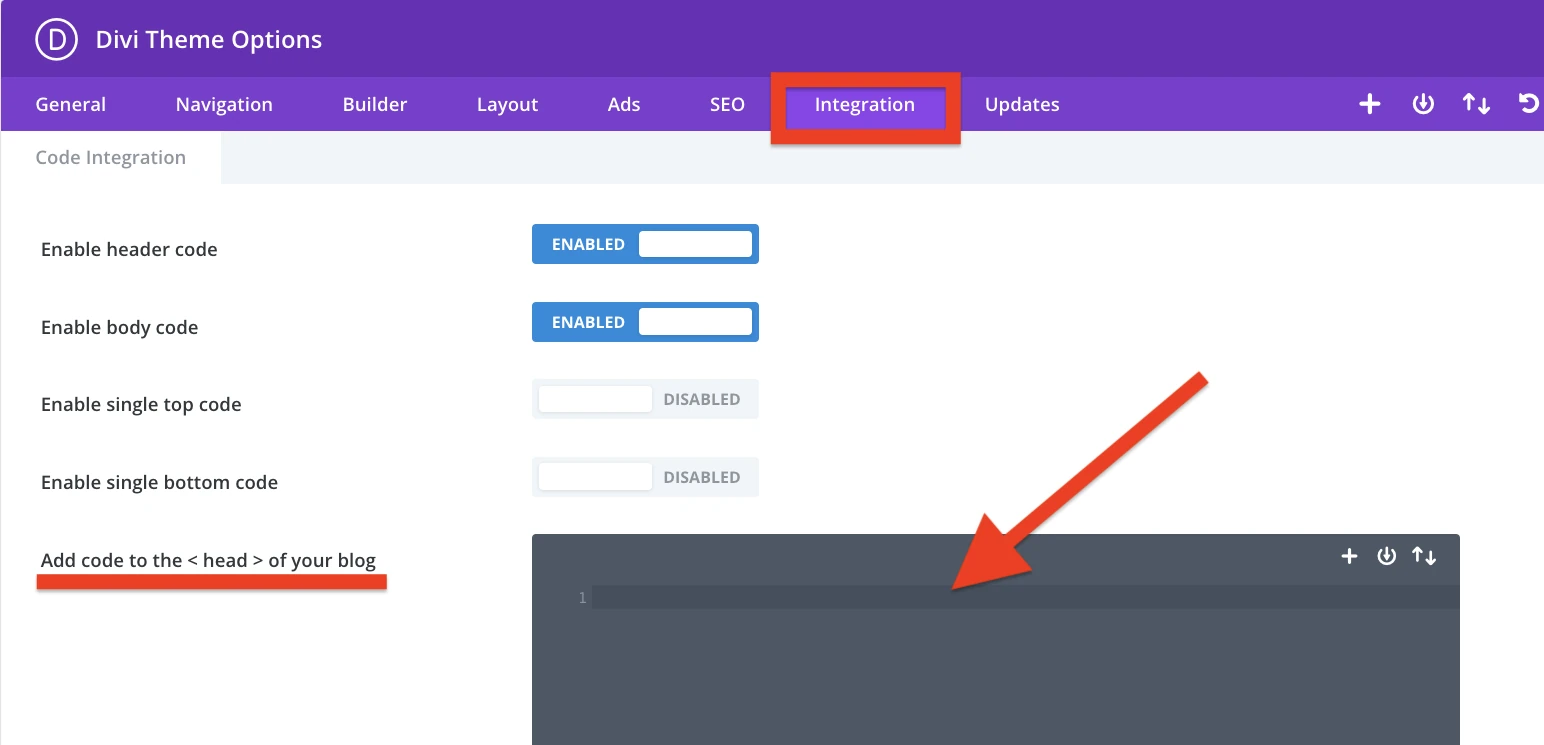
- Check that Enable header code is set to Enabled.
- Paste the pixel into Add code to the <head> of your blog.
- Click Save Changes.
Code in this box loads in the head of every page. The same box also loads other widgets, such as a countdown timer on Divi.
Step 4: Verify the Pixel

- Open your Divi site once, so the pixel loads.
- Go back to the Install Pixel page in WiserNotify.
- Click Verify pixel installation.
- Wait for the green message that the pixel code was detected.
Step 5: Get Your Yelp Business ID

- In WiserNotify, go to Integrations and open Yelp.
- Click Integrate.
- Open your business page on Yelp.
- Copy the ID at the end of the page address.
Step 6: Connect Yelp to WiserNotify
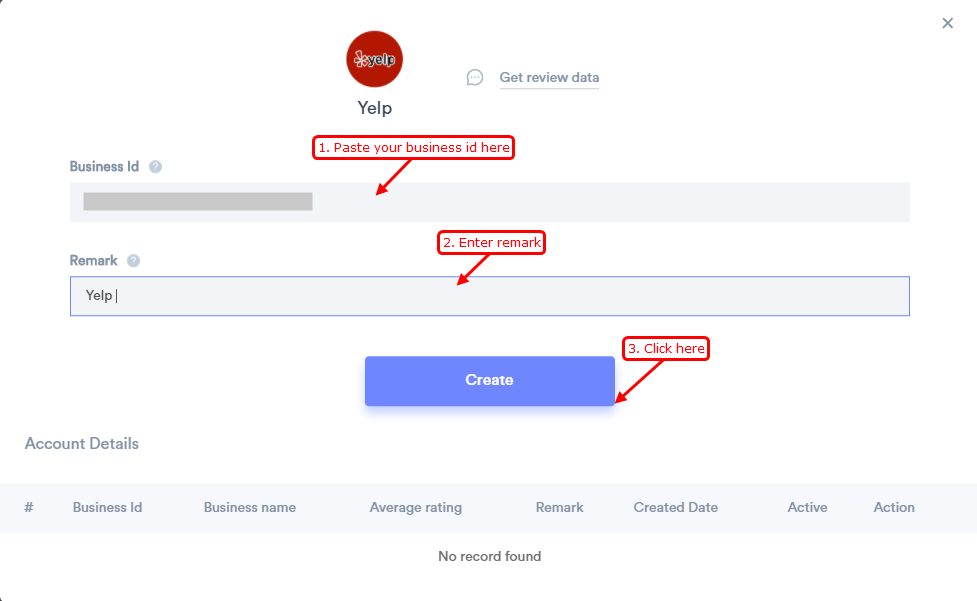
- Paste the business ID.
- Type a remark, such as Yelp.
- Click Create.
WiserNotify pulls your last 3 reviews, then checks for new ones every day.
Step 7: Create the Review Notification
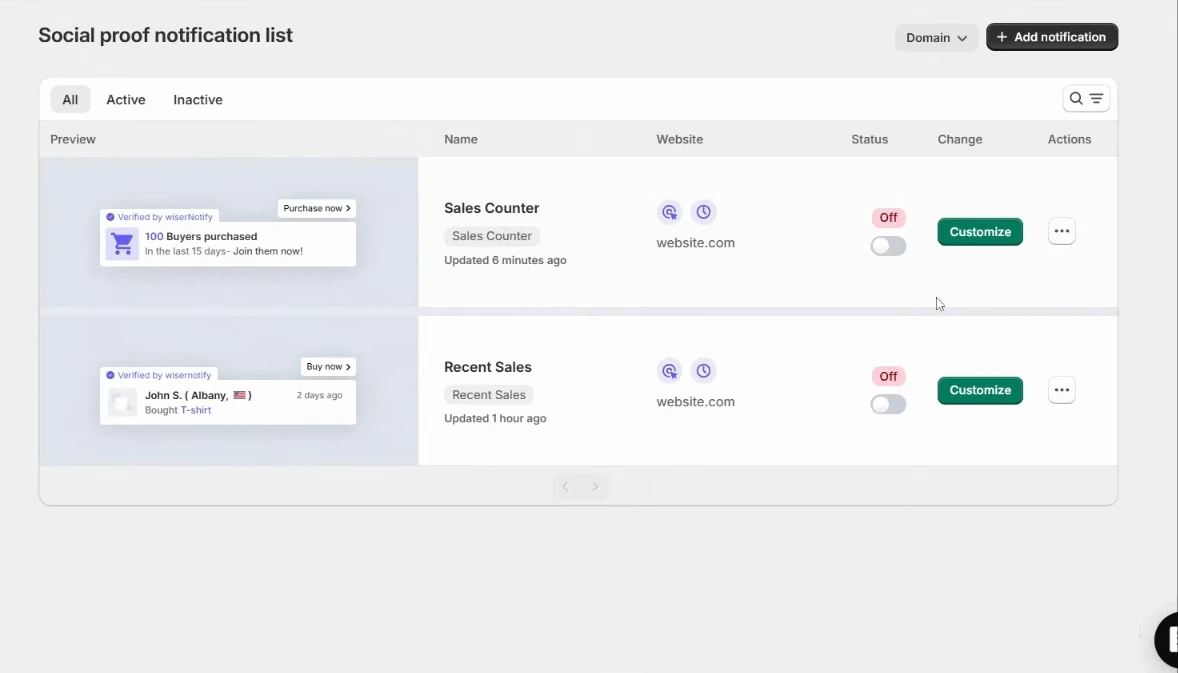
- Open Social Proof, click Add notification and pick Review.
- Enter a name and your Divi site address, then click Create and Customize.
- In the Design tab, set the text, position and style.
- In the Data source tab, select your Yelp connection.
Our guide to creating review notifications covers the design options in more detail.
Step 8: Set Display and Publish
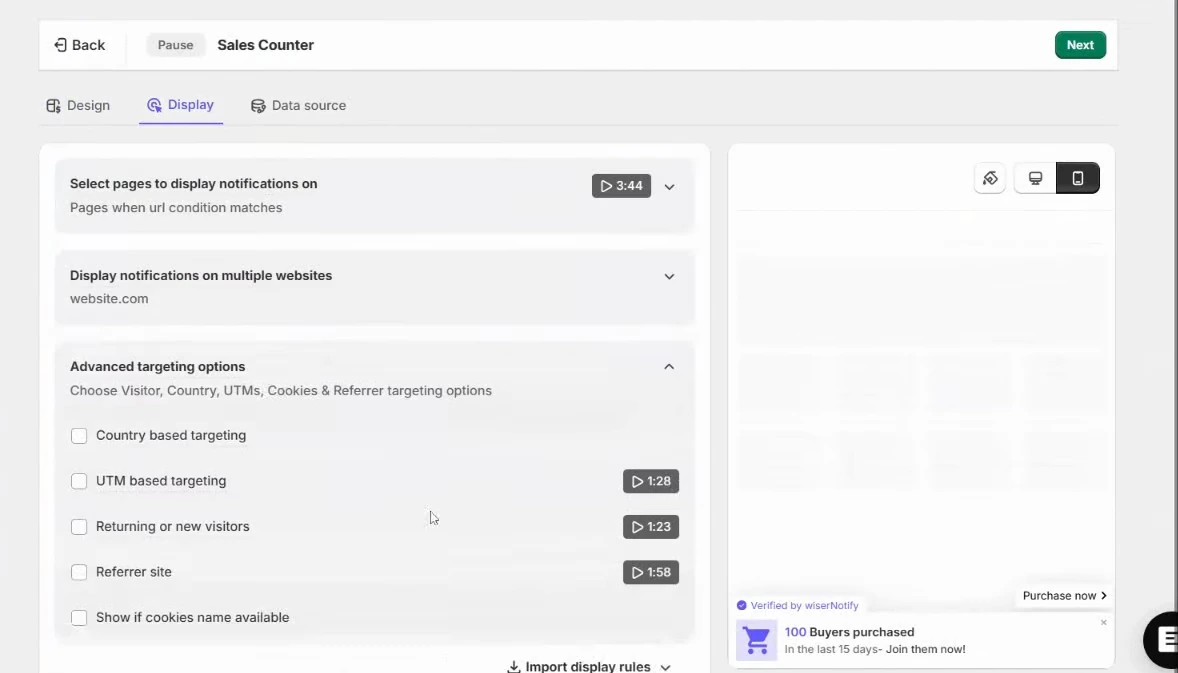
- In the Display tab, keep all pages, or set a URL rule such as your homepage or a services page.
- Open Advanced targeting options if you want to target by country, UTM, new or returning visitors or referrer.
- Set how long the notification waits before it appears.
- Click Save, then Publish.
Step 9: Check It Live

- Open your Divi site in a private window.
- Wait a few seconds for the Yelp review to appear.
Build trust & FOMO
Highlight real-time activities like reviews, sales & sign-ups.


Where to Show Yelp Reviews on Divi

- Homepage: new visitors see outside proof before they browse.
- Services or pricing pages: a Yelp review answers doubt at the point of choosing.
- About page: reviews from real customers back up your story.
- Contact or booking page: proof next to the form helps visitors who are close to reaching out.
If you also collect Google reviews, see how to add Google reviews to Divi so both sit on your site.
Yelp Reviews Not Showing on Divi?

- Header code is off: in the Integration tab, set Enable header code to Enabled and save.
- Pixel in a Code module: a Code module loads only on its own page. Move the pixel to the head box.
- Pixel not detected: open your site once, then click Verify pixel installation again.
- No data source: in the notification’s Data source tab, select your Yelp connection.
- Wrong business ID: copy the ID from the end of your Yelp page address, with nothing extra.
- Display rule too narrow: a URL rule that does not match your page keeps the notification away. Switch to all pages to test.
- Cached page: clear any caching plugin, then check in a private window.
Need a hand? The Yelp connection guide covers the integration, and live chat can look at your setup.
Common Mistakes to Avoid

- Putting the pixel in a Code module: the notification then shows on one page only.
- Showing one old review: connect Yelp so new reviews appear on their own.
- Showing it everywhere: pick pages where a visitor is deciding, not every page.
- Skipping phones: check the notification on a small screen before you publish.
- Forgetting the data source: a notification with no Yelp source stays empty.
Build trust & FOMO
Highlight real-time activities like reviews, sales & sign-ups.

Wrap Up
Yelp reviews help visitors trust you before they get in touch. Connect your Yelp business once, and new reviews reach your Divi site on their own.
Set your display pages, publish, and check the result in a private window.
Related Posts
Frequently Asked Questions
How do I add Yelp reviews to my Divi site?
Paste the WiserNotify script into Divi’s Theme Options, connect your Yelp business ID, then create and publish a review notification.
Do I need a plugin to show Yelp reviews on Divi?
No. You paste the WiserNotify script into the Integration tab of Divi’s Theme Options yourself.
Do I need a Yelp API key?
No. You only enter your Yelp business ID, which is the last part of your Yelp page address.
Can I choose which pages show the notification?
Yes. The Display tab lets you pick all pages or only pages that match a URL rule.
Do Yelp reviews update automatically?
Yes. WiserNotify pulls your last 3 reviews at first, then checks for new ones every day.
Will Yelp reviews slow down my Divi site?
WiserNotify loads through one small script, so it adds little to page load. Check your site speed after you publish.

Krunal Vaghasiya is a marketing tech expert who boosts e-commerce conversion rates with automated social proof and FOMO strategies. He loves to keep posting insightful posts on online marketing software, marketing automations, and improving conversion rates.




 Capterra