
13 Ways to Use Social Media Wall for Website (2026)
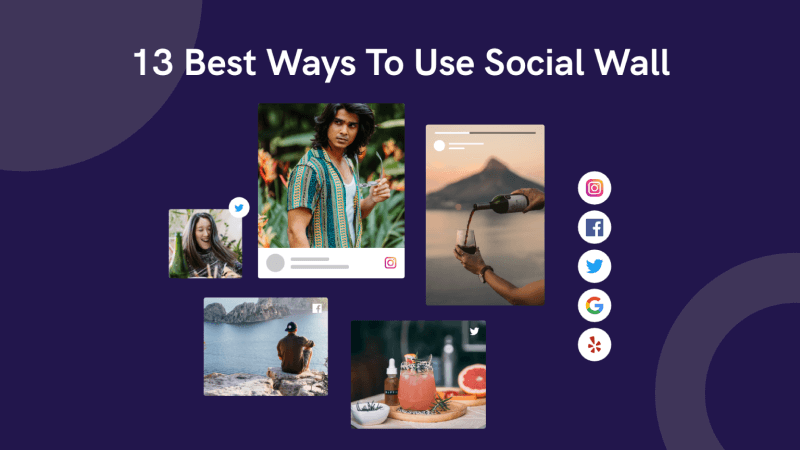
Social Wall is a digital display that can be used to promote events, products, or services. It is an interactive digital display that can be used to provide a platform for social media interactions.
With a social wall, you can show what people are saying about your company on social media.
It is a great way to let potential customers know what they are talking about before they decide to buy from you.
The social media wall can be used for marketing purposes or as a way to show off your brand. It can be used for conferences, events, and other occasions.
The wall will show social media posts from Facebook, Twitter, Instagram, Google, and Yelp.
You can choose which networks you want to be included or exclude any of them if you don’t want that type of content on your site.
There are many use cases for Social Walls. Here are some examples:
- A company can use the Social Wall to promote their new product
- An event planner can use the Social Wall as a way to get feedback from their audience
- A conference organizer can use it as an interactive way to engage with participants
There are many ideas for using the social wall in different industries.
Here, we’ve listed the best 13 ideas for making the most out of the social media wall on your website.
1. Sign up page carousel Wall
Convert more users by showing reviews from your customers on your sign-up page
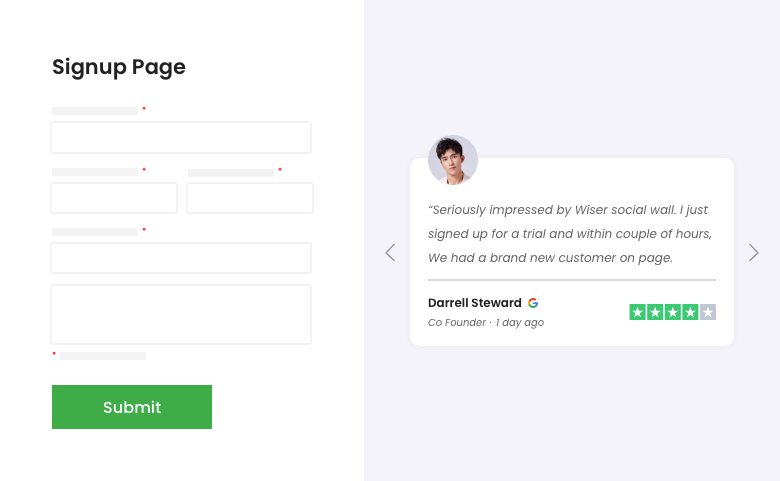
Reviews are a crucial part of the signup process. Reviews can be positive and negative, but they are still important to show on your sign-up page.
The reviews you show on your sign-up page should be either from people who have already signed up or from people who have downloaded your app.
If you want to increase conversion rates, you mustn’t just show reviews that are all positive or all negative. A mix of both will do the trick!
2. Checkout carousel wall
Reduce cart abandonment and increase checkouts with a carousel of your happy customer reviews
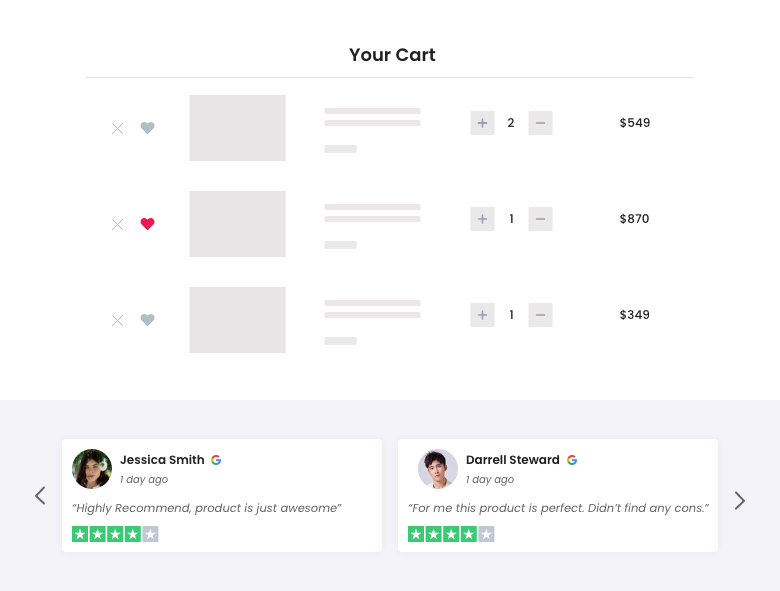
A carousel of happy customer reviews is a great way to showcase your product in the best possible light.
It gives people an opportunity to see what your customers think of you, and it provides them with the reassurance that they need before they commit to buying.
It is also a good idea to have a carousel of customer reviews on your checkout pages, as this will help customers who are deciding whether or not to buy from you.
The more happy customer reviews you have, the more likely it is that people will buy from you.
The carousel displays your customer reviews, testimonials, or other types of social proof to increase conversions and reduce cart abandonment.
3. Vertical Checkout Wall
Increase conversions on your checkout page with a series of reviews
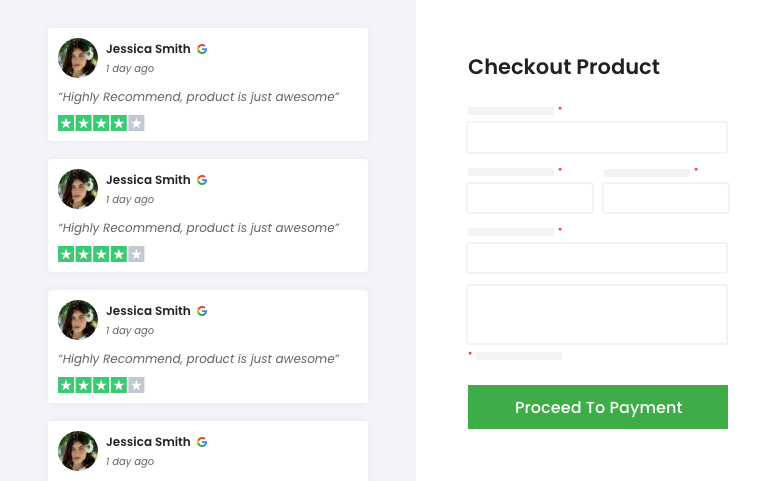
Leaving space for reviews on one side of the page is always a good idea for your checkout page. This way, you’re leaving no room for doubts since your customers can see social proof on every step of their journey.
It makes your customers more likely to check out since they’re sure about your product quality.
4. Hero Wall
Convert more visitors by adding review widgets on your landing page
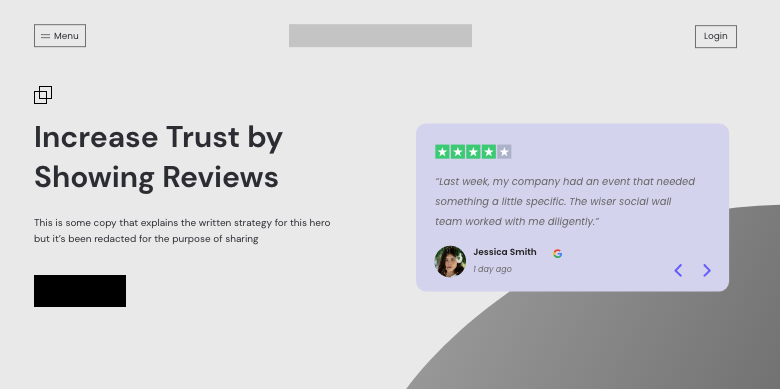
Reviews are a powerful sales tool that can be found on most sites. They are often placed at the bottom of the page, so customers can see them after they’ve made their purchase.
But what if we flipped this idea on its head? What if reviews were placed at the top of the page so that customers could see them before they even click the “sign-up” button?
This would allow visitors to read reviews from other users and make up their minds before they even start shopping.
5. Community Social Media Wall for Website
Show feed from your Facebook pages and get more people to join your community.
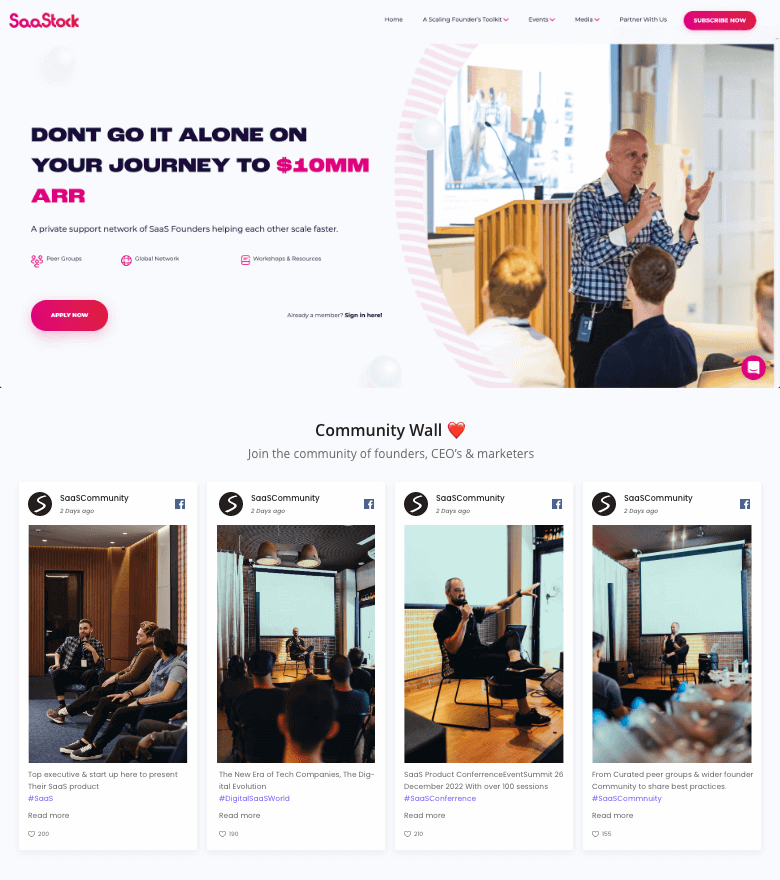
The best way to get more people to join your community is by showing them what’s happening in your community. It can be a video of the latest event or a post about the latest charity donation.
This is a great opportunity for you to show that you are an active member of your community and that you care about what happens.
Show what you’re doing and what others are doing too. This will get people interested in joining your group because they’ll want to be a part of the action too!
6. Social Media Feed Wall
Engage and influence more people by displaying feeds from different social media platforms
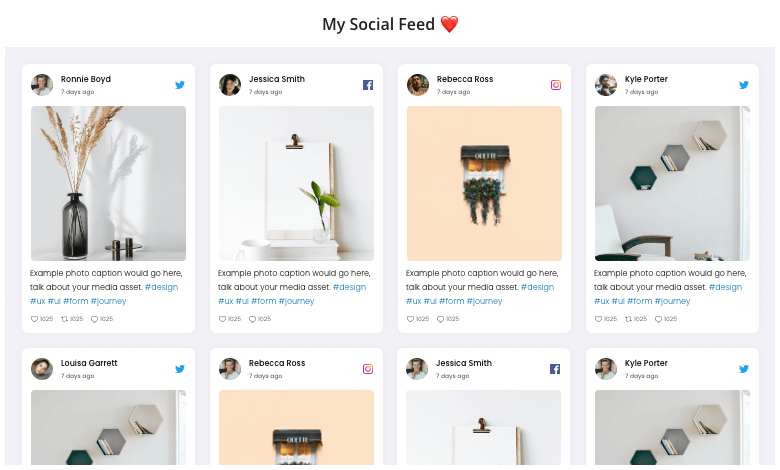
Social media is a powerful marketing tool. It is an effective way to reach out to new customers and engage with existing ones. But it has its limitations too.
A lot of people are not on social media, and they might not be interested in your brand or product.
They might have a different lifestyle, and they don’t care about what you are promoting.
This problem can be solved by displaying feeds from different social media platforms on your website or blog so that you can reach more people who are not on social media yet.
The social media feed is a great way to engage and influence more people. With the help of Social Wall, you can create a feed with content from various social media platforms.
7. Wall of love
Create a large wall of reviews on your site
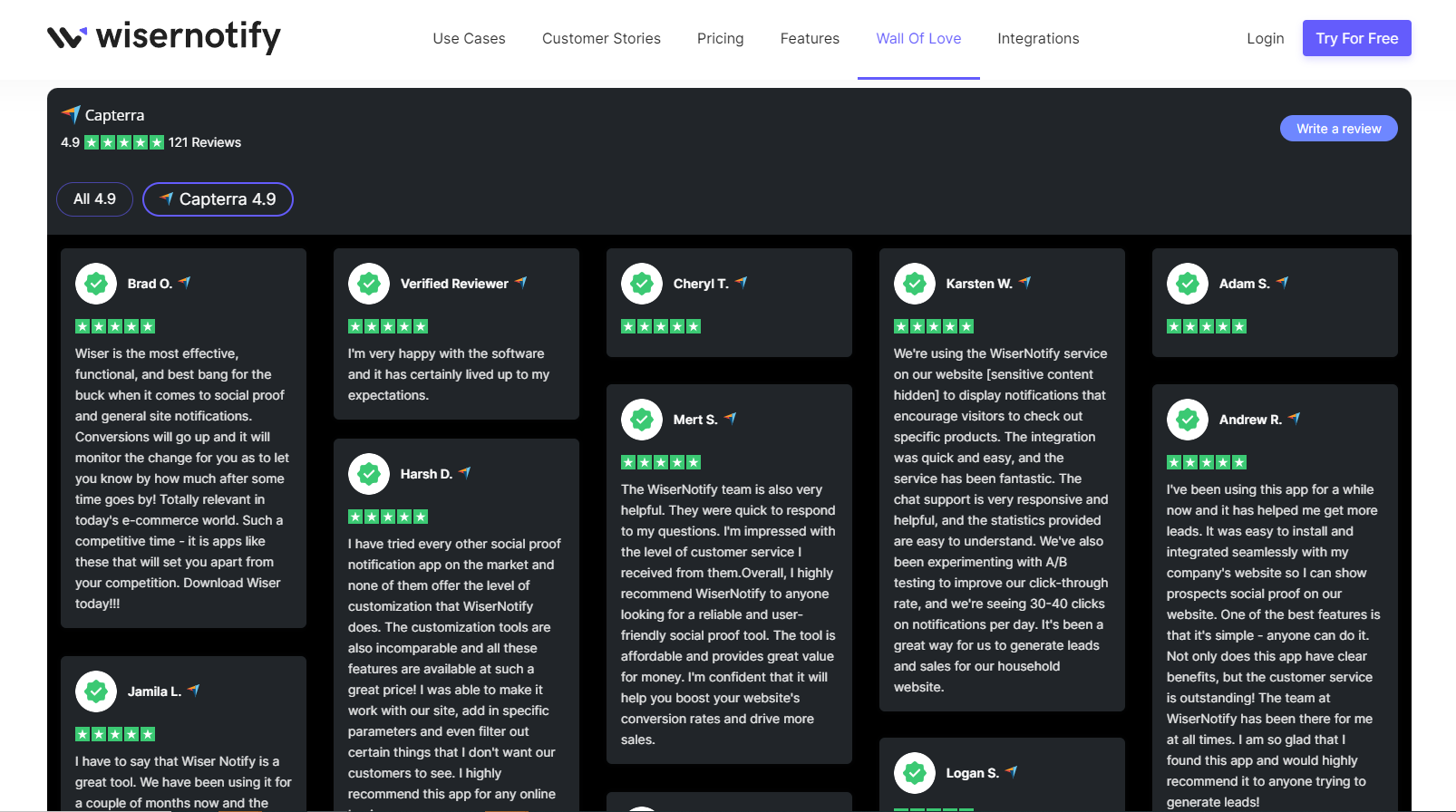
Companies are always looking for ways to get more reviews on their site. There are many ways to show reviews, but one of the most effective ways is through a large wall of reviews.
This wall will be placed at the end of your site, and it will showcase all the positive reviews that you have received from your customers. The idea behind this is that people want to know what other people think about a product before they buy it themselves, so they will be more likely to buy if they see that others have had good experiences with your company.
8. Demo page wall
Get more demo bookings by showing reviews and recommendations.
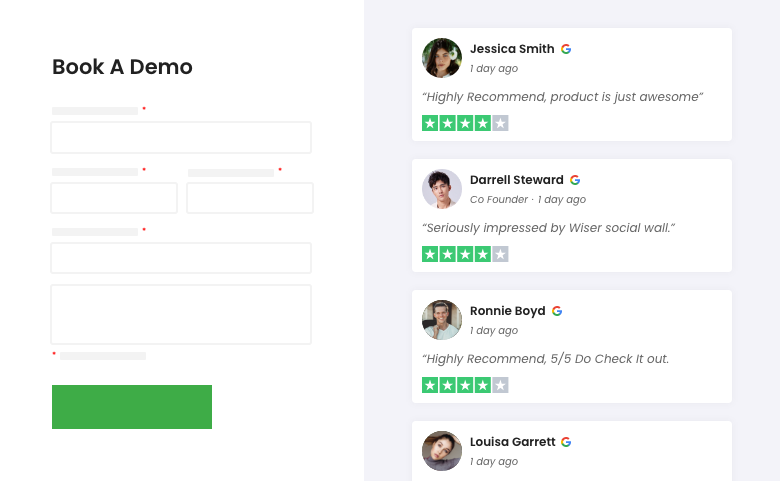
Reviews and recommendations are key to getting more bookings. This is because it gives prospects an idea of what they can expect from the service provider.
They also show that the company has a good reputation in the industry.
Showing reviews on your booking page will help increase conversion rates by providing prospective customers with social proof that you have satisfied clients and that they will likely have a good experience too if they choose you over other providers in your industry.
9. Booking page wall
Get more inquiries and bookings for your hotel and travel business.
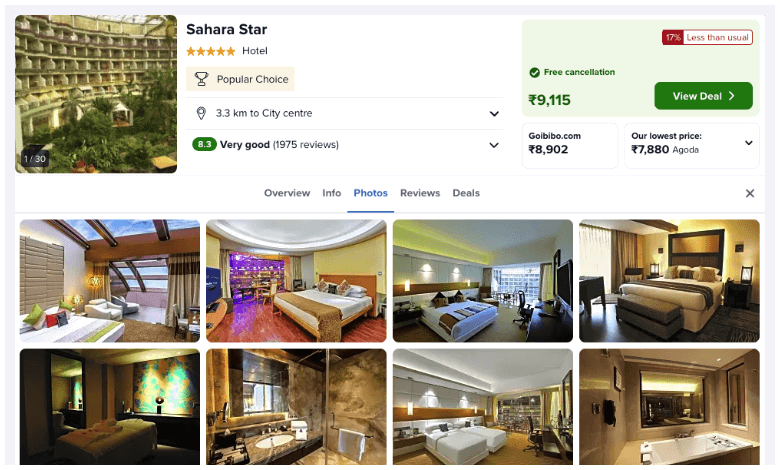
The wall of feeds and reviews about a hotel or travel business can provide prospective customers with a more immersive and interactive experience.
People who are looking for hotels or travel services will be able to see the wall of feeds and reviews about your service when they visit your website.
This will allow them to see what they can expect from you before they book anything with you.
This is a great way to get more inquiries and bookings for your hotel and travel business. All you need to do is display your wall of feed on the website.
It will be visible to all customers who visit your site.
10. Instagram Feed Wall
Show posts from your Instagram account on your eCommerce site and influence shoppers.
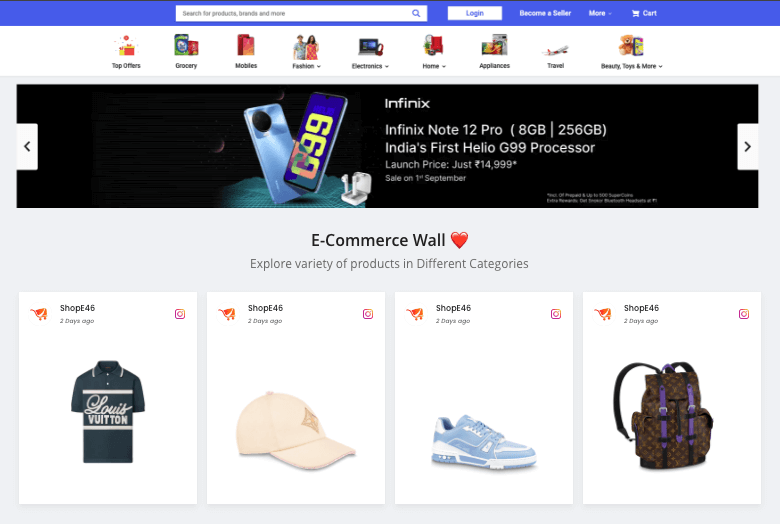
This is a great strategy to use when you have a strong social media following.
People will be more likely to buy from you if they see that your product is being used by people in their social circles.
Must Read: How to Add Social Media Follower Count on Your Website?
Instagram is an excellent place to showcase your brand and products. But, do you know that you can also use it to drive conversions?
One of the best ways to utilize Instagram for conversion purposes is by showing posts from your Instagram account on your eCommerce site.
This way, shoppers can take action without leaving the site. You just need to make sure that you have a well-optimized feed for this purpose.
11. Youtube Gallery Wall
Get more video views by showing a YouTube video playlist.
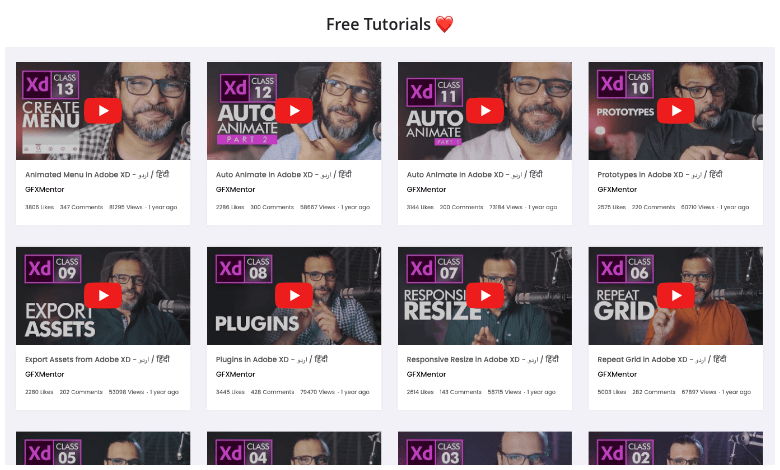
The key to getting more views on your videos is having more people watch them.
One way to do this is by adding a video gallery where people can watch all of your uploaded videos in one place and then click through to individual pages for each video that they want to watch.
Video galleries are a great way to increase your video views on your site.
You can have a video gallery at the top or bottom of your site, on the homepage, or any other page that you choose.
12. Social Media Event Wall
Show feeds from Twitter and other platforms using hashtags to create a sense of excitement.
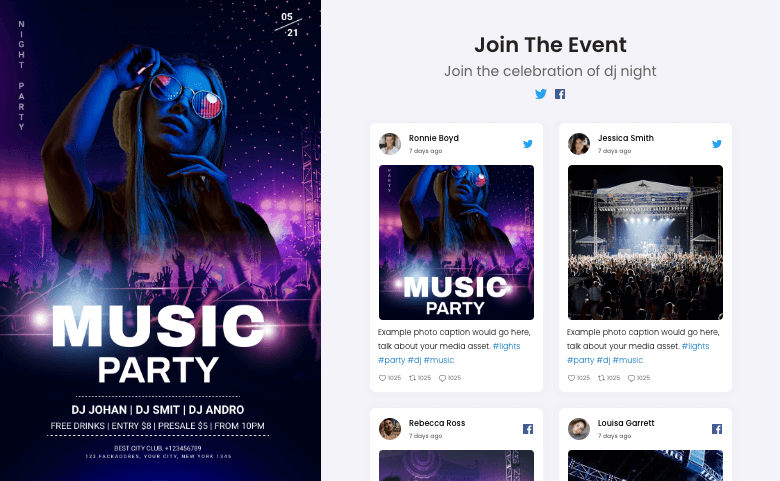
Twitter is one of the best platforms for events. You can easily create a sense of excitement for your upcoming event with the help of hashtags.
These hashtags will make your event go viral and people will be interested in attending it and start event booking online.
The audience will be able to see the event through the eyes of your attendees. They will be able to see what people are saying in real-time, and what they are doing at the event.
The use of hashtags on social media platforms is a great way for marketers to get their message out there and create a sense of excitement for upcoming events. Create your social media walls for events.
13. Product launch wall
Launch an amazing product and engage your community with the Launch wall
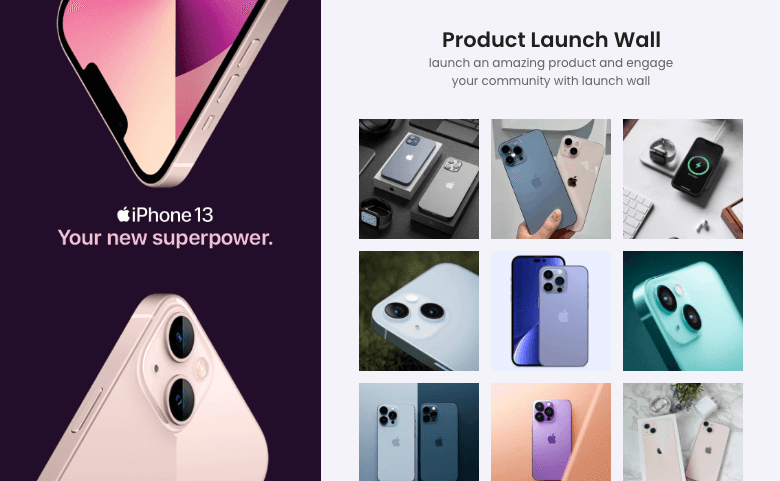
The Launch Wall is a great way to engage your community and get them excited about your product.
It’s a place where you can share all the exciting things about your product, from the features and benefits to when it will be released.
A Launch Wall allows you to engage with your customers and potential customers.
It provides a space for you to share information about your upcoming release, including what it does, how it works, and when it will be available.
Adding the Wall to Your Website
Most builders take the wall through a drag-and-drop widget or a simple embed block. One platform worth calling out specifically:
Magento
Magento’s admin doesn’t have a dedicated widget slot for this, so the wall goes in through a content block:
- In the Magento admin, go to Content > Blocks (or Pages), and open the block or page where the wall should appear.
- Switch the content editor from the standard WYSIWYG view to HTML mode.
- Paste your embed code into the HTML editor at the spot where you want the wall to show.
- Save your changes, then clear the cache so the update shows up right away, since Magento’s caching otherwise hides it.
Wrapping it up!!!
So, these were some of the ideas for using a Social Wall on your website.
We hope these were helpful. We suggest you use the free Social Wall trail on your site and see how a simple social media or review feed can boost engagement and conversions on your site.
For more please visit WiserNotify and learn more about other social proof and FOMO tools.

Krunal Vaghasiya is a marketing tech expert who boosts e-commerce conversion rates with automated social proof and FOMO strategies. He loves to keep posting insightful posts on online marketing software, marketing automations, and improving conversion rates.




 Capterra