
How to Get Your Google Review Link (4 Ways)
Your Google review link is the URL that opens your Business Profile’s review form in one tap.
Get it from the “Ask for reviews” button in Google Business Profile, or build it yourself as https://search.google.com/local/writereview?placeid= followed by your Place ID.
Customers who have to search for your business, find the profile, and hunt for the review button usually give up halfway.
A direct link removes those steps. This guide shows the four ways to get it, where to share it, and how to fix it when it breaks.

What Is a Google Review Link?
A Google review link is a short URL that takes a customer straight to the “Write a review” form for your business, with the star rating already on screen.
It skips the search, the profile page, and the scroll to the reviews tab. One tap, and they are writing, which is how you turn happy customers into positive reviews.
You can send it by email, text, WhatsApp or social media, print it on receipts and cards, or turn it into a QR code.
How to Get Your Google Review Link (4 Ways)
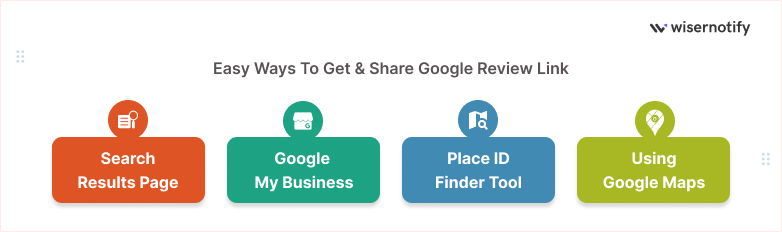
All four methods give you a working link. The first is the fastest, and the last works even if you don’t manage the profile yourself.
1. From Google Search
Google shows a management panel above your profile when you search for your own business while signed in.
- Sign in to the Google account that owns or manages your Business Profile.
- Search for your business name on Google.
- If you manage several locations, open the right one first.
- Click “Ask for reviews” in the panel above your profile.
- Copy the link from the pop-up.
2. From the Business Profile Dashboard
If you manage profiles at business.google.com, the same button sits on the dashboard.
- Go to business.google.com and sign in.
- Pick the location you want.
- Click “Ask for reviews” on the home view.
- Copy the link, or use the share buttons to send it straight to email or WhatsApp.
3. From the Google Maps App
This is the quickest route on a phone, for example right after a service call.
- Open Google Maps and tap your profile picture.
- Tap “Your Business Profiles” and choose the business.
- Tap “Get more reviews” (it may appear under the Customers or Reviews tab).
- Copy the link or share it directly from the phone.
Skip the regular “Share” button on your Maps listing. It copies a link to your profile page, not to the review form, so customers still have to find the review button.
4. Build It With the Place ID Finder
Use this when you don’t have access to the Business Profile, for example when an agency or a franchise head office manages it.
- Open Google’s Place ID Finder in the Maps Platform documentation.
- Type your business name and pick it from the dropdown.
- Copy the Place ID that appears (a long string of letters and numbers).
- Add it to the end of https://search.google.com/local/writereview?placeid=
- Open the finished link in a private browser window to check it lands on your review form.
Which Google Review Link Format to Use
You will run into three kinds of links. Only two of them open the review form.
| Link type | Where it comes from | Opens the review form? |
|---|---|---|
| “Ask for reviews” short link | Google Search, dashboard, Maps app | Yes |
| writereview?placeid= link | Built by hand from your Place ID | Yes |
| Maps “Share” link | Share button on your Maps listing | No, it opens the profile page |
Use the “Ask for reviews” link whenever you can. It is short, tied to the right location, and generated by Google, so it is the least likely to break.
7 Ways to Share Your Google Review Link
Getting the link takes a minute. Putting it in front of customers at the right moment is what brings in reviews.
1. Add It to Your Website
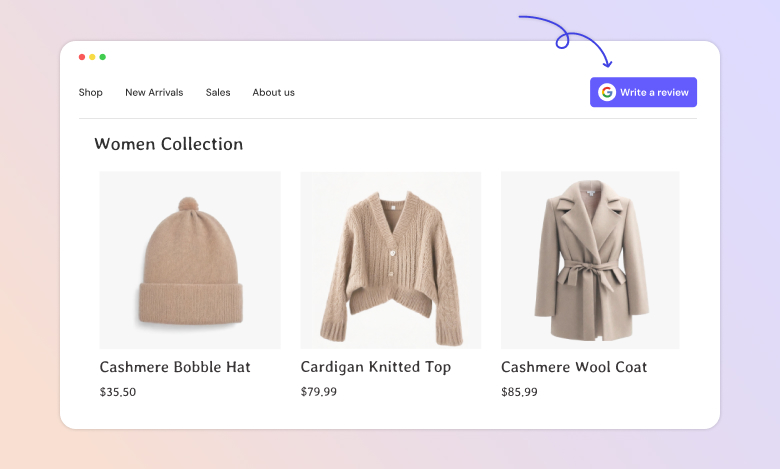
Put a “Review us on Google” button in the footer, on the contact page, and on your order confirmation or thank-you page.
The thank-you page matters most. The customer has just finished buying and is still paying attention.
A reviews page that shows your existing feedback next to the link works well too, because visitors see that others took the time. Our guide on how to add Google reviews to your website covers the display side.
2. Email It After a Purchase
Send a short follow-up a day or two after delivery or service. Thank the customer, then ask for a quick review with the link as a clear button.
Keep the subject line plain, such as “How did we do?”, and make sure the email reads well on a phone, since most people will open it there.
Adding the request to your post-purchase email flow means every customer gets asked without anyone remembering to do it.
3. Text It by SMS or WhatsApp
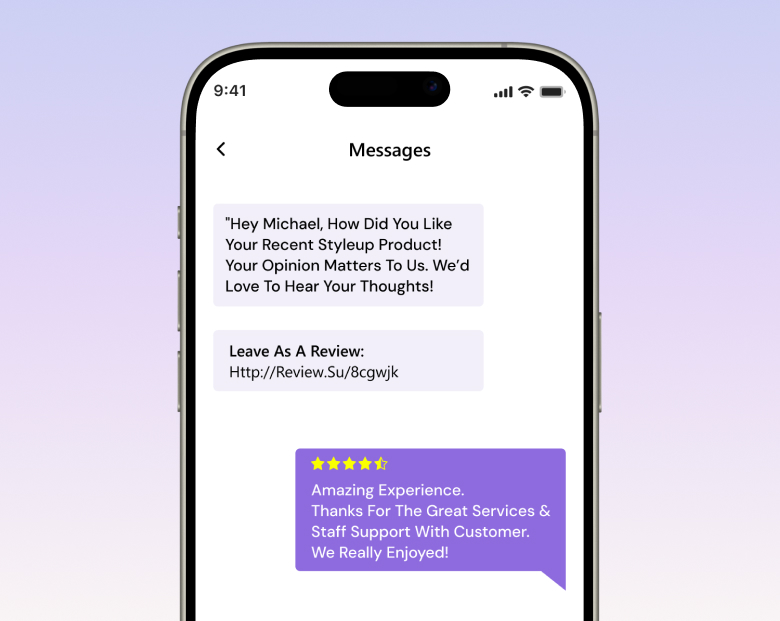
A short text gets read faster than an email. It works especially well for salons, clinics, trades and restaurants, where you meet the customer in person.
Try something like: “Hi [Name], thanks for choosing [Business]. Would you leave us a quick Google review? [link]”
If your booking system or CRM can send it automatically after an appointment, turn that on.
4. Share It on Social and Google Posts
Post the link on Facebook, Instagram or LinkedIn with a simple ask, and pin it or add it to your bio.
Pair it with a real customer testimonial so the request comes with proof that others have shared their experience.
You can also add a Google Post from your Business Profile, which shows the request right on your listing in Search and Maps.

All your Google reviews in one place
Collect Google reviews, manage every response, and display them where they matter most.
5. Turn It Into a QR Code
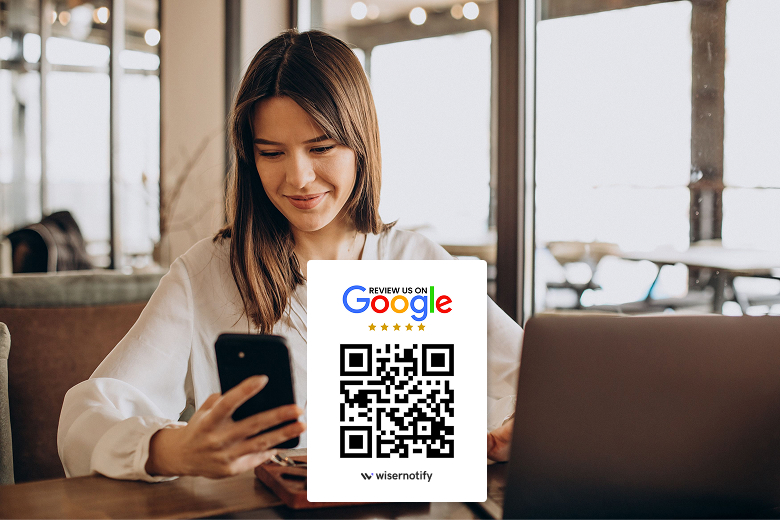
A QR code saves customers from typing anything. Print it on menus, table tents, receipts, packaging and the counter.
Point the code at your “Ask for reviews” link, test it with two different phones, and place it where people wait, not where they rush past. Our guide to the Google review QR code covers design and placement.
6. Print It on Cards and Packaging
Add the link, or better a QR code, to business cards, invoices, thank-you notes and packing slips.
Printed asks work because they reach the customer after the sale, when the product or service is in their hands.
7. Put It in Your Email Signature
Every email your team sends is a chance to ask. A one-line “Happy with our work? Review us on Google” with the link sits quietly under every reply.
It suits service businesses and agencies, where most of the relationship runs through email.
Automate Google Review Requests With WiserReview

Sharing a link by hand works for a handful of customers. Past that, requests get forgotten and reviews slow down.
WiserReview (our product) sends your Google review link automatically after each order or visit, then helps you show the reviews you get. Here is the flow:
Collect
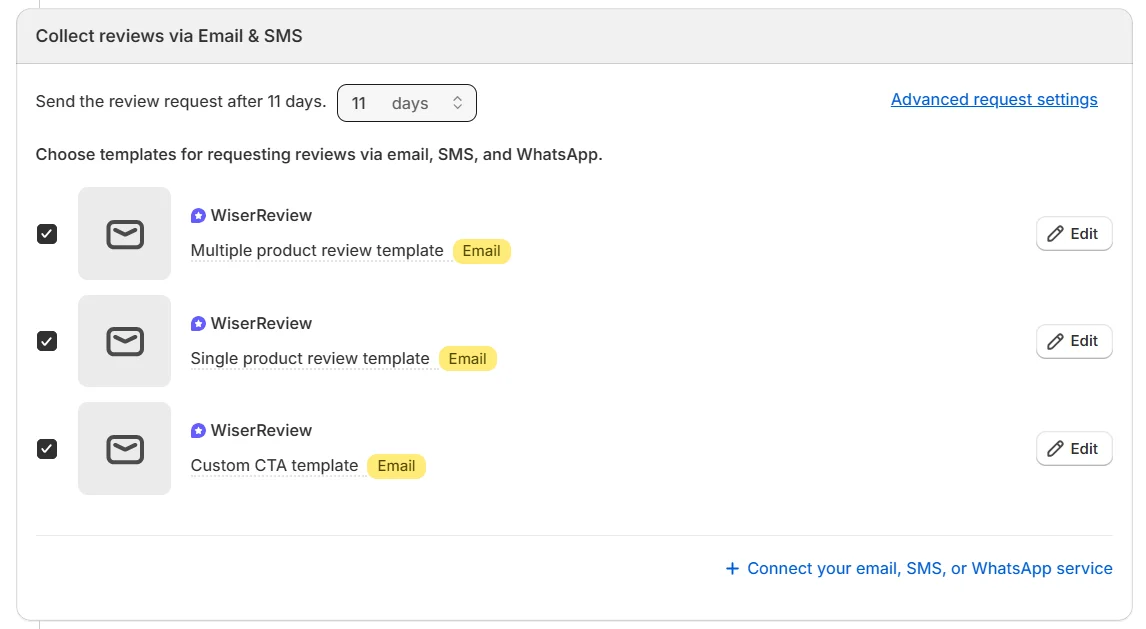
Trigger review requests by email, SMS or WhatsApp after a purchase, with a reminder for anyone who misses the first ask.

Customize
Pick and edit branded email, SMS and WhatsApp templates, so every request sounds like your store.
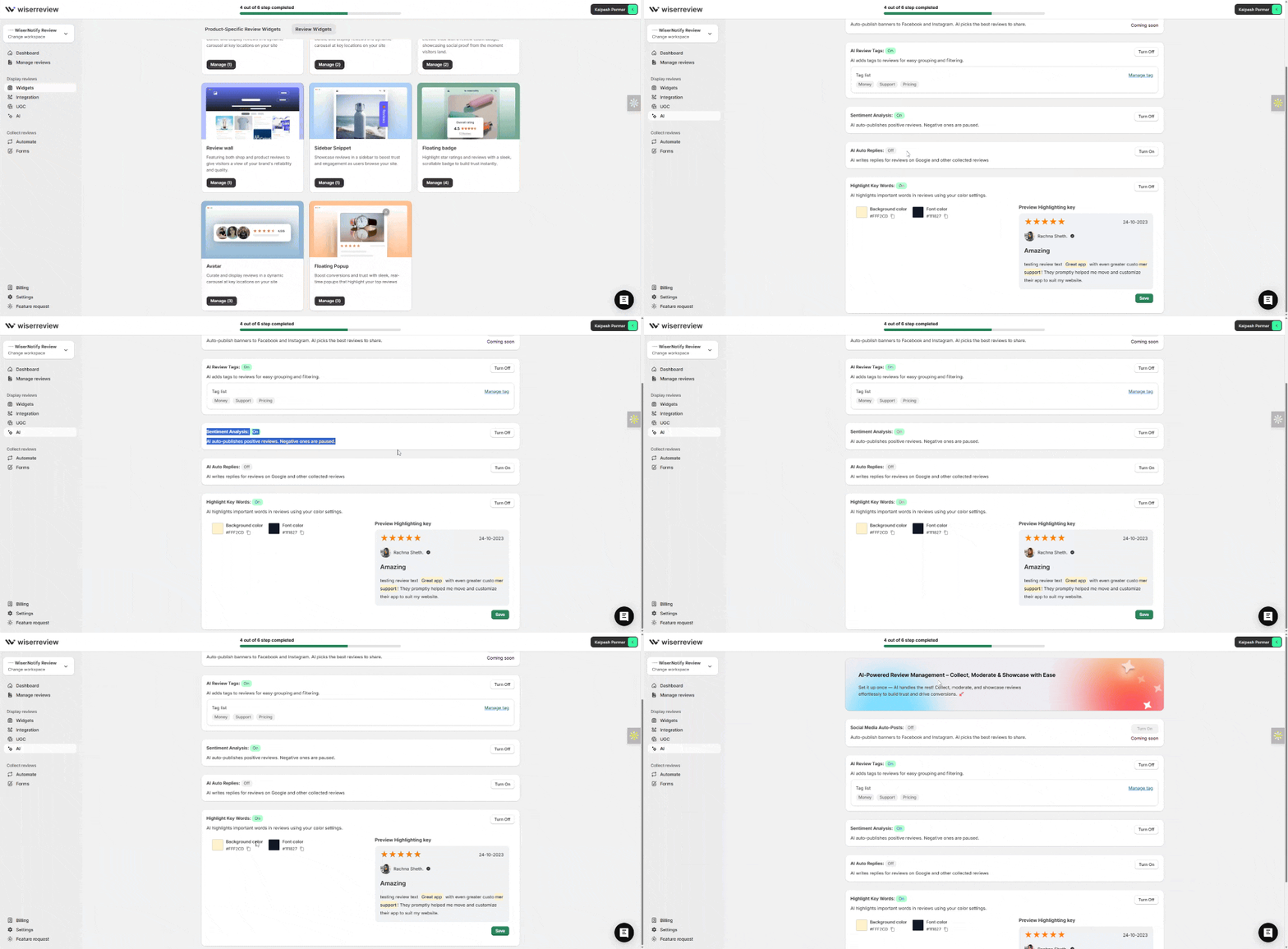
Publish
Auto-publish reviews on your site, or moderate and tag them first.
Showcase
Display your Google reviews on your homepage, product pages or blog with carousels, badges and popups.

Plans start at $6.75 a month billed yearly, with a 7-day free trial. If you want to compare options first, see our roundup of Google review management tools.
All your Google reviews in one place
Collect Google reviews, manage every response, and display them where they matter most.
Google’s Review Rules to Follow
Breaking Google’s review policy can get reviews removed from your profile. These are the rules that matter when you share your link:
- No incentives. You can’t offer money, discounts, freebies or anything else in exchange for a review, or for changing or removing a negative one.
- No review gating. Send the link to every customer, not only the happy ones. Google does not allow selectively asking for positive reviews or discouraging negative ones.
- No pressure on-site. You can’t require or pressure customers to leave a review while they are on your premises.
- No scripted content or quotas. Don’t ask customers to include specific words. Since April 2026, Google also bans giving staff review quotas or asking for reviews that name a staff member.
- No fake reviews. Reviews from employees, family, or bought accounts are removed, and Google says most fakes are caught automatically.
Asking every customer for honest feedback, with no strings attached, is always allowed.
Common Google Review Link Problems and Fixes
When a review link fails, it is usually one of these:
- The “Ask for reviews” button is missing. You are signed in with an account that doesn’t manage the profile, or the profile isn’t verified yet. Switch accounts or finish verification.
- The link opens the profile, not the review form. You copied the Maps “Share” link. Use the “Ask for reviews” link or the writereview?placeid= format instead.
- The link goes to the wrong location. Each location has its own link. Select the right location before copying.
- The Place ID link shows an error. Check for a space or a missing character after “placeid=”, then test it in a private window.
- Customers can’t post. They need to be signed in to a Google account. Mention that in the request.
- A review posted but doesn’t show. Google may hold or filter reviews that look promotional or come in a sudden burst. Genuine reviews usually appear once checks finish.
Wrap Up
Your Google review link turns “please review us” into a single tap. Copy it from “Ask for reviews”, or build it from your Place ID if someone else runs the profile.
Then put it everywhere a happy customer already is: the thank-you page, the follow-up email, the text after an appointment, the receipt in the bag.
Ask every customer, keep it honest, and answer the reviews you get, including the negative reviews. More reviews will follow, and so will the social proof that brings in the next customer.
Frequently Asked Questions
How do I get my Google review link?
Search your business on Google while signed in to the account that manages it, click “Ask for reviews”, and copy the link. You can also find the same button in the Google Maps app and at business.google.com.
What is the Google review link format?
The format you can build yourself is https://search.google.com/local/writereview?placeid= followed by your Place ID. The “Ask for reviews” button gives you a shorter link that opens the same form.
Why is the Ask for reviews button missing?
You are usually signed in with an account that doesn’t manage the profile, or the profile isn’t verified yet.
Does a Google review link expire?
There is no expiry date. A link only stops working if the Business Profile is suspended, removed or merged with another listing.
Can I offer a discount for a Google review?
No. Google does not allow any incentive in exchange for a review, and reviews tied to incentives can be removed.

Krunal Vaghasiya is a marketing tech expert who boosts e-commerce conversion rates with automated social proof and FOMO strategies. He loves to keep posting insightful posts on online marketing software, marketing automations, and improving conversion rates.




 Capterra