
How to Create a Google Review QR Code (Free, in 5 Minutes)
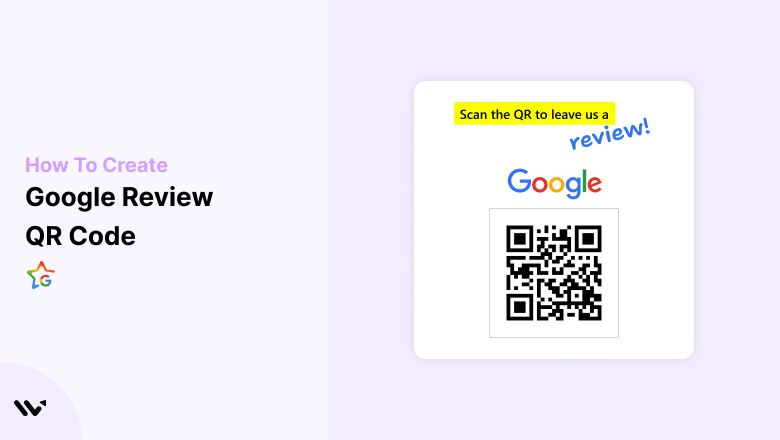
You can create a Google review QR code for free in your Google Business Profile. Open your profile on a computer, select Read reviews, then Get more reviews, and save the QR code image.
The whole process takes under five minutes and needs no QR generator.
Below are the exact steps, how to make a branded version with logo and scan tracking, where to place it, and the Google rules to follow.
Key takeaways
- Google gives every Business Profile a free review link and QR code. It opens the review form directly.
- The QR code can only be downloaded from a computer browser, not the mobile app.
- Use a QR generator such as Bitly or Flowcode only if you want your logo on the code or scan tracking.
- Put the code where the experience ends: the checkout counter, receipts, packaging and thank-you emails.
- Never offer rewards for reviews or ask only happy customers. Both break Google’s rules.
How to Create a Google Review QR Code (Free)
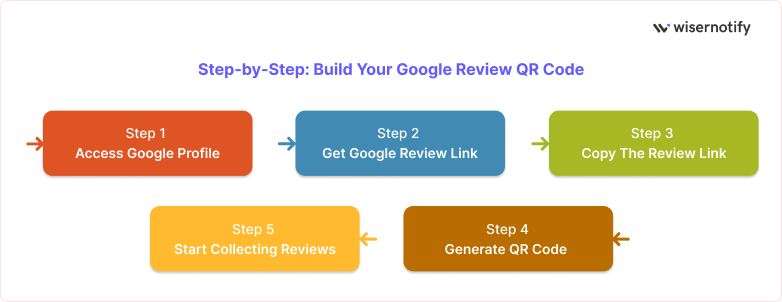
Google builds the QR code for you. Follow these five steps on a laptop or desktop.
Step 1: Open Your Business Profile
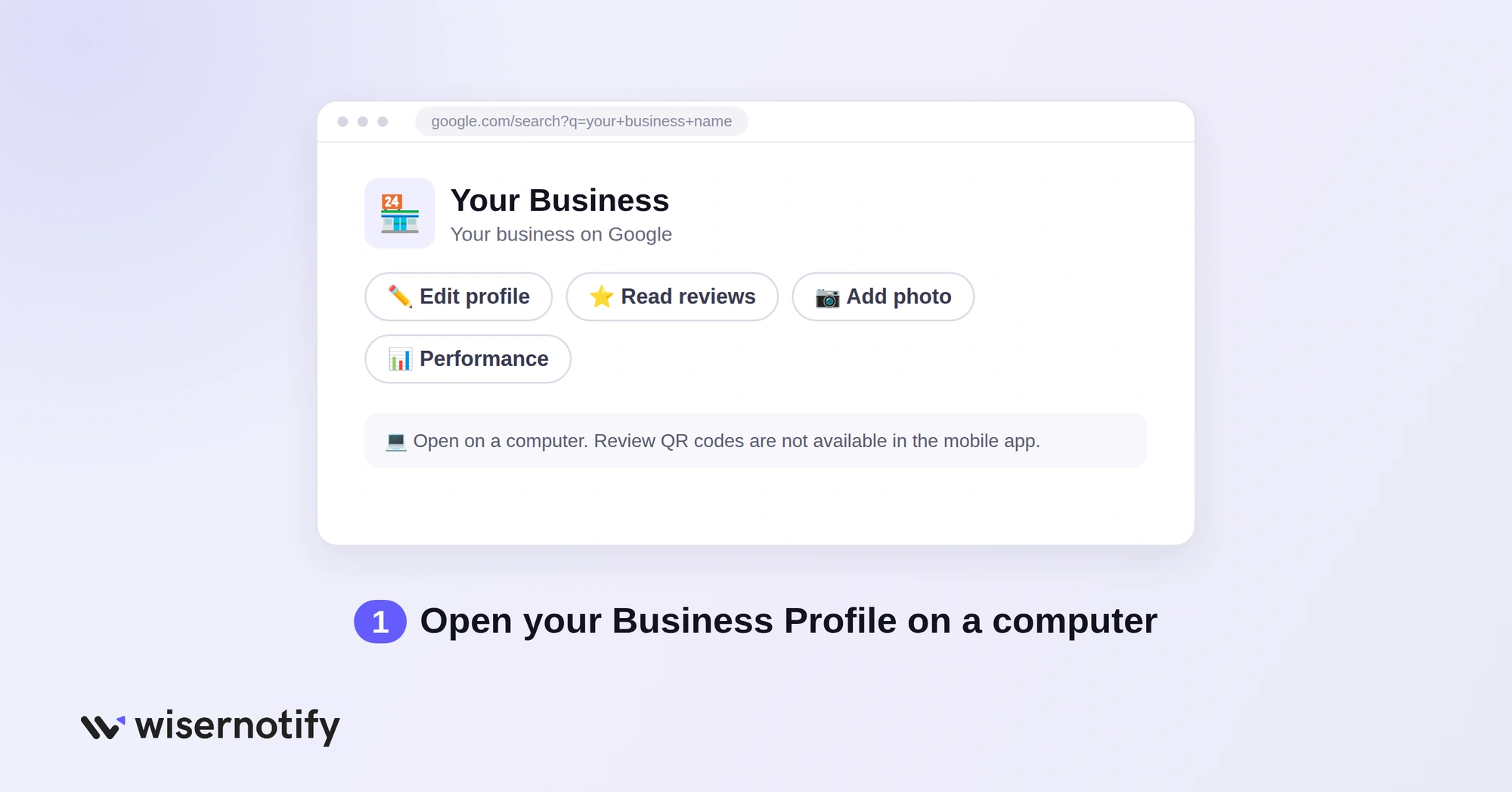
Sign in to the Google account that manages your business, then search for your business name on Google or open business.google.com. Your profile tools appear at the top of the results.
Google only generates review QR codes in a computer browser, so skip the phone for this part.
Step 2: Select Read Reviews
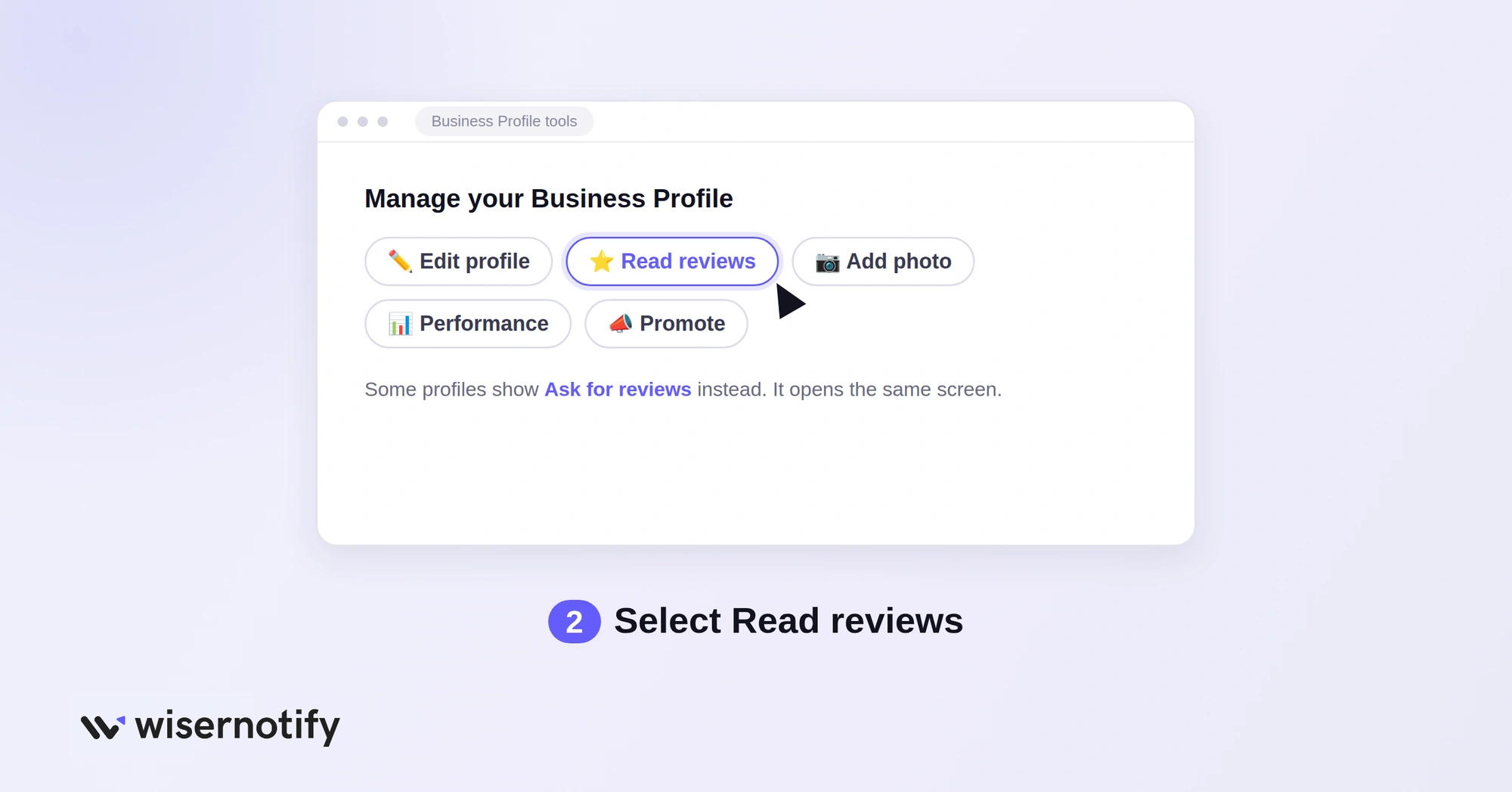
In your profile tools, select Read reviews. Some profiles show an Ask for reviews button instead, which opens the same screen.
Step 3: Click Get More Reviews
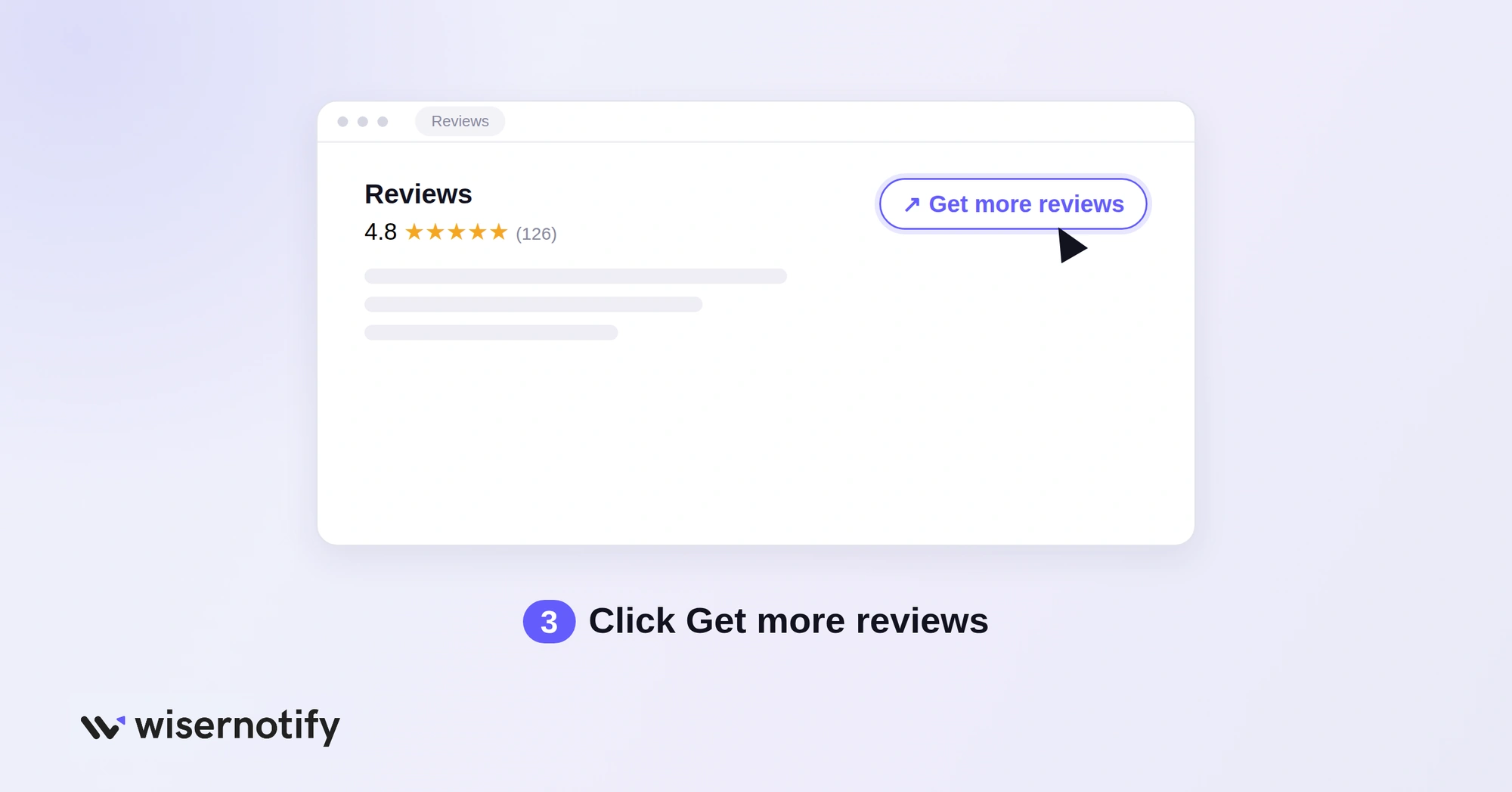
Select Get more reviews. A panel opens with your short review link and a QR code.
Step 4: Save the QR Code
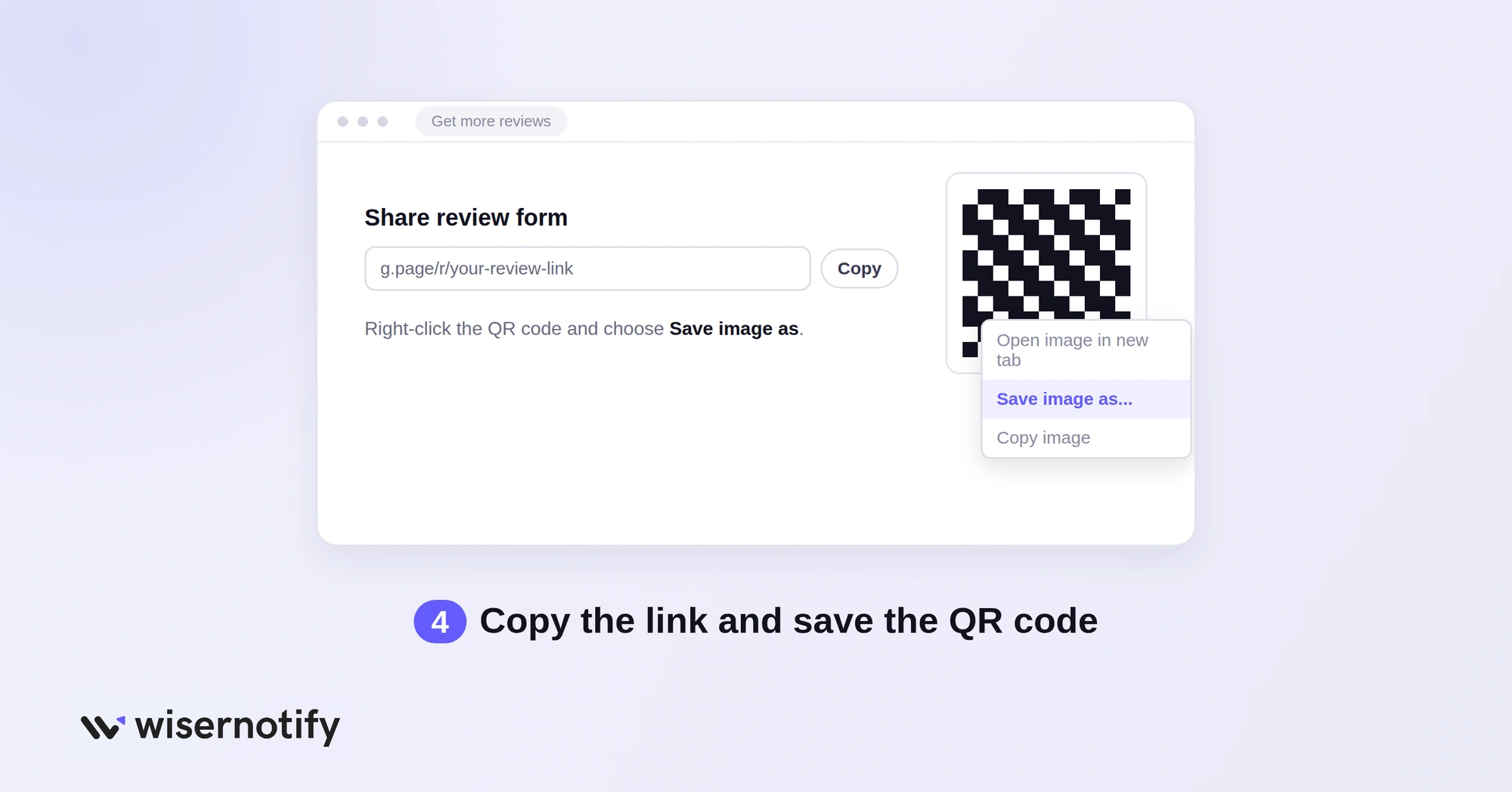
Select Copy to copy your review link for emails and texts. To download the QR code, right-click the image and choose Save image as.
Step 5: Test It and Print
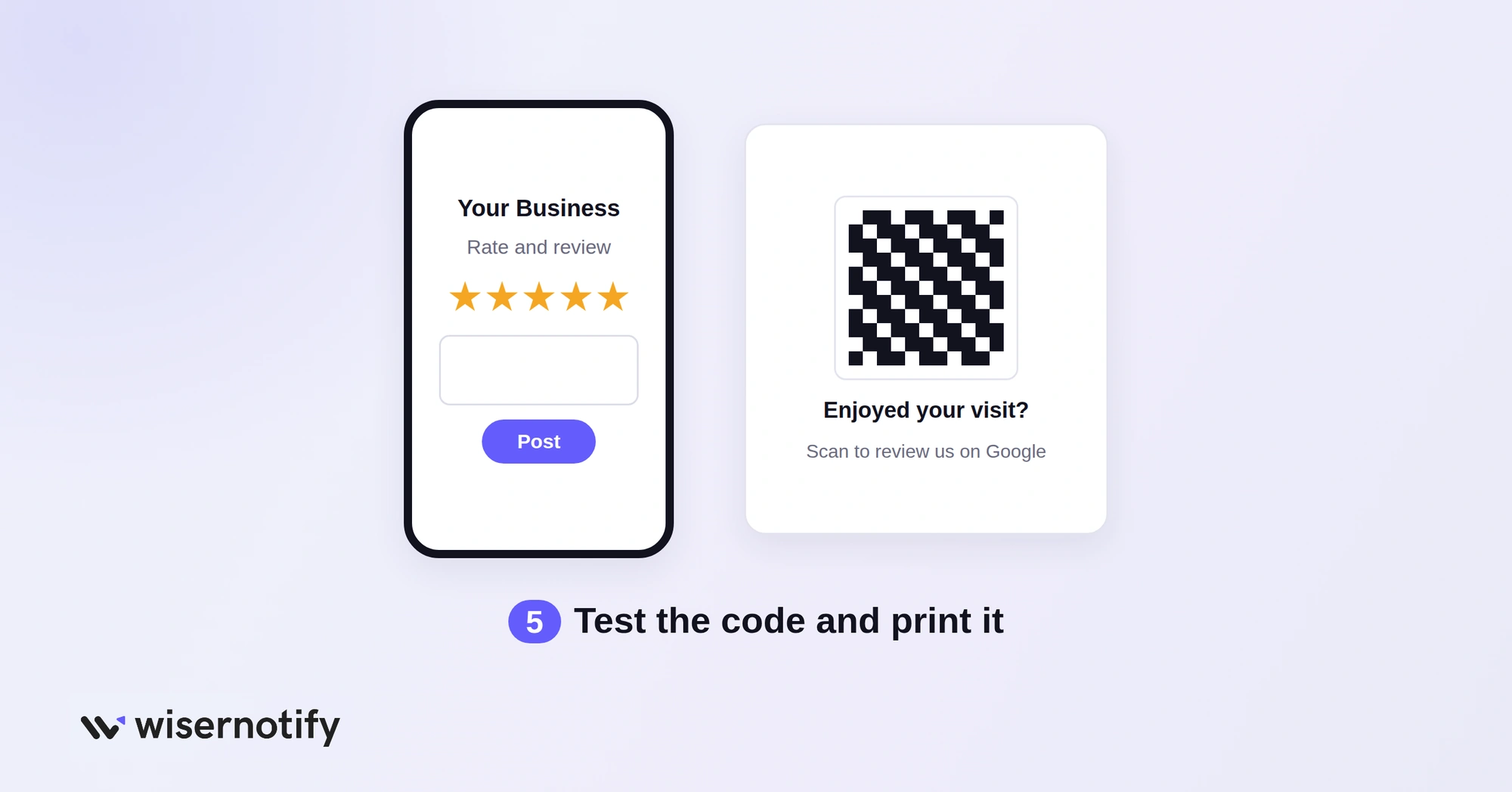
Scan the saved code with your phone camera. It should open your review form with the stars ready to tap.
Add a short line next to it, such as “Enjoyed your visit? Scan to review us on Google,” and print it on signs, receipts or cards.
Want ready-made wording for the ask? Use these review request message templates.
How to Make a Branded Google Review QR Code
Google’s QR code is plain black and white. If you want your logo and colors on it, or want to count scans, use a QR generator:
- Copy your review link from Step 4 above.
- Paste it into a QR generator like Bitly, Flowcode, QR Code Chimp or Scanova.
- Add your logo, colors and a frame with a short call to action.
- Choose a dynamic code if you want to track scans or change the link later.
- Download a high-resolution PNG or SVG and test it before printing.
A static code works forever but cannot be tracked or edited. A dynamic code can, but it stops working if you cancel the paid plan behind it, so check the terms before printing thousands.
Google Review QR Code Generators Compared
| Tool | Free tier | Dynamic codes | Scan analytics |
|---|---|---|---|
| Google Business Profile | Free, no limits | No | No |
| Bitly | 2 QR codes a month | Yes | Yes |
| Flowcode | 2 codes, analytics for 500 scans | Yes | Yes |
| QR Code Chimp | 10 dynamic codes, 1,000 scans a month | Yes | Yes |
| Scanova | Free trial only | Yes | Yes |
Plans checked on September 29, 2026. Confirm on each vendor’s pricing page before you buy.
1. Bitly
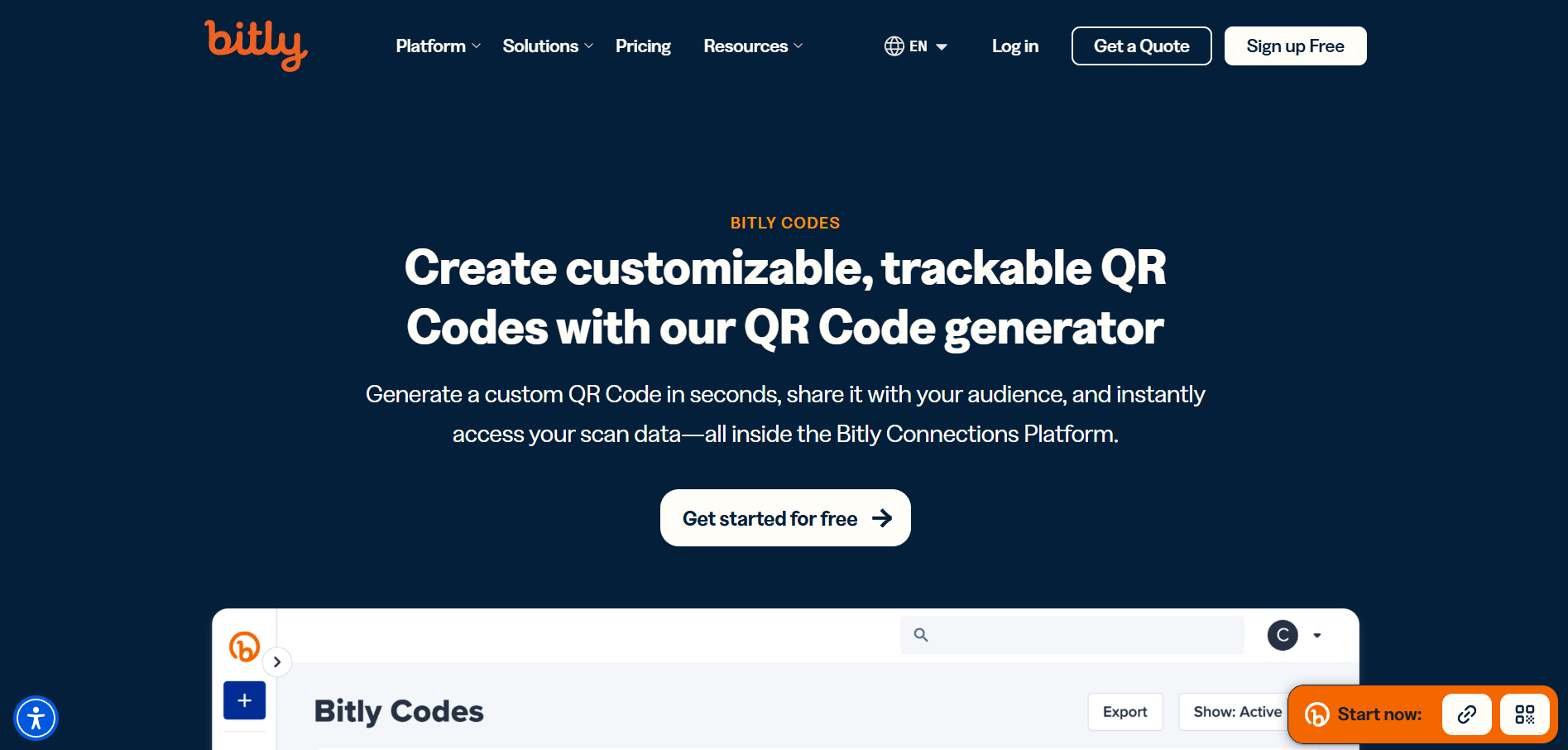
Bitly pairs QR codes with short links, so one account covers your review link in emails and your printed code. Scans are unlimited on every plan.
- Custom design: add colors, a logo and a frame.
- Scan and click tracking: see how the code and link perform together.
- Short links: a branded short link for texts and emails.
Pricing: Free plan with 2 QR codes a month; Core from $10/month billed yearly for 5 QR codes a month.
2. Flowcode
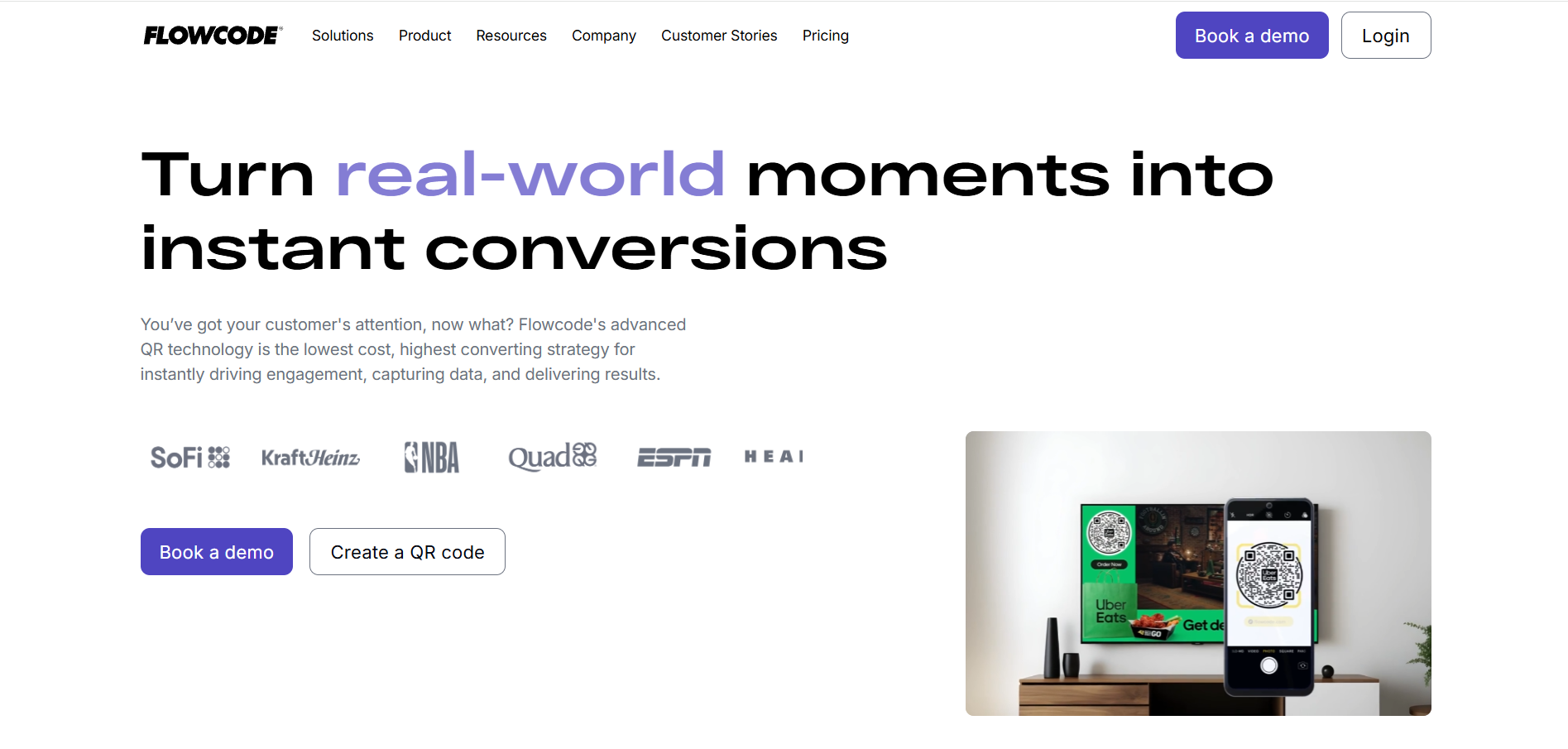
Flowcode focuses on designed codes and scan data, with landing pages you can place between the scan and the destination.
- Branded codes: frames, colors and logos.
- Scan analytics: see where and when people scan.
- Landing pages: useful if one code should offer several actions.
Pricing: Free plan for 2 codes with analytics on 500 scans; Pro Plus from $25/month billed yearly for 50 codes.
Build trust & FOMO
Highlight real-time activities like reviews, sales & sign-ups.

3. QR Code Chimp
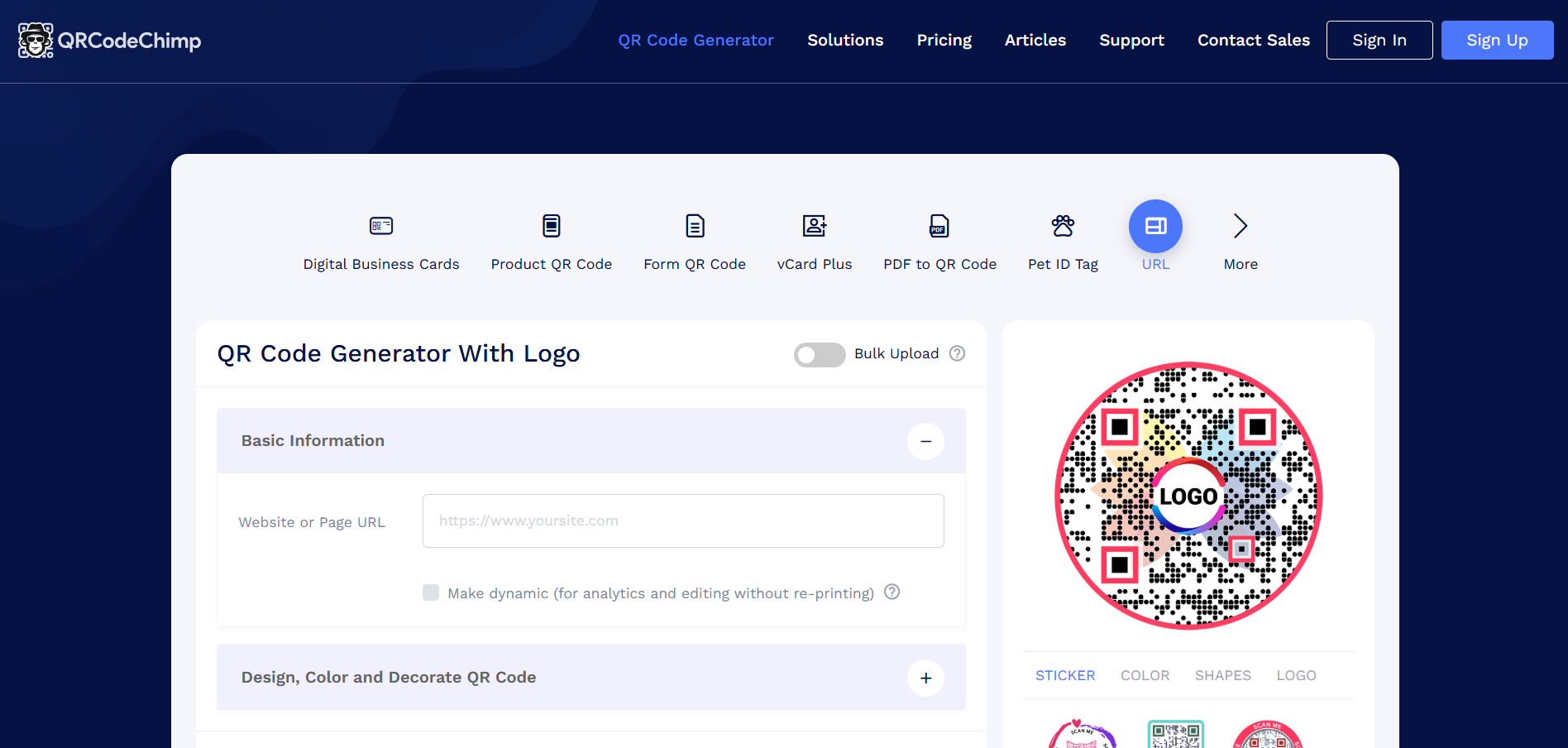
QR Code Chimp has the most generous free plan here, with unlimited static codes and 10 dynamic ones.
- Design templates: logos, colors and shaped codes.
- Detailed analytics: location, device and time of each scan.
- Landing pages: pre-built pages you can show after a scan.
Pricing: Free forever plan with 10 dynamic codes and 1,000 scans a month; paid plans raise both limits.
4. Scanova
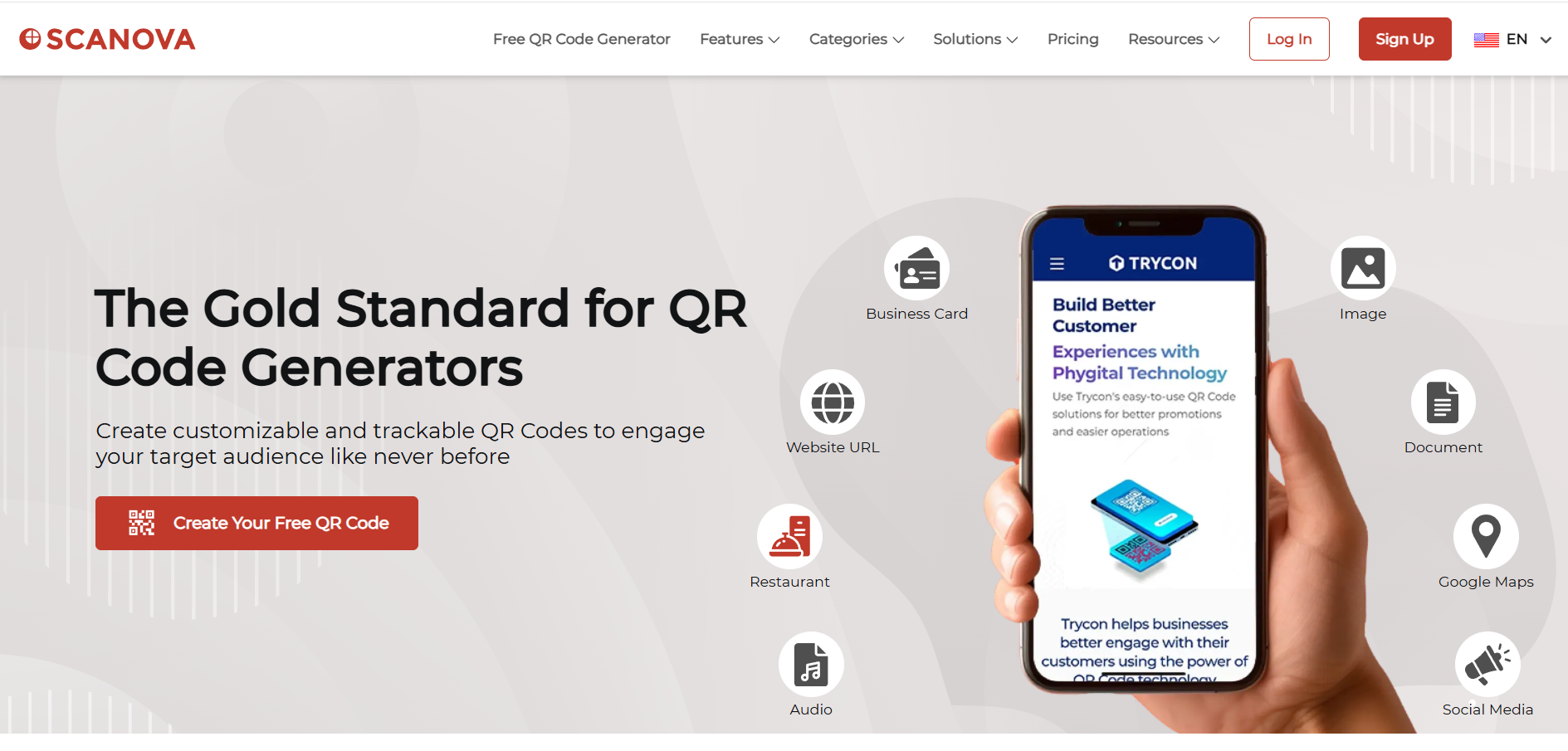
Scanova suits businesses that need many managed codes, for example one per location, with security certifications.
- Custom designs: brand colors, logos and print-ready formats.
- Scan tracking: reports per code or tag, with bot filtering.
- Bulk creation: generate dynamic codes in batches.
Pricing: No free plan (free trial); Basic from $5/month billed yearly for 3 QR codes.
What Is a Google Review QR Code?
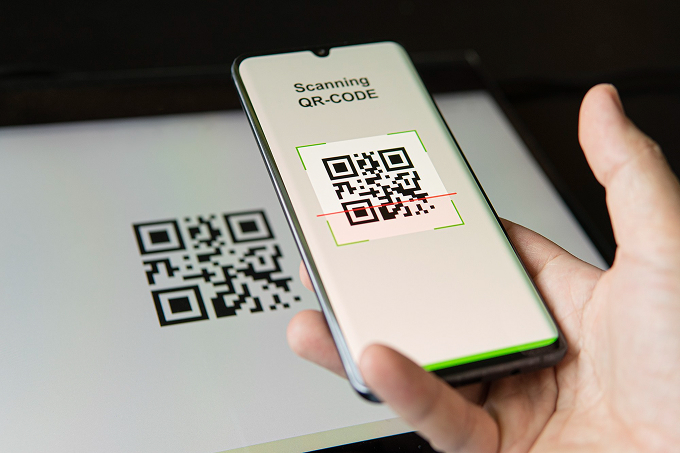
A Google review QR code is a scannable code that opens your business’s Google review form on a customer’s phone. It works in three steps:
- The customer scans the code with their phone camera. No app is needed.
- The review form opens in their browser or Google Maps app, with your business already selected.
- They tap a star rating and write a few words, which takes less than a minute.
It removes the hardest part of leaving a review: finding the right page.
Why Use a QR Code for Google Reviews
Most happy customers are willing to review you. They just don’t want to hunt for your listing. A QR code helps in several ways:
- Fewer steps: one scan replaces searching, finding your profile and opening the review tab.
- Better timing: customers can review while the experience is fresh, before they leave.
- More reviews: 83% of customers who are asked for a review leave one, and a QR code makes the ask easy.
- Local SEO: a steady flow of fresh Google reviews helps your ranking in the local map results.
For more numbers, see our Google review statistics.
Where to Place Your Google Review QR Code
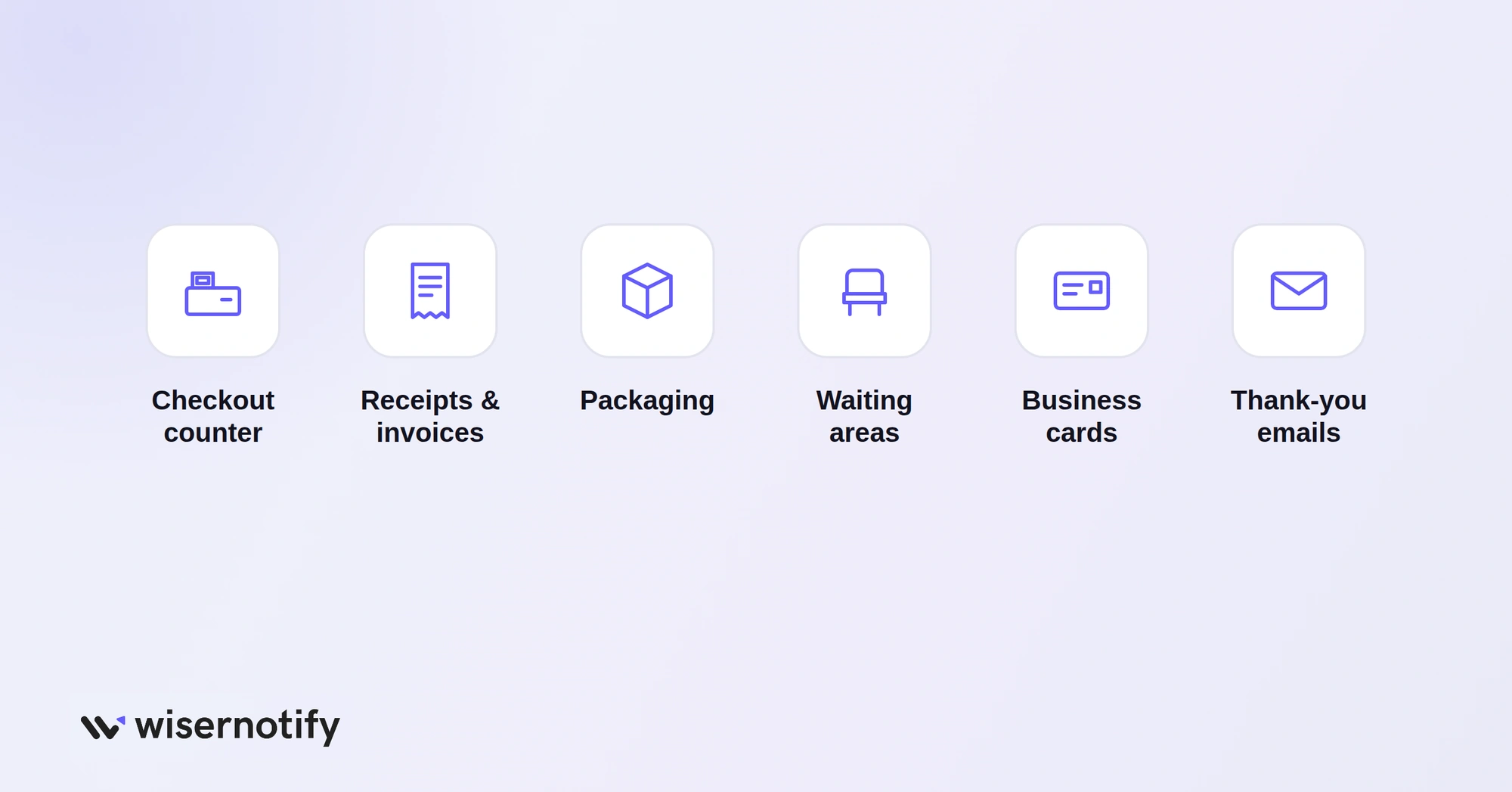
Put the code where the experience ends and people have a spare moment:
- Checkout counters and table tents for restaurants, cafes and shops.
- Receipts and invoices, with a one-line ask.
- Packaging and thank-you cards for online orders.
- Waiting areas in clinics, salons and service counters.
- Business cards, flyers and company vehicles for home service businesses.
- Thank-you emails and email signatures, using the link instead of the code on screens.
Online, you can also add Google reviews to your website so visitors see what others already said.
Google’s Rules for Review QR Codes
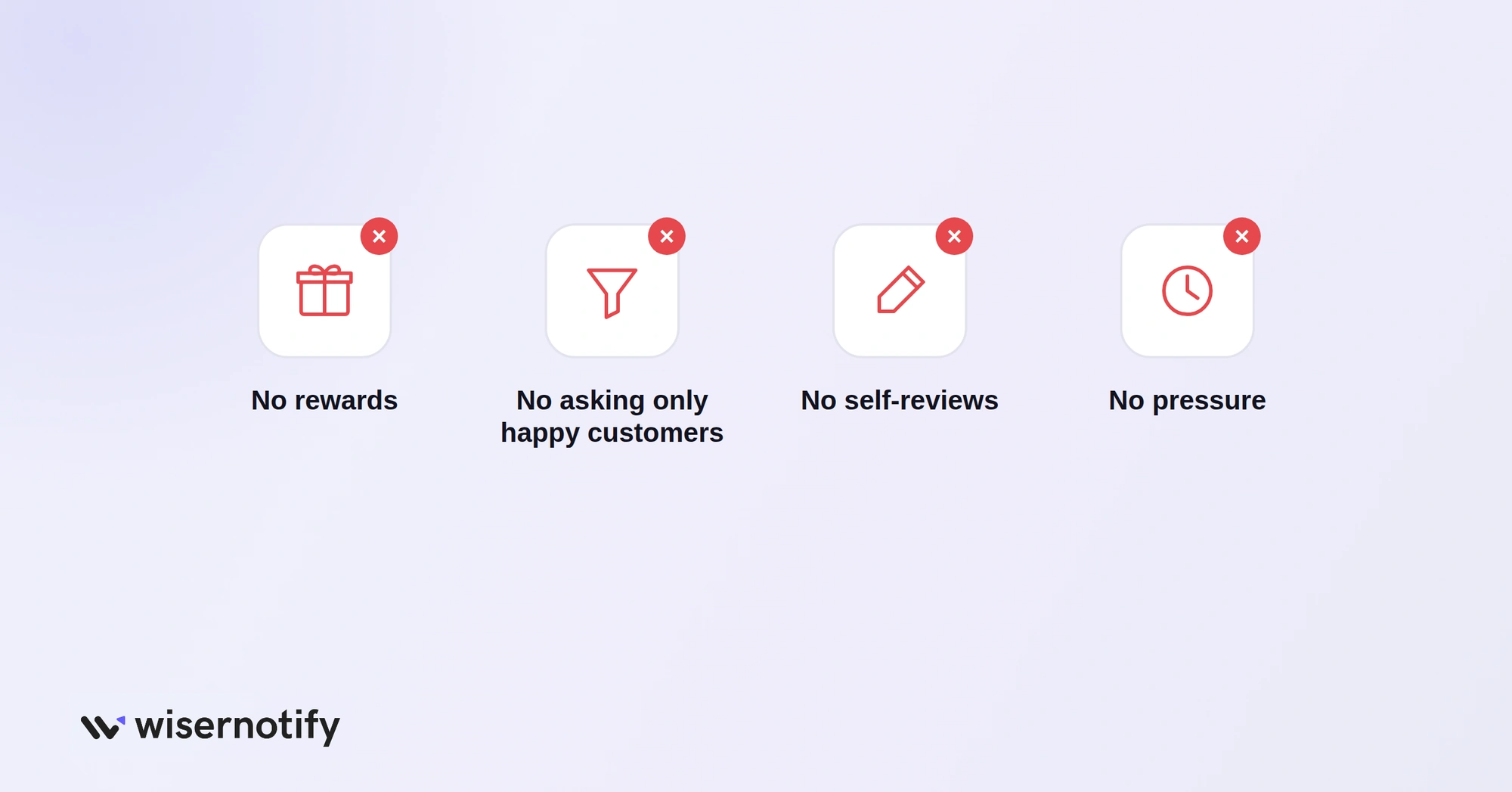
Asking for reviews is allowed. How you ask matters. Google’s review policies mean you should:
- Not offer rewards such as discounts or freebies in exchange for reviews.
- Not ask only happy customers or discourage people from leaving negative reviews.
- Not write reviews for your own business or ask staff and family to do it.
- Not pressure customers by standing over them while they write or sending repeated reminders.
Break these rules and Google can remove reviews, and repeated abuse can put restrictions on your profile.
How to Get More Reviews From Your QR Code
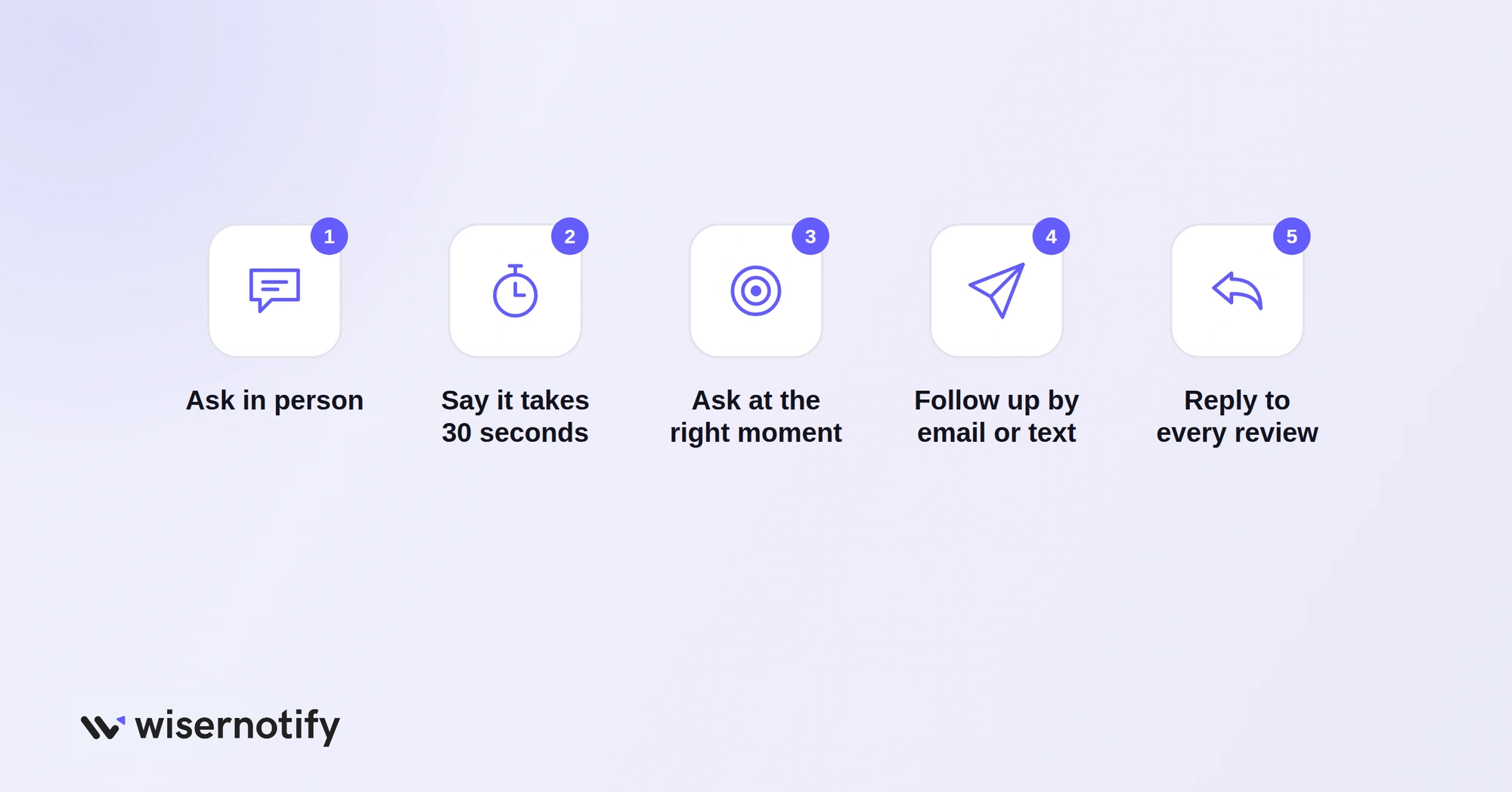
A code alone won’t do much. These habits make people scan it:
- Ask in person first. A quick “Would you mind leaving us a review?” works better than a silent sign.
- Tell them how long it takes, such as “30 seconds.”
- Ask at the right moment, right after a good interaction or when the order arrives.
- Follow up by email or text with your review link for people who didn’t scan.
- Reply to every review. People are more likely to review a business that responds.
Use these Google review response examples to reply faster, and see more ways to get more reviews.
Collecting Reviews With a WiserReview QR Code
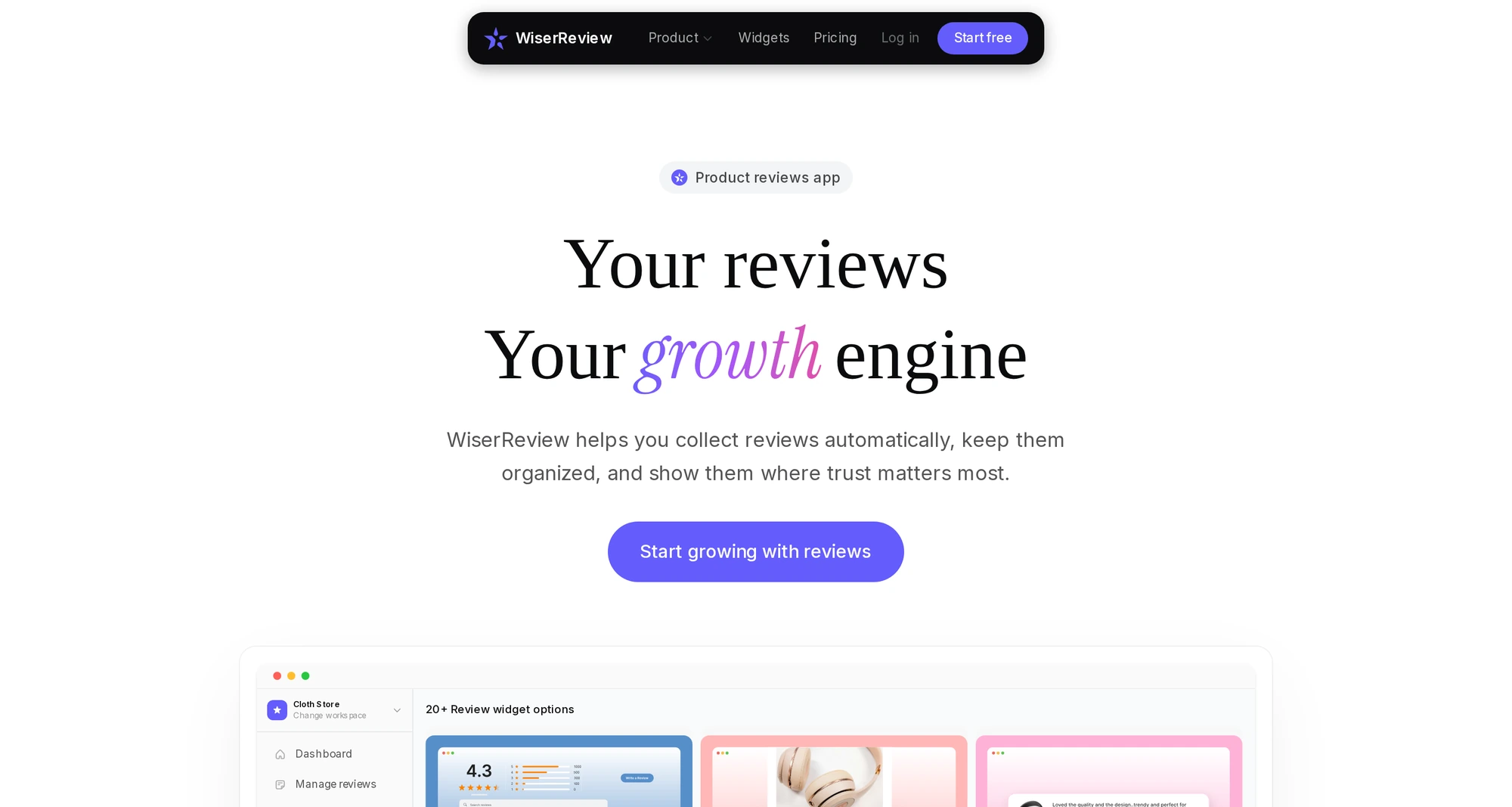
Google’s QR code sends customers to Google. WiserReview gives you a QR code for your own review form, so you collect photo, video and text reviews you can show on your website.
To get it, open Collect reviews, then Forms, and choose the QR code share option. Print it next to your Google QR code, or use it on packaging and inserts.
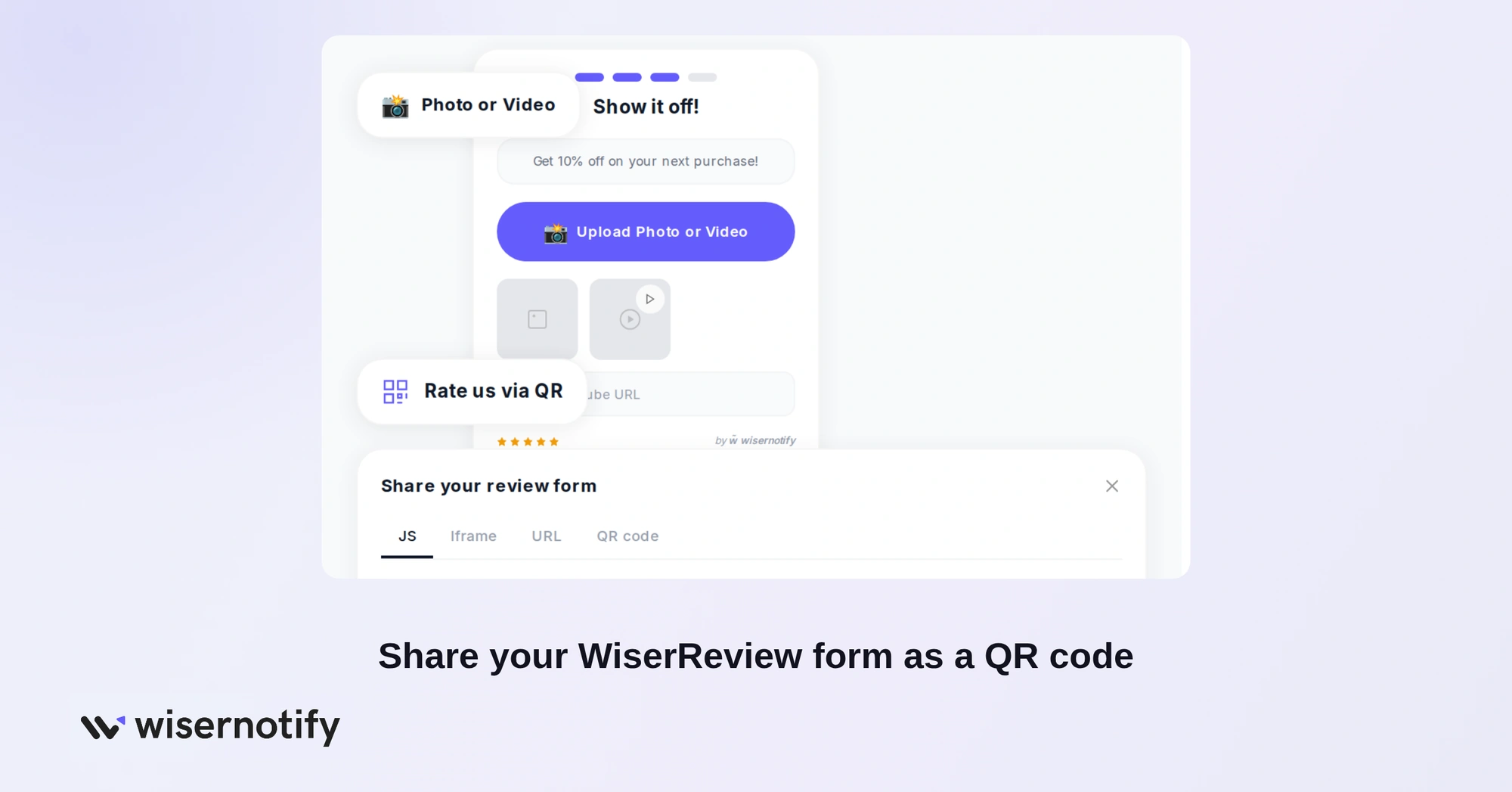
WiserReview also helps after the scan:
- Automated requests: send review requests by email, SMS or WhatsApp after an order or visit.

- Website widgets: show reviews, including imported Google reviews, on your site.

- Insights: track requests, responses and ratings in one dashboard.
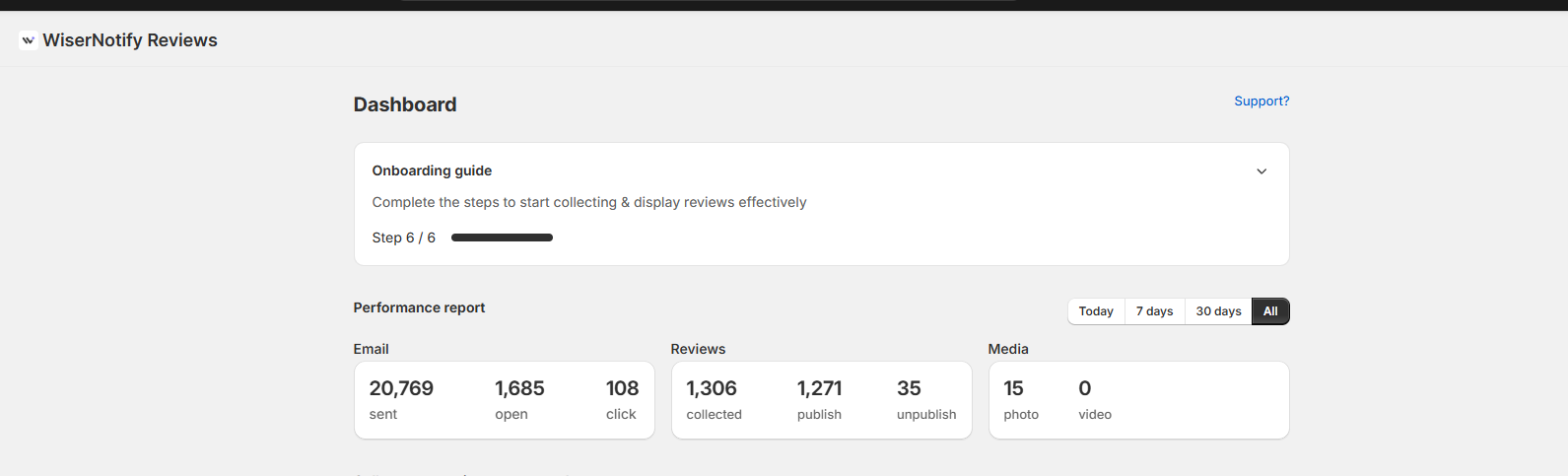
- Moderation: filter, tag and feature the reviews you show.
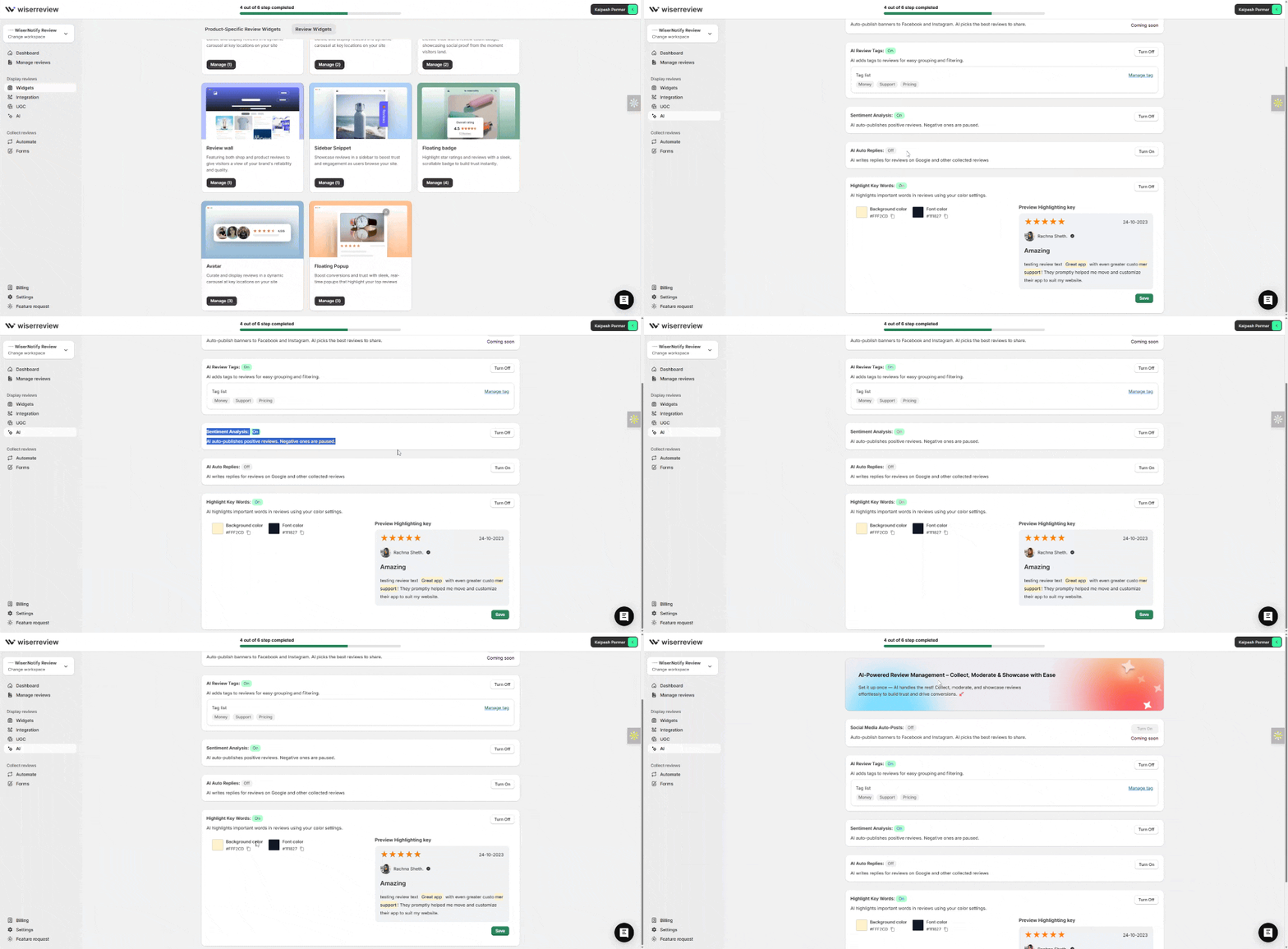

All your Google reviews in one place
Collect Google reviews, manage every response, and display them where they matter most.
How to Track Google Review QR Code Scans
Google’s own QR code does not report scans. To measure results, use a dynamic code from a generator and watch these numbers:
- Total and unique scans: how many people engaged.
- Scan location: which store, table or flyer works best.
- Time and day: when customers are most likely to scan.
- Device: the split between iPhone and Android.
- New reviews per week: compare your Google review count before and after placing the code.
Use a different dynamic code for each placement, such as receipts versus table tents, to see which one earns more reviews.
Wrap Up
Start with the free QR code in your Google Business Profile. It takes minutes and opens the review form directly.
Add a branded or trackable version only if you need it, place the code where the experience ends, and ask every customer, not just the happy ones.
Frequently Asked Questions
How do I get a QR code for Google reviews?
Open your Google Business Profile on a computer, select Read reviews, then Get more reviews, and right-click the QR code to save it.
Is a Google review QR code free?
Yes. Google provides a free review link and QR code in every Business Profile.
Why can't I find the QR code on my phone?
Google only shows the review QR code in a computer browser. Use a laptop or desktop to download it.
Does a Google review QR code expire?
No. Google’s QR code keeps working. Dynamic codes from paid generators can stop working if you cancel the plan.
Can I offer a discount for scanning my review QR code?
No. Google does not allow rewards or incentives in exchange for reviews.

Krunal Vaghasiya is a marketing tech expert who boosts e-commerce conversion rates with automated social proof and FOMO strategies. He loves to keep posting insightful posts on online marketing software, marketing automations, and improving conversion rates.




 Capterra