
How to Add a WhatsApp Chat Widget to WooCommerce (2026)

There are two ways to add WhatsApp chat to a WooCommerce store. A WhatsApp button plugin puts a fixed button on the pages you choose. A chat widget tool does that and adds timing and page rules on top.
WooCommerce has no WhatsApp setting of its own, so both routes start with an install. This guide walks through the widget route, which takes one plugin and one widget.
Below are the 8 steps with screenshots, the pages where the button earns its place, and the fixes when it does not show.
WhatsApp Button Plugin or Chat Widget for WooCommerce?

A button plugin such as Click to Chat is free and adds a WhatsApp button to your pages.
A chat widget tool adds a greeting, a delay and rules for who sees it. Both open the same WhatsApp chat, so the difference is in the settings around it.
| What you need | Click to Chat plugin | WiserNotify widget |
|---|---|---|
| Triggers | A fixed button, with time and scroll delay in Click to Chat Pro | Page load, after a delay, on scroll or on exit intent |
| Targeting | Post type, post ID, category and device. Country and login status are in Pro | Page URL rules, plus country, UTM, referrer and new or returning visitors |
| Analytics | Click events sent to Google Analytics, Meta Pixel and Google Ads | Views and clicks inside the WiserNotify dashboard |
Click to Chat details come from its WordPress.org page, checked on 16 October 2026.
Click to Chat also fills the product name, price and SKU into the message on product pages, which the table does not show.
Build trust & FOMO
Highlight real-time activities like reviews, sales & sign-ups.


How Do You Add a WhatsApp Chat Widget to WooCommerce?
The widget comes from WiserNotify, which connects to WooCommerce through its own WordPress plugin. The plugin adds the pixel for you, so there is no code to paste.
The video shows the WhatsApp widget being built, and the steps below cover the plugin first.
Step 1: Open Add Plugin in WordPress
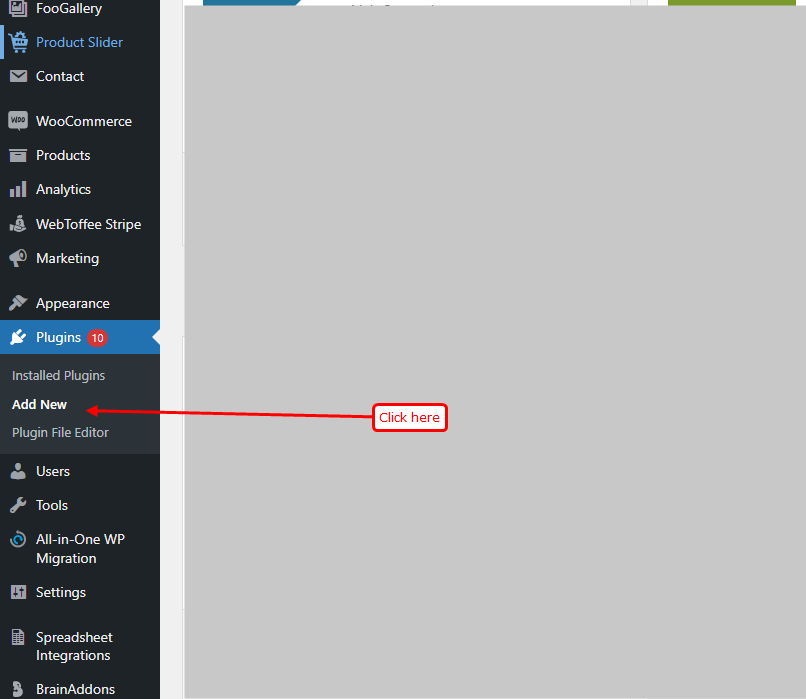
- Sign up for WiserNotify first, so you have an API key to paste later.
- In your WordPress admin, go to Plugins, then Add New.
Step 2: Install WiserNotify
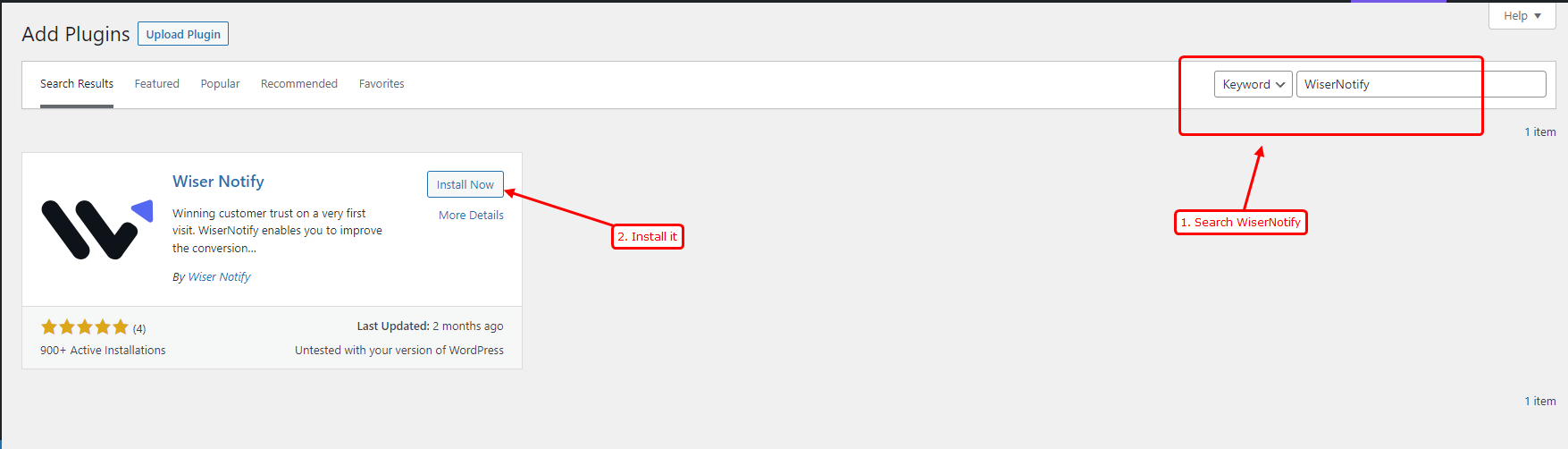
- Type WiserNotify in the search box.
- Click Install Now on the result and accept the permissions.
Step 3: Activate the Plugin
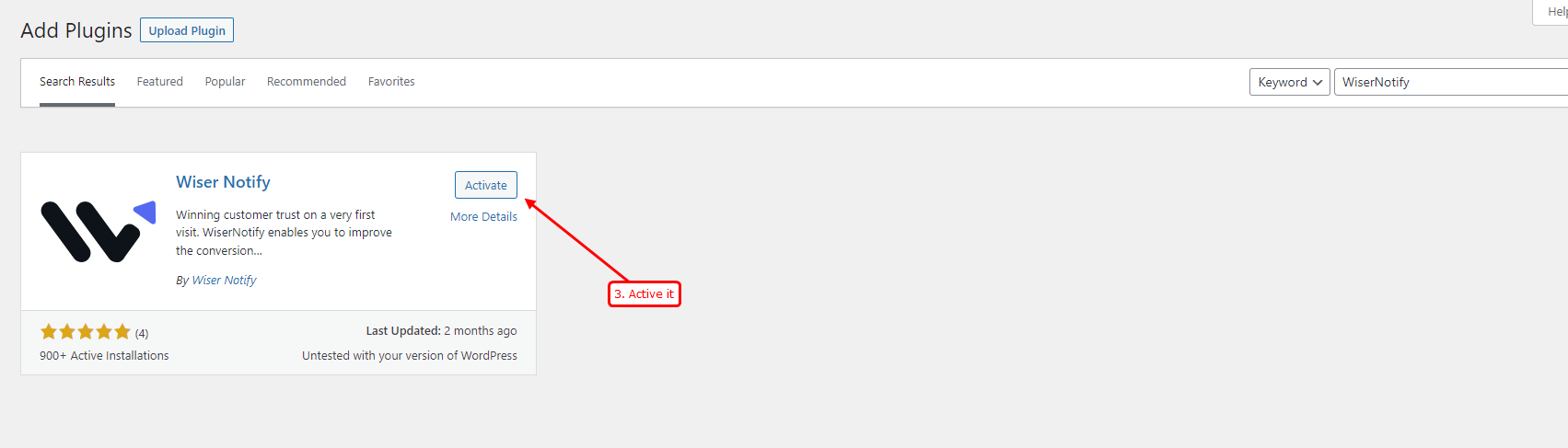
- Click Activate once the install finishes.
Step 4: Copy Your API Key
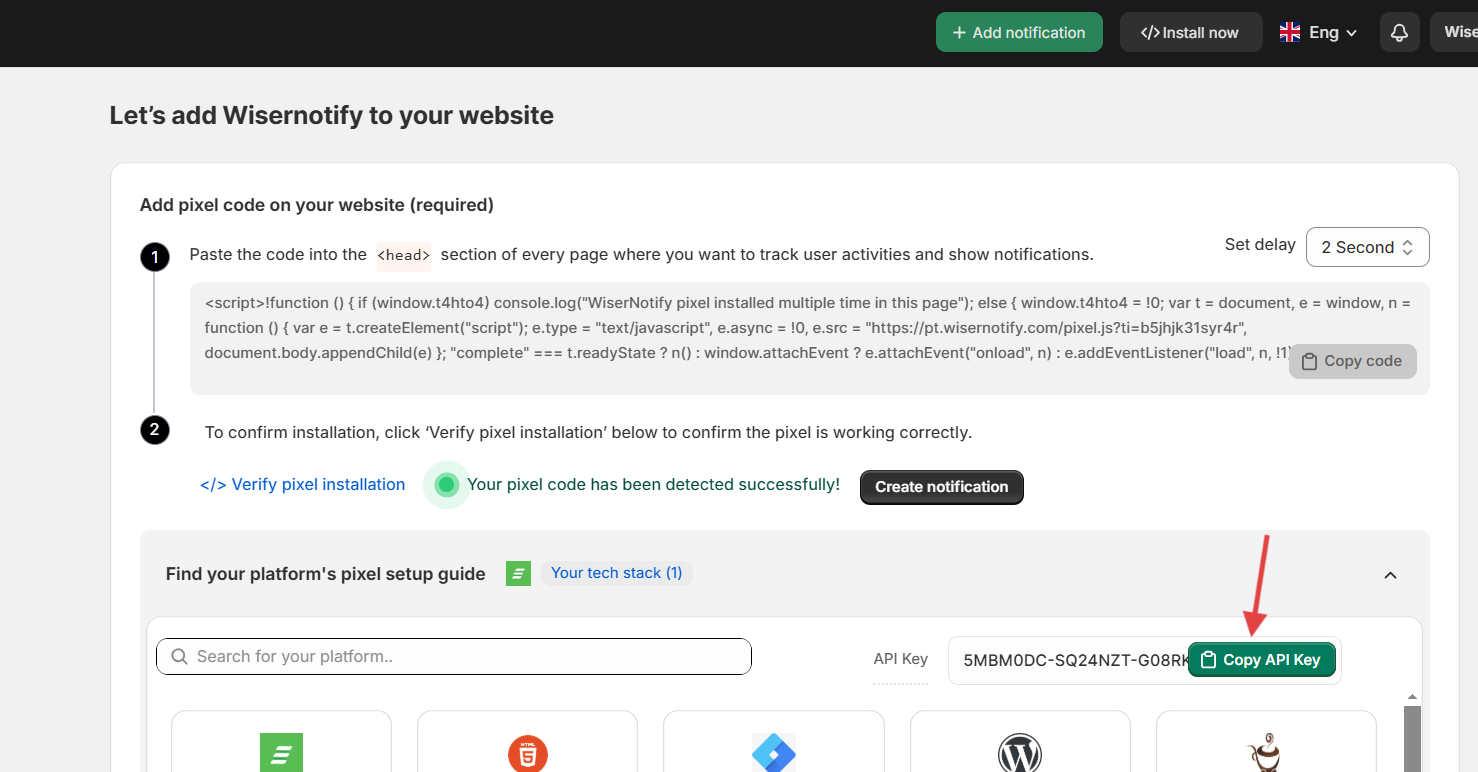
- In WiserNotify, open Install Pixel and scroll to the platform setup guide.
- Click Copy API Key.
Step 5: Paste the Key and Submit
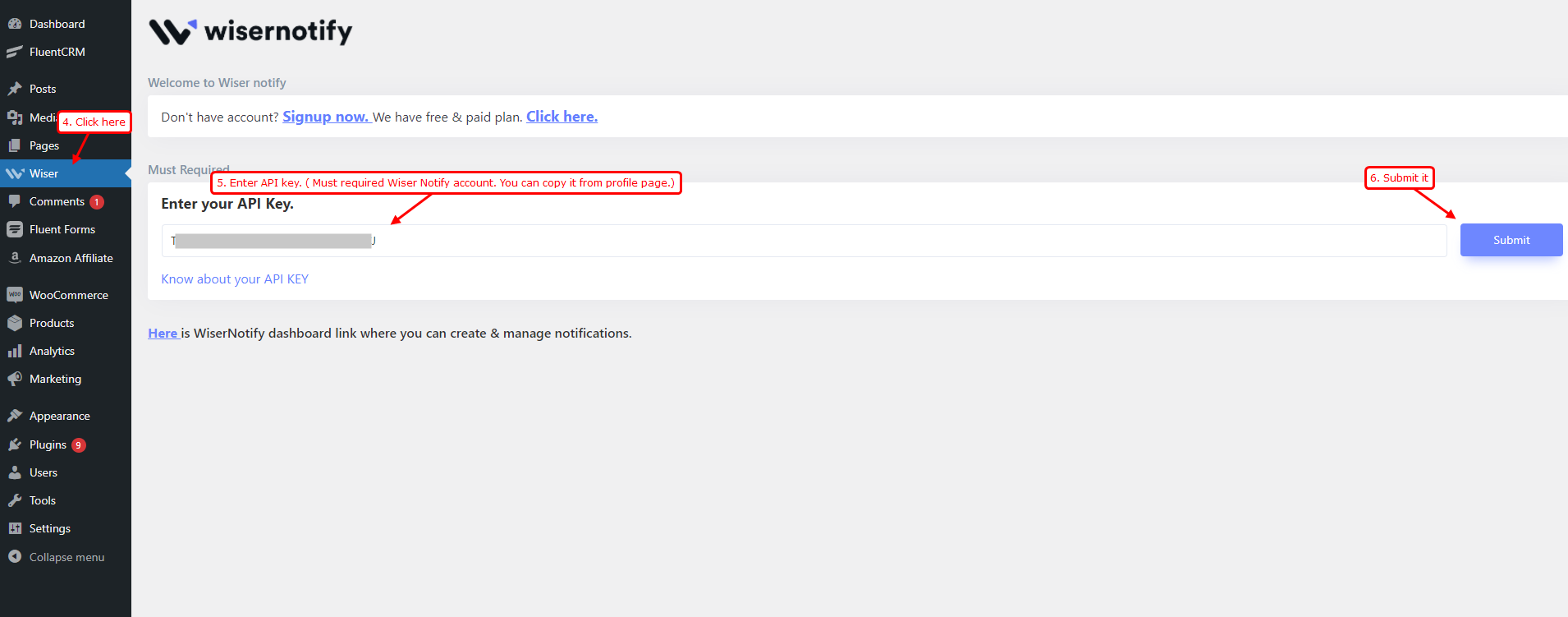
- Back in WordPress, open Wiser Notify in the left menu.
- Paste the key into the Enter your API Key box and click Submit. The plugin adds the pixel to your store’s head section.
Step 6: Check the Pixel

- Open your store once so the pixel loads.
- On the Install Pixel page, click Verify pixel installation.
Step 7: Build the WhatsApp Widget

- In WiserNotify, go to Widgets, then Call To Actions, and pick WhatsApp.
- Enter your WhatsApp Business number with the country code.
- Write the opening line, such as Hi, need help with sizing or shipping? Message us here.
- Match the button color to your store and set the position to the bottom right.
Step 8: Pick the Pages and Publish

- In the Display tab, show the button on all pages, or add rules for pages such as /product/, /cart/ and /checkout/.
- Choose the trigger that fits, from a short delay to exit intent.
- Click Save, then Publish, and open your store in a private window to check.

Boost Conversion Instantly
Add Social Proof & Urgency to your website
Where Should the WhatsApp Button Show on WooCommerce?

- Product pages: where size, stock and compatibility questions come up, right next to Add to cart.
- Cart page: shipping cost and delivery time are the usual reason a shopper stops here.
- Checkout: a late question about payment or returns. A fast reply saves the order.
- My Account: where is my order is the most common message a store gets.
Keep one chat button on the site. A WhatsApp button next to a live chat bubble leaves the visitor unsure which one gets answered.
WhatsApp Widget Not Showing on WooCommerce?

- Key not accepted: copy the API key again, paste it into the plugin and click Submit.
- Caching plugin: purge the cache after submitting the key. LiteSpeed Cache and WP Speed of Light are the usual ones.
- Security plugin: a plugin like Wordfence can block it, so whitelist the WiserNotify plugin.
- Pixel not detected: check the Install Pixel page shows your store address, then test in a private window.
- Not published: saving the widget is not enough. Click Publish.
- Page rules too narrow: make sure the page you are testing is in the Display list.
Wrap Up
One plugin, one API key and one widget put WhatsApp on the WooCommerce pages you choose.
Start with product and cart pages, answer fast for a week, and the questions you get will tell you where to add it next.
Related Post
Frequently Asked Questions
Does WooCommerce have a built-in WhatsApp chat button?
No. WooCommerce has no WhatsApp setting, so the button comes from a plugin or a widget tool such as WiserNotify.
How do I connect WhatsApp to WooCommerce with WiserNotify?
Install the WiserNotify plugin from Plugins, then Add New, paste your API key and click Submit. Then build the WhatsApp widget in WiserNotify.
Do I need the WhatsApp Business API for the widget?
No. The widget opens a chat with your WhatsApp Business number, so a WhatsApp Business account on a phone is enough.
Can I show the WhatsApp widget on only some WooCommerce pages?
Yes. In the Display tab, add rules for pages such as product, cart and checkout, and the widget stays off the rest.
Why is the WhatsApp widget not showing on my WooCommerce store?
The usual causes are a caching plugin, a security plugin blocking the WiserNotify plugin, or an API key that was not accepted. Check those three, then test in a private window.

Krunal Vaghasiya is a marketing tech expert who boosts e-commerce conversion rates with automated social proof and FOMO strategies. He loves to keep posting insightful posts on online marketing software, marketing automations, and improving conversion rates.




 Capterra