
How to Add a WhatsApp Chat Widget to OpenCart (2026)
Shoppers on an OpenCart store have questions a product page cannot answer. Will it fit, when does it ship, can you do a bulk price. Most of them already have WhatsApp open on their phone.
A WhatsApp chat button puts the answer one tap away. The visitor writes to you in the app they use every day, and the conversation keeps going after they leave the site.
Below are the 8 steps to add one to OpenCart with screenshots, where the button helps on a store, and the fixes when it does not show.
Live Chat Plugin or WhatsApp Button for OpenCart?
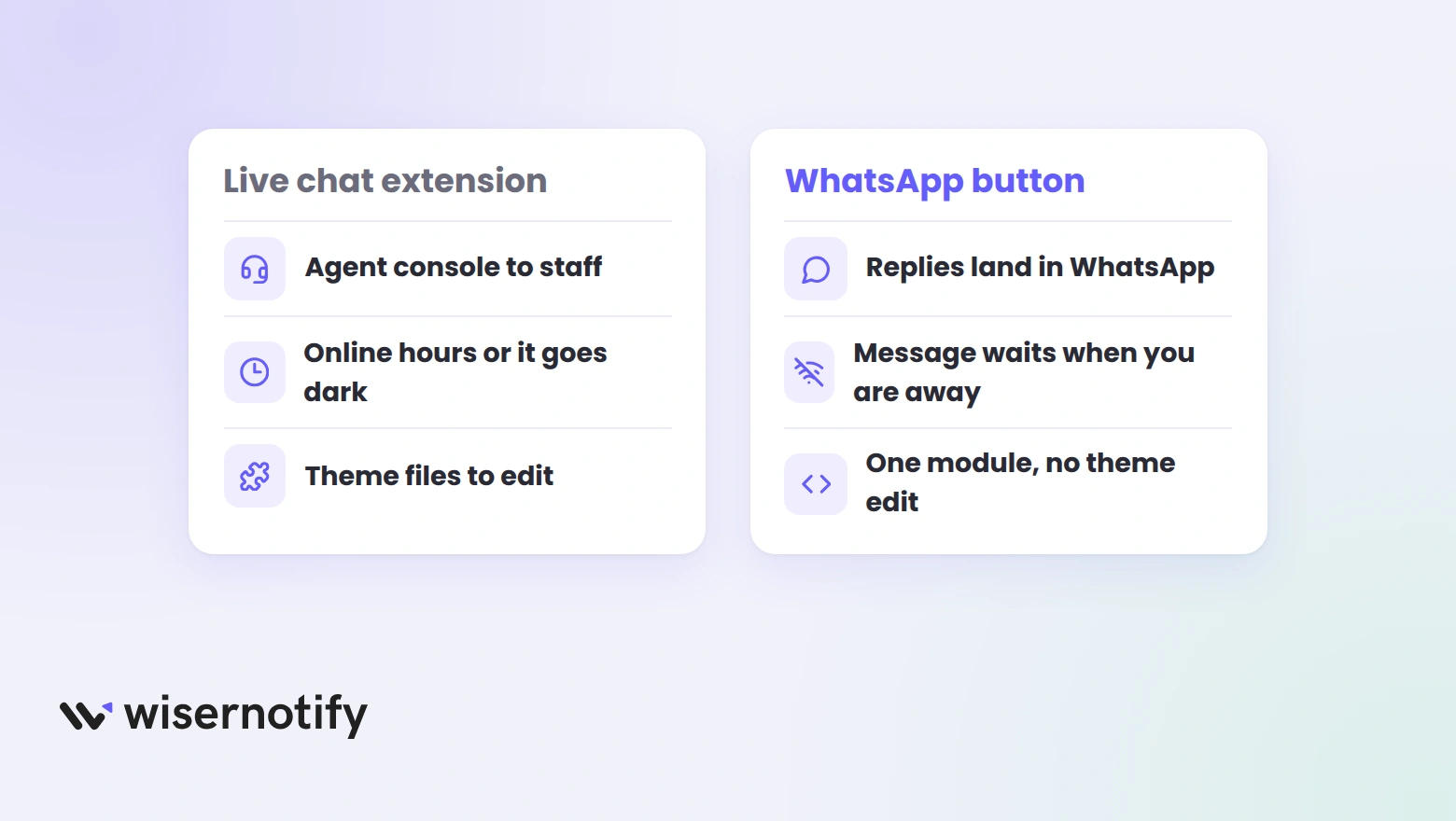
Most OpenCart chat searches end at a live chat extension, and for a store with a support team on shift that is the right tool. The console and the online hours earn their keep when someone is always there.
A WhatsApp button fits the other kind of store. Replies land in your WhatsApp, a message sent at midnight waits for the morning, and nobody sits in a console.
It installs as one OpenCart module, with no theme file changes.
The steps below use the WiserNotify module for OpenCart. The same install also powers sales and review notifications later, from the same dashboard.
Build trust & FOMO
Highlight real-time activities like reviews, sales & sign-ups.


How Do You Add a WhatsApp Chat Widget to OpenCart?

The module works on OpenCart 3.0 and above and connects with an API key, so there is no pixel to paste. The video shows the WhatsApp widget being built, and the steps below cover the module first.
Step 1: Upload the WiserNotify Module
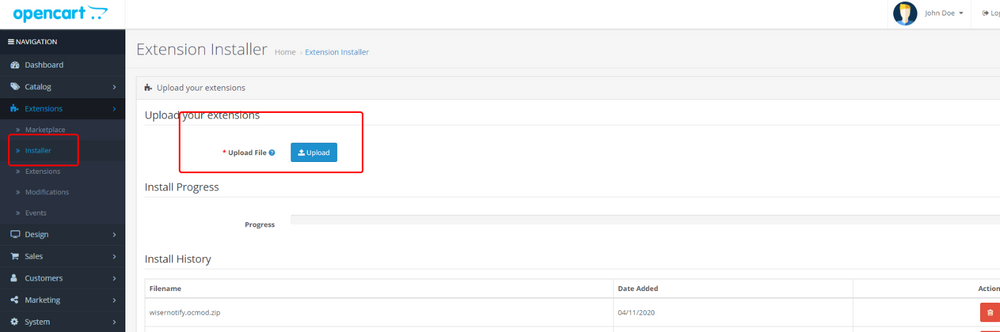
- Sign up for WiserNotify, then download the OpenCart module from the OpenCart integration guide. It is an ocmod zip file.
- In your OpenCart admin, go to Extensions, then Installer, and click Upload.
- Pick the zip file and wait for the progress bar to finish.
Step 2: Copy Your API Key

- In WiserNotify, open Install Pixel and scroll to Other installation options.
- Click Copy API Key.
Step 3: Open the Modules List
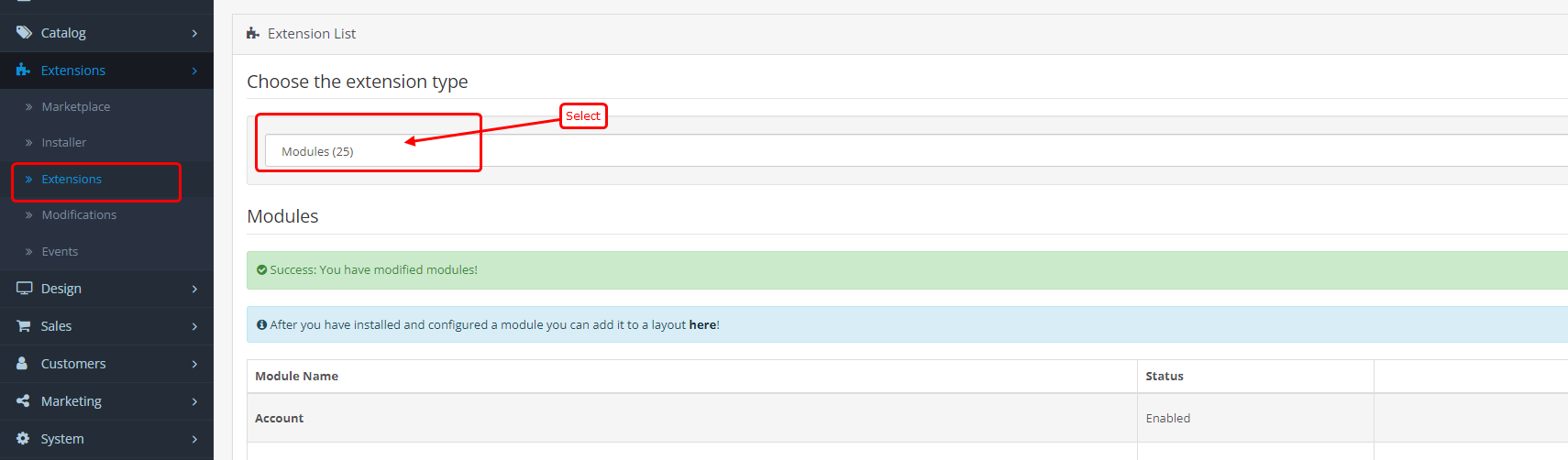
- Go to Extensions, then Extensions.
- Under Choose the extension type, pick Modules.
Step 4: Install WiserNotify
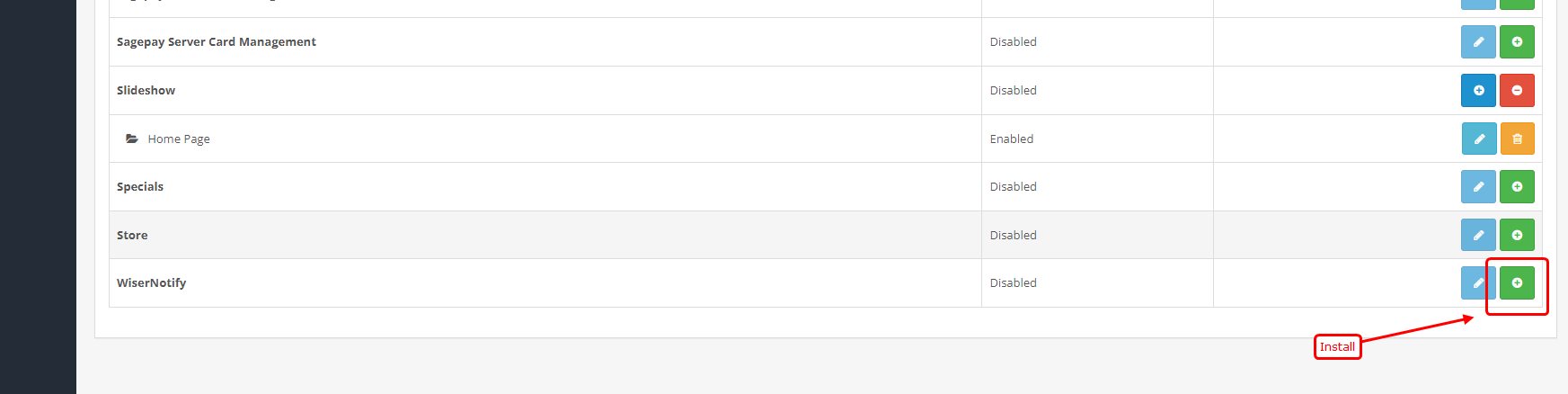
- Find WiserNotify in the list and click the green install button.
- Click the blue edit button next to it to open the settings.
Step 5: Paste the Key and Enable
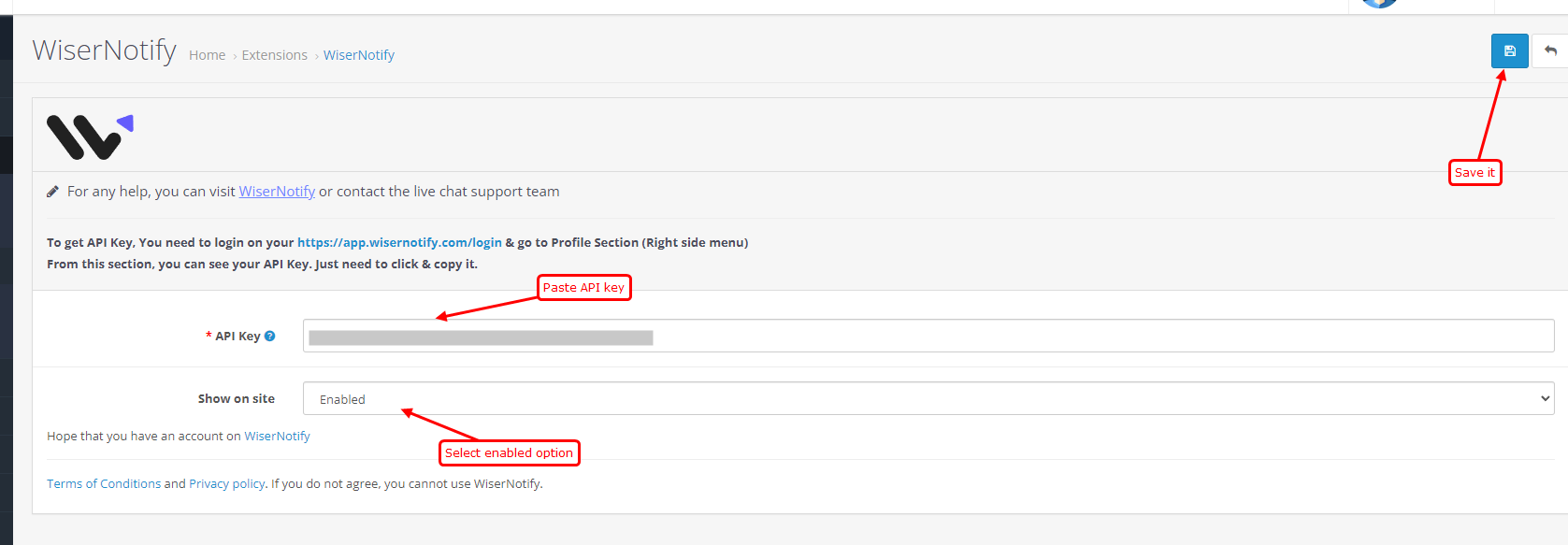
- Paste the API key.
- Set Show on site to Enabled and click Save.
- Go to Extensions, then Modifications, and click Refresh so OpenCart applies the module.
Step 6: Verify the Pixel

- Open your storefront once so the module loads.
- Back on the Install Pixel page, click Verify pixel installation.
Step 7: Build the WhatsApp Widget

- In WiserNotify, go to Widgets, then Call To Actions, and pick WhatsApp.
- Enter your WhatsApp Business number with the country code.
- Write the opening line, such as Hi, have a question about an order? Message us here.
- Match the button color to your store and set the position to the bottom right.
Step 8: Pick the Pages and Publish

- In the Display tab, show the button on all pages or only on product, category and cart pages.
- Set the hours it should appear if you only reply during business hours.
- Click Save, then Publish, and open your store in a private window to check.

Boost Conversion Instantly
Add Social Proof & Urgency to your website
Where Does the Button Help on an OpenCart Store?
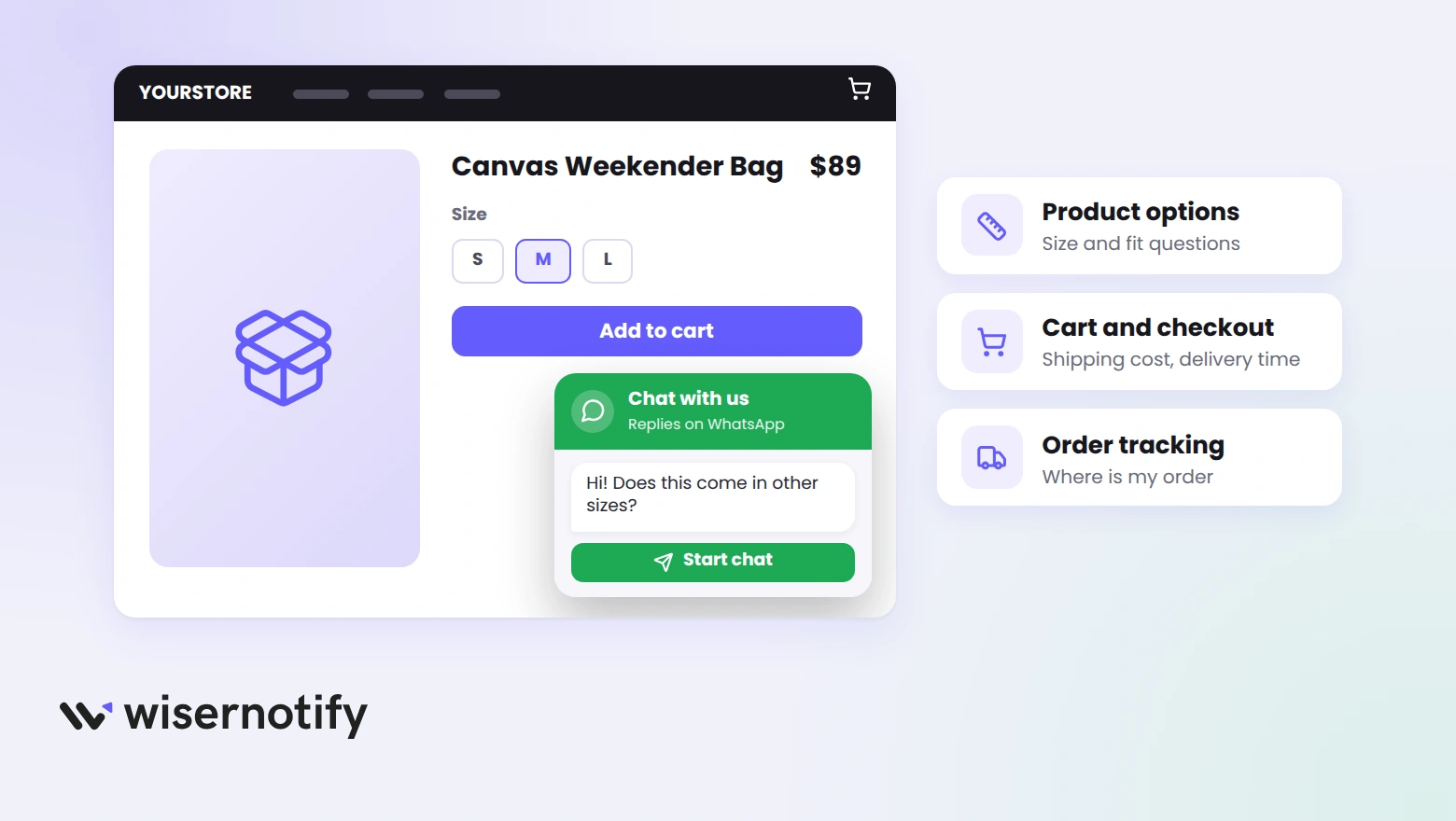
- Product pages with options: sizes, finishes and compatibility questions get asked here. Pre-fill the message with the product name so you know what they are looking at.
- Category pages: the shopper who cannot find the right item asks instead of leaving.
- Cart and checkout: shipping cost and delivery time questions come up at the last step. A reply here saves the order.
- Order tracking page: where is my order is the most common message a store gets.
- B2B or bulk stores: the quote request that never gets filled in on a form gets typed into WhatsApp.
Keep one chat button on the site. A WhatsApp button next to a live chat bubble and a contact popup leaves the visitor unsure which one gets answered.
WhatsApp Widget Not Showing on OpenCart?
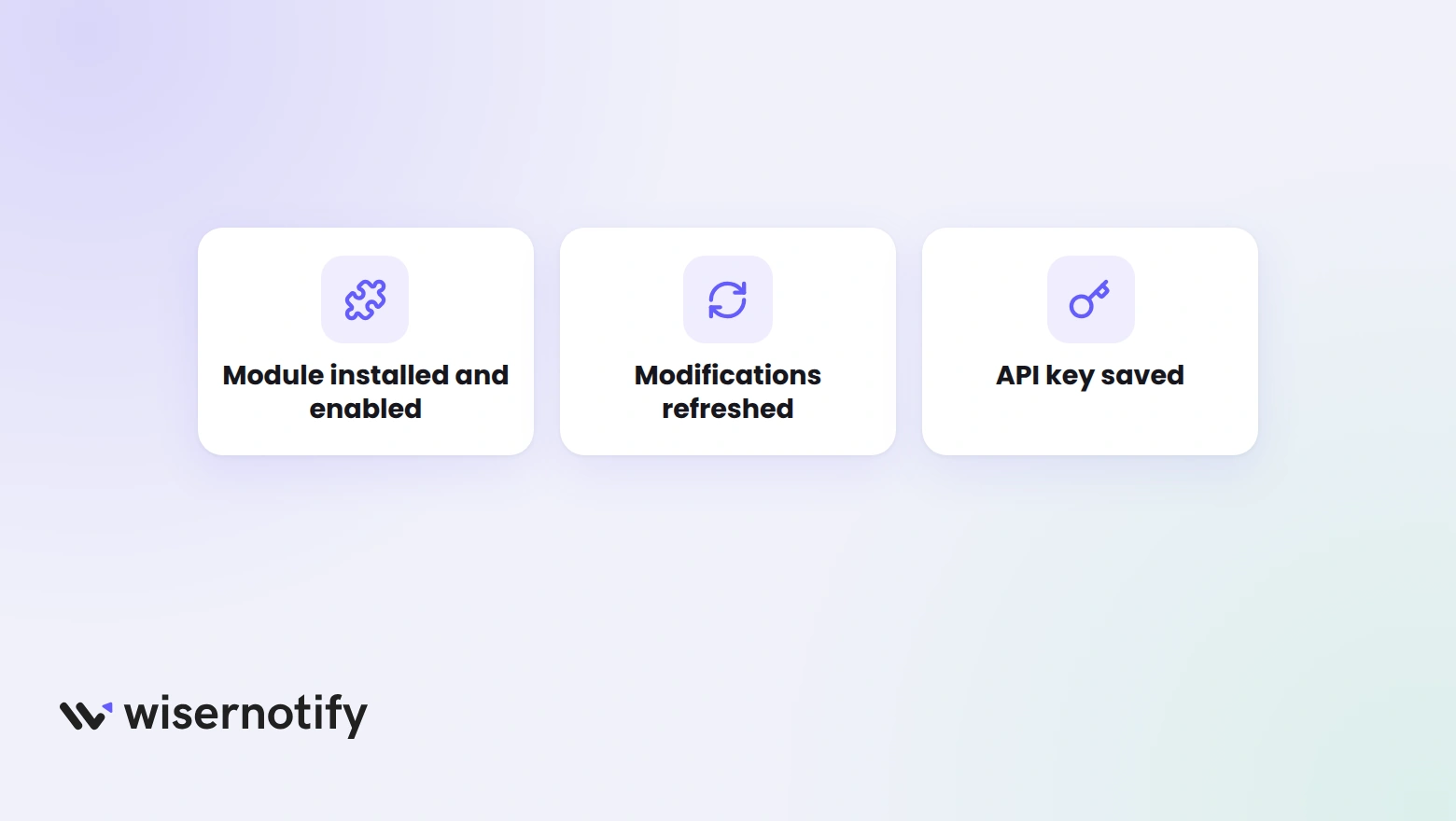
- Module not enabled: open the WiserNotify module settings and check Show on site is set to Enabled.
- Modifications not refreshed: ocmod changes apply only after Extensions, then Modifications, then Refresh.
- API key wrong: copy it again from Install Pixel and save the module.
- OpenCart cache: on the admin dashboard, click the gear icon and refresh the theme and SASS caches.
- Not published: saving the widget is not enough. Click Publish.
- Page rules too narrow: make sure the page you are testing is in the Display list.
- Browser cache: check in a private window.
Wrap Up
One module upload, one API key and one widget put a WhatsApp button on every OpenCart page you choose.
Start with product and cart pages, answer fast for a week, and the questions you get will tell you which pages need it next.
Related Post
Frequently Asked Questions
Does OpenCart have a built-in WhatsApp chat button?
No. OpenCart ships without a chat widget, so a WhatsApp button comes from a module. The WiserNotify module adds one you edit from a dashboard.
Which OpenCart versions does the WiserNotify module support?
The module works on OpenCart 3.0 and above.
Do I need the WhatsApp Business API for the widget?
No. The button opens a chat with your WhatsApp Business number, so a regular WhatsApp Business account on a phone is enough.
Can I show the WhatsApp button on only some OpenCart pages?
Yes. In the Display tab, pick the pages, such as product, category and cart pages, and the button stays off the rest.
Why is the WhatsApp widget not showing on my OpenCart store?
The usual causes are the module not set to Enabled, modifications not refreshed after the upload, or a wrong API key. Check those three, then clear the OpenCart cache.

Krunal Vaghasiya is a marketing tech expert who boosts e-commerce conversion rates with automated social proof and FOMO strategies. He loves to keep posting insightful posts on online marketing software, marketing automations, and improving conversion rates.




 Capterra