
Easily Add WhatsApp Chat Widget to Magento Website

A visitor lands on your Magento store with a question, doesn’t see a fast way to ask it, and leaves instead of buying.
A WhatsApp chat widget puts a direct line to you right on the page, so that question gets asked instead of costing you the sale.
Magento doesn’t have a native WhatsApp widget, but connecting a tool like WiserNotify adds one.
Do You Need the WhatsApp Business API for This?
No. What you’re setting up here is a click-to-chat widget, a button that opens a normal WhatsApp conversation, the same as a wa.me link. There’s no approval process, no message templates, and no API to apply for.
The WhatsApp Business API is a separate, more involved system built for things like automated order updates sent to customers who never messaged you first. If all you want is a button that lets visitors reach you on WhatsApp, the widget below is all you need.
How to Add a WhatsApp Chat Widget to Magento
The widget-building part of this walkthrough matches the video below; the Magento-specific installation steps are written out beneath it.
Step 1: Install the WiserNotify Extension
- In WiserNotify, go to Integrations > Magento 2.0 and click Download app module (zip file), then unzip it.

- In your Magento root directory, create the folder app/code/Tatvam, and copy the unzipped WiserNotify folder into it.
- In the terminal, from your Magento root directory, run
php bin/magento module:enable Tatvam_Wisernotify, orphp bin/magento setup:upgrade. - Run
php bin/magento setup:di:compileto compile dependencies, thenphp bin/magento setup:static-content:deployto deploy static content. - In your Magento Admin Panel, go to System > Cache Management and click Flush Magento Cache.
Step 2: Connect Magento to WiserNotify
- Back on WiserNotify’s Magento 2.0 integration page, click Copy API key.
- In your Magento Admin Panel, go to System > WiserNotify Extension.
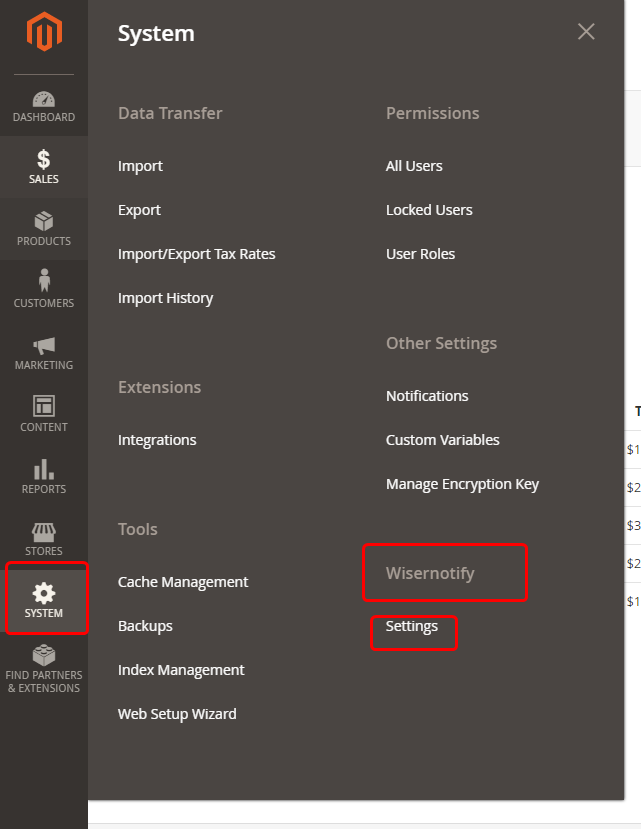
- Paste the API key into the Enter your API Key box, then click Submit.
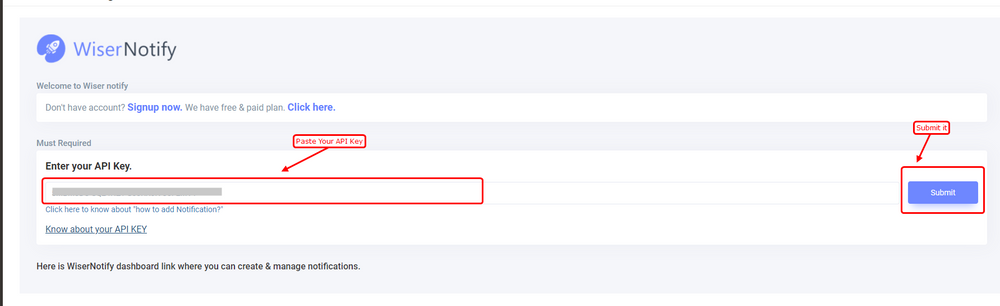
Once verified, this automatically adds the WiserNotify pixel to your store, pulls in your last 30 orders, and sets up a webhook for real-time order data.
Make sure to select this integration as the data source under Customize notification > Data-source. See the full Magento integration guide for the complete setup.
Step 3: Create and Customize the WhatsApp Widget
- In WiserNotify, click Widgets in the sidebar, select the Call To Actions tab, find WhatsApp, and click Add. Enter the website name and click Create and Customize.
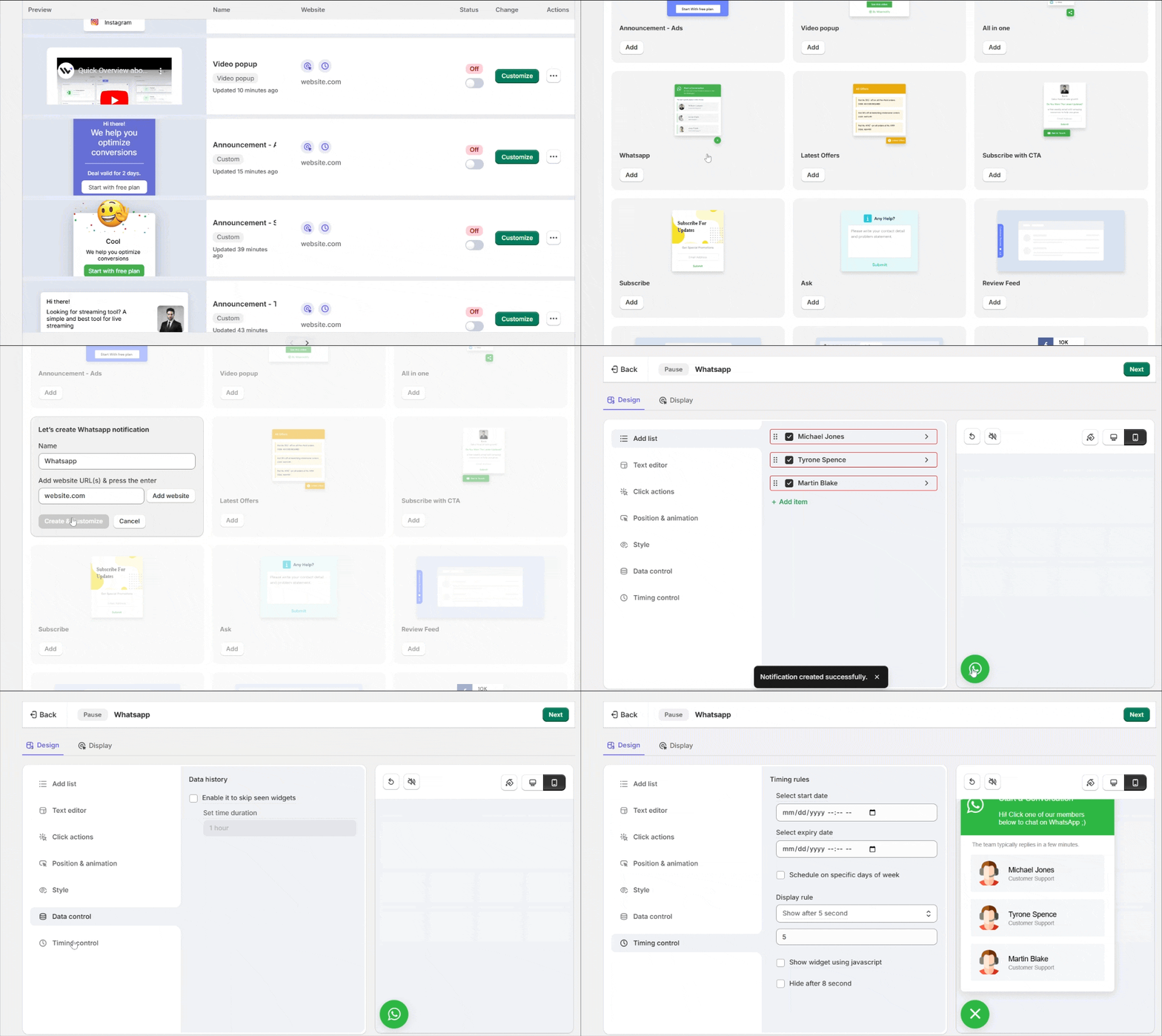
- Add your team. In Add List, add each rep’s WhatsApp number, avatar, name, and a message that auto-sends with the page URL when clicked.
- Set the text. In Text Editor, add a heading and a short welcome message.
- Style it. Use Click Actions, Position & Animation, and Style to set the icon, placement, and colors.
- Set the timing. In Timing Control, choose a trigger (delay, scroll, exit intent) and how long it stays visible.
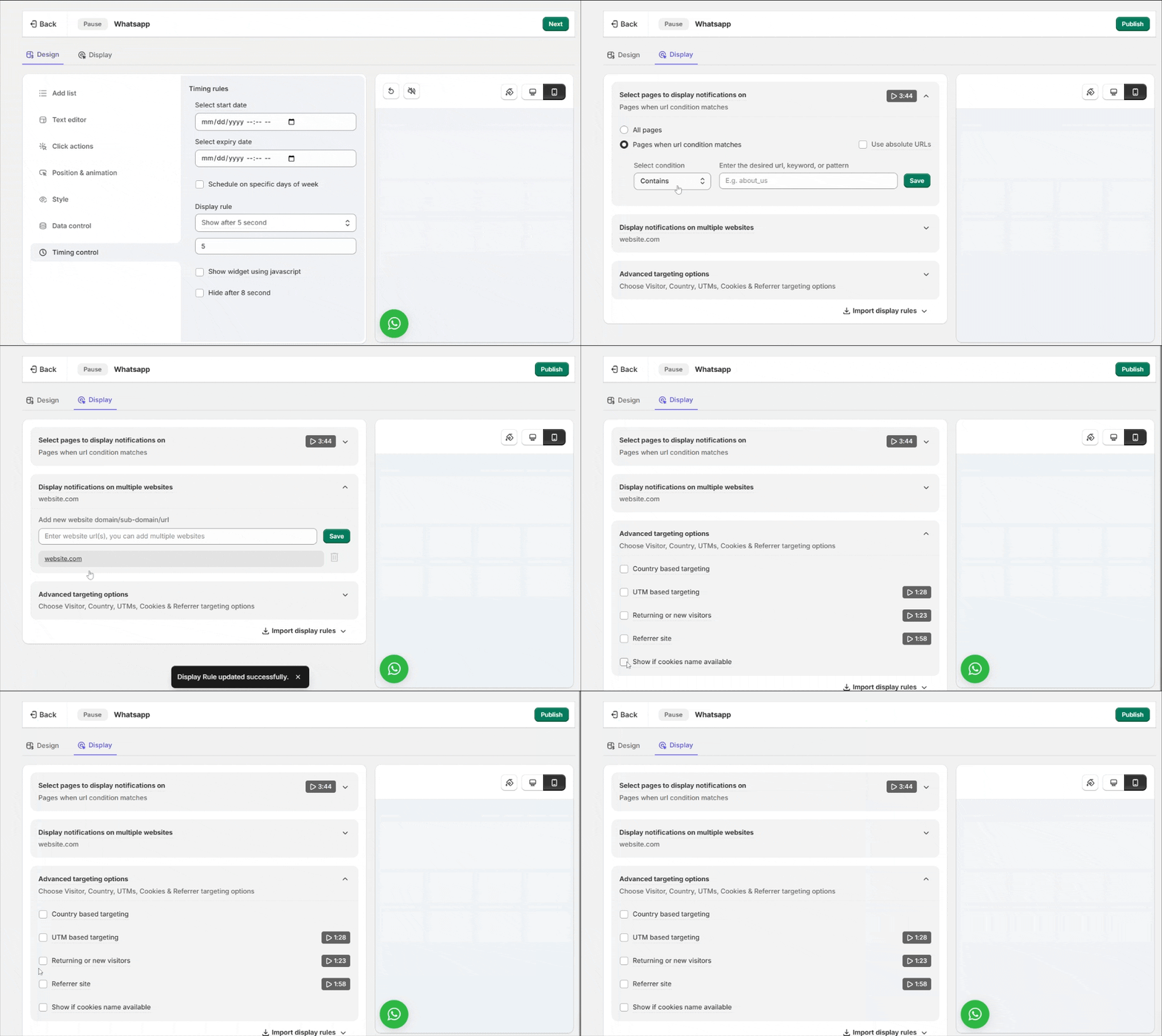
- Choose where it shows. In Display, target all pages or specific ones, and add advanced targeting if needed.
- Publish and test. Click Publish, then check your live site in a private browser to avoid cache issues. If it’s not showing, use the Troubleshoot option in the widget list.
See the full WhatsApp widget guide for every option in this editor.

Boost Conversion Instantly
Add Social Proof & Urgency to your website
Best Practices for Your WhatsApp Chat Widget
- Make it easy to find: keep it in a visible spot, like a bottom corner, so people don’t miss it.
- Use a warm opening message: something like “Hi! Need help? We’re here.” makes people more likely to reach out.
- Match your branding: align the widget’s colors and style with the rest of your store.
- Set expectations on response time: mention your hours so people know when to expect a reply.
- Use a WhatsApp Business account: it looks more professional and gives you quick replies and away messages.
- Check your numbers regularly: your WiserNotify dashboard shows how often people are using the widget.
Common Mistakes to Avoid
- Using a personal WhatsApp number: a business account looks more credible and gives you tools a personal number doesn’t have.
- Skipping the cache flush: if changes aren’t showing, flush the Magento cache before assuming something’s broken.
- Stacking too many widgets and popups: a page cluttered with overlapping widgets pushes people away instead of helping them.
- No automated replies: without a quick auto-response, people wait too long and give up.
- Skipping the data-source setting: forgetting to select the Magento integration under Customize notification means your widget won’t reference real orders.
How to Measure Your Chat Widget’s Impact

A widget that’s live doesn’t automatically mean people are using it.
- Widget views and clicks: both in your WiserNotify dashboard, together they show whether people are noticing and opening the chat.
- Response time: a slow reply is one of the fastest ways to lose someone who was ready to buy.
- Conversion rate on pages with the widget: compare against pages without it over a week or two.
Build trust & FOMO
Highlight real-time activities like reviews, sales & sign-ups.

Conclusion
Adding a WhatsApp chat widget to your Magento store is a simple way to give visitors real-time help right when they need it.
Once it’s set up, you can build and manage the widget entirely from the WiserNotify dashboard, no ongoing code needed.
Use a proper business account, keep it easy to find, and keep an eye on how people are using it.
Related Posts:
Frequently Asked Questions
Do I need a developer to add a WhatsApp chat widget to Magento?
Yes, but it requires installing the WiserNotify extension on your Magento server, which involves file access and terminal commands. Most store owners have a developer handle that part.
Can I use my personal WhatsApp number for the chat widget?
Yes, and it’s recommended. A WhatsApp Business account gives you quick replies, away messages, and a proper business profile that a personal number doesn’t have.
Does the WhatsApp widget work on mobile devices?
Yes, the widget editor lets you set separate animation and position settings for mobile and desktop.
How can I track customer interactions on WhatsApp?
Your WiserNotify dashboard shows widget views and clicks. For replies and response times, check WhatsApp Business’s own analytics.
Why isn't my WhatsApp widget showing up after installation?
Flush the Magento cache from System > Cache Management, then check the widget in a private browser window to rule out a stale cached page.

Krunal Vaghasiya is a marketing tech expert who boosts e-commerce conversion rates with automated social proof and FOMO strategies. He loves to keep posting insightful posts on online marketing software, marketing automations, and improving conversion rates.




 Capterra