
WhatsApp Chat Module for PrestaShop: How to Add It
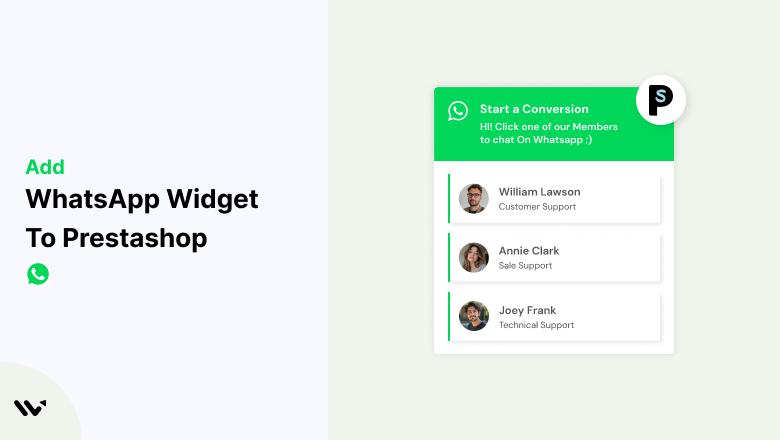
A shopper on your PrestaShop store is ready to order but wants to know whether the item ships to their city. If the only option is an email form, most of them leave and check another store.
A WhatsApp chat widget lets them ask on the spot, from an app they already open every day. Your reply lands in their chats, so the conversation doesn’t end when they close the tab.
WiserNotify adds one through its own PrestaShop module. You upload it once, paste a key, and build the widget without touching your theme files.

How to Add the WhatsApp Chat Module to PrestaShop
PrestaShop doesn’t need a pasted script for this. WiserNotify ships a native module that links your store with an API key, and the video below covers building the widget itself.
Step 1: Copy Your API Key and Module
- Log in to WiserNotify, open the Install Pixel page, and scroll to Install via native app & API key. Click Copy API Key.
- Download the WiserNotify PrestaShop module. It comes as a .zip file, so keep it zipped.

Step 2: Upload the Module in PrestaShop
- In your PrestaShop admin, go to Modules > Module Manager.
- Click Upload a module at the top right, then drop in the .zip or click select file.
- When PrestaShop shows Module installed!, click Configure.

Step 3: Paste the Key and Turn It On
- Paste your key into the API Key field.
- Set Status to Yes and click Save.

Step 4: Create the WhatsApp Widget
- Back in WiserNotify, open Widgets from the sidebar, switch to Call To Actions, and click Add on WhatsApp. Name it, then click Create and Customize.
- Under Add List, add the people who answer chats with their number in international format, a name, a photo, and an opening message that tells you which product page they came from.
- Match the look to your store in Text Editor, Style, and Position & Animation.

Step 5: Choose Pages and Go Live
- Set a trigger in Timing Control, like showing the widget after a visitor scrolls or waits a few seconds.
- In Display, show it store-wide or only on product, cart, and checkout pages.
- Hit Publish and load your store in a private window to check it.

WhatsApp Chat vs a Live Chat Module
Most PrestaShop chat modules keep the conversation in a window on your store. When the shopper leaves, the chat usually leaves with them.
With WhatsApp, the thread moves to the shopper’s phone. You can answer a sizing question an hour later or send a photo of the item, and they’ll see it in the app they check most.
Your team doesn’t need a dashboard open all day either. Replies go out from the WhatsApp or WhatsApp Business app on their own phones.
Do You Need the WhatsApp Business API?
No. The widget opens a normal WhatsApp chat with your number, much like a wa.me link. There’s nothing to apply for and no template approval from Meta.
The API is meant for companies sending automated messages to large lists. For shoppers who want to ask you something, a standard WhatsApp Business number is all it takes.
Widget Not Showing on Your PrestaShop Store?
Work through these in order.
- Upload rejected: PrestaShop only accepts modules as a .zip or tarball. Upload the file exactly as downloaded, without unzipping it.
- Status left on No: reopen the module’s Configure page, set Status to Yes, and save again.
- Key pasted with extra spaces: copy the API key from WiserNotify again and paste it fresh.
- Old cached pages: clear the store cache under Advanced Parameters > Performance, then test in a private window.
- Page not targeted: make sure WiserNotify’s Display tab includes the page you’re viewing. Still nothing? Use Troubleshoot in the widget list or message live chat support.
Best Pages for WhatsApp Chat on PrestaShop
Questions cluster around a few moments in a shopping session.
- Product pages: size, stock, and material questions come up here more than anywhere else.
- Cart: shoppers check delivery times and costs before they commit.
- Checkout: a fast answer about payment or returns can save an order that was about to be abandoned.
- Contact and shipping pages: people who land here already want to talk to someone.

Boost Conversion Instantly
Add Social Proof & Urgency to your website
Common Mistakes to Avoid
- Unzipping the module before upload: PrestaShop expects the archive, not a folder.
- Using a personal number: a WhatsApp Business profile can show your store name, hours, and catalog, which buyers trust more.
- Answering hours later: set an away message so shoppers outside your hours know when to expect a reply.
- Covering the add-to-cart button on mobile: check the widget on a phone and move it to the other corner if it sits over a key button.
How to Tell If the Widget Is Working
Give it a few weeks, then look at three things.
- Widget clicks: WiserNotify reports how many shoppers opened the chat.
- Conversion rate: compare your store’s numbers in PrestaShop’s Stats section for the weeks before and after launch.
- Chats that end in orders: label WhatsApp Business chats that turn into sales to see which questions come up most.
Conclusion
On PrestaShop, the WhatsApp widget comes down to one module upload and an API key, then a few minutes building the widget in WiserNotify.
After that, you can change the pages, timing, and team members from the WiserNotify dashboard without opening your store’s back office again.
Related Read:
Frequently Asked Questions
Do I need to edit my PrestaShop theme to add the widget?
No. The WiserNotify module connects your store with an API key, so you never touch your theme files.
Which file do I upload to PrestaShop?
Upload the WiserNotify module .zip exactly as downloaded. PrestaShop installs it right after the upload finishes.
Can I show the widget only on product pages?
Yes. In WiserNotify’s Display settings, pick only the pages you want, such as product, cart, or checkout.
Can more than one person answer chats?
Yes. Add each team member in the Add List tab with their own WhatsApp number, name, and photo.
Does the widget work on phones?
Yes. Mobile shoppers land straight in the WhatsApp app, while desktop visitors get WhatsApp Web in a browser tab.

Krunal Vaghasiya is a marketing tech expert who boosts e-commerce conversion rates with automated social proof and FOMO strategies. He loves to keep posting insightful posts on online marketing software, marketing automations, and improving conversion rates.




 Capterra