
How to Add a WhatsApp Chat Widget to Ghost (2026)
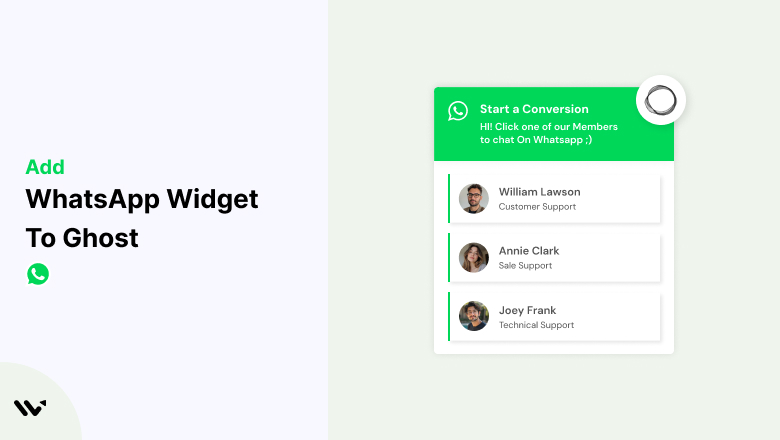
To add a WhatsApp chat widget to Ghost, paste the WiserNotify pixel into Settings, Code injection, Site Header, then build the widget under Widgets, Call To Actions, WhatsApp. The whole setup takes about five minutes with no theme edits.
When the green button goes live, a reader taps it and lands straight in a WhatsApp thread with you. Replies happen on your phone, so no member question rots in an unchecked inbox.
Below is the full Ghost setup with a screenshot under each step, the spots on a publication where the button earns its keep, and the habits that waste it.
Key Takeaways
- Ghost ships with no chat feature. WiserNotify adds a WhatsApp button through Code injection, so your theme files stay untouched.
- Setup is seven steps. Copy the pixel, paste it in Ghost’s Site Header, verify it, then build and publish the WhatsApp widget.
- Show it first on posts, membership pages, and your contact page, write a specific opener, and reply fast during stated hours.
Does Ghost Have a Built-In Chat Option?
No. Ghost is built for publishing, newsletters, and memberships, and it ships without any live chat or WhatsApp feature. Every chat option on a Ghost site comes from an outside tool added through Code injection.
Classic live chat tools also create a second job. Someone has to watch a separate agent inbox, or the bubble fills with questions nobody ever answers. That impression is hard to undo.
A WhatsApp chat widget sidesteps all of that. Tapping the button starts an ordinary WhatsApp conversation. Your reply comes from your phone, and the thread stays with the reader long after they close your site.
Why Add a WhatsApp Chat Widget to Ghost
A reader deciding whether to subscribe, join a membership, or buy a course rarely emails their question. They close the tab. A WhatsApp button turns that hesitation into a conversation.
- Membership doubts get settled on the spot. Pricing, what a tier includes, and cancellation questions are answered while the reader is still on the page.
- The chat happens in a familiar app. Readers already use WhatsApp daily, so starting a conversation costs them nothing.
- The thread outlives the visit. Even after they close the tab, the conversation is still sitting on their phone, and so is your second shot at the signup.
- Zero support software to run. Replies go out from the same WhatsApp Business app already in your pocket.
- Sponsors and partners reach you faster. A direct line beats a contact form for inquiries worth real money.
How to Add a WhatsApp Chat Widget to Ghost
Watch the walkthrough below, or follow the written steps with a screenshot under each one.
Ghost takes a small pixel snippet through its Code injection screen. You paste it once, and every page on your site can show the widget.
Step 1: Copy Your Pixel Code
Start the 7-day free trial, or log in if you have an account. Open the Install Pixel page and click Copy code.

Step 2: Open Ghost Settings
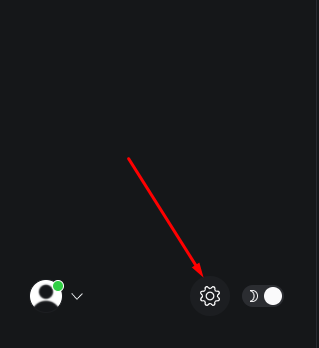
Log in to your Ghost admin and click the settings gear at the bottom of the sidebar.
Step 3: Open Code Injection
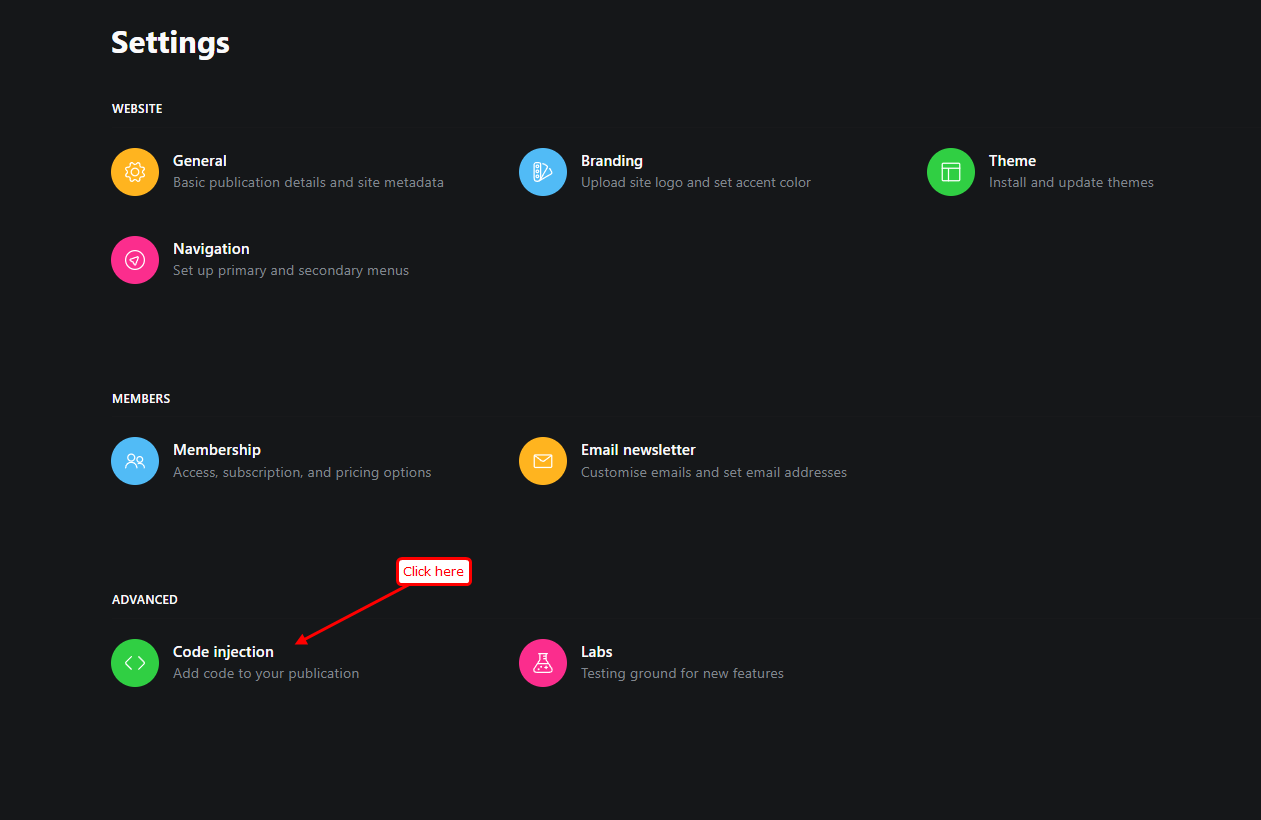
Scroll to the Advanced section and select Code injection.
Step 4: Paste the Pixel and Save
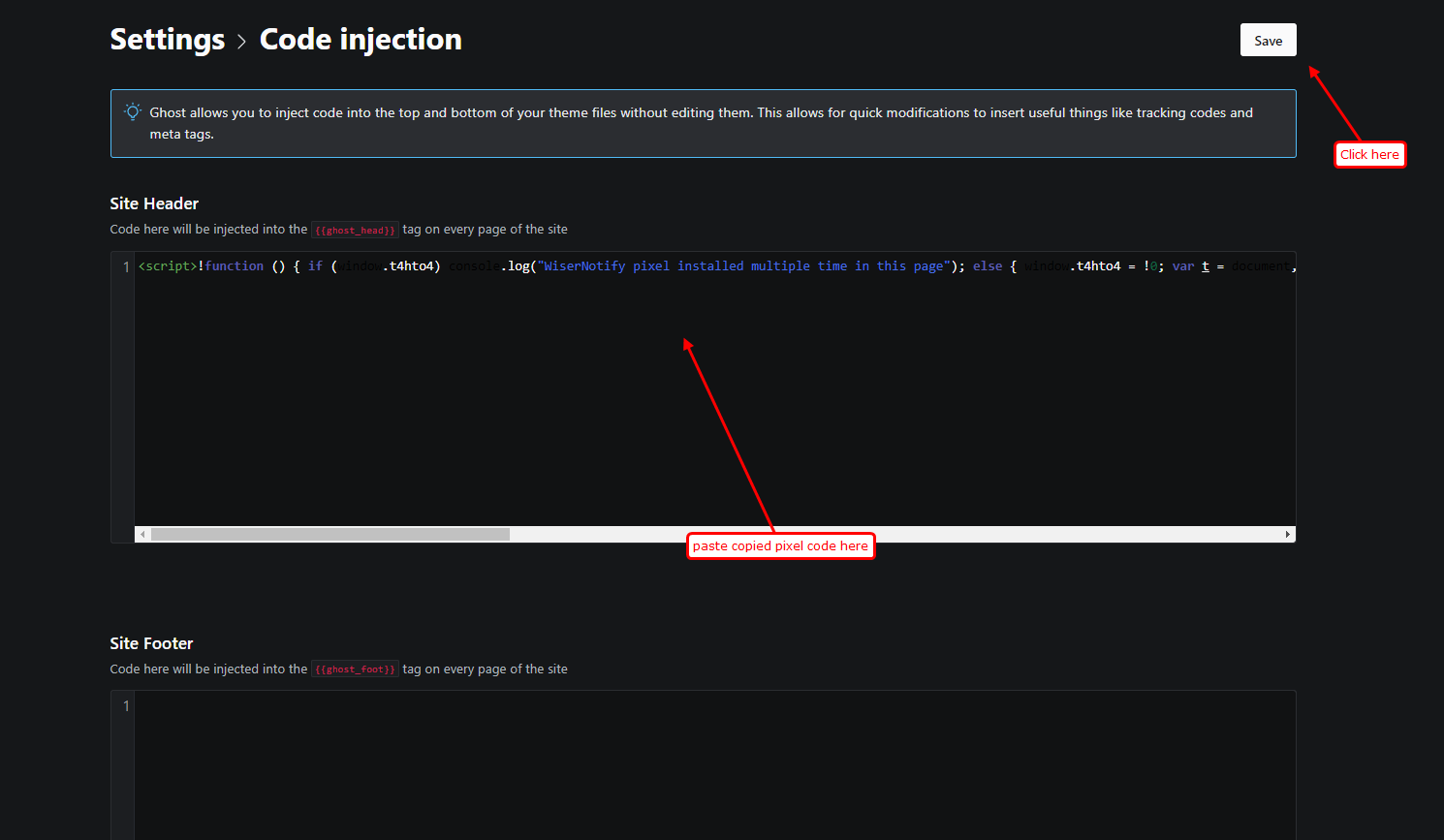
Paste the copied pixel into the Site Header box and click Save. Ghost injects it into every page, so one paste covers your whole site.
The Ghost pixel install guide covers this screen in more detail.
Step 5: Verify the Install
Open your Ghost site once so the pixel fires, then return to the Install Pixel page and click Verify pixel installation. Wait for the detected message.

Step 6: Build the WhatsApp Widget
Go to Widgets, open the Call To Actions tab, pick WhatsApp, and click Add.
In the Design section, enter your WhatsApp Business number with its country code and write a short opener such as “Hi! Questions about membership or a post? Message us.”
Then make it yours. Set the tap behavior under Click actions, pick its spot for mobile and desktop under Position and Animation, and adjust colors, shape, and shadow under Style.

Every option in this editor is covered in the WhatsApp widget guide.
Step 7: Set Display and Publish
In the Display section, decide which pages carry the button, your whole publication or a handful of URLs. Layer on targeting if you need it, like first-time visitors or traffic from one campaign.
Hit Save, then Publish, and load your live site in a private window to confirm it.

Build trust & FOMO
Highlight real-time activities like reviews, sales & sign-ups.

WhatsApp Widget Not Showing Up on Ghost?
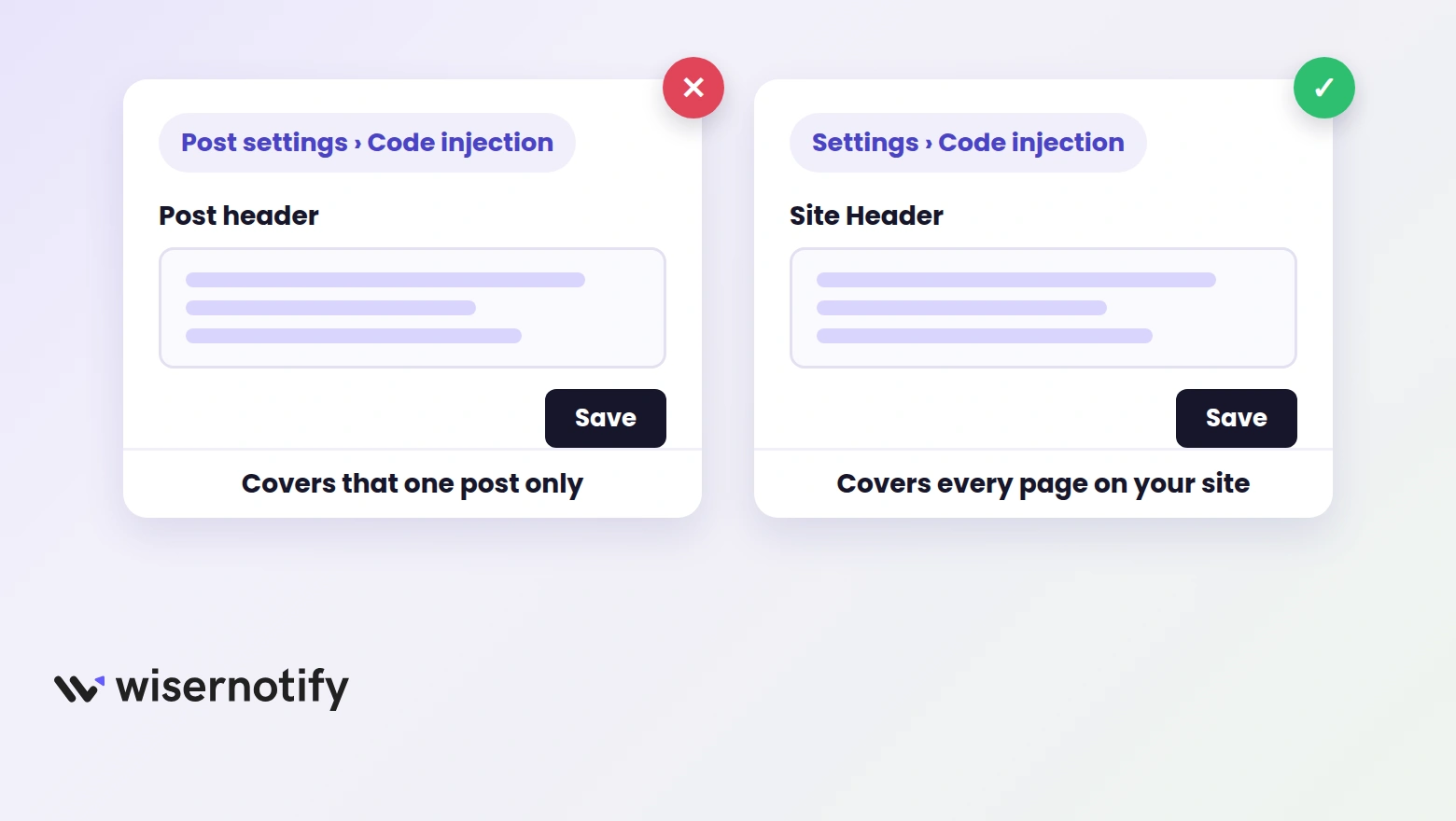
When the button refuses to appear on a Ghost site, one of these is usually the reason:
- Pixel pasted into one post. Code injection inside a single post’s settings only covers that post. Site-wide widgets need the pixel in Settings, Code injection, Site Header.
- Changes never saved. The Save button sits at the top right of the Code injection screen and is easy to skip.
- Pixel never verified. Finish the Step 5 check first. Widget settings cannot fix a pixel that is not firing.
- Display rules skip the page. A widget restricted to specific URLs stays hidden everywhere else, including the page you happen to be testing.
- Cached page. Reload in a private or incognito window whenever you change a setting.
None of those it? Open the Troubleshoot option next to the widget in your WiserNotify list, or ping support on live chat.
Where to Show the Widget on Your Site
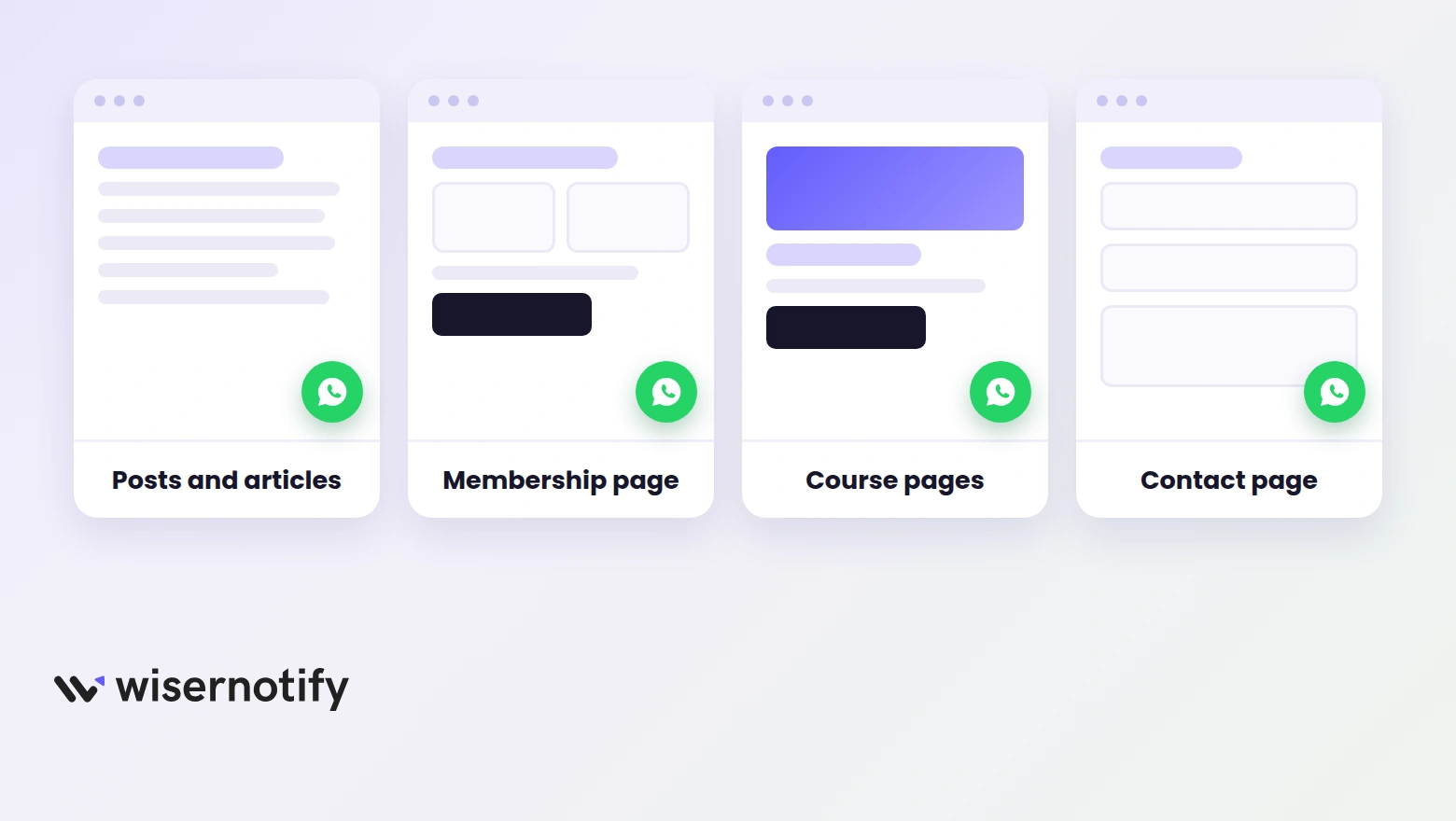
Put the button where an unanswered question costs you a signup or a sale:
- Posts and articles. Readers deep in your content are the warmest audience you have. Give them a direct line while interest is high.
- Membership and signup pages. A quick “does the paid tier include the archive?” chat saves subscriptions that would otherwise stall.
- Course or product pages. If you sell through your Ghost site, answer buying questions at the moment of doubt.
- About and contact pages. Sponsors, advertisers, and collaborators would rather message you than fill in an email form.
- Newsletter landing pages. You paid to get those visitors there, so hand them a direct line while you still have them.
Tips That Get More Chats Started
- Make the opener specific. “Questions about membership or sponsorships? Message us” pulls more chats than a plain hello.
- Run it on a WhatsApp Business number. That gets you a public profile, saved replies, and away messages a personal number lacks.
- Publish your reply hours. An away message with a reply window turns a slow answer into an expected one.
- Template the repeat questions. Tier pricing, refunds, and archive access come up constantly, so write each answer once as a quick reply.
- Blend it with your theme. The bubble stays green, but its text, shape, and shadow should sit naturally in your publication’s design.
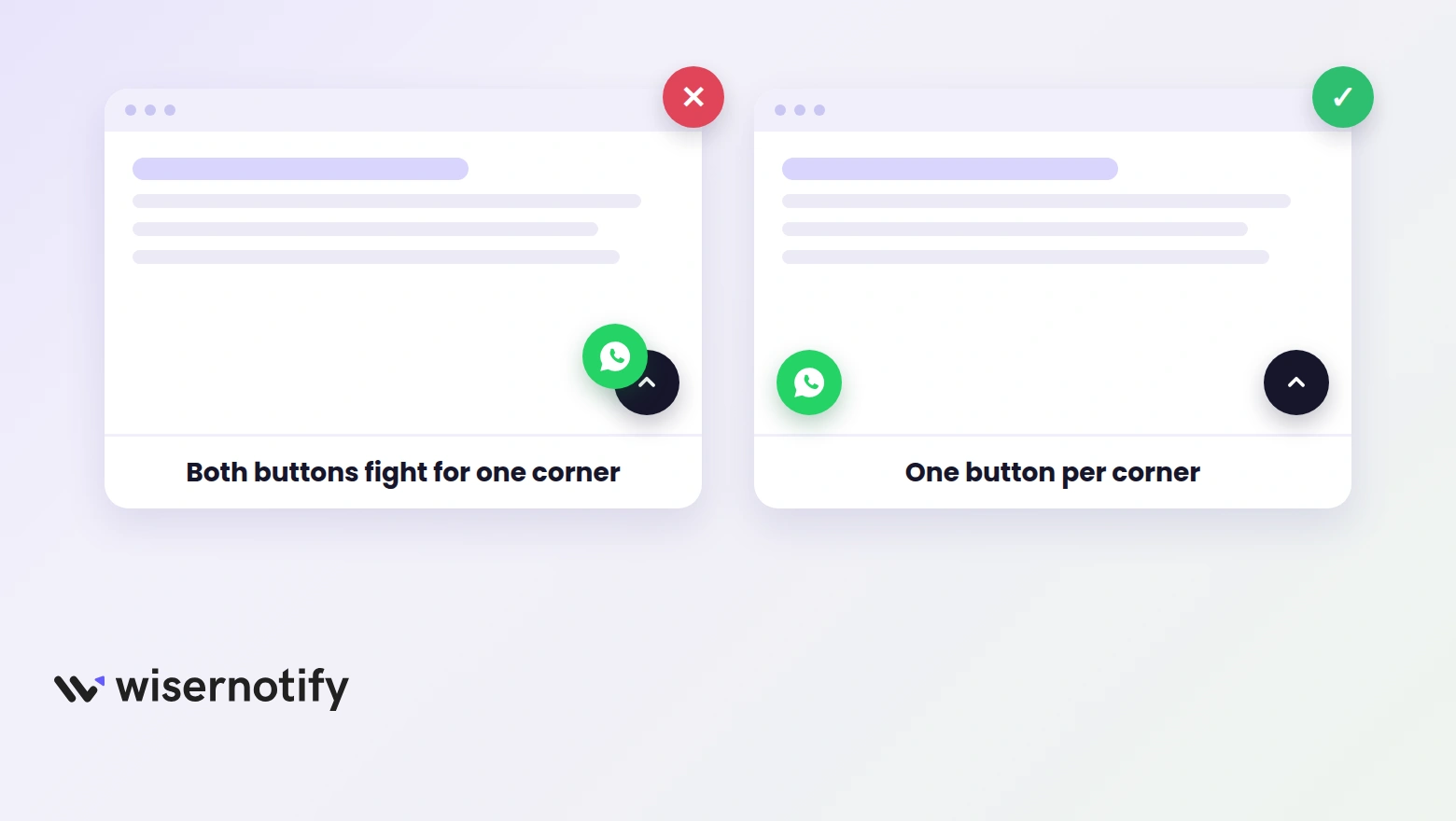
- Pick one corner and hold it. Bottom right is where readers look for chat. If Ghost’s member portal button sits there, shift one of the two.
Common Mistakes to Avoid
- Running it on a personal number. No saved replies, no away messages, and a profile that reads as unofficial.
- Publishing without a live check. The readers who tap a dead button are the ones who most wanted to talk to you.
- Leaving chats unread all day. People expect WhatsApp answers in minutes, not days. An away message with a reply window buys you the gap.
- Letting it collide with the member portal. Ghost’s own subscribe button floats in the bottom right by default. Put the chat widget in the opposite corner or move one of them.
- Crowding the screen. A chat button alongside a countdown timer on Ghost is plenty. A pile of competing bubbles buries all of them.
How to Measure Its Impact
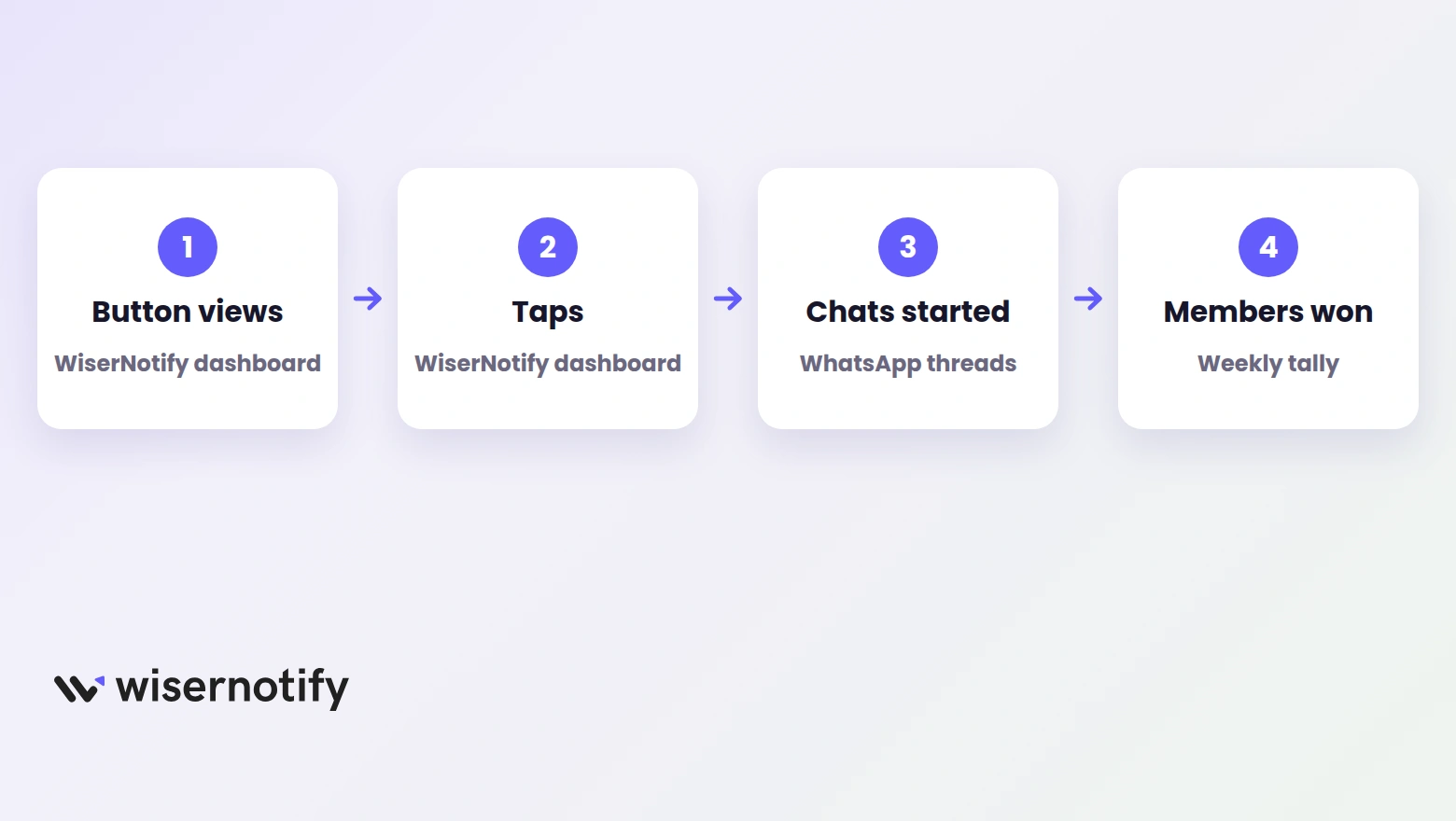
The button going live changes nothing by itself. What matters is how many conversations turn into members.
- Views and taps. The WiserNotify dashboard tracks how often the button is seen and clicked.
- Chats that became signups. Once a week, scan your WhatsApp threads and tally the ones that ended as members or buyers.
- Membership page conversion. Compare that page’s signup rate before and after the button went live.
- Returning threads. A reader reopening an old conversation is proof the channel earns its spot.
The pixel you installed runs other widgets too. If you want help choosing, the guide to adding a WhatsApp chat widget to any website compares placements and setups across platforms.

Boost Conversion Instantly
Add Social Proof & Urgency to your website
Wrap Up
A WhatsApp chat widget hands your Ghost readers a direct line in an app they trust, for the price of a few setup minutes.
Paste the pixel once through Code injection, build the widget, and answer from your phone. Every question you catch there is a member who might have slipped away in silence.
Related Posts:
Frequently Asked Questions
Is the WhatsApp widget free on Ghost?
WiserNotify comes with a 7-day free trial, and the WhatsApp widget is part of every plan. Chats themselves cost nothing extra since they run through your own WhatsApp number.
Can I use my personal WhatsApp number?
Yes, any valid number works. A WhatsApp Business number is better because it adds a public profile, saved replies, and away messages.
Does the widget work on mobile?
Yes. On phones the button opens the WhatsApp app directly, which is where most chats start.
Where does the pixel go in Ghost?
Paste it in Settings, then Code injection, in the Site Header box. That one paste covers every page of your publication.
Will the widget slow down my Ghost site?
No. The pixel loads in the background after your page renders, so readers notice no difference.
Can I automate replies on WhatsApp?
The widget starts the chat, and the WhatsApp Business app handles automation with greeting messages, quick replies, and away messages.

Krunal Vaghasiya is a marketing tech expert who boosts e-commerce conversion rates with automated social proof and FOMO strategies. He loves to keep posting insightful posts on online marketing software, marketing automations, and improving conversion rates.




 Capterra