
How to Add a WhatsApp Chat Widget to HubSpot (2026)
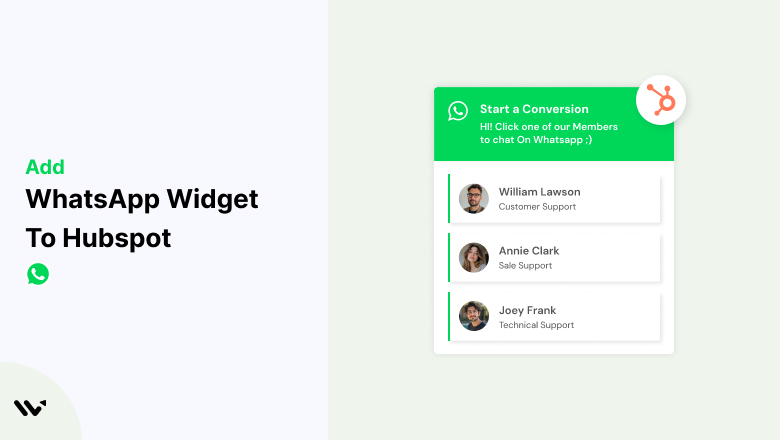
To add a WhatsApp chat widget to a HubSpot website, paste the WiserNotify pixel into HubSpot’s Site header HTML. Then set up the WhatsApp widget in WiserNotify and publish it.
Visitors tap the button, and a WhatsApp chat with your number opens on their phone or desktop.
The button doesn’t use HubSpot’s WhatsApp integration, a Meta business setup or any code beyond the pixel. Setup takes five steps.
Key Takeaways
- The pixel goes in Settings, Content, Pages, on the Templates tab under Site header HTML.
- The widget is click-to-chat, so there is no WhatsApp API or template approval.
- HubSpot’s own WhatsApp integration is a separate inbox feature on Professional and Enterprise hubs.
- List sales and support as separate contacts so visitors message the right person.
Do You Need the API or HubSpot’s Integration?
Not for a chat button. The WiserNotify widget opens a regular WhatsApp conversation with your number, the same way a wa.me link does. There are no message templates to approve and no API to apply for.
HubSpot’s WhatsApp integration does a different job. It connects a WhatsApp Business Account to the HubSpot conversations inbox, so your team answers WhatsApp messages inside HubSpot.
| How they differ | WiserNotify WhatsApp widget | HubSpot WhatsApp integration |
|---|---|---|
| What it is | A chat button on your HubSpot pages | A WhatsApp channel in the conversations inbox |
| Who starts the chat | The visitor, by tapping the button | Either side, with approved templates for outbound messages |
| What you need | Site header HTML access and a WhatsApp number | Marketing Hub or Service Hub Professional or Enterprise, plus a Meta business account |
| Personal number | Works, though a Business number is better | Not allowed |
The two can run together. If your number is connected to the HubSpot inbox, chats started from the widget arrive there like any other WhatsApp message.
How to Add a WhatsApp Chat Widget to HubSpot
You paste the pixel into HubSpot once, then build and change the widget from WiserNotify. The video shows the widget build, and the HubSpot steps follow it.
Step 1: Copy the Pixel Code

- Log in to WiserNotify, or start the 7-day free trial.
- Go to Install Pixel and copy the code.
Step 2: Paste It Into Site Header HTML
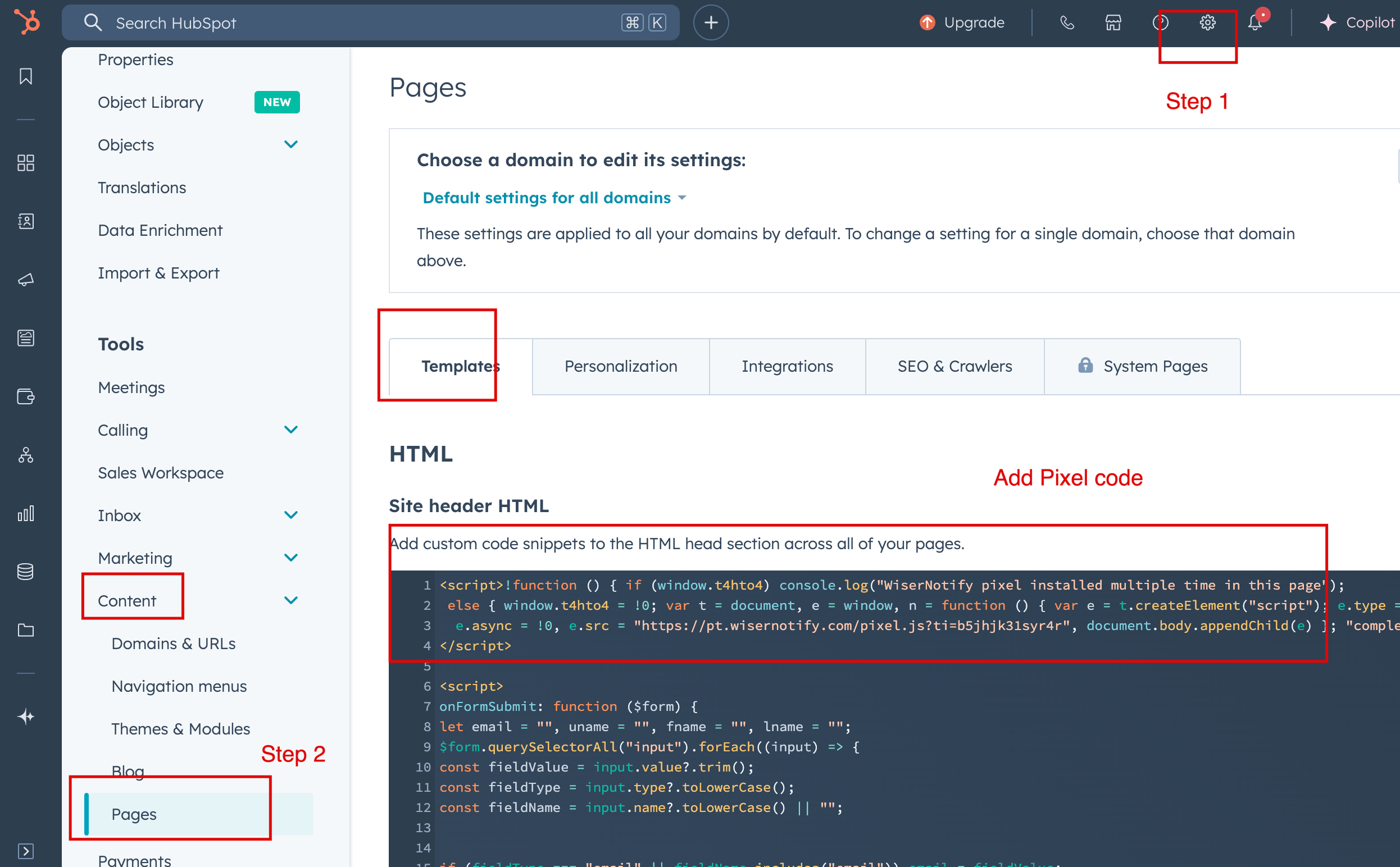
- In HubSpot, click the settings gear in the top bar.
- In the left sidebar, open Content, then Pages. Older accounts show this as Website, then Pages.
- In the domain menu at the top, pick your domain, or Default settings for all domains.
- On the Templates tab, paste the pixel into Site header HTML and click Save.
Code in this box loads on every HubSpot-hosted page of that domain. The HubSpot integration guide shows the same screen.
Step 3: Confirm the Pixel Works

- Open any page on your HubSpot site and refresh it.
- Back in WiserNotify, run Verify pixel installation from the pixel page.
- Build the widget once it confirms the pixel.
Step 4: Build the WhatsApp Widget

- Go to Widgets, click Add notification, open the Call To Actions tab, and click Add on WhatsApp.
- Name the widget, enter your site URL, and click Create & customize.
- In Add list, replace the three sample contacts with your team. Each one gets a WhatsApp number with country code, a name, a role and a photo.
- Write the message that sends with the chat. WiserNotify adds the page URL, so your rep sees where the visitor came from.
- In Text editor, set a heading such as “Start a conversation” and a line about reply times.
- Click actions sets the icon, Position & animation picks the corner, and Style handles the colors.
- In Timing control, set a delay, a scroll point or exit intent, and dates if the widget is temporary.
Step 5: Pick Pages and Publish

- Click Next to open the Display tab.
- Run it site-wide, or add URL conditions for pricing, demo and landing pages.
- Add country, UTM, referrer or new-visitor targeting if you need it.
- Click Publish and check a page in a private window.
Each option in this editor is explained in the WhatsApp widget guide.

Boost Conversion Instantly
Add Social Proof & Urgency to your website
Where a WhatsApp Button Helps on HubSpot

Most HubSpot sites sell services, software or B2B products, where buyers have questions before they book a call. Put the button where those questions come up.
- Pricing page: plan and billing questions get answered while the visitor is still deciding.
- Demo and contact pages: give people who would rather text an option beside the form.
- Ad landing pages: use UTM targeting so only that campaign’s traffic sees the button.
- International traffic: use country targeting to show it in markets where your buyers message on WhatsApp.
- Sales and support split: list a sales rep and a support rep so each chat reaches the right person.
Some buyers would still rather talk. A call back widget can sit in the opposite corner.
WhatsApp Widget Not Showing on HubSpot?
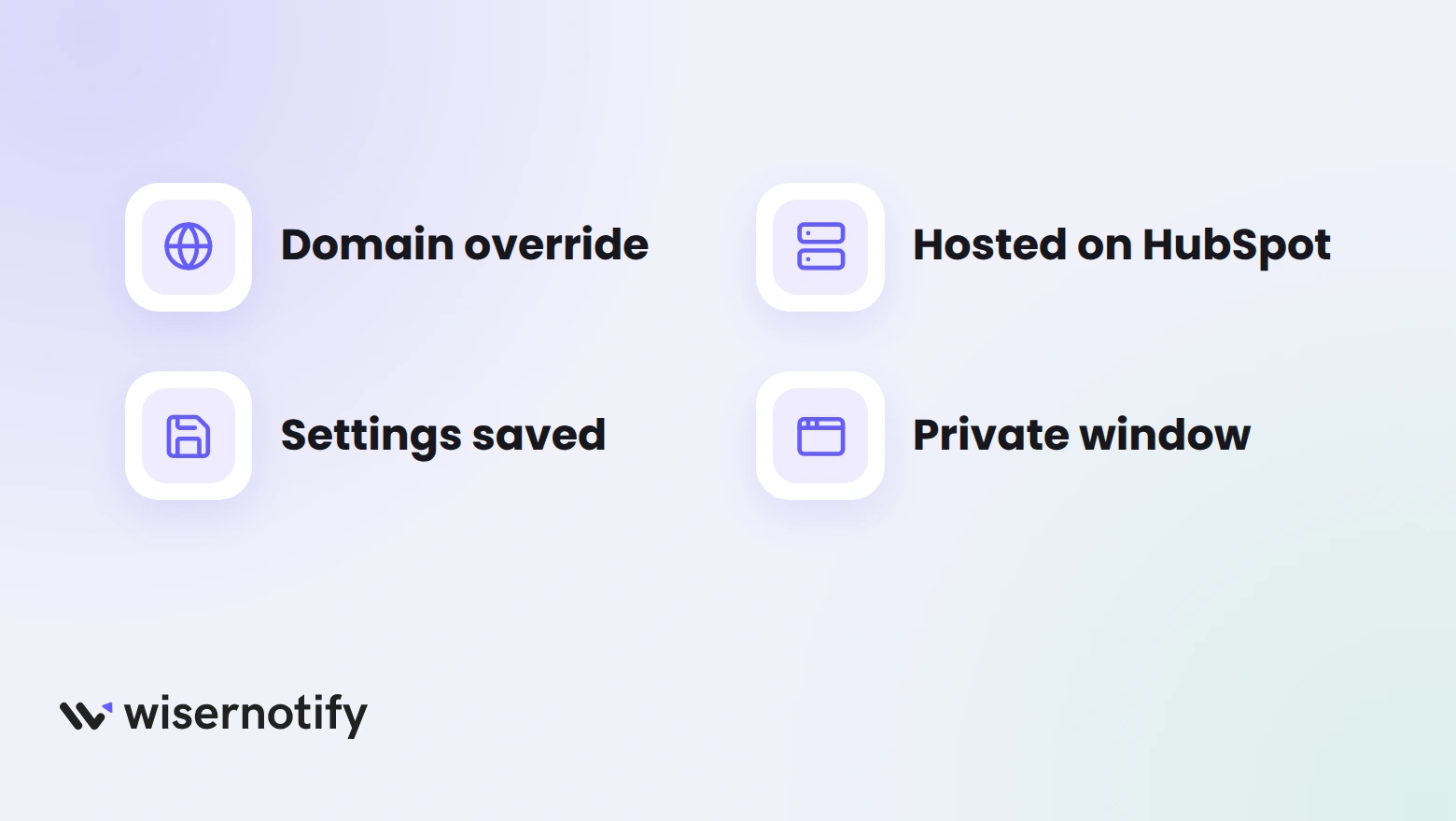
On HubSpot, a missing button usually comes down to which domain holds the code. Work through these in order.
- Domain override: if a domain uses its own settings, code saved under Default settings for all domains won’t load there. Paste the pixel into that domain’s Site header HTML.
- Pages hosted elsewhere: Site header HTML only covers HubSpot-hosted pages. If your main site runs on WordPress or another builder, add the pixel there.
- Not saved: the settings page needs Save at the bottom. Reload Site header HTML to confirm the code stuck.
- Page rule: a typo in a URL condition hides the widget. Set Display to all pages to test.
- Cached view: check in a private window before you change anything else.
Still missing? The Troubleshoot check on your widget list finds most install problems, and live chat can dig further.
WhatsApp Widget Mistakes on HubSpot
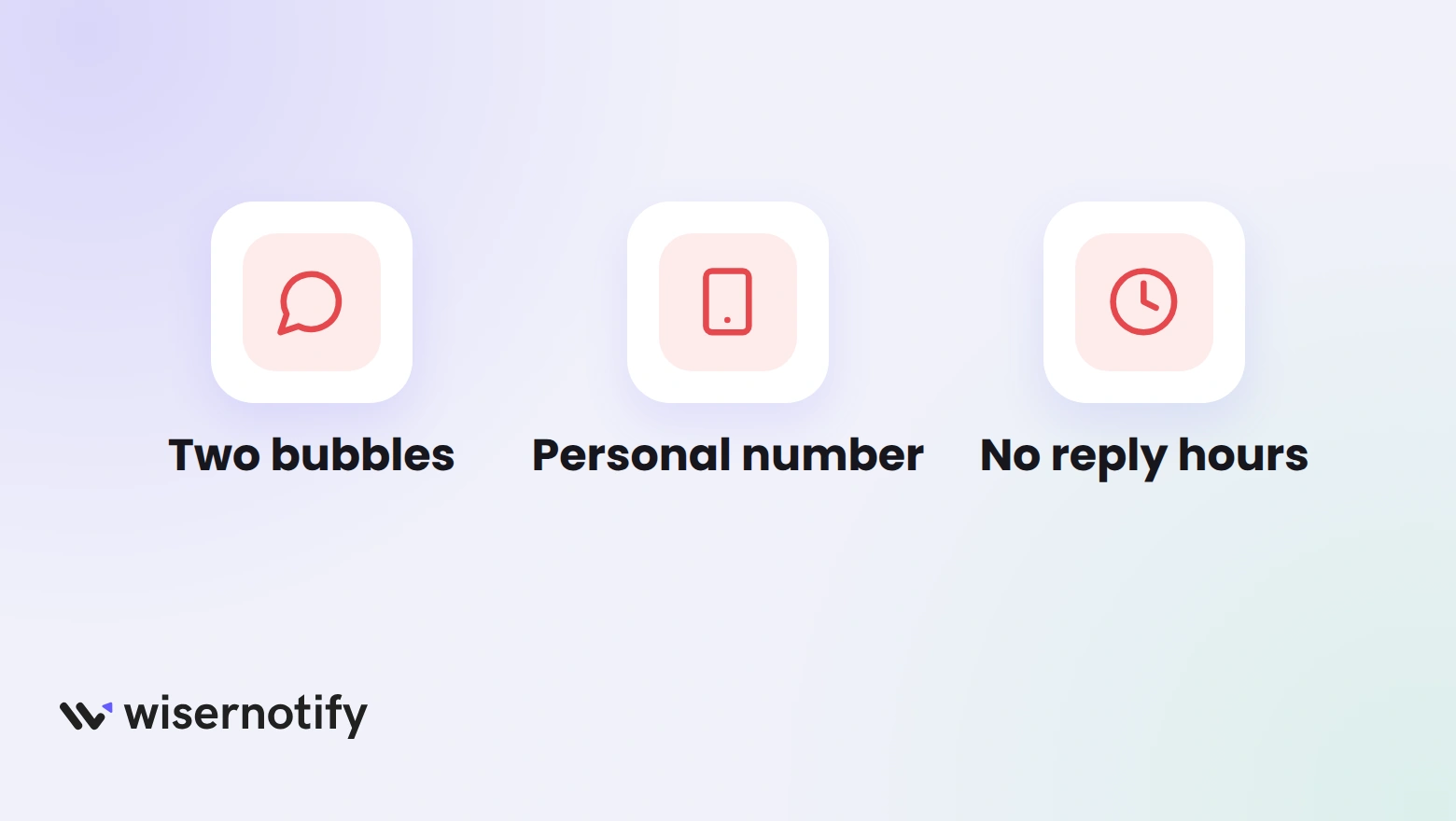
- Two chat bubbles in one corner: if HubSpot’s live chat is on the site, move the WhatsApp button to the other side.
- A personal number: the WhatsApp Business app adds away messages, quick replies and a business profile, and HubSpot’s inbox needs one later.
- No reply times: say when the team answers, such as “Weekdays, 9 to 6,” so nobody waits all night.
- One contact for everything: a sales lead and a support ticket shouldn’t land on the same phone.
- Skipping the phone test: tap the button on a phone and confirm the chat opens to the right number.
Trust signals help the chat start. Testimonials on HubSpot give visitors a reason to reach out.
Build trust & FOMO
Highlight real-time activities like reviews, sales & sign-ups.

Wrap Up
A WhatsApp button lets HubSpot visitors ask their question in the app they already use, without waiting for a form reply.
Paste the pixel into Site header HTML once, list the right people in the widget, and put it on the pages where buyers decide.
Related Post
Frequently Asked Questions
Does HubSpot have a WhatsApp chat widget?
HubSpot’s WhatsApp integration adds WhatsApp to the conversations inbox on Professional and Enterprise hubs. For a click-to-chat button on your pages, add a WiserNotify WhatsApp widget.
Where do I paste the pixel in HubSpot?
Go to Settings, Content, Pages, open the Templates tab, and paste it into Site header HTML for your domain.
Do I need the WhatsApp Business API?
No. The widget opens a normal WhatsApp chat with your number, so there are no templates or API approval.
Can I use my personal WhatsApp number?
It works, but a WhatsApp Business number adds away messages, quick replies and a business profile.
Can different visitors reach different people?
Yes. Add several contacts in the widget’s Add list, such as sales and support, and visitors pick who to message.
Does the widget work on mobile?
Yes. You set its position separately for phones and desktops, and on a phone it opens the WhatsApp app.

Krunal Vaghasiya is a marketing tech expert who boosts e-commerce conversion rates with automated social proof and FOMO strategies. He loves to keep posting insightful posts on online marketing software, marketing automations, and improving conversion rates.




 Capterra