
How to add a social media feed to your website in 2026
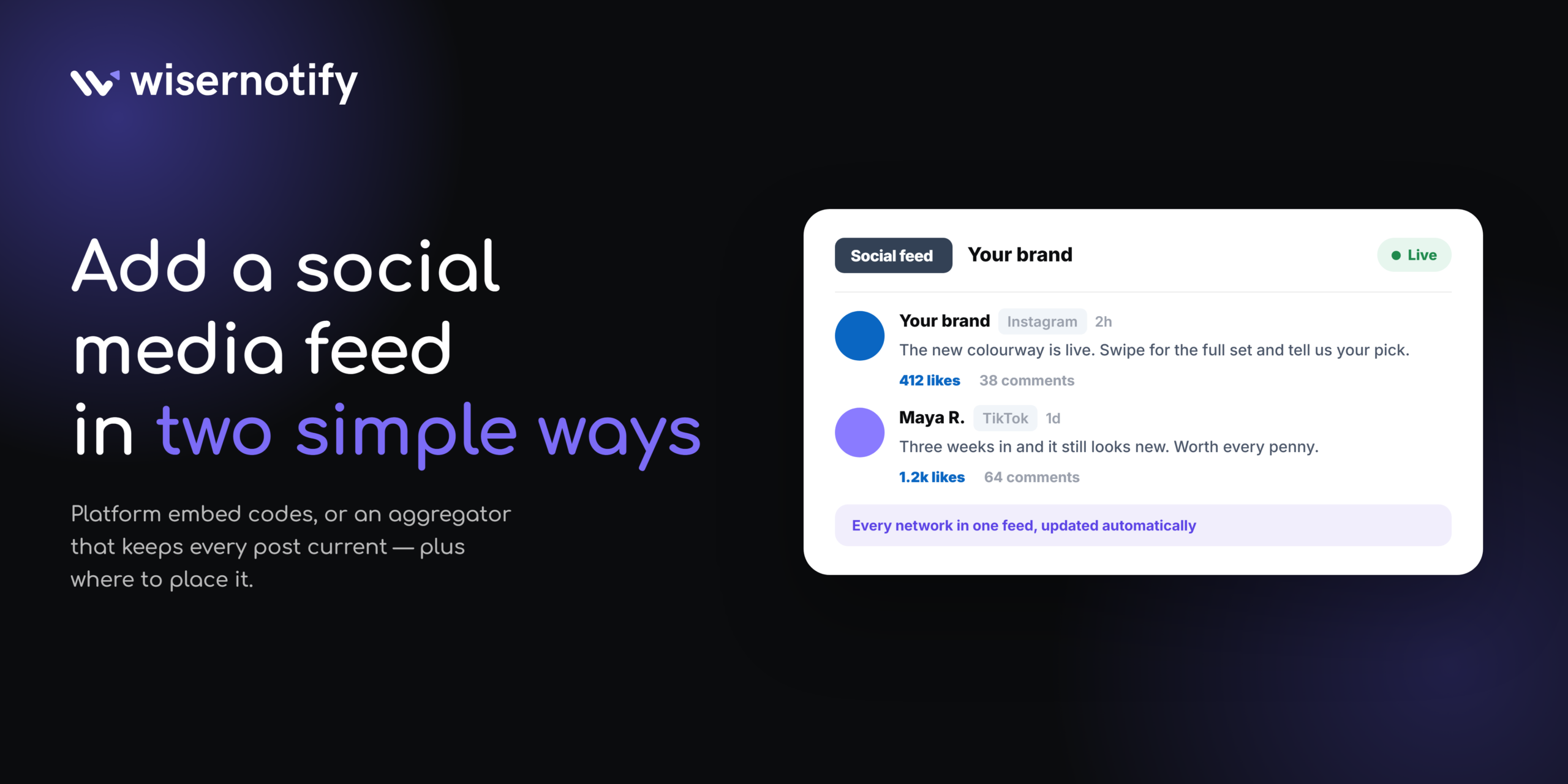
A social media feed on your website shows your latest posts, photos, and videos right on your pages. Visitors see real content from your brand and your customers without leaving your site.
You can add one in two simple ways. You can use the embed code each platform provides, or use a social media aggregator that pulls in your posts and keeps them updated automatically.
In this guide, I’ll show you the method step by step, where to place your feed, and the mistakes to avoid.
What is a social media feed on a website?
A social media feed on a website is a block on your page that shows posts from your social accounts. Visitors see your photos, videos, and updates without leaving your site to go find them.
Instead of forcing visitors to leave your site to view your social accounts, it brings your posts, photos, videos, or user-generated content (UGC) straight to your website in real time.
That’s the difference between a feed and a row of social icons. Icons send people away. A feed brings the content to them.
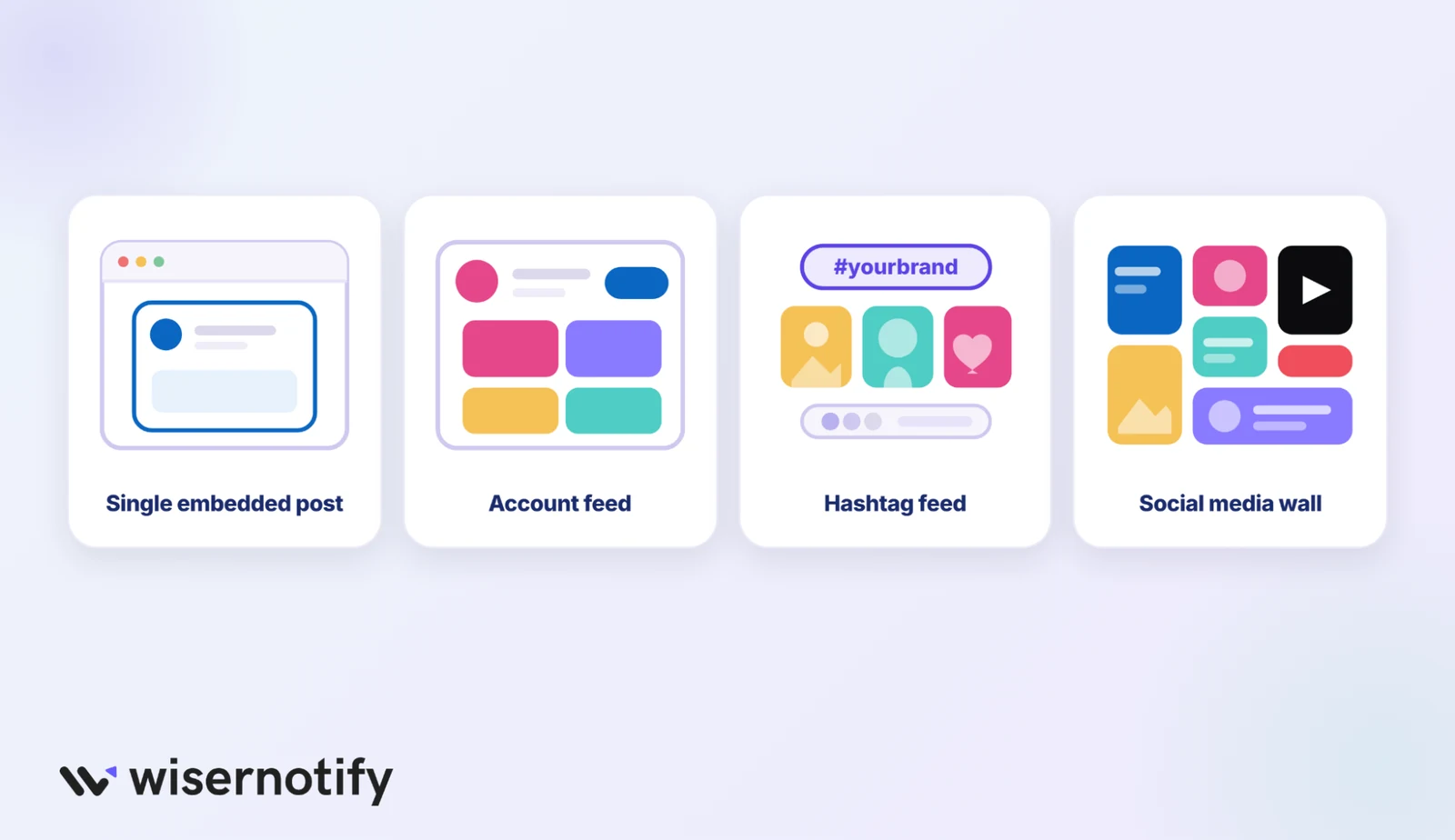
Most feeds fall into one of these types:
- Single embedded post: one Instagram reel, one LinkedIn post, or one TikTok video placed inside a page.
- Account feed: the latest posts from one profile or page, shown as a grid or carousel.
- Hashtag feed: posts that use your branded hashtag, often from customers.
- Social media wall: multiple social media feeds combined into one moderated display, common on homepages and event screens.
Why bother? Your visitors already live on social apps. The average person online uses close to seven social platforms a month, so a feed shows them the proof they’d otherwise go check on their own.
Also read: Social Media Wall for Website: Add One + 5 Examples
Build trust & FOMO
Highlight real-time activities like reviews, sales & sign-ups.


Which platforms can you embed?
Almost every major network lets you embed social media posts one at a time. Full feeds are different, and this is where most people get confused.
| Platform | What you can embed natively | Full live feed without a tool? |
|---|---|---|
| Single posts and reels from public accounts | No | |
| Single posts, videos, and a Page timeline | Yes, through the Page Plugin (fixed width) | |
| Single public posts | No | |
| TikTok | Single videos and a creator profile card | Partly (profile card shows up to 10 recent videos) |
| X (Twitter) | Single posts and profile timelines | On paper, yes. In practice, timelines often load blank |
| YouTube | Videos and playlists | Only as a playlist player |
| Threads | Single posts | No |
| Pins, boards, and profile widgets | Yes, with the Widget Builder |
So if you want to embed an Instagram feed on your website or embed a LinkedIn feed on your website, native code won’t get you there. You’ll need an aggregator for that.
Does a social media feed help SEO?
Yes, a social media feed helps SEO, but primarily through indirect ranking factors rather than direct search engine signals. Embedded posts load through an iframe or a script. Google may index that content.
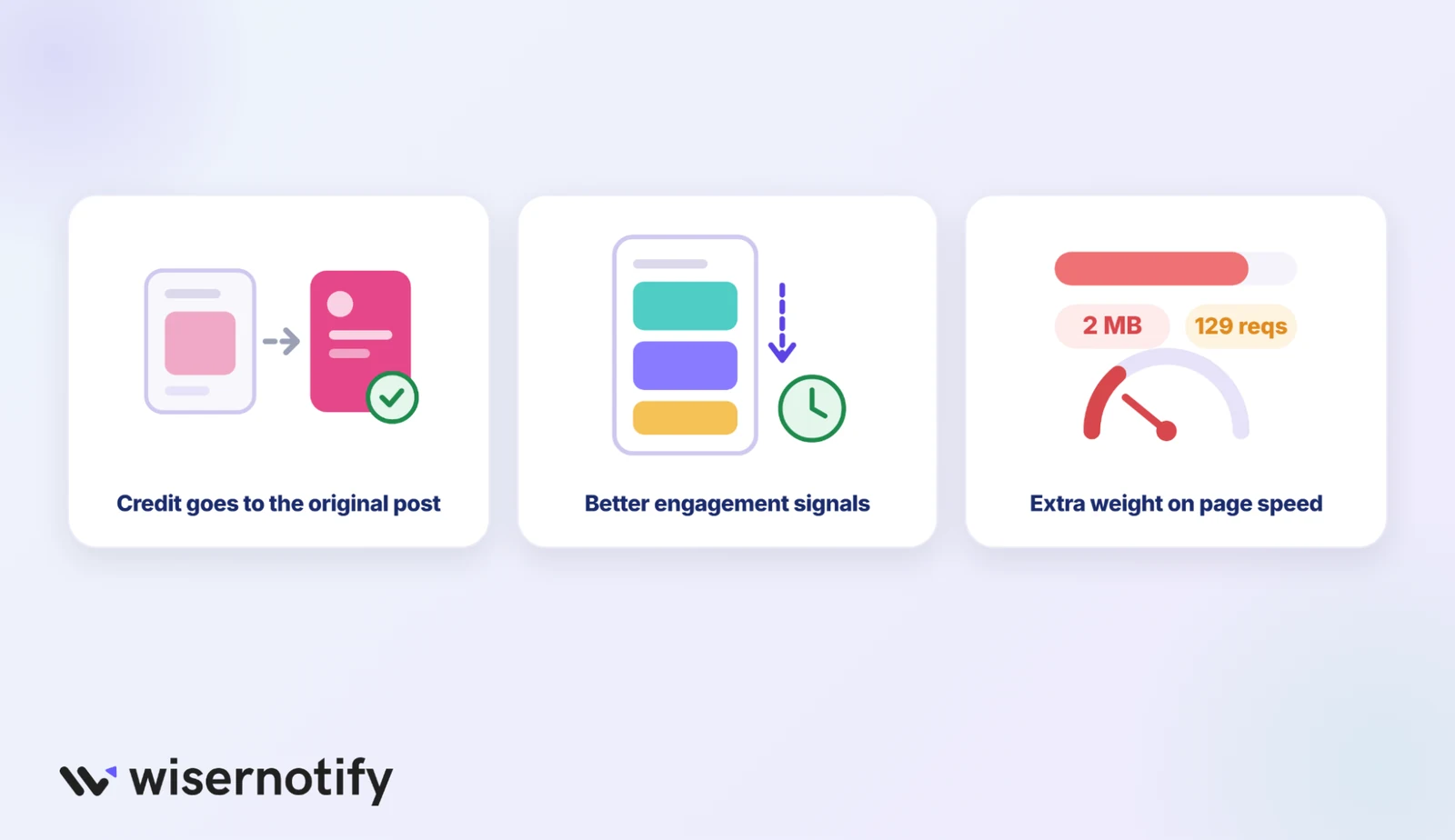
But it usually credits it to the original post on Instagram or Facebook, not to your page. So the captions inside your feed won’t rank your page for anything.
A feed can help with behavior. Fresh photos and videos give visitors a reason to scroll, click, and stay. Those are good signals for your business, even if they aren’t a direct ranking factor.
Also read: 40 UGC Statistics for 2026 (Scale, SEO & Influencer Data)
Where it can hurt is “speed”.
Many popular embeds ship over 100 KB of JavaScript, and some go past 2 MB. The biggest sites in 2025 already made a median of 129 third-party requests per page on desktop, so every extra embed adds weight.
That matters because Google’s Core Web Vitals still use the same bar in 2026:
- LCP (how fast the main content loads) under 2.5 seconds
- INP (how fast the page responds to a tap or click) under 200 milliseconds
- CLS (how much the layout jumps) under 0.1
Here’s how I’d keep a feed SEO-safe:
- Write your own heading and a short line of text above the feed. That’s the part Google reads and credits to you.
- Place the feed below the fold so it never becomes your largest visible element.
- Lazy-load it so it loads only when a visitor scrolls near it.
- Give the feed container a fixed height or aspect ratio to stop layout shift.
- Use one feed widget instead of five separate embed scripts on the same page.
- Run the page through PageSpeed Insights before and after adding the feed.
Where to add a social media feed on your website
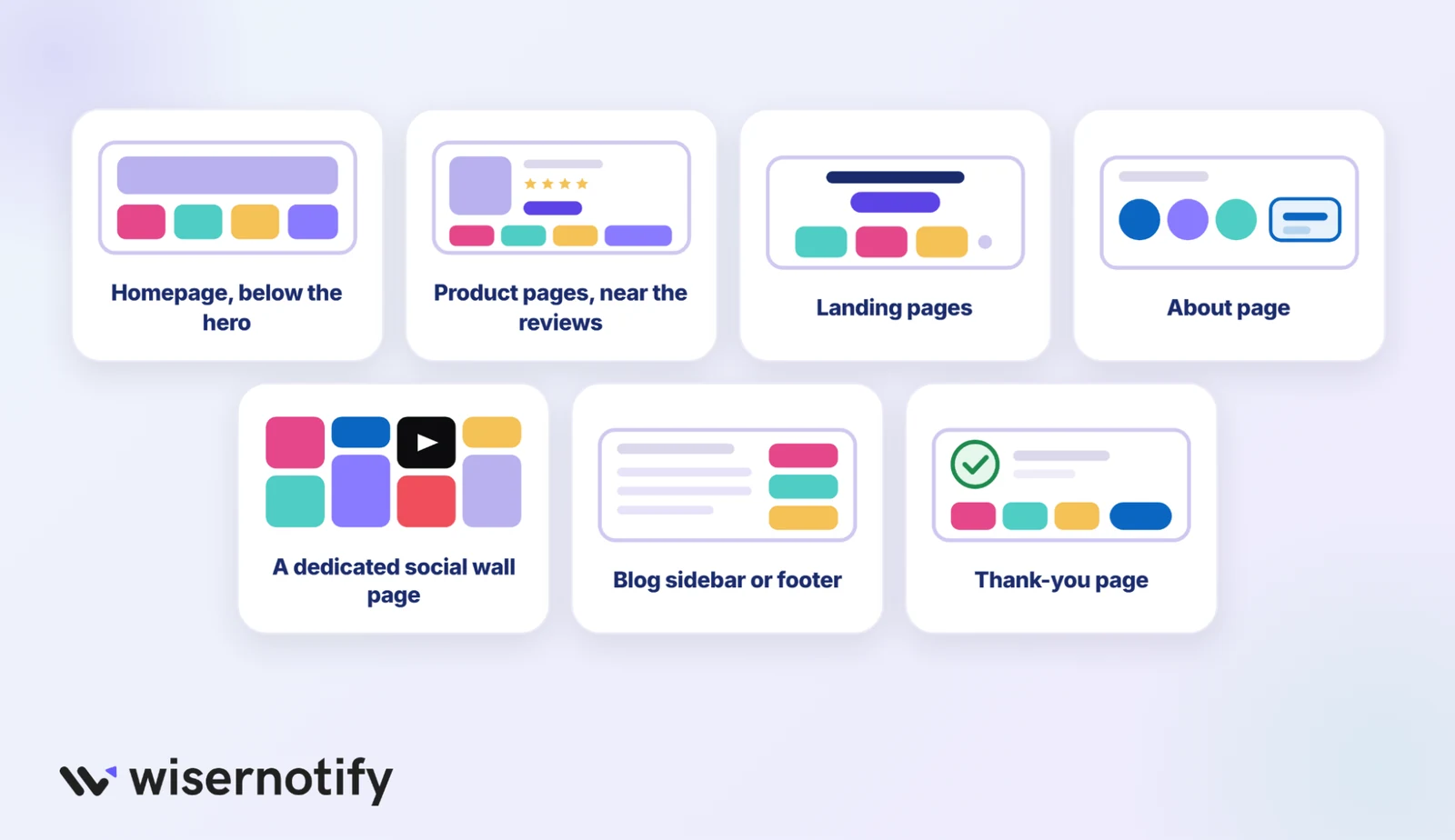
Placement determines whether a social media feed earns its space or just sits there. These are the spots I’ve seen work best across sites:
- Homepage, below the hero: visitors see the product first, then real people using it. Good for brands with an active Instagram or TikTok.
- Product pages, near the reviews: customer photos and videos answer “what does it look like in real life?” A shoppable UGC grid works well here.
- Landing pages: a short carousel under the offer adds proof without pulling focus. See our guide on how to add a social media feed on landing pages.
- About page: your LinkedIn posts or team photos show there are humans behind the brand.
- A dedicated social wall page: ideal for events, campaigns, and hashtag contests.
- Blog sidebar or footer: low-pressure spots that grow followers while people read.
- Thank-you page: after the purchase, a feed invites buyers to follow and tag you.
Also read: I Tested 11 UGC Platforms for Ecommerce Brands (2026)
And a few places to skip. Keep feeds off checkout and cart pages, where anything that pulls attention costs sales. On mobile, don’t put the feed above the fold either.
Build trust & FOMO
Highlight real-time activities like reviews, sales & sign-ups.
Native embed vs. social media feed aggregator
A native embed is the code a platform gives you for one post or one page. A social media feed aggregator connects to your accounts, pulls in posts, and displays them as one live social media feed.
| Factor | Native embed | Social media aggregator |
|---|---|---|
| What it shows | One post, one video, or one page timeline | Your latest posts from one or more accounts |
| Auto-updates | No, except Facebook’s Page Plugin | Yes, new posts appear on their own |
| Multiple platforms in one feed | No, one code per post or platform | Yes, one social media wall |
| Moderation | None, you pick each post by hand | Keyword filters and hide or show rules |
| Design control | The platform’s look, fixed widths | Grid, carousel, or mosaic in your fonts and colors |
| Page speed | Fine for one embed, heavy when stacked | One script for the whole feed |
| Cost | Free | Paid plan, usually with a free trial |
| Best for | A single reel in a blog post or one video on a page | Homepages, product pages, and any always-fresh section |
Also read: I Tested 9 Tagembed Alternatives for Social Feeds (2026)
If you only need one post in one article, go native. If you want to display social media posts on your website and keep it current without touching it, use a WiserNotify.
Add social media posts using the platform’s built‑in embed option.
This is the quickest way to embed a social media feed on your website one post at a time. Every major platform offers a free social media embed code. Copy it, paste it into your site, and check it on mobile.
Step 1: Copy the embed code
Do this on a desktop browser. Most mobile apps hide the embed option.
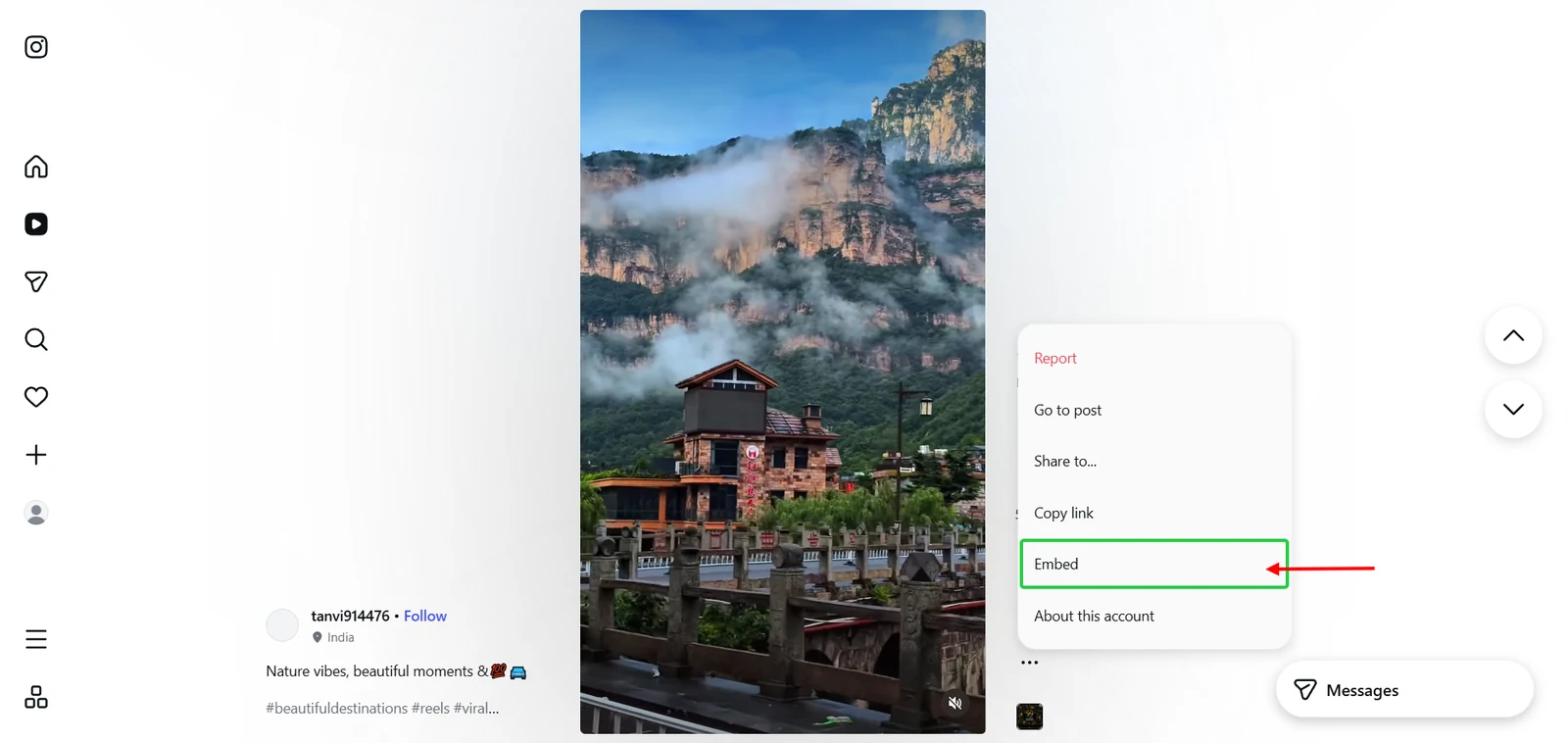
- Open the post or reel on instagram.com.
- Click the three dots (…) at the top right of the post.
- Click Embed.
- Tick or untick Include caption.
- Click Copy embed code.
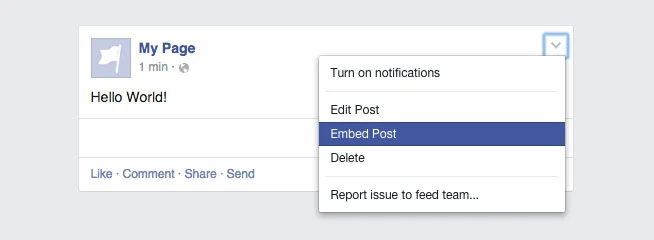
- For one post, click the three dots on a public post and choose Embed, then Copy code.
- To embed a Facebook feed on a website, open Meta’s Page Plugin tool.
- Paste your Facebook Page URL and set the tab to timeline.
- Set the width (180 to 500 pixels) and height, then click Get Code.
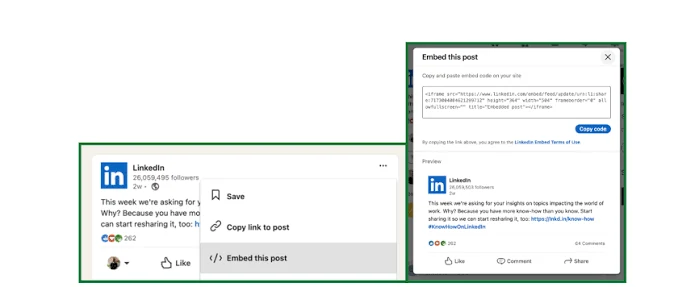
- Open the post you want to show (it must be public).
- Click the three dots on the post.
- Choose Embed this post.
- Copy the iframe code.
TikTok
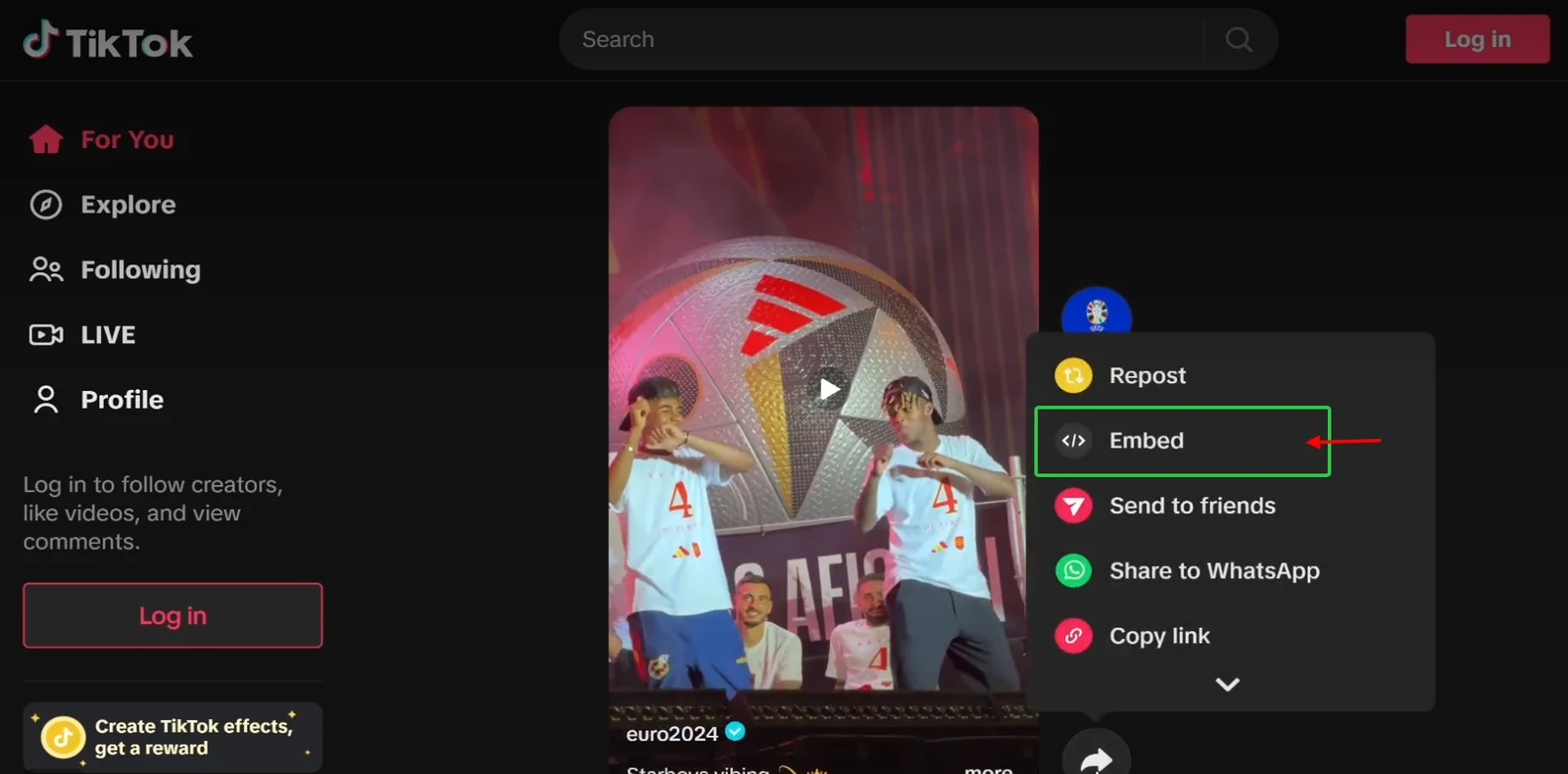
- For one video, open it on tiktok.com and click Share, then Embed.
- To embed a TikTok feed on a website, open your profile and click the share icon.
- Choose Embed and copy the code (public accounts only).
X (Twitter)
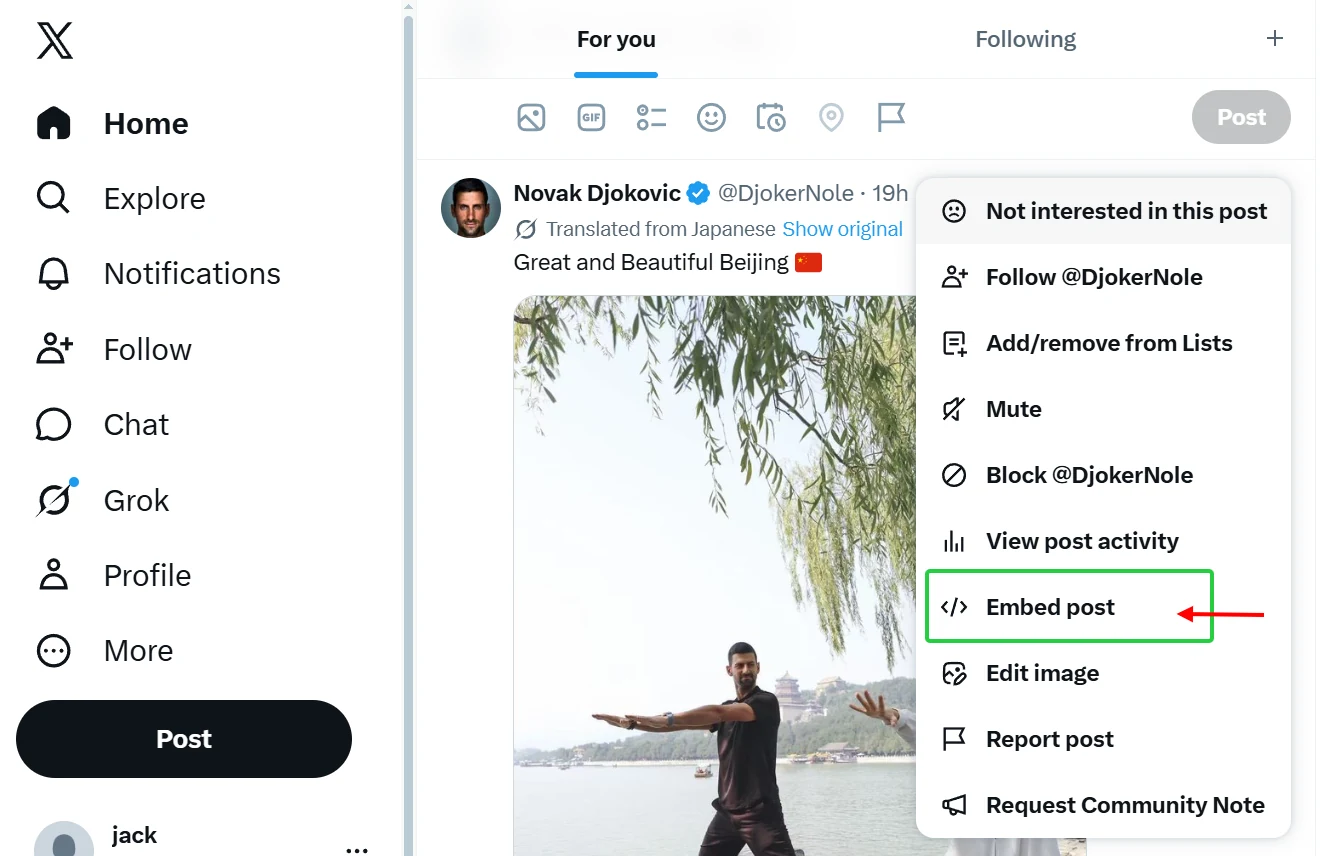
- Click the three dots on the post.
- Choose Embed post.
- Copy the code from publish.x.com.
YouTube
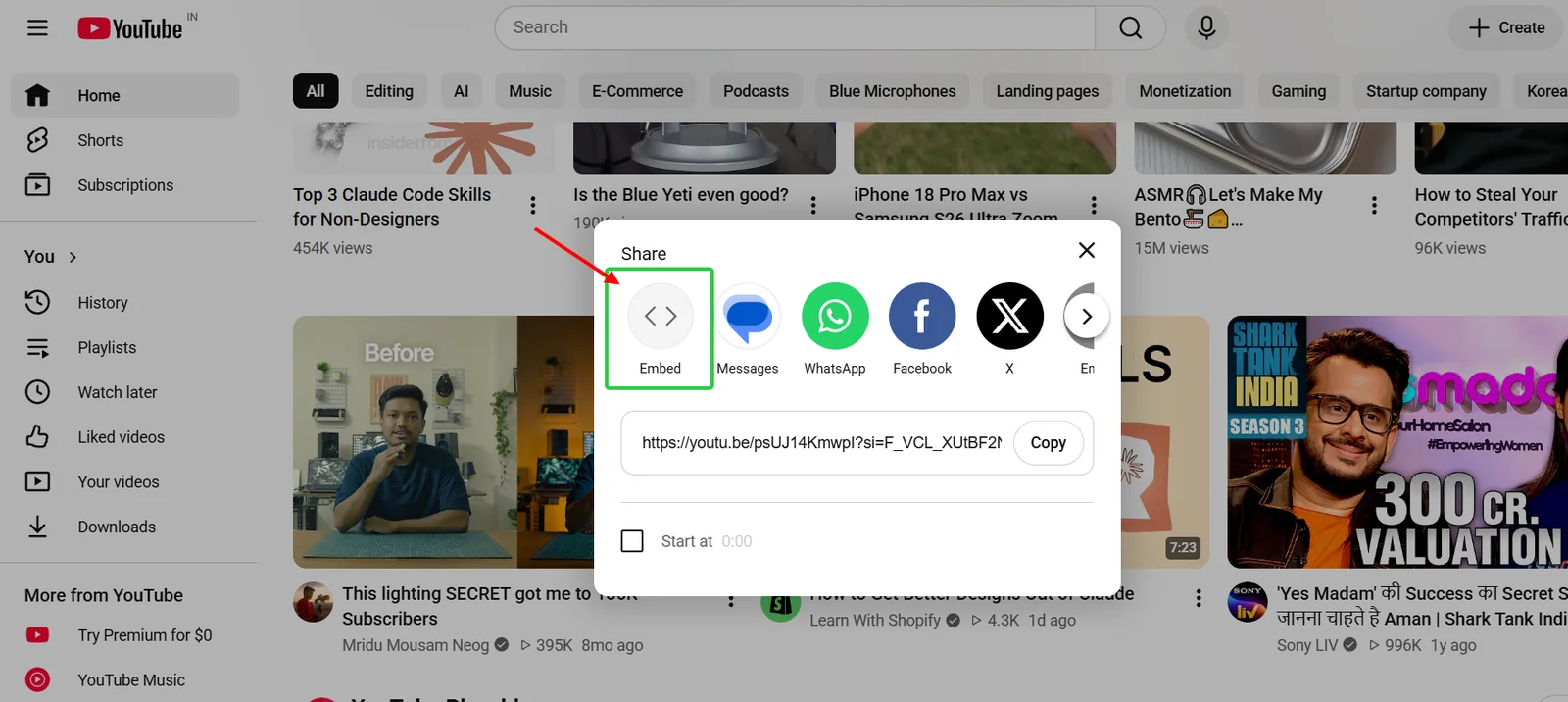
- Open the video or playlist.
- Click Share, then Embed.
- Copy the iframe code.
Step 2: Paste the code on your site
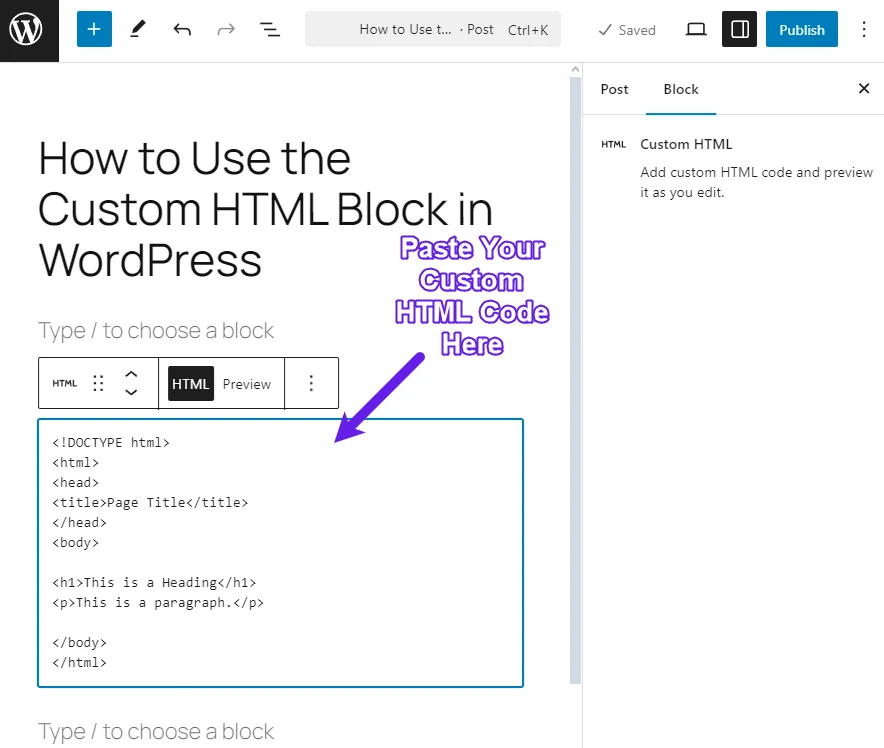
Paste the code into an HTML block, not a text block, or it will show up as raw code.
- WordPress: add a Custom HTML block where you want the post.
- Shopify: go to Online Store, then Themes, then Customize. Add a Custom Liquid section and paste the code.
- Wix: click Add Elements, then Embed Code, then Embed HTML.
- Squarespace: add a Code block to the section.
- Custom HTML site: paste it where the post should appear in your page file.
Step 3: Fix width and test on mobile
- If the iframe has a fixed width, change it to width=”100%” or add max-width:100%.
- Add loading=”lazy” to any iframe that sits below the fold.
- Publish, then open the page in a private window and on your phone.
- Confirm the post loads when you’re logged out of the platform.
Also read: 6 Winning Social Proof Tactics To Boost Sales
Show Social Posts With WiserNotify
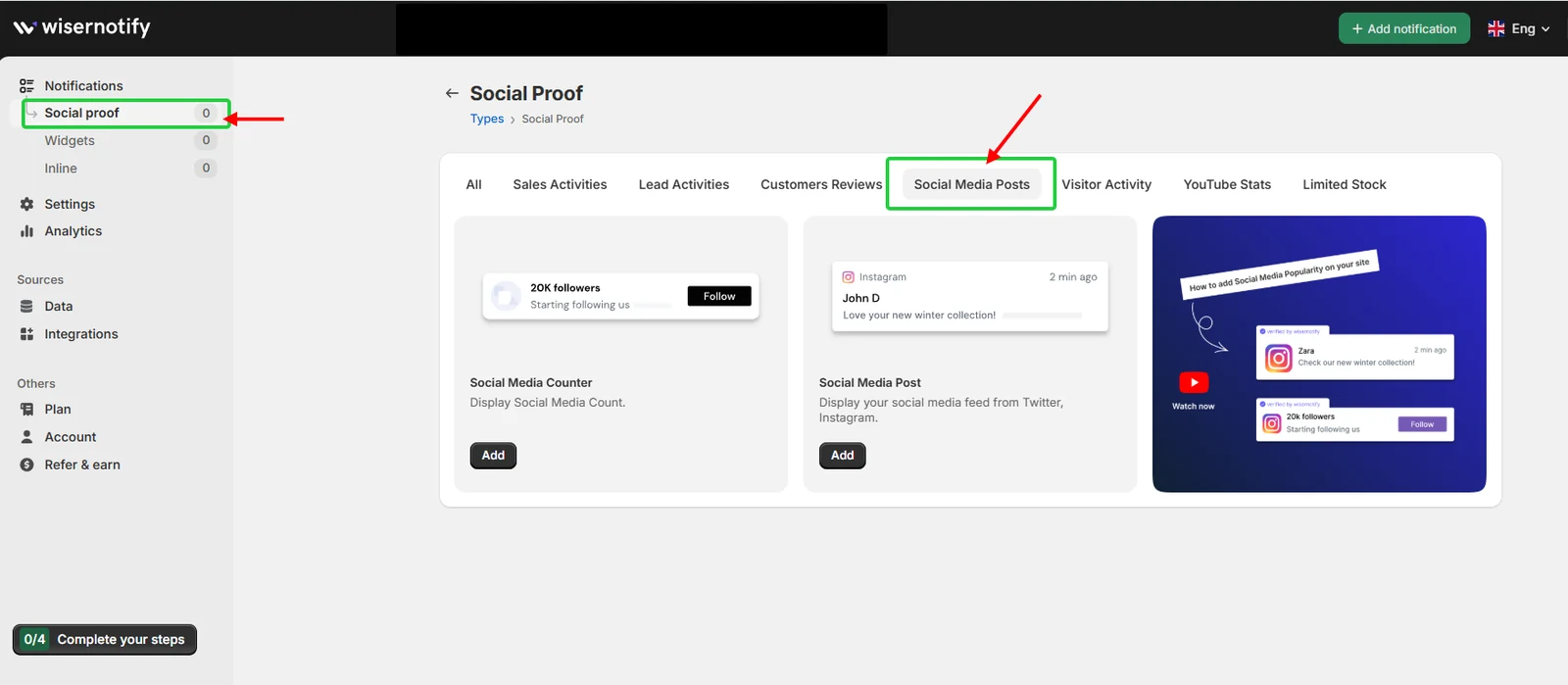
Don’t want a full feed block on every page? WiserNotif can show your latest Instagram and X (Twitter) posts as small notification pop-ups, so visitors see your social activity while they browse.
It also has a Social Media Counter that displays your follower count with a Follow button. Both work as a light social media widget for your website and live under Social proof, then Social Media Posts, in the dashboard.

Boost Conversion Instantly
Add Social Proof & Urgency to your website
Common mistakes to avoid when embedding social feeds
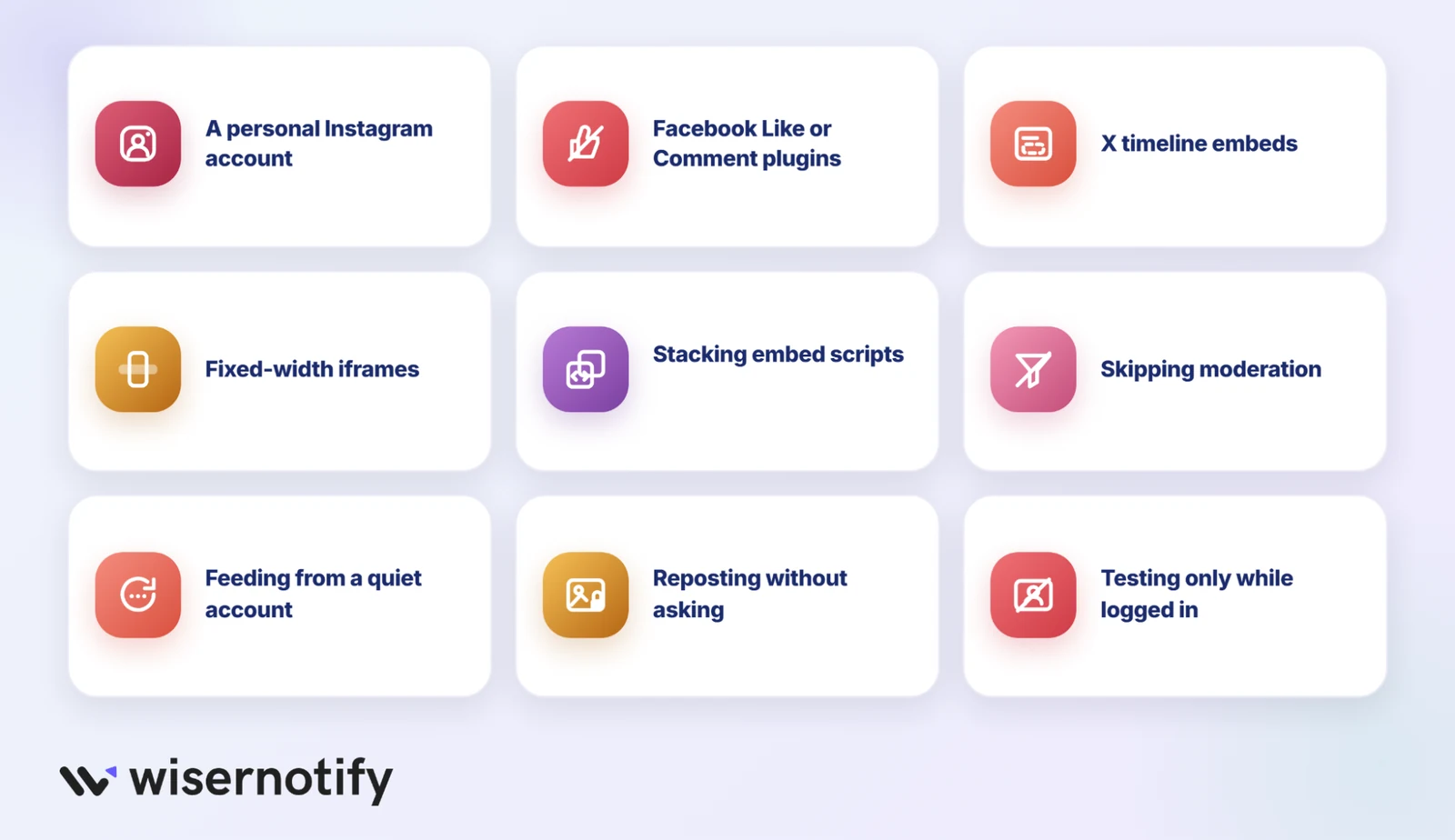
The most common support question I see about feeds isn’t about design. It’s “why did my feed go blank?” Nearly every answer is on this list.
- Connecting a personal Instagram account: Instagram shut down its Basic Display API on December 4, 2024. Feeds now need a Business or Creator account, or they stop updating and show old cached posts.
- Using Facebook’s Like or Comment plugins: Meta retired both on February 10, 2026. They now render as an invisible box, so remove them from your templates.
- Relying on X timeline embeds: They often load empty or out of order for logged-out visitors. Embed single posts instead.
- Leaving fixed-width iframes: A 500-pixel Facebook box or a fixed LinkedIn iframe breaks the layout on phones.
- Stacking five embed scripts on one page: Each one loads its own code. Your page speed pays for all of them.
- Skipping moderation: A hashtag feed with no filter will eventually show spam or a competitor’s post.
- Feeding from a quiet account: A feed whose newest post is five months old tells visitors the brand has gone silent.
- Reposting customer content without asking: Get permission before you feature someone’s photo on a product page. Our list of UGC examples shows how brands handle this.
- Testing only while logged in: Platforms often show you content that logged-out visitors can’t see. Always check in a private window.
Also read: 27 Winning Social Proof Examples That Seal the Deal
Wrap up
A social feed turns your website into proof that real people use and like what you sell. That’s the whole point.
Go native when you need one post in one spot. Go with an aggregator when you want a feed that stays fresh, pulls from several accounts, and fits your design.
Whichever way you pick, keep it below the fold, keep it filtered, and check it on your phone.
If you’d like the live option, you can try the WiserNotify Social Wall free for 7 days and set up your first feed in a few minutes.
Frequently Asked Questions
Can I embed a social media feed for free?
Yes. Every major platform gives free embed code for single posts, but a feed that mixes platforms and updates on its own needs an aggregator.
Why did my Instagram feed stop updating?
It’s usually connected to a personal account. Instagram retired the API those feeds used, so switch to a Business or Creator account and reconnect.
Will a social media feed slow my website?
It can if you stack several embed scripts. One lazy-loaded feed widget placed below the fold keeps speed in check.
Can I combine multiple feeds into one?
Yes, with a social media aggregator that pulls several accounts into one social media wall. Native embeds only show one platform at a time.

Krunal Vaghasiya is a marketing tech expert who boosts e-commerce conversion rates with automated social proof and FOMO strategies. He loves to keep posting insightful posts on online marketing software, marketing automations, and improving conversion rates.




 Capterra