
Add FOMO-Powered Sales Popups on Swipe Pages
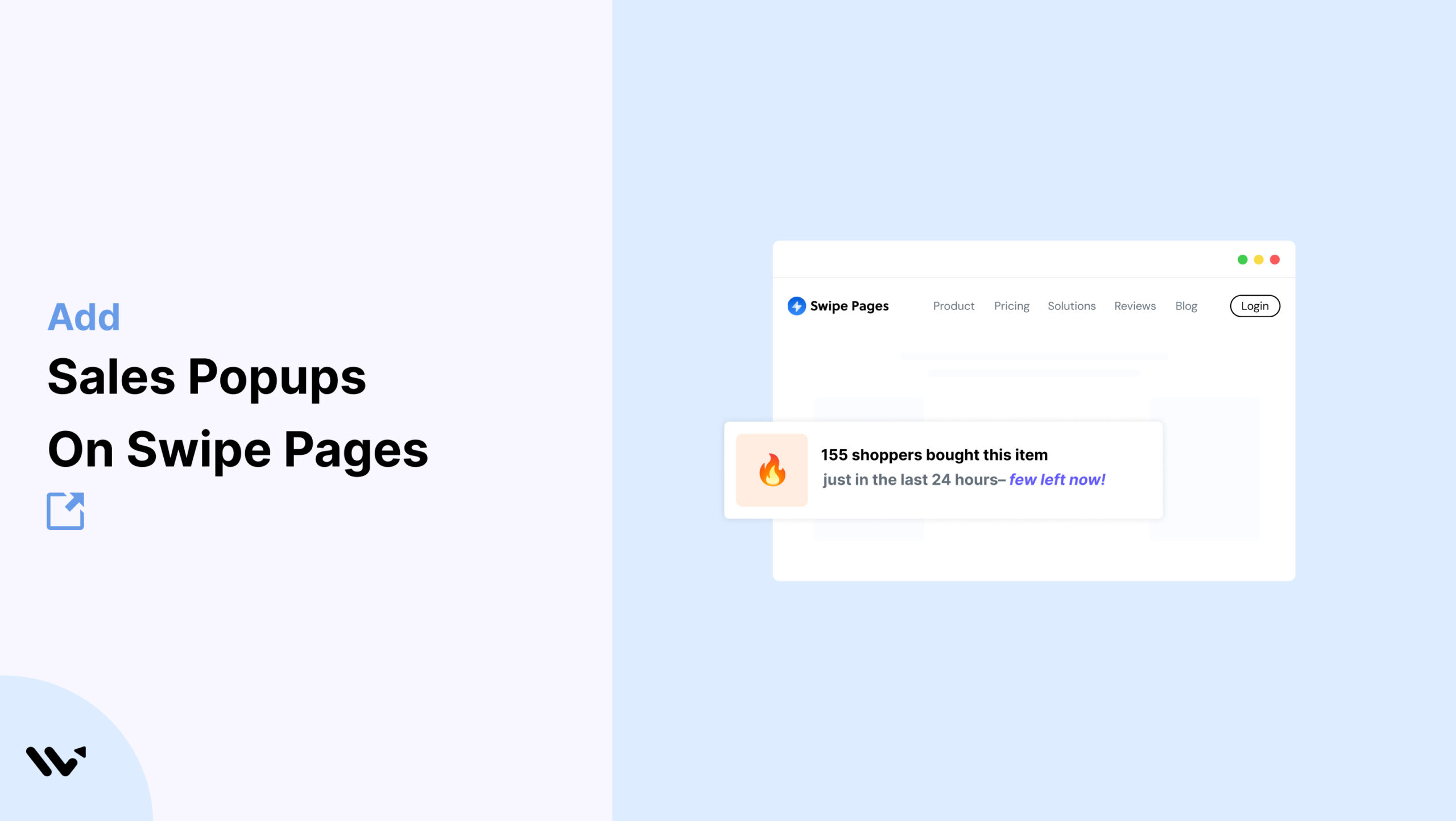
Swipe Pages gives you mobile-first landing pages that load fast and look stunning.
But even a great user experience needs one key ingredient to convert: trust.
That’s where Wisernotify comes in. Imagine a popup like “Sophie from Seattle just claimed the 30-day free trial”—it instantly signals that others are taking action.
Wisernotify allows you to display live user activity (signups, purchases, downloads) as subtle popups on your Swipe Pages landing pages.
These act as real-time social proof, building trust and urgency for new visitors.
Why Add a Sales Notification Pop-up on Swipe Pages?
Swipe Pages is engineered for high performance—Wisernotify turns that performance into higher conversions by adding trust-building micro-interactions. Social proof adds the emotional layer your landing page needs to connect with users and drive behavior.
Build trust instantly: Real-time notifications reassure visitors that others are taking the same action, removing doubts.
Trigger FOMO: Seeing others engage creates urgency, making users more likely to act quickly rather than postpone.
Lightweight integration: Add Wisernotify using Google Tag Manager or direct script embeds without touching your page layout.
Fully responsive design: Works perfectly across AMP and standard pages, ensuring mobile-friendliness.
Fully customizable: Style your popups to match your Swipe Pages theme, including fonts, colors, icons, and animations.
Use Case Example: A fitness coach running a lead capture campaign for a 6-week challenge used Swipe Pages with Wisernotify popups like “Emily from Boston just signed up for the challenge.” Within two weeks, the signup rate jumped by 34% and the average time on page increased by over 20%, proving the impact of trust-building in real time.
How to Add Sales Pop-up on Swipe Pages


3 Best Sales Pop-up Examples


Sales Pop-up Tips for Swipe Pages
Here are the main tips for sales pop-ups on Swipe Pages:
1. Keep styling consistent with your brand identity
Design your popup to reflect your Swipe Pages theme.
Matching font styles, color palettes, iconography, and spacing ensures that the popup looks like a natural part of your landing page.
This not only strengthens trust but also enhances the user’s perception of your site’s professionalism.
2. Trigger popups based on meaningful behavior:
Avoid immediate popups on page load.
Instead, use scroll depth, time spent on page, or interaction with specific elements (like hovering over a CTA) to activate your popup.
This method ensures you’re targeting genuinely interested visitors and delivering messages at optimal engagement points.
3. Use personalized and specific details in your copy
Generic messages like “Someone just signed up” don’t build trust.
Instead, include real names, locations, and specific actions, such as “Julia from Chicago just downloaded the pricing guide.”
These authentic touches significantly increase credibility.
4. Align popup content with your page CTA
Reinforce your landing page’s main call-to-action by showing notifications tied directly to it.
If you’re offering a free consultation, your popups should echo this message to provide reinforcement and reduce user hesitation.
5. Optimize design for mobile and AMP performance
Use Wisernotify’s responsive controls to fine-tune popup positioning, size, and padding for different devices.
Make sure that popups are legible, don’t overlap essential elements, and remain user-friendly on small screens.
6. Position popups for minimal interference
Place notifications in the bottom-left or bottom-right corners where they’re visible but don’t obstruct key site components.
Avoid center-screen placements that disrupt reading or form completion.
7. Cap the number of popups per session
Displaying too many notifications can create noise and reduce effectiveness.
Limit popups to 2–3 per session, spaced at 30–60 second intervals, to maintain relevance and avoid irritating users.
8. Use real-time language to create urgency
Add timestamps like “Just now” or reference time-limited promotions to encourage quicker decision-making.
Visitors are more likely to act when they feel they’re missing out on a time-sensitive opportunity.
9. Continuously test and analyze popup performance
Monitor analytics through Wisernotify to assess popup impressions, engagement, and conversion influence.
Run A/B tests on message wording, design, and display timing to refine your approach and boost performance.
Sales Popup Mistakes to Avoid on Swipe Pages
Here are some common mistakes to avoid:
1. Overloading users with too many notifications
Popups are meant to enhance, not dominate the experience.
Too many alerts can distract and frustrate visitors, leading to higher bounce rates.
Always set sensible limits and space out notifications appropriately.
2. Using vague or generic language in notifications
Messages like “A user just took action” lack authenticity.
Specificity makes popups feel real—include actual names, cities, and clear actions that mirror your offer to build genuine trust.
3. Obstructing critical page elements with popup placement
Improper positioning can cover CTAs, form fields, or product details.
Before launching, test your popup display across devices and make adjustments to ensure a friction-free experience.
4. Failing to align popup design with the landing page theme
A visually inconsistent popup can make your site feel disjointed.
Stick to your Swipe Pages styling guidelines, including font hierarchy, color scheme, and button styles, to maintain a cohesive look.
5. Not optimizing based on performance data
Ignoring analytics means missing out on opportunities to improve.
Track engagement and conversion data for each popup. Use these insights to adjust timing, format, and language for better results.
Wrap-Up
Swipe Pages gives you the tools to build beautiful, high-converting mobile-first landing pages. Wisernotify enhances that foundation by adding real-time trust signals that encourage visitors to act.
Social proof isn’t just a gimmick—it’s a proven tactic that reinforces your message, eases doubt, and helps you close the gap between traffic and conversions.
Start using Wisernotify on your Swipe Pages today and give every visitor the confidence to follow through on your call to action.
Related guides
Setting up a sales notification popup on a different platform? These related guides walk through it:
Frequently Asked Questions
Can I add sales popups to Swipe Pages without coding?
Yes, most pop-up tools like WiserNotify offer no-code integration options. You just need to copy and paste a script into the header or use the integration options provided inside Swipe Pages.
Will sales popups slow down my Swipe Pages site?
No, if you’re using a lightweight popup tool. Choose tools that load asynchronously and are optimized for performance, so your landing pages remain fast.
Can I target sales popups by visitor behavior on Swipe Pages?
Yes. Tools like WiserNotify let you show popups based on actions like scroll depth, exit intent, time on page, or specific page visits.
Can I show different popups for mobile and desktop visitors on Swipe Pages?
Yes, many popup tools allow device-based targeting. You can create separate popups for mobile and desktop users to keep the experience optimized.
How do I track conversions from my sales popups on Swipe Pages?
Most popup tools offer built-in analytics. You can also use UTM tracking or connect the tool with Google Analytics to track clicks, conversions, and popup performance.

Krunal Vaghasiya is a marketing tech expert who boosts e-commerce conversion rates with automated social proof and FOMO strategies. He loves to keep posting insightful posts on online marketing software, marketing automations, and improving conversion rates.




 Capterra