
How to Add a Video Popup to Your Website: Full Guide

Sometimes a plain image just isn’t enough.
Whether you’re launching a product, explaining a tricky idea, or showing off a testimonial, a short video gets the point across faster.
Video popups grab attention and guide visitors toward action. They also add the kind of social proof that lifts conversions, without sending anyone to another page.
But not all video popups are equal. Drop one in carelessly and it can slow your page, annoy visitors, or make your site feel dated.
This guide covers the types of video popups, how to add one with WiserNotify, best practices, real examples, and the mistakes to avoid.
Why Use a Video Popup?
People skim text but they’ll watch a short video. A popup puts that video in front of them at the right moment, so your message lands.
Here’s what a well-placed video popup does:
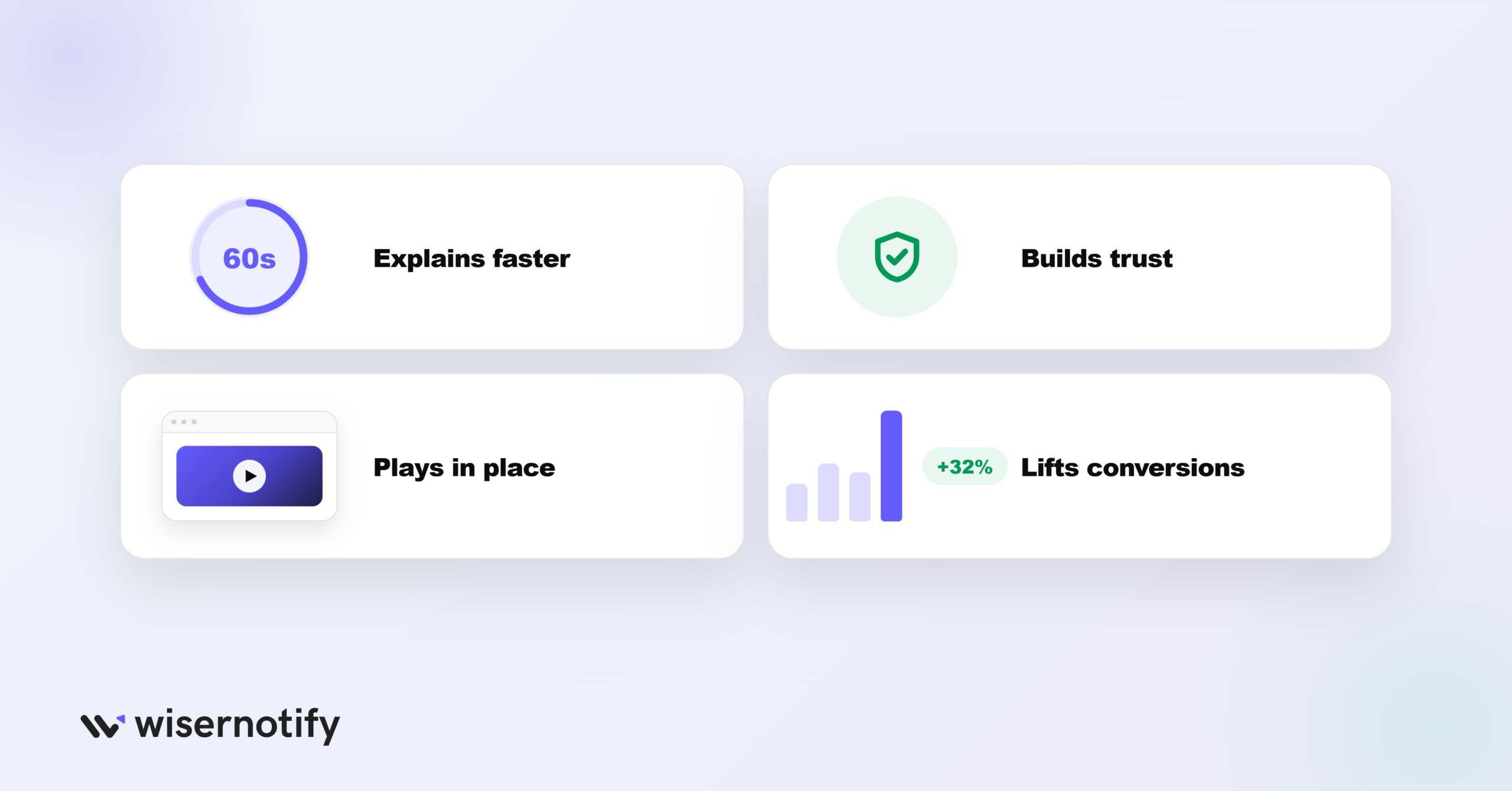
- Explains faster: a 60-second demo can say more than a long block of text.
- Builds trust: seeing a real product or a real person makes people believe you.
- Keeps people on the page: the video plays in place, so no one leaves to watch it elsewhere.
- Lifts conversions: a clear video plus a CTA nudges more signups, demos, and sales.
Build trust & FOMO
Highlight real-time activities like reviews, sales & sign-ups.


Types of Video Popups You Can Use
There’s no one-size-fits-all popup. Different pages, goals, and devices call for different types. Here are the main ones you’ll see on websites today:
1. Lightbox Popups

This is the classic. A lightbox popup dims the background and puts your video front and center, usually triggered by a click, like a “Watch Demo” button.
The best part: it looks clean and stays out of the way, but once someone clicks, the video takes over. They work well for:
- Product demos
- Explainer videos
- Content previews
You can add them without a developer, using a tool like WiserNotify or custom HTML.
Also read: How to Create a WordPress Video Popup That Gets Clicks
2. Slide-In Popups

Slide-ins are subtle. They don’t block the screen, they glide in gently, usually from the bottom or upper-right corner.
You’ve seen them for chat widgets or newsletter signups, and they work just as well for video. They let you:
- Introduce a quick video without interrupting the visit
- Show video based on what the visitor is doing
- Give mobile users a quick look without taking over the screen
They’re a good fit when you want to stay polite but still persuasive.
3. Full-Screen Popups

As the name says, these take over the whole page.
They work best when you have something worth stopping people for, like a product launch or a channel trailer.
The key is clarity. Your video needs a clear message, strong visuals, and a short runtime.
You only get one shot at holding attention, so make sure it’s mobile-friendly and test it on different devices.
4. Exit-Intent Popups

This one is clever. Exit-intent tracking watches mouse movement and triggers a popup right before someone leaves.
Pair it with a video that reminds people of your value, a simple form of FOMO marketing for creating urgency in sales. These are useful for:
- Saving landing page drop-offs
- Bringing back cart abandoners
- Showing a last-minute explainer or testimonial
Just don’t autoplay with sound, more on that below.
How to Add a Video Popup to Your Website
With WiserNotify, you can build a video popup with no code. The video below walks through the whole process, and the steps are written out under it.
Step 1: Sign Up for WiserNotify
Create a free WiserNotify account or log in to your existing one. You start on the dashboard, where all your widgets and notifications live.
Step 2: Pick the Video Popup Widget
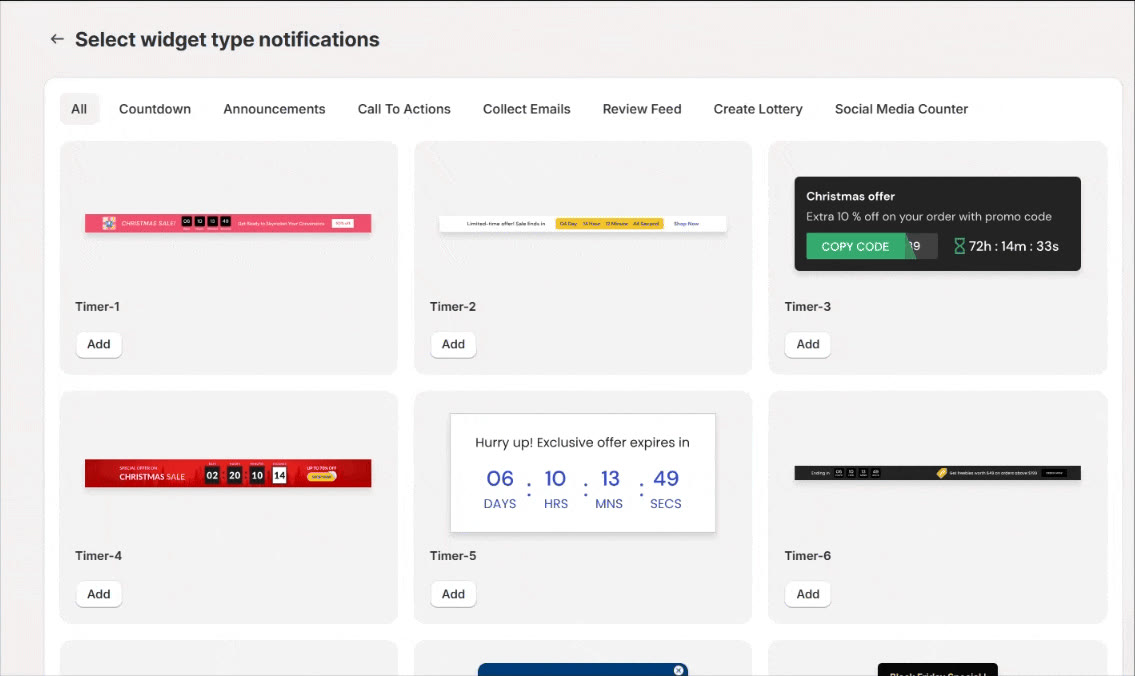
Go to Widgets and open the Call to Action tab, where you’ll see a set of ready-made templates.
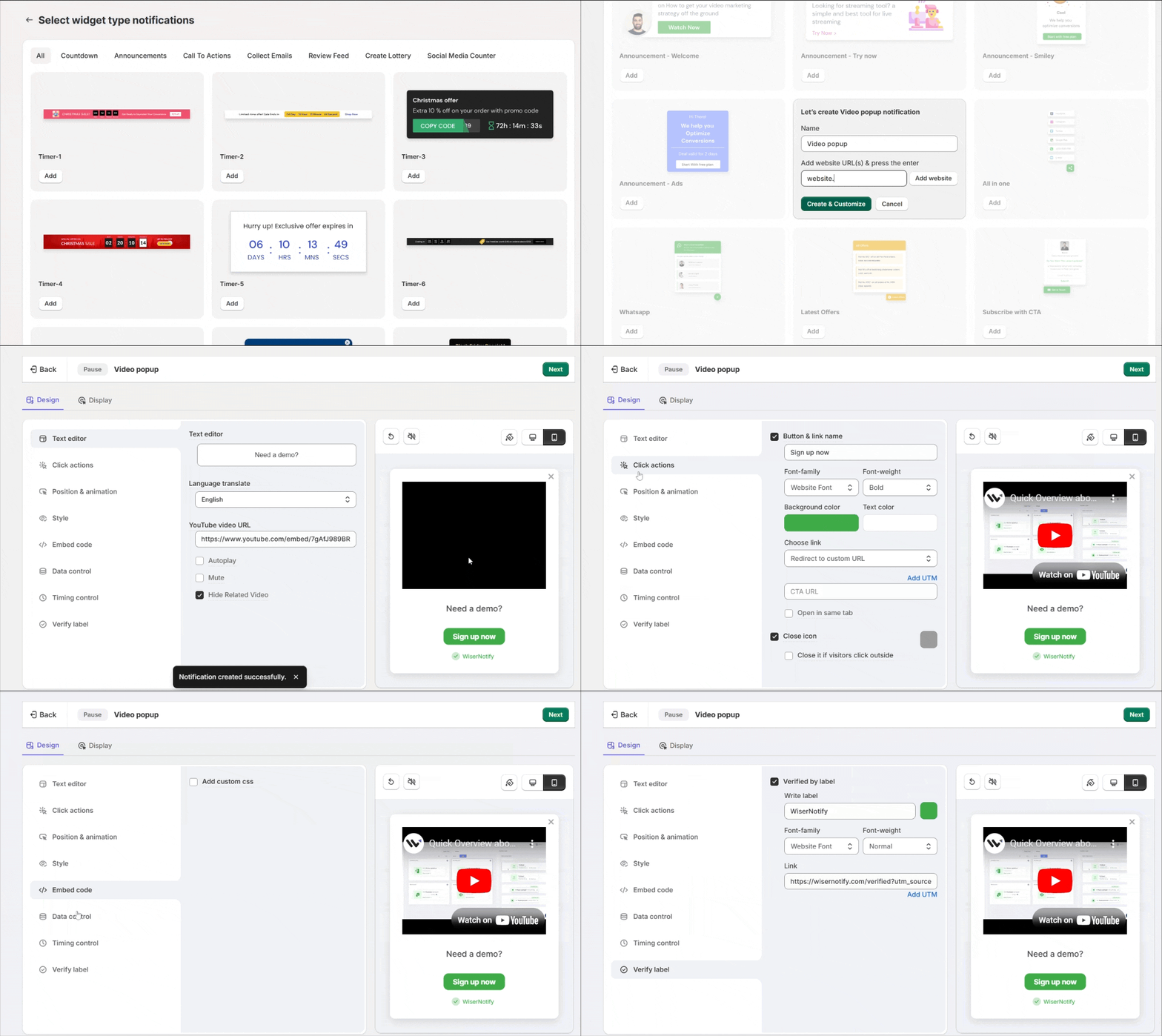
Find the Video Popup one, click Add, enter your website, and click Create & Customize.
Step 3: Customize Your Popup
This opens the design editor, where you set everything up. Work through the tabs:
- Text editor: write the popup text and paste your YouTube video URL. Turn on autoplay, mute, and hide related videos if you want.
- Click actions: add a CTA button like “Sign up now,” style it, set its link and UTM tags, and let visitors close the popup by clicking outside.
- Position & animation: place the popup and pick how it appears on mobile and desktop.
- Style: set colors, size, and shadow, or add custom CSS under Embed code.
- Data control: turn on skip seen so it doesn’t show again to the same visitor.
The preview shows how it looks on mobile and desktop as you go.
Step 4: Set the Timing
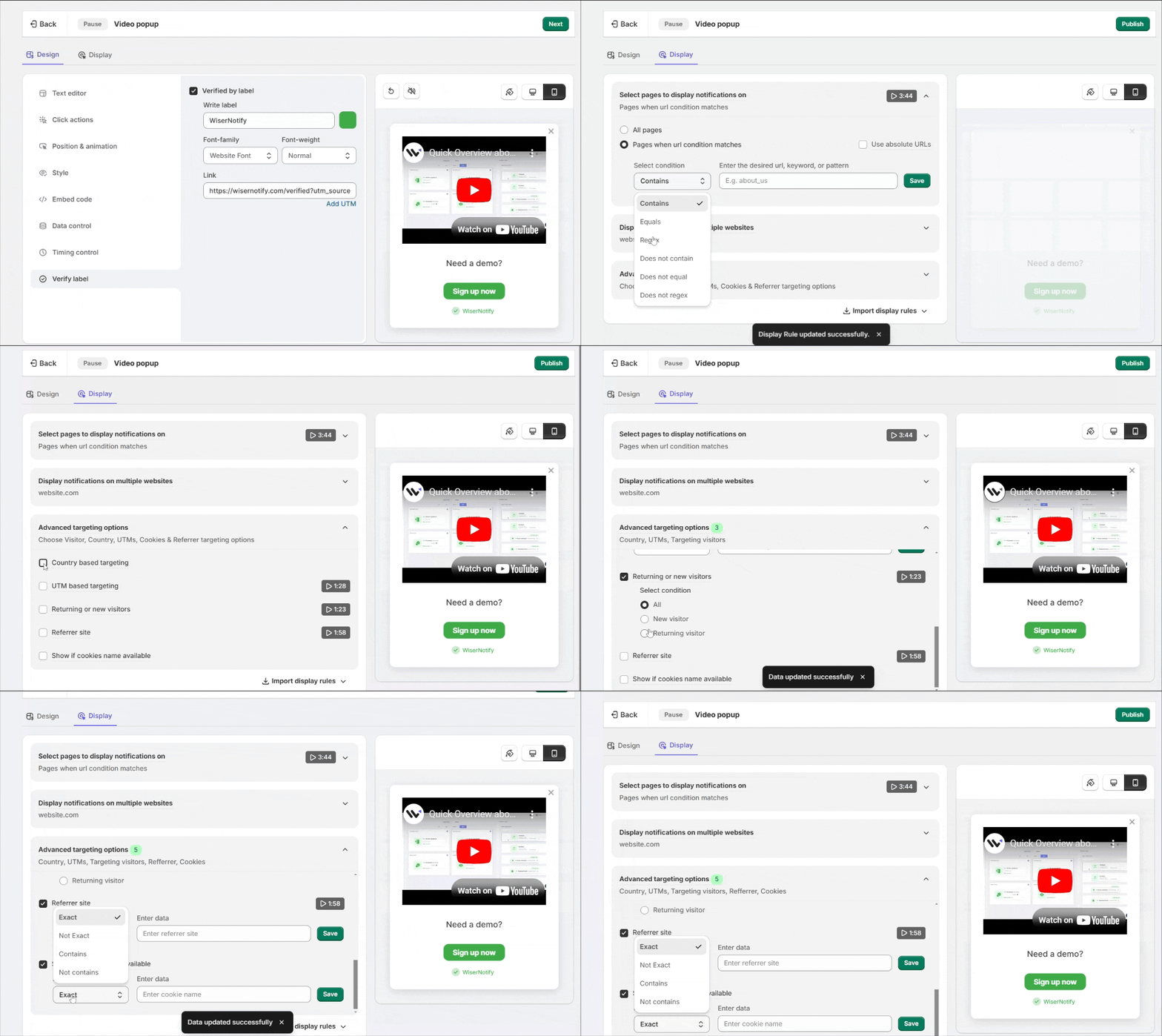
In Timing control, pick a start and expiry date so the popup only runs during your chosen window, and choose specific days of the week if you like.
Then decide when it appears: exit intent, after 5 seconds, or after a scroll. You can also hide it after a few seconds.
Step 5: Set Display and Publish
By default the popup shows on all pages. To narrow it, use the URL condition to target specific pages.
You can also add more sites to reuse it, or target by visitor type, UTM source, cookies, or referrer.
Click Publish, then open your page and refresh once or twice. If it doesn’t show, use the troubleshoot option in your widget list.
On Oxygen Builder
Oxygen has no plugin marketplace, so the widget goes in as code rather than through steps 2-5 above. Build the widget in WiserNotify as usual, then copy its embed/pixel code and paste it into Oxygen’s Settings > Head & Footer Scripts to run it site-wide, or drop it into a Code Block element on one page’s structure if you only want it there. Save and republish the page in Oxygen to see it live.

Boost Conversion Instantly
Add Social Proof & Urgency to your website
Video Popup Not Showing Up?
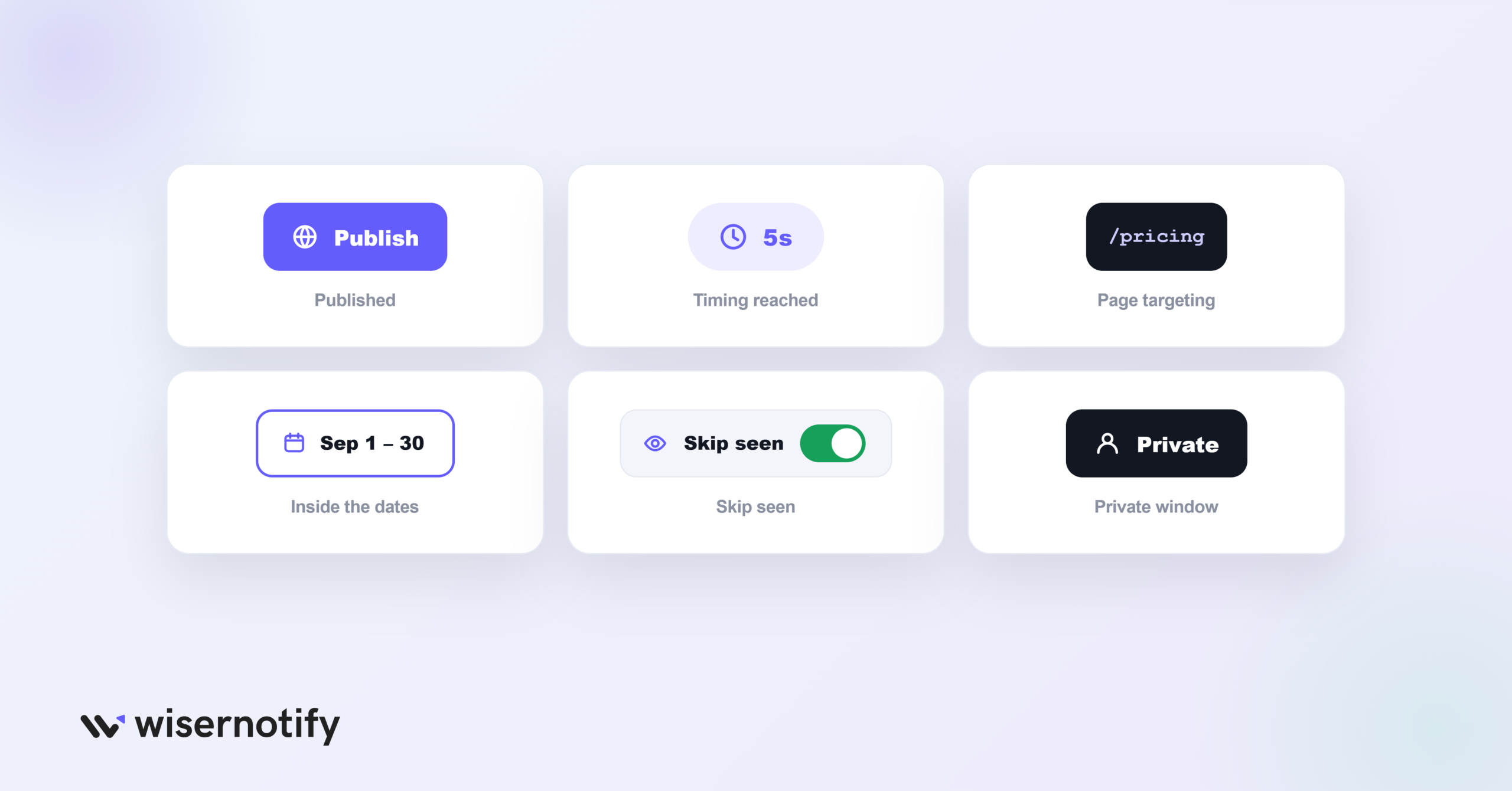
If the popup isn’t appearing on your live site, check these first:
- Not published: saving the design isn’t enough. Click Publish so the widget goes live.
- Timing hasn’t triggered: if you set it to show after 5 seconds or a scroll, wait or scroll before expecting it.
- Wrong page targeting: check your URL condition, the popup may be set to show on pages other than the one you’re viewing.
- Start or expiry date: make sure today falls inside the date range you set in Timing control.
- Skip seen is on: if you’ve already seen it once, skip seen hides it. Try a private window.
- Cache: open your site in a private window so you’re not loading an old version.
Still stuck? Use the troubleshoot option in your widget list, or reach out to WiserNotify live chat.
Where to Use Video Popups on Your Site
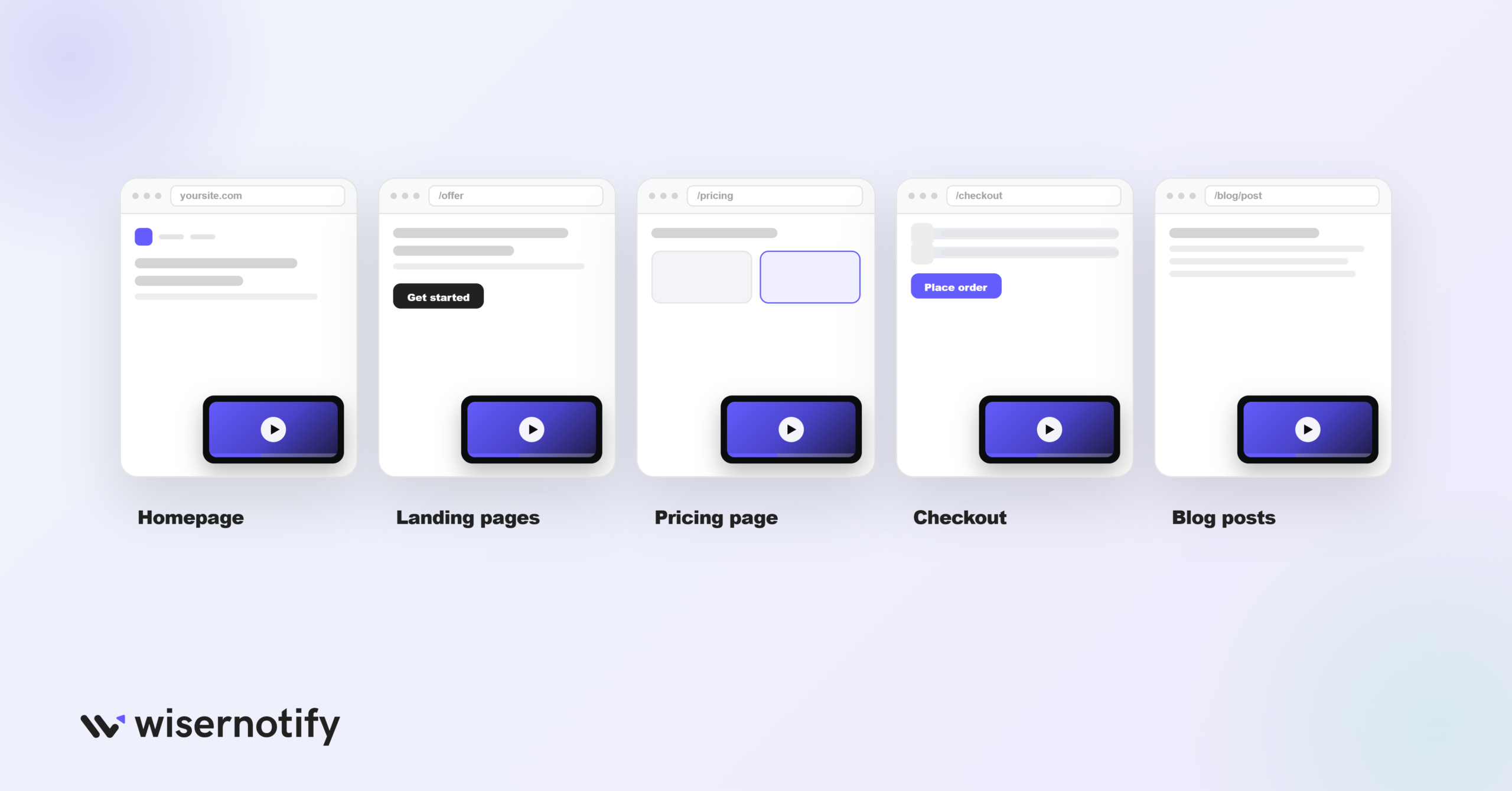
A video popup works best where it fits what the visitor is already doing. These spots usually work well:
- Homepage: greet new visitors with a short explainer of what you do.
- Landing pages: back up your offer with a demo or testimonial right where people decide.
- Pricing page: a quick product tour helps someone comparing plans decide.
- Checkout or cart: a short, reassuring clip can ease last-minute doubts.
- Blog posts: add a related video to keep readers watching and clicking through.
Skip low-intent pages like your contact or policy pages, where a video popup just gets in the way.
5 Best Practices for Video Popups
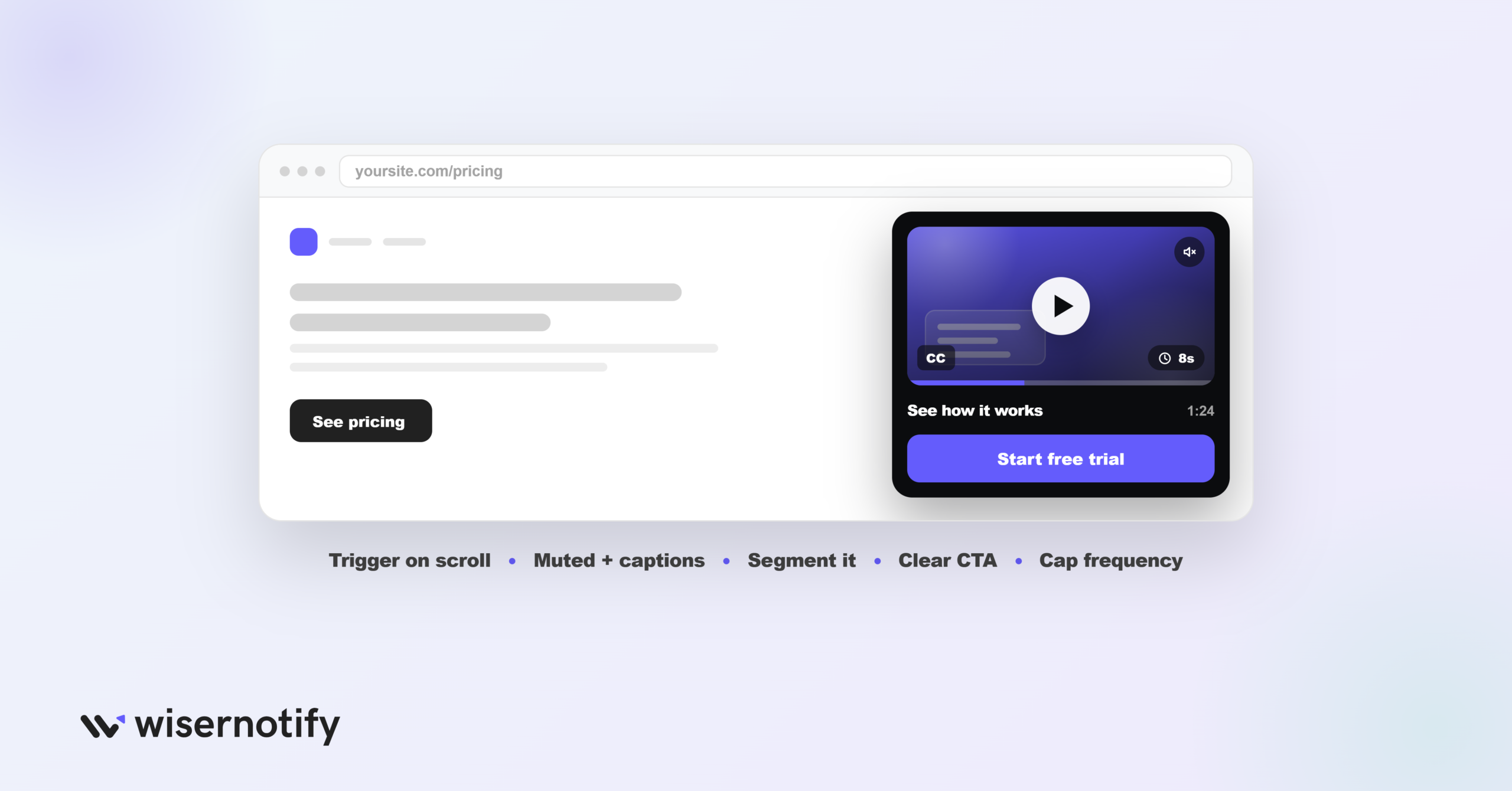
Once you’ve picked the type, these keep it working well:
- Trigger after engagement: don’t fire the popup the second the page loads. Wait until someone scrolls partway, clicks something, or spends a few seconds, then show it.
- Use muted autoplay with captions: if it plays automatically, keep it muted and add captions. Autoplay with sound is a fast way to get your tab closed, and captions help on mobile and with accessibility.
- Segment by audience: show a short explainer to first-time homepage visitors and a product demo on the pricing page. This kind of website personalization makes each popup feel relevant, not pushy.
- Add a clear CTA: a video with no next step is just entertainment. Add a button like “Start Free Trial” or “See Pricing” inside or below the popup.
- Cap the frequency: use display rules so the same popup doesn’t follow people across every page. Once per session or per day is usually plenty.
3 Video Popup Examples
Here’s what a well-made video popup looks like in action. These follow the best practices above and use video with a clear goal.
1. Surfer SEO, Full-Screen Explainer

Surfer’s homepage uses a clean full-screen popup with a short YouTube video explaining the tool in under three minutes.
The background is darkened to focus attention, and the thumbnail shows a friendly face.
It walks new visitors through the product without forcing a signup first.
What works: a high-quality YouTube embed, a clear headline and thumbnail, and a full-screen lightbox that doesn’t feel intrusive.
2. Humanity & Inclusion, Video + Email Capture

This popup sits in the center of the screen and pairs a story with a signup.
The video pulls people in enough that they share their email to see the rest.
So it builds your list while it holds attention.
What works: emotional video content, an email form built into the popup, and a CTA that encourages watching the whole series.
3. WiserNotify, Slide-In Product Tour

WiserNotify shows a short product demo in a slide-in popup in the lower-right corner of the homepage.
It’s subtle, doesn’t block the screen, and gives curious visitors a way to engage without committing.
The CTA is clear: watch how it works before signing up.
What works: clever corner placement, muted autoplay for a smooth experience, and a design that fits the rest of the page.
Video Popup Mistakes to Avoid
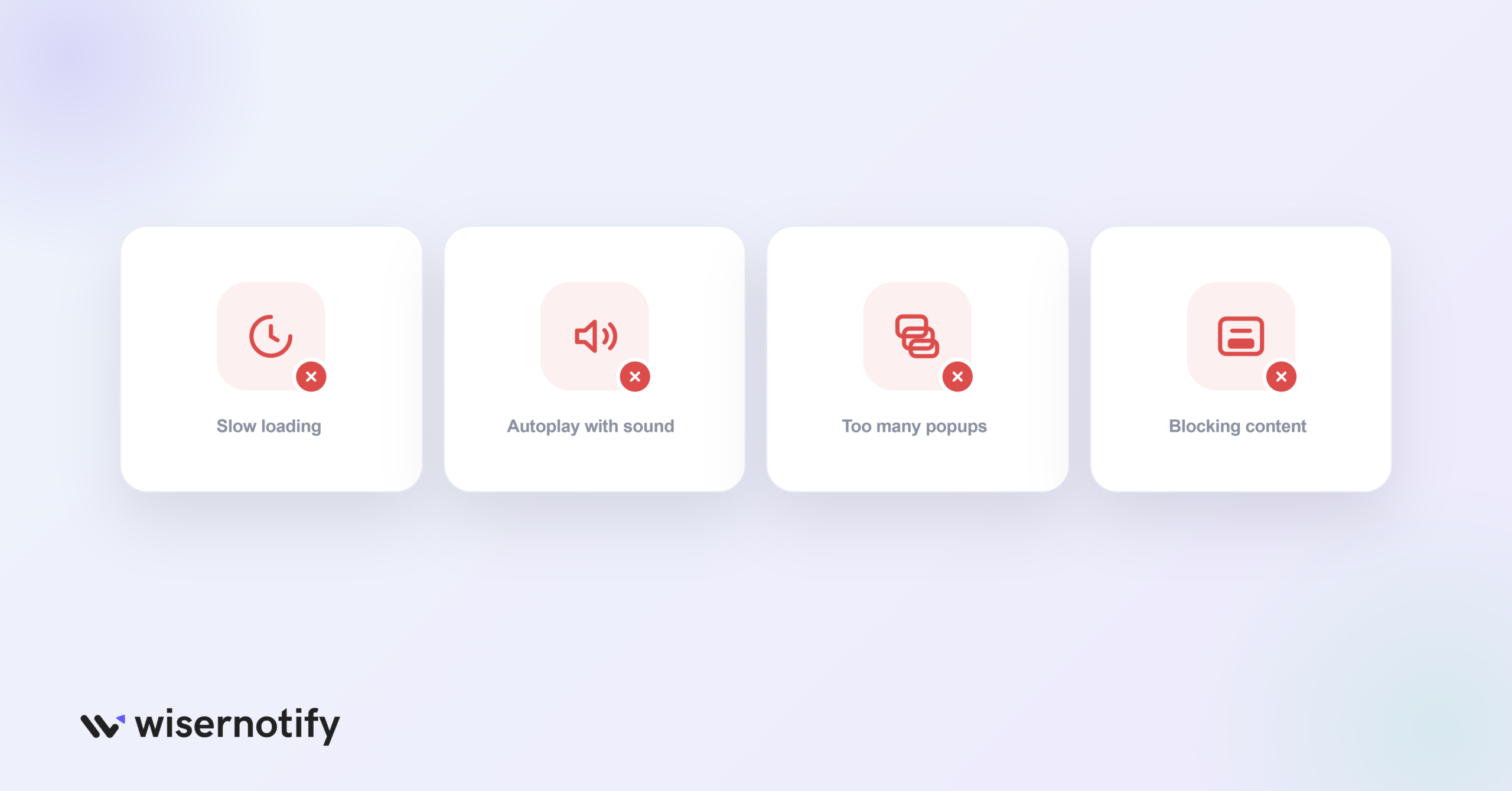
Even good intentions can lead to annoying video popups. Avoid these four:
- Slow load or laggy playback: nobody waits for a buffering wheel. Compress the video, host it on YouTube or Vimeo, use lazy loading so it only loads when triggered, and test on different devices and speeds.
- Autoplay with sound: a video blaring at full volume is jarring and gets your tab closed. If you autoplay, start muted and add captions so the message still lands.
- Too many popups: putting them on every page wears visitors down and they stop noticing. Use one main popup per funnel stage, trigger it on behavior, and keep each one purposeful.
- Blocking key content: a popup that covers pricing, delivery info, or a checkout form frustrates people. Avoid firing it while they’re using important parts of the page, and make it easy to close.
Is the Video Popup Widget Free?
You can try it for free. WiserNotify offers a 7-day free trial.
You can build a video popup, set it live, and see how it performs before you pay anything.
After the trial, you pick a paid plan based on your monthly visitor traffic.
Plans scale up as your traffic grows, and higher tiers add more widgets and features.
For most sites, the trial is enough time to run a live video popup and see whether it lifts engagement and conversions before committing.
Build trust & FOMO
Highlight real-time activities like reviews, sales & sign-ups.
Wrap-Up
A video popup isn’t about dropping in a random clip. Used well, it holds attention, explains your message, and lifts conversions.
Pick the right format, keep the timing smart, add captions, skip autoplay with sound, and always give visitors a clear next step.
Set up your WiserNotify video popup and put your best video where visitors will see and watch it.
Add a video popup on your platform
The steps above work on any site. If you’re on a specific platform, these guides cover the exact setup for it:
Frequently Asked Questions
What is a video popup?
A video popup is a small on-page window that plays a video, like a demo, explainer, or testimonial, without sending visitors to another page. It grabs attention and guides them toward action.
How do I add a video popup to my website?
In WiserNotify, go to Widgets > Call to Action, pick the Video Popup template, paste your YouTube URL, set the timing and targeting, and click Publish. No code needed.
What are the types of video popups?
The main types are lightbox, slide-in, full-screen, and exit-intent popups. Each suits a different goal, from product demos to saving visitors who are about to leave.
Should a video popup autoplay?
Yes, but keep it muted and add captions. Autoplay with sound is jarring and often gets the tab closed, while muted autoplay with captions works well on mobile and in public spaces.
Is the video popup widget free?
WiserNotify offers a free 7-day trial, so you can build a video popup and test it on your site before choosing a paid plan.

Krunal Vaghasiya is a marketing tech expert who boosts e-commerce conversion rates with automated social proof and FOMO strategies. He loves to keep posting insightful posts on online marketing software, marketing automations, and improving conversion rates.




 Capterra