
How to Add a Countdown Timer to GoHighLevel (2026)

To add a countdown timer to GoHighLevel with WiserNotify, paste the WiserNotify pixel into your funnel’s Head tracking code. Then build the timer in WiserNotify and choose the funnel pages it shows on.
GoHighLevel also has a countdown element you drop into a single page. WiserNotify’s timer runs across every page that has the pixel, as a bar, a popup or an inline block.
Setup takes five steps and no code beyond the pixel.
GoHighLevel’s Countdown Element or WiserNotify?
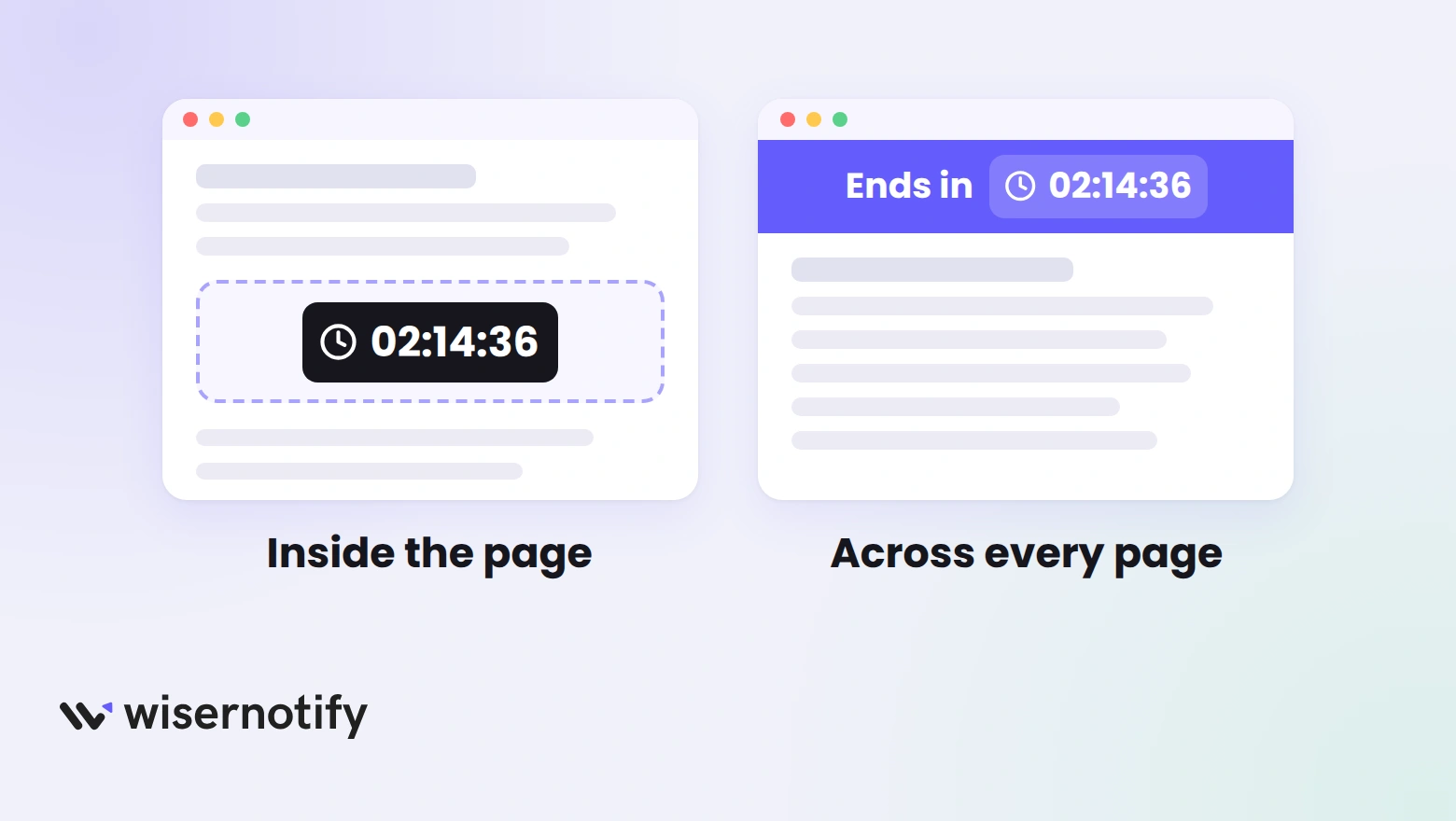
The native GoHighLevel countdown is a page element in the funnel builder. It supports fixed-date and evergreen timers and can send visitors to another step when it ends. WiserNotify’s timer is managed outside the builder, from one dashboard.
| How they differ | GoHighLevel countdown element | WiserNotify countdown timer |
|---|---|---|
| Where it lives | Inside the funnel step you add it to | Any page with the pixel, set from one dashboard |
| How it looks | A block in the page layout | A floating bar or popup, or inline through embed code |
| Timer types | Fixed date or evergreen | Fixed date or evergreen per visitor |
| Changing it | Edit each page that has one | Edit once, and every page updates |
WiserNotify is worth adding when one of these applies.
- The same deadline should follow a lead through several funnel steps or your GoHighLevel website.
- You want a bar or popup over the page instead of rebuilding the layout.
- The timer should run between set dates or on chosen days of the week.
- Only some traffic should see it, filtered by location, campaign UTM, referring site or visitor type.
How to Add a Countdown Timer to GoHighLevel
One WiserNotify pixel goes on your funnel. After that, you design the timer, set its rules and pick where it shows, all inside WiserNotify.
The same pixel powers any widget you add later, so the install happens once.
The flow is the same on other funnel builders, close to adding a countdown timer on Leadpages. The clip below runs through the widget build, and the GoHighLevel steps sit under it.
Step 1: Grab the Pixel Code

- Log in to WiserNotify, or start the 7-day free trial.
- Open Install Pixel and copy the code.
Step 2: Paste It in Head Tracking Code
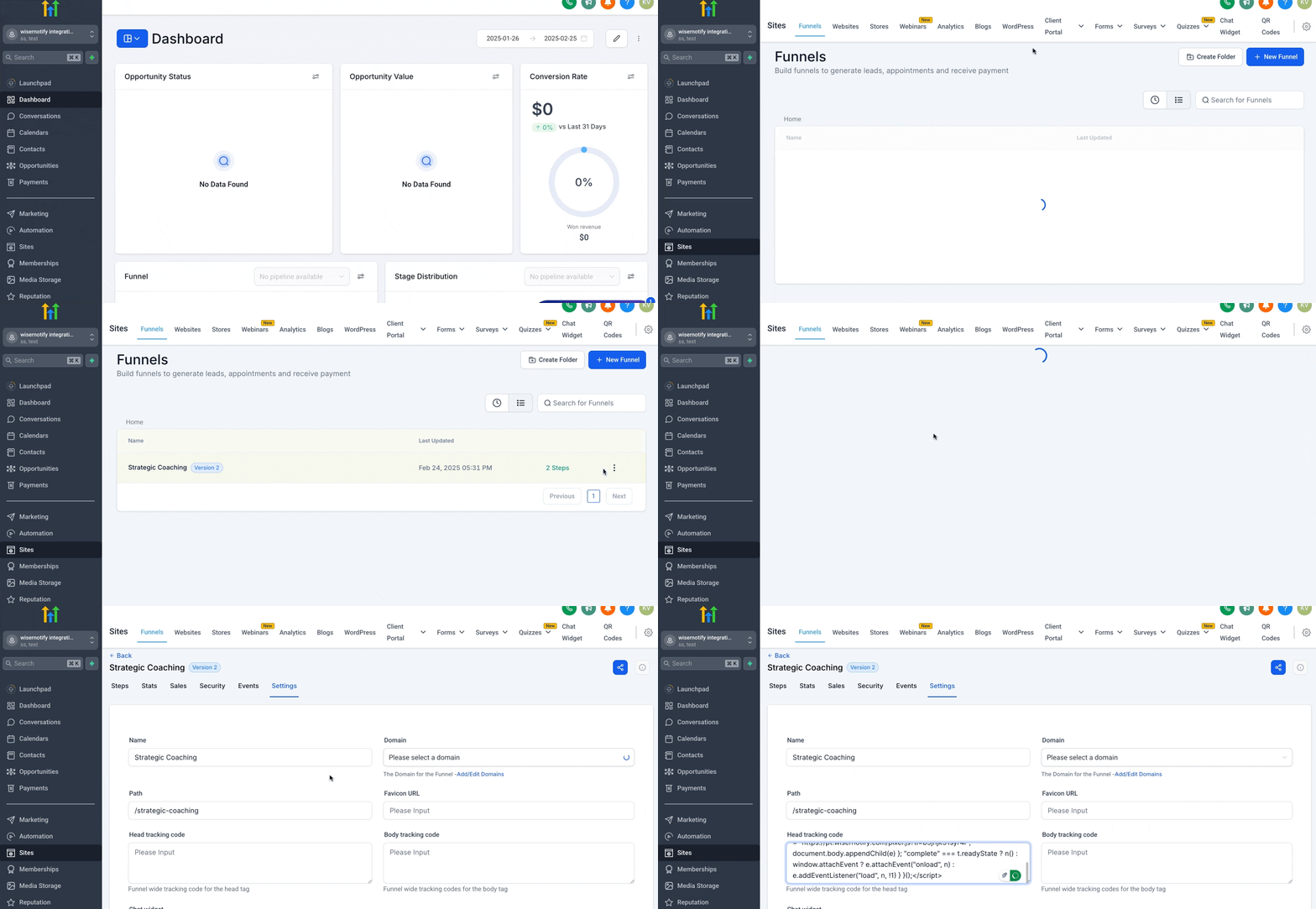
- In GoHighLevel, open Sites, then Funnels.
- Click the three-dot menu on your funnel and choose Edit.
- Open the Settings tab and paste the pixel into Head tracking code.
- Save the settings.
Head tracking code applies to every step in that funnel. A GoHighLevel website has its own settings, so paste the pixel there too if the timer should show on it. Our GoHighLevel integration guide shows this path with screenshots.
Step 3: Verify the Pixel

- Load one of your funnel pages so the pixel runs.
- Back in WiserNotify, run Verify pixel installation.
- The detected message means everything connected.
Step 4: Create and Customize the Timer
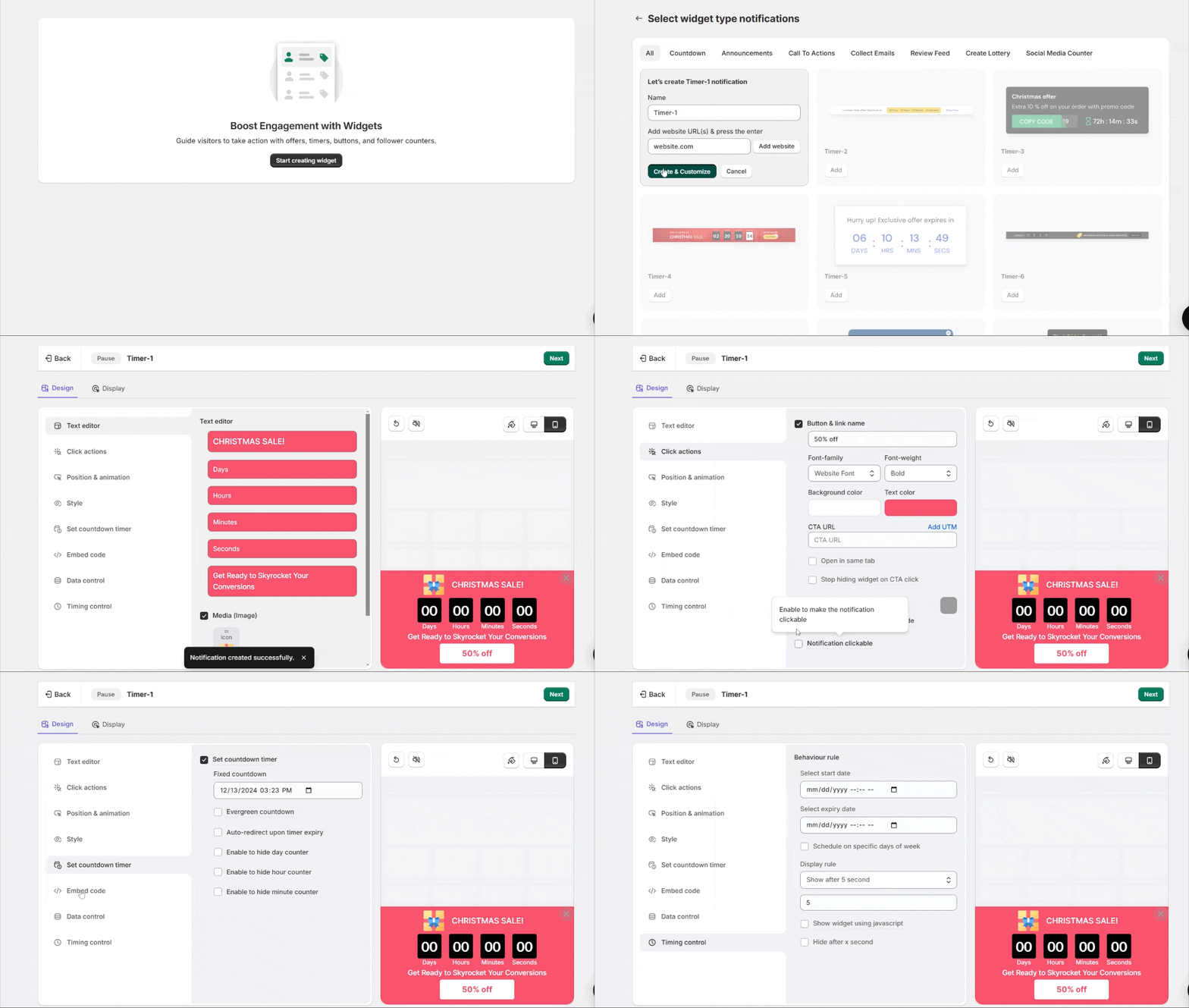
Open Widgets, click Add notification, and pick the Countdown tab. Grab a template, hit Add, give it a name, and enter the funnel URL. The editor handles the rest.
- Text editor: write your line, such as “Offer ends in” or “Doors close in,” and add the detail that sells the deal.
- Click actions: turn on a “Buy Now” button that goes to your order or booking step.
- Position & animation: place the timer on the page and pick how it enters on desktop and phone. Push the page down keeps a top bar from covering your header.
- Style: tune the colors, size and shape until the timer sits naturally inside your funnel.
- Set countdown timer: choose Fixed for a firm deadline such as a launch or live event, or Evergreen for a fresh clock per visitor, then set the length. Auto-redirect can send people to another step when it hits zero.
- Embed code: copy the div tag into a GoHighLevel Custom JS/HTML element if the timer should sit inside the page layout.
- Timing control: pick the dates it runs, chosen weekdays, and what triggers it, such as a delay, a scroll or exit intent.
Step 5: Set Pages and Publish
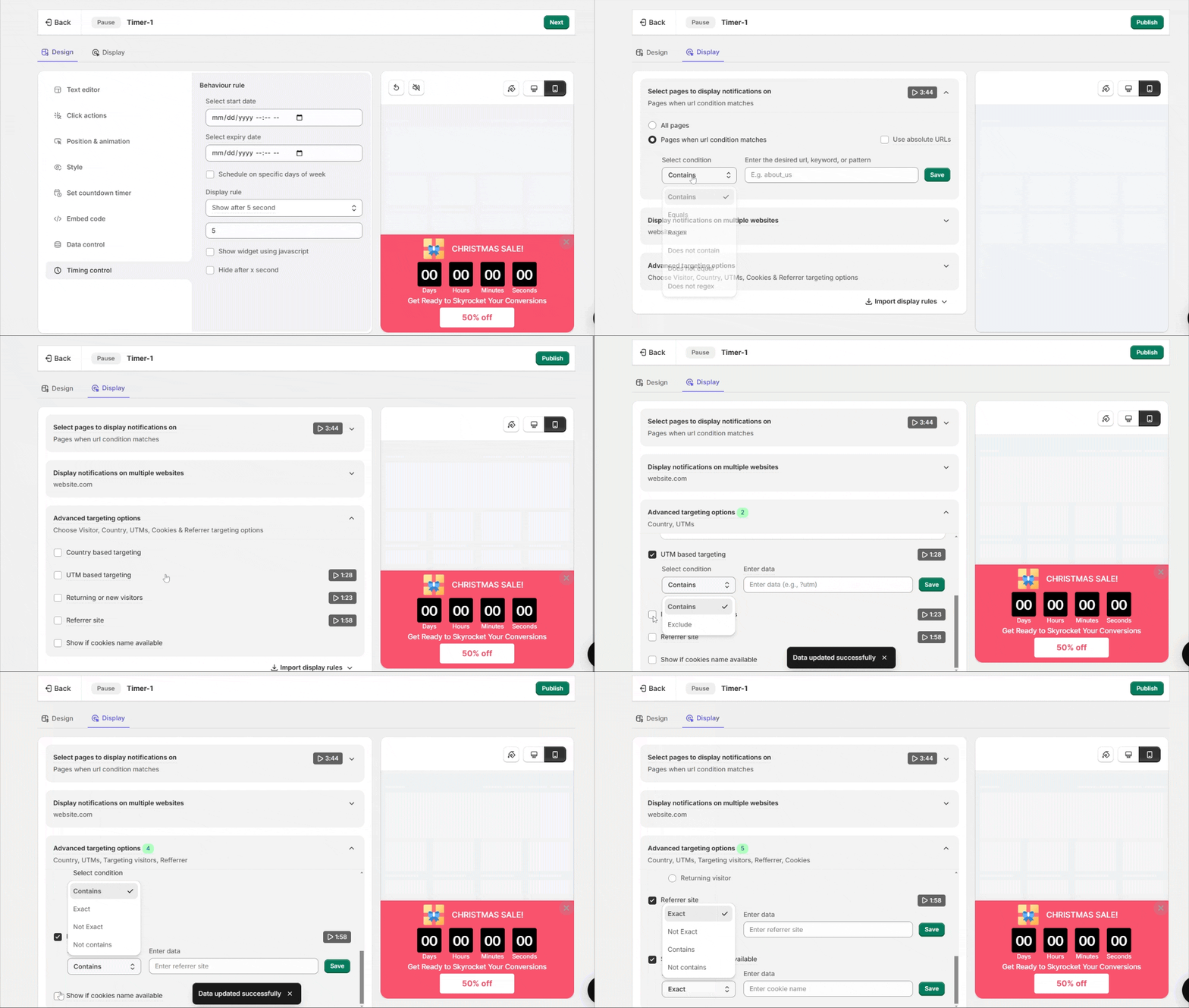
- In Display, run the timer across the whole funnel or on chosen steps.
- Narrow it by location, UTM or referrer if the campaign calls for it.
- Click Save, then Publish, and preview the page in incognito so a cached copy doesn’t hide your work.
The timer widget guide spells out every control in this editor.
Build trust & FOMO
Highlight real-time activities like reviews, sales & sign-ups.

If the Timer Doesn’t Show Up
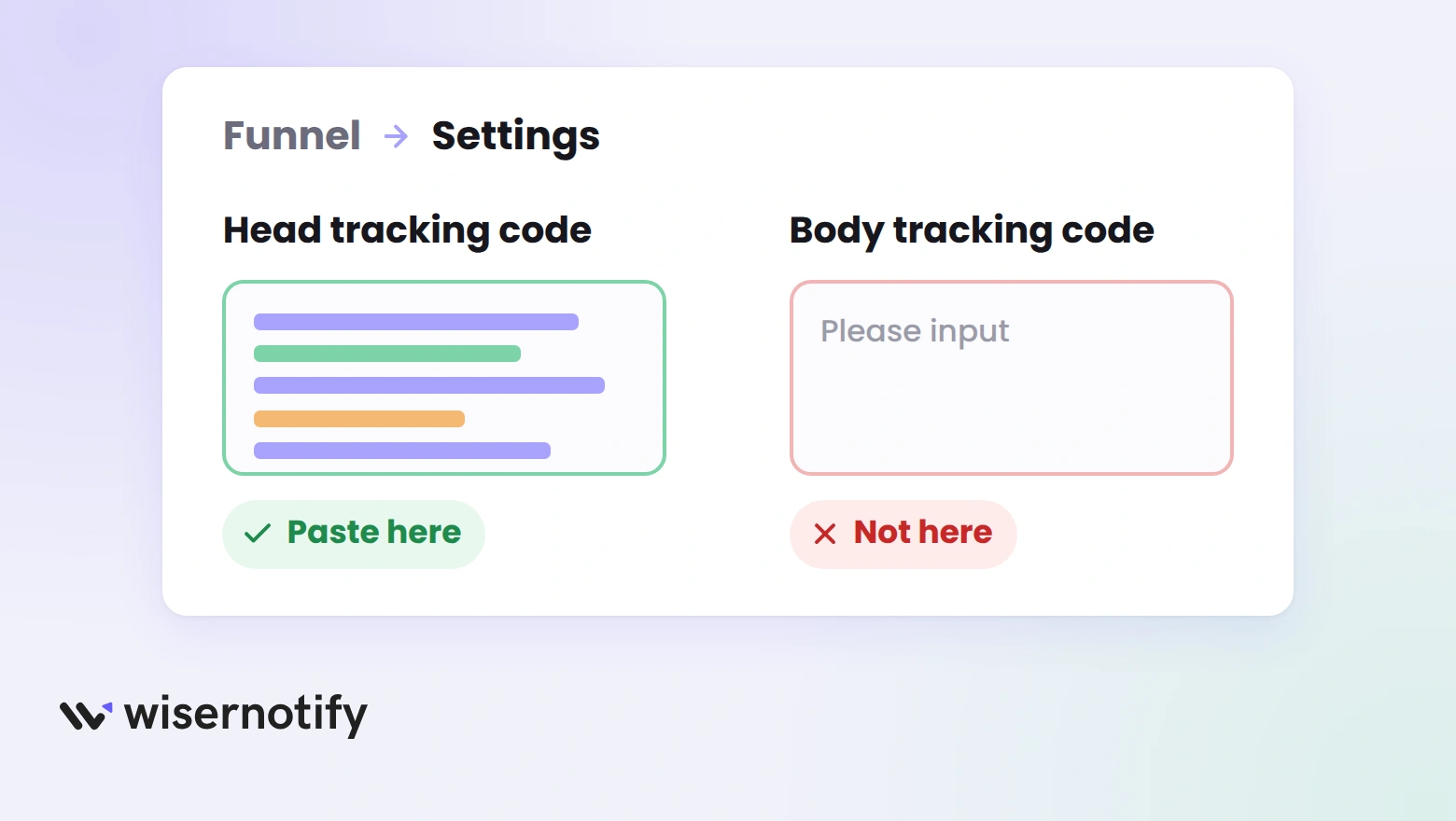
If the timer stays invisible on your live funnel, run through this short list.
- Wrong code box: the pixel has to live in the funnel’s Head tracking code field under Settings, not Body tracking code, and you need to save once it’s pasted.
- Draft never published: saving your settings isn’t publishing. Push the funnel page live after you save.
- Cache in the way: reopen the funnel in an incognito window so you’re not looking at an old cached copy.
- Targeting too tight: in Display, make sure the exact page you’re checking is on the timer’s list.
Still blank? Open the widget list in WiserNotify and run its checker, which points to the cause, and live chat is there if you need a hand.
Where to Use a Timer in Your Funnel
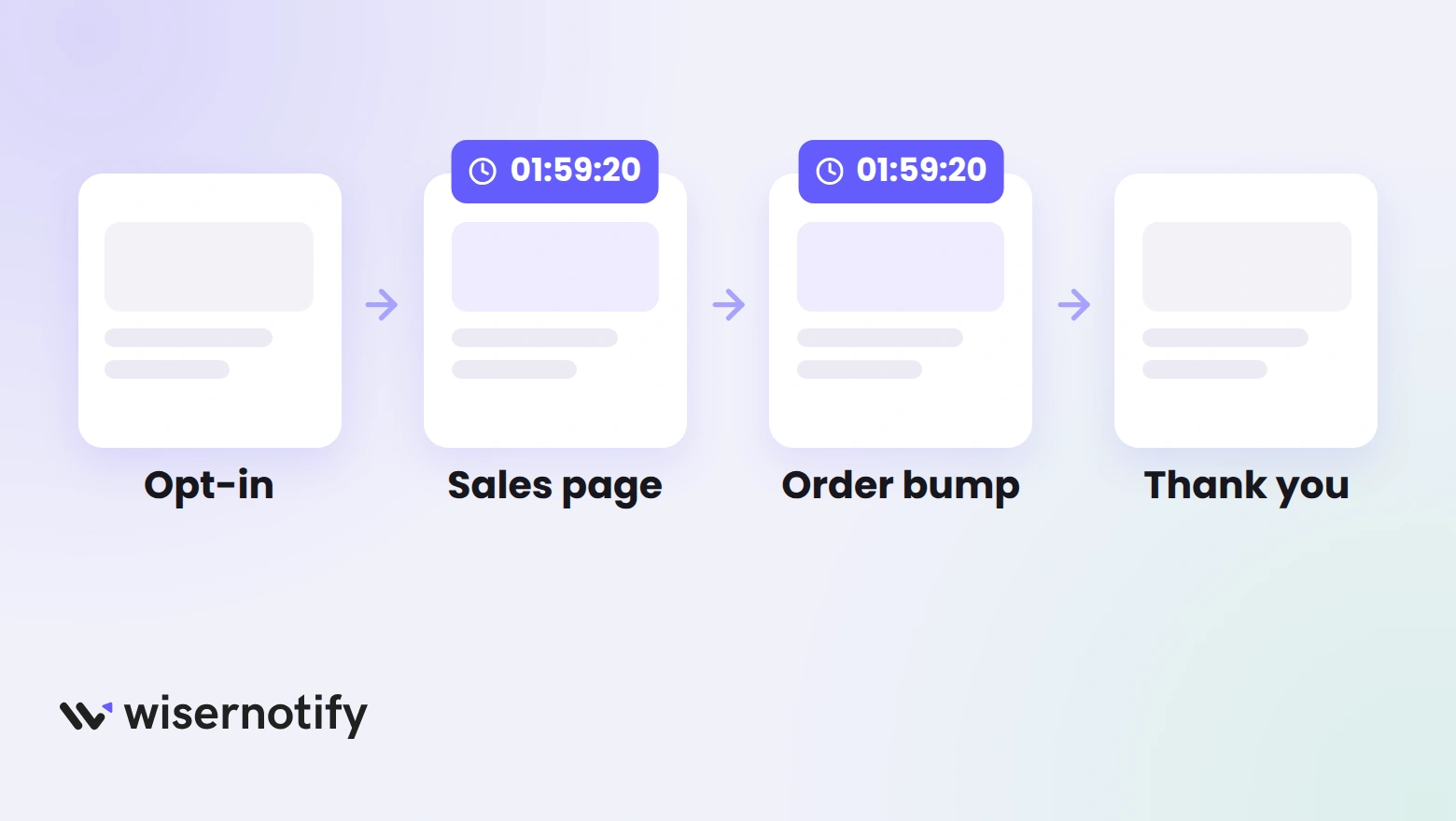
- Sales pages: sit a timer beside a discounted offer so the price cut feels time-boxed, along the lines of “Offer ends tonight.” That’s FOMO marketing doing the work.
- Webinar and event registration: a clock counting toward the start time nudges the folks who keep saying they’ll sign up eventually.
- Product launches: a countdown to release day on a launch page builds anticipation, like “Doors open in 5 days.”
- Order bumps and upsells: a quick timer on a one-time offer moves a lead to decide rather than drift.
- Appointment booking: pair a timer with a limited-slot offer so prospects book now instead of tomorrow, with social proof marketing alongside it to build trust.
- Cart recovery: link a timer to a discount nearing its expiry so a hesitant buyer feels the nudge, a practical lever against cart abandonment.
Tips to Make It Work Better
- Anchor it to a set deadline: the timer only carries weight when the offer has a true end. One that resets on refresh teaches visitors to tune it out.
- Say exactly when it ends: “Ends Sunday at midnight” hits harder than a hazy “limited time.”
- Point it at one action: a timer beside a single clear button outperforms one lost among rival links.
- Dress it like the funnel: borrow your page’s fonts and colors so the timer looks built-in, not bolted on.
- Look at it on a phone: check the timer fits a small screen and never covers your button.
Mistakes to Watch Out For
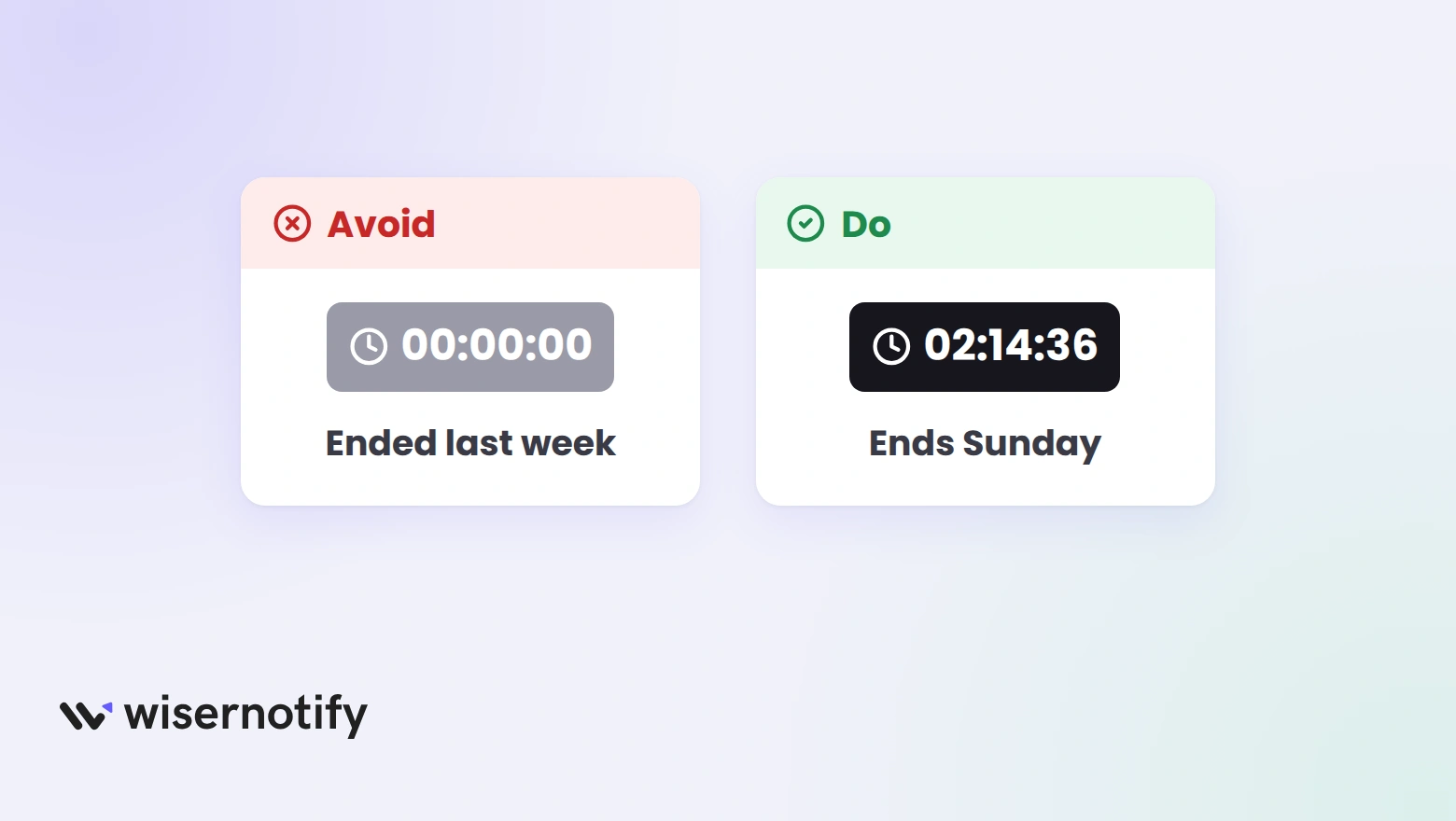
- A clock tied to nothing: a countdown with no offer behind it just confuses people. Attach every one to a specific sale, launch or event.
- Letting it sit at zero: a countdown that ran out days ago signals a funnel nobody tends. Turn it off or restart it the minute the deal ends.
- Two timers on one step: a native countdown element and a WiserNotify bar on the same page split attention. Pick one per step.
- Never testing mobile: a timer that looks clean on a monitor can spill over or block the button on a small screen.
- No button in sight: with nothing to click next to it, the countdown is just numbers ticking down.
How to Tell If It’s Working
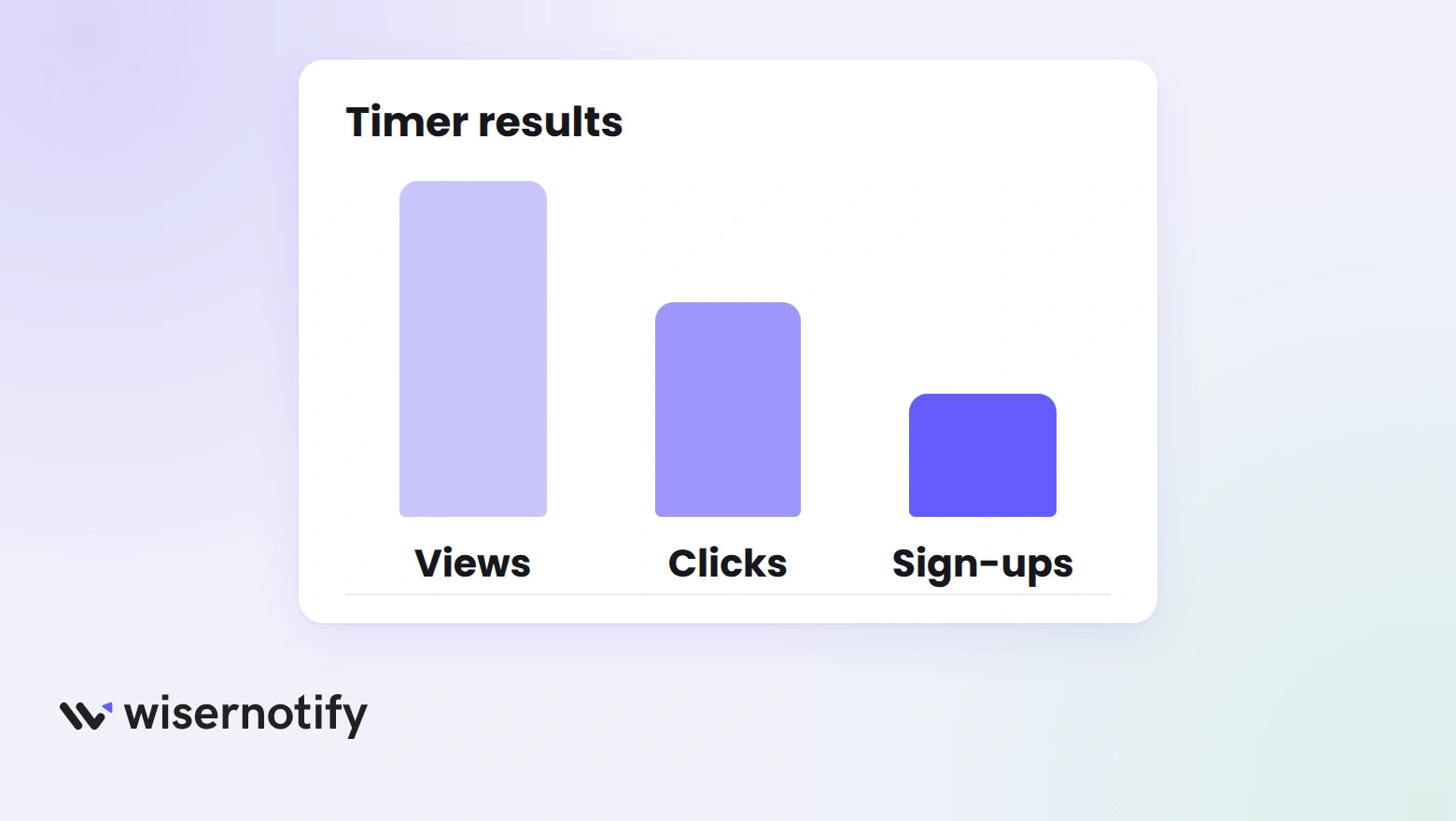
Launching the timer is the easy part. Proving it earns its spot is the rest, so track these.
- Views against clicks: WiserNotify logs how many visitors the timer reached and how many acted on it, a quick read on whether the offer connects.
- Conversions where it runs: compare a funnel step carrying the timer with a similar one that isn’t, over the same window.
- The last-hours lift: when urgency does its job, orders and sign-ups tick up as the deadline nears rather than staying flat.
Final Thoughts
A countdown timer gives your GoHighLevel leads a reason to move today instead of “later.” Once the pixel is in place, you run every timer from WiserNotify without touching the funnel again.
Tie every timer to an offer that ends, put a clear button beside it, and read the numbers as your campaigns play out.
Related Post
Frequently Asked Questions
Does GoHighLevel have a built-in countdown timer?
Yes. The funnel builder has a countdown element for a single page. WiserNotify adds a timer that runs across every page with the pixel, set from one dashboard.
Do I need code to add a countdown timer to GoHighLevel?
No. You paste one WiserNotify pixel into the funnel’s Head tracking code, then build the timer from the WiserNotify dashboard.
Can I add a countdown timer to any GoHighLevel page?
Yes. In the Display settings you can target the whole funnel or specific pages, like a sales, checkout or registration page.
What's the difference between a Fixed and an Evergreen timer?
Pick Fixed for a set end date, good for launches and live events, or Evergreen, which starts a fresh clock for each visitor.
Can the timer sit inside the page instead of floating?
Yes. Copy the timer’s embed code into a Custom JS/HTML element where it should appear. The pixel still has to be in Head tracking code.
How do I track how my countdown timer is performing?
Your WiserNotify dashboard shows views and clicks for each timer, so you can see whether the offer gets attention.

Krunal Vaghasiya is a marketing tech expert who boosts e-commerce conversion rates with automated social proof and FOMO strategies. He loves to keep posting insightful posts on online marketing software, marketing automations, and improving conversion rates.




 Capterra