
How to Add Yelp Reviews to Elementor (2026)
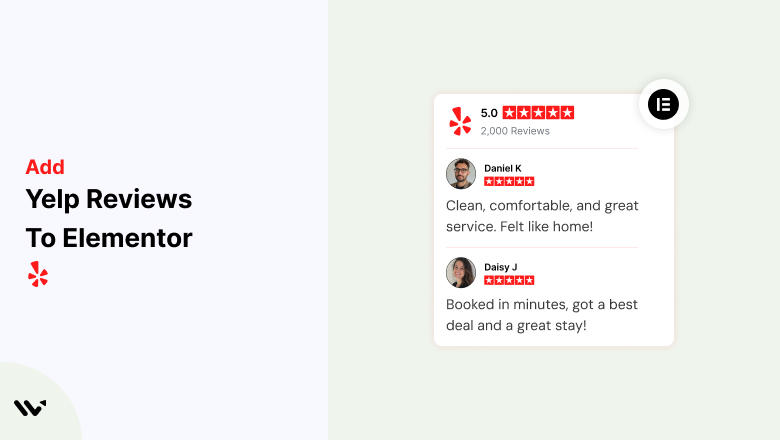
Elementor’s built-in widgets have no Yelp option, and Yelp’s API hands out only three review excerpts at a time. To show Yelp reviews on an Elementor site, install the WiserNotify plugin, connect Yelp with your Business ID and publish a review notification.
No Elementor widget is needed, because the notification loads on your pages through the plugin.
Below are the 11 steps with screenshots, what Yelp lets you show, and what to check when nothing appears.
What Yelp Reviews Can You Show on Elementor?

Yelp does not let anyone pull a full review wall. Its reviews endpoint returns up to three review excerpts per business, and it needs a paid Yelp plan. See Yelp’s reviews endpoint documentation.
WiserNotify works inside that limit. When you connect Yelp it fetches your last three reviews, then checks daily and stores each new review it finds.
- Review notification: a small popup that shows a reviewer’s name, rating and text on your pages.
- Review feed: a floating review tab with rows of reviews that visitors can open.
Both use the same Yelp connection. The steps below build the notification, and the feed follows the same path from Step 7.
How to Add Yelp Reviews to Elementor
The setup has two parts. The plugin connects your WordPress site to WiserNotify, and the dashboard connects Yelp and builds the notification.
The video shows a WiserNotify review notification being built. Steps 7 to 11 follow the same screens.
Step 1: Sign Up for WiserNotify
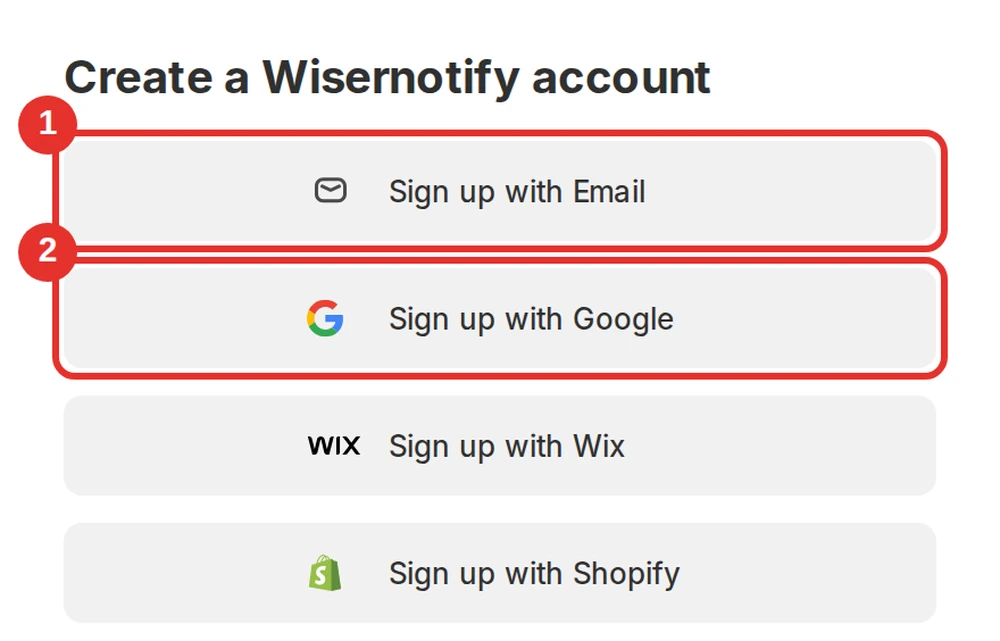
- Open the WiserNotify sign-up page. The 7-day free trial starts right away.
- Choose Sign up with Email or Sign up with Google, then finish the form.
- Already registered? Log in and go to Step 2.
Step 2: Install the WordPress Plugin
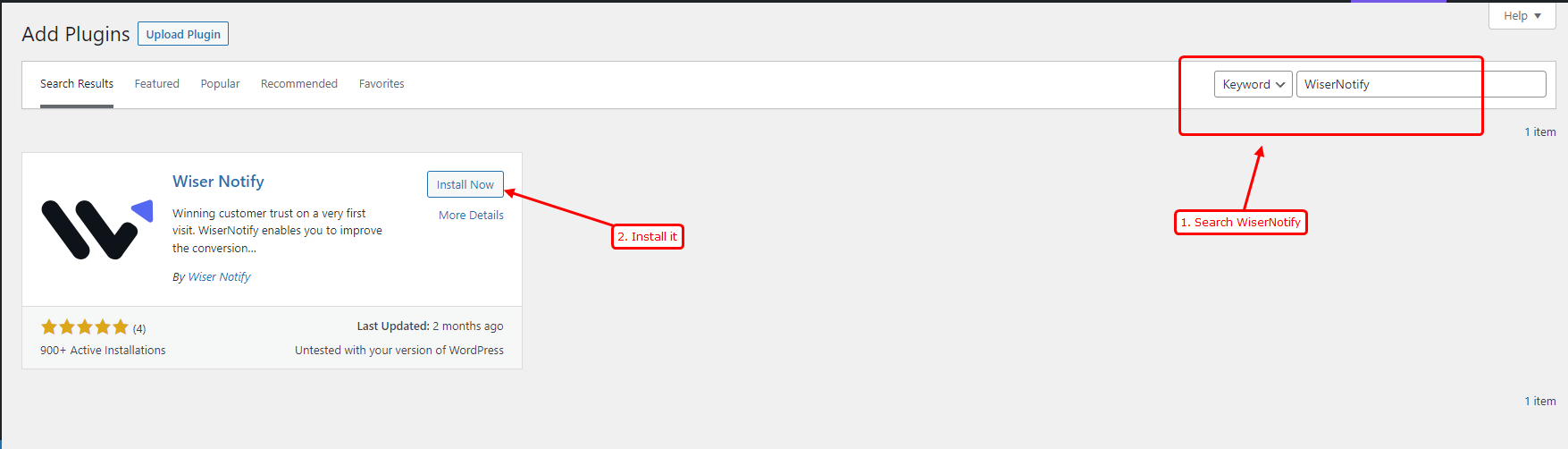
- In your WordPress dashboard, go to Plugins and click Add New.
- Search for WiserNotify and click Install Now.
- Click Activate.
Step 3: Copy the API Key
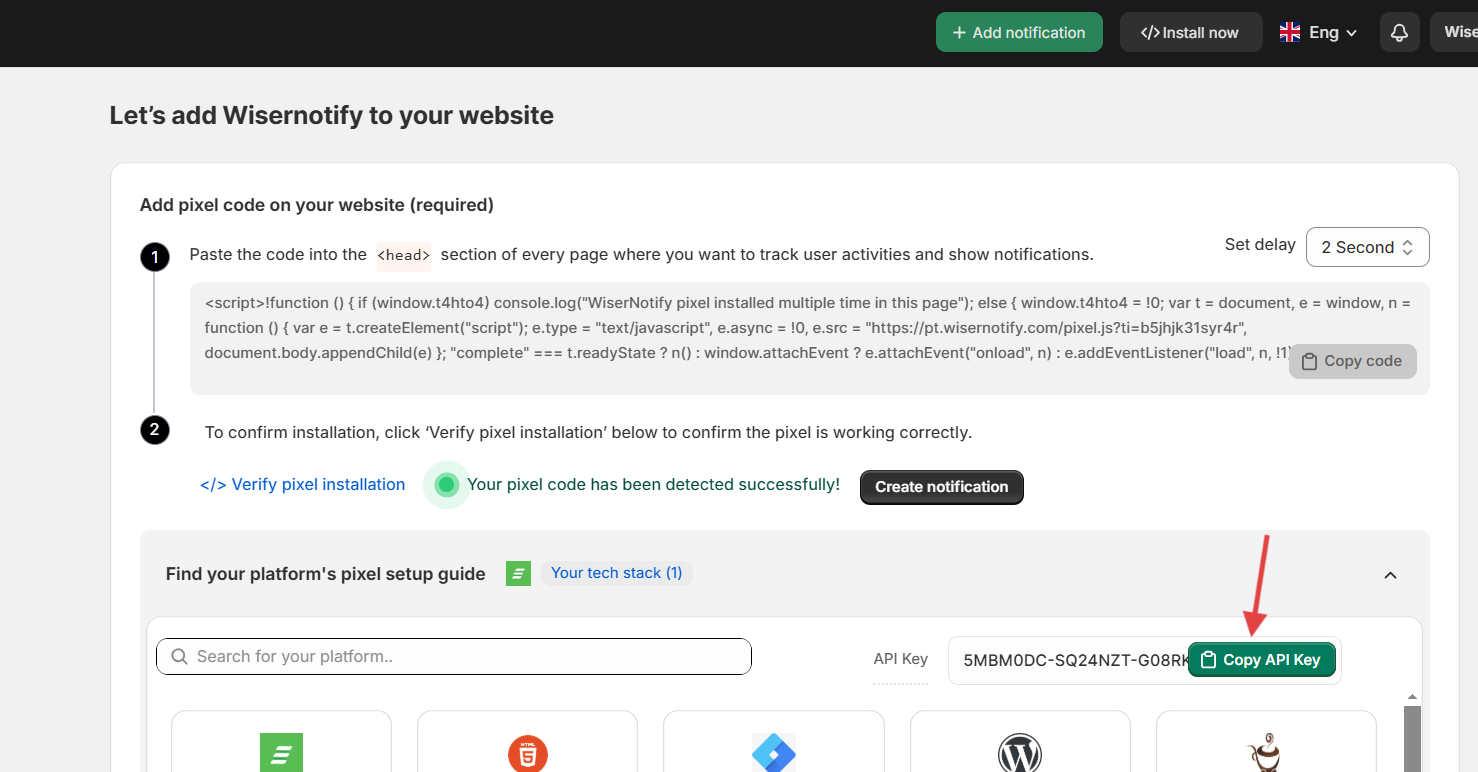
- In WiserNotify, open the Install Pixel page.
- Click Copy API Key.
Step 4: Verify the Key in WordPress
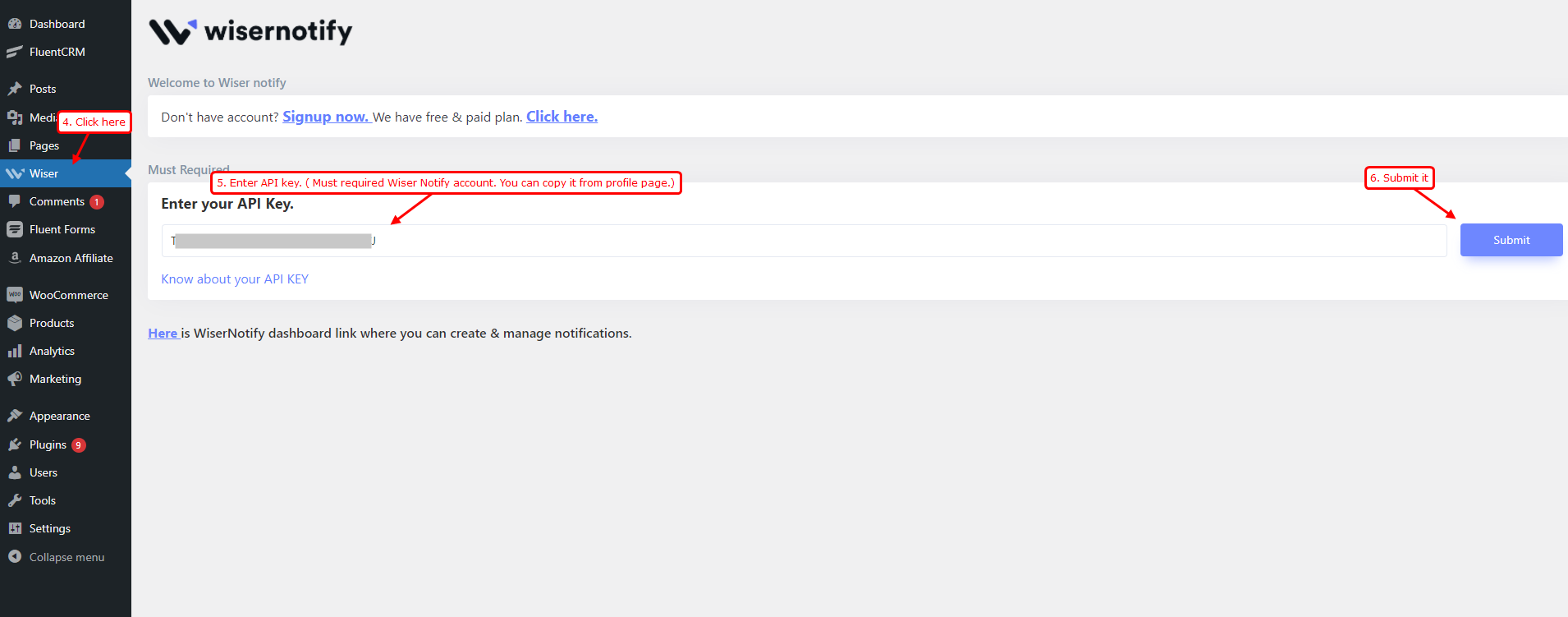
- Open the WiserNotify plugin settings in WordPress.
- Paste the API key into the box and click Verify.
- The plugin adds the pixel to your site’s head for you, so you do not paste any code.
Step 5: Find Your Yelp Business ID

- Open your business page on Yelp.
- Look at the address bar. The ID is the last part of the URL after /biz/.
- Copy it.
Step 6: Connect Yelp
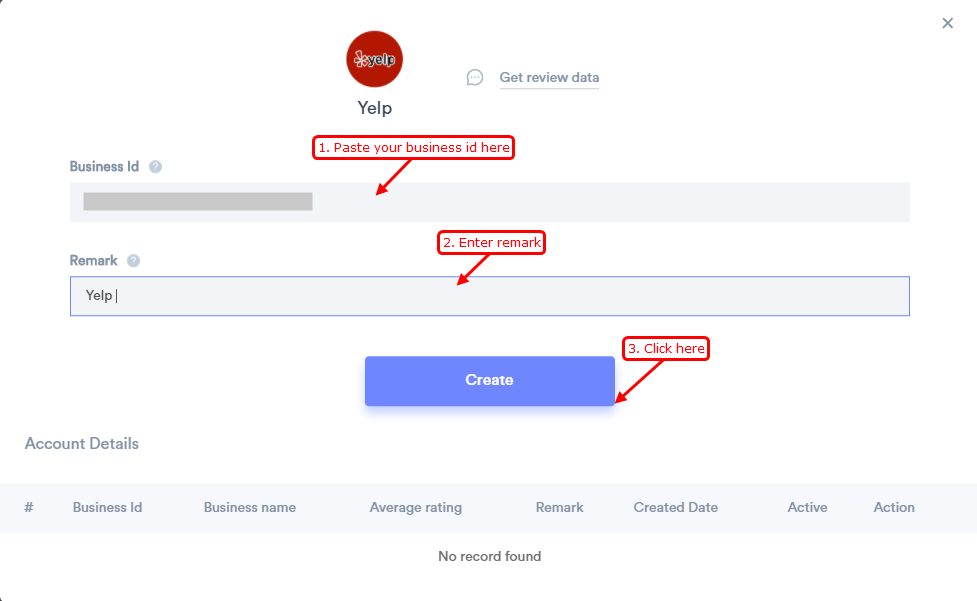
- In WiserNotify, open Integrations and find Yelp, then click Integrate.
- Paste your Business ID and type a remark such as Yelp.
- Click Create. WiserNotify fetches your last three reviews, then adds new ones daily.
Step 7: Add a Review Notification
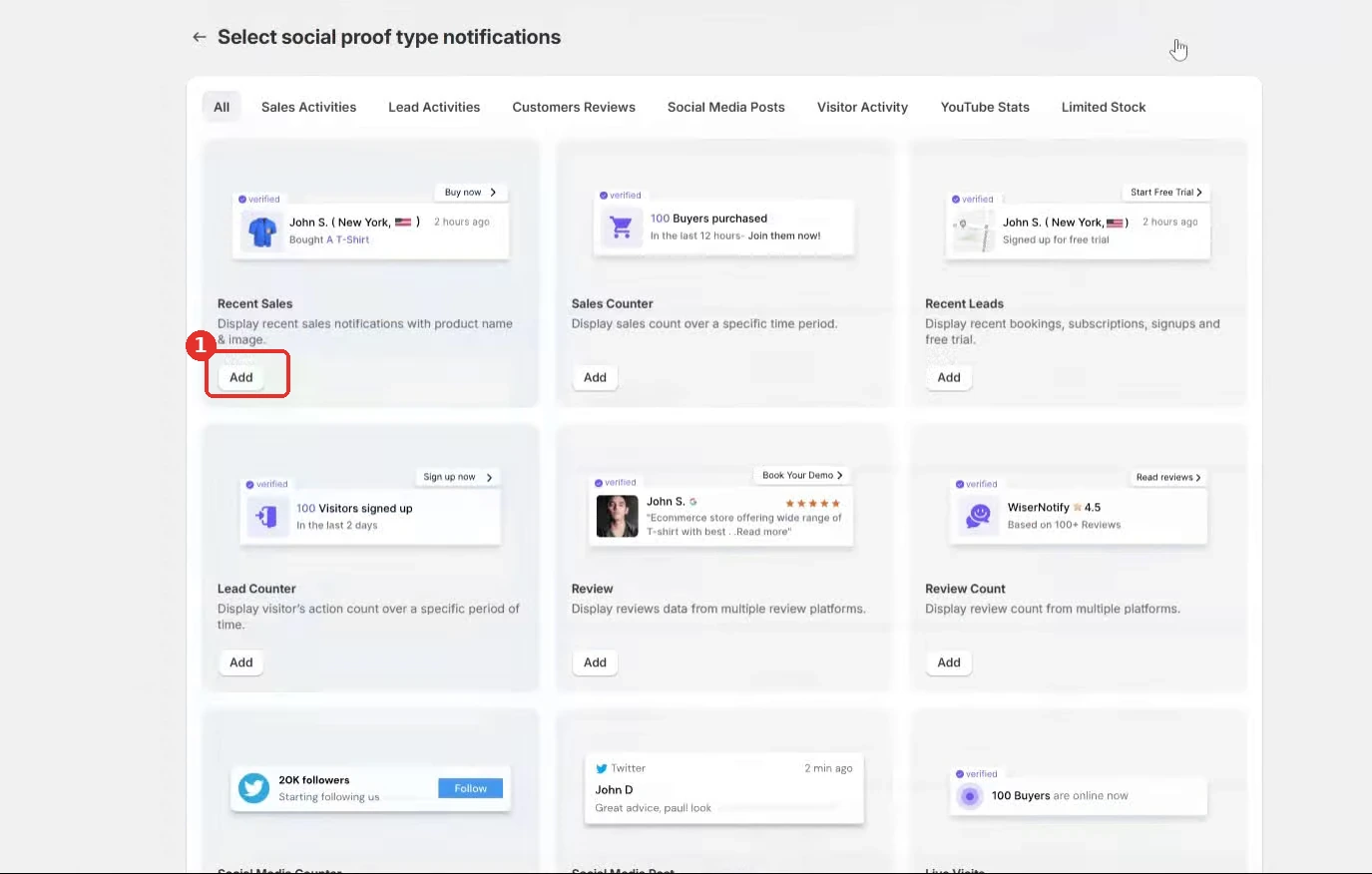
- Click Add notification.
- Under Social proof, find Review and click Add.
- Prefer a floating tab? Pick Review Feed instead. The steps after this are the same.
Step 8: Name It and Add Your Site
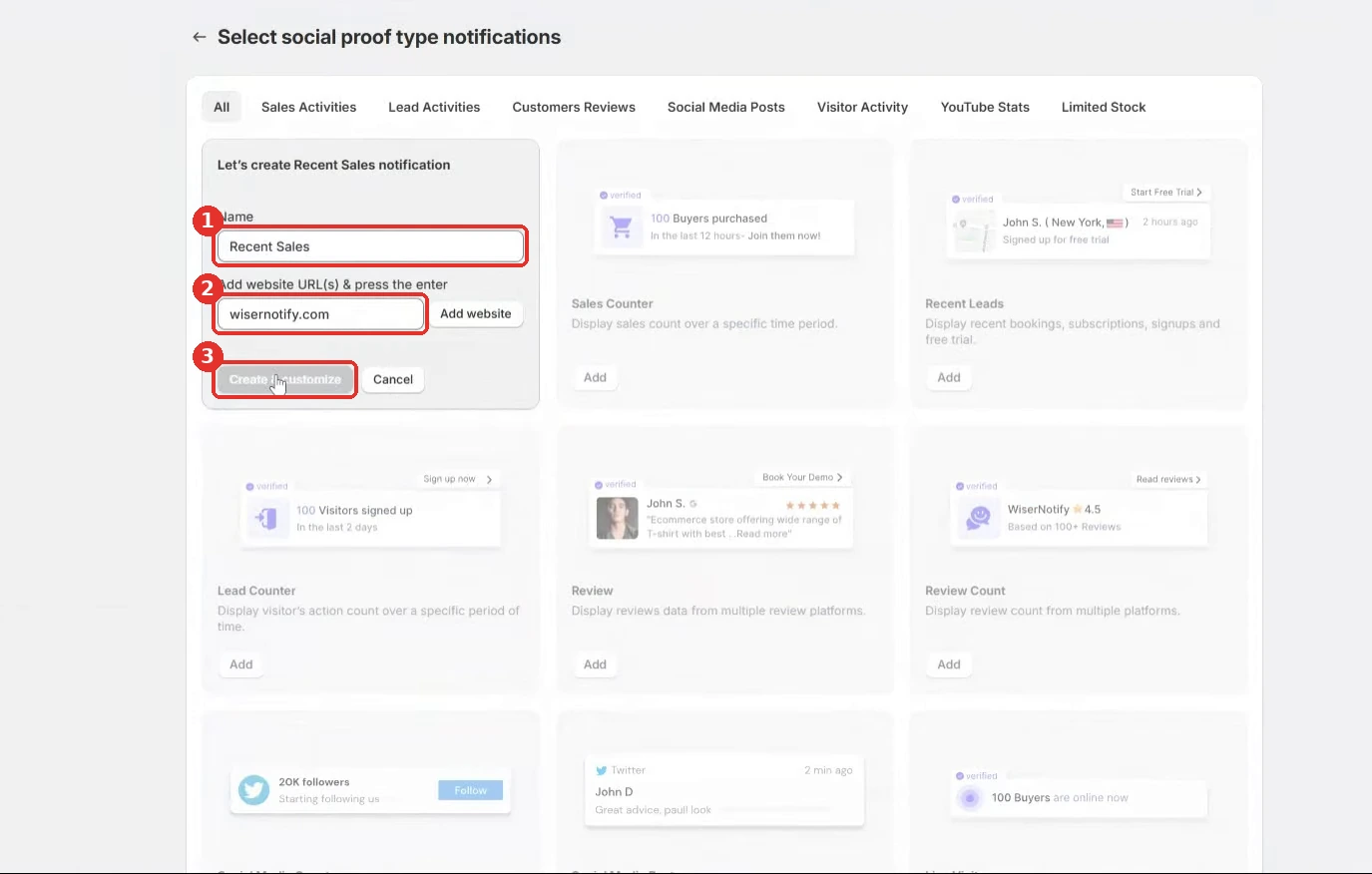
- Type a name, such as Yelp reviews.
- Enter your Elementor site address and click Add website.
- Click Create and Customize.
Step 9: Design the Notification

- In Text editor, edit the wording. Placeholders fill in the reviewer’s details.
- In Position and animation, pick a corner for mobile and for desktop.
- In Style, match your Elementor theme colors, then click Save.
Step 10: Choose Where It Shows
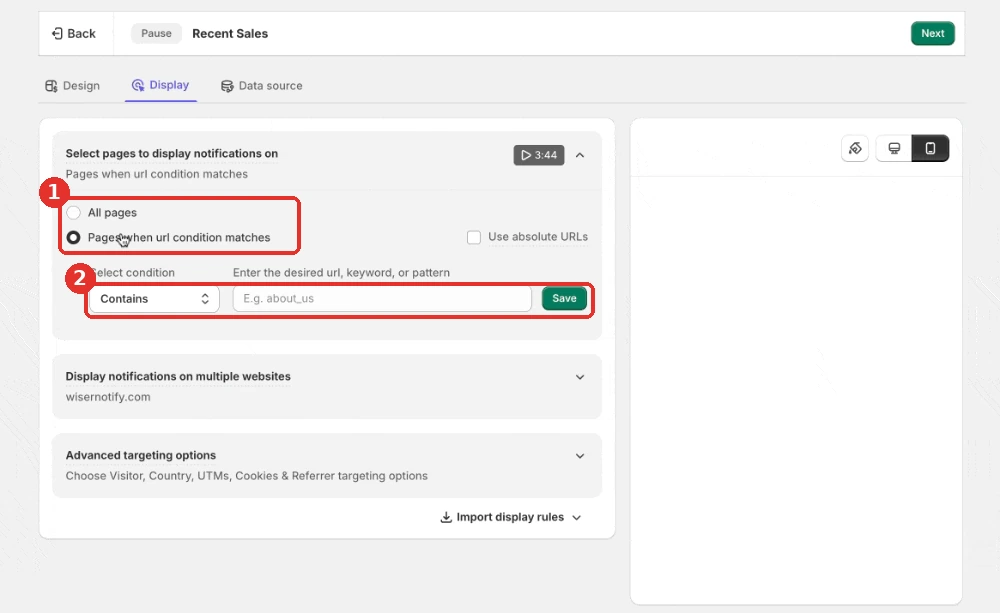
- Click Next to reach the Display tab.
- Keep All pages, or choose Pages when URL condition matches.
- Add a rule for your service or booking pages if you want Yelp proof only there.
Step 11: Pick Yelp and Publish
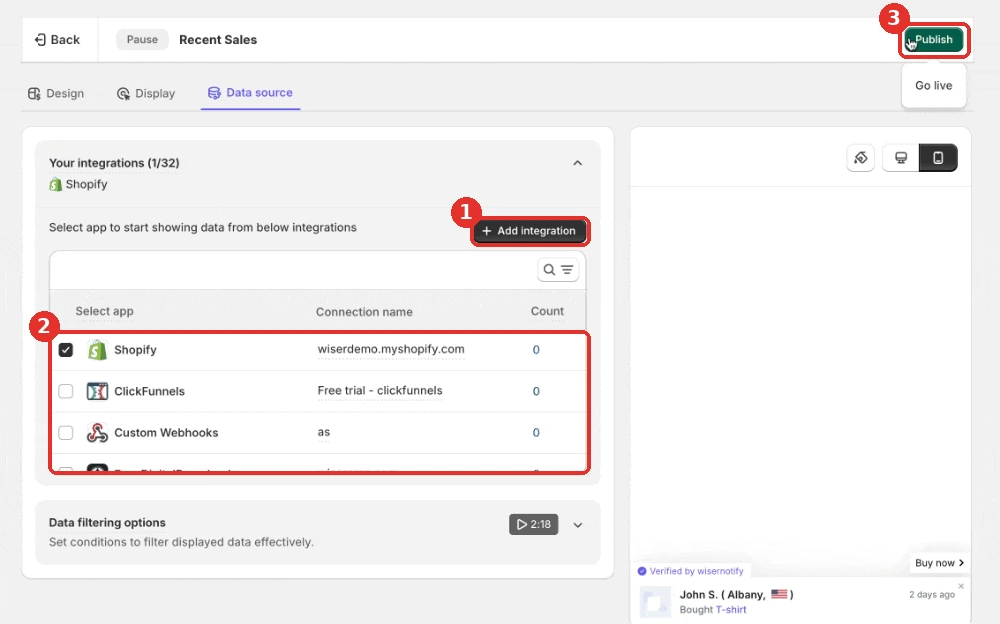
- Click Next to reach the Data source tab.
- Tick your Yelp connection. The notification reads only the connection you tick.
- Click Publish, then Turn on when asked.
- Open an Elementor page in a private window to see the notification.
The Yelp connection guide and the review notification guide list every option.

Boost Conversion Instantly
Add Social Proof & Urgency to your website
Where to Show Yelp Reviews on Elementor
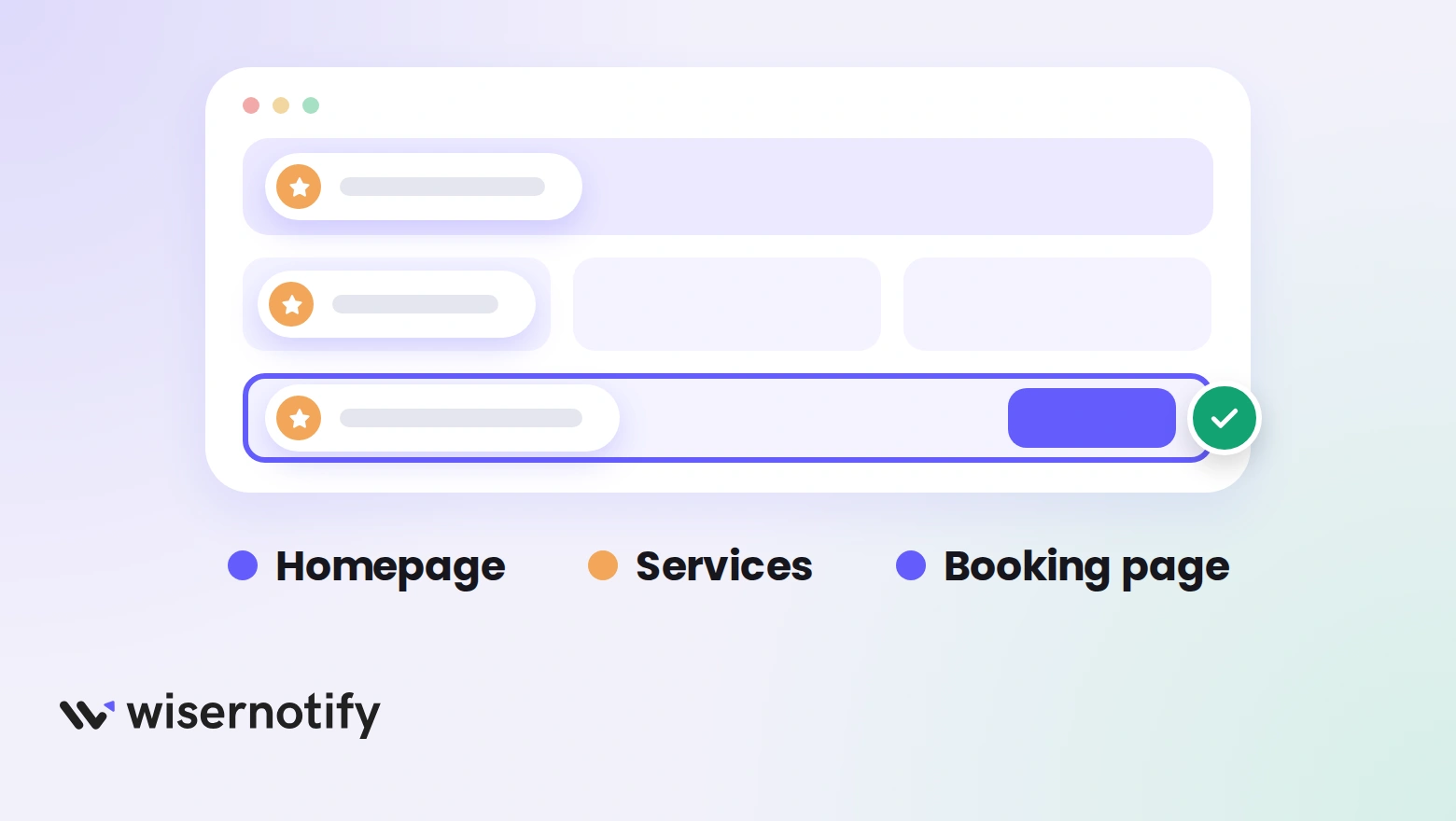
- Homepage: new visitors see that real customers rate you.
- Service and menu pages: a review next to what you sell helps a visitor decide.
- Contact and booking pages: proof here nudges someone ready to call or book.
- Landing pages: one strong review supports a single offer.
Use the Display tab from Step 10 to match each page with its notification. To show reviews from several sources in a widget, see how to add a review widget to Elementor.
Yelp Reviews Not Showing on Elementor?
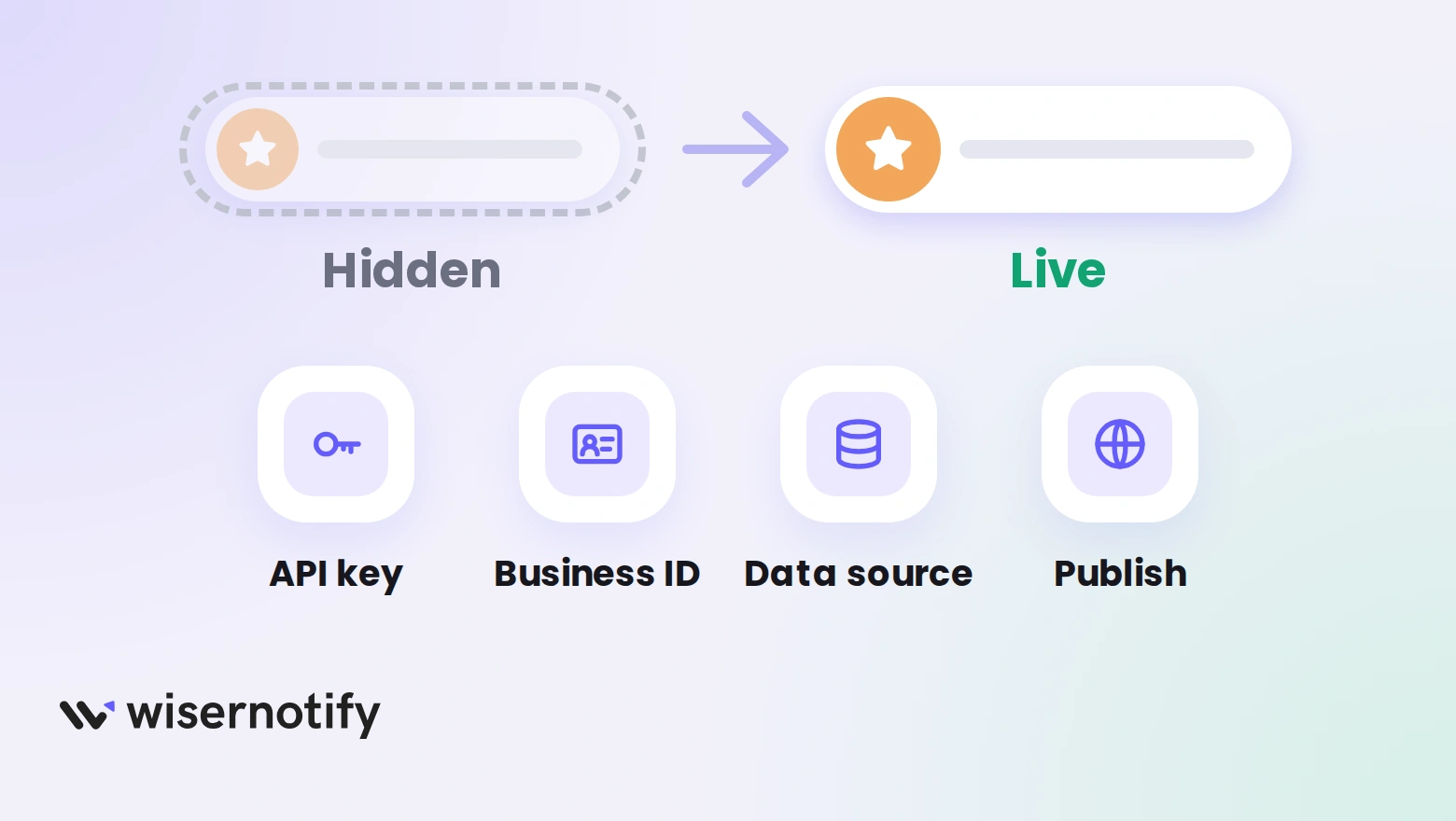
- Key not verified: paste the API key in the plugin settings and click Verify again.
- Pixel not detected: open your site once, then check the Install Pixel page for the pixel detected status.
- Caching or security plugin: purge your cache, or allow the WiserNotify plugin in your security plugin, then verify the key again.
- Wrong Business ID: copy the ID again from the end of your Yelp business URL.
- Yelp not ticked: the notification reads only the connection ticked in its Data source tab.
- Not published: saving is not enough. Click Publish and turn it on.
- Page rule too tight: the Display tab may leave out the page you are testing.
- Just connected: WiserNotify starts with your last three reviews, so you will not see a long history.
- Cached page: check from a private window, since an old copy can hide the notification.
Still stuck? Your notification list flags a live notification WiserNotify has not seen in a day and links a Troubleshoot page. Live chat helps too.
Build trust & FOMO
Highlight real-time activities like reviews, sales & sign-ups.


Tips for Showing Yelp Reviews
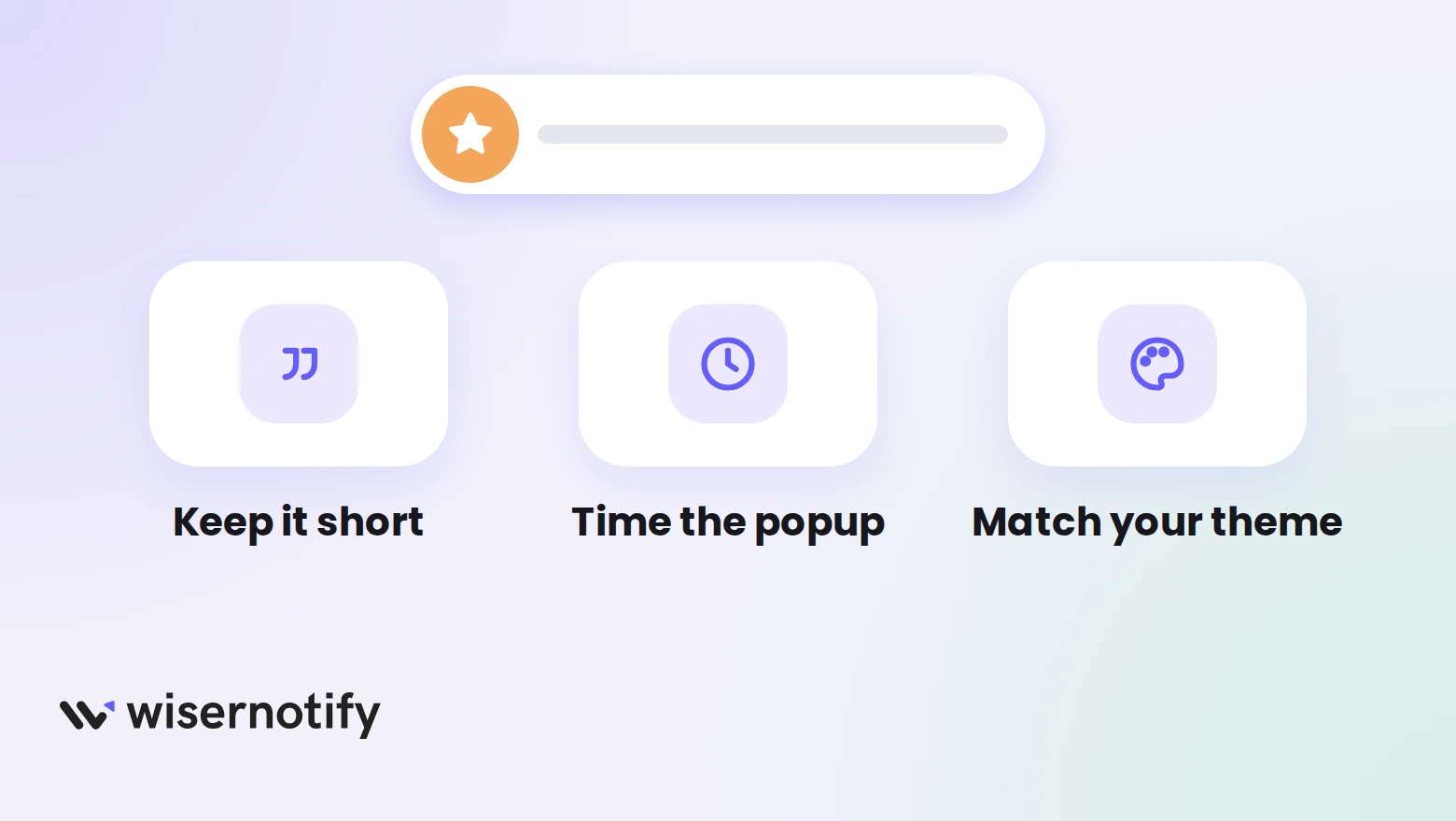
- Keep reviews short: Yelp supplies short excerpts, so the notification stays quick to read.
- Time the first popup: a short delay lets visitors see your page before the first review appears.
- Match your theme: use your site colors so it looks like part of the page.
- Add other proof: pair Yelp with Google reviews, as in this guide to Google reviews on Elementor.
Mistakes to Avoid With Yelp Reviews
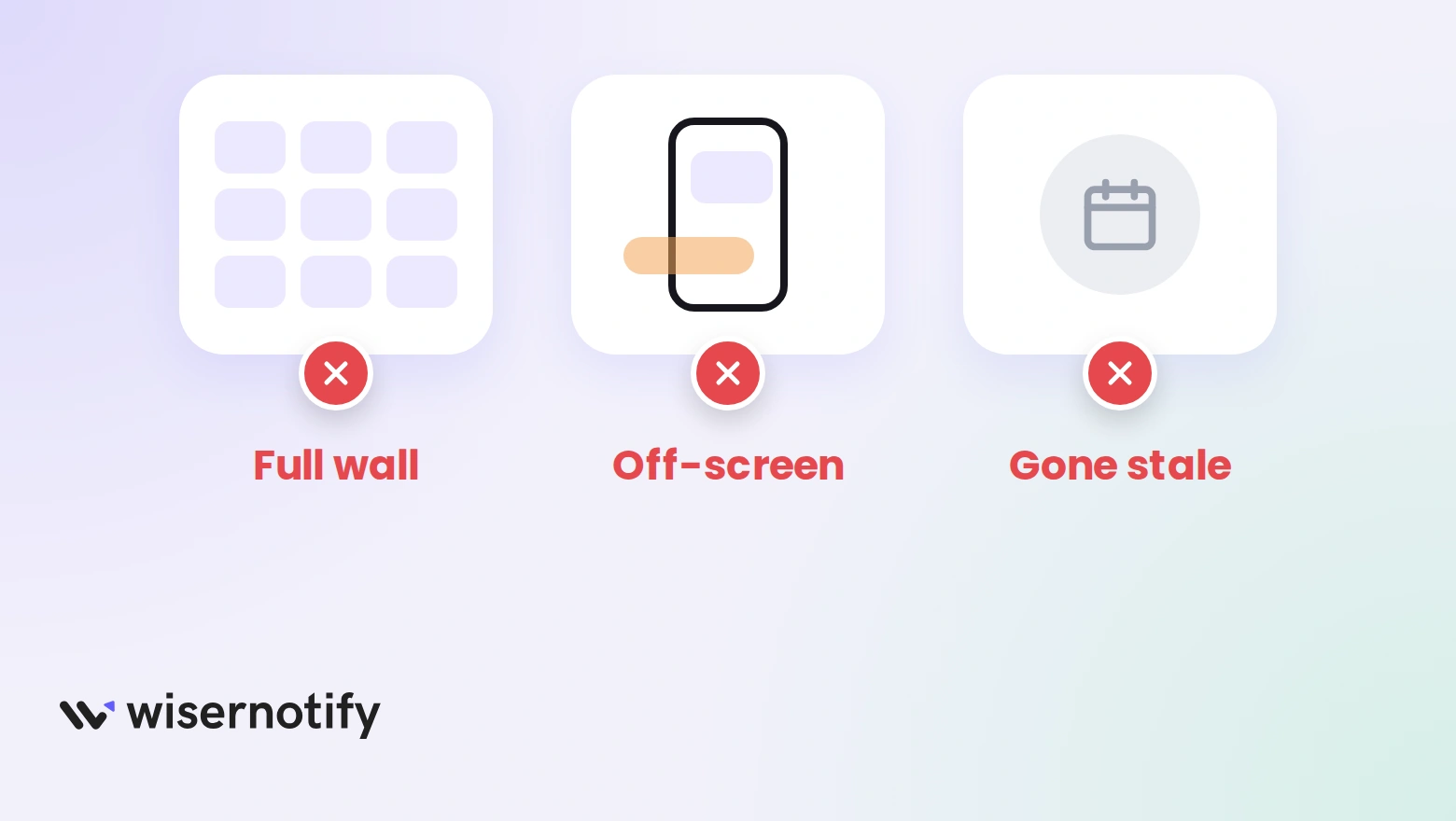
- Expecting a full review wall: Yelp’s API returns three excerpts, so plan around that.
- Hiding the notification on mobile: preview the corner and size on a phone first.
- Stacking several popups: too many notifications crowd a small screen.
- Letting it go stale: check that new Yelp reviews keep arriving after the first week.
Wrap Up
Elementor has no Yelp widget, but a WiserNotify review notification puts your Yelp reviews on every page you choose. Install the plugin, connect Yelp, and publish.
Start with your homepage and one service page, then check the notification in a private window.
Build trust & FOMO
Highlight real-time activities like reviews, sales & sign-ups.
Related Posts
Frequently Asked Questions
Does Elementor have a Yelp reviews widget?
Elementor’s built-in widgets have none. Add-on packs offer one, and they need a paid Yelp API plan.
How do I show Yelp reviews on Elementor with WiserNotify?
Install the WiserNotify plugin, connect Yelp with your Business ID, then publish a review notification with Yelp as its data source.
How many Yelp reviews can I show?
Yelp’s API returns up to three review excerpts at a time. WiserNotify fetches your last three at connection, then adds newly posted reviews daily.
Where do I find my Yelp Business ID?
It is at the end of your Yelp business page URL, after /biz/.
Do I need a Yelp API key?
The WiserNotify connection guide asks only for your Business ID. You paste it into the Yelp integration window.
Is showing Yelp reviews on Elementor free?
No. WiserNotify has no free tier, but every plan starts with a 7-day free trial.

Krunal Vaghasiya is a marketing tech expert who boosts e-commerce conversion rates with automated social proof and FOMO strategies. He loves to keep posting insightful posts on online marketing software, marketing automations, and improving conversion rates.




 Capterra