
How to Add Google Reviews to Elementor (7 Steps, 2026)

To add Google reviews to Elementor, connect your Google Business Profile to WiserReview, build a widget that shows only Google reviews, and paste its code into Elementor’s HTML widget. It then updates itself as new reviews arrive.
Elementor has no widget that pulls Google reviews on its own. The Reviews widget in Elementor Pro is a slider you fill in by hand, so it goes stale the day you publish it.
The seven steps below work on the free version of Elementor, on any page or template.
What You Need Before You Start
You need three things in place, and most Elementor sites already have two of them.
- A WiserReview account. Every plan starts with a 7-day free trial.
- Access to your Google Business Profile. Building for a client who hasn’t given you access? Use the Google Place option below.
- An admin login for WordPress. Elementor limits the HTML widget to admins, because it can run code.
How to Add Google Reviews to Elementor
The setup has two halves: five steps in WiserReview, then two in the Elementor editor.
Step 1: Connect Your Google Profile
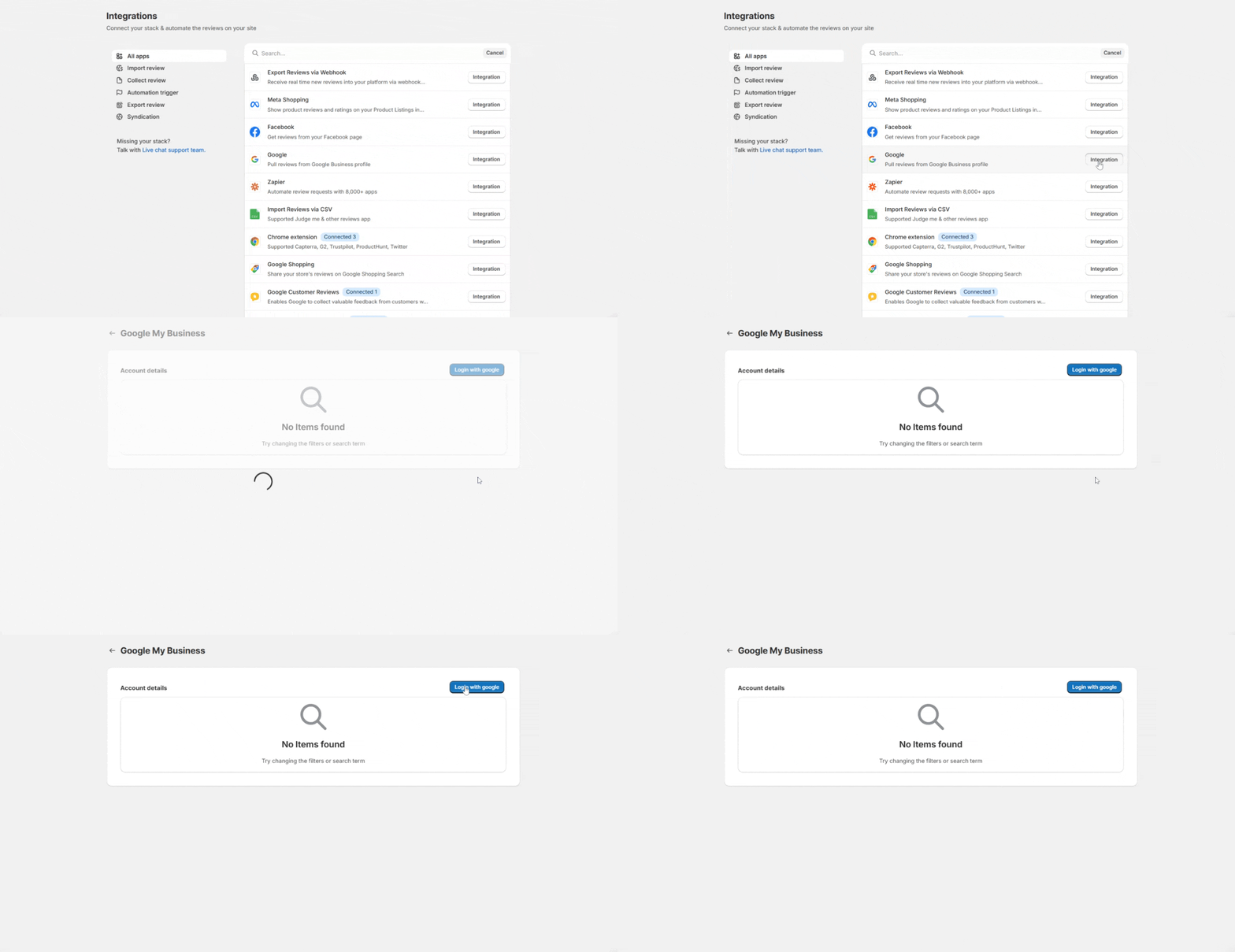
- In WiserReview, open Manage Reviews and click Import Reviews.
- Under 3rd Party Platforms, find Google and click Integration.
- Click Login with Google and pick the account that manages your Business Profile.
- Allow WiserReview to read your reviews.
Step 2: Turn On Auto-Sync
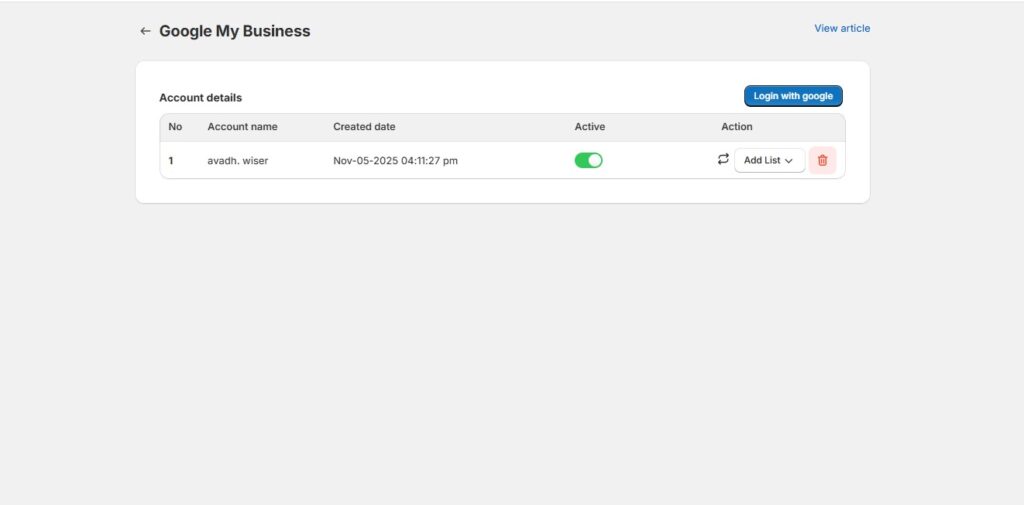
- Your profile now shows under Account details.
- Check that the Active toggle is on.
From here, new Google reviews flow into WiserReview without any uploads, and the Elementor widget picks them up too.
Step 3: Add a Wall of Love Widget

- Go to the Widgets tab.
- Find Wall of Love and click Add widget.
A Wall of Love suits a full reviews section. For a slim strip under a hero banner, pick the Carousel here instead. The rest of the steps don’t change.
Step 4: Show Only Google Reviews
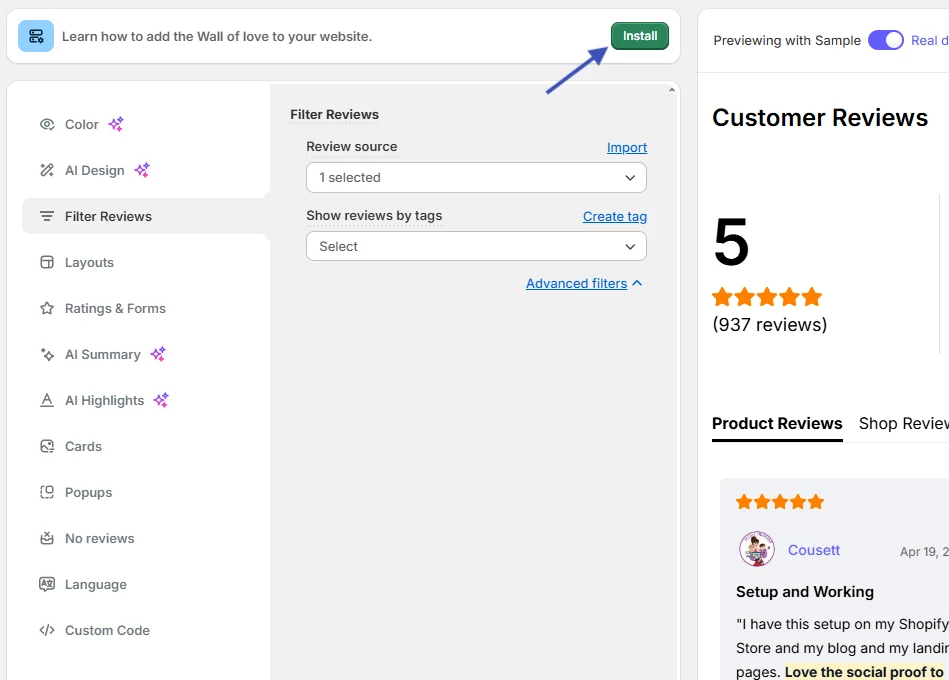
- Open Filter Reviews and set Review source to Google.
- Under Design, pick a layout, card style and colors that match your Elementor Site Settings.
- Switch on sorting or the load more button if the wall will be long.
- Click Save.
Step 5: Copy the Embed Code
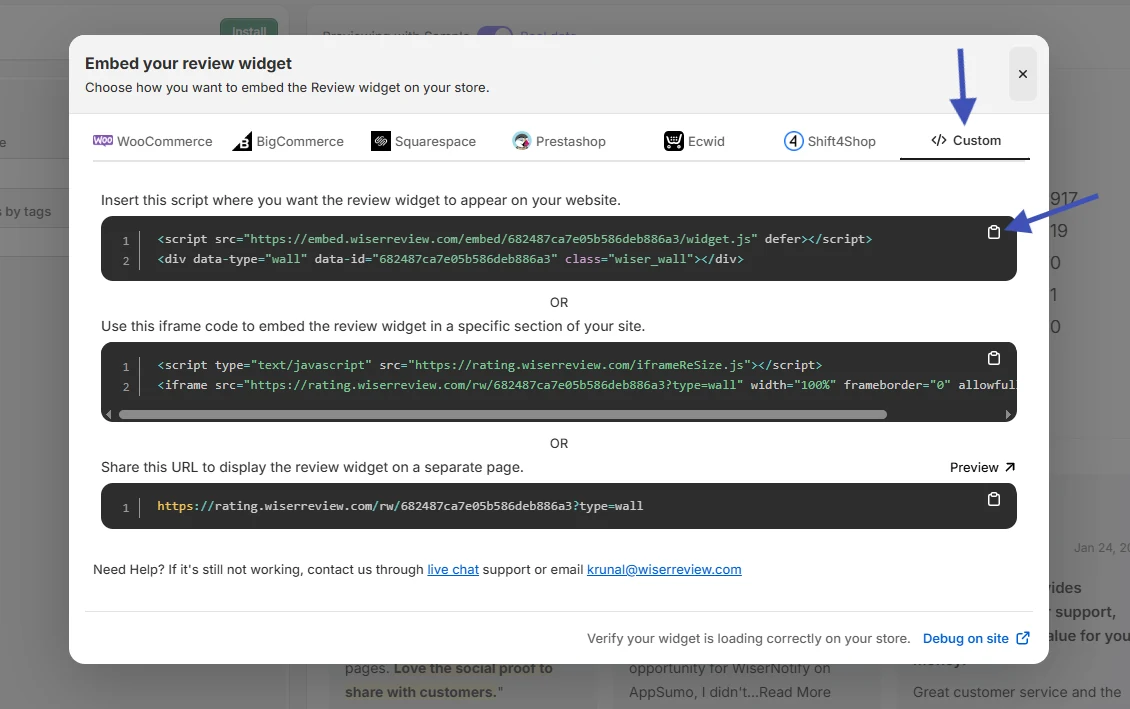
- Click Install at the top right of the editor.
- Copy the JavaScript code.
The same screen offers an iFrame version and a hosted page link. Keep those for the fixes and the button idea below.
Step 6: Drag In an HTML Widget
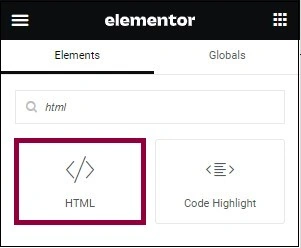
- In WordPress, open the page and click Edit with Elementor.
- Type HTML in the widget search box.
- Drag the HTML widget, the one with the </> icon, into the section where the reviews belong.
Step 7: Paste the Code and Update
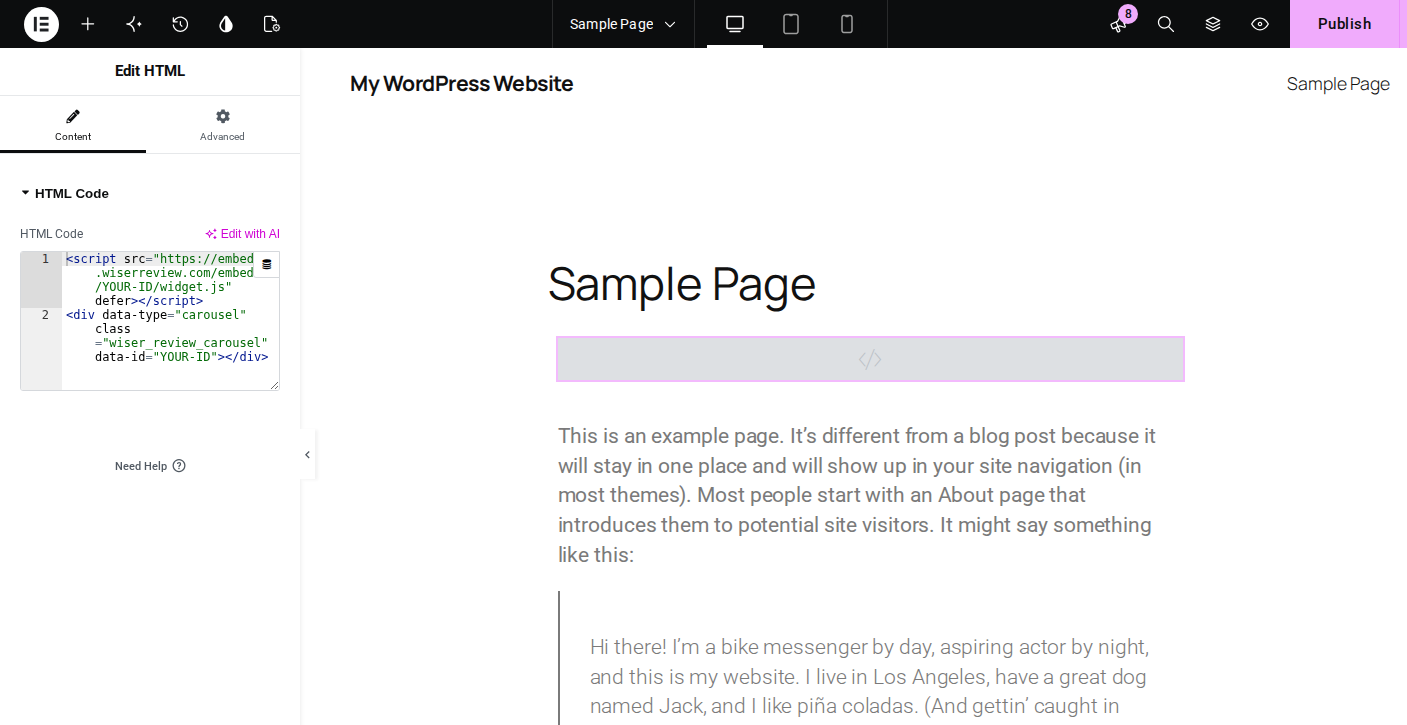
- Paste the WiserReview code into the HTML Code box.
- Click Update (or Publish if the page is new).
- Check the reviews on the live page, in a separate browser tab.
Third-party scripts don’t always render inside the editor canvas, so the box can look empty there. Judge the result on the live page.

All your Google reviews in one place
Collect Google reviews, manage every response, and display them where they matter most.
Show Google Reviews on Every Page
To keep your Google rating on every page, put the widget in a template that loads sitewide instead of pasting it page by page.
- Elementor Pro: go to Templates, then Theme Builder, and open your footer. Add an HTML widget with the code, publish, and set the display condition to Entire Site.
- Free Elementor: drop the HTML widget into a section, right-click it, and choose Save as Template. Insert that template on each key page from the template library.
- Any setup: pick a floating badge or popup for sitewide use, since it sits in a corner and never pushes page content down.
Our list of Google review widgets for website pages shows each format, from badges to photo grids.
Building an Elementor Site for a Client?
If you build Elementor sites for clients, you can pull a business’s public Google reviews by its Google Maps listing, with no access to their Business Profile.
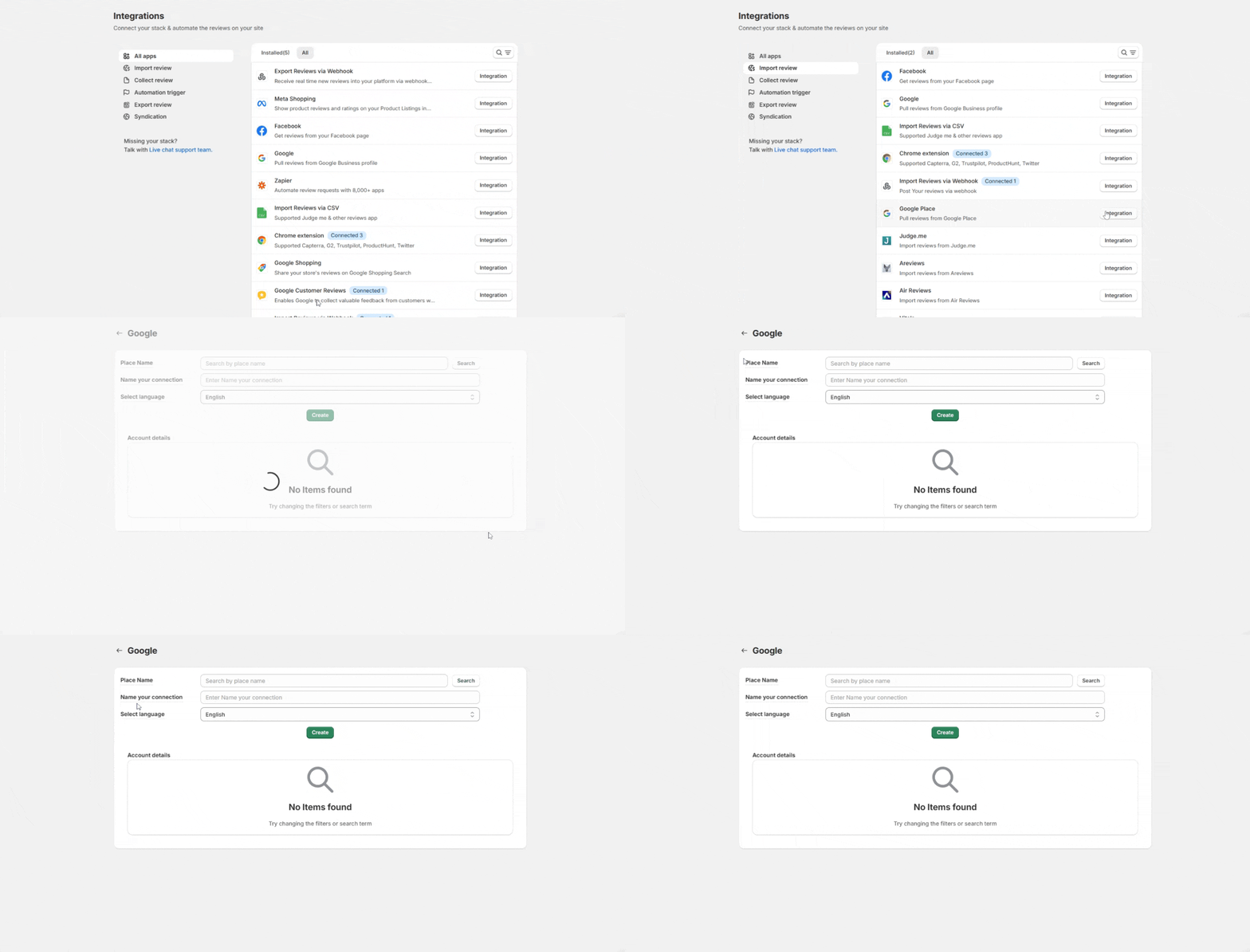
- In WiserReview, go to Manage Reviews, then Import Reviews.
- Under 3rd Party Platforms, choose Google Place and click Integration.
- Search for the business the way it appears on Google Maps, then pick the right location.
- Name the connection, pick a language, and click Create.
Reviews then sync on a schedule, and every widget step above works the same. Name each connection after its location so multi-branch clients stay easy to manage.
Which Google Review Widget to Use
Pick the widget by the space it fills in your Elementor layout, not by how it looks in the WiserReview gallery.
| Widget | Where it fits in Elementor | Best for |
|---|---|---|
| Carousel | A full-width section under the hero | Homepages and landing pages |
| Wall of Love | Its own page or a long section | A dedicated reviews page |
| Google reviews badge | Header, footer or a narrow column | Showing your rating sitewide |
| Popup | Floats over the page, no section needed | Service pages with little room |
| Single slide carousel | A column next to a form | Contact and booking sections |
Elementor columns can be narrow on mobile, so check each widget in the responsive preview before you publish.
Where to Show Google Reviews on Elementor
Show Google reviews where visitors weigh a decision: under the homepage hero, beside service and pricing blocks, next to forms, and in the footer.
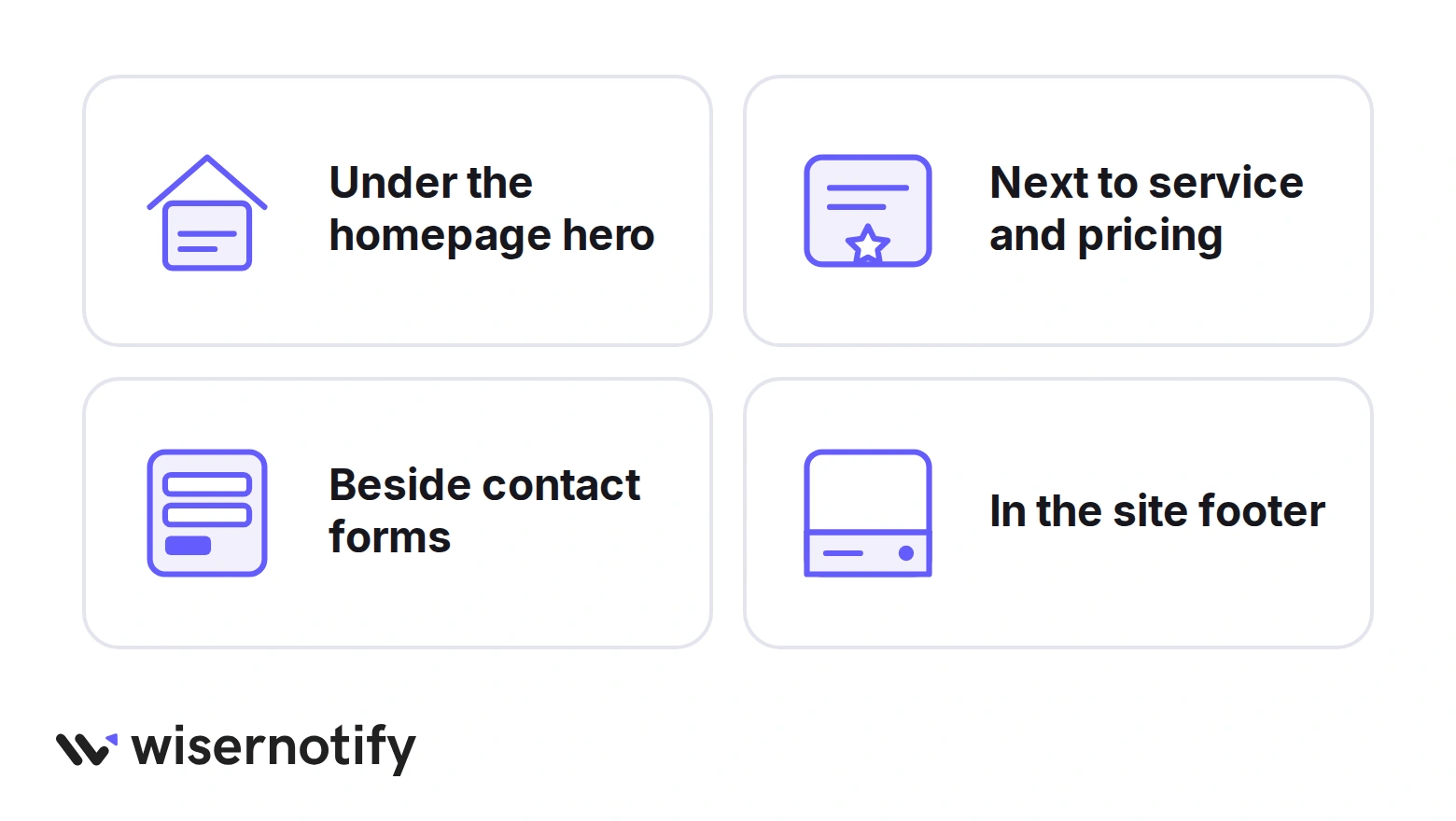
- Under the homepage hero: a carousel right below the first screen answers “can I trust this business?” before anyone scrolls far.
- Next to service and pricing: place a short widget in the column beside your pricing table, where doubt peaks.
- Beside contact forms: a single review about fast replies or friendly staff makes the form feel safer to fill in.
- In the site footer: a small badge keeps your rating on every page without crowding the design.
For a “Read all reviews” button, paste the hosted page link from step 5 into an Elementor Button widget. Visitors get the full list without leaving your site.
Our roundup of reviews on website layouts has more placement ideas that carry over to Elementor.
Get more Google reviews, automatically
Send review requests by email, SMS or WhatsApp, and show every new review on your site.
Google Reviews Not Showing in Elementor?
A blank widget in Elementor nearly always comes down to where you’re previewing, which widget holds the code, or a speed plugin delaying the script.
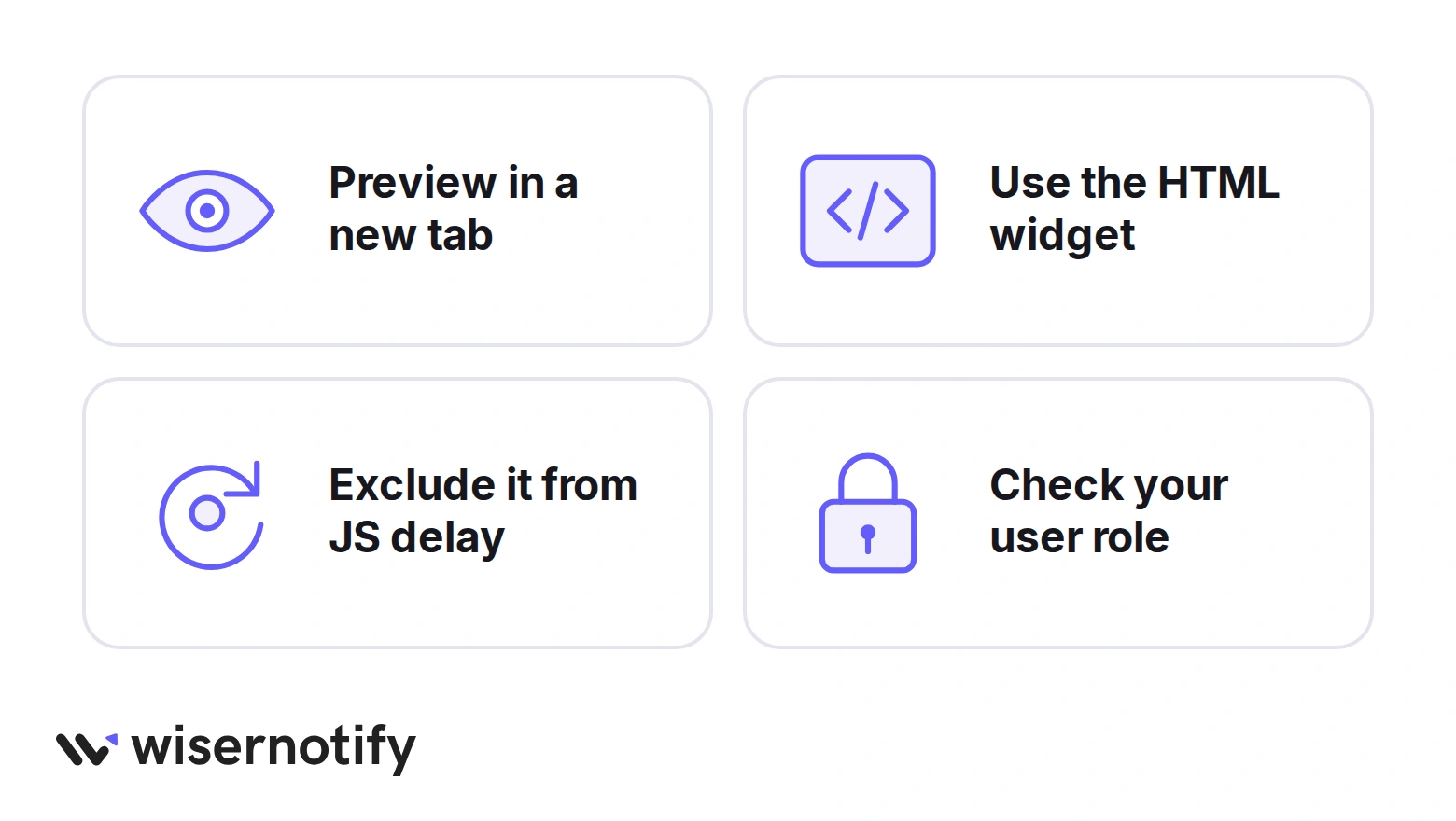
- Preview in a new tab. The Elementor canvas may not run the script. Open the live URL in a private window instead.
- Use the HTML widget. The Text Editor widget strips script tags, so code pasted there never loads.
- Exclude it from JS delay. Speed plugins like WP Rocket and LiteSpeed Cache can delay or combine scripts. Add the WiserReview script to their exclusion list, then clear every cache.
- Check your user role. If the HTML widget is missing from the panel, your WordPress role doesn’t allow it. Ask an admin, or adjust Elementor’s Role Manager.
- Confirm the reviews synced. A widget filtered to Google stays empty until reviews show in Manage Reviews.
- Still blocked? Paste the iFrame code from step 5 instead. It loads without relying on the script.
Common Mistakes With Google Reviews on Elementor
Most problems come from expecting search features Google doesn’t give business sites, or from treating the review section as decoration.
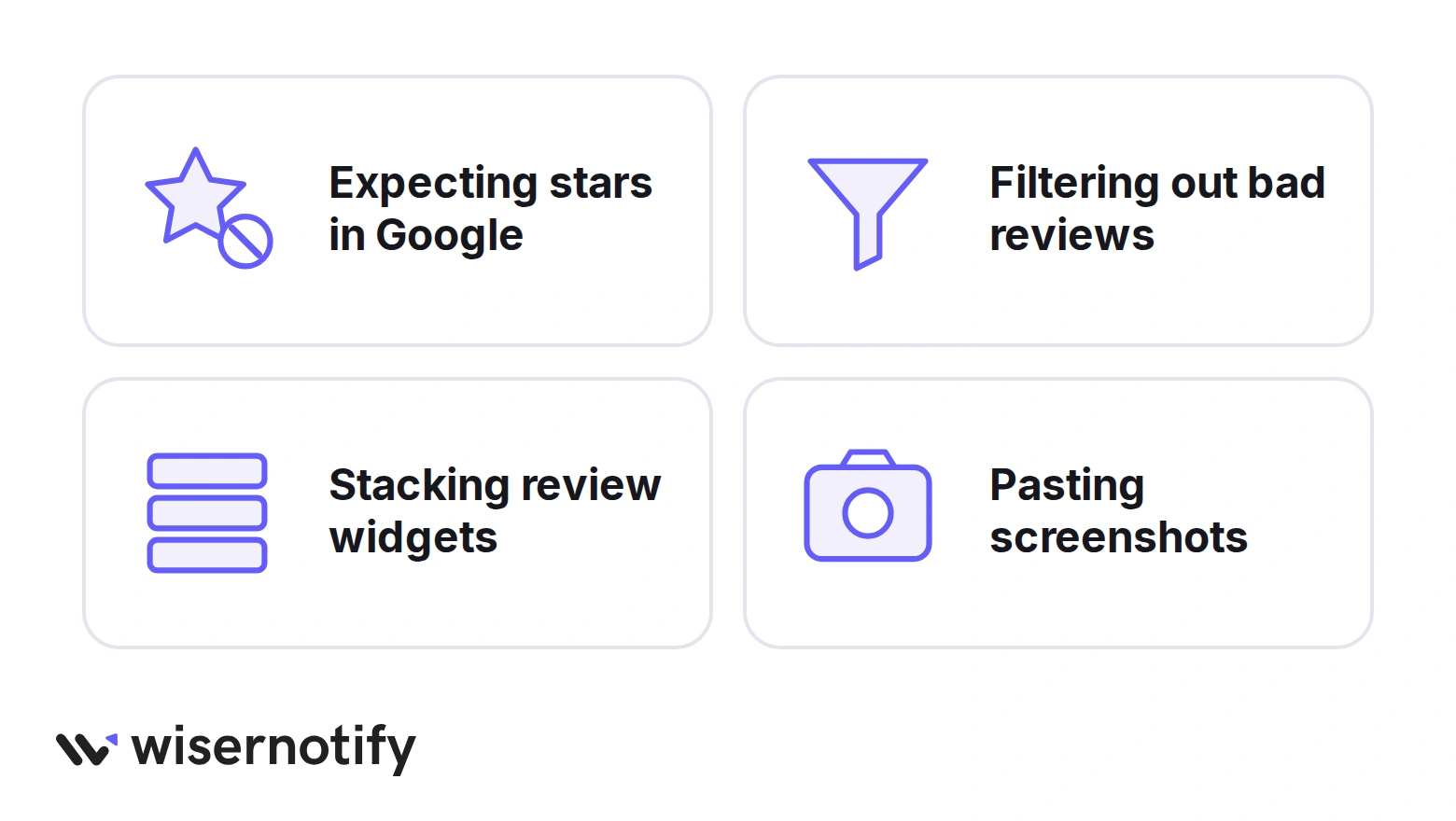
- Expecting stars in Google. Google doesn’t show review stars for a business’s reviews of itself on its own site, even through an embedded widget. Your Google rating shows on your Business Profile instead.
- Filtering out bad reviews. A wall of only five-star reviews looks curated. Show a mix and reply to the low ones on Google, where buyers read your answers.
- Stacking review widgets. A carousel, a badge and a popup on one page fight for attention and slow the page. Pick one per page.
- Pasting screenshots. Images of reviews go stale within weeks, and search engines can’t read the text inside them. A live widget stays current on its own.
Short on reviews to show? This walkthrough of how to get Google reviews explains asking every customer within Google’s rules.
Google reviews on Elementor, kept current
Connect once, style the widget, and new reviews show up without another edit.
Wrap Up
Google reviews on an Elementor site come down to one connection and one HTML widget. Once the profile syncs, the widget keeps itself current with no extra edits.
Start with a carousel under your homepage hero, then add a badge to the footer template once you’re happy with how it looks.
Pulling in Facebook or G2 reviews as well? Our guide to add reviews to Elementor covers every source.
Related Post:
Frequently Asked Questions
Can I add Google reviews to Elementor for free?
Elementor’s HTML widget is part of the free plugin, and WiserReview starts with a 7-day free trial.
Does Elementor have a Google reviews widget?
No. Elementor Pro’s Reviews widget is a slider you fill in by hand, so it doesn’t pull reviews from Google.
Do Google reviews update automatically on Elementor?
Yes. Once the Google connection is active, new reviews sync into WiserReview and show in the widget without another edit.
How do I show Google reviews on every Elementor page?
Add the widget to your footer with Elementor Pro’s Theme Builder and set it to Entire Site, or save it as a template on the free plugin.
Why are my Google reviews not showing in the Elementor editor?
The editor canvas may not run the script, so check the live page in a new tab and clear any caching plugin.
Can I add Google reviews for a client's business?
Yes. WiserReview’s Google Place option pulls public reviews from the Google Maps listing without access to the client’s Business Profile.

Krunal Vaghasiya is a marketing tech expert who boosts e-commerce conversion rates with automated social proof and FOMO strategies. He loves to keep posting insightful posts on online marketing software, marketing automations, and improving conversion rates.




 Capterra