
Review Badges: What They Are and How to Add Them (2026)
Two stores sell the same product at the same price. One shows a badge with a 4.8-star rating from 1,200 customers. The other shows nothing.
You already know which one gets the sale. That small badge is doing real work: it turns invisible customer feedback into proof a visitor can see in half a second.
The effect is measurable. Northwestern’s Spiegel Research Center found that displaying reviews can lift conversion by up to 270%.
This guide covers what review badges are, the types that actually exist, the two ways to add one (including Google’s official route, which changed recently), where to place them, and which platforms offer the best ones.

All your reviews in one place
Collect reviews, manage every response, and display them where they matter most.
What Are Review Badges?
A review badge is a small widget that shows your star rating and review count on your website, pulled from a review platform like Google or Trustpilot.
Most badges update automatically. New reviews come in, the number on the badge changes, and your site always shows the current score. Many also link back to the full review profile so visitors can verify the rating is real.
Worth separating from three lookalikes, because they get mixed up constantly:
•Trust badges are security and guarantee seals (SSL, payment logos, money-back). No reviews involved.
•Product badges are labels like Bestseller or New on product cards. Merchandising, not feedback.
•Digital badges are achievement icons awarded to people (reviewer ranks, course completions). They sit on profiles, not stores.
A review badge is the only one of the four built from real customer ratings. That’s exactly why it carries more weight than the rest.
The 5 Types of Review Badges
Five kinds show up on real stores: Google’s official store widget, Google Business Profile rating badges, Trustpilot badges, verified purchase badges, and on-site star badges.
1. Google’s official store widget
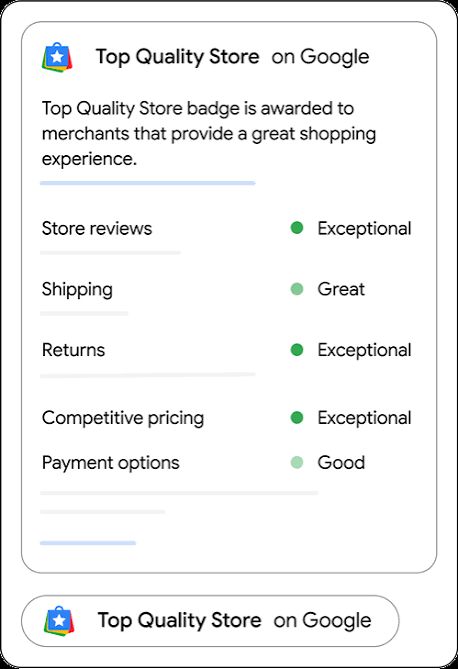
The badge Google itself issues through Merchant Center. It shows your store rating from post-purchase surveys, and Google recently upgraded it from the old Customer Reviews badge to a bigger store widget. Full steps below.
2. Google Business Profile rating badges
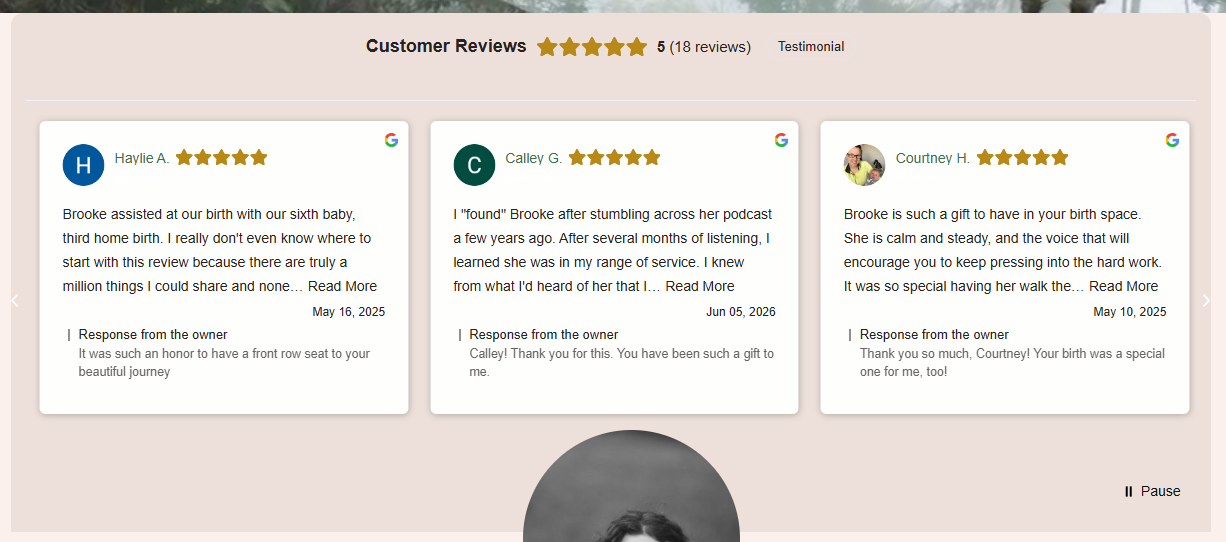
What most people mean by “Google review badge.” A widget tool connects to your Business Profile and displays your Google rating and review count anywhere on your site. No Merchant Center needed, which is why service businesses use this route.
3. Trustpilot and review-site badges
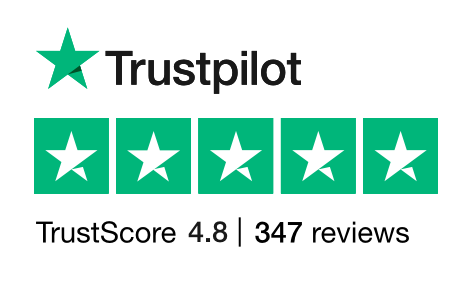
Trustpilot’s TrustBox badges show your TrustScore and pull in recent reviews. Feefo, Capterra, and G2 offer the same idea for their platforms. Strongest when buyers already recognize the logo.
4. Verified purchase badges
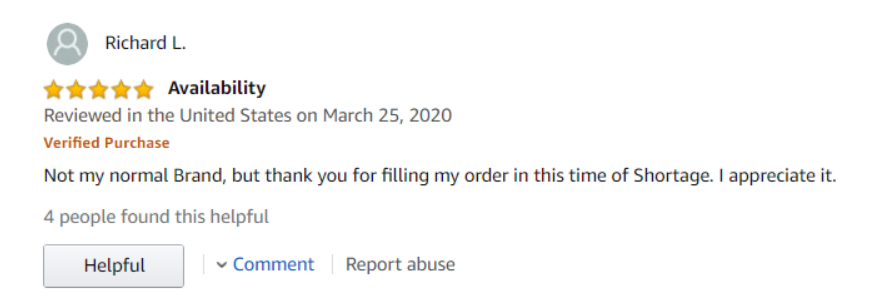
A label on individual reviews confirming the reviewer actually bought the product. Amazon made it famous; Judge.me, Yotpo, and Stamped attach it to collected reviews. It answers the quiet question every shopper asks: is this review even real?
5. On-site star rating badges
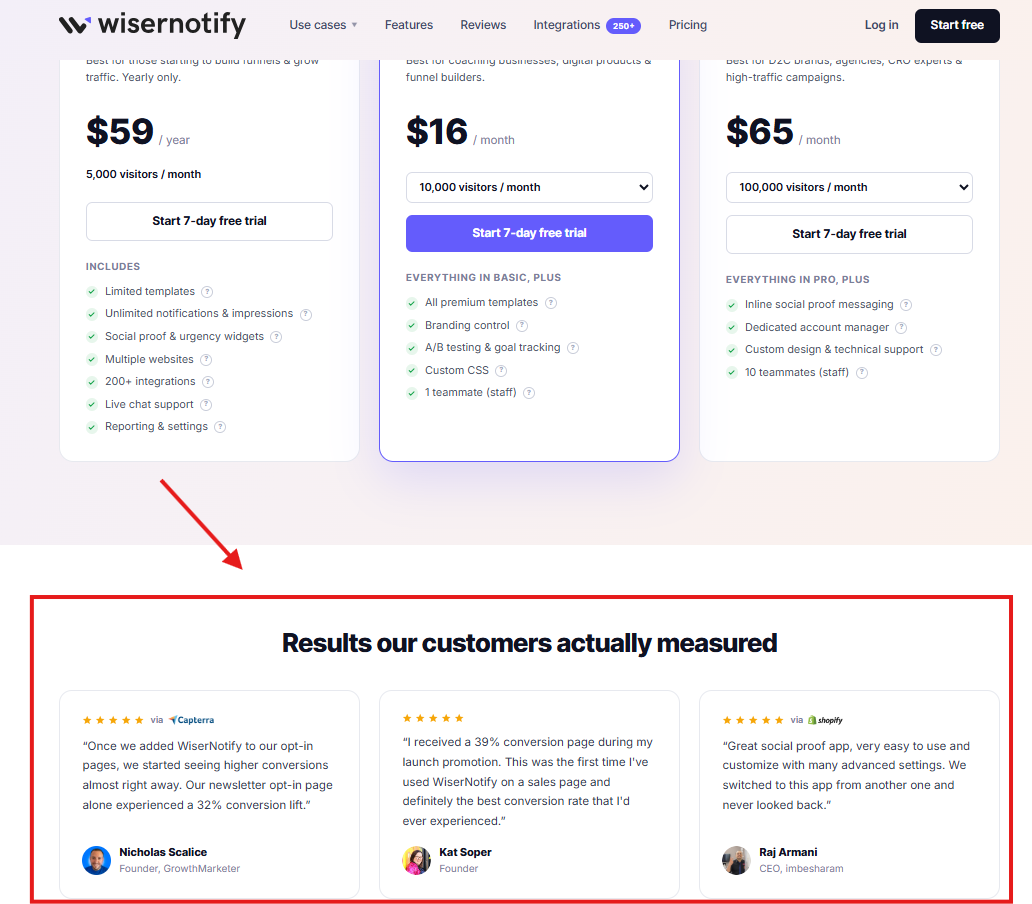
A compact badge showing the aggregate rating of reviews you collect on your own store, usually placed near the price or the add to cart button. This is the one that works at the exact moment of decision.
How to Get the Official Google Review Badge
Enable Google Customer Reviews in Merchant Center, add the survey opt-in to your order confirmation page, collect around 100 reviews, then add the store widget code.
One thing most guides haven’t caught up with: Google upgraded the Customer Reviews badge to a new store widget. Same program, new look, and it now shows your rating, review count, and store quality information in a larger panel.
You qualify if you sell physical goods, run checkout on your own domain, and can add code to your pages. Then:
- Enable Google Customer Reviews. Sign in to Merchant Center and turn the program on from the Programs or Reviews section. Accept the agreement.
- Add the survey opt-in code. It goes on your order confirmation page, and Google requires it to show for every buyer. Customers who opt in get a short rating survey after delivery.
- Collect reviews. A star rating typically appears once you have around 100 eligible reviews in a country. Before that, the badge shows “Rating not available.”
- Add the store widget code. Two snippets, pasted into your site. Your pages need the HTML5 doctype, and Shopify users should check that the script’s spacing wasn’t stripped, a known issue Google documents.
- Verify it. Load the site, confirm the widget displays, and don’t cover it with popups or sticky bars. Google can suspend accounts that manipulate the program, and suspension removes the badge.
The survey ratings also feed your store ratings, the stars that can show on your Search and Shopping ads. That’s the real payoff of the official route: one program, proof on your site and in your ads.
Also check: How to get more Google reviews for your business
How to Add a Review Badge With a Widget Tool
Connect your review source to a widget tool like WiserReview, pick a badge template, copy the embed code, and paste it into your site. About ten minutes, no Merchant Center.
This is the route for everyone the official program leaves out: service businesses, stores on hosted checkouts, and anyone who wants to show Google Business Profile reviews instead of post-purchase surveys.
- Pick a review widget tool and connect your review source (Google Business Profile, Trustpilot, or your own collected reviews).
- Choose a badge template and match the colors and size to your site.
- Copy the embed code.
- Paste it where the badge should appear: theme footer, homepage section, or a product page block.
- Publish and check it on mobile. The badge updates itself as new reviews arrive.
Full disclosure: WiserReview is our product, so weigh this line accordingly. It collects reviews by email, SMS, and WhatsApp and includes badge and star rating widgets on every plan, from $9/month with a 7-day free trial.
The limit: it shows reviews from your own customers and connected profiles, so it won’t manufacture a rating you haven’t earned.
Plenty of Google review widgets do the same job, and if you want reviews embedded beyond a badge, here’s how to add Google reviews to any site.
All your reviews in one place
Collect reviews, manage every response, and display them where they matter most.
Where to Place Review Badges on Your Site
Put badges where doubt peaks: near prices, near buy buttons, and near forms. A badge nobody scrolls past converts nothing.
•Product pages, near the price: the single highest-impact spot. The rating answers “is this good?” right where the cost asks “is this worth it?”
•Homepage, below the hero: sets the trust tone in the first screen for visitors who’ve never heard of you.
•Checkout and cart: a small badge here steadies last-minute nerves without adding clutter.
•Landing pages, next to the call to action: paid traffic has zero history with you; the badge borrows credibility fast.
•Footer, sitewide: the quiet constant. Every page gets a floor of proof.
Four rules keep badges working:
•Only show badges from platforms where the rating is real, and let the badge link to the source so visitors can check.
•Use auto-updating badges. A screenshot of last year’s rating is a liability the day it drifts.
•Match the badge to your design. It should read instantly without shouting.
•Don’t stack five badges in one spot. One strong, verifiable rating beats a wall of seals.
Also check: How to add trust badges to your website the right way
Do Review Badges Help SEO and AI Search?
Indirectly, yes. Badges lift trust and click-through, and readable rating data gives search engines and AI assistants proof to work with.
Straight answers, because this topic collects myths:
•A badge is not a ranking factor. Google doesn’t rank you higher for displaying one. The lift comes from visitors staying, clicking, and buying more.
•Star snippets have limits. Google ignores self-serving review markup on your own homepage, so a badge won’t print stars under your listing there. Product review snippets on product pages are a different story, done with proper product schema.
•Keep the rating in plain HTML. If your badge renders the score as crawlable text rather than an image, search engines and AI crawlers can actually read it.
•AI answers lean on review data. When shoppers ask ChatGPT or Google’s AI Mode about a store, reviews and ratings are what get quoted. A visible, verifiable rating on your site keeps your numbers in that conversation.
The badge is the display layer. The engine is a steady stream of positive reviews feeding it, which is where the real SEO and AI work happens.
Which Platforms Offer the Best Review Badges?
Google, WiserReview, Trustpilot, Judge.me, Yotpo, Stamped, and Feefo all offer review badges. Here’s how they compare.
| Platform | Badge type | Price |
|---|---|---|
| Google (Merchant Center) | Store widget (formerly the Customer Reviews badge) | Free |
| WiserReview | Badge and star rating widgets on every plan | From $9/month, 7-day free trial |
| Trustpilot | TrustBox badges and rating widgets | Free basic TrustBoxes, paid plans for more |
| Judge.me | Verified review badges and star widgets | Free forever, Awesome plan $15/month |
| Yotpo | Star rating and review badges in a full UGC suite | Free tier, Reviews from $79/month |
| Stamped.io | Review badges with verified buyer labels | From $23/month, no free plan |
| Feefo | Service and product rating badges | Custom pricing |
Prices are current as of July 2026. Vendors change plans often, so confirm before you commit.
Google Business Profile
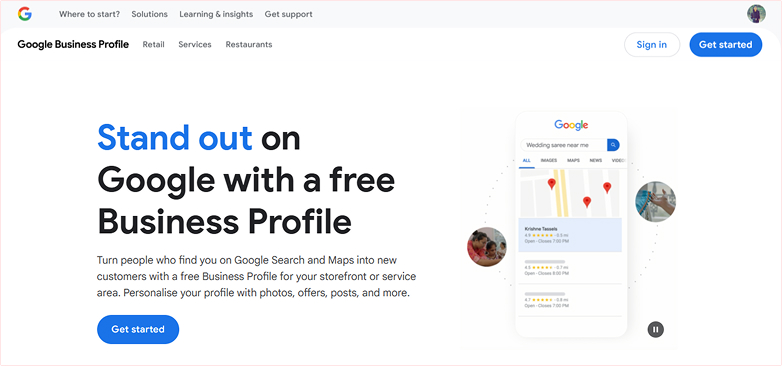
Google is the rating everyone checks first.
Show it through the official Merchant Center store widget if you qualify, or through a widget tool pulling your Google Business Profile reviews if you don’t. Free either way.
WiserReview
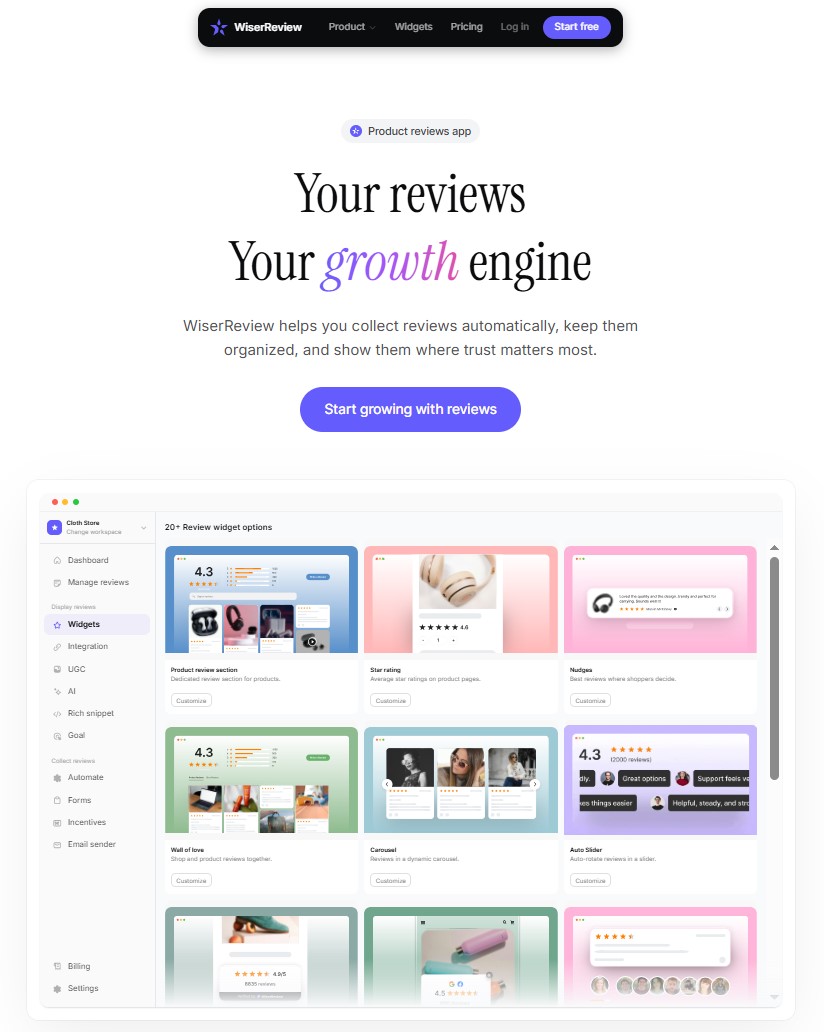
WiserReview is ours, so read this one knowing that. It collects reviews for you by email, SMS, and WhatsApp, pulls in connected profiles like Google, and puts badge and star rating widgets on every plan.
From $9/month with a 7-day free trial, no free plan. The limit: WiserReview shows ratings from your real customers only, so it won’t invent a number you haven’t earned.
Trustpilot

Trustpilot’s TrustBox badges show your TrustScore and rotate recent reviews, updating automatically.
Basic TrustBoxes are free; Trustpilot’s fuller widget library sits behind paid plans. The logo recognition does a lot of the persuading on its own.
Judge.me
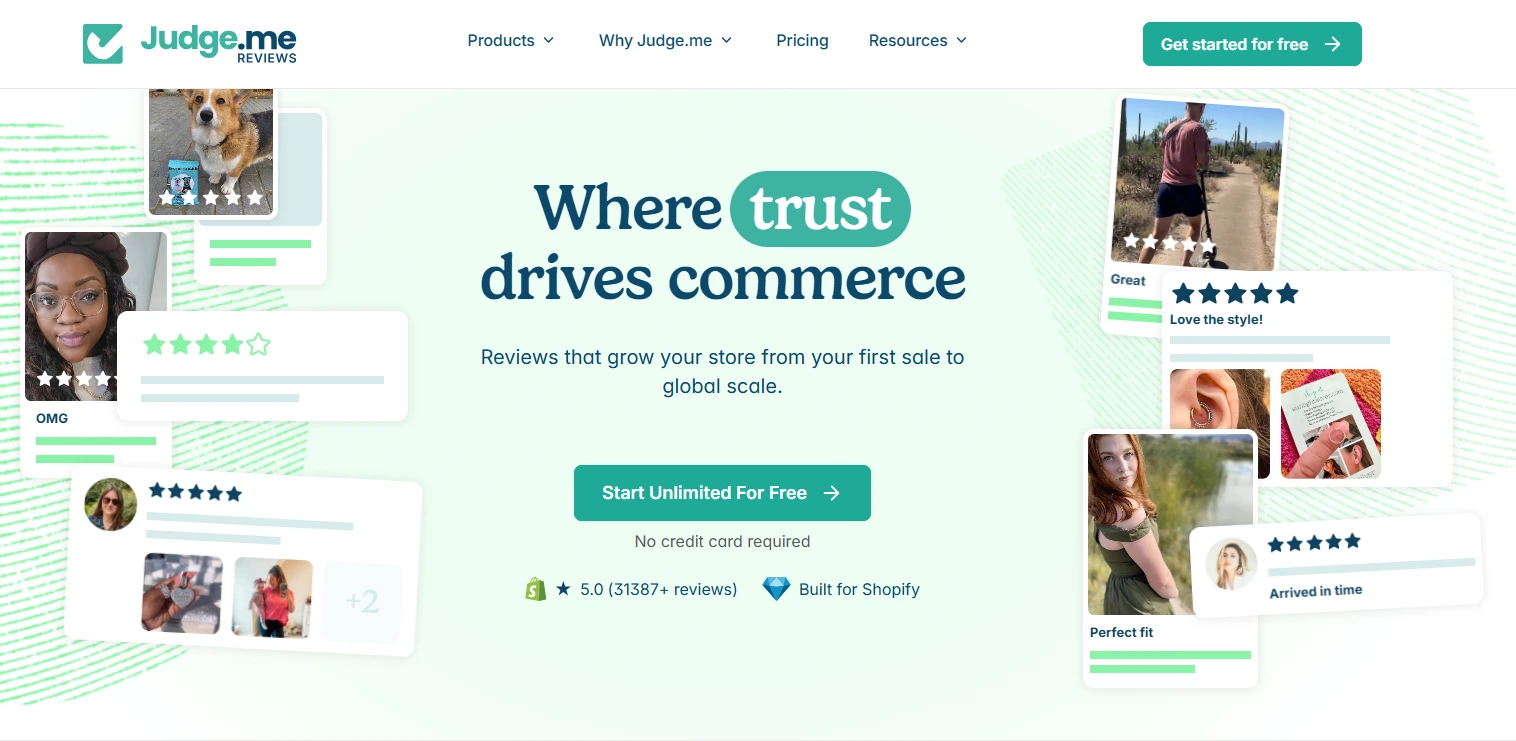
Judge.me is the budget pick for Shopify and WooCommerce stores. It gives you verified review badges, star widgets, and a free forever plan with unlimited reviews.
The Awesome plan at $15/month removes Judge.me branding and adds the full widget set.
Yotpo
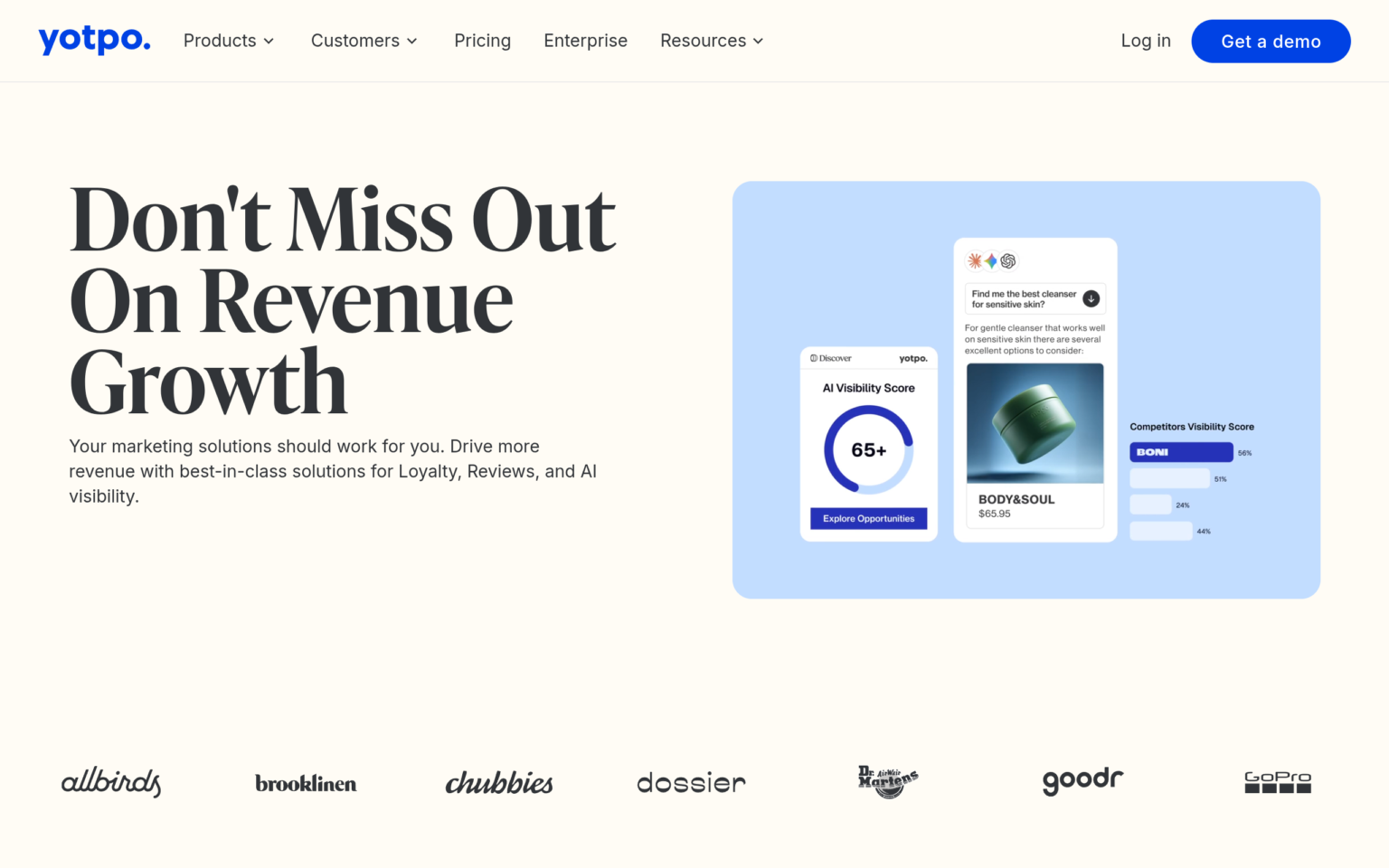
Yotpo puts star and review badges inside a full UGC suite with loyalty and SMS.
There’s a free tier, with paid Reviews plans from $79/month. Yotpo is built for larger brands, so pricing climbs with order volume.
Stamped.io
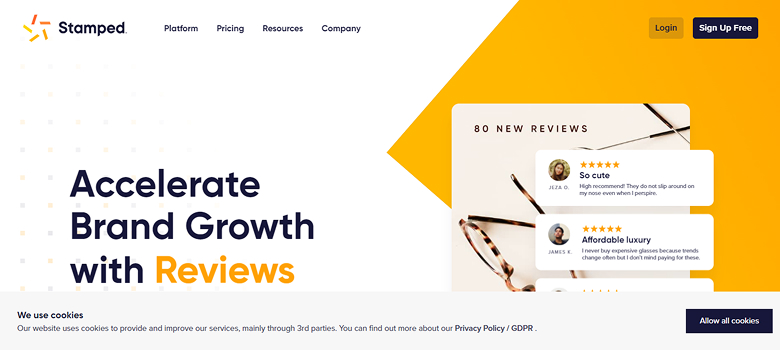
Stamped offers review badges with verified buyer labels, wired into its ecommerce review platform.
Pricing starts at $23/month for 200 orders; Stamped dropped its free plan in 2025.
Feefo

Feefo runs invite-only reviews, where every review comes from a confirmed transaction, which makes a Feefo badge one of the harder ones to fake.
It leans enterprise, with custom pricing.
All your reviews in one place
Collect reviews, manage every response, and display them where they matter most.
Conclusion
A review badge is the cheapest conversion work you’ll do this month. The proof already exists in your reviews; the badge just puts it where buyers can see it.
Pick your route: the official Google store widget if you run Merchant Center, or a widget tool if you don’t. Place it near prices and buy buttons, keep it auto-updating, and let it link to the source.
Then go earn the number on it. The badge only ever displays what your customers already think.
Frequently Asked Questions
What is a review badge?
A small widget that shows your star rating and review count, pulled from a platform like Google or Trustpilot. Most update automatically.
How do I get the official Google review badge?
Enable Google Customer Reviews in Merchant Center, add the survey opt-in to your order confirmation page, then add the store widget code.
Can I add a Google review badge without Merchant Center?
Yes. Connect a review widget tool to your Google Business Profile and embed its badge code. Takes about ten minutes.
Where should I put review badges?
Near prices, buy buttons, and forms. Product pages near the price convert best.
Do review badges help SEO?
Indirectly. They lift trust and clicks, and a crawlable rating gives search engines and AI tools proof to cite.

Krunal Vaghasiya is a marketing tech expert who boosts e-commerce conversion rates with automated social proof and FOMO strategies. He loves to keep posting insightful posts on online marketing software, marketing automations, and improving conversion rates.




 Capterra