
How to Create an Exit Popup in Framer (2026)
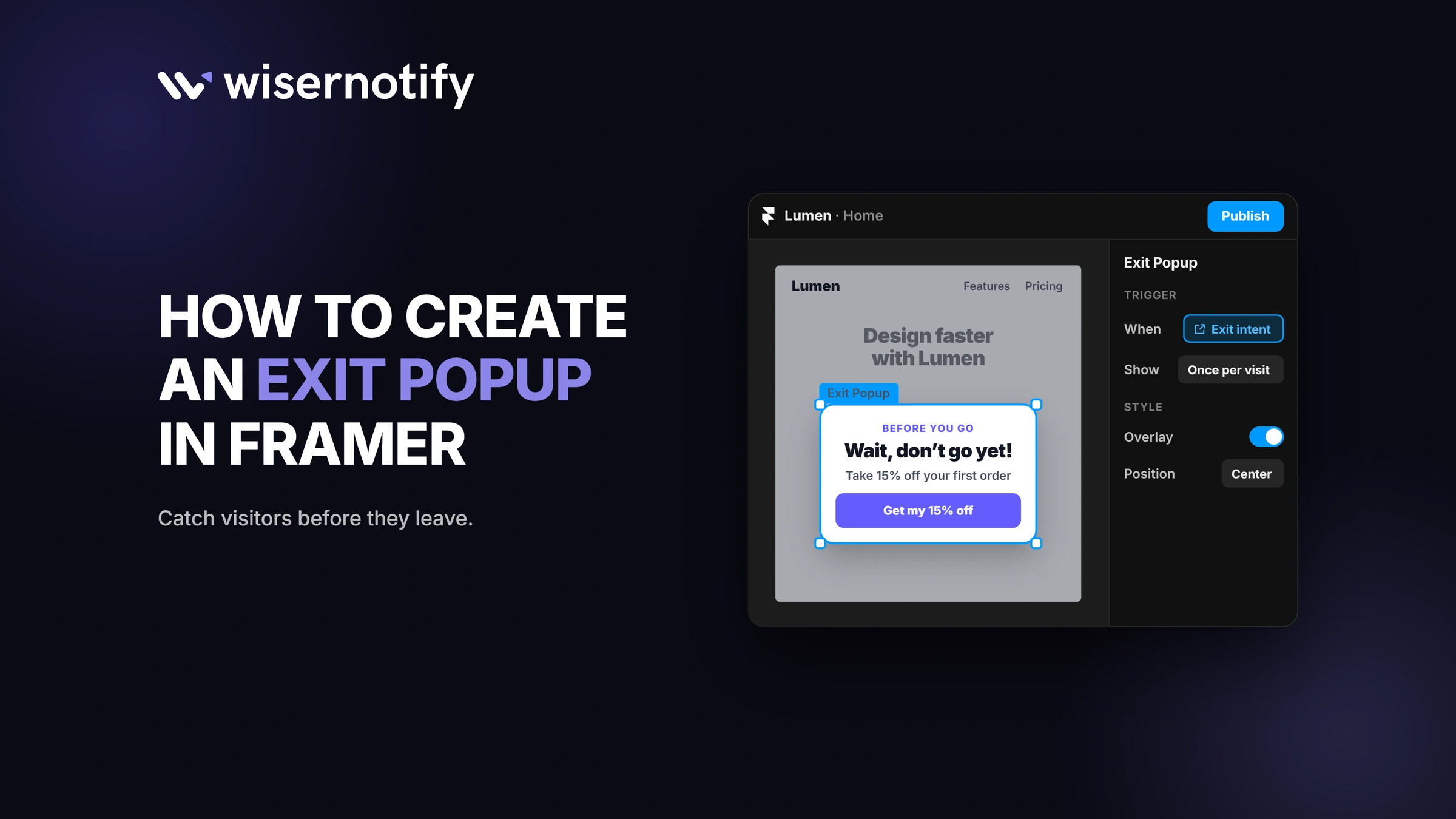
Framer has no built-in exit-intent trigger, so you add one with a popup tool. Paste the WiserNotify pixel into Framer's Custom Code head, build your popup, and set its display rule to exit intent.
The popup then appears when a visitor moves to leave the page, giving you one last chance at the email signup or sale.
Below are the full steps, plus where to show the popup and what to say in it.
How to Create an Exit Popup in Framer
No coding is needed beyond pasting one script. Start a 7-day free trial, then follow these steps. The video shows how to build a WiserNotify popup and set it to show on exit intent.
Step 1: Copy the WiserNotify Pixel

- Log in to WiserNotify and open the Install Pixel page.
- Click Copy code.
Step 2: Open Your Framer Project

- Log in to your Framer account.
- Open the project for your website.
Step 3: Paste the Pixel in the Head
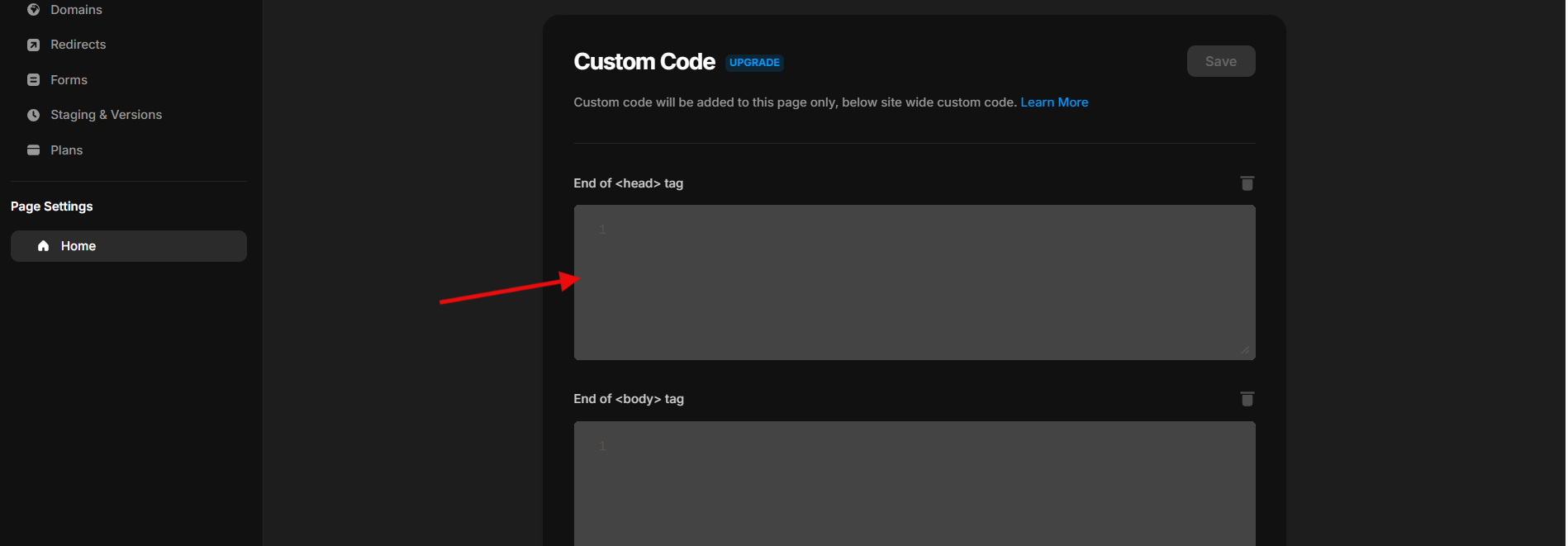
- Open Site Settings and go to Custom Code.
- Paste the pixel into the End of <head> tag box, so it loads on every page.
- Save, then publish your site.
Step 4: Verify the Pixel

- Go back to the WiserNotify pixel page.
- Click Verify pixel installation.
- Look for the message that your pixel has been detected.
Step 5: Create the Popup

- Go to Widgets and click Add notification.
- Open the Announcements tab and pick a popup, such as Announcement – Discount or Offer.
- Name it, enter your Framer site address, and click Create & customize.
Step 6: Design the Popup
- In Text editor, write your headline and offer.
- Set the button text and link in Click actions.
- Match your Framer site's colors and fonts in Style.
- Pick the popup position for desktop and mobile in Position & animation.
Step 7: Turn On Exit Intent

- Open Timing control.
- Under Display rules, choose Exit intent.
- Click Save.
Step 8: Choose Pages and Publish
- In the Display tab, show the popup on all pages or pick pages with URL conditions.
- Target new or returning visitors, if you like.
- Click Publish.
- Open your Framer site in a private window, move your cursor toward the top of the browser, and check that the popup appears.
Build urgency
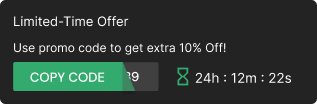
Add floating offers with countdown timer & coupon code.

Where to Show Exit Popups on Framer
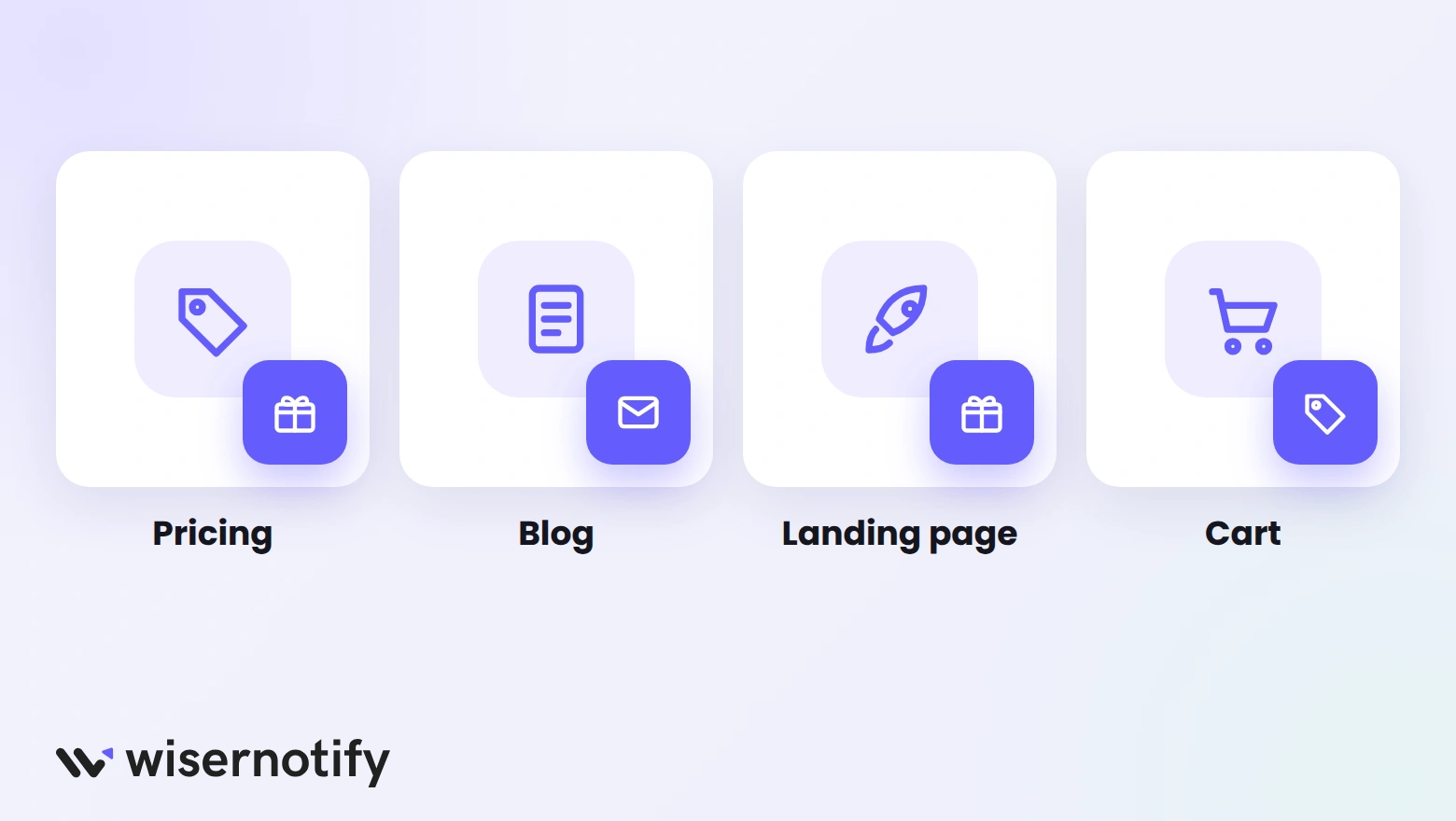
- Pricing pages: answer the last doubt with a trial reminder or a small discount.
- Blog posts: offer a newsletter or a free resource as readers leave.
- Portfolio pages: invite potential clients to book a call or leave their email.
- Landing pages: repeat the main offer once more before the visitor goes.
- Checkout and cart pages: offer free shipping or a discount to save the sale.
What to Write in an Exit Popup
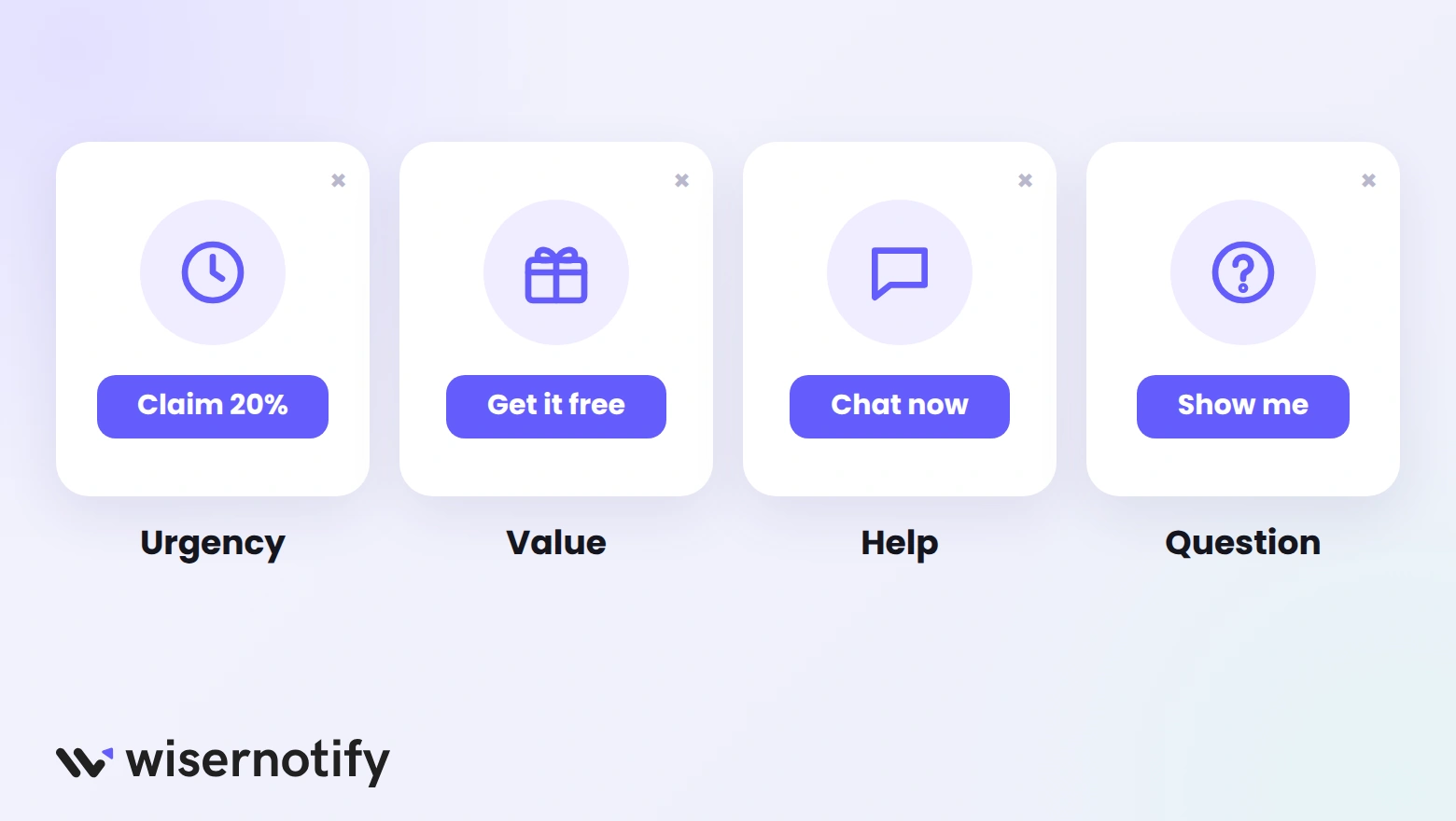
Keep the message short and tied to the page the visitor is leaving.
Urgency: "Wait! Your 20% discount expires today."
Value: "Get our free design toolkit before you go."
Help: "Leaving already? Tell us what you were looking for."
Question: "Did you find everything you needed?"
For more ideas, see these exit intent popup examples.
Exit Popup Not Showing on Framer?
- Site not published: Framer only loads custom code on the published site, so publish after adding the pixel.
- Pixel on one page only: page-level custom code only covers that page. Use Site Settings so it loads everywhere.
- Exit intent not selected: check that the display rule is set to Exit intent, not a time delay.
- Popup not published: make sure the widget is switched on in your widgets list.
- Cached view: test in a private window.
Still stuck? Use the live chat in your WiserNotify dashboard.
Build trust & FOMO
Highlight real-time activities like reviews, sales & sign-ups.

Common Exit Popup Mistakes
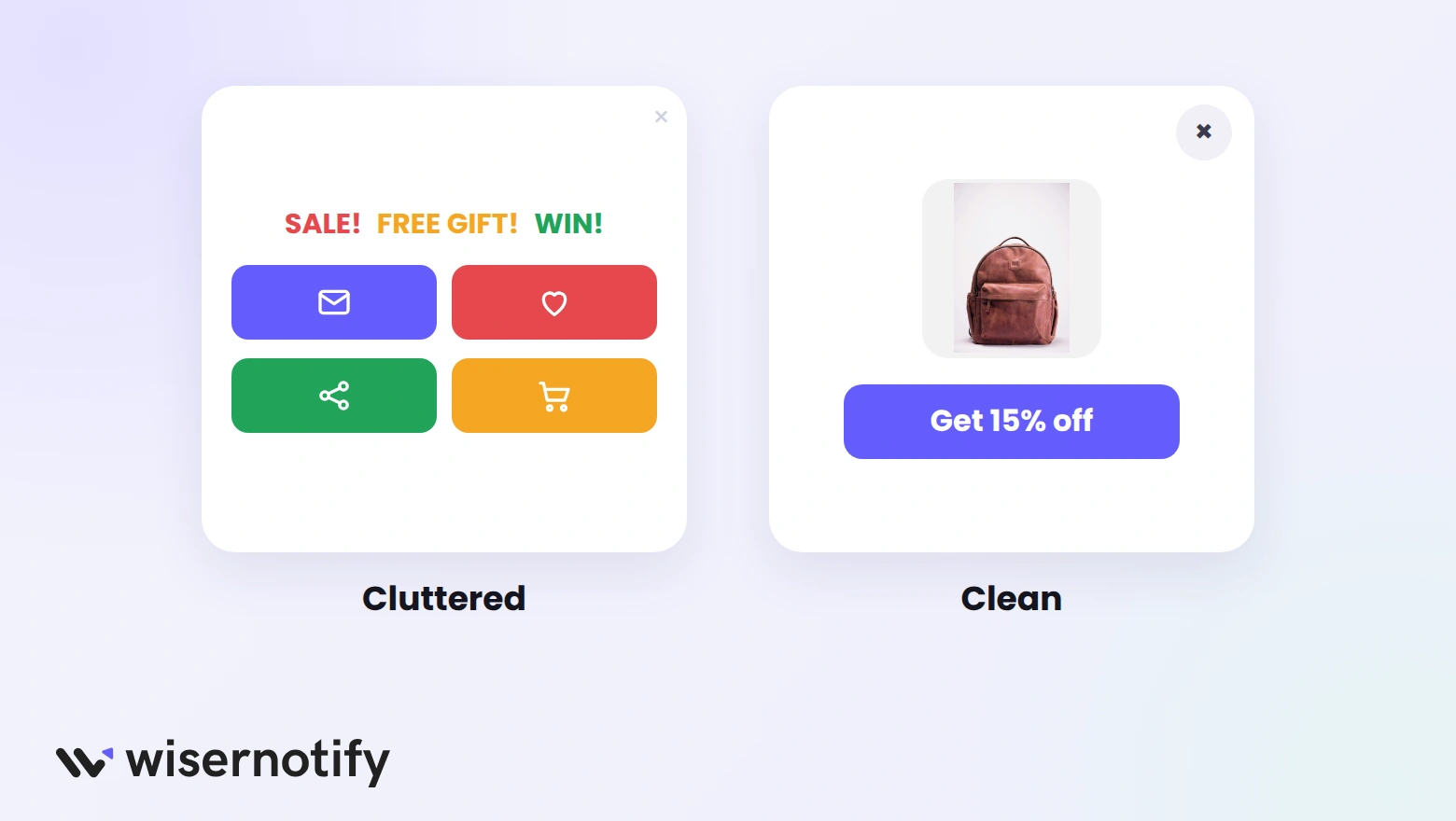
- Cluttered design: a busy popup clashes with Framer's clean layouts. Keep one headline, one line, one button.
- Off-topic offers: a design guide on a pricing page confuses visitors. Match the offer to the page.
- Showing it every visit: repeat viewers get annoyed. Limit how often the same person sees it.
- No easy way to close: make the close button large and obvious.

Boost Conversion Instantly
Add Social Proof & Urgency to your website
Wrap Up
An exit popup gives Framer visitors one more reason to stay, sign up, or buy before they go. Add the pixel once, and you can run exit popups on any page.
Start with your most-visited page, test one offer, and adjust from there.
Related guides
Frequently Asked Questions
Does Framer have a built-in exit popup?
No. Framer has no exit-intent trigger, so you add one with a popup tool like WiserNotify.
Where do I paste the popup code in Framer?
In Site Settings, under Custom Code, in the End of head tag box, so it loads on every page.
How do I make the popup show on exit intent?
In WiserNotify, open Timing control and set the Display rule to Exit intent, then publish.
Can I collect emails with a Framer exit popup?
Yes. Pick a popup with a signup field, or link the button to your signup page.
Why isn't my exit popup showing on Framer?
Publish your Framer site after adding the pixel, check the widget is on, and test in a private window.

Krunal Vaghasiya is a marketing tech expert who boosts e-commerce conversion rates with automated social proof and FOMO strategies. He loves to keep posting insightful posts on online marketing software, marketing automations, and improving conversion rates.




 Capterra