
Need Higher Conversion? Add Testimonial to Weebly

Weebly is a popular platform for building websites due to its simplicity and flexibility, making it an excellent choice for small businesses, entrepreneurs, and creatives. However, creating a visually appealing website is only part of the equation. Establishing trust with your audience is crucial, and testimonials can bridge that gap.
This guide explores how testimonials can elevate your Weebly website by boosting credibility, increasing conversions, and engaging visitors.
Why Add Testimonials to Weebly?
Build Credibility with Social Proof: Studies show that 88% of consumers trust online reviews as much as personal recommendations. Testimonials on a Weebly site act as powerful social proof, demonstrating your credibility to new visitors.
Increase Conversions: Adding testimonials to critical pages of your Weebly site can increase conversions by up to 34%. Whether you’re promoting products or services, testimonials can address common objections and reassure potential customers.
Simplify Decision-Making: Testimonials reduce buyer hesitation by addressing pain points and showcasing solutions through real-life experiences. This is particularly useful for service-based businesses using Weebly.
Improve SEO: User-generated content, like testimonials, can include long-tail keywords that naturally improve your search engine rankings. Schema markup for testimonials can also enhance your search results with rich snippets.
Foster Emotional Connections: A heartfelt testimonial that aligns with your brand’s values creates a deeper connection with your audience, encouraging loyalty and trust.
Build trust & FOMO
Highlight real-time activities like reviews, sales & sign-ups.


How to Add Testimonials to Weebly
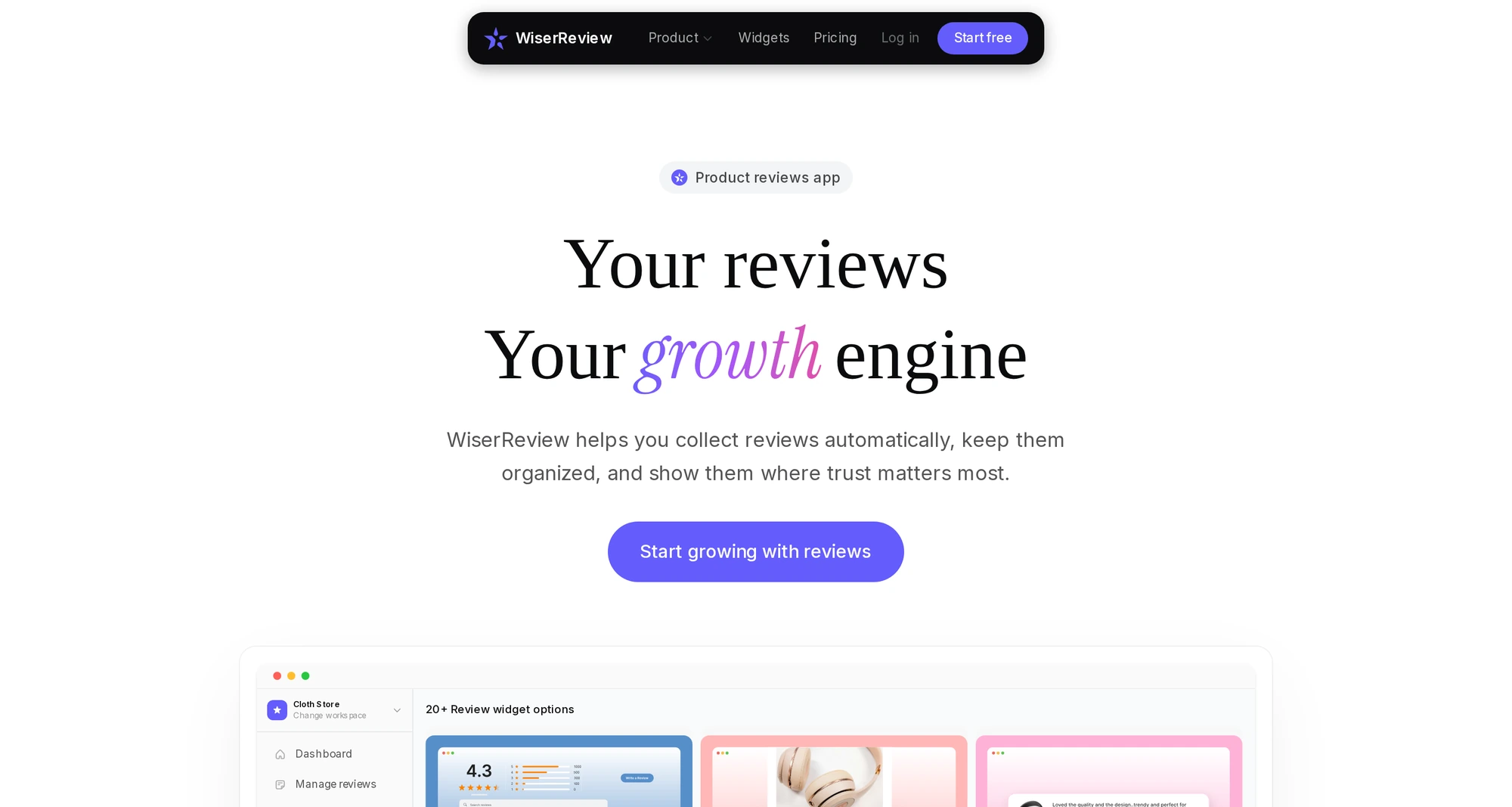


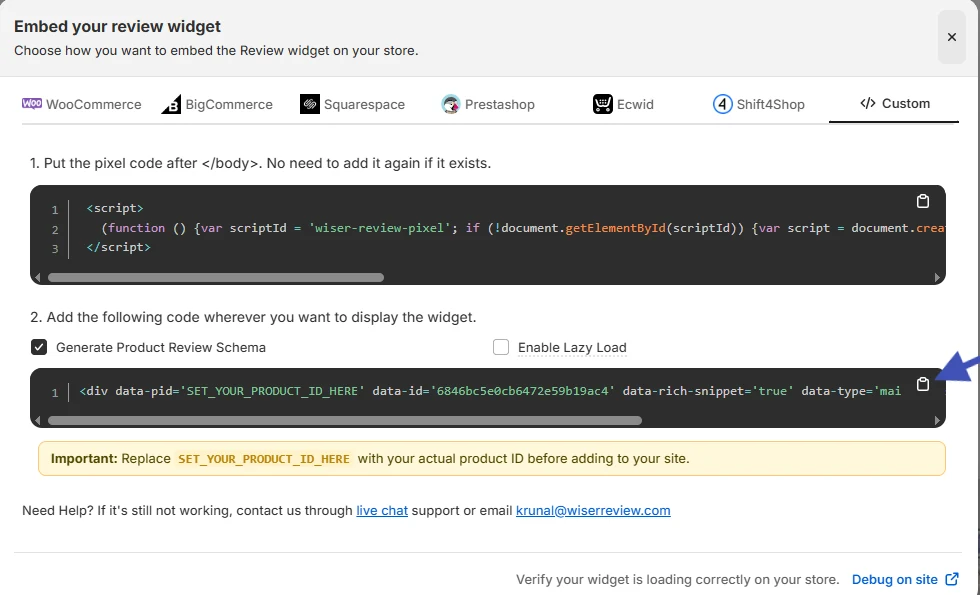


Embedding Testimonials on Weebly
1. Use the Weebly Drag-and-Drop Editor
- Navigate to your Weebly dashboard and go to the editor for the desired page.
- Drag a Text or Image + Text element into the page section where you want to display testimonials.
- Paste or type the testimonial text and upload any corresponding images.
2. Integrate WiserNotify Widgets
- Go to the WiserNotify dashboard and generate a testimonial widget.
- Copy the provided JavaScript code.
- In Weebly, navigate to Settings > SEO > Header Code and paste the code.
- Save changes and preview your site to verify integration.
3. Use Third-Party Plugins
- Add apps from Weebly’s App Center that support testimonials, such as review sliders or testimonial widgets.
- Follow the plugin’s instructions for customization and placement.
4. Add Schema Markup
- Use Weebly’s embed code option to insert structured data for testimonials. This enhances your visibility in search results by enabling rich snippets.
Best Places to Show Testimonials on Weebly
Homepage
- The homepage is often the first touchpoint for visitors. Showcase 2–3 testimonials here to establish instant credibility.
About Page
- Highlight testimonials that emphasize your expertise or dedication to your craft. Personal stories resonate strongly on this page.
Product or Service Pages
- Include specific testimonials that address concerns or praise unique features of your offerings. This creates trust during the decision-making process.
Checkout Page
- Reassure customers with testimonials near the checkout section to reduce hesitation and cart abandonment.
Landing Pages
- Place testimonials strategically near your call-to-action (CTA) buttons. This is especially effective for lead generation campaigns or special promotions.
Dedicated Testimonials Page
- Create a dedicated “Customer Stories” or “Testimonials” page to serve as a comprehensive source of social proof for potential customers.
Other Ways to Add Testimonials to Weebly
Video Testimonials
- Video testimonials are highly engaging and persuasive. Embed them on your site using Weebly’s video element or YouTube links.
Social Proof Notifications
- Use WiserNotify to display real-time customer actions like purchases, signups, or reviews on your Weebly site. These dynamic notifications create urgency and encourage conversions.
Sliders or Carousels
- Add a rotating testimonial carousel to showcase multiple reviews without taking up too much space on your page.
Email Campaigns
- Incorporate testimonials into your email marketing efforts to drive traffic back to your Weebly site. Highlighting a specific customer success story can boost click-through rates.
Blog Posts
- Embed testimonials within blog posts to support claims or illustrate customer satisfaction with specific solutions you discuss.
3 Testimonial Optimization Tips for Weebly
Keep It Relevant: Ensure testimonials are tailored to your audience’s needs and concerns. Showcase reviews that highlight your key offerings or solve common pain points.
Prioritize Visual Appeal: Use a clean and consistent design for testimonial sections. Include photos, names, or locations (with permission) to add authenticity.
Refresh Testimonials Regularly: Rotate your testimonials periodically to feature new success stories and keep the content engaging.
3 Testimonial Mistakes to Avoid on Weebly
Overloading Pages with Testimonials
- Cluttering a page with too many testimonials can overwhelm users. Stick to a few high-quality reviews per section.
Ignoring Mobile Responsiveness
- With many Weebly sites accessed via mobile, ensure testimonials are optimized for small screens.
Using Generic or Vague Testimonials
- Avoid testimonials that lack specifics, such as “Great service!” Instead, focus on detailed feedback that provides context and value.
Wrap-Up
Adding testimonials to your Weebly site is an essential strategy for building trust and driving conversions. By strategically placing and optimizing testimonials, you can create a compelling user experience that turns visitors into loyal customers.
Start today by integrating WiserNotify for a seamless testimonial experience on Weebly. Its dynamic notifications and social proof tools can take your site’s credibility to the next level.
Related Posts:
- Add Testimonial to Teachable
- Add Testimonial to Thrivecart
- Add Testimonial to Magento
Frequently Asked Questions
How can I add a testimonial section to my Weebly site?
You can add a testimonial section by using the “Text” or “Quote” elements in the Weebly editor. Simply drag and drop the element onto your page, then customize the text and design to fit your style.
Can I showcase multiple testimonials on my Weebly site?
Yes, you can create a carousel or grid layout for multiple testimonials using third-party integrations or by customizing a section with Weebly’s design tools.
Are there any plugins or tools to display testimonials on Weebly?
Yes, tools like WiserNotify or Elfsight offer easy-to-use widgets to add visually appealing testimonial displays to your Weebly site. These widgets often include features like sliders, star ratings, and video testimonials.
Can I add customer photos to testimonials on Weebly?
Absolutely! Weebly allows you to upload images, which can be paired with testimonials. Adding customer photos next to their reviews can help build credibility and trust.
How do testimonials improve my Weebly site?
Testimonials add social proof to your website, showing potential customers that others have had a positive experience. This can build trust and encourage visitors to take action, such as making a purchase or booking a service.

Krunal Vaghasiya is a marketing tech expert who boosts e-commerce conversion rates with automated social proof and FOMO strategies. He loves to keep posting insightful posts on online marketing software, marketing automations, and improving conversion rates.




 Capterra