
How to Add Product Reviews to Magento 2 (2026)
To add product reviews to Magento 2, connect your store to WiserReview, set up the product review section, and add its code to your product page template. Each product then shows its own reviews.
Star ratings go under the product title and on category pages the same way. Customers leave reviews from a request sent after their order or from the Write a Review button on the page.
This guide covers the setup, the Magento file changes, and what to check when reviews don’t appear.
Key takeaways
- WiserReview syncs your Magento products and orders, so review requests go out after each purchase on their own.
- The product review section goes into your product page template with each product’s ID, so the right reviews load on every page.
- Star ratings use the same method, under the title and on category cards.
- Reviews you already collected in Magento can be imported, so no product starts empty.
What Does WiserReview Add to Magento Reviews?
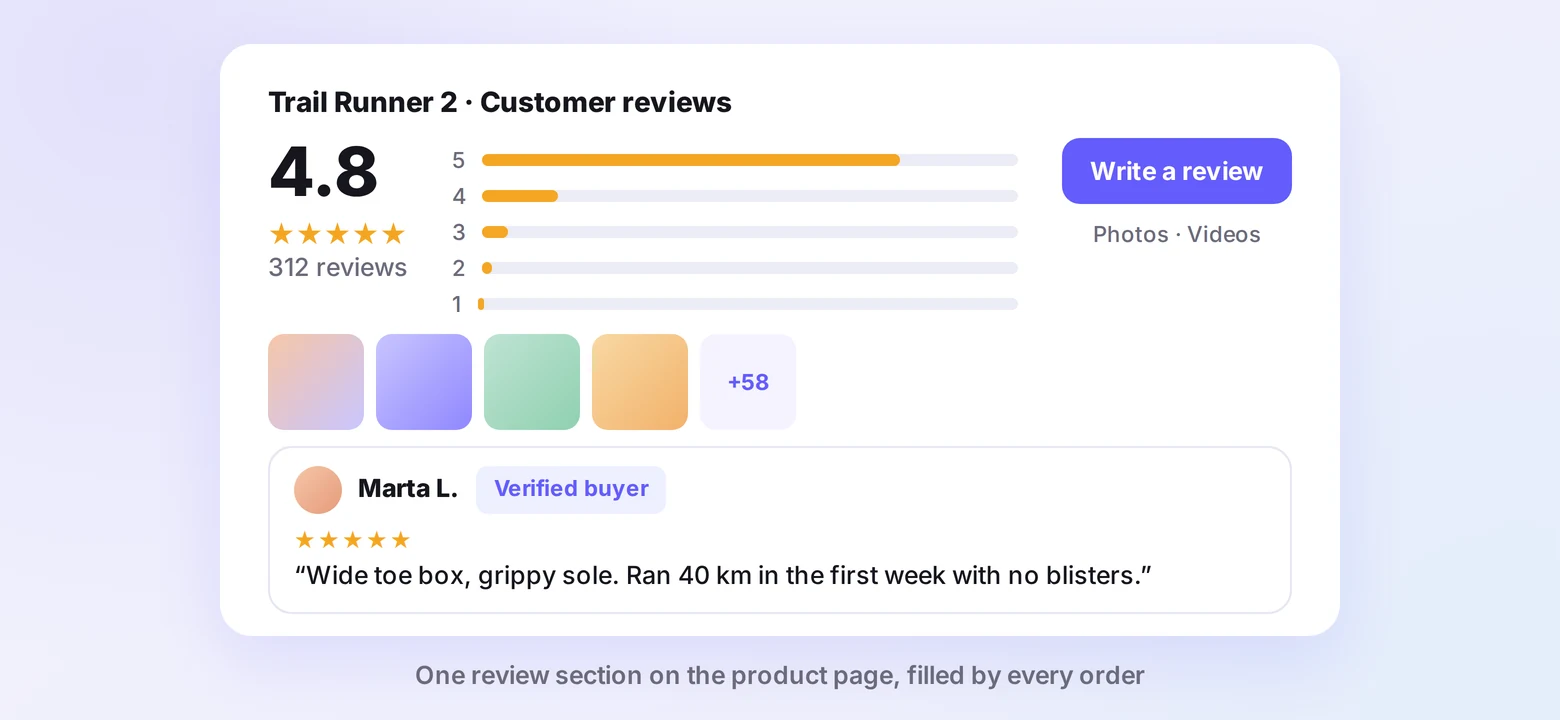
WiserReview adds photo and video reviews, automatic review requests, and styled review widgets to Magento product pages, and it can send your ratings to Google.
- Photo and video reviews: customers upload images and clips through the review form. See these product review videos for how brands use them.
- Automatic requests: email, SMS, or WhatsApp requests go out after the order status you choose.
- Imports: bring in reviews from Magento’s built-in system or a CSV file.
- Moderation: AI screens out spam before a review goes live, and you approve the rest.
- Stars in Google: review schema can show ratings in search results, and a product review feed can add them to Google Shopping.
For Google Business reviews and Shopping ratings in detail, see how to add Google reviews to Magento.

All your reviews in one place
Collect reviews, manage every response, and display them where they matter most.
How to Add Product Reviews to Magento
The setup has four steps. The first two happen in WiserReview, and the last two add its code to your Magento theme.
Step 1: Connect and Turn On Requests
Connect your Magento store in WiserReview so your products and orders sync. Then open Automate and create a review campaign that sends a request after an order.
Choose email, SMS, or WhatsApp, set the delay after delivery, and add a reminder for customers who don’t reply.

Step 2: Set Up the Review Section
Go to Widgets and click Manage on Product review section. Choose a grid or stacked layout, turn on review photos, and set the message for products with no reviews yet.
Match the stars, fonts, and buttons to your theme. Keep the Write a Review button on so shoppers can post from the product page.

Step 3: Add It to Product Pages
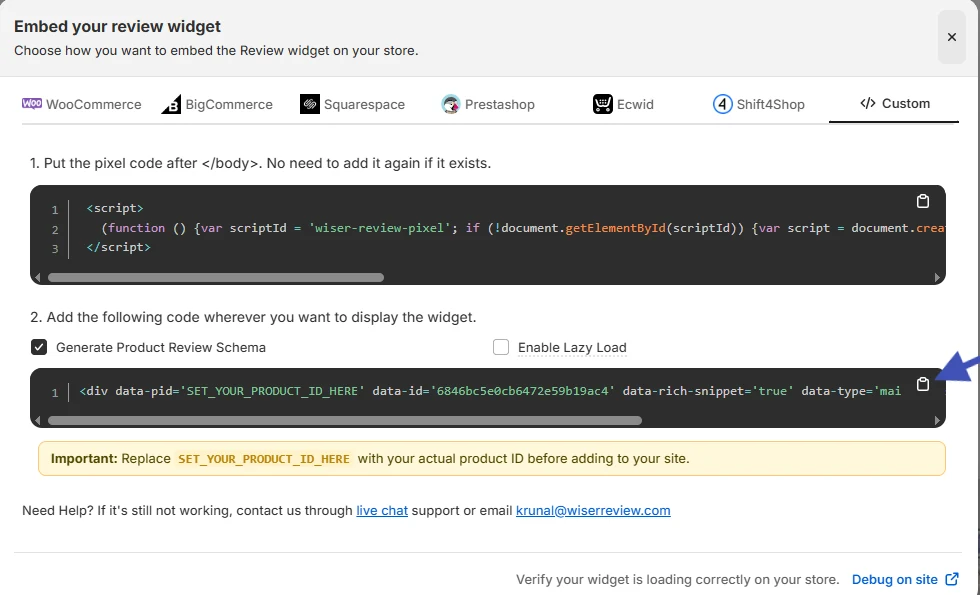
Click Install, open the Custom tab, and copy the pixel code and the widget code.
Paste the pixel in your Magento admin under Content, then Design, then Configuration. Edit your store view and add it to Footer, Miscellaneous HTML, then save.
Next, add a layout file to your theme that places a new block below the product details:
app/design/frontend/Vendor/theme/Magento_Catalog/layout/catalog_product_view.xml
<page xmlns:xsi="http://www.w3.org/2001/XMLSchema-instance" xsi:noNamespaceSchemaLocation="urn:magento:framework:View/Layout/etc/page_configuration.xsd">
  <body>
    <referenceContainer name="content">
      <block class="Magento\Catalog\Block\Product\View" name="wiserreview.reviews" template="Magento_Catalog::product/view/wiserreview.phtml" after="product.info.details"/>
    </referenceContainer>
  </body>
</page>
Then create the template it points to, Magento_Catalog/templates/product/view/wiserreview.phtml, and paste the widget code into it. Replace SET_YOUR_PRODUCT_ID_HERE with this line:
<?= (int) $block->getProduct()->getId() ?>Flush the cache under System, then Cache Management, and open a product page to check the section.
Step 4: Add Star Ratings
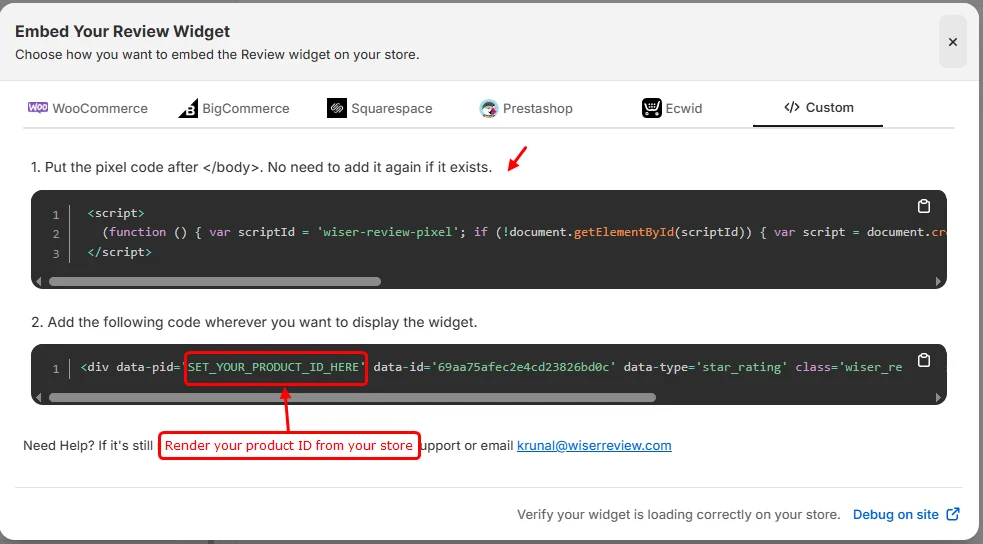
In Widgets, click Manage on Star rating, then Install and the Custom tab. The pixel is already on your store, so copy only the widget code.
For the product page, add a second block to the same layout file, inside the product info area and right after the title:
<referenceContainer name="product.info.main">
  <block class="Magento\Catalog\Block\Product\View" name="wiserreview.stars" template="Magento_Catalog::product/view/wiserreview-stars.phtml" after="page.main.title"/>
</referenceContainer>
Paste the star rating code into that new template and use the same product ID line. On category pages, the code goes after the product name in your theme’s copy of product/list.phtml, with $_product->getId() as the product ID.
Product Reviews Not Showing on Magento?
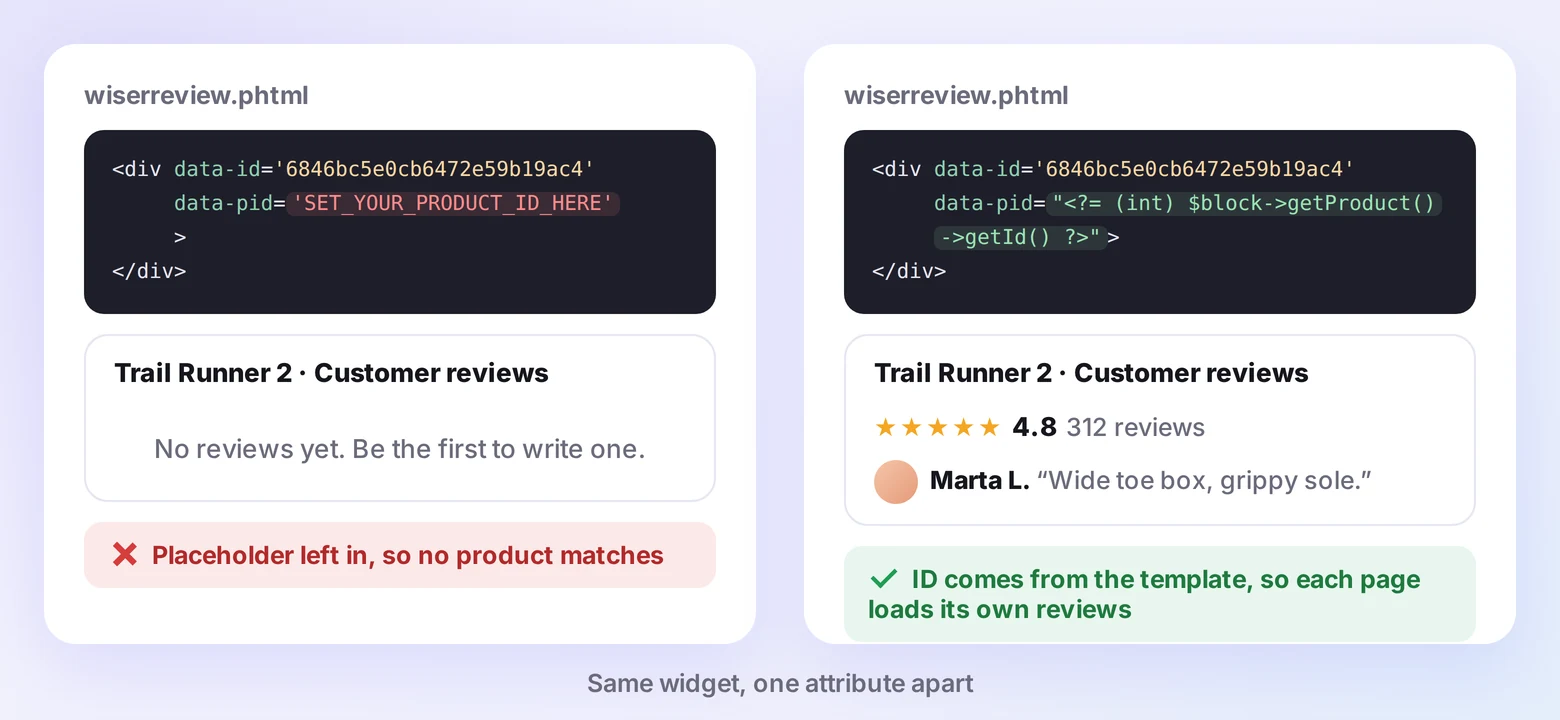
When the section is missing or shows no reviews, one of these is usually the cause.
- Cache not flushed: layout and template changes only appear after you flush the Magento cache.
- Wrong product ID: the ID in the widget has to match the product WiserReview synced. If a reviewed product shows the empty message, check the ID first.
- Pixel missing on a store view: the pixel is saved per scope, so add it to every store view you run.
- Block in the wrong spot: some themes rename the product details block, so place yours in another container on the product page.
- Filters too narrow: a tag or source filter on the widget can hide reviews that exist.
- Review not published: reviews waiting in moderation don’t show until you approve them.
Where Should Reviews Go on a Magento Store?
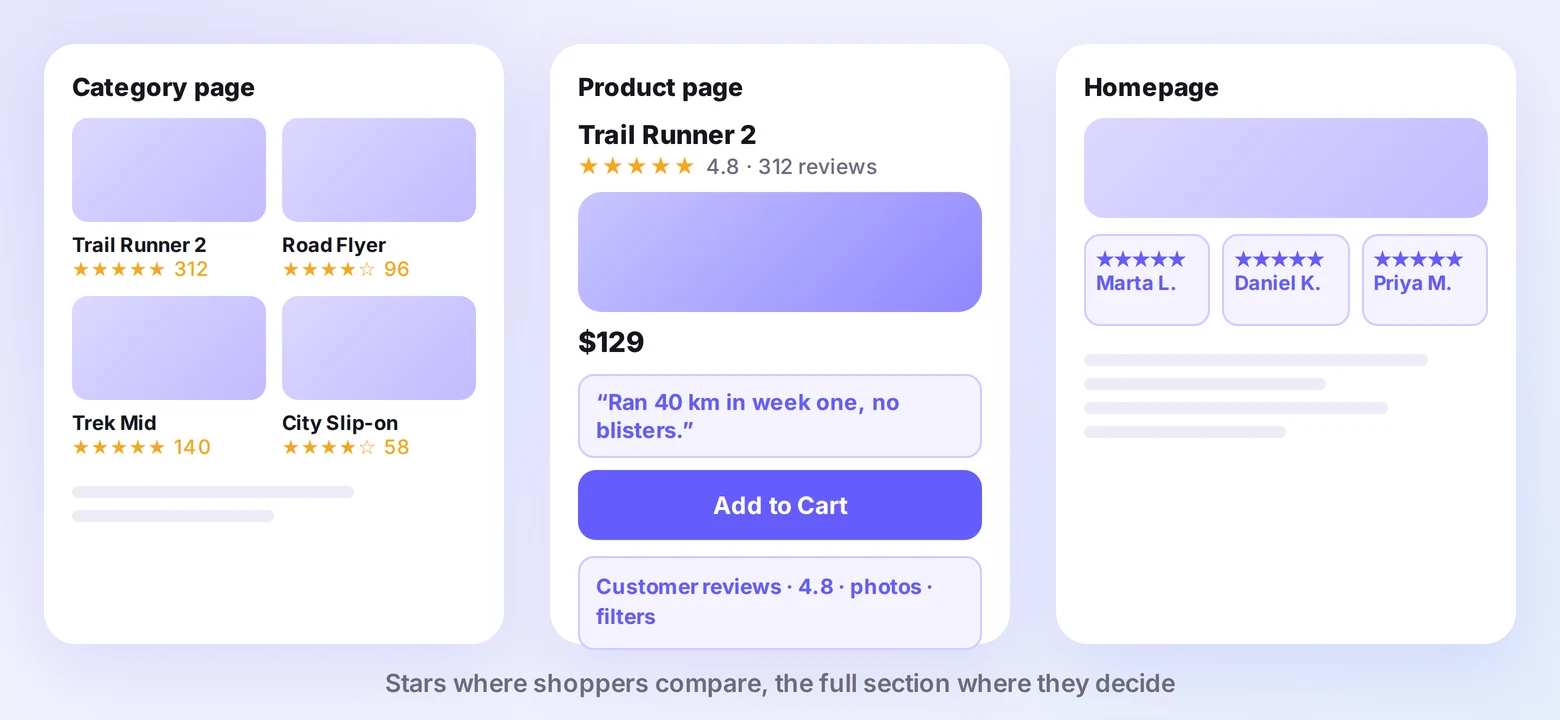
Put reviews wherever a shopper is making up their mind. These spots do most of the work on a store.
- Below the product details: the full review section, where shoppers compare before they buy.
- Under the product title: the star rating and review count, seen before the price.
- Category pages: stars on each product card, so shoppers can compare at a glance.
- Near Add to Cart: a nudge with one short review that answers a common doubt.
- Homepage: a carousel or review wall for store-wide proof.
For layouts on other page types, see how to show reviews on your website.
Turn Magento orders into reviews
Send review requests after every order and show the results on your product pages.
3 Review Mistakes on Magento Stores
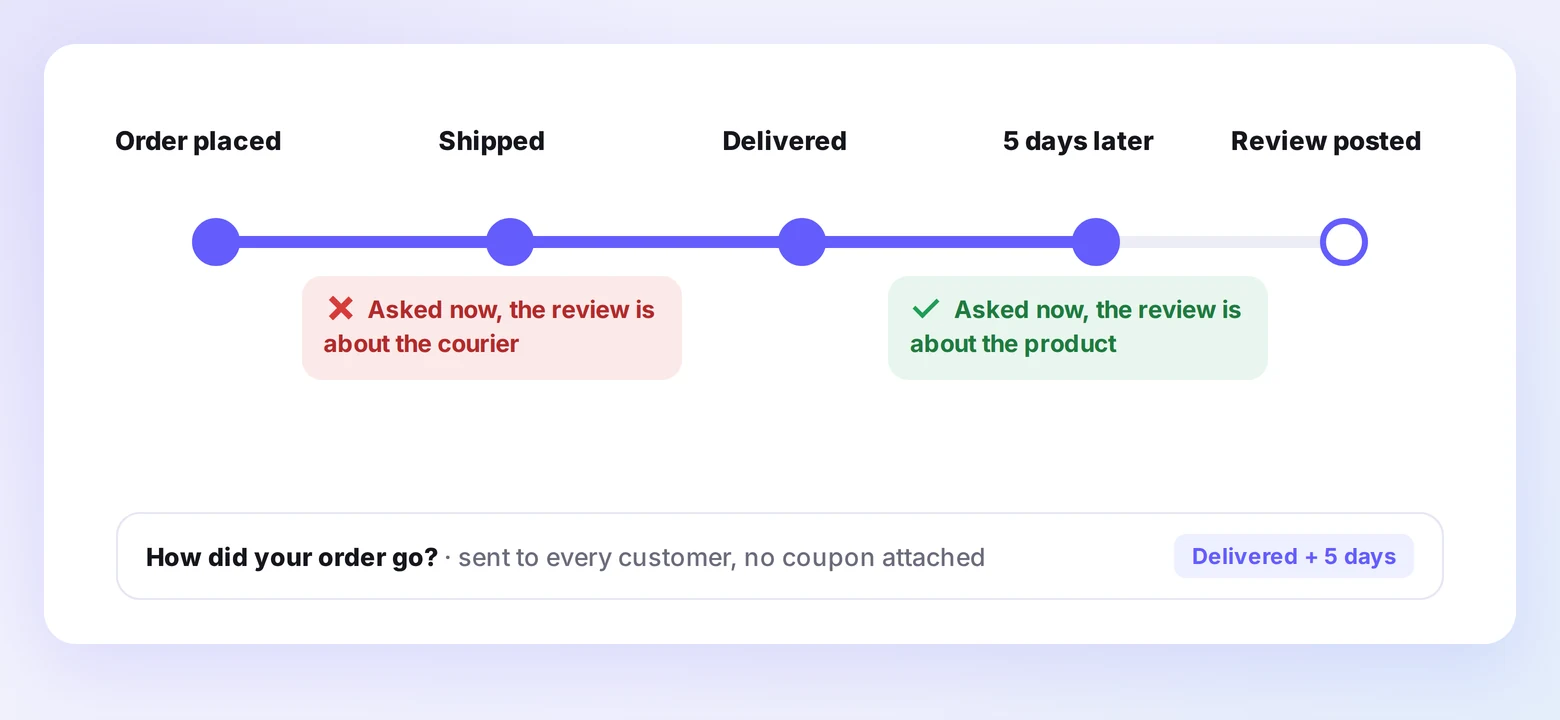
These three cost stores reviews they could have kept.
- Hiding low ratings: suppressing negative reviews while implying you show them all is banned under the FTC’s 2024 rule on fake reviews. Reply to bad reviews instead.
- Asking too early: a request sent before the order arrives gets reviews about shipping, not the product. Trigger it on delivery or completion.
- Starting from zero: import the reviews you already have in Magento so established products don’t look new.
Show reviews on every product page
Add photo reviews and star ratings that match your Magento theme.
Wrap Up
Product reviews on Magento come down to one section on the product page, loaded with the right product ID. Set it up once and every order can bring in a new review.
Start with the review section, add star ratings next, then import your older reviews so no product starts empty. Prefer reviews stored inside Magento itself? Compare each Magento review extension first.
Related Posts:
Frequently Asked Questions
How do I add product reviews to Magento 2?
Connect your store to WiserReview, set up the product review section, and add its code to your product page template with the product ID. Reviews then load on each product.
Can I keep my existing Magento reviews?
Yes. WiserReview can import reviews from Magento’s built-in system or a CSV file, so older reviews stay on your product pages.
How do customers leave a review?
They get a request by email, SMS, or WhatsApp after their order, or use the Write a Review button in the product review section.
Can I show star ratings on Magento category pages?
Yes. Add the star rating code after the product name in your category template, with each product’s ID passed in.
Will review widgets slow down my Magento store?
WiserReview widgets load asynchronously, so they don’t hold up the rest of the page while it loads.

Krunal Vaghasiya is a marketing tech expert who boosts e-commerce conversion rates with automated social proof and FOMO strategies. He loves to keep posting insightful posts on online marketing software, marketing automations, and improving conversion rates.




 Capterra