
Need Higher Conversion? Add Testimonial to ThriveCart

ThriveCart, a leading shopping cart and checkout page platform, empowers businesses to maximize sales and streamline online transactions.
However, even the most optimized checkout pages can falter if customers lack trust in your brand or product. Testimonials provide the social proof needed to build credibility, alleviate doubts, and drive conversions.
This guide will explore the power of testimonials on ThriveCart, including strategies for collecting, implementing, and optimizing them for maximum impact.
Why Add Testimonials to ThriveCart?
Build Trust and Credibility: Testimonials serve as endorsements from real customers, showcasing the effectiveness and reliability of your products or services. According to research, 88% of consumers trust testimonials and online reviews as much as personal recommendations. This trust is crucial for increasing conversions on ThriveCart checkout pages.
Reduce Cart Abandonment: Cart abandonment rates average around 70%, often due to hesitation or doubt. Testimonials strategically placed near the checkout button can provide reassurance, convincing potential customers to complete their purchases.
Highlight Unique Selling Points (USPs): Let your customers emphasize your product’s unique benefits. For example, a testimonial that mentions fast shipping or excellent customer support reinforces your value proposition.
Boost Conversions: Pages with testimonials can see conversion rate increases of up to 34%. ThriveCart’s customizable templates allow you to integrate testimonials seamlessly, guiding customers toward confident buying decisions.
Enhance Brand Reputation: Testimonials not only convert leads but also strengthen your brand’s reputation. Happy customers sharing their experiences create a ripple effect of trust and credibility across your audience.
Build trust & FOMO
Highlight real-time activities like reviews, sales & sign-ups.


How to Add Testimonials to ThriveCart





Step-by-Step Guide
Gather Testimonials
- Reach out to satisfied customers for feedback.
- Use surveys, emails, or post-purchase requests to collect detailed reviews.
Log in to ThriveCart
- Access your ThriveCart dashboard and select the checkout page you want to edit.
Insert a Testimonial Section
- Use ThriveCart’s drag-and-drop editor to add a text block or a pre-designed testimonial widget.
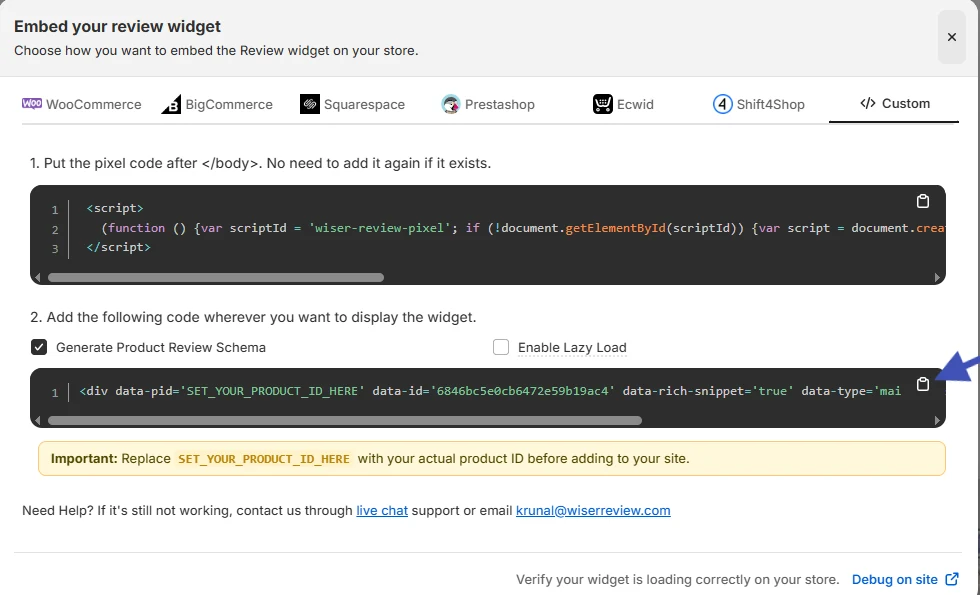
- Alternatively, embed third-party testimonial tools, such as WiserNotify, for dynamic content.
Customize Testimonial Content
- Add the customer’s name, photo, and their review. Include specific outcomes or benefits they experienced.
- Ensure text is concise and relatable.
Style the Section
- Match the testimonial section’s design to your brand by adjusting colors, fonts, and layouts.
Preview and Publish
- Test the page to ensure the testimonials display correctly across devices. Once satisfied, publish your changes.
3 Testimonial Optimization Tips
Show Specific Results: Highlight measurable outcomes, such as “I increased my sales by 40% in just three months using this product.” Specific testimonials resonate more strongly with potential buyers.
Use Visual Elements: Include customer photos, logos, or video testimonials for added credibility. Video content is particularly engaging and builds trust faster than text alone.
Update Testimonials Regularly: Refresh your testimonials periodically to showcase recent success stories and maintain relevance.
Best Places to Show Testimonials on ThriveCart
Above the Fold
- Include a powerful testimonial near the top of your checkout page to capture attention immediately. For example, “This product exceeded my expectations and delivered results in just days!”
Near the Call-to-Action (CTA) Button
- Position testimonials close to the “Buy Now” or “Complete Purchase” button. This placement reinforces the decision to purchase by reducing last-minute hesitation.
Pricing Section
- Add testimonials that emphasize value near the pricing details. A review like “Worth every penny—this product saved me hours of work” can justify the cost.
Cart Summary
- Display testimonials next to the cart summary to reassure customers as they review their order details.
Thank You Pages
- Post-purchase, use testimonials on your thank-you pages to validate the customer’s decision and encourage upsells or repeat purchases.
Other Ways to Add Testimonials to ThriveCart
Email Campaigns
- Incorporate testimonials into your post-purchase email sequences to reinforce satisfaction and encourage repeat purchases. For example, include a glowing review in a thank-you email.
Social Proof Widgets
- Use tools like WiserNotify to display real-time notifications of recent purchases or customer reviews directly on your ThriveCart pages.
Video Testimonials
- Host video testimonials on platforms like YouTube and embed them into your ThriveCart checkout pages. Video reviews are engaging and highly persuasive.
Pop-Ups and Overlays
- Leverage pop-ups to display testimonials dynamically. For example, show a testimonial when a customer adds an item to their cart or attempts to exit the page.
Blog Content
- Feature in-depth customer stories or case studies in your blog. Link these stories to your ThriveCart checkout pages to drive traffic and build trust.
3 Testimonial Mistakes on ThriveCart
Using Generic Reviews
- Avoid vague statements like “Great product!” Instead, focus on detailed testimonials that address specific pain points or outcomes.
Overloading the Page
- While testimonials are powerful, too many can overwhelm visitors. Select a few impactful reviews and place them strategically.
Ignoring Mobile Responsiveness
- Ensure testimonials are optimized for mobile viewing. Over 50% of users browse on mobile devices, and poorly formatted content can hurt conversions.
Wrap Up
Testimonials are a cornerstone of trust-building and conversion optimization for ThriveCart. By strategically placing authentic, impactful testimonials across your checkout pages, you can alleviate doubts, increase sales, and build a loyal customer base.
Ready to take your ThriveCart pages to the next level? Start implementing these testimonial strategies today and watch your conversions soar!
Related Posts:
Frequently Asked Questions
How can I add a testimonial to my ThriveCart checkout page?
ThriveCart allows you to add testimonials by using the page editor in your funnel. You can customize the design, text, and placement of your testimonials to showcase social proof effectively.
Can I display video testimonials on ThriveCart?
Yes, ThriveCart supports embedding video testimonials. You can use an embed code from platforms like YouTube or Vimeo to include engaging video content directly on your checkout or sales pages.
What are the best practices for adding testimonials to ThriveCart?
- Use authentic and relatable testimonials.
- Highlight key benefits your customers mention.
- Use a mix of text and video testimonials for more impact.
- Keep testimonials concise and relevant to the product being purchased.
Can I automate the process of collecting and displaying testimonials in ThriveCart?
Yes, you can integrate ThriveCart with testimonial collection tools or use automation platforms like Zapier to gather customer reviews and display them dynamically on your checkout page.
Are testimonials on ThriveCart mobile-friendly?
ThriveCart ensures that all elements, including testimonials, are optimized for mobile devices. This ensures a seamless experience for your customers, regardless of the device they are using.

Krunal Vaghasiya is a marketing tech expert who boosts e-commerce conversion rates with automated social proof and FOMO strategies. He loves to keep posting insightful posts on online marketing software, marketing automations, and improving conversion rates.




 Capterra